How to Upload Bank Statements Using SaasAnt Transaction Online
September 24, 2025
Managing bank transactions efficiently is crucial for maintaining accurate books. SaasAnt Transaction Online makes this process simple by allowing you to seamlessly import your bank statements into QuickBooks Online. With just a few steps, you can upload, review, and reconcile your transactions without manual data entry.
This article provides a detailed step-by-step guide to help you upload your bank statements using SaasAnt Transaction Online (STO).
1) Login into SaasAnt Transaction Online
2) Select the Bank Statements.
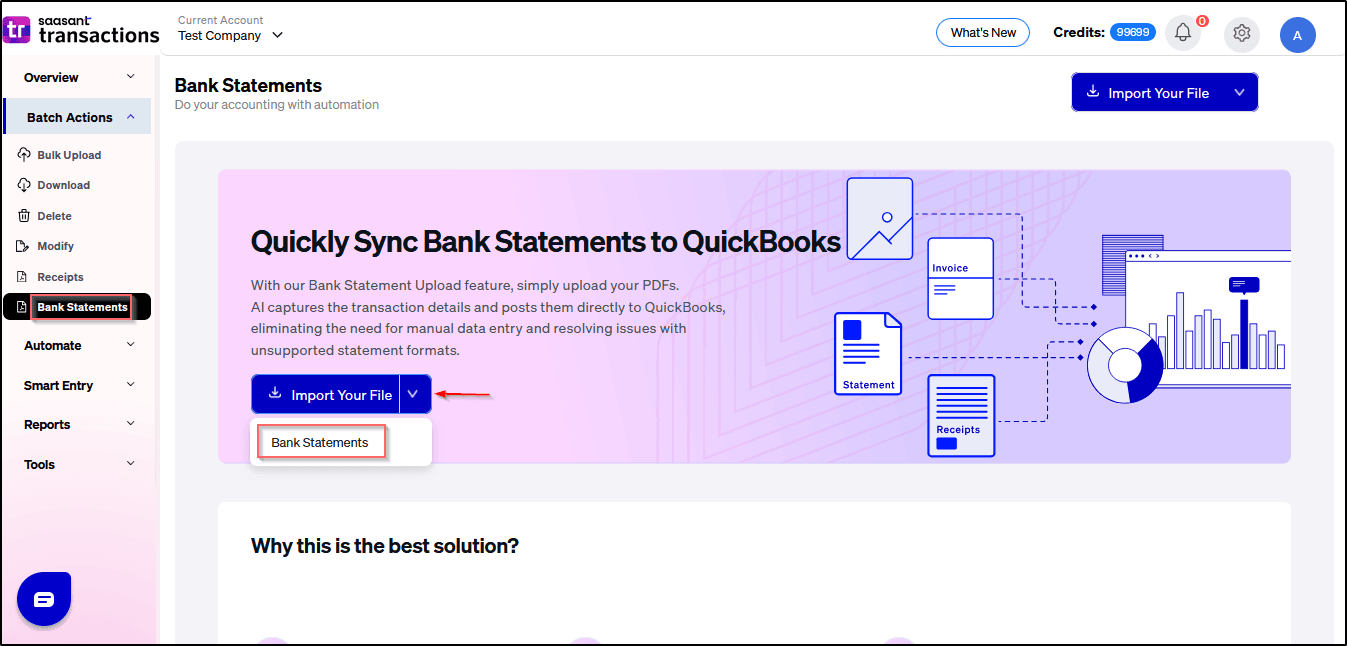
3) Click Bank Statements and select the Bank Account from the dropdown menu & upload the Bank statement.
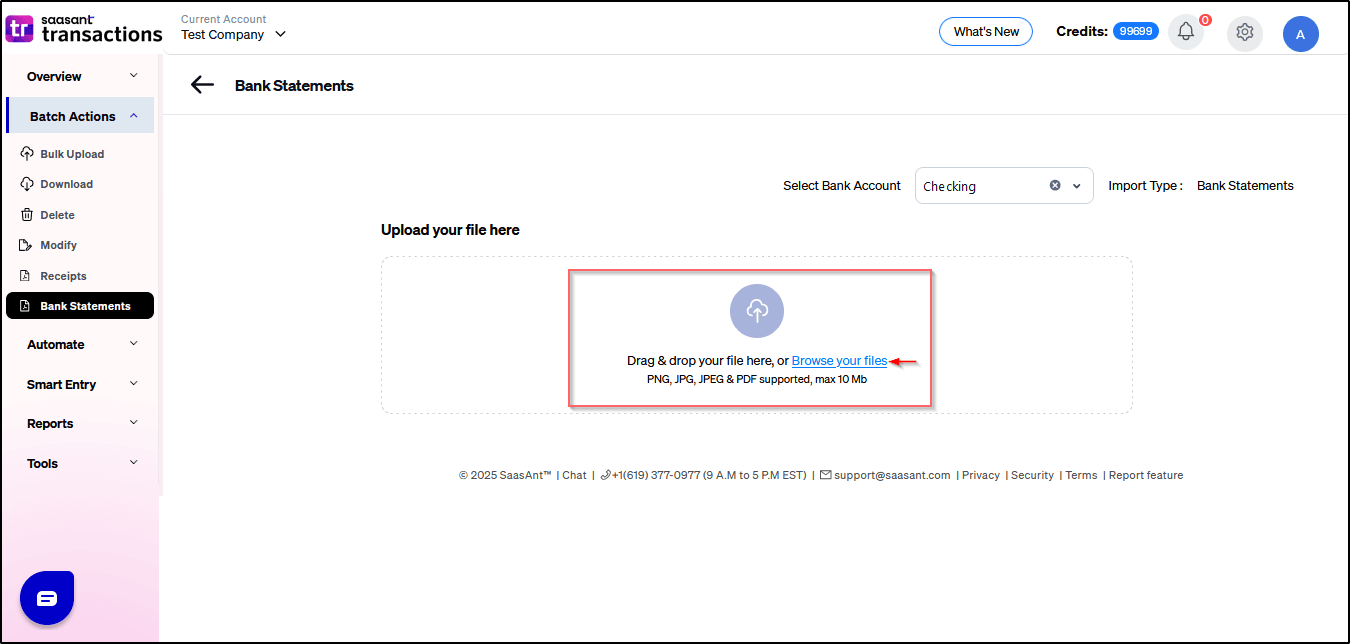
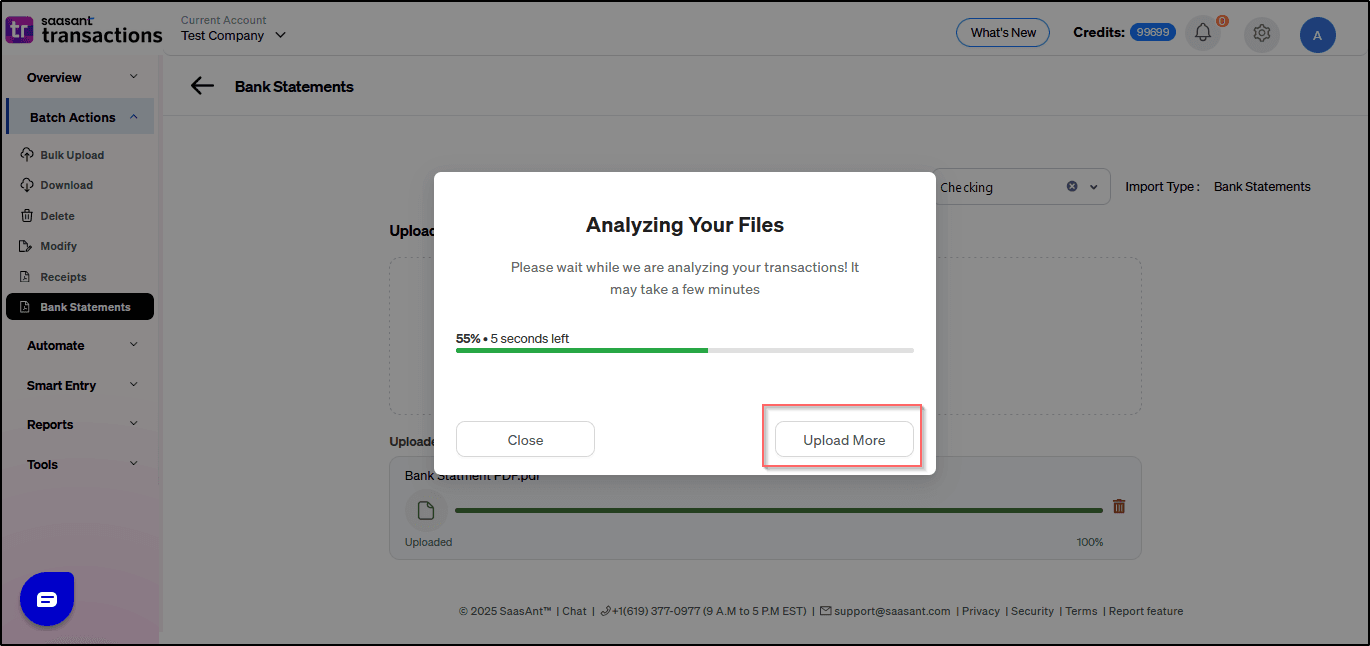
4) The transaction file will be automatically analyzed.
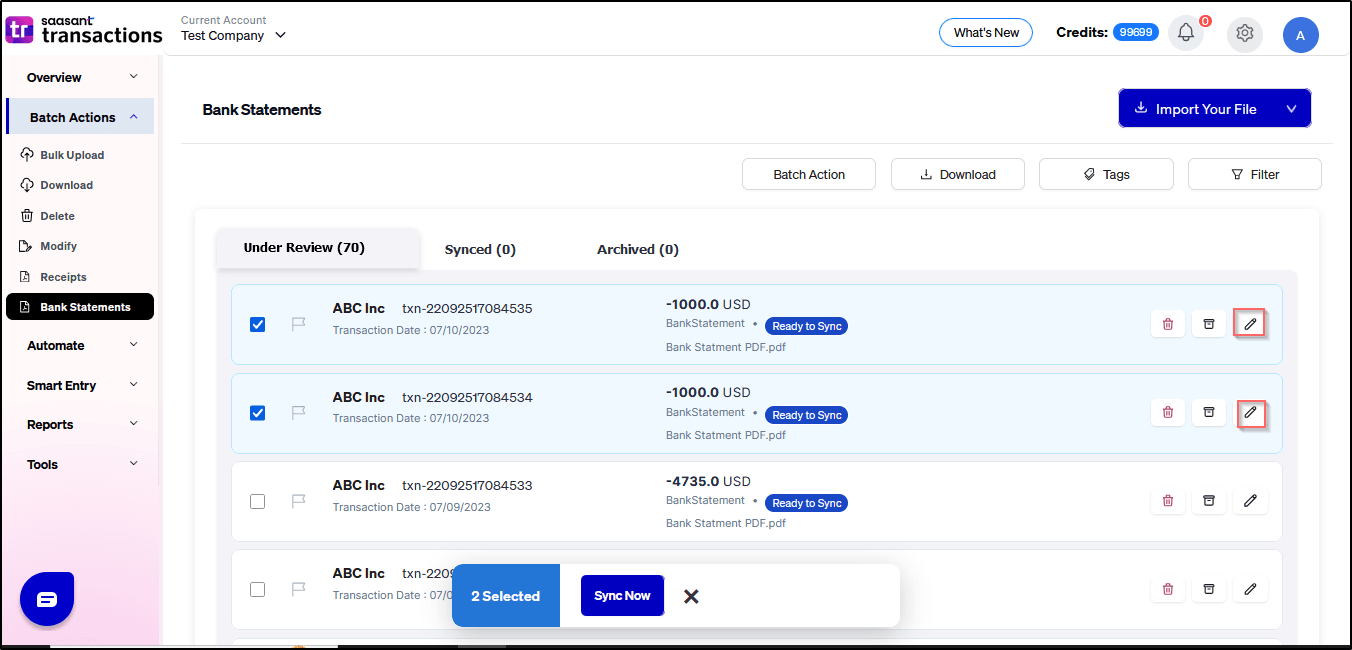
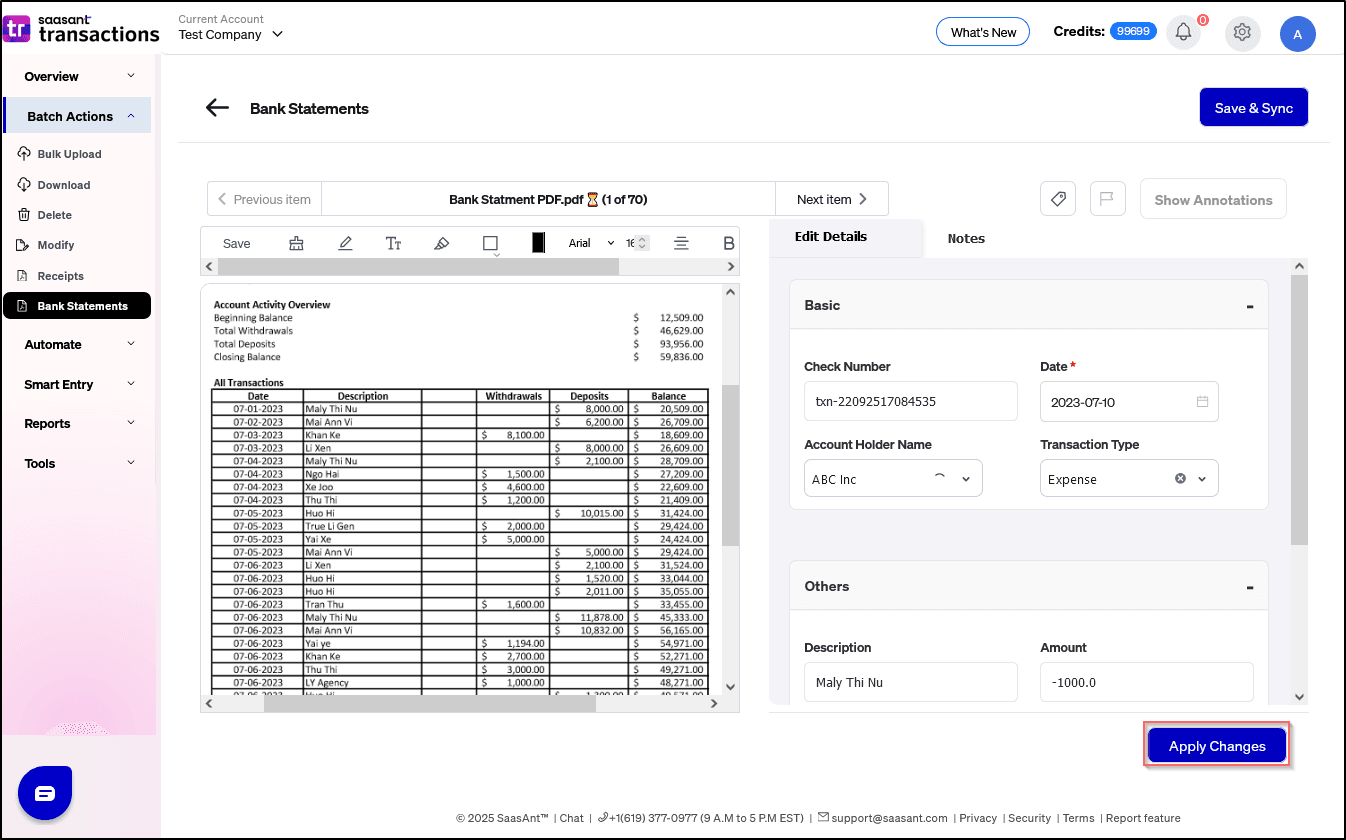
5) Go to the Review tab and click the pencil icon to edit details if required.
6) Make the necessary changes in the Edit Details section, then click “Apply Changes/Save & Sync”
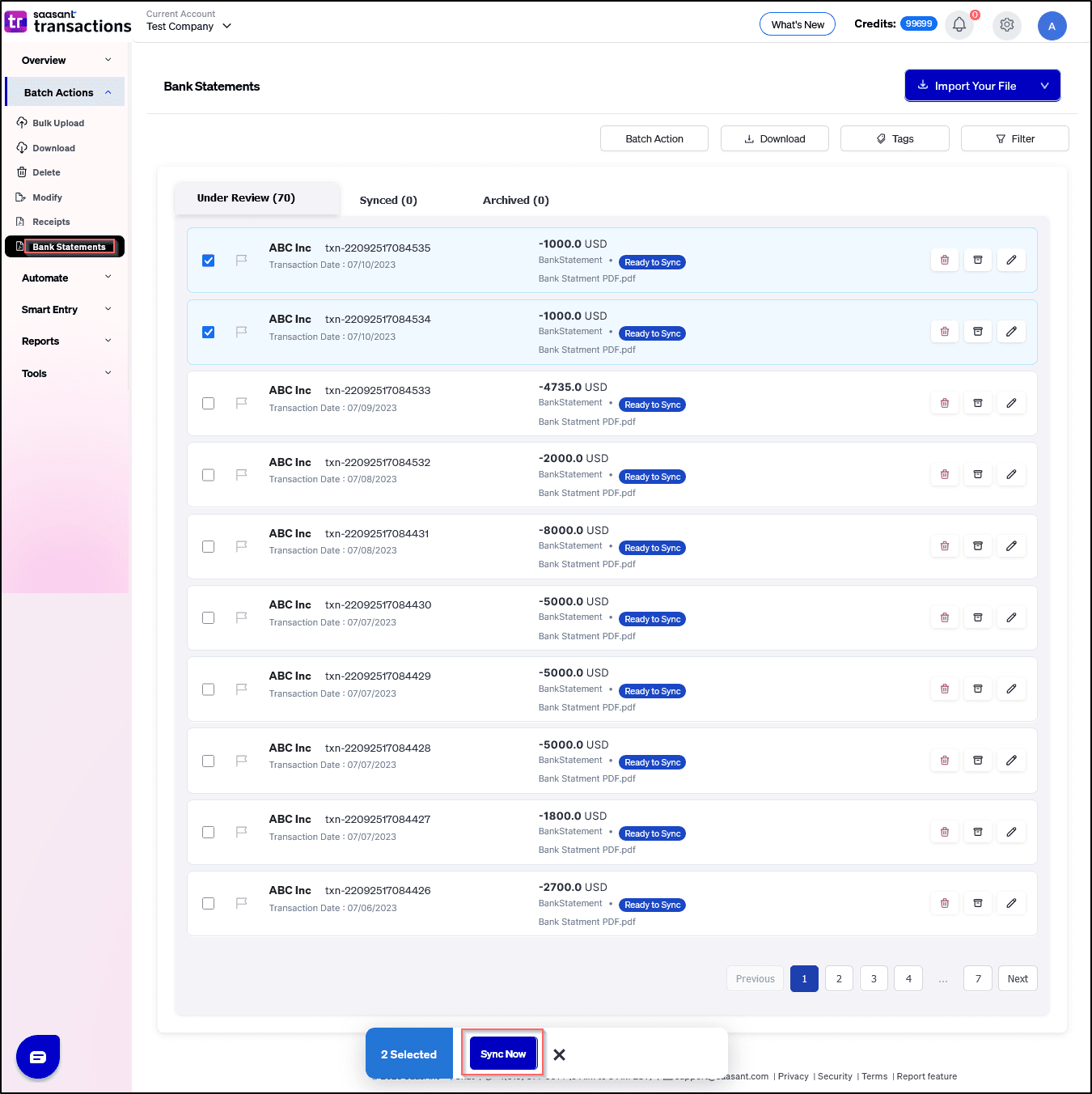
7) Select transactions from the review tab and click on Sync to upload the transaction in bulk.
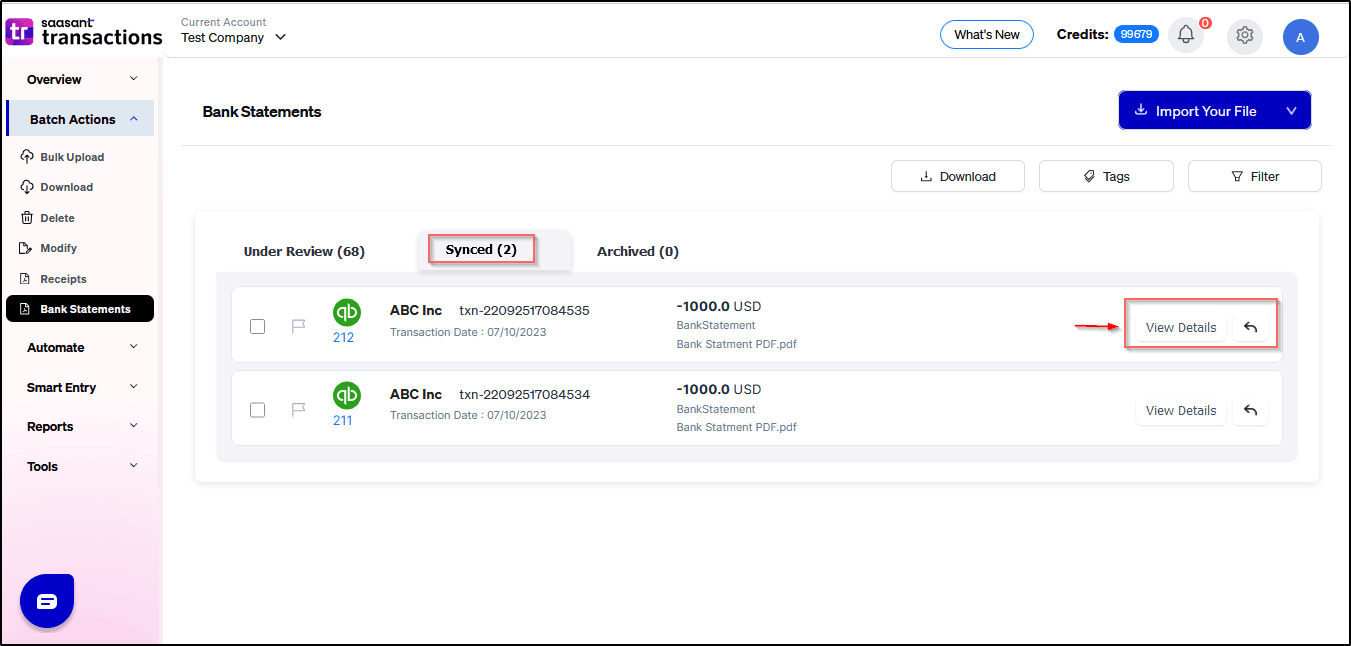
8) Once completed, your transaction will be successfully synced in to QBO
Frequently Asked Questions (FAQs)
1. What types of files are supported for bank statements?
Ans: We support PNG, JPG, JPEG, and PDF.
2. Is this feature available for both Single Company and Multi-Company plans?
Ans: Yes, the feature is available for both.
3. Is this feature available during the trial period?
Ans: Yes, this feature is included in the trial period.
4. Can I import a bank statement larger than 10 MB?
Ans: No, the maximum supported file size is 10 MB.
5. Can I roll back synced transactions?
Ans: Yes. Select the required lines and click Roll Back from the Synced Tab.
6. Can I download the synced transactions into an Excel file?
Ans: Yes, you can download the file by selecting the required lines.
7. Can I select all transactions together and roll them back?
Ans: Yes, you can select multiple lines and click Roll Back.
8. Can I sync all the transactions together at the same time under the Review tab?
Ans: Yes, Select all the lines and click on sync now.
9. Can I skip transactions I don’t want to sync?
Yes. Select the transaction and click Archive.
If you have further questions or need assistance, please email us at support@saasant.com. Our team is happy to help you streamline your financial management.