How to Import Multiple Files Using SaasAnt Transactions Online
March 3, 2026
In this article, we will walk you through the steps to import multiple files using the Multi-File Upload feature in SaasAnt Transactions Online. This feature helps streamline the import process by allowing you to upload up to five Excel files simultaneously, eliminating the need to wait in a queue or upload files one at a time. It’s designed to enhance your efficiency and save valuable bookkeeping time.
Key Benefits of Multi-File Upload
1) Upload up to 5 Excel files simultaneously, even for different transaction types (Invoice, Payment, Sales Receipt, etc.).
2) Assign different saved mappings to each file before upload.
3) Pause and resume your essential job as needed.
4) Process multiple entities in one go.
5) Reduce manual effort and improve overall productivity.
Step-by-Step Guide to Import Multiple Files
1. Log in to SaasAnt Transactions Online.
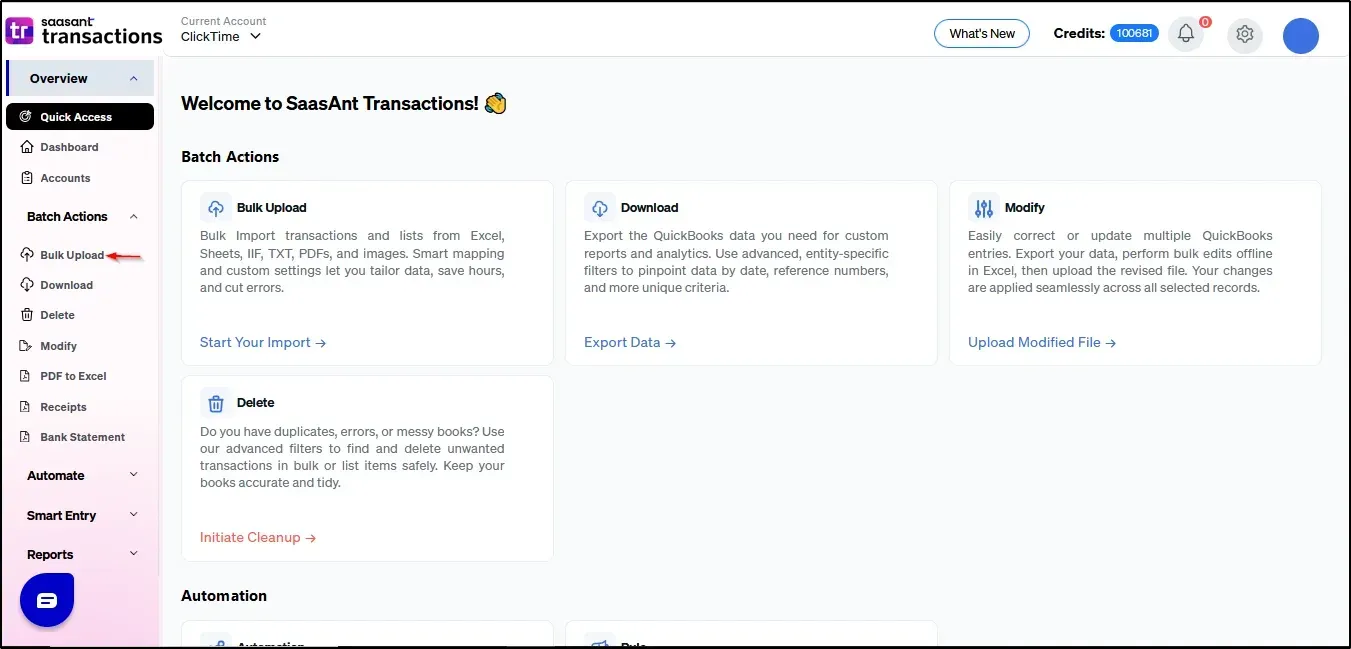
2. Select "Bulk Upload"
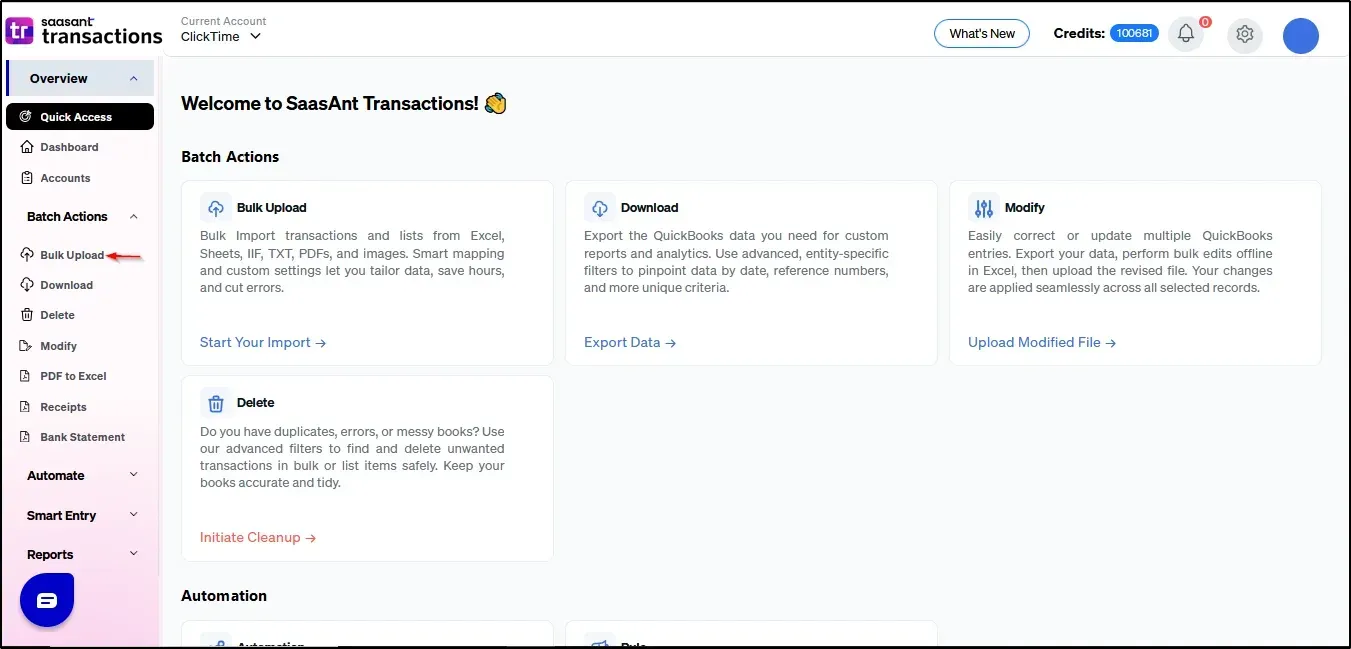
3. Choose the Transaction Type
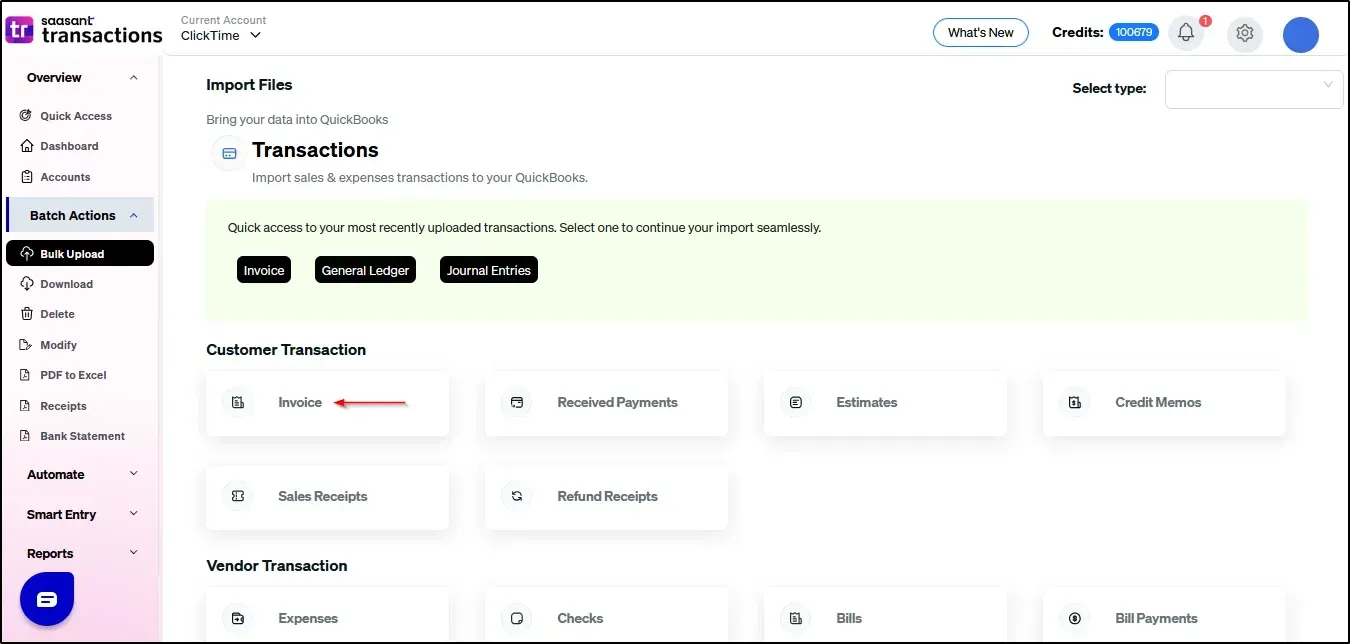
4. Select "Do you want to process Multiple Files?"
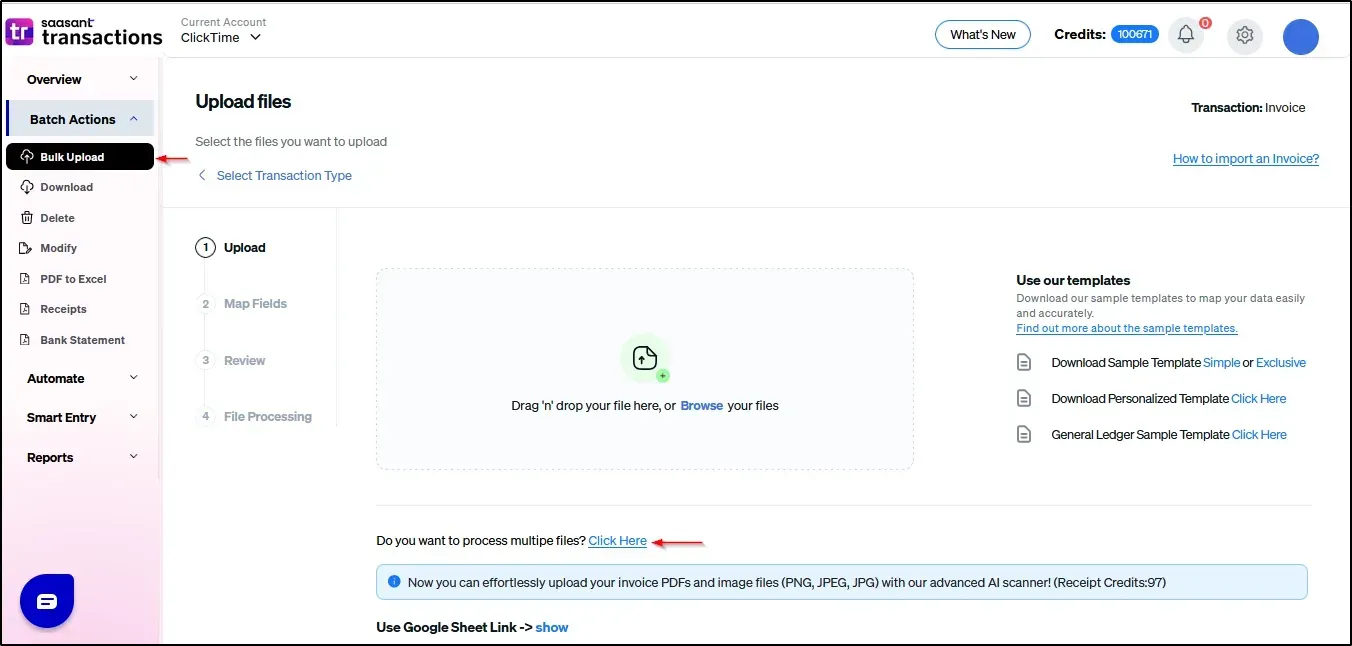
5. To choose your file, click Browse Your Files.
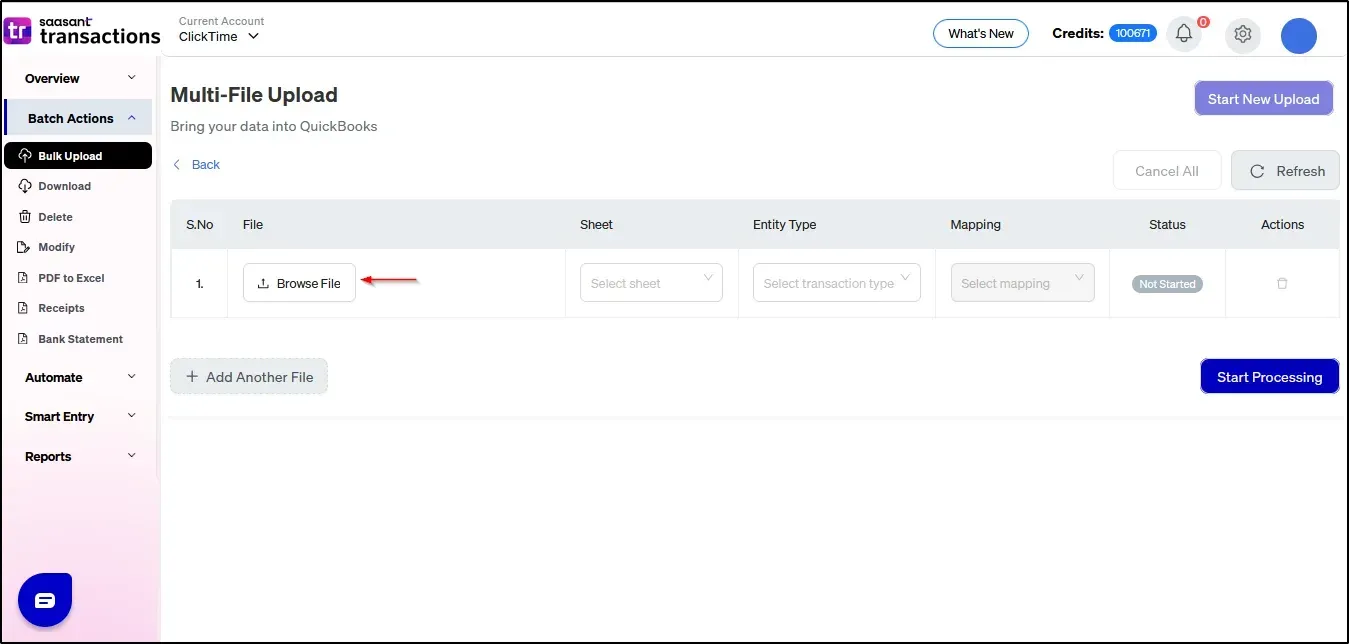
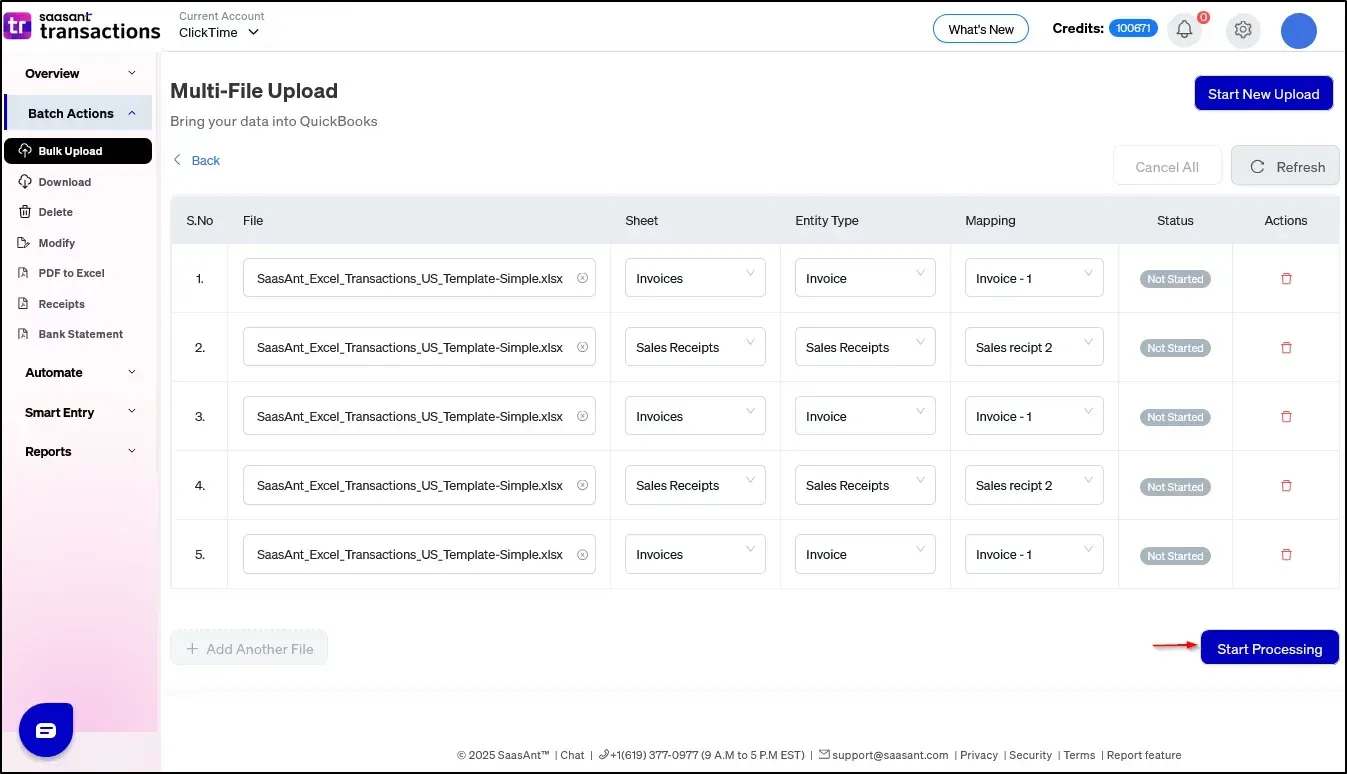
6) If your Excel file has multiple sheets, select the sheet containing the data to be imported (e.g., Invoices).
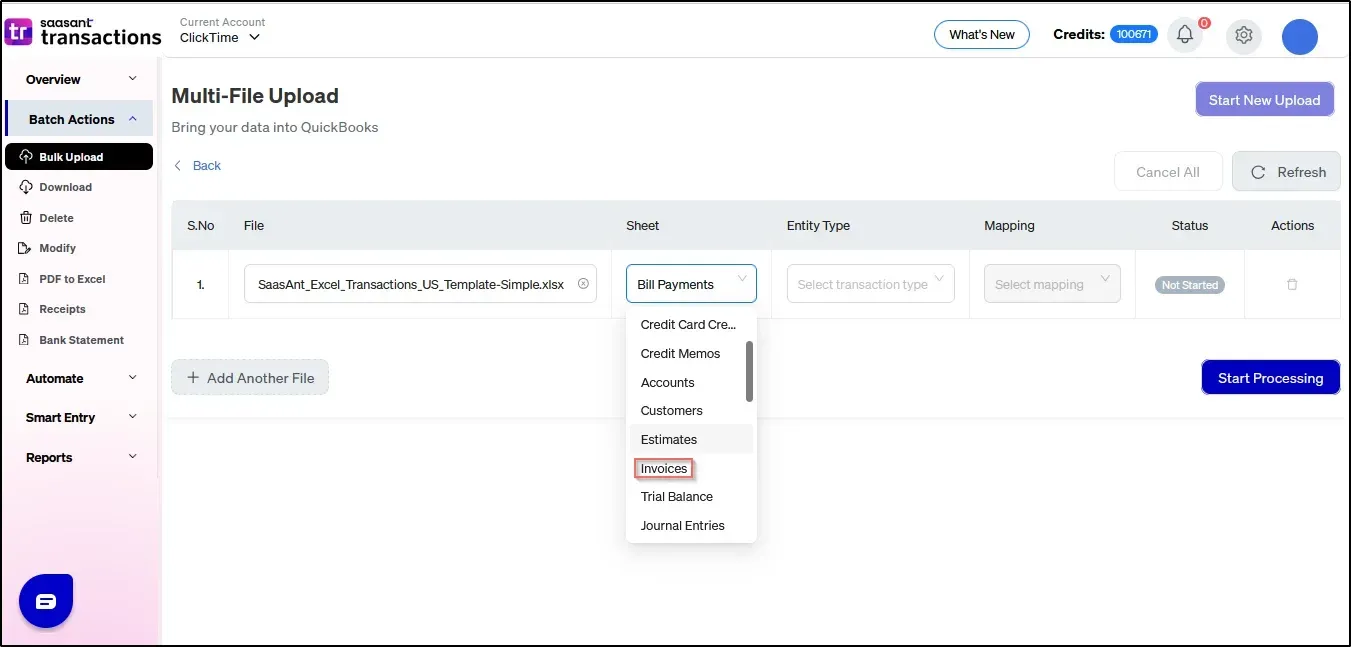
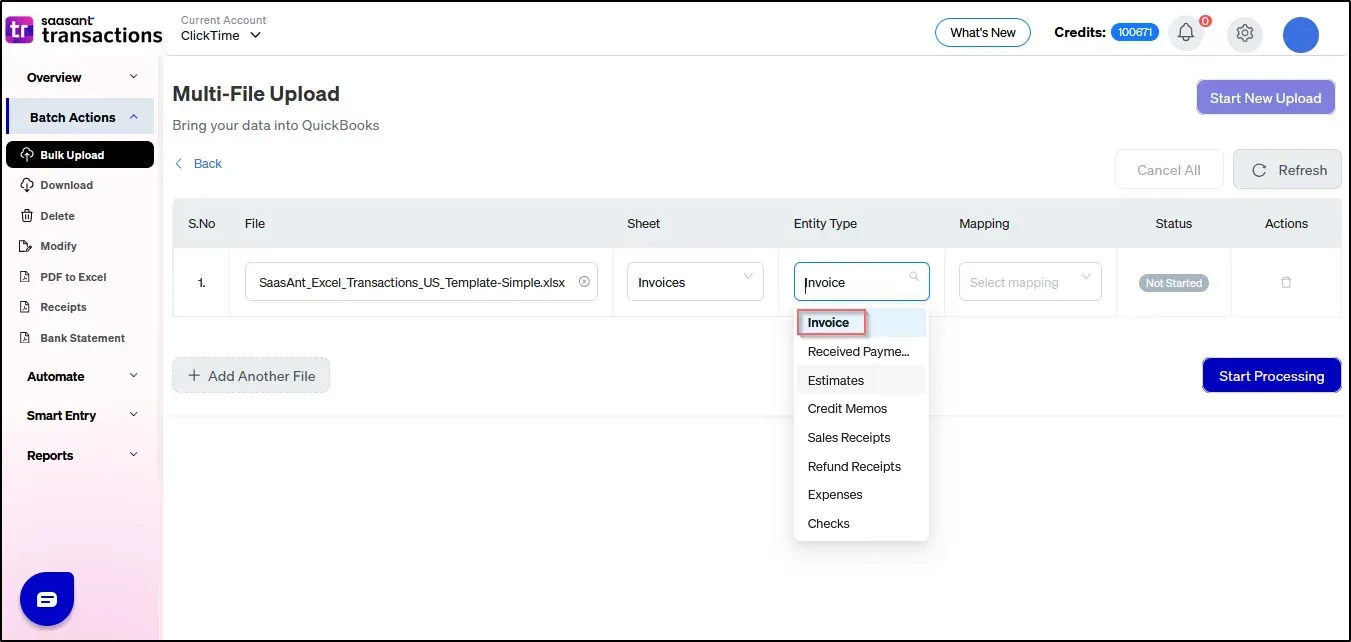
7) Choose the entity type as “Invoices”
8) Select the corresponding saved mapping from the dropdown menu.
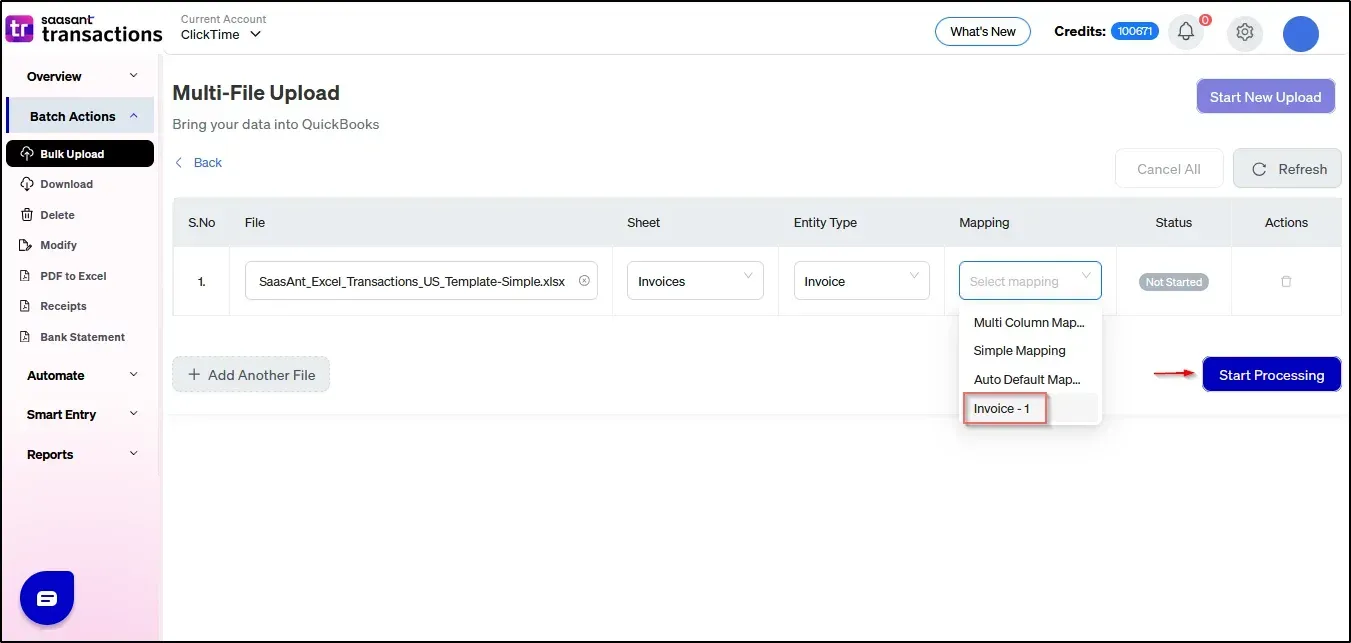
Note: You can upload a maximum of five files of the same transaction type or five different transaction types
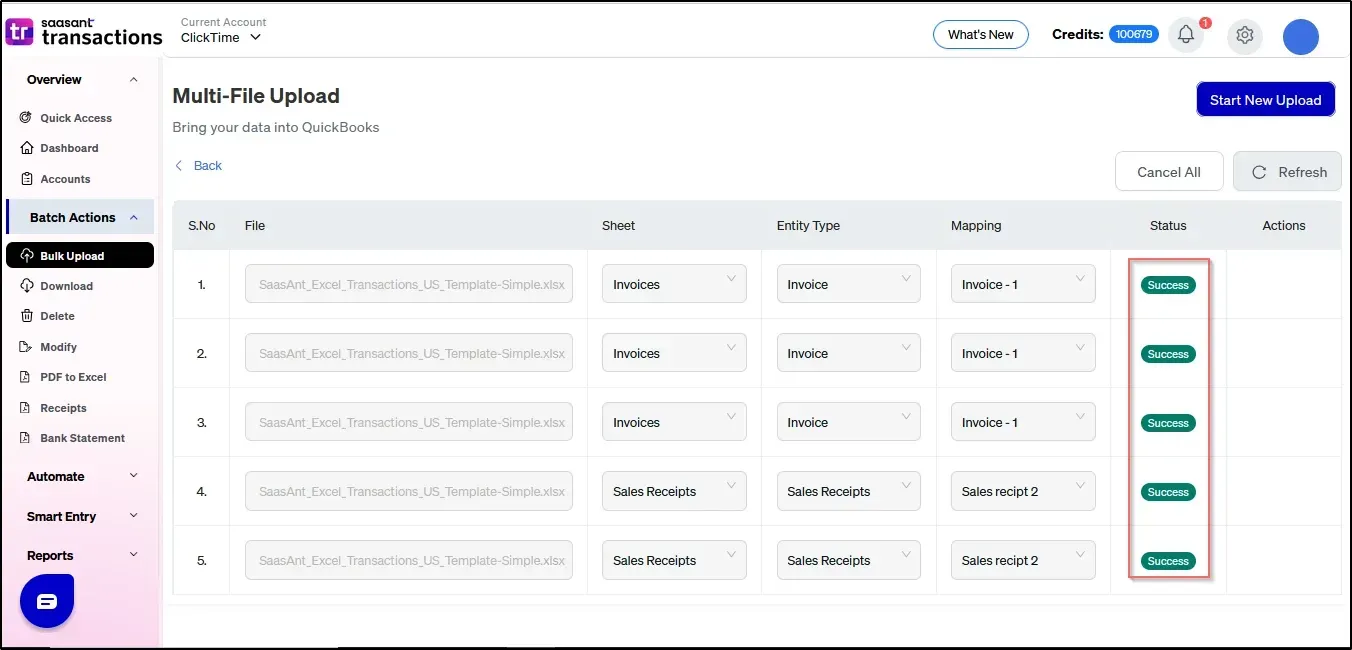
9) Once processed, your transactions will be successfully imported into QuickBooks Online.
Frequently Asked Questions (FAQ):
1) Can I cancel transactions that were successfully uploaded into QuickBooks Online using the "Cancel All" button?
No. Once a transaction is successfully uploaded, it cannot be canceled using the "Cancel All" button.
2) How do I delete files that were uploaded successfully?
Go to the Dashboard, locate the transaction using the reference number, and click the Undo button to delete it.
3) Can an individual file upload be canceled while others are still in progress?
Yes. You can click on the Cancel tab for the specific file. The remaining uploads will be paused.
4) Can I resume a canceled file upload in Multi File Upload?
No. Once a file upload is canceled, you will need to start the process from the beginning.
5) What is the maximum number of files I can upload using Multi File Upload?
You can upload a maximum of five files at a time.
6) If I want to upload more than five files, how can I do it?
After completing the current batch, click Start New Upload and repeat the process with the next set of files.
7) Can I use custom Excel data to upload via Multi File Upload?
Yes, but we recommend using a saved mapping template for each transaction type to ensure a successful upload.
If you come across any other issues, kindly reach out to support@saasant.com