How to Import Customer Credit While Importing Payment Into QuickBooks Online (U.S.)
November 3, 2025
Overview
This article provides step-by-step guidance on how to import customer credits while importing receive payments into QuickBooks Online (U.S.) using the SaasAnt Transactions (Online) application. It covers the entire import process — from connecting your QuickBooks account and preparing your file to mapping fields correctly and troubleshooting common errors. By following this guide, users can efficiently manage bulk or batch receive payments that include credit memos, ensuring accurate synchronization with QuickBooks Online.
Pre-Requisites:
Connect your QuickBooks Online account to SaasAnt Transactions (Online) App from QuickBooks AppStore by clicking the "Get App Now" button and get the 30 days free trial [No credit card required].
Importing Receive Payments with credit memo into QuickBooks Online:
To import bulk/batch receive payments with credit memo into QuickBooks Online using the SaasAnt Transactions (Online) application, follow the steps below
Click on the "Upload File" Menu and upload your file.
Step 1: Select your file and spreadsheet which has the Receive Payments that you want to import.
Step 2: Select the QuickBooks entity as Receive Payments.
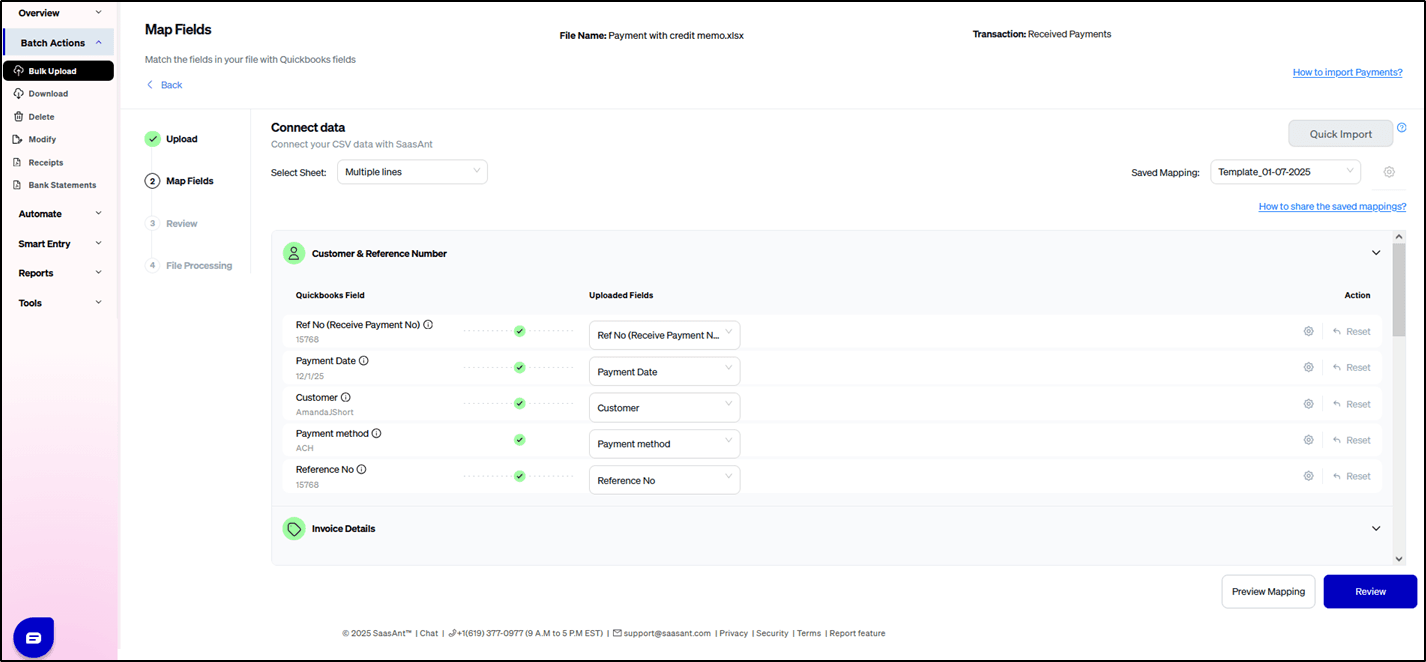
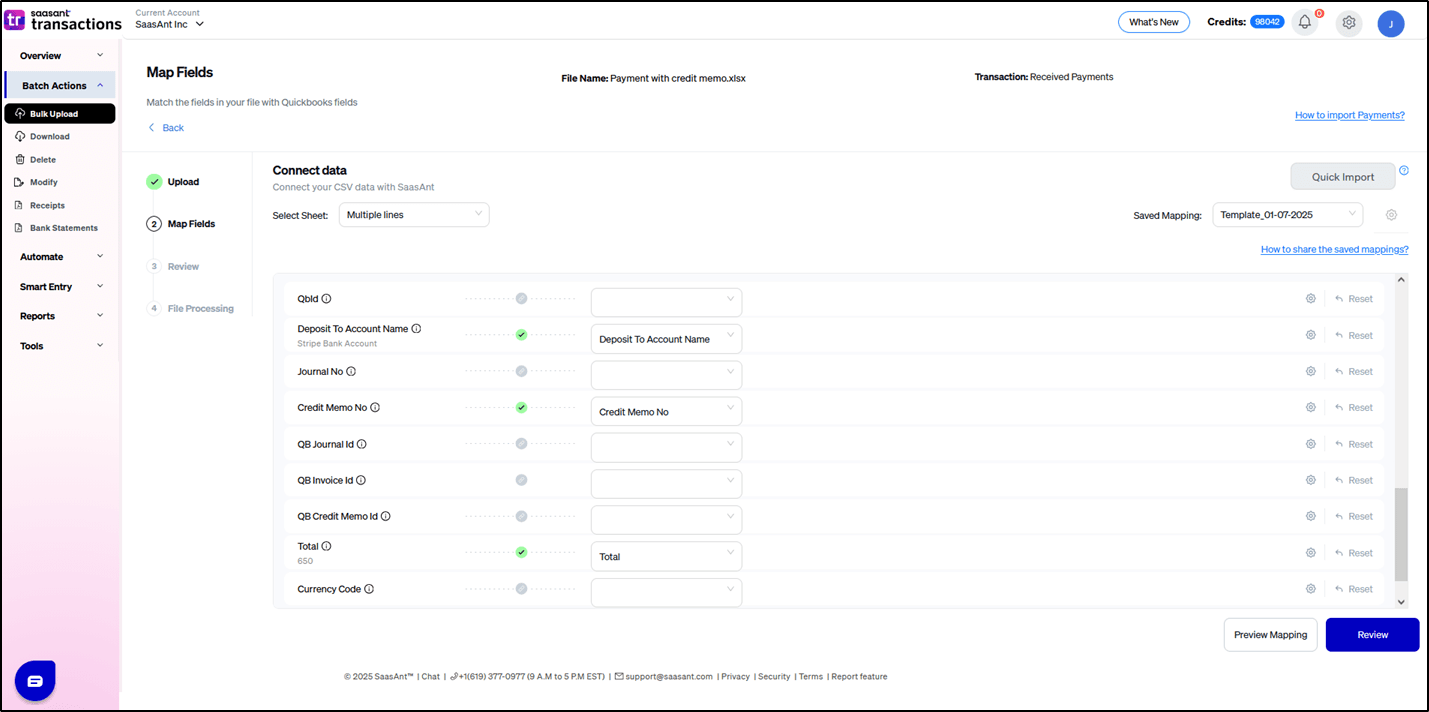
Step 3: Map the columns in your Receive Payments import file to the corresponding fields in QuickBooks (refer to the section below).
Step 4: Click Import, and your Receive Payments will be directly added to your QuickBooks company.
The important step in the import is mapping your file headers to the QuickBooks fields in Step 3.
You must map your file headers to "SaasAnt Transactions (Online)" fields. This mapping will enable us to import your transactions properly into QuickBooks company.
In the mapping screen, we have the "Preview Mapping" button, which can help you to visualize your current mappings per the QuickBooks screen with your file headers.
Please refer to the basics of field mappings for more info. If you have any confusion or doubts, feel free to email support@saasant.com.
Eg. Single payment

In the column “Total” the subtracted amount should be given. Eg. ($200 - $100 = $100)
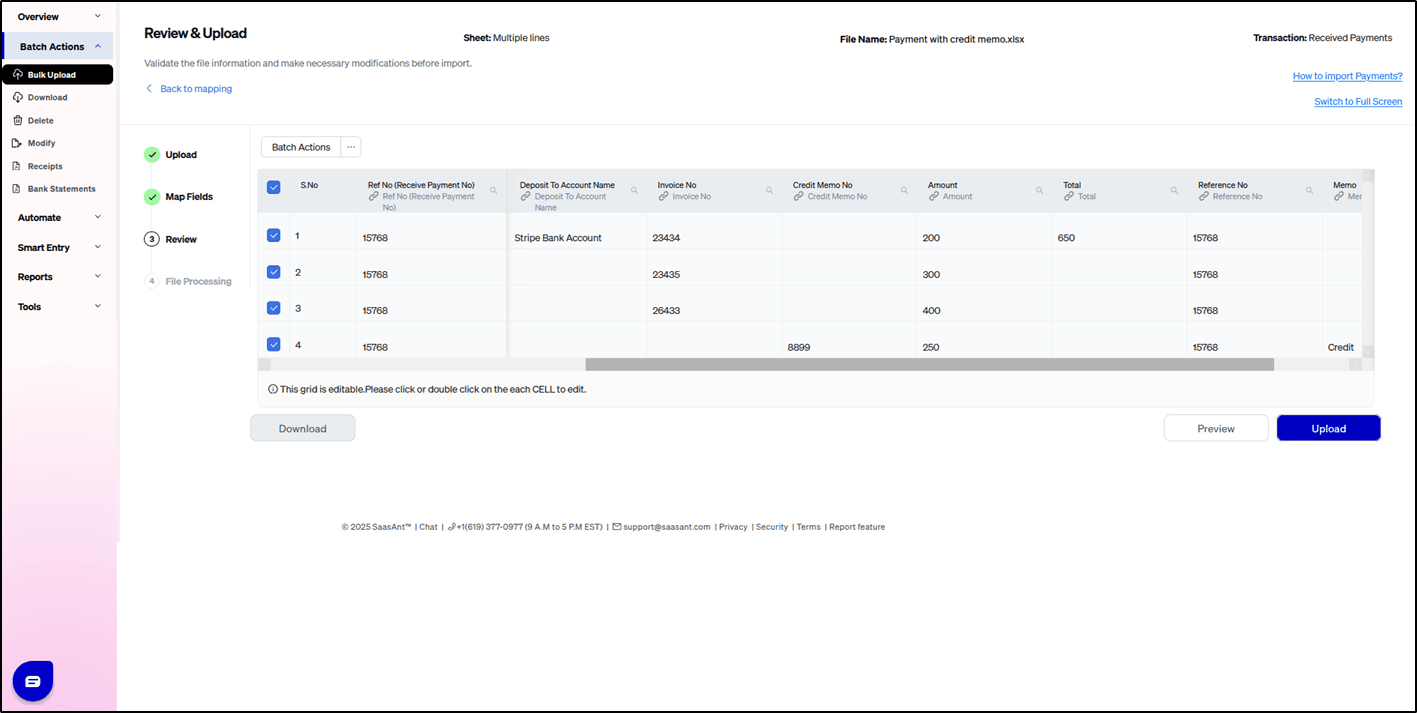
Eg. Multiple line payment

In the column “Total” the subtracted amount should be given. Eg. ($900 - $250 = $650)
How to Import Receive Payments into QuickBooks Online (New User Interface 2.0)
1) Login into SaasAnt Transaction Online
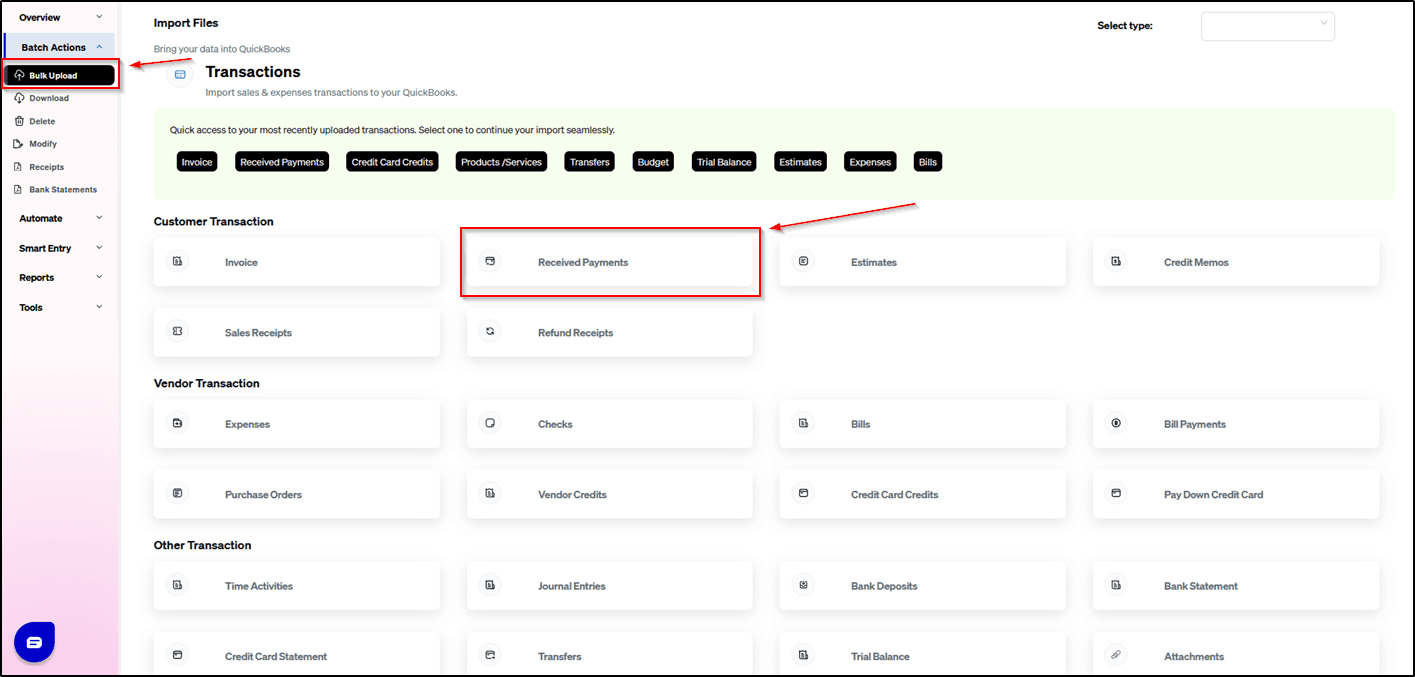
2) Select the Bulk Upload Tab, select transaction type Receive Payment.
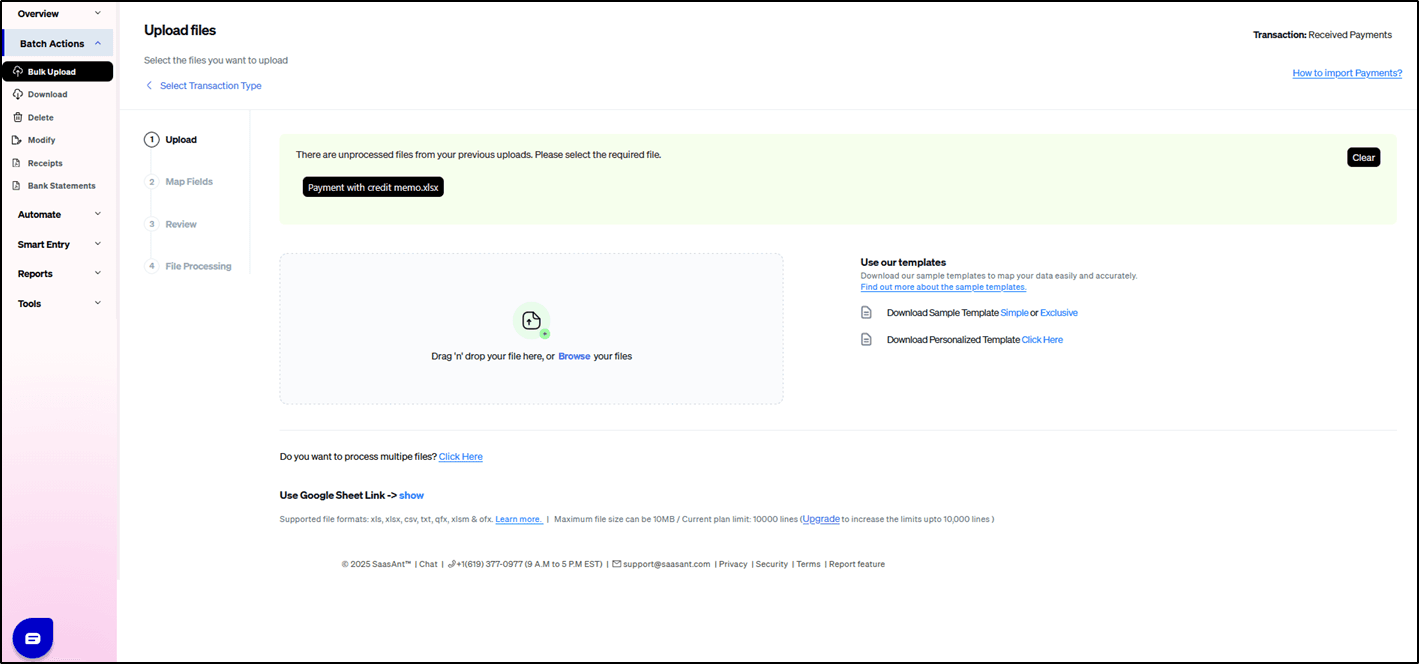
3) Add the file.
4) Map the Headers correctly. Please check the screenshots.
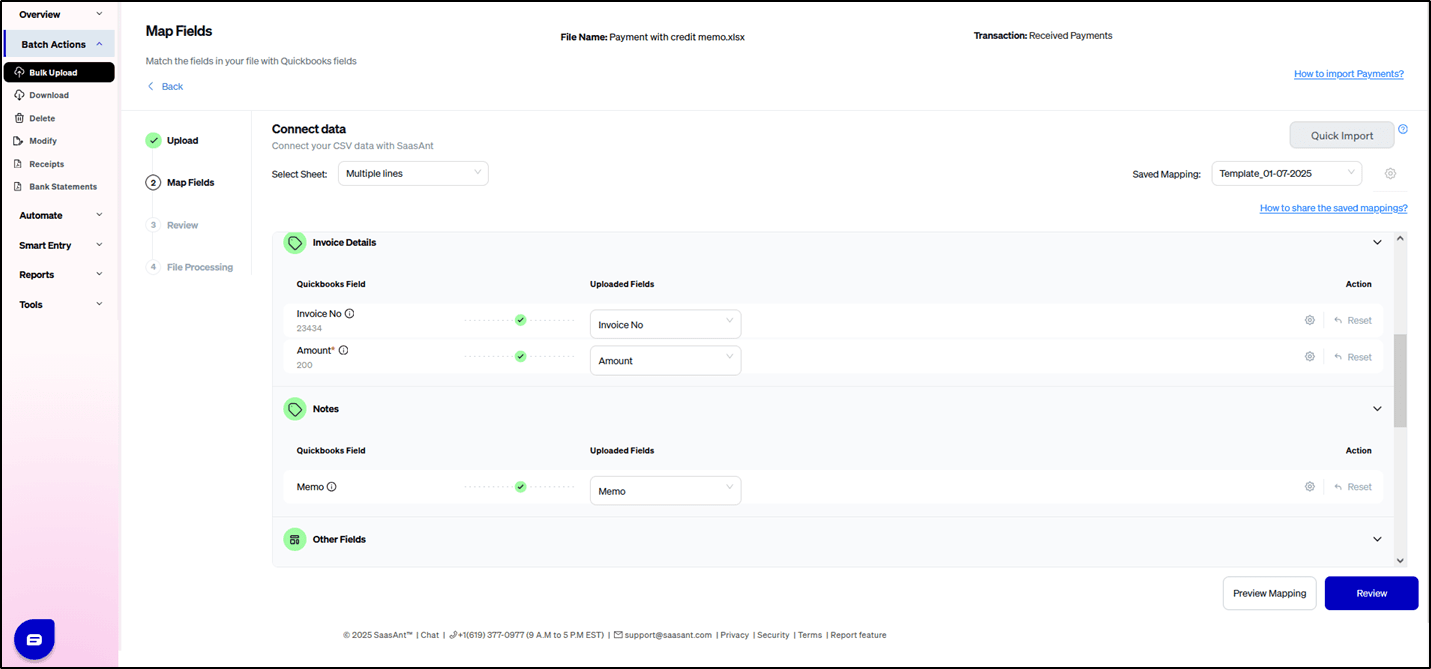
5) Click Review and Upload.
SaasAnt Transactions (Online) Fields
Field Name | Format | Description |
Ref No | 21 Characters | Reference number for the transaction. By default, this value is used only for internal processing by SaasAnt Transactions (Online), and QuickBooks auto-generates a new value. This can be changed in the import settings. |
Customer | Characters | Name of the customer. |
Payment Date | Date | Date of the transaction. |
Payment method | Characters | |
Deposit To Account Name | Characters | Undeposited Funds , Checking Account (Bank account). Saving Account, Cash on Hand (Petty cash account), Credit Card Account. PayPal or Other Payment Processors Check FAQ’s. |
Invoice No | Characters | Invoice no. of the corresponding invoice transaction tied to this payment. |
Tracking No | 30 Characters | Shipping provider's tracking number for the delivery of the goods associated with the transaction. |
Amount | Decimal | Invoice amount. |
Total | Decimal | The subtracted amount should be given. (Eg. Invoice amount - credit amount) |
Reference No | Characters | The reference number for the payment received. (E.g. Check # for a check, envelope number for a cash payment, Credit Card Transaction Id for a credit card payment). |
Memo | 4000 Characters | Organization-private note about the transaction. By default, this note will not appear on the transaction records. |
Currency Code | Characters | Reference to the Currency in which all amounts on the associated transaction are expressed. |
Exchange Rate | Decimal | Default is 1, applicable if Multi-Currency is enabled for the company. The number of home currency units it takes to equal one unit of currency specified by the Currency Code field. |
Possible Failures & Troubleshooting Tips
Error: The Amount Received (plus credits) can't be less than the selected charges.
Provide the (payment amount - credit amount) in the total column in the payment line. Check the payment file screenshot above.
FAQ’s
In QuickBooks Online (QBO), when receiving payments, you can deposit them into the following types of accounts:
Which One Should You Use?
If depositing immediately into the bank → Use the Checking or Savings account.
If you batch payments together before depositing → Use Undeposited Funds first.
If receiving cash for temporary holding → Use Cash on Hand.
If receiving payments via PayPal/Square → Use a dedicated clearing account.
Related help articles
How to Import Credit Memos into QuickBooks Online (U.S)?
How to Import Deposits into QuickBooks Online (U.S)?
How to Import Invoices into QuickBooks Online (U.S)?
How to Import Bill Payments into QuickBooks Online (U.S)?
If you come across any other issues, kindly reach out to support@saasant.com