How to Map a File in SaasAnt Transactions (Online) – Xero
August 21, 2025
What is Field Mapping?
Field Mapping is the process of linking the headers in your Excel or CSV file with corresponding Xero fields in SaasAnt Transactions Xero Online. By default, SaasAnt considers the first row of your uploaded file as the header row.
Each header must be mapped to the appropriate Xero field so that SaasAnt can correctly understand and import the data into your Xero account.
Common Questions About Field Mapping:
What do you mean by field mapping?
How do I map my file?
I don’t understand how mapping works – it seems confusing.
Don’t worry. Field mapping is straightforward when approached step-by-step, and this guide will guide you through the entire process.
What is a Xero Field?
Xero fields refer to the specific data input areas in a Xero transaction form (like Invoice, Bill, Payment, etc.). These include fields such as Invoice Date, Customer Name, Account Code, Tax Rate, and others.
The available fields may vary depending on the transaction type you are importing (e.g., Invoice vs. Payment).
You can refer to our import help articles for Xero-specific guidance for each transaction type.
Import articles for all types of Transactions (Xero)
Where Do I Map the Fields
After uploading your file, the field mapping screen will appear.
The left side shows the Xero fields.
The right side shows the column headers from your uploaded file.
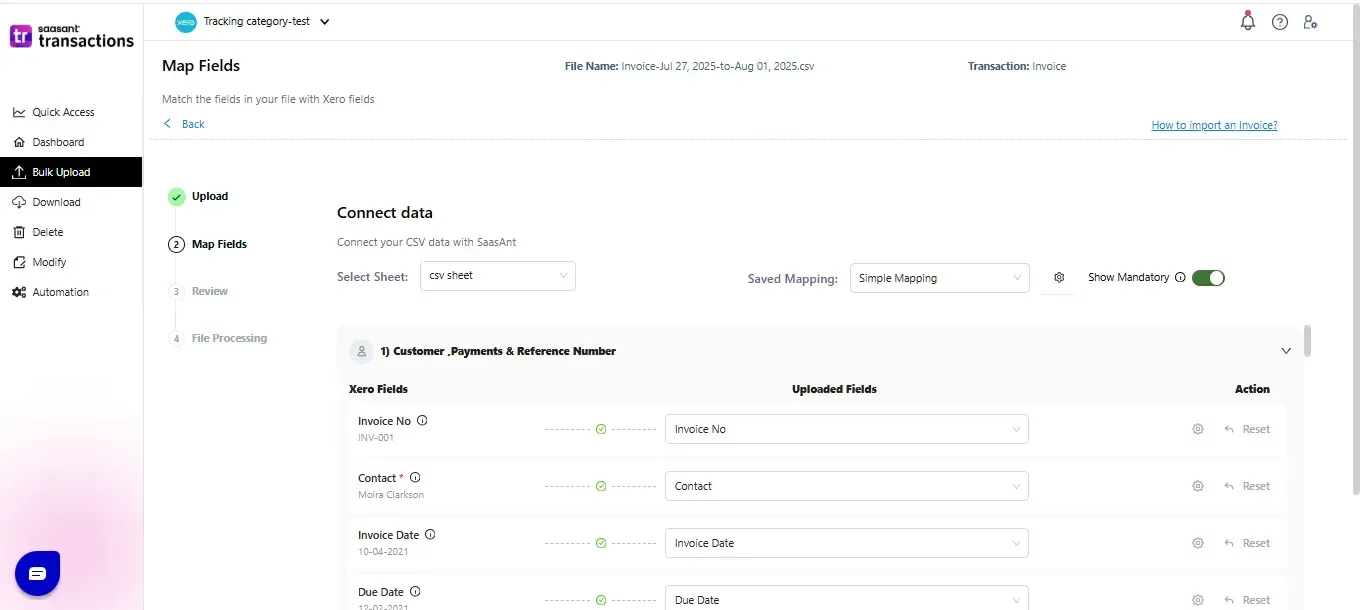
Select the appropriate File Header for each Xero field.
You can hover over any Xero field to view a brief description of what that field means.
This layout helps ensure you're connecting your data correctly to the right fields in Xero.
Can I Save My Mappings?
Yes! You can save your mapping setup for future imports.
If you often receive files from different sources or formats (manual, exported from other software, etc.), saving the field mappings for each type will save time and ensure accuracy.
You can save your setup by clicking the “Save Mapping” button.
Even if you forget to save manually, SaasAnt Transactions (Online) will auto-save your latest mapping configuration for you.
Need Help?
If you have any queries or doubts while mapping your file or during the import process, feel free to reach out to us at:
📧 support@saasant.com
FAQ
What file types does SaasAnt Transactions Online support for Xero Online imports?
For almost all entities in Xero, SaasAnt Transactions Online supports XLS, XLSX, XLSM, CSV, and TXT. You can also schedule imports by sending CSV or Excel files via Email, Zapier, or FTP.