How to Import Transfers into QuickBooks Using SaasAnt Transactions Online
September 17, 2025
Import Transfers into QuickBooks Online
Import Transfers from Supported File Formats directly into QuickBooks Online using the SaasAnt Transactions Online Application. It's the #1 user-rated and Intuit-trusted bulk data automation tool built exclusively for QuickBooks Online.
SaasAnt Transactions (Online) supports all QuickBooks Online versions.
Pre-Requisites:
Connect your QuickBooks Online account to SaasAnt Transactions (Online) App from the QuickBooks AppStore by clicking the "Get App Now" button and get the 30-day free trial [No credit card required].
Please refer to the basics of field mappings for more information. If you have any confusion or doubts, feel free to email support@saasant.com.
How to Import Transfers into QuickBooks Online using SaasAnt Transactions Online
1) Login to SaasAnt Transaction Online
2) Select the Bulk Upload Tab, select the QuickBooks entity as " Transfer ".
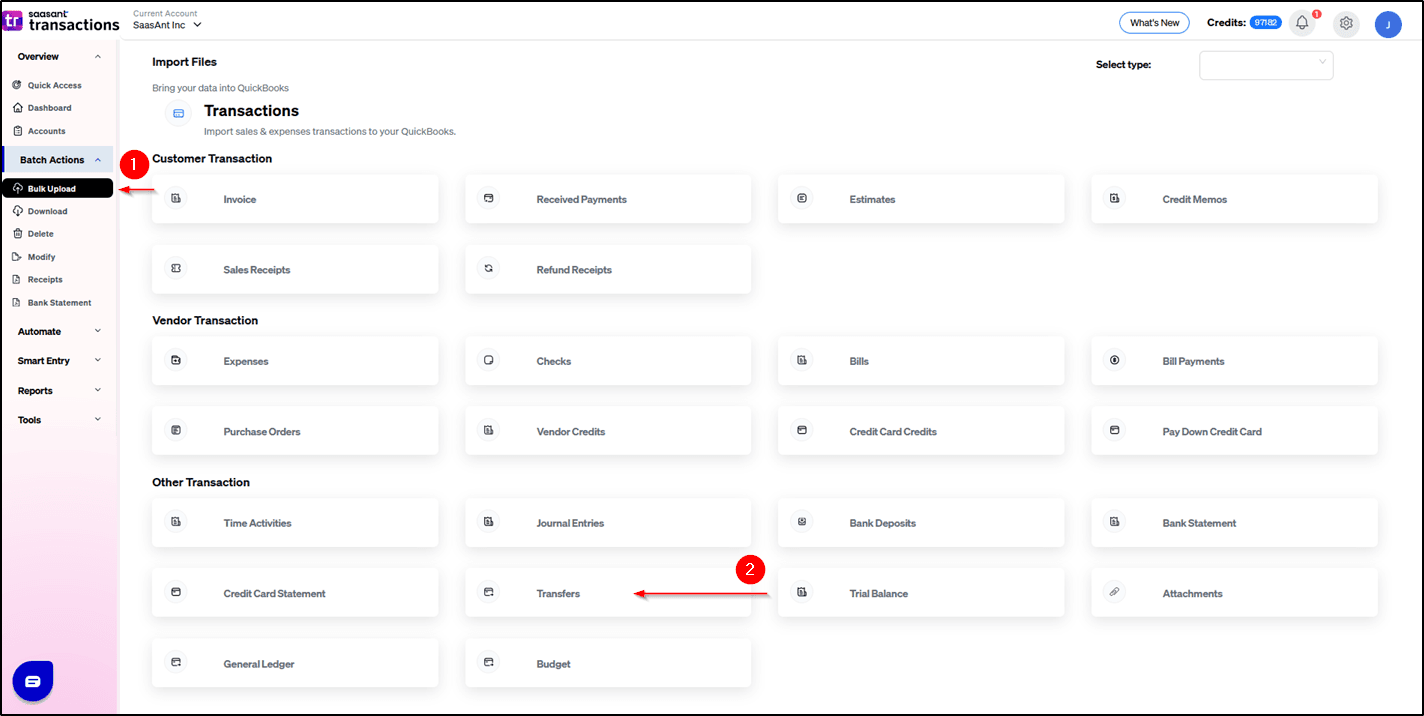
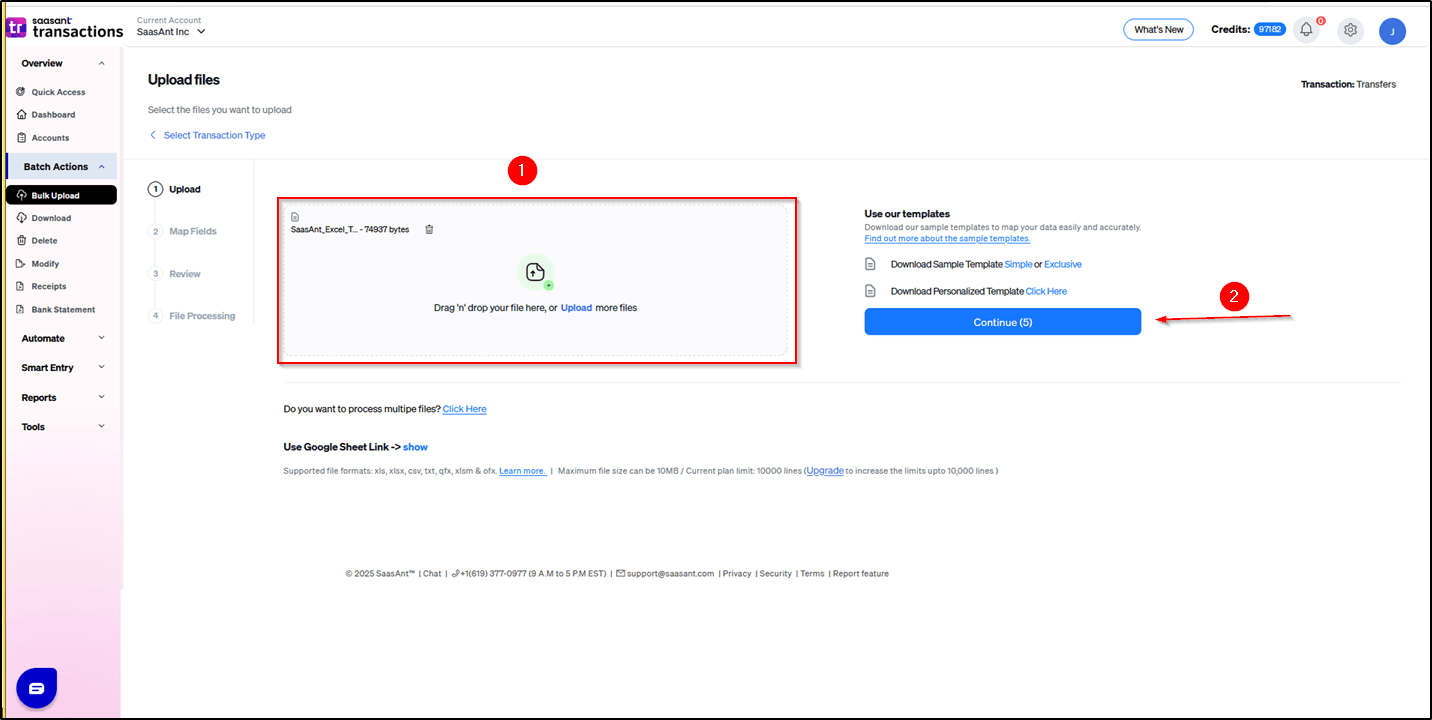
3) Select the files you want to upload.
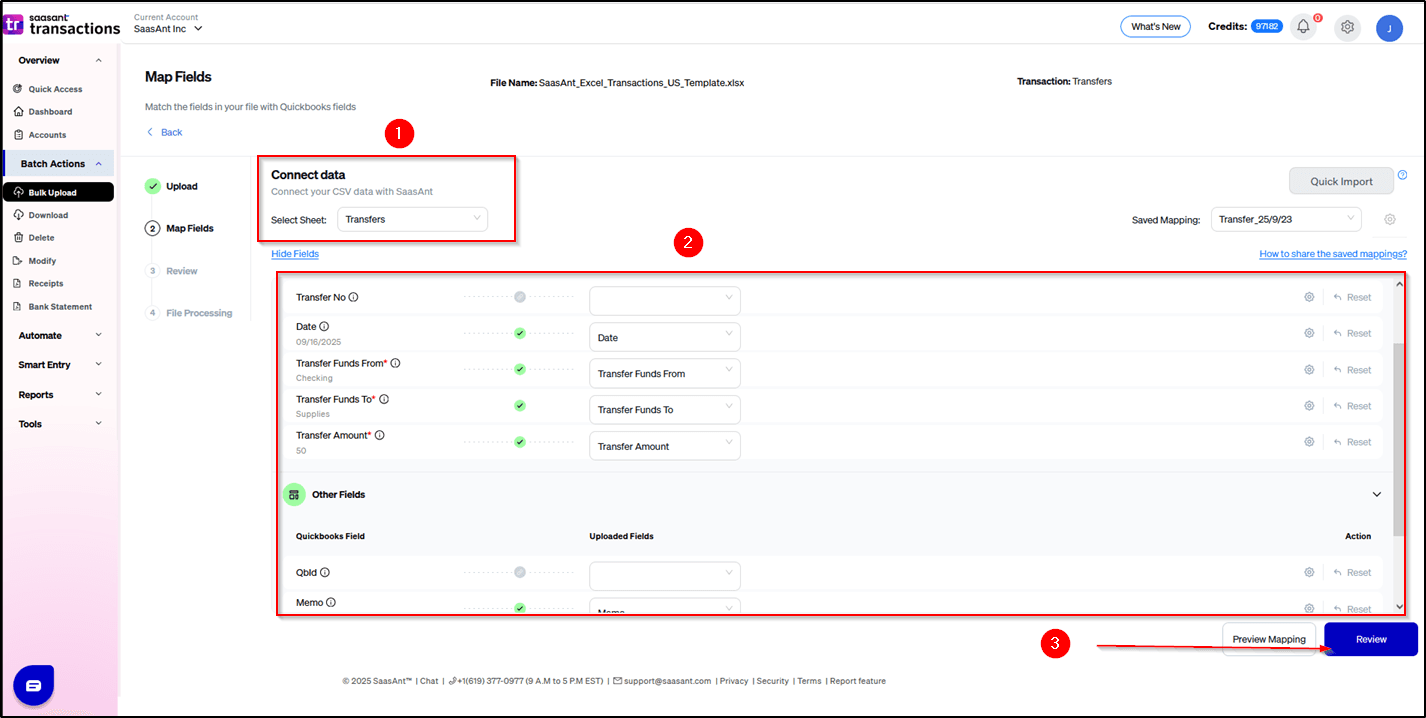
4) Set up the Mapping to match QuickBooks Header with your file Headers, and click Review.
5) Select the Upload tab.
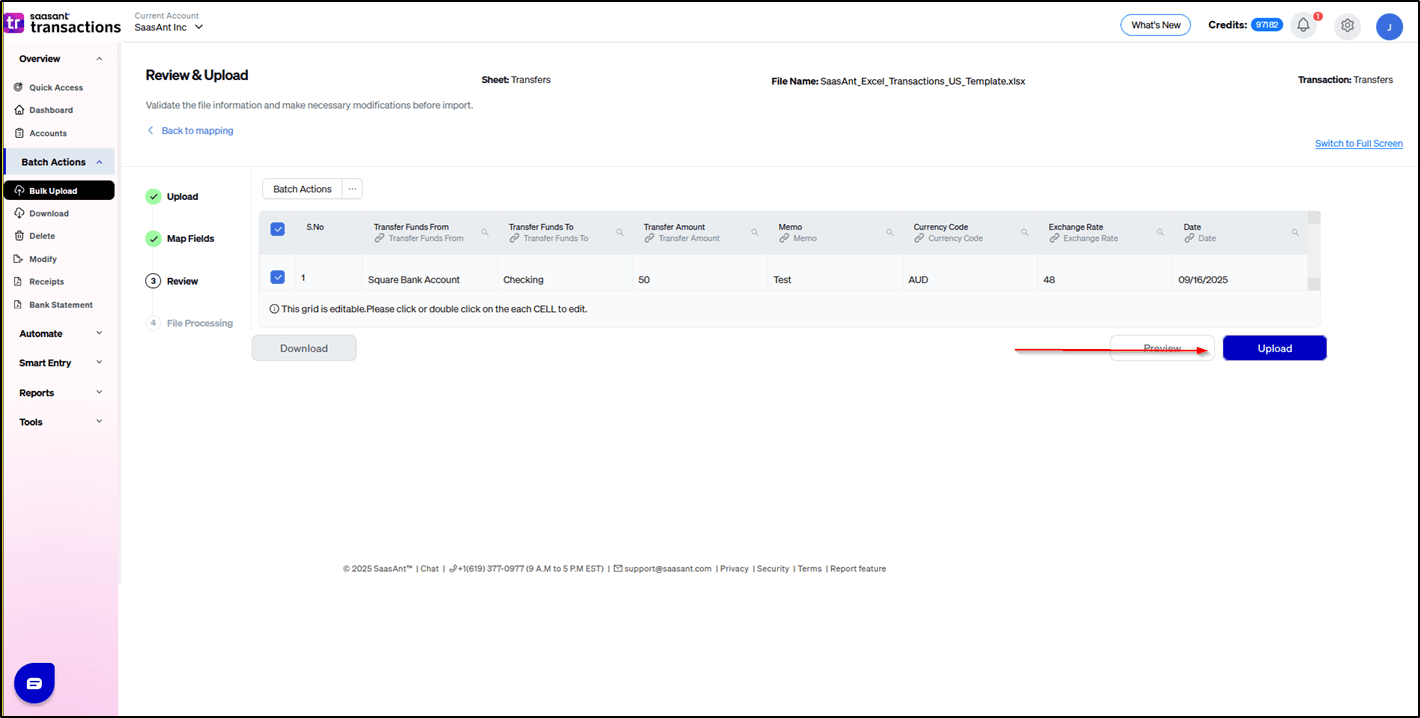
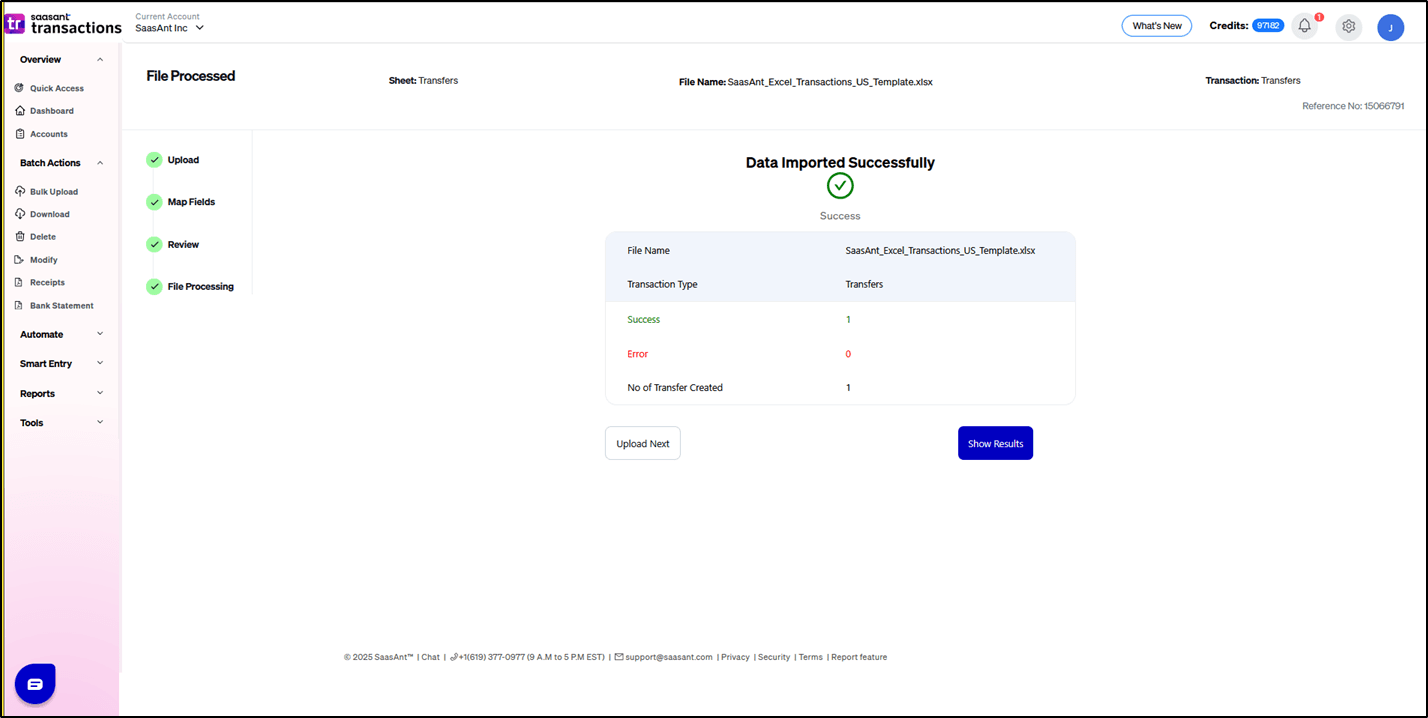
6) The data was imported successfully into QuickBooks.
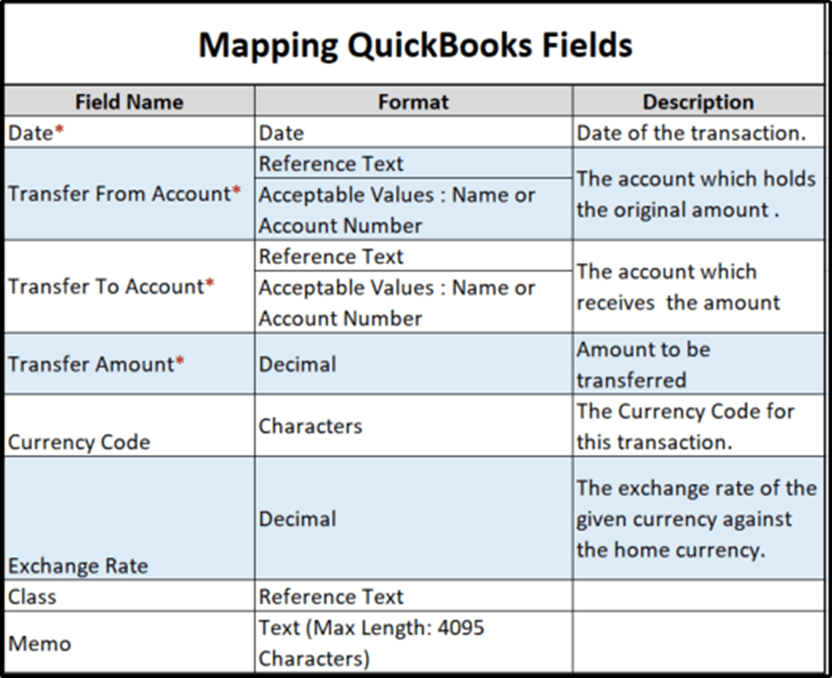
Let’s have a look at the SaasAnt Transactions Online Fields.
SaasAnt Transactions (Online) Fields
FAQs
What file types does SaasAnt Transactions Online support for QuickBooks Online imports?
For almost all entities in QuickBooks Online, SaasAnt Transactions Online supports XLS, XLSX, XLSM, CSV, TXT, Google Sheets, and IIF. Additionally, PDF, PNG, and JPEG are supported only for Receipts, Invoices, Bank Statements, Checks, and Expenses.
Related help articles
How to Import Chart of Accounts (GL) into QuickBooks Online (U.S)?
How to Import Deposits into QuickBooks Online (U.S)?
How to Import General Ledger into QuickBooks Online Using SaasAnt Transactions Online