How to Import Contact Groups into Xero
November 24, 2025
Pre-Requisites
Connect your Xero account to SaasAnt Transactions Xero (Online) App from the Xero App Marketplace by clicking the “Get this app” button and start your 30-day free trial (No credit card required).
Alternatively, you can log in directly with your Xero account through this link:
https://apps.saasant.com/eti-importer-login/index.html
Steps to Import Contact Groups into Xero
To import Contact Groups into Xero using the SaasAnt Transactions (Online) application, follow the steps below.
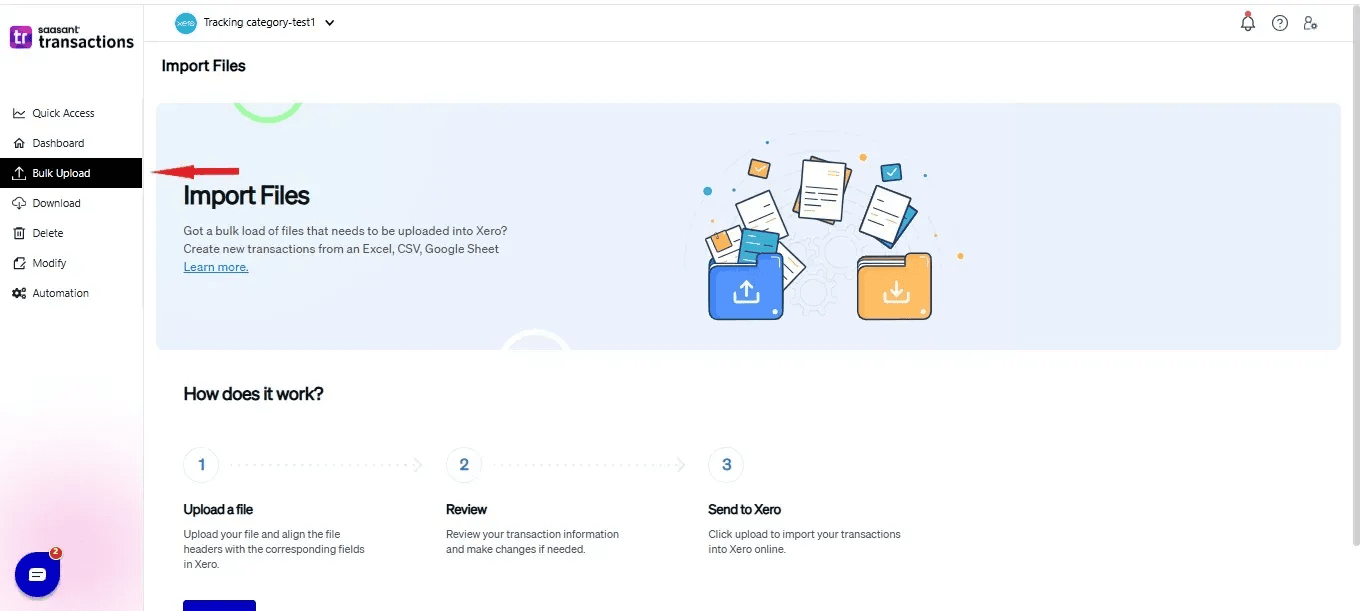
Step 1: Click on the “Bulk Upload” menu to upload your file.
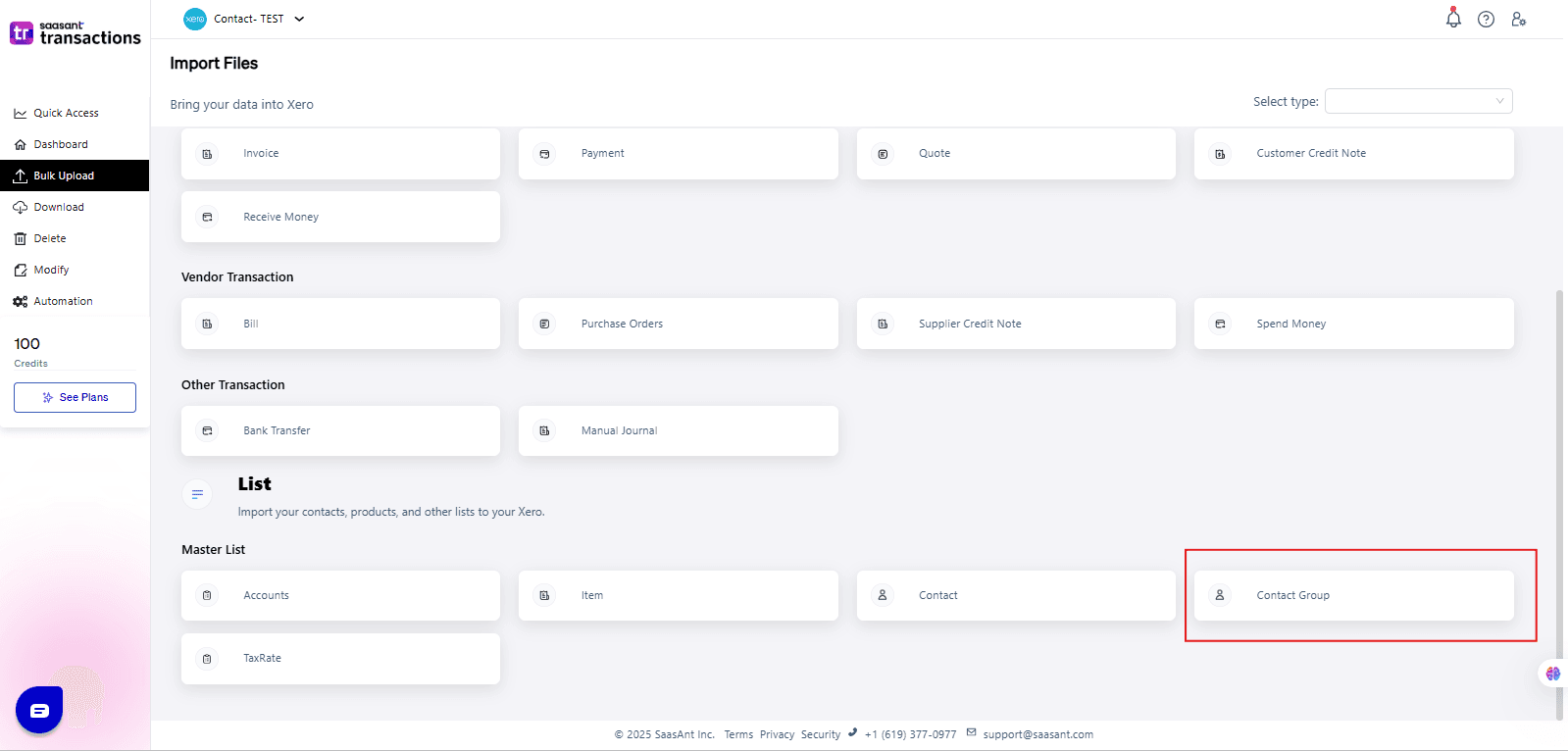
Step 2: Select Contact Group in the Xero entity list.
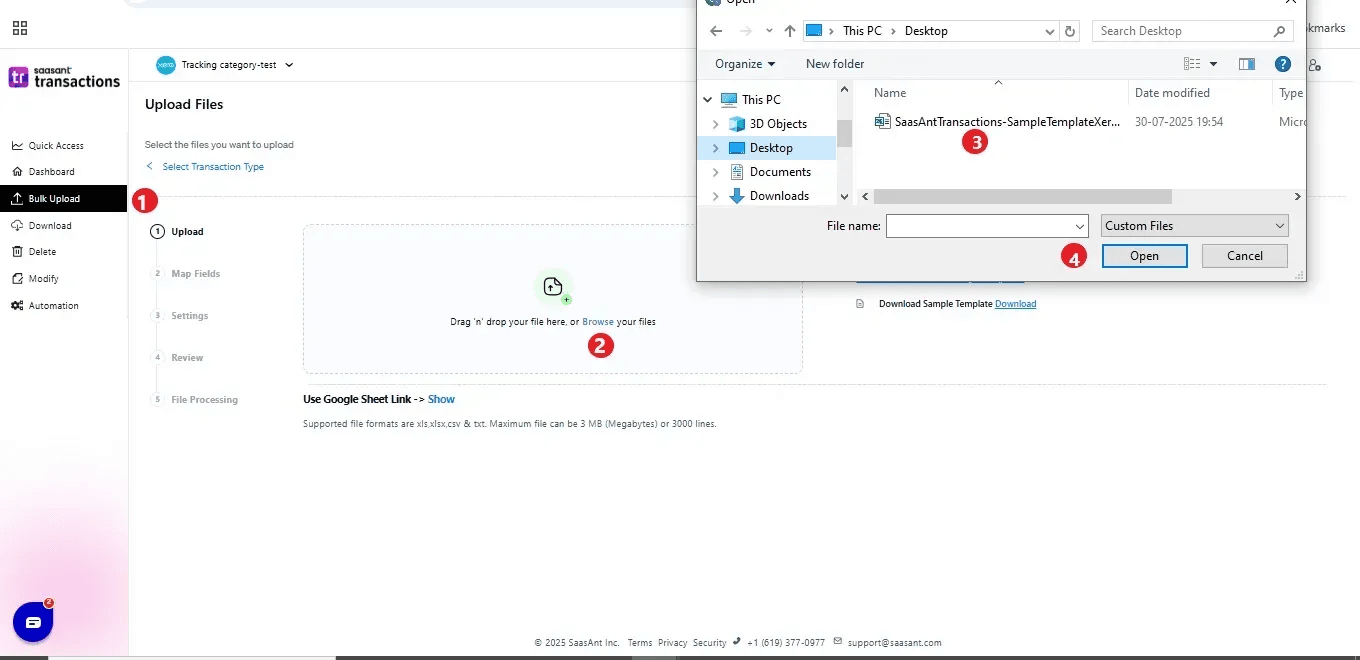
Step 3: Select your file and spreadsheet that contains the Contact Groups you want to import.
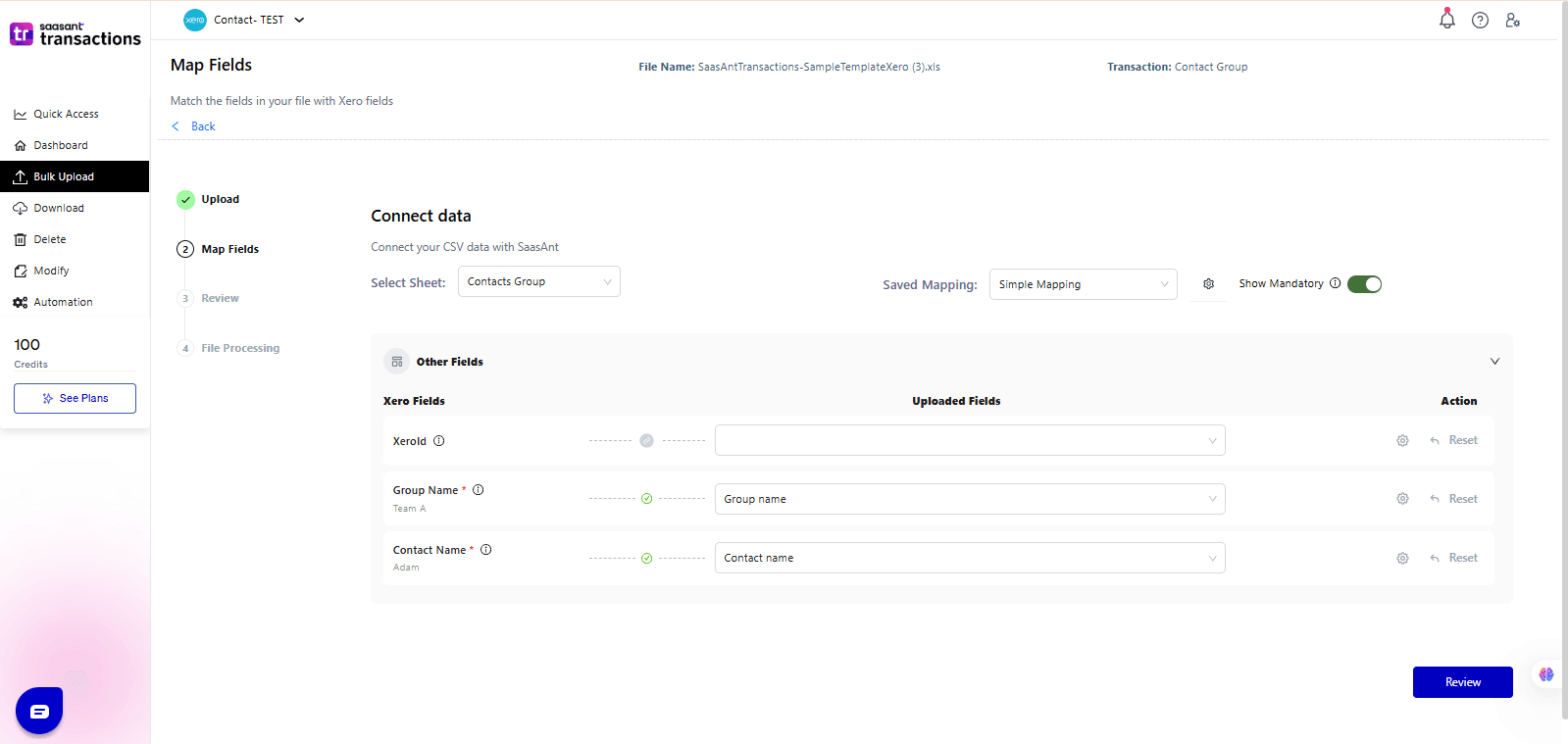
Step 4: Set up the mapping of the columns in your Contact Group import file to the corresponding fields in Xero.
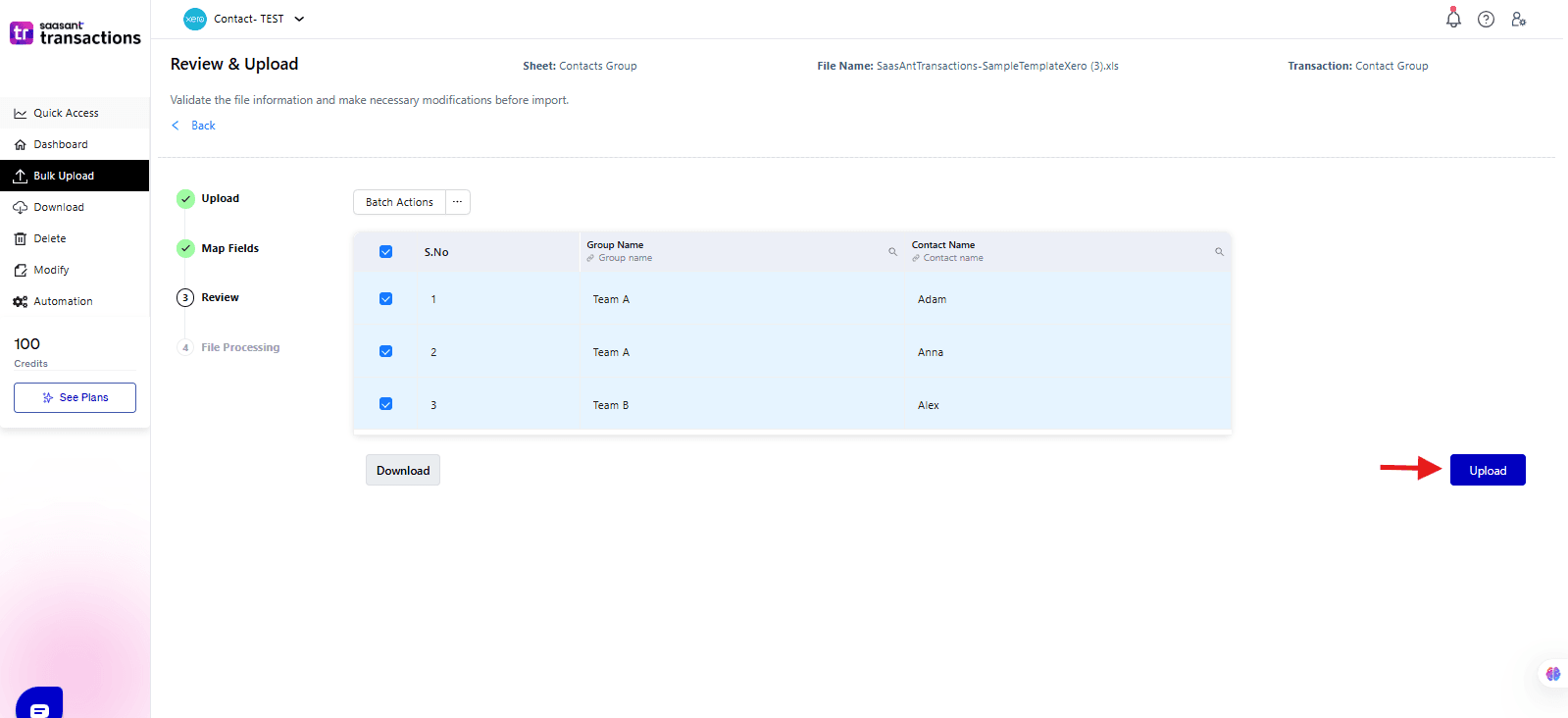
Step 5: Click Upload, and your Contact Groups will be directly added to Xero.
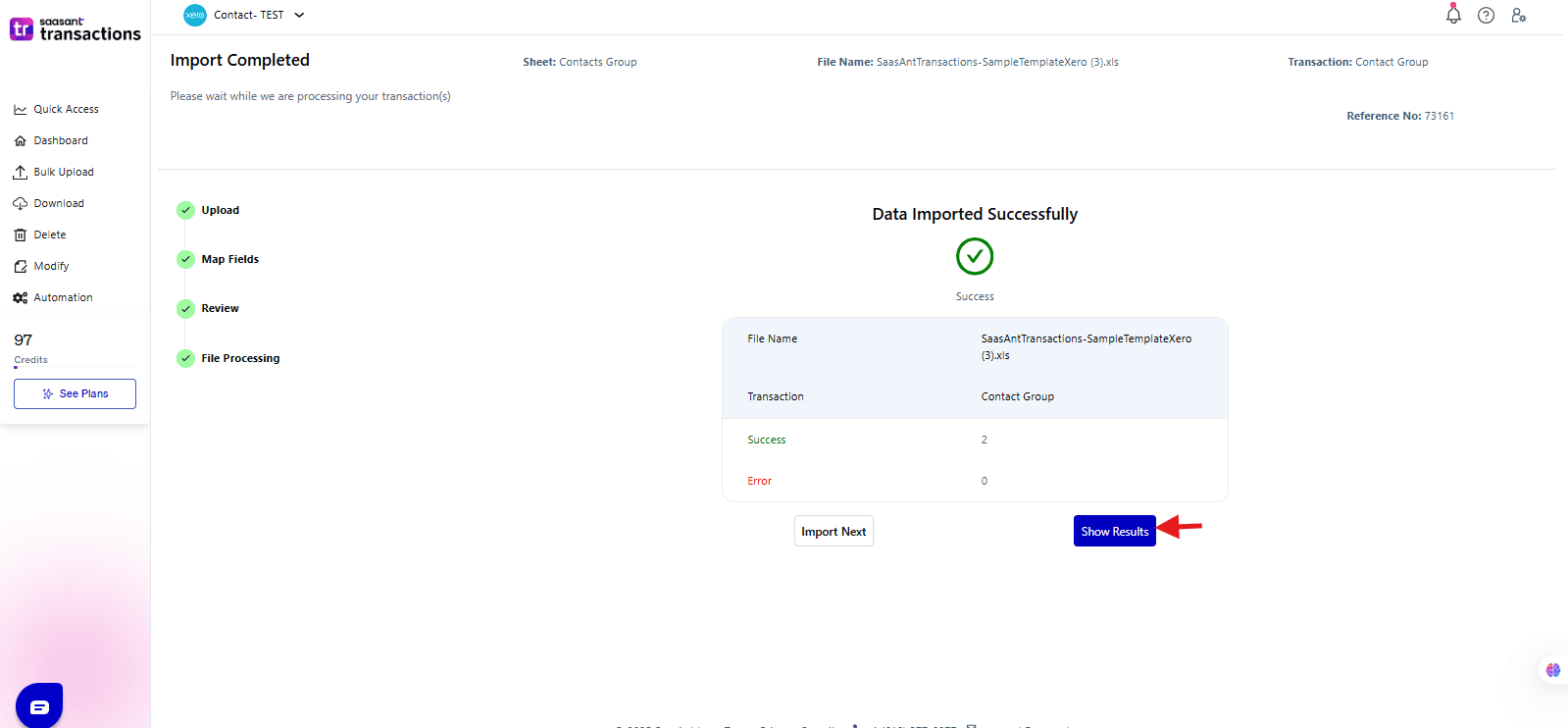
Step 6: Your data is successfully imported into Xero.
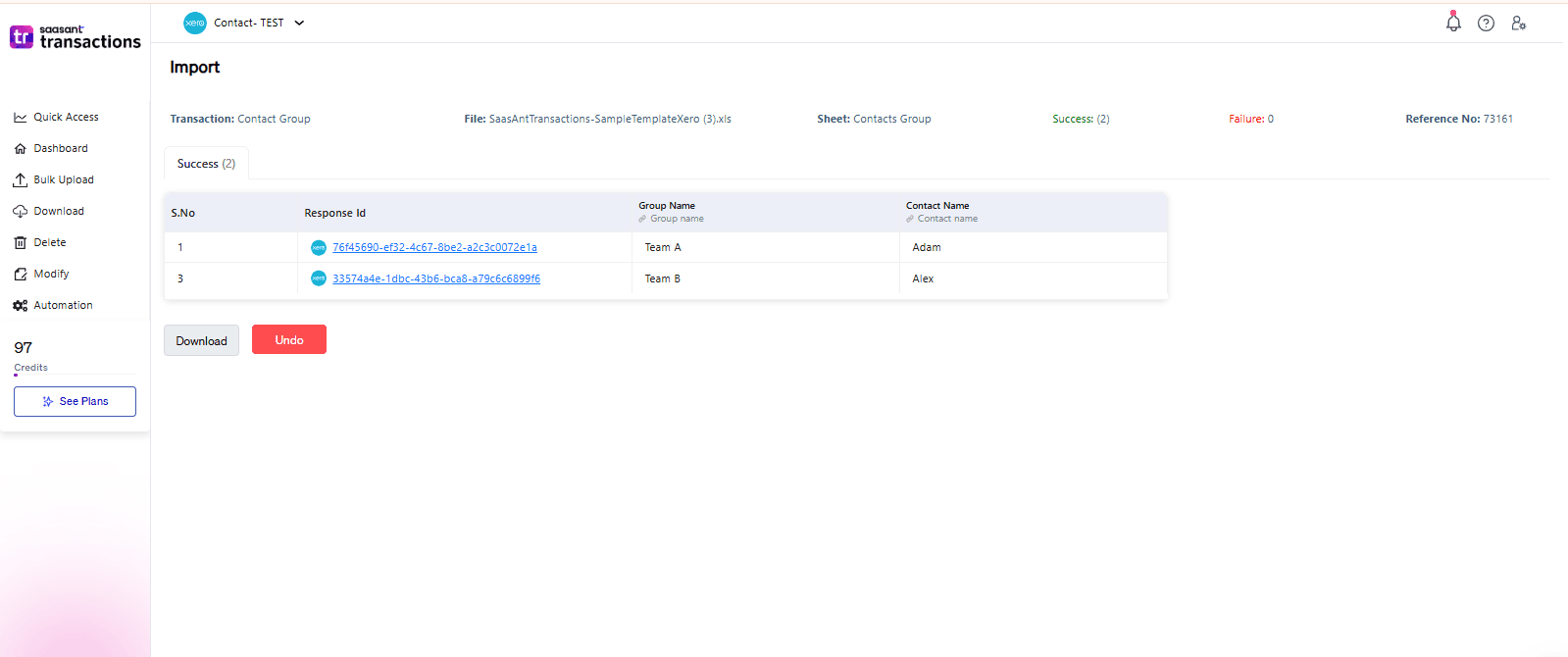
Step 7: You can Undo the import if the data has been incorrectly imported.
If you need help understanding field mappings, please refer to the basics of field mapping.
If you have any confusion or questions, feel free to email us at support@saasant.com.
SaasAnt Transactions (Online) Fields
Below is the list of fields supported while importing Contact Groups into Xero:
Field Name | Format | Description |
Contact Group Name | 255 Characters | The name of the Contact Group to be created inside Xero |
Contact Name | 255 Characters | Name of the Contact to be associated with the Contact Group. (If multiple contacts belong to the same group, repeat the group name on separate rows.) |
Note: Before importing Contact Groups, ensure the Contacts already exist in Xero. SaasAnt Transactions does not create new Contacts when importing groups.
Possible Failures & Troubleshooting Tips
The contact does not exist. Please check the Contact Name.
This error occurs when the Contact in your file is not found in Xero.
Fix: Ensure the Contact is already created in Xero before mapping it to a Contact Group.
The contact group already exists.
A Contact Group with the same name already exists in Xero.
Fix:
To add more contacts to an existing group, use the same group name in your file.
To create a new group, change the Contact Group Name.
FAQ
What file types does SaasAnt Transactions Online support for importing Contact Groups into Xero?
SaasAnt Transactions Online supports XLS, XLSX, XLSM, CSV, and TXT formats.
You can also schedule imports by sending files via Email, Zapier, or FTP.
If you need help understanding field mappings, please refer to the basics of field mapping.
If you have any confusion or questions, feel free to email us at support@saasant.com.