How to Export Time Activities from QuickBooks Online using SaasAnt Transactions Online
February 20, 2026
At a Glance
The Solution: Use SaasAnt's Download (Export) feature to extract Time Activity records into a clean Excel/CSV format.
The Key Benefit: Get a flat spreadsheet file of all tracked time entries—including employee, customer, hourly rate, and billable status—ready for payroll verification, unbilled time review, or client invoicing audits.
Quick Steps: Quick Access > Download (Export) > Select Time Activities > Search > Download.
Getting Started
Install: Get SaasAnt Transactions Online from the QuickBooks App Store and start a free trial.
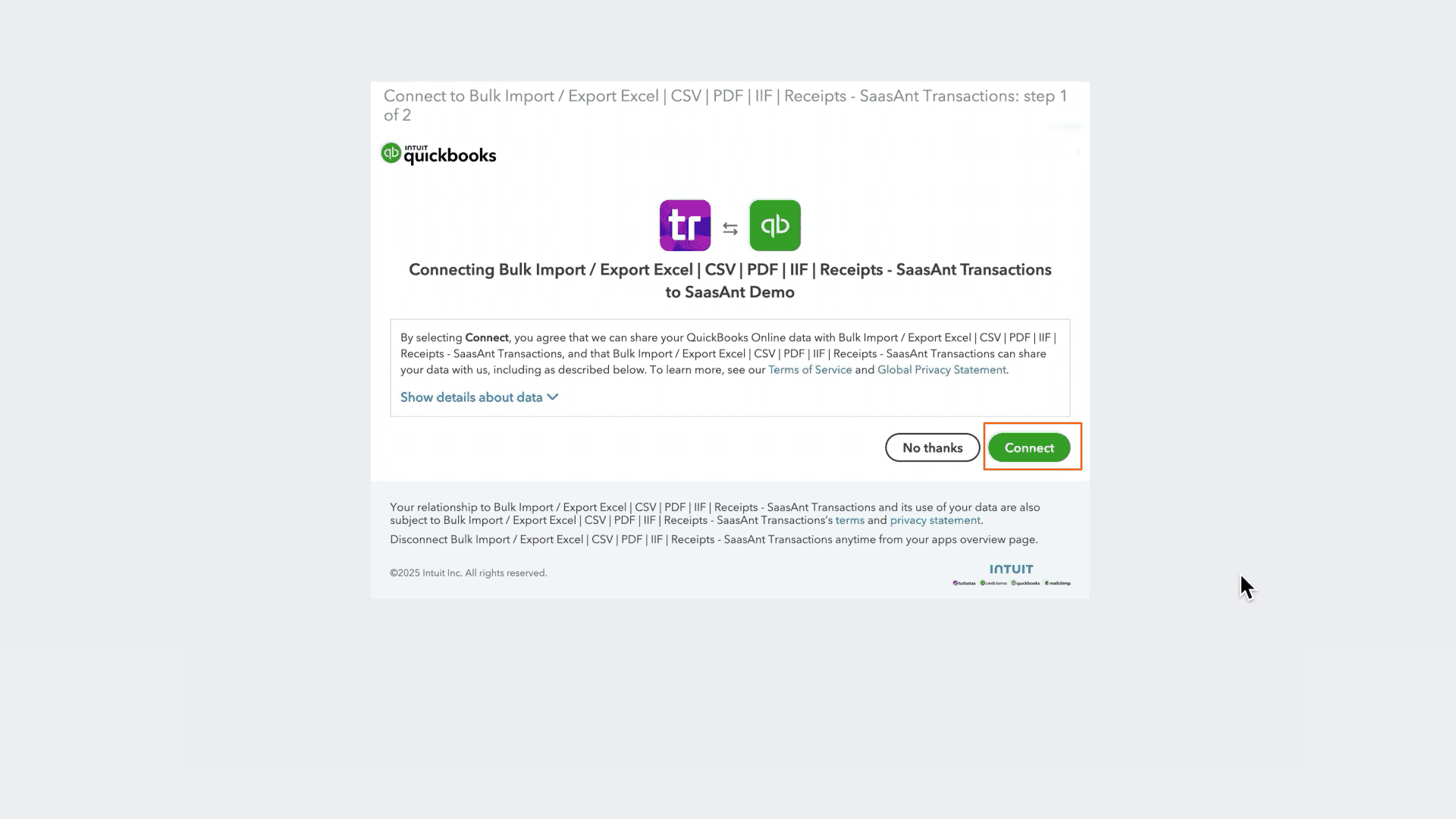
Connect: Securely authorize the connection to your QuickBooks Online company. We do not store your customer data; we simply process the transfer.
How to Export Time Activities Step-by-Step
1. Navigate to Download (Export)
From the Quick Access dashboard, click the Download (Export) button listed in the main menu.
2. Select Entity
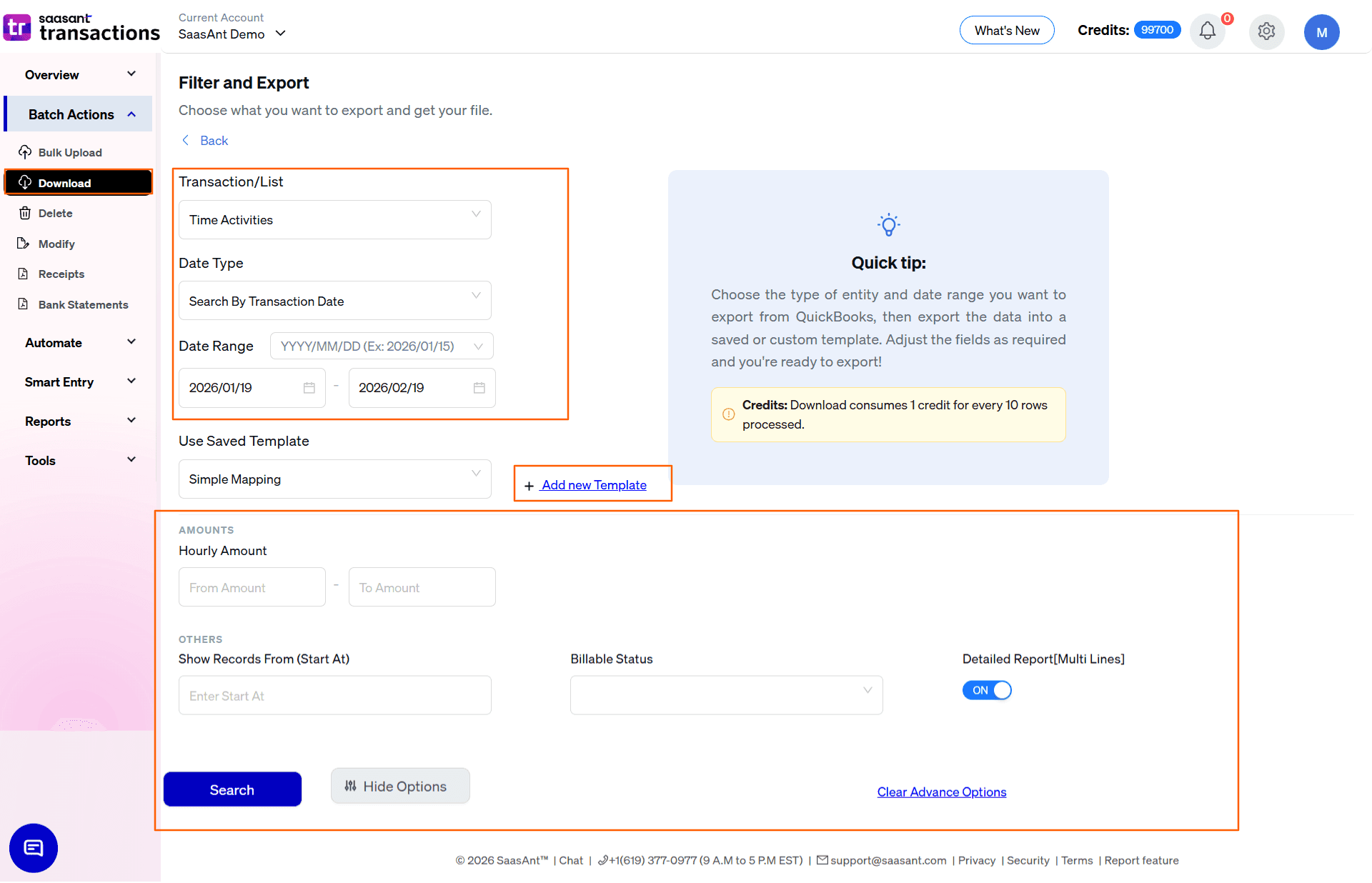
In the Transaction/List dropdown, select Time Activities.
3. Select Date Strategy
Choose the date type that matches your goal:
Search By Transaction Date: Exports are based on the date the time was worked. Use this for payroll processing, client billing, and matching hours to the correct pay or billing period.
Search By Created Date: Exports based on when the time entry was entered into QuickBooks. Use this to identify entries recorded late—for example, timesheets submitted after payroll was already processed, which can cause payroll discrepancies.
Search By Last Updated Date: Exports based on when the time entry was last modified. Use this to catch retroactive changes to approved timesheets, particularly important for businesses with formal timesheet approval workflows.
4. Set Date Range & Format
Range: Enter your start and end dates (typically aligned to your pay period or billing cycle).
Format: Use the dropdown inside the date box to pick your preferred format (e.g., MM/DD/YYYY).
5. Select Template
In the Use Saved Template dropdown, leave it as Simple Mapping for a standard export.
Tip: Create a custom template if you need it for your reporting workflow using the Add new template option.
6. Configure Filters & Search
Use the available filters to isolate specific time records:
Hourly Amount: Enter a From Amount and To Amount to filter by the hourly billing rate. Use this to separate entries at different rate tiers—for example, isolating senior consultant rates from junior rates.
Billable Status: Select from the dropdown to filter by Billable (time that should be invoiced to a customer), Not Billable (internal time), or Billed (time already added to an invoice). This is the most important filter for identifying unbilled hours before running invoices.
Show Records From (Start At): Use this to chunk large exports. If you need to export 5,000 records, run 1–2,500 first, then run a second search starting at 2,501.
Click the blue Search button to preview results.
7. Review & Download
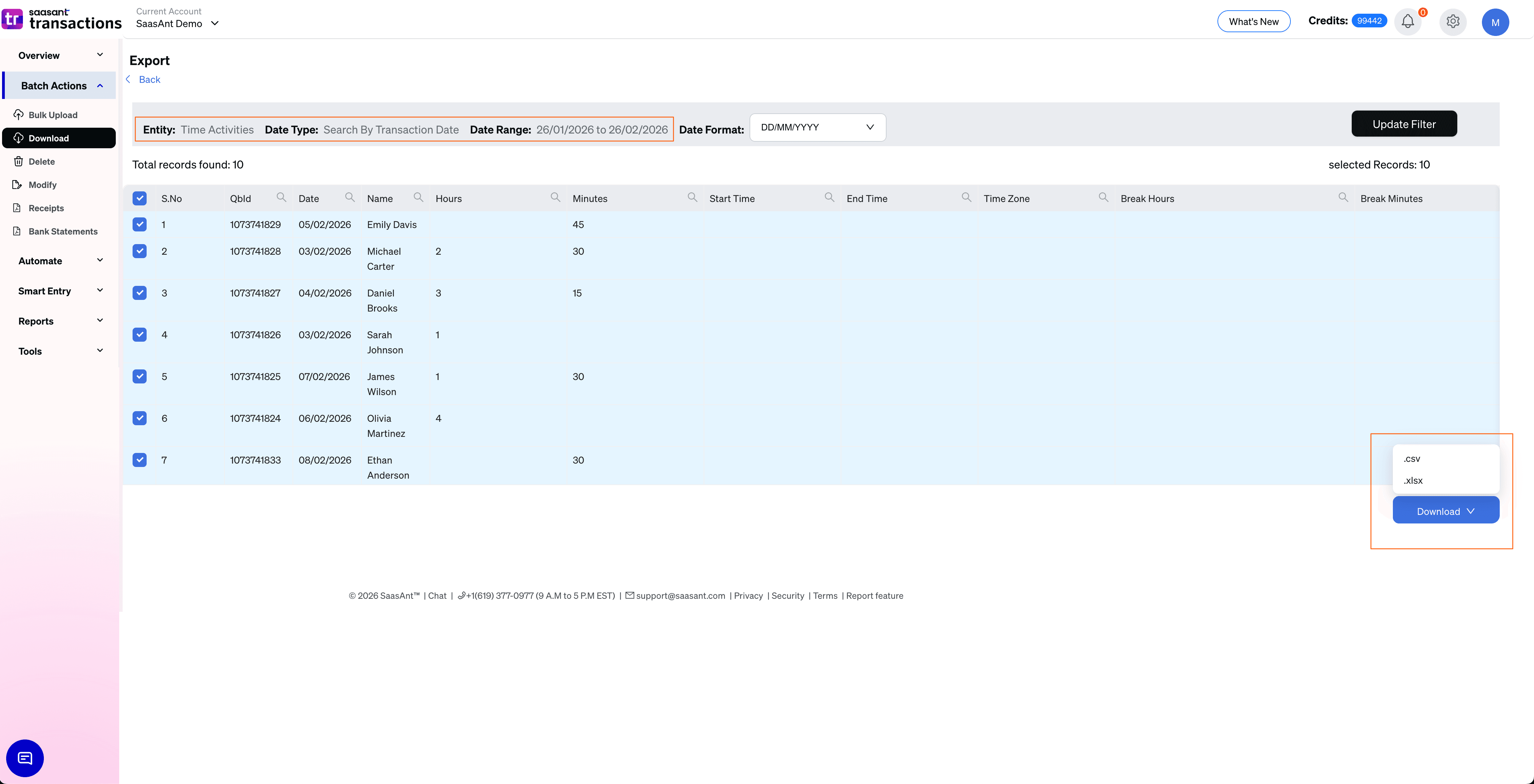
After clicking Search, the data preview grid will load:
Check Billable Status: Verify the Billable Status column to confirm that the entries you expected are correctly marked as Billable, Not Billable, or Billed.
Verify Rates: Scan the Hourly Rate column to confirm no entries have a missing or incorrect billing rate, as these will generate zero-dollar invoice lines.
Total Records: Check "Total records found" to confirm the expected volume.
Select Format: Click the Download button at the bottom right, choose .xlsx (Excel) or .csv, and the file will download.
Automate with Backup
The steps above are for manual exports. If you need a recurring timesheet archive for payroll compliance or client billing cycles, use the Backup module.
Set it and forget it: Schedule daily, weekly, or monthly exports.
Delivery: Have files automatically sent to email, FTP, or storage integrations without logging in.
Why export Time Activities with SaasAnt?
Unbilled Hours Review: Filter by Billable Status = Billable to export all time entries that have not yet been invoiced. This prevents revenue leakage from time worked but never billed to the client.
Payroll Verification: Cross-reference exported time entries against payroll records to confirm that every hour submitted was approved, correctly categorized, and paid at the right rate.
Client Billing Audit: For service businesses—law firms, consultancies, agencies—export time by customer to verify that every billable hour is accounted for before sending invoices.
FAQ
What is the difference between billable, not billable, and billed status?
Billable means the time has been tracked against a customer but not yet added to an invoice. "Not billable" means the time is for internal purposes and will never be charged to a customer. "Billed" means the time has already been added to a customer invoice.
How do I find all the time that has not been invoiced yet?
Use the Billable Status filter and select Billable. This returns only time entries that are assigned to a customer but have not yet been placed on an invoice.
Can I use this file to migrate time activities to another QBO company?
Yes. The export format is natively compatible with SaasAnt's Import feature for migration purposes.