How to Export the Journal Report from QuickBooks Online using SaasAnt
February 25, 2026
At a Glance
The Solution: Use SaasAnt's Download (Export) feature to extract your complete Journal Report into a clean, flat Excel/CSV format.
The Key Benefit: The QuickBooks Online Journal Report breaks down every transaction (not just manual Journal Entries) into its underlying debits and credits. However, the native QBO Excel export is heavily formatted for visual printing, making data manipulation difficult. SaasAnt bypasses this formatting, extracting the raw debit/credit data into a flat file that is perfect for audit testing, forensic accounting, and pivot tables.
Quick Steps: Quick Access > Download (Export) > Select Journal Report (All Transactions) > Search > Download.
Getting Started
Install: Get SaasAnt Transactions from the QuickBooks App Store and start a free trial.
Connect: Securely authorize the connection to your QuickBooks Online company. We do not store your financial data; we simply process the transfer.
How to Export the Journal Report Step-by-Step
1. Navigate to Download (Export)
From the Quick Access, click the Download (Export) button listed in the main menu.
2. Select Entity
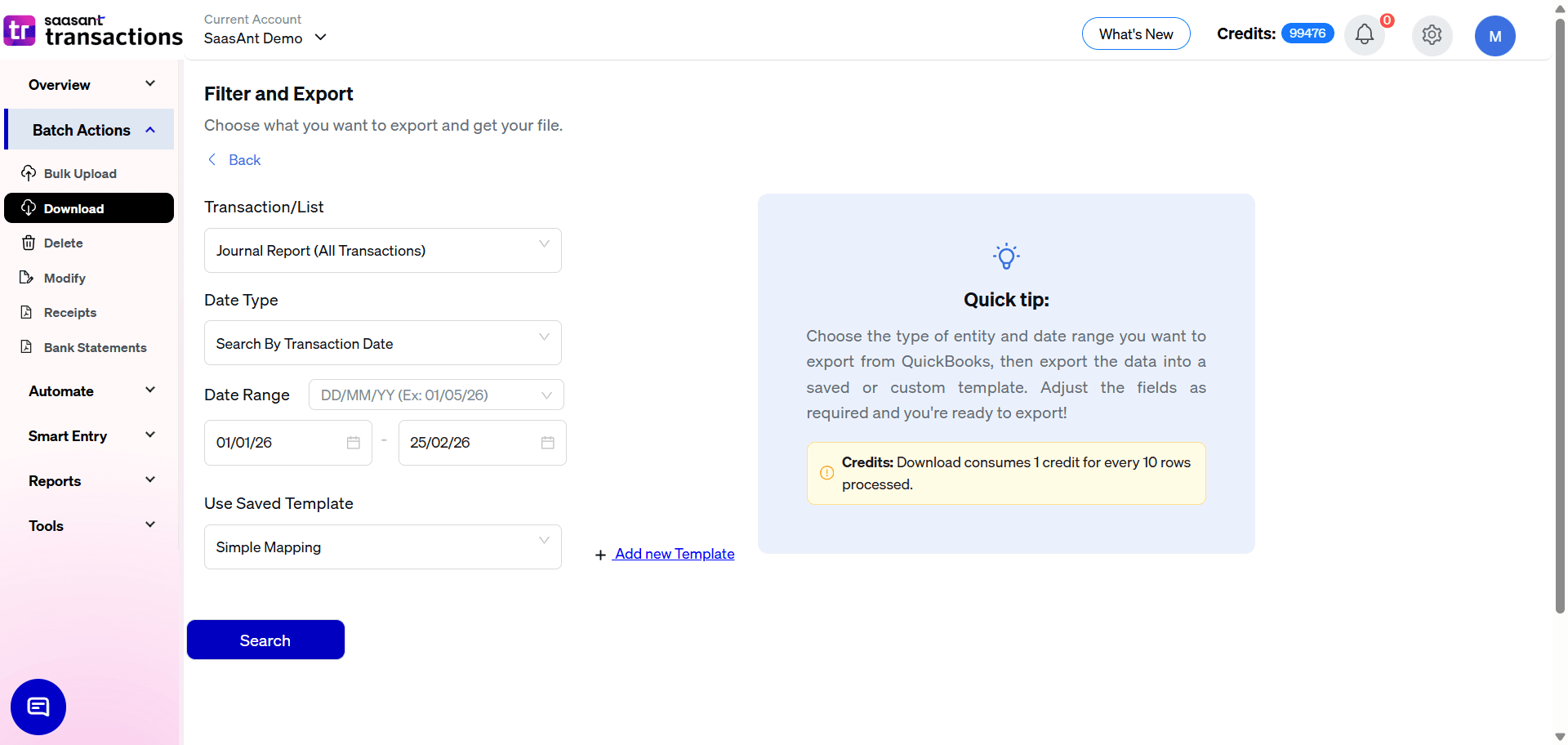
In the Transaction/List dropdown, select Journal Report (All Transactions).
(Note: Do not confuse this with the "Journal Entries" entity. The Journal Entries entity only exports manual journal adjustments. The Journal Report exports the accounting debits/credits of every single transaction type in QBO).
3. Select Date Strategy
The Journal Report tracks financial events chronologically, so the default Date Type is Search By Transaction Date. This pulls the debits and credits based on the actual date the financial event occurred.
4. Set Date Range & Format
Range: Enter your Start and End dates (e.g., a specific fiscal quarter or year).
Format: Use the dropdown inside the date box to pick your preferred format (e.g., DD/MM/YY).
5. Select Template
In the Use Saved Template dropdown, leave it as Simple Mapping for a standard export.
Tip: Create a custom template using the Add new template option if you are exporting this data to feed into an external FP&A tool, specialized audit software, or to match a specific ERP migration template.
6. Configure Filters & Search
The Journal Report export screen is intentionally minimal to ensure a complete data capture:
Show Records From (Start At): Because the Journal Report breaks every transaction into multiple lines, the data volume can be massive. Use this field to chunk large exports (e.g., run records 1–5,000, then run a second search starting at 5,001).
Click the blue Search button to preview results.
7. Review & Download
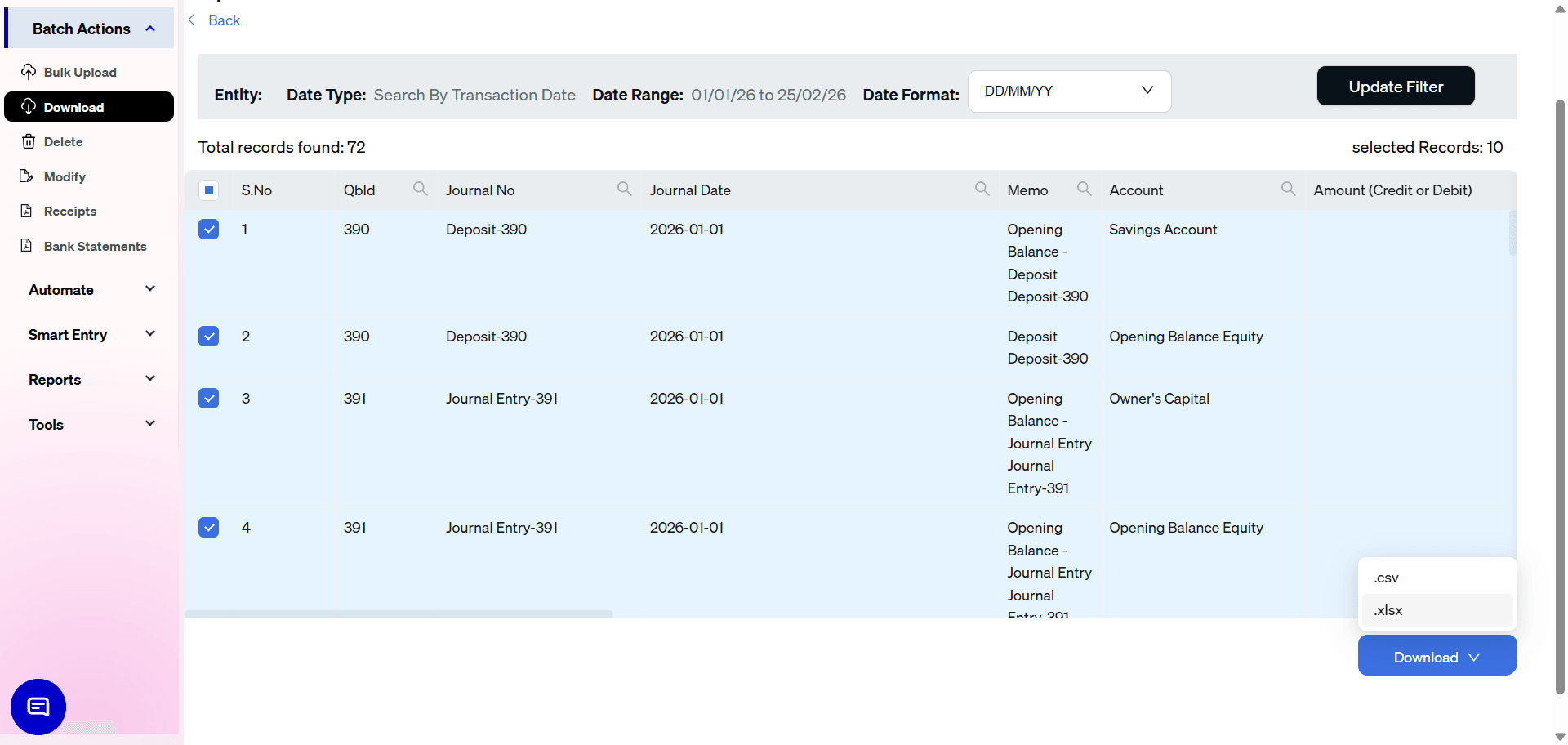
After clicking Search, the data preview grid will load:
Verify Columns: Review the grid to ensure it captured the Journal No, Journal Date, Memo, and Account columns. Notice how SaasAnt combines Debits and Credits into a single Amount (Credit or Debit) column, using positive numbers for debits and negative numbers for credits.
Total Records: Check "Total records found" to confirm the expected volume.
Select Format: Click the Download button at the bottom right, choose .xlsx (Excel) or .csv, and the file will download.
Automate with Backup
If your external CPAs or auditors require a recurring dump of your complete journal activity for compliance testing, use the Backup module.
Set it and forget it: Schedule monthly or quarterly Journal Report exports.
Delivery: Have files automatically sent to a secure FTP, Google Drive, or email address without granting external parties live access to your QBO file.
Why export the Journal Report with SaasAnt?
Audit & Forensic Testing: Auditors frequently require the complete Journal Report to perform sample testing and fraud detection. SaasAnt's flat-file structure allows auditors to instantly filter for unusual account pairings, manual adjustments, or specific date ranges without untangling merged Excel cells.
System Migrations: If you are abandoning QBO for a new ERP, you often need to bring over your historical journal activity so you don't lose your financial history. SaasAnt extracts this data cleanly, allowing you to map the old QBO accounts to your new ERP’s chart of accounts using Excel.
Simplified Debit/Credit Math: Native QBO reports separate Debits and Credits into two columns, which requires extra Excel formulas to calculate net balances. SaasAnt exports a unified Amount column (positive for debits, negative for credits), allowing you to sum account totals instantly.