How to Export the General Ledger from QuickBooks Online using SaasAnt Transactions Online
February 25, 2026
At a Glance
The Solution: Use SaasAnt's Download (Export) feature to extract your complete General Ledger (GL) into a clean, flat Excel/CSV file.
The Key Benefit: Native QuickBooks Online GL exports are formatted as "reports"—filled with merged cells, blank rows, and subtotals that break Excel pivot tables. SaasAnt bypasses the report formatting, extracting every GL line item into a strict, flat-file database format (one row per transaction line) that is instantly ready for financial modeling, SEC reporting, or audit sampling.
Quick Steps: Quick Access Dashboard > Download (Export) > Select General Ledger > Configure Filters > Search > Download.
Video Tutorial for Exporting the General Ledger from QuickBooks Online using SaasAnt Transactions Online:
Getting Started
Install: Get SaasAnt Transactions Online from the QuickBooks App Store and start a free trial.
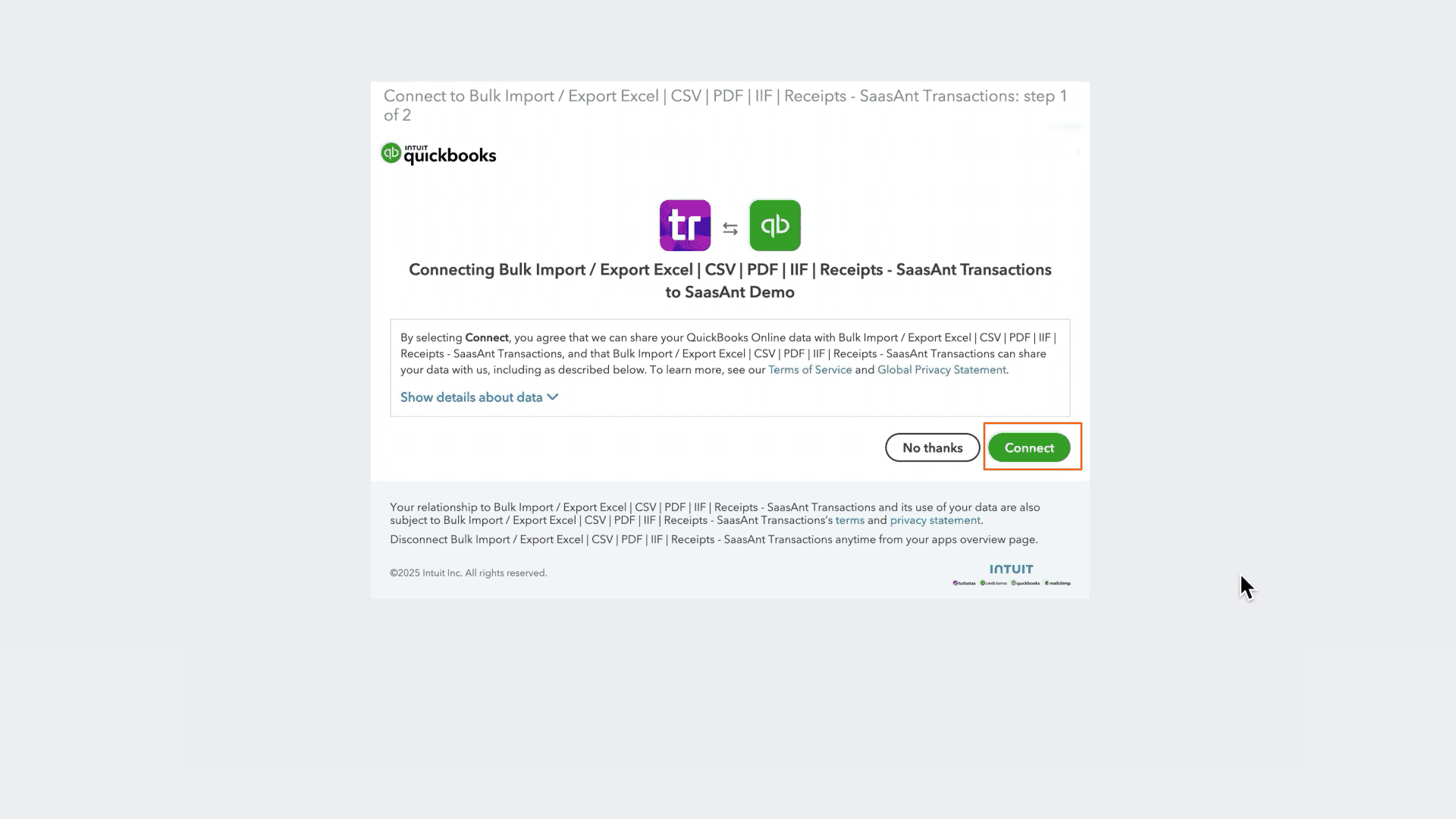
Connect: Securely authorize the connection to your QuickBooks Online company. We do not store your financial data; we simply process the transfer.
How to Export the General Ledger Step-by-Step
1. Navigate to Download (Export)
From the Quick Access dashboard (your default home screen), click the Download (Export) button listed in the main menu.
2. Select Entity
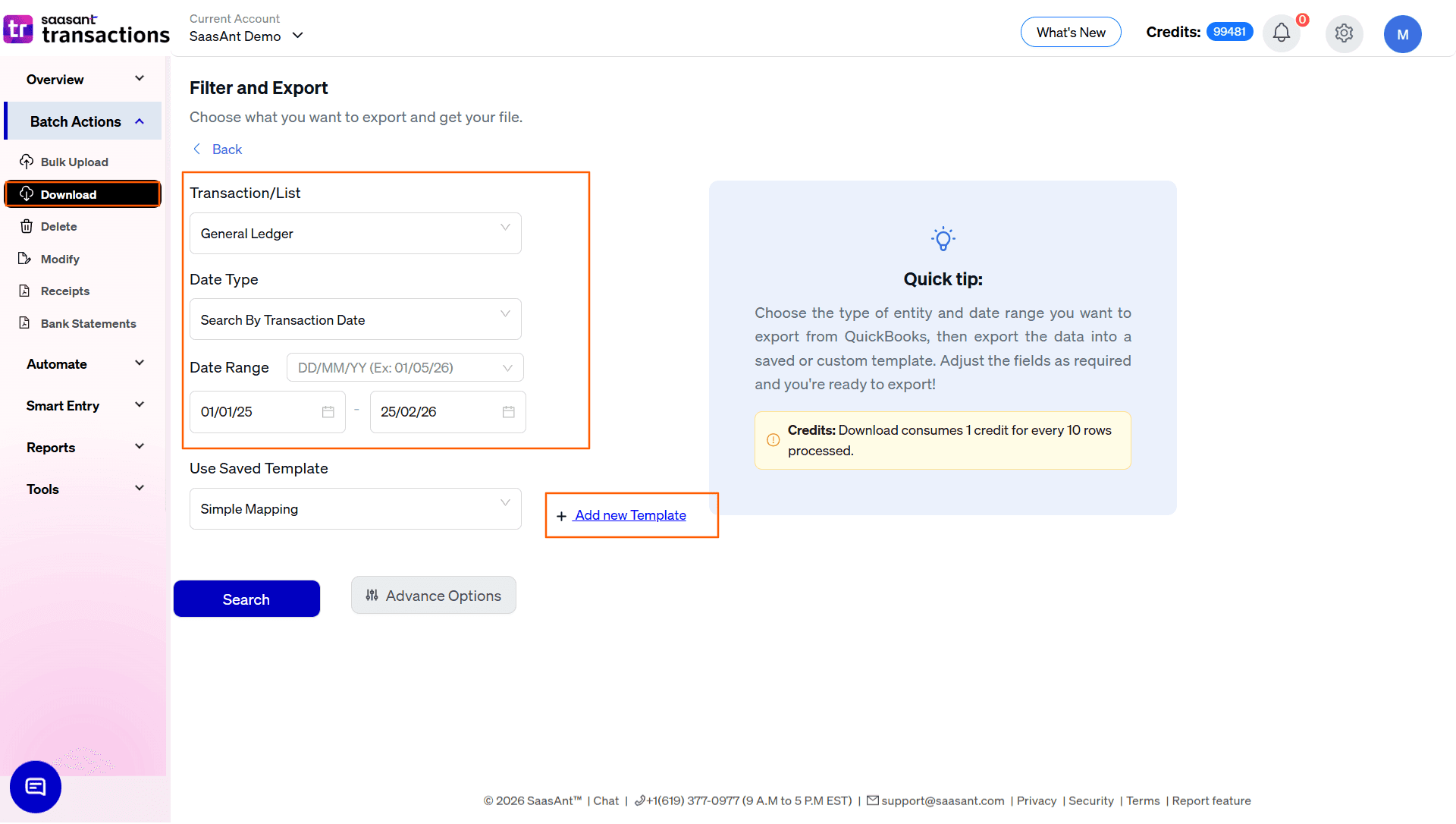
In the Transaction/List dropdown, select General Ledger.
3. Select Date Strategy
Because the General Ledger tracks every financial movement, choosing the right Date Type is critical for your specific reporting goal:
Search By Transaction Date: Pulls records based on the actual date the financial event occurred. Use this for standard period-end reporting, tax prep, and audits.
Search By Created Date: Pulls records based on the exact day they were first entered into QuickBooks. Use this for internal auditing to see what your bookkeeping team entered today or this week.
Search By Last Updated Date: Pulls records based on when they were most recently modified. Use this to catch any historical transactions that someone recently edited or corrected.
4. Set Date Range & Format
Range: Enter your Start and End dates (e.g., a specific fiscal quarter or year).
Format: Use the dropdown inside the date box to pick your preferred format (e.g., MM/DD/YYYY).
5. Select Template
In the Use Saved Template dropdown, leave it as Simple Mapping for a standard export.
Tip: Create a custom template using the Add new template option if you are exporting the GL to feed into an external FP&A software, BI tool, or a specialized audit software (like Mind Bridge) that requires exact column headers.
6. Review & Download
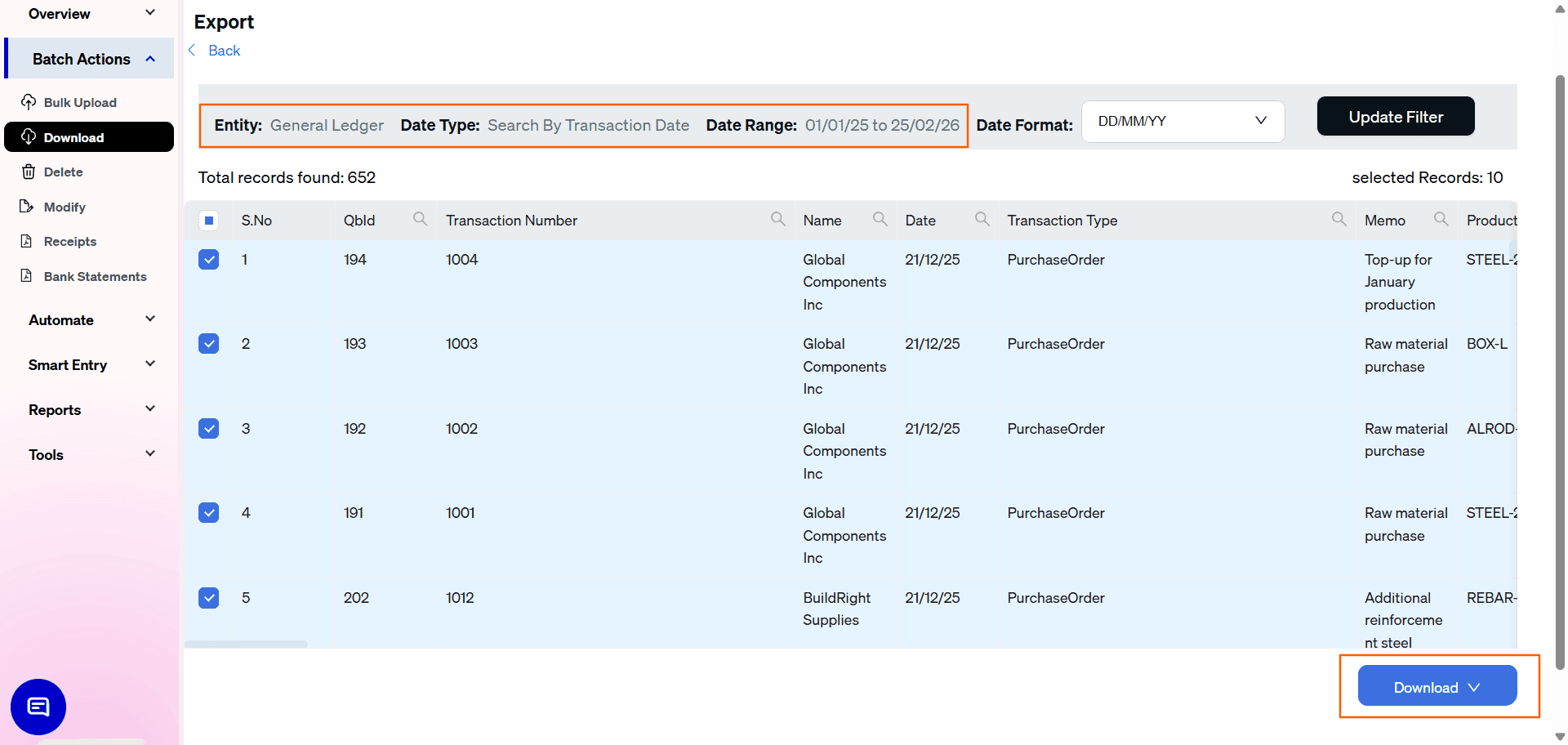
After clicking Search, the data preview grid will load:
Verify Line Items: Review the grid to ensure it captured the expected Transaction Type (e.g., PurchaseOrder, Journal Entry), Name, and Amount. Note how SaasAnt breaks each transaction down line-by-line, including Classes and Product/Service details.
Total Records: Check "Total records found" to confirm the volume of your export.
Select Format: Click the Download button at the bottom right, choose .xlsx (Excel) or .csv, and the file will download.
Automate with Backup
If you have an external financial analyst or CFO who requires a fresh GL dump at the end of every month, use the Backup module.
Set it and forget it: Schedule monthly or quarterly GL exports automatically.
Delivery: Have files automatically sent to a secure FTP, Google Drive, or email address without needing to grant the analyst access to your live QBO file.
Why export the General Ledger with SaasAnt?
Pivot-Table Ready Data: As mentioned, native QBO GL exports require heavy manual formatting to remove blank rows and subtotals before you can run a pivot table. SaasAnt's flat-file structure means you can download the GL and insert a pivot table in Excel within 10 seconds.
Bypassing QBO Export Limits: Very large QuickBooks files often hit an export limit or timeout error when trying to export a massive General Ledger natively. SaasAnt bypasses these limitations, allowing you to extract massive, multi-year ledgers.
Deep Audit Sampling: Auditors require detailed GL documentation to test transactions. SaasAnt allows you to export the GL with exact Reference Numbers, Line Memos, and Classes intact, making it vastly easier for auditors to trace entries back to their source documents.
FAQ
Can I export just the Journal Entries using this tool?
You can, but if you only want Journal Entries, you should select "Journal Entries" from the Entity dropdown in Step 2. The General Ledger export is designed to pull all transaction types (Invoices, Bills, Checks, Journals) into one unified list.
Why does one transaction appear on multiple rows in the export?
This is the correct accounting structure. A single invoice might have three different lines (e.g., one line for Labor income, one for Materials income, and one for Sales Tax). The General Ledger must display each line separately to show how the amounts hit different accounts on your Chart of Accounts.