How to Export the Chart of Accounts from QuickBooks Online using SaasAnt Transactions Online
February 24, 2026
At a Glance
The Solution: Use SaasAnt's Download (Export) feature to extract your complete Chart of Accounts (COA) into a clean Excel/CSV format.
The Key Benefit: Native QuickBooks Online COA exports (usually done via the Account List report) often drop critical backend data—specifically the "Detail Type" (Account Subtype) and sometimes Account Numbers. SaasAnt exports your raw, un-truncated account list, complete with Account Types, Subtypes, Numbers, and current Balances.
Quick Steps: Quick Access > Download (Export) > Select Accounts > Search > Download.
Video Tutorial for Exporting the Chart of Accounts from QuickBooks Online using SaasAnt Transactions Online:
Getting Started
Install: Get SaasAnt Transactions Online from the QuickBooks App Store and start a free trial.
Connect: Securely authorize the connection to your QuickBooks Online company. We do not store your customer data; we simply process the transfer.
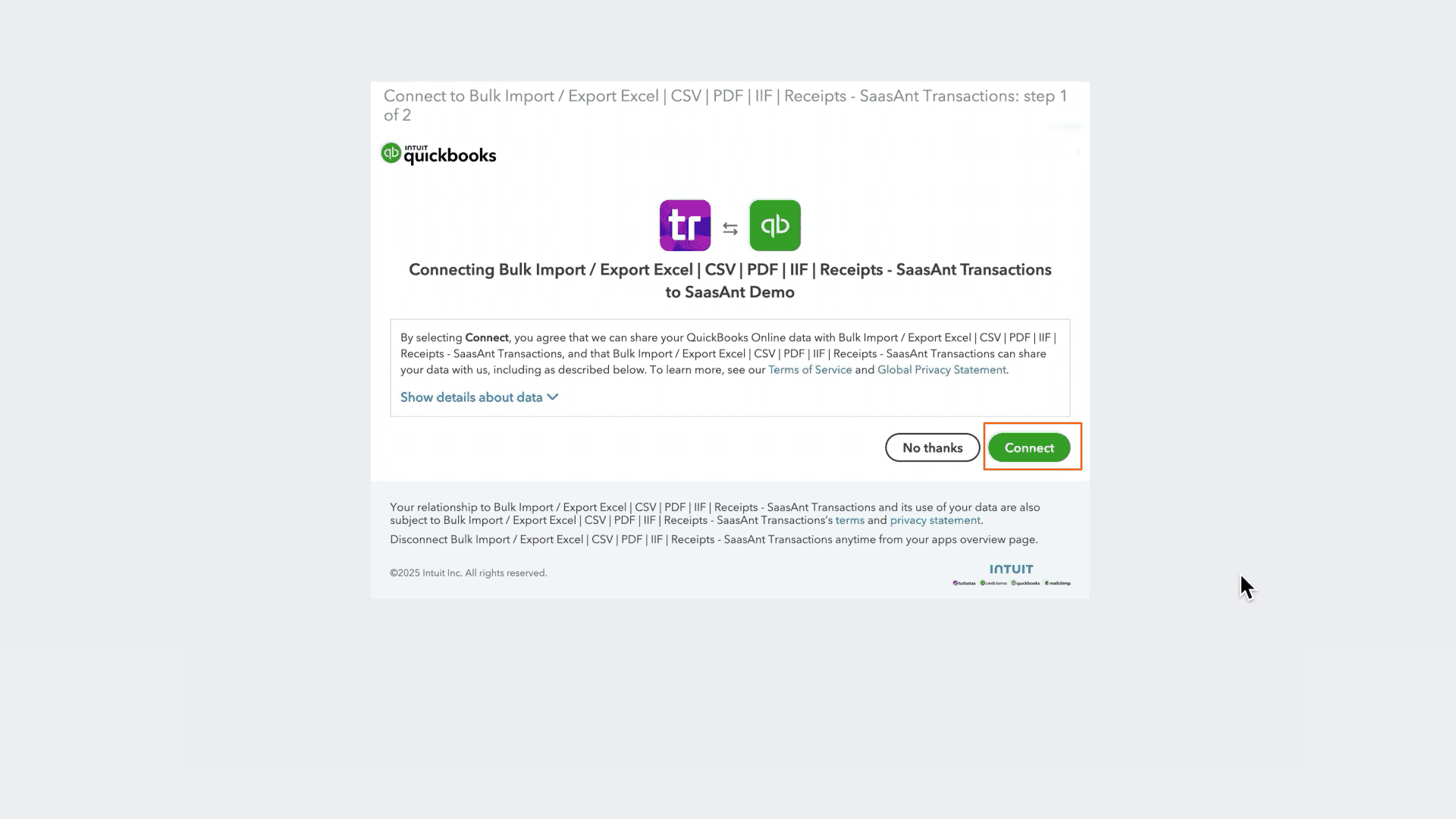
How to Export Accounts Step-by-Step
1. Navigate to Download (Export)
From the Quick Access, click the Download (Export) button listed in the main menu.
2. Select Entity
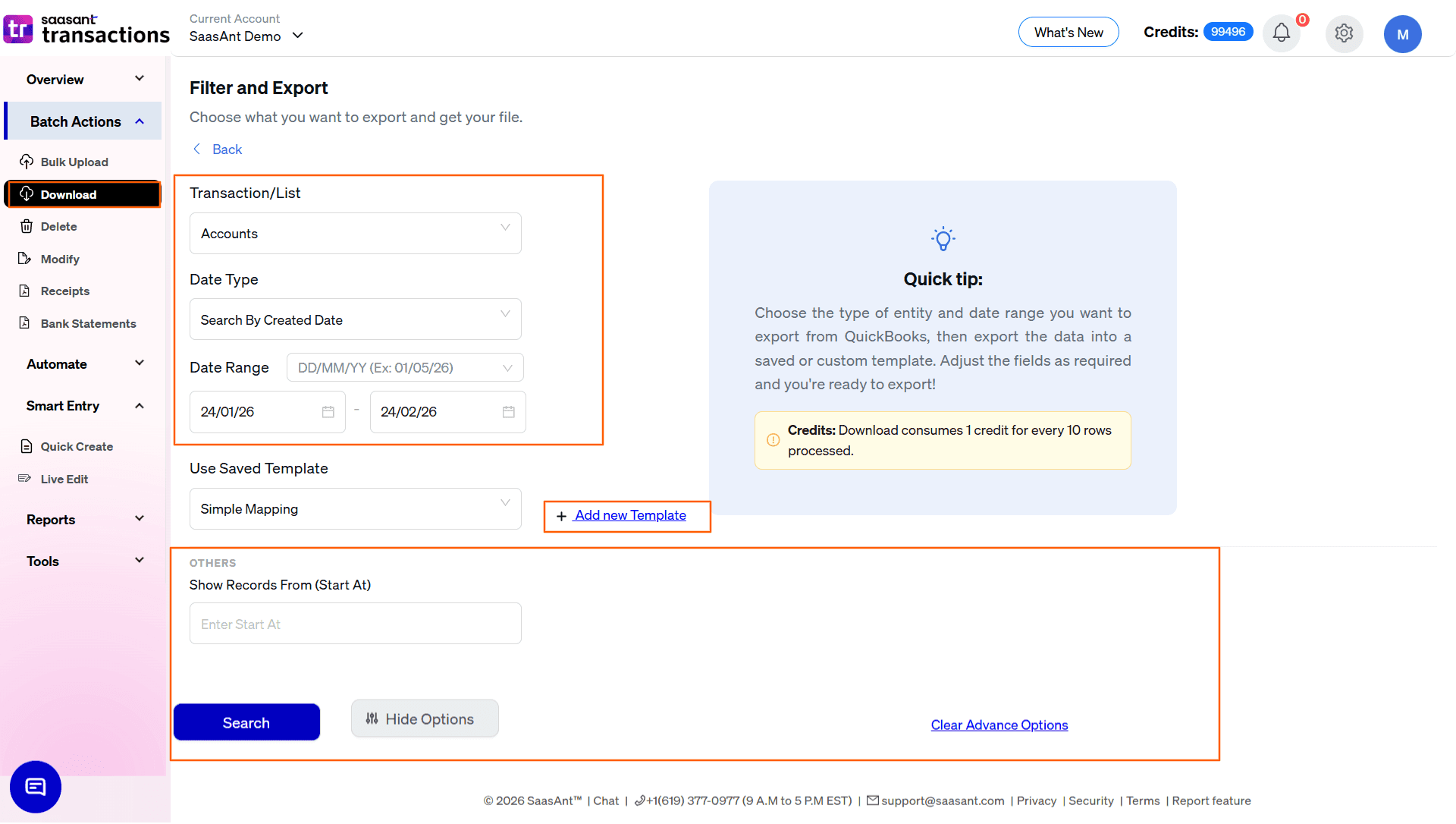
In the Transaction/List dropdown, select Accounts.
3. Select Date Strategy
Because Accounts are "Lists," choose the Date Type that fits your reporting needs:
Search By Created Date: Exports based on when the account was first created in QuickBooks. Use this to pull a list of all newly added expense or income accounts.
Search By Last Updated Date: Exports based on when the account was last modified. Use this to audit recent changes to account names or parent/child account nesting.
4. Set Date Range & Format
Range: Enter your Start and End dates. To ensure you capture your entire Chart of Accounts, enter a start date far in the past (e.g., 01/01/2000) to the current date.
Format: Use the dropdown inside the date box to pick your preferred format (e.g., MM/DD/YYYY).
5. Select Template
In the Use Saved Template dropdown, leave it as Simple Mapping for a standard export.
Tip: Create a custom template using the Add new template option if you are exporting this COA to populate account mapping tables in third-party software like a payroll system, CRM, or external FP&A (budgeting) tool.
6. Configure Filters & Search
Because the Chart of Accounts is typically a smaller, static list, there are no complex transaction filters on this screen:
Show Records From (Start At): Use this to chunk large exports. If you have an unusually massive, multi-tiered COA (e.g., thousands of accounts), run 1–2,500 first, then run a second search starting at 2,501.
Click the Search button to preview results.
7. Review & Download
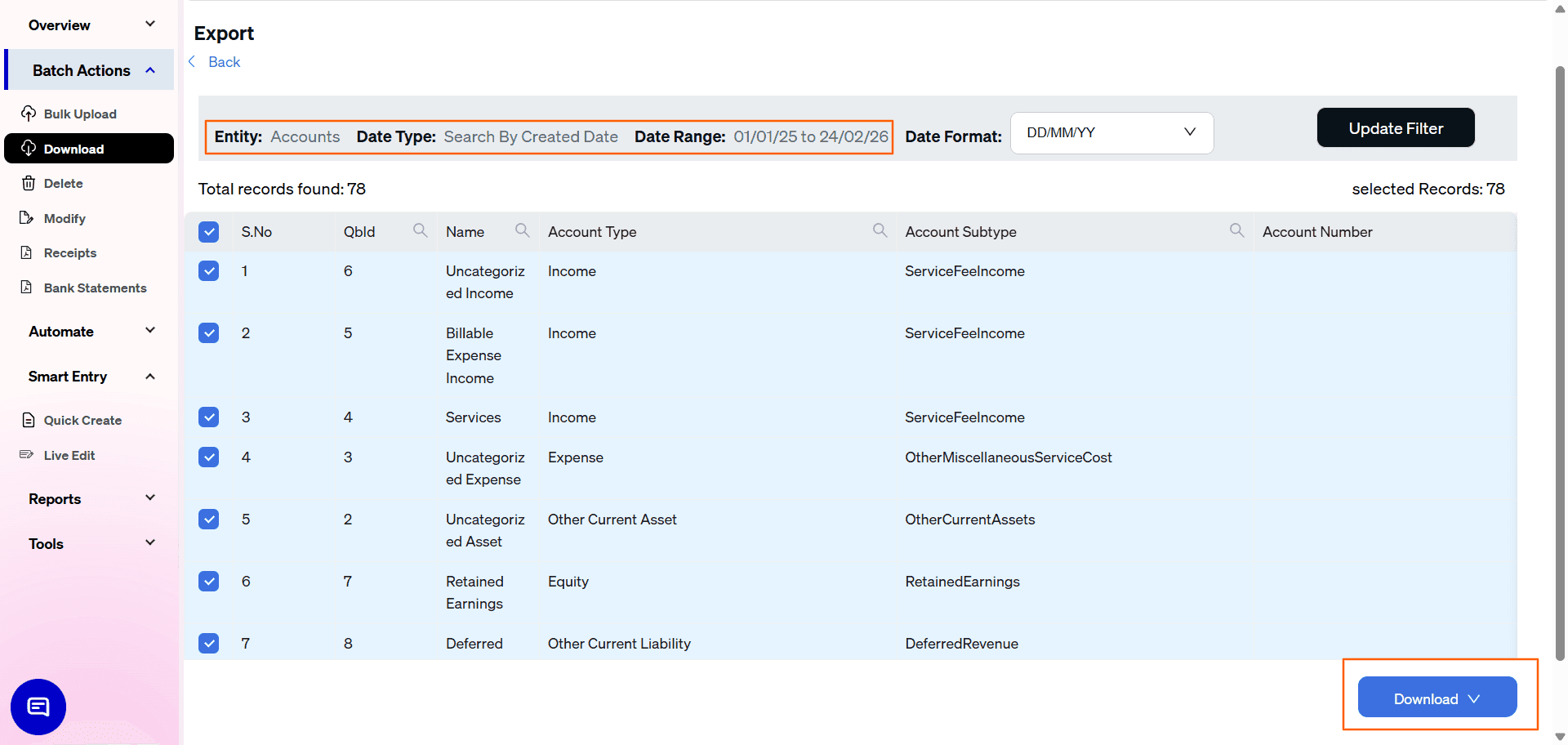
After clicking Search, the data preview grid will load:
Verify Columns: Review the Name, Account Type (e.g., Income, Expense), and Account Subtype columns to ensure the full list pulled correctly.
Total Records: Check "Total records found" (e.g., 78 records) to confirm it captured your entire ledger structure.
Select Format: Click the Download button at the bottom right, choose .xlsx (Excel) or .csv, and the file will download.
Automate with Backup
If you frequently add new accounts and need external financial modeling tools to stay synced with your QBO ledger, use the Backup module.
Set it and forget it: Schedule daily, weekly, or monthly exports.
Delivery: Have files automatically sent to email, FTP, or storage integrations without logging in.
Why export Accounts with SaasAnt?
Data Completeness for Migrations: If you are migrating to a new ERP or Desktop software, native QBO exports will truncate Account Names to 31 characters and completely drop the "Detail Type" (Subtype). SaasAnt's flat-file export preserves these fields, making your migration mapping much easier.
Account Number Audits: Standard QBO reports only show account numbers if you specifically turn on that preference in settings. SaasAnt pulls the "Account Number" field directly from the database into its own column, allowing you to easily sort, identify missing numbers, and standardize your ledger.
Bulk Restructuring: Export your COA, make mass changes in Excel (like adding numeric prefixes to dozens of expense accounts to create a standardized hierarchy), and use SaasAnt’s import feature to update QBO in bulk.
FAQ
Does this export the transactions inside the accounts?
No. The Accounts export pulls the List of the accounts themselves (the structure of your ledger), along with their current balance. To see the transactions that make up that balance, you should export Journal Entries, Checks, or specific transaction types.
Will this export inactive or deleted accounts?
Yes, if the inactive accounts fall within the created/updated date range you selected. Capturing inactive accounts is highly recommended if you are doing a historical data migration to ensure older transactions have a mapping destination.