How to Export Sales Receipts from QuickBooks Online using SaasAnt
February 20, 2026
At a Glance
The Solution: Use SaasAnt's Download (Export) feature to extract Sales Receipt transactions into a clean Excel/CSV format.
The Key Benefit: QuickBooks Online does not natively support a direct export of Sales Receipts as a flat data file. SaasAnt bridges this gap by pulling complete receipt data—including line items, payment methods, and customer details—into a structured Excel or CSV format.
Quick Steps: Quick Access > Download (Export) > Select Sales Receipts > Search > Download.
Getting Started
Install: Get SaasAnt Transactions from the QuickBooks App Store and start a free trial.
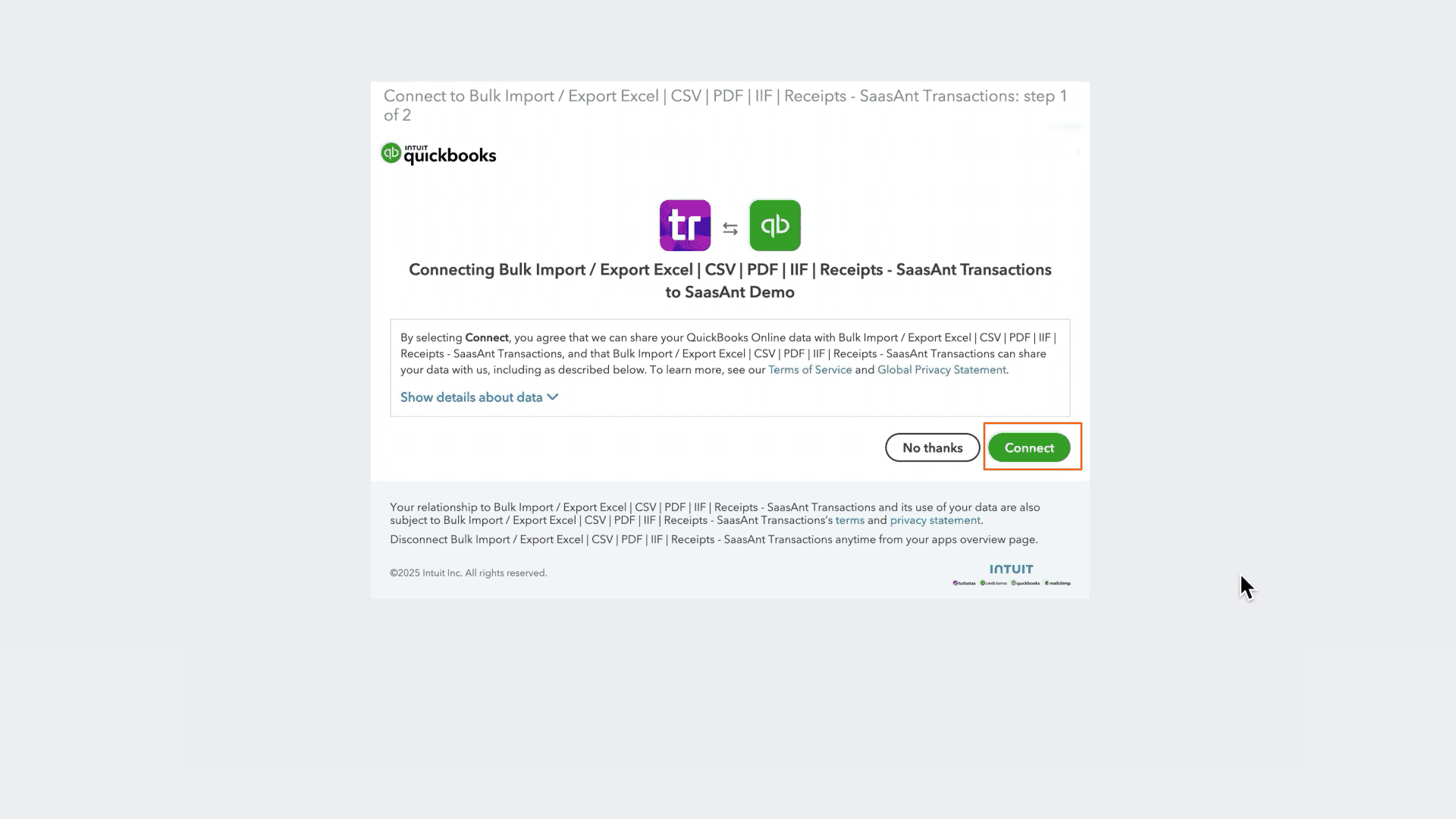
Connect: Securely authorize the connection to your QuickBooks Online company. We do not store your customer data; we simply process the transfer.
How to Export Sales Receipts Step-by-Step
1. Navigate to Download (Export)
From the Quick Access dashboard, click the Download (Export) button listed in the main menu.
2. Select Entity
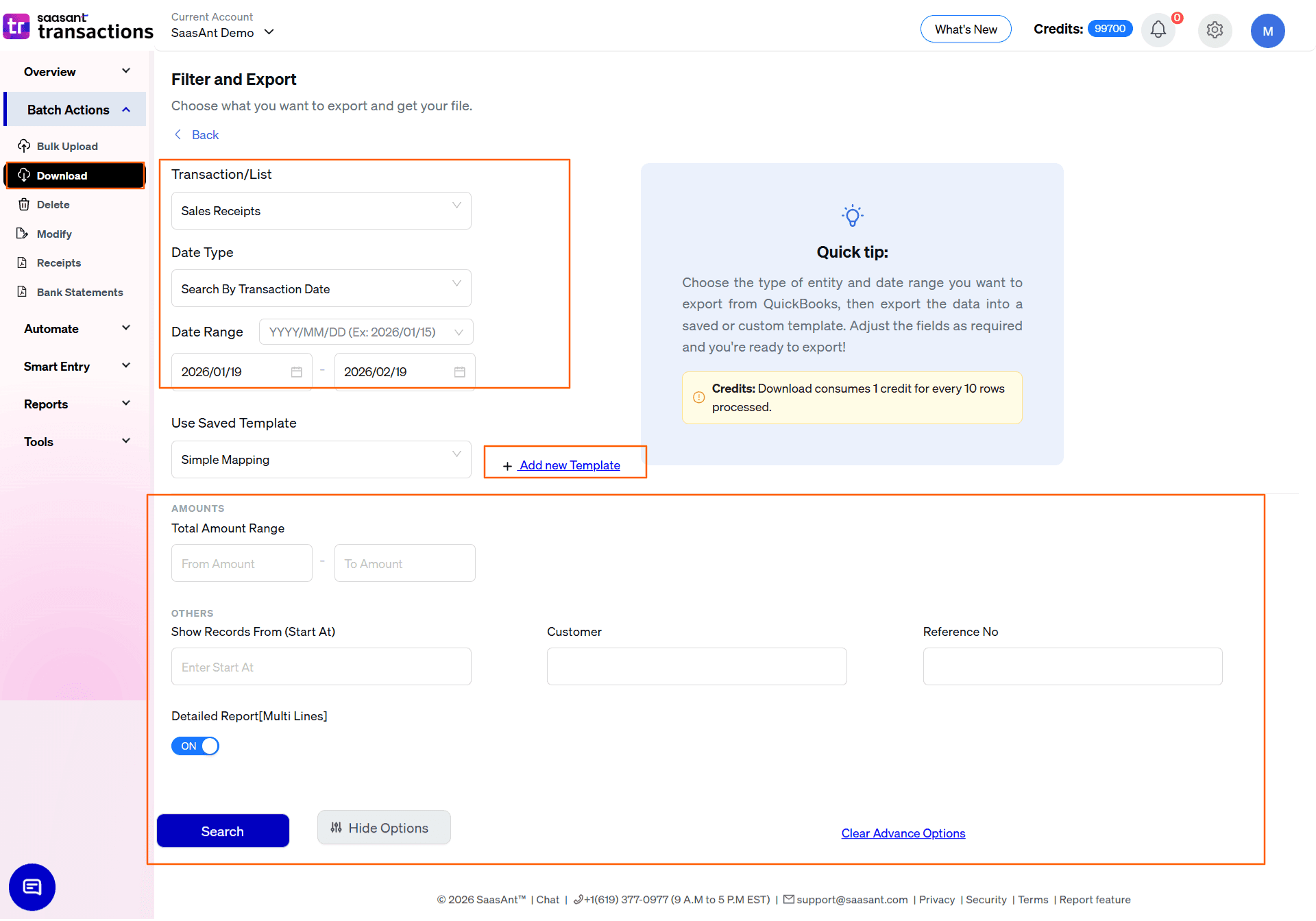
In the Transaction/List dropdown, select Sales Receipts.
3. Select Date Strategy
Choose the date type that matches your goal:
Search By Transaction Date: (Standard) Exports based on the date the sale was recorded. Use this for daily sales reconciliation, revenue reporting, and matching deposits to your bank feed.
Search By Created Date: Exports based on when the sales receipt was entered into QuickBooks. Use this to audit data entry timing—particularly useful for high-volume operations like retail or events where receipts may be entered in batches after the sale date.
Search By Last Updated Date: Exports based on when the record was last modified. Use this to identify any corrections made to previously recorded receipts.
4. Set Date Range & Format
Range: Enter your start and end dates.
Format: Use the dropdown inside the date box to pick your preferred format (e.g., MM/DD/YYYY).
5. Select Template
In the Use Saved Template dropdown, leave it as Simple Mapping for a standard export.
Tip: Create a custom template if you need it for your reporting workflow using the Add new template option.
6. Configure Filters & Search
Use the available filters to isolate specific receipts:
Total Amount Range: Enter a From Amount and To Amount to find receipts within a specific value range (e.g., large single-transaction sales over $1,000 for high-value order reviews).
Customer: Enter a customer name to pull all receipts for a specific account—useful for reviewing repeat purchase history.
Reference No: Input a specific receipt number to locate a single transaction for audit or customer dispute resolution.
Show Records From (Start At): Use this to chunk large exports. If you need to export 5,000 records, run 1–2,500 first, then run a second search starting at 2,501.
Click the Search button to preview results.
7. Review & Download
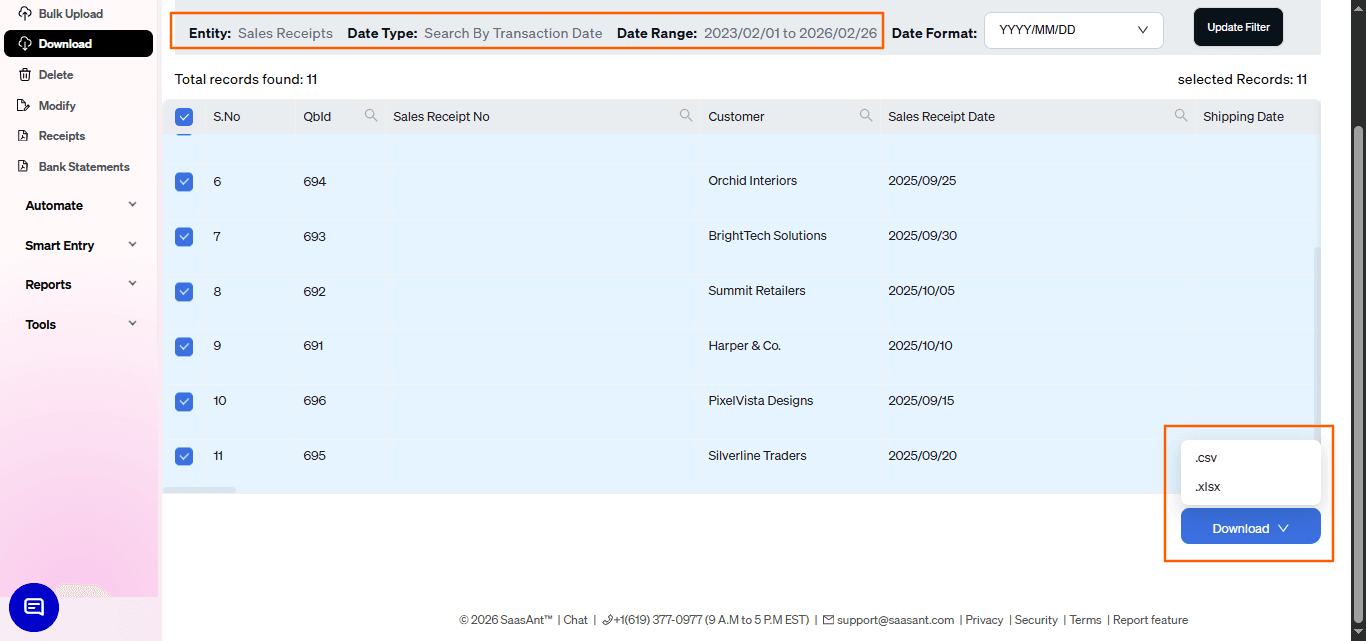
After clicking Search, the data preview grid will load:
Verify Payment Methods: Scan the Payment Method column to confirm cash, card, and other tender types are categorized correctly.
Check Line Items: If Detailed Report is enabled, verify that each receipt shows the correct product or service lines.
Total Records: Check "Total records found" to confirm the expected volume.
Select Format: Click the Download button at the bottom right, choose .xlsx (Excel) or .csv, and the file will download.
Automate with Backup
The steps above are for manual exports. For high-volume operations that need daily sales data feeds or regular archives, use the Backup module.
Set it and forget it: Schedule daily, weekly, or monthly exports.
Delivery: Have files automatically sent to email, FTP, or storage integrations without logging in.
Why export sales receipts with SaasAnt?
Daily Sales Reconciliation: For retail, event, or POS-heavy businesses generating dozens of receipts per day, export by transaction date to reconcile total receipt amounts against bank deposits and payment processor settlements.
Revenue Analysis: Build item-level sales reports in Excel to compare product performance, identify top-selling items, and track revenue trends—analyses that QBO's native Sales Receipt reports don't easily support.
Migration and System Setup: When moving to a new QBO subscription or onboarding a client, export historical sales receipts to preserve complete transaction history without manual re-entry.
FAQ
What is the difference between a sales receipt and an invoice in QuickBooks Online?
A sales receipt records a completed sale where payment is received immediately—no follow-up is needed. An invoice is used when payment is expected later, creating an outstanding balance in accounts receivable. Use sales receipts for walk-in, retail, or point-of-sale transactions.
Why can't I just export sales receipts from QBO directly?
QBO's native export options for sales receipts output a formatted report rather than a flat database file. This makes it difficult to pivot, sort, or use the data in other systems. SaasAnt exports a clean, row-per-transaction file that is immediately usable.
Can I use this file to migrate sales receipts to another QBO company?
Yes. The export format is natively compatible with SaasAnt's Import feature for migration purposes.