How to Export Refund Receipts from QuickBooks Online using SaasAnt Transactions Online
February 20, 2026
At a Glance
The Solution: Use SaasAnt's Download (Export) feature to extract Refund Receipt transactions into a clean Excel/CSV format.
The Key Benefit: QuickBooks Online does not offer a native export of refund receipts as a flat data file. SaasAnt extracts the complete record—including returned items, refund method, and amount—into a structured Excel or CSV format ready for revenue analysis, tax reconciliation, or audit documentation.
Quick Steps: Quick Access > Download (Export) > Select Refund Receipts > Search > Download.
Getting Started
Install: Get SaasAnt Transactions Online from the QuickBooks App Store and start a free trial.
Connect: Securely authorize the connection to your QuickBooks Online company. We do not store your customer data; we simply process the transfer.
How to Export Refund Receipts Step-by-Step
1. Navigate to Download (Export)
From the Quick Access screen, click the Download (Export) button listed in the main menu.
2. Select Entity
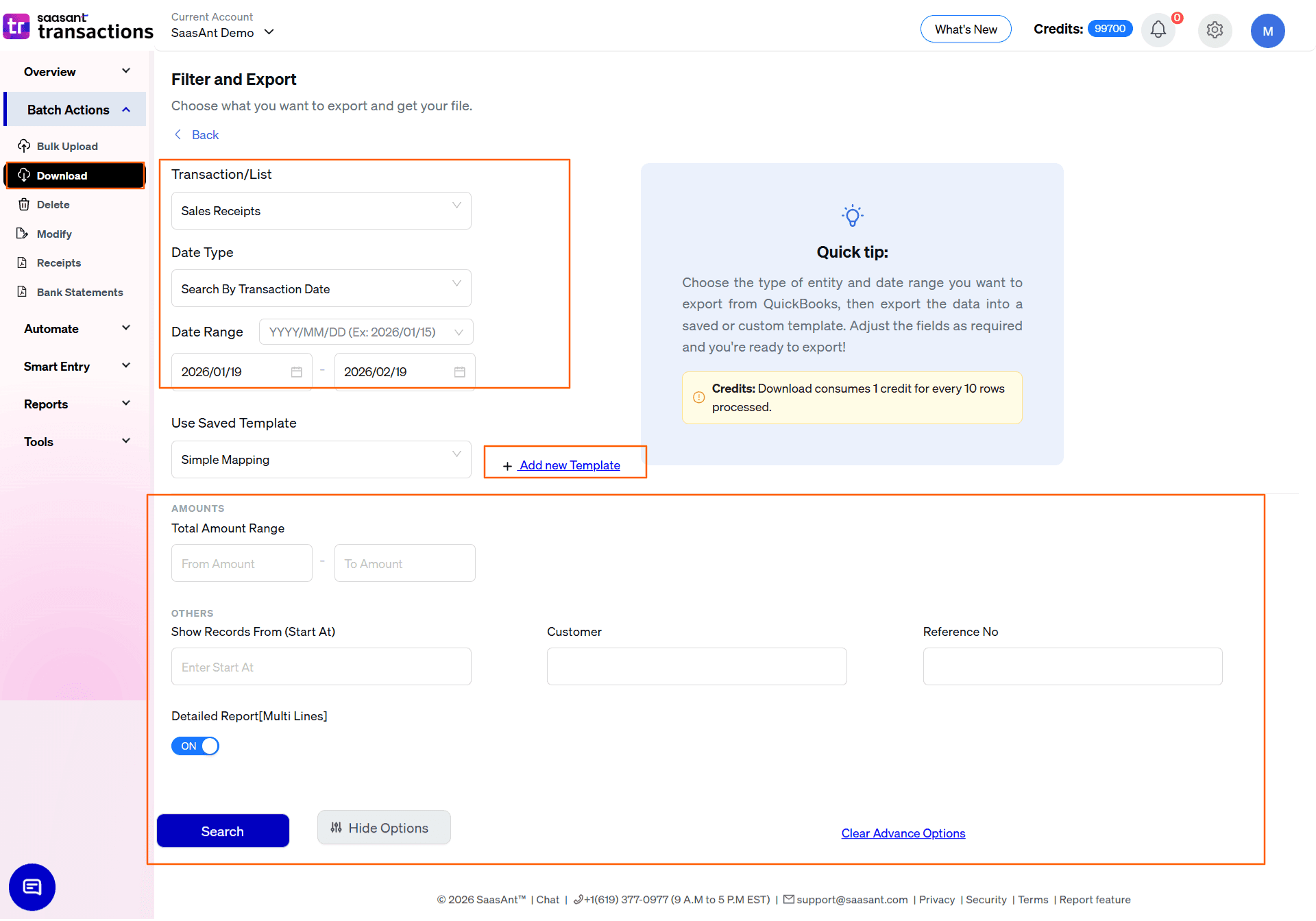
In the Transaction/List dropdown, select Refund Receipts.
3. Select Date Strategy
Choose the date type that matches your goal:
Search By Transaction Date: Exports based on the date the refund was issued. Use this for period-end revenue adjustment reporting, sales tax reconciliation, and matching refunds to bank feed outflows.
Search By Created Date: Exports based on when the refund receipt was entered into QuickBooks. Use this to audit data entry timing and identify refunds that were backdated to a prior period, which can distort revenue recognition and sales tax filings.
Search By Last Updated Date: Exports based on when the record was last modified. Use this to identify refund receipts that were edited after being recorded—for example, changes to item lines or deposit accounts.
4. Set Date Range & Format
Range: Enter your start and end dates.
Format: Use the dropdown inside the date box to pick your preferred format (e.g., MM/DD/YYYY).
5. Select Template
In the Use Saved Template dropdown, leave it as Simple Mapping for a standard export.
Tip: Create a custom template if you need it for your reporting workflow using the Add new template option.
6. Configure Filters & Search
Use the available filters to isolate specific refund receipts:
Total Amount Range: Enter a From Amount and To Amount to find refunds within a specific value range (e.g., refunds over $500 for high-value return tracking).
Customer: Enter a customer name to pull all refund receipts for a specific account—useful for resolving disputes or reviewing a customer's return history.
Reference No: Input a specific refund receipt number to locate a single transaction for audit documentation.
Show Records From (Start At): Use this to chunk large exports. If you need to export 5,000 records, run 1–2,500 first, then run a second search starting at 2,501.
Click the Search button to preview results.
7. Review & Download
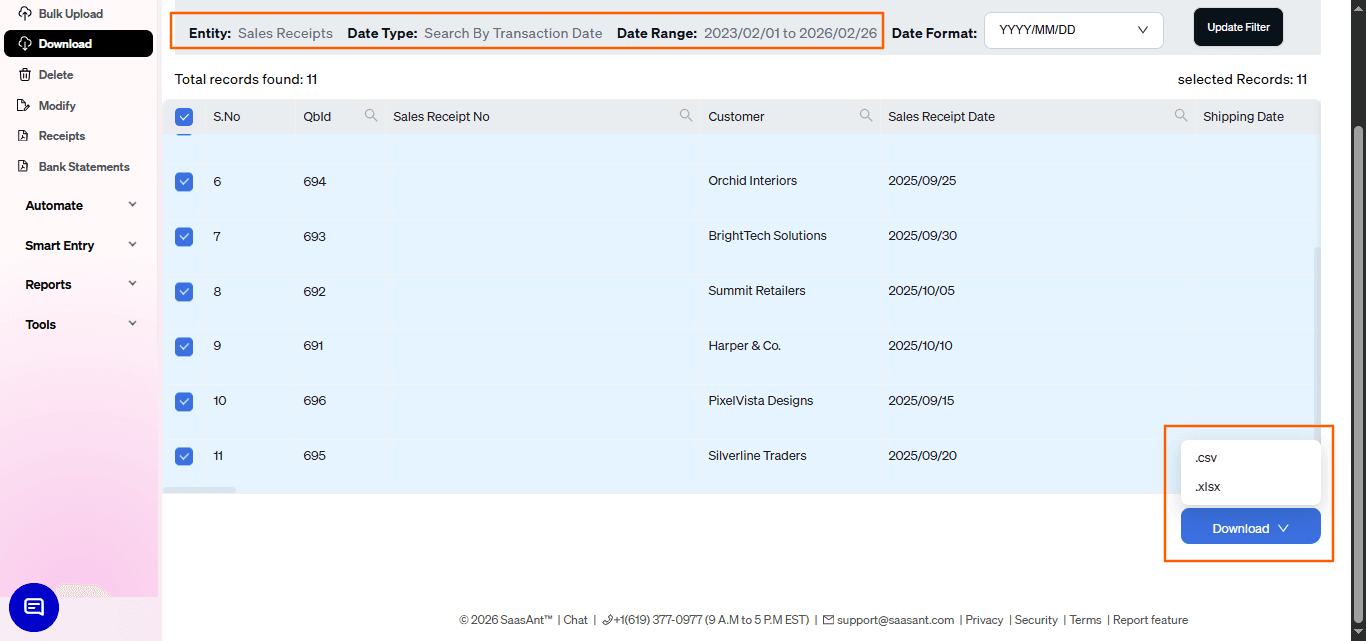
After clicking Search, the data preview grid will load:
Verify Returned Items: If Detailed Report is enabled, confirm that line items reflect the correct products or services being refunded.
Check Payment Method: Confirm the refund method (Credit Card, Check, Cash) matches your bank records for reconciliation.
Total Records: Check "Total records found" to confirm the expected volume.
Select Format: Click the Download button at the bottom right, choose .xlsx (Excel) or .csv, and the file will download.
Automate with Backup
The steps above are for manual exports. If you need a recurring refund report for monthly P&L review or tax filing, use the Backup module.
Set it and forget it: Schedule daily, weekly, or monthly exports.
Delivery: Have files automatically sent to email, FTP, or storage integrations without logging in.
Why export refund receipts with SaasAnt?
Revenue and Sales Tax Reconciliation: Refund receipts directly reverse income and sales tax on the original items returned. Exporting them with line-item detail lets you verify that every refund is correctly reduced both your reported revenue and tax liability for the period.
Return Rate Analysis: Aggregate refund data by product, customer, or period in Excel to identify high-return items or patterns that need attention—an analysis not readily available in QBO's standard reports.
Audit Documentation: Provide a complete, itemized record of all customer refunds issued during a period, with reference numbers and payment methods, as part of an audit package.
FAQ
What is the difference between a refund receipt and a credit memo in QuickBooks Online?
A refund receipt documents an actual return of money to a customer—cash or card leaves your account immediately. A credit memo reduces what a customer owes and can be applied to a future invoice without any money changing hands. Use refund receipts when you are physically returning funds; use credit memos when you are crediting a customer's account for future use.
Does the export include the items that were refunded?
Yes, when the Detailed Report [Multi Lines] toggle is set to ON, each line item on the refund receipt is exported as a separate row, showing exactly which products or services were returned.
Can I use this file to migrate refund receipt data to another QBO company?
Yes. The export format is natively compatible with SaasAnt's Import feature for migration purposes.