How to Export Products and Services from QuickBooks Online using SaasAnt Transactions Online
February 24, 2026
At a Glance
The Solution: Use SaasAnt's Download (Export) feature to extract your complete Product and Service List into a clean Excel/CSV format.
The Key Benefit: Native QuickBooks Online item exports often omit critical backend data like Preferred Suppliers, specific Income/Expense account mappings, and Taxable statuses. SaasAnt extracts your entire catalog—including SKUs, QOH (Quantity on Hand), pricing, and full account routing—into a structured, flat file that is perfect for inventory audits or eCommerce syncing.
Quick Steps: Quick Access > Download (Export) > Select Product / Service > Search > Download.
Video Tutorial for Exporting the Product and Services from QuickBooks Online using SaasAnt Transactions Online:
Getting Started
Install: Get SaasAnt Transactions Online from the QuickBooks App Store and start a free trial.
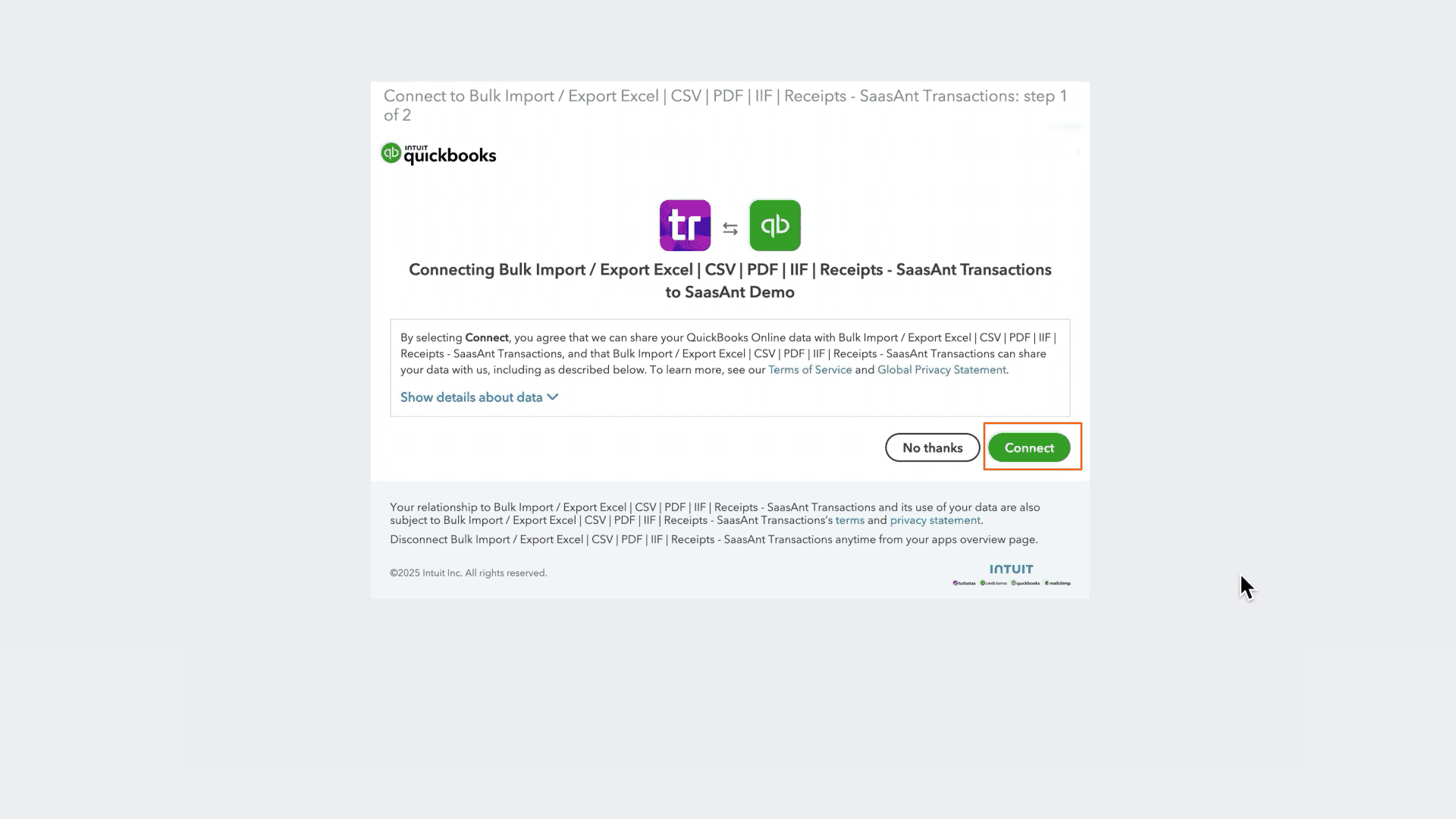
Connect: Securely authorize the connection to your QuickBooks Online company. We do not store your customer data; we simply process the transfer.
How to Export Products and Services Step-by-Step
1. Navigate to Download (Export)
From the Quick Access, click the Download (Export) button listed in the main menu.
2. Select Entity
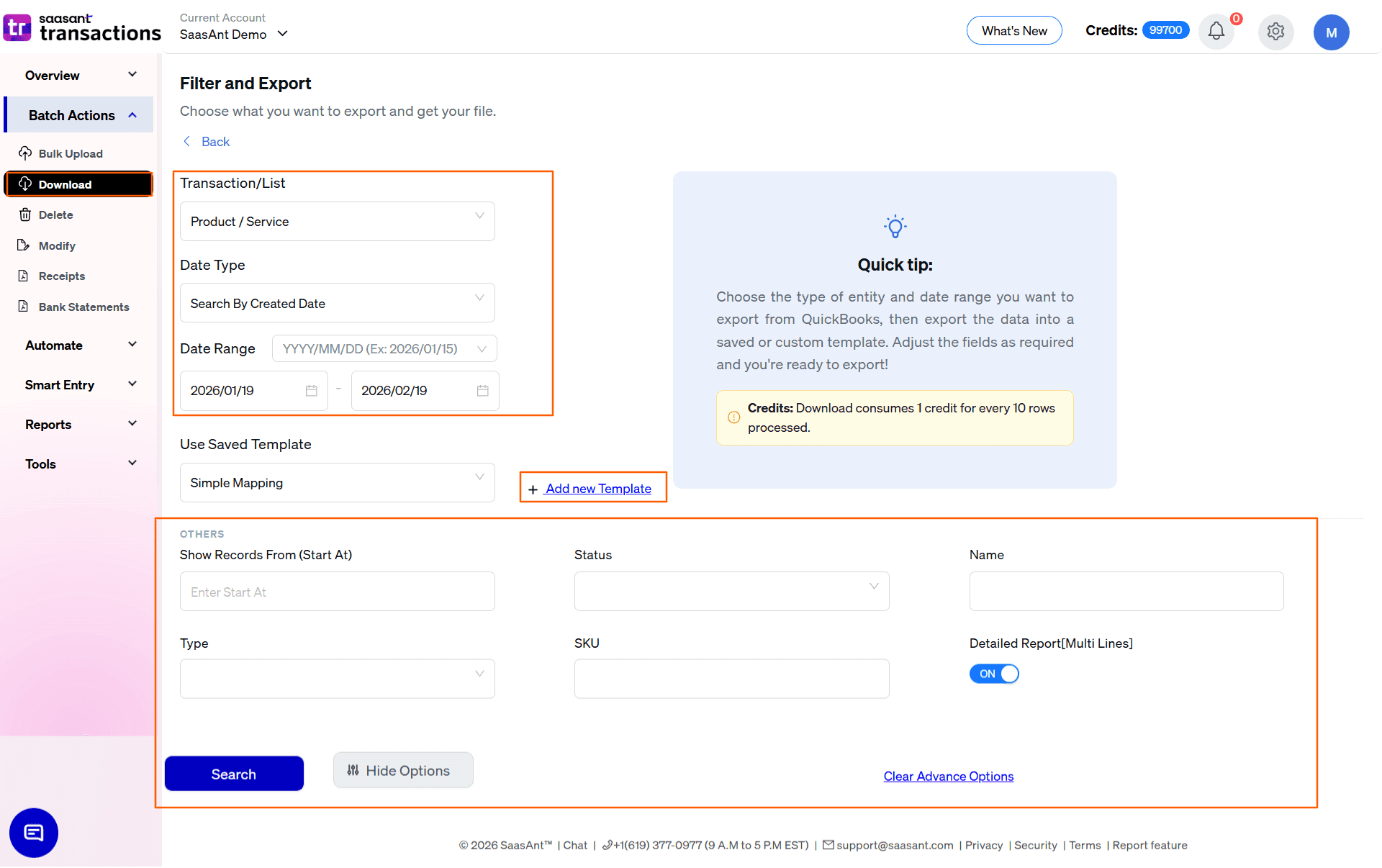
In the Transaction/List dropdown, select Product / Service.
3. Select Date Strategy
Because Products and Services are "Lists," choose the Date Type that fits your reporting needs:
Search By Created Date: Exports based on when the item was first added to QuickBooks. Use this to pull a list of all new products introduced to your catalog this year.
Search By Last Updated Date: Exports based on when the item was last modified. Use this to catch recent changes to pricing, cost, or inventory asset accounts.
4. Set Date Range & Format
Range: Enter your Start and End dates. To export your entire product catalog, enter a start date far in the past (e.g., 01/01/2000) to the current date.
Format: Use the dropdown inside the date box to pick your preferred format (e.g., MM/DD/YYYY).
5. Select Template
In the Use Saved Template dropdown, leave it as Simple Mapping for a standard export.
Tip: Create a custom template using the Add new template option if you are exporting items to import into a Shopify store, POS system, or external inventory manager that requires specific column headers.
6. Configure Filters & Search
Use the available filters to isolate specific parts of your catalog:
Type: Use the dropdown to filter by Inventory, NonInventory, Service, or Category (sometimes called Bundle). This is essential if you only want to audit physical stock without downloading hundreds of service codes.
SKU: Enter a specific SKU or a partial string to find specific product lines.
Status: Filter by Active or Inactive to exclude discontinued products.
Name: Input a specific item name.
Show Records From (Start At): Use this to chunk large exports. If you need to export 5,000 records, run 1–2,500 first, then run a second search starting at 2,501.
Detailed Report [Multi Lines]: Leave this ON if you are exporting Bundles/Categories and want to see the individual component items that make up the bundle on separate rows.
Click the blue Search button to preview results.
7. Review & Download
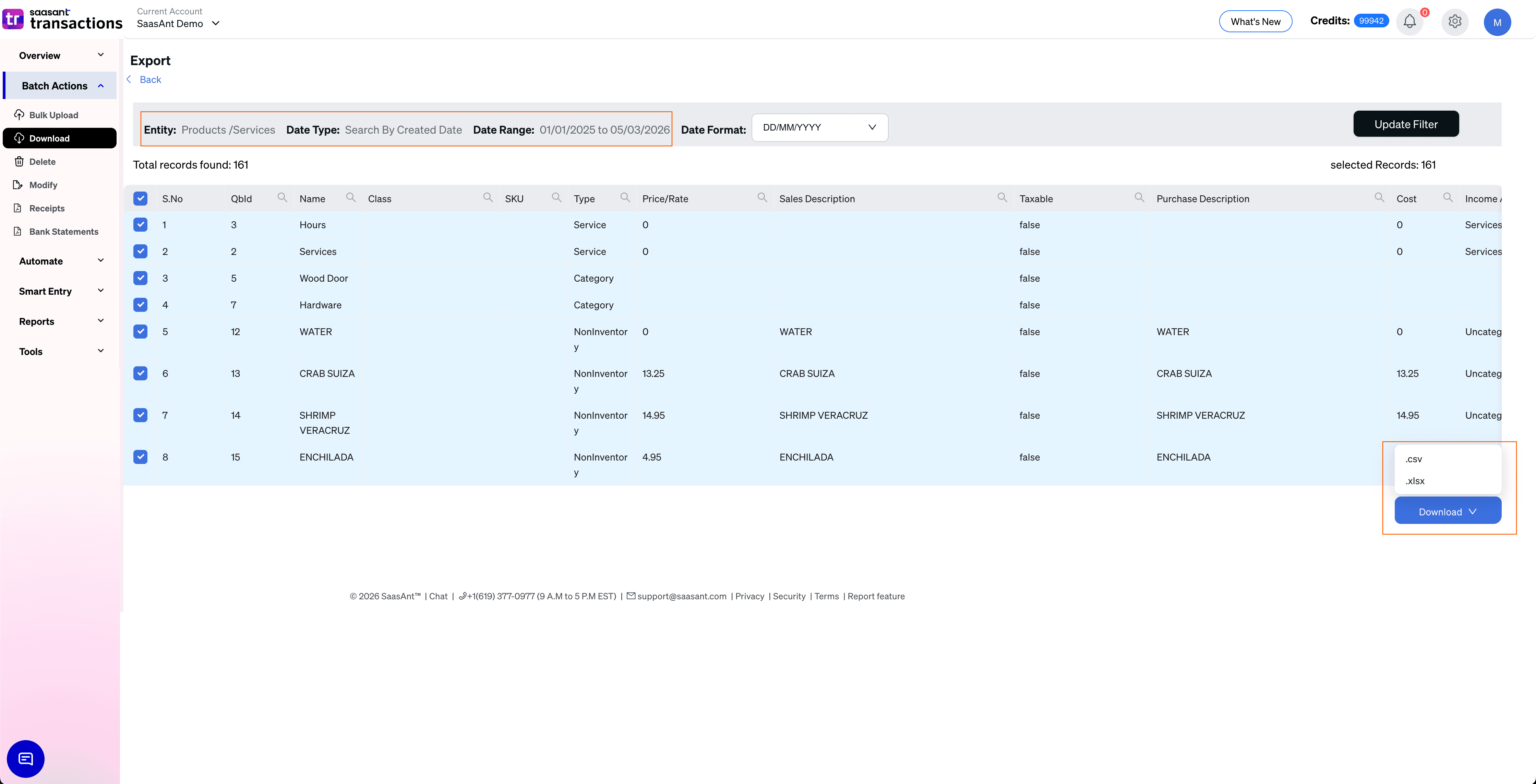
After clicking Search, the data preview grid will load:
Verify Items: Check the Type, SKU, and Price/Rate columns to ensure the correct products were pulled.
Total Records: Check "Total records found" (e.g., 163 records) to confirm the expected volume of your catalog.
Select Format: Click the Download button at the bottom right, choose .xlsx (Excel) or .csv, and the file will download.
Automate with Backup
The steps above are for manual exports. If you need a regular sync of your product catalog to feed a pricing dashboard or an external inventory management system, use the Backup module.
Set it and forget it: Schedule daily, weekly, or monthly exports.
Delivery: Have files automatically sent to email, FTP, or storage integrations without logging in.
Why export Products and Services with SaasAnt?
Inventory & Pricing Audits: Export your full catalog to Excel to quickly sort and identify products with missing SKUs, zero-dollar costs, or incorrect sales prices.
Account Mapping Review: One of the most common QBO errors is mapping a product to the wrong Income or Expense account, causing P&L errors. SaasAnt exports the exact Income, Expense, and Asset accounts tied to every item, allowing you to audit your backend routing in one glance.
Bulk Updates & eCommerce Sync: Export your list, use Excel formulas to implement a 10% price increase across the board, and use SaasAnt’s import feature to push the new prices back into QBO instantly.
FAQ
Does the export include the current inventory count?
Yes. For items categorized as "Inventory," the export file includes a "Quantity on Hand" column showing your current stock levels as of the export date.
Why are some of my items missing Income or Expense accounts in the export?
"Non Inventory" and "Service" items typically only map to an Income account, while "Inventory" items map to Income, Expense (COGS), and Asset accounts. If an account column is blank, it means that specific item type doesn't track that metric in QBO.
Can I use this file to migrate my products to a new QBO company?
Yes. The export format is natively compatible with SaasAnt's Import feature, making it easy to populate a fresh QBO file with your exact catalog, SKUs, and pricing.