How to Export Journal Entries from QuickBooks Desktop using SaasAnt Transactions Desktop
March 9, 2026
SaasAnt Transactions Desktop enables QuickBooks Desktop users to export journal entries efficiently in bulk. This guide provides clear steps to export your journal entries seamlessly.
Video Tutorial For Exporting Journal Entries from QuickBooks Desktop using SaasAnt Transactions Desktop:
Prerequisites
Ensure you have administrative access to QuickBooks Desktop and a stable internet connection for the initial setup. Verify that your QuickBooks company file is open and updated to the latest version.
Steps for Exporting Journal Entries from QuickBooks Desktop
Step 1: Download, Install, and Connect SaasAnt
Before exporting journal entries, set up the SaasAnt Transactions Desktop application.
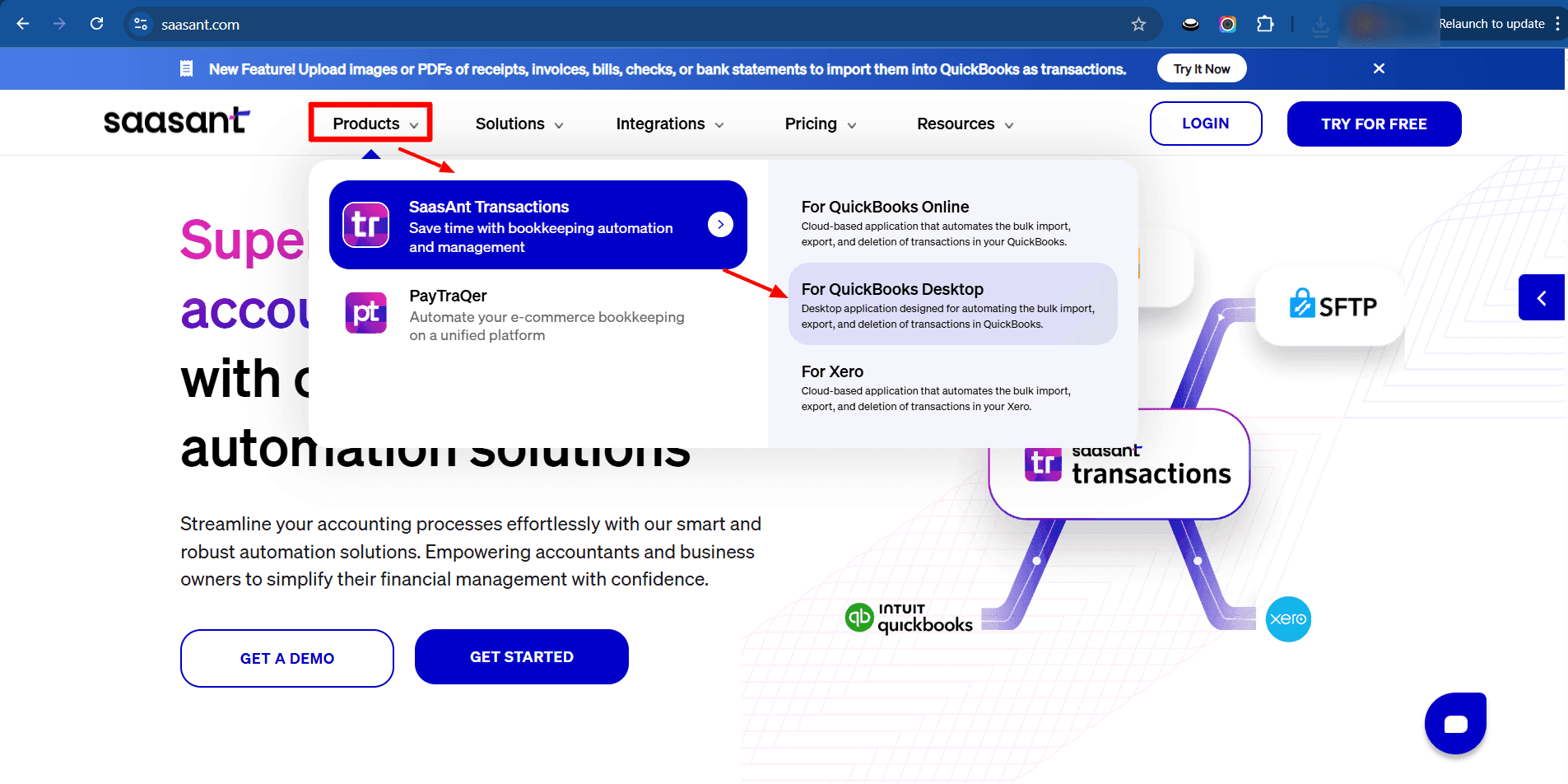
Download: Visit the Saasant.com website and download the SaasAnt Transactions Desktop application.
Install: Run the installer file and follow the prompts to complete installation on your computer.
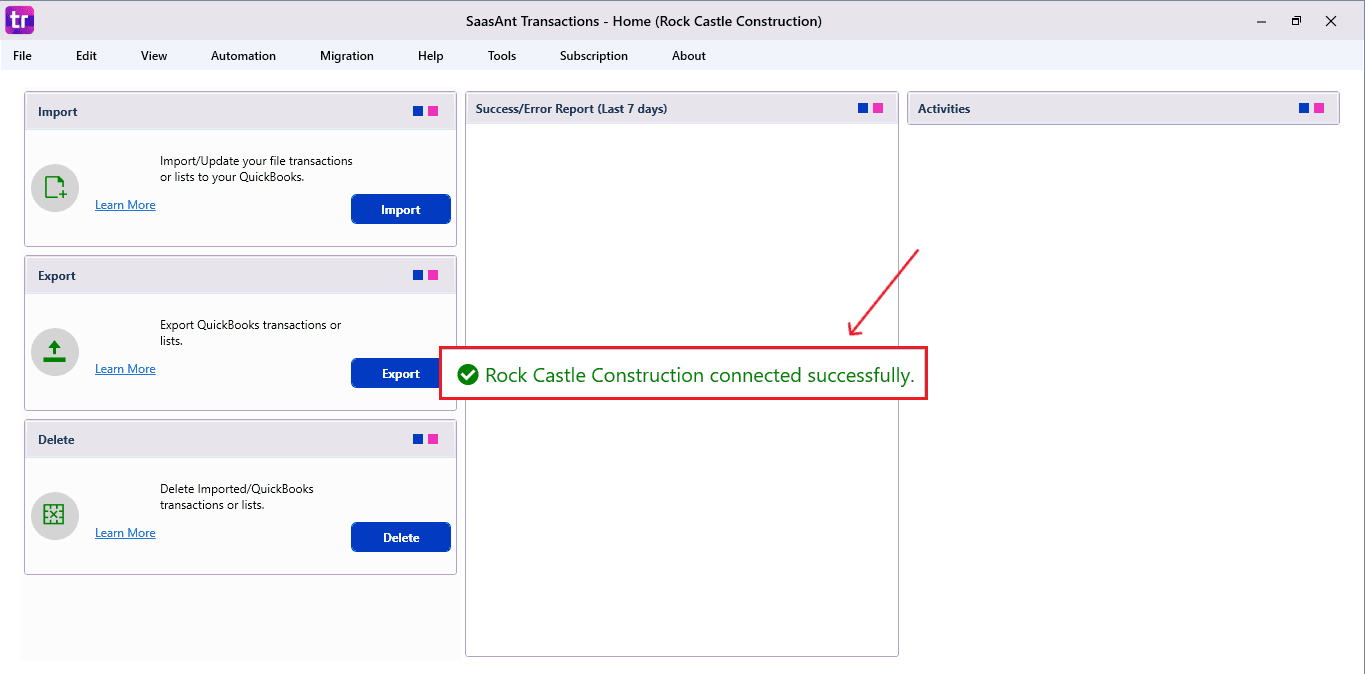
Connect: Launch the SaasAnt application, then connect it to your QuickBooks Desktop company file using the on-screen instructions to authorize data access.
Step 2: Configure Export Settings
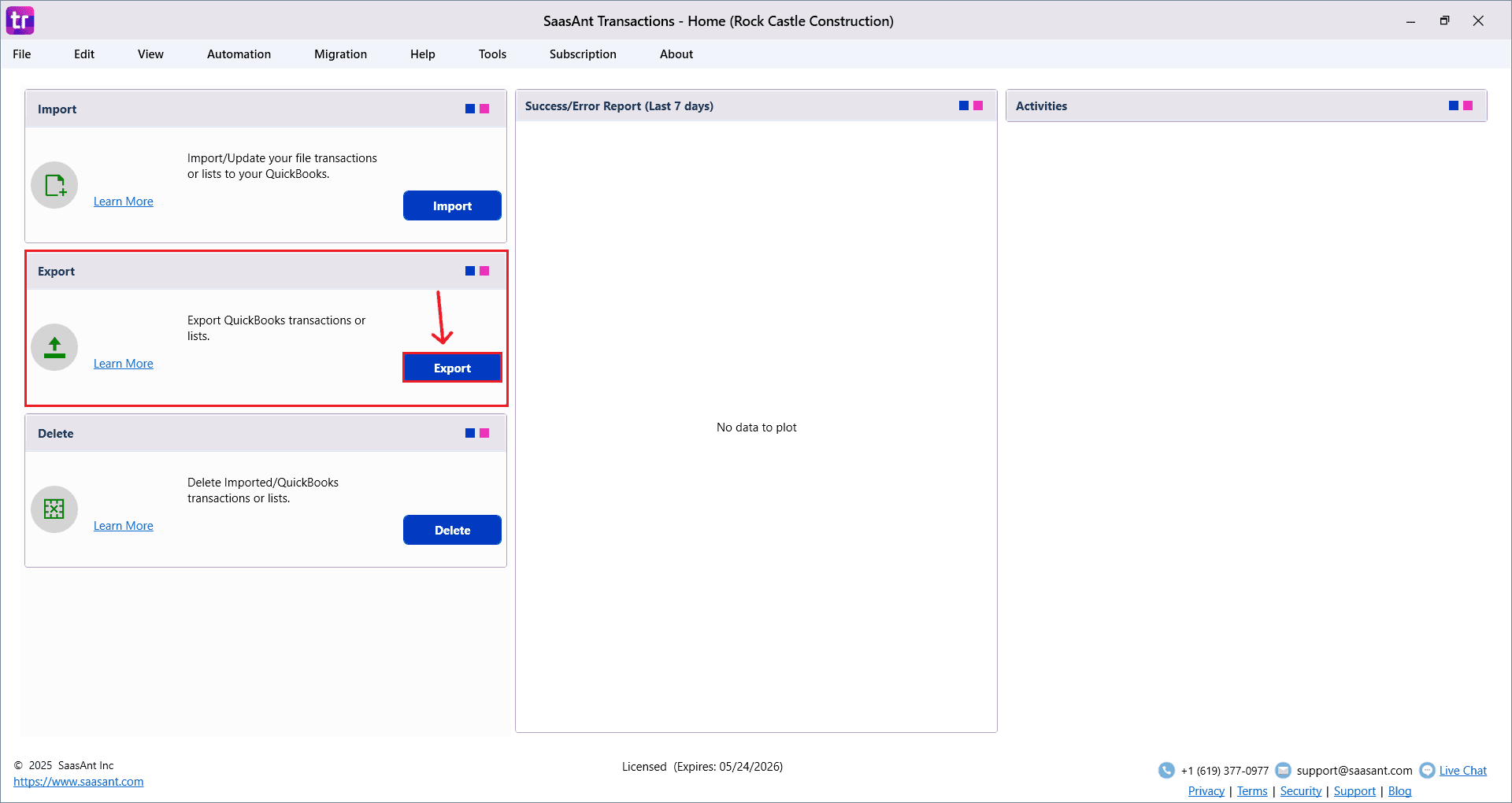
Access the Export module in SaasAnt Transactions Desktop after connecting to QuickBooks.
Select Journal Entry as the QuickBooks transaction type to focus on journal entry data.
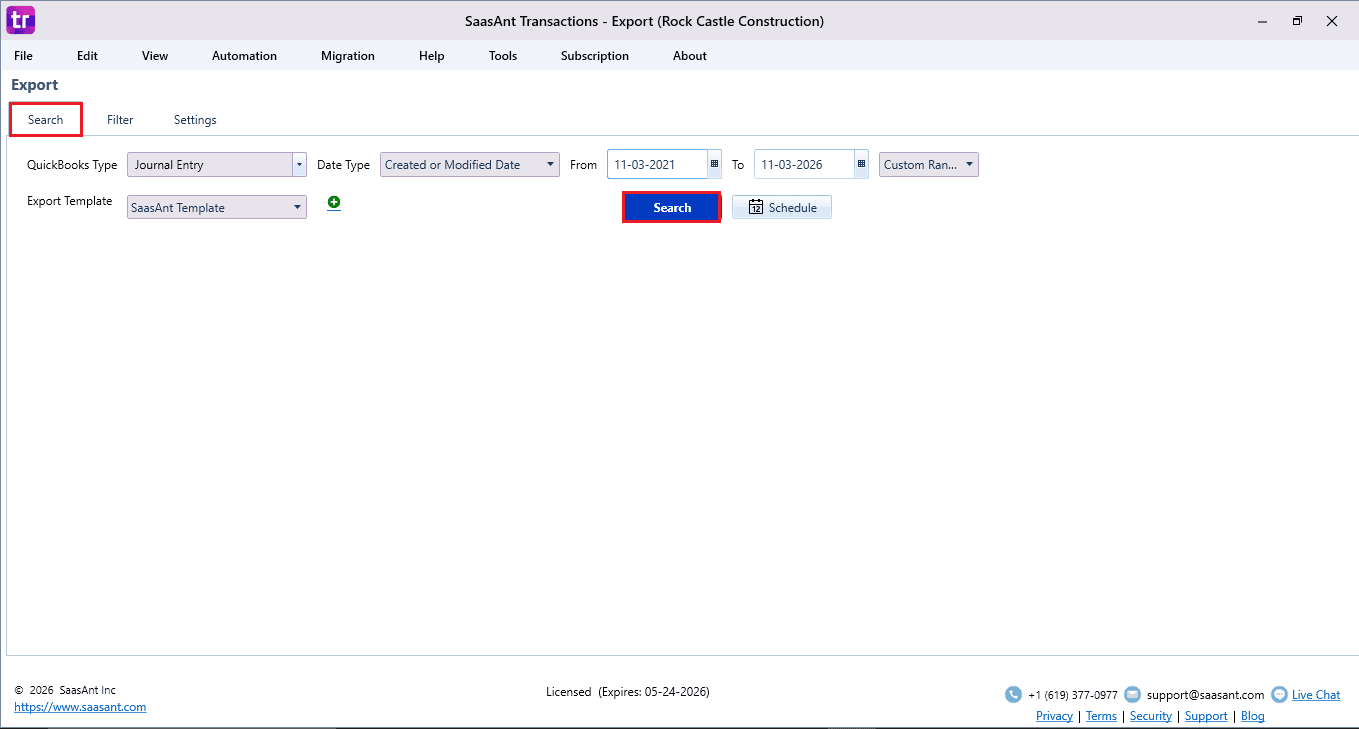
Step 3: Set Date Range
Choose the date type with two options: Created/Modified Date or Transaction Date.
Created/Modified Date refers to when the journal entry was originally entered into QuickBooks or last edited.
Transaction Date is the date on the journal entry itself (the posting date).
Select a range using the custom date picker, or pick from quick options like Today, From yesterday, Last 7 days, Last 30 days, etc.
Step 4: Set Export Template
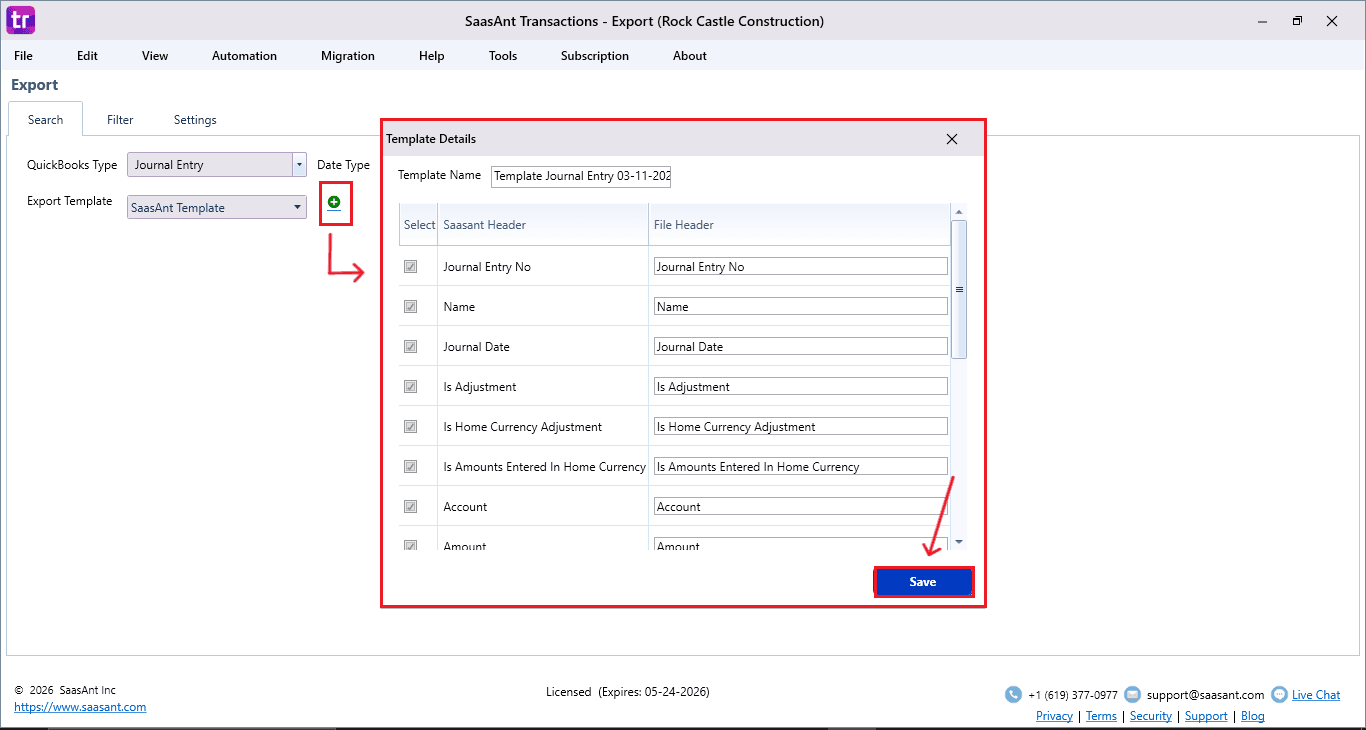
Use the default SaasAnt template for standard journal entry fields.
To customize, click the “+” icon, select desired fields (for example: journal entry number, date, debit account, credit account, amounts, name, memo, class), name the template, and save it for reuse.
Step 5: Apply Filters (Optional)
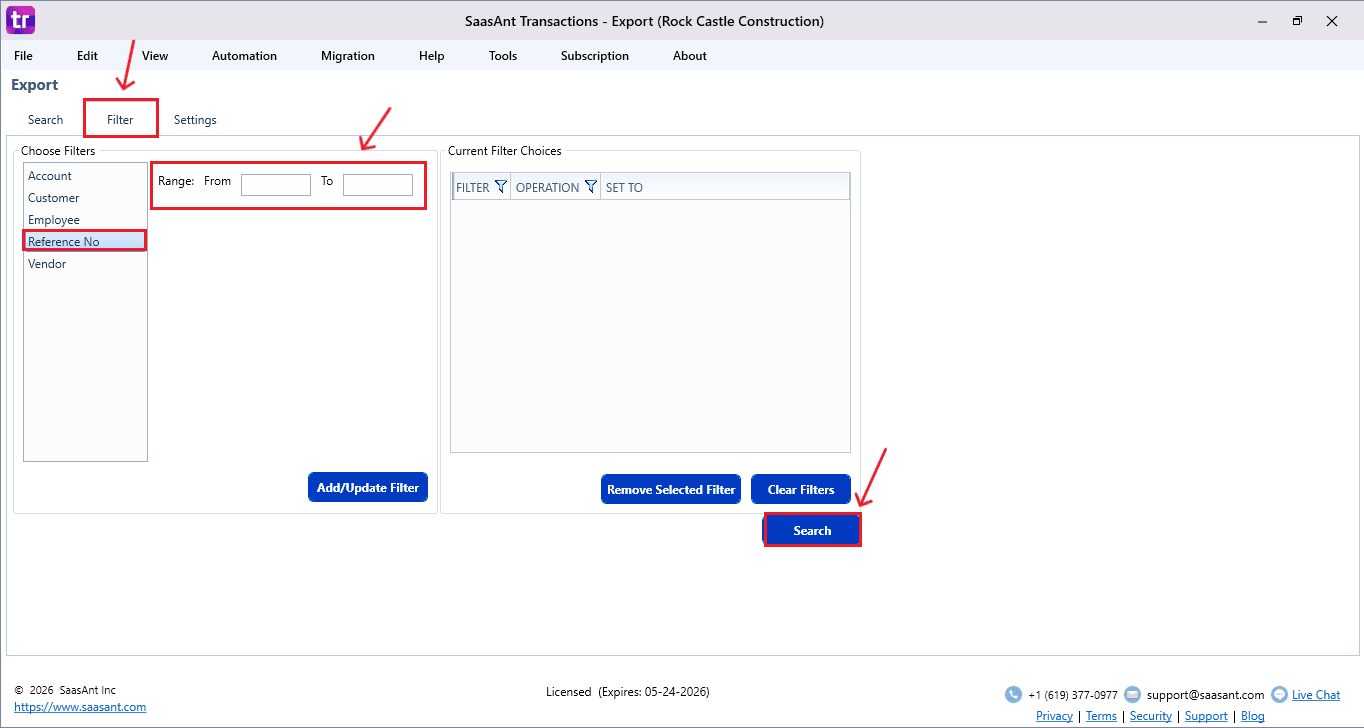
Filters help you precisely target specific journal entries, reducing the dataset for faster exports and better focus.
Account: Select one or multiple accounts to export journal entries that impact specific ledger accounts.
Customer: Filter journal entries linked to specific customers when customer names are used on journal lines.
Employee: Filter journal entries linked to specific employees when employee names are used on journal lines.
Vendor: Filter journal entries linked to specific vendors when vendor names are used on journal lines.
Reference No: Use this to narrow results to specific journal entries by reference number. You can also use the Operation field to control how the reference value is matched.
To apply a filter:
Choose the filter on the left, select the value, then click Add or Update Filter.
Your applied filters appear under Current Filter Choices.
To remove one filter, select it and click Remove Selected Filter.
To remove everything, click Clear Filters.
Step 6: Adjust Settings
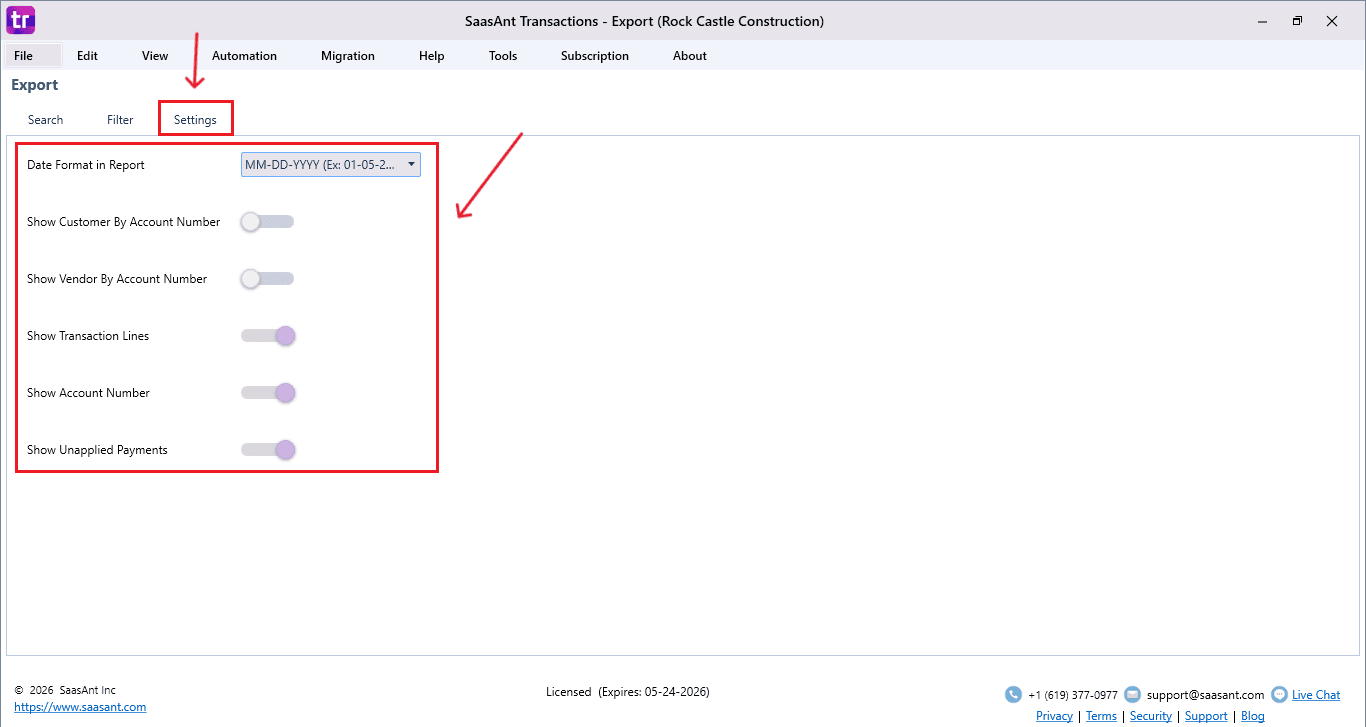
Customize the export output via settings to match your reporting or integration needs.
Date Format: Switch between formats like MM/DD/YYYY or DD/MM/YYYY for compatibility with other systems.
Show Customer/Vendor by Account Number: Display customer or vendor IDs instead of names for reference-based matching.
Show Transaction Lines: Include detailed journal lines (each debit and credit line) instead of a summary-only export.
Show Account Numbers: Add numeric account codes alongside names for cleaner review and reconciliation.
Toggle settings on or off as needed.
Step 7: Run Search
Click Search to retrieve matching journal entries based on your criteria. Review the preview before proceeding to export.
Step 8: Review and Download Results
SaasAnt displays journal entries matching your date range, filters, and settings.
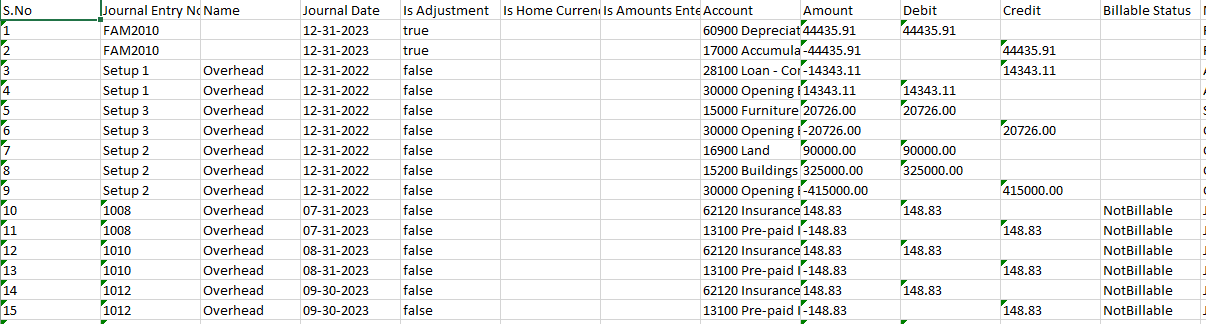
Select your preferred format: Excel for spreadsheets with formulas or CSV for simple data import elsewhere.
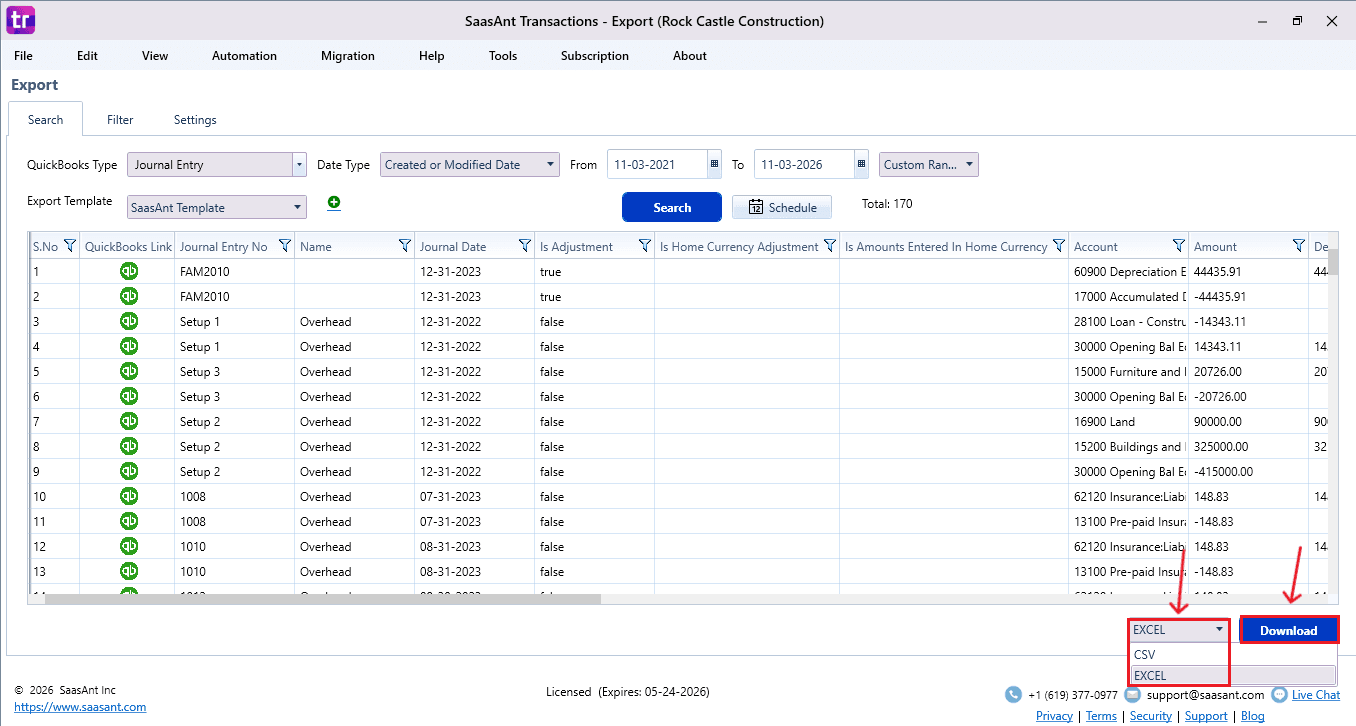
Click Download to export the file to your computer. Verify the downloaded file contains all expected journal entry data before use.
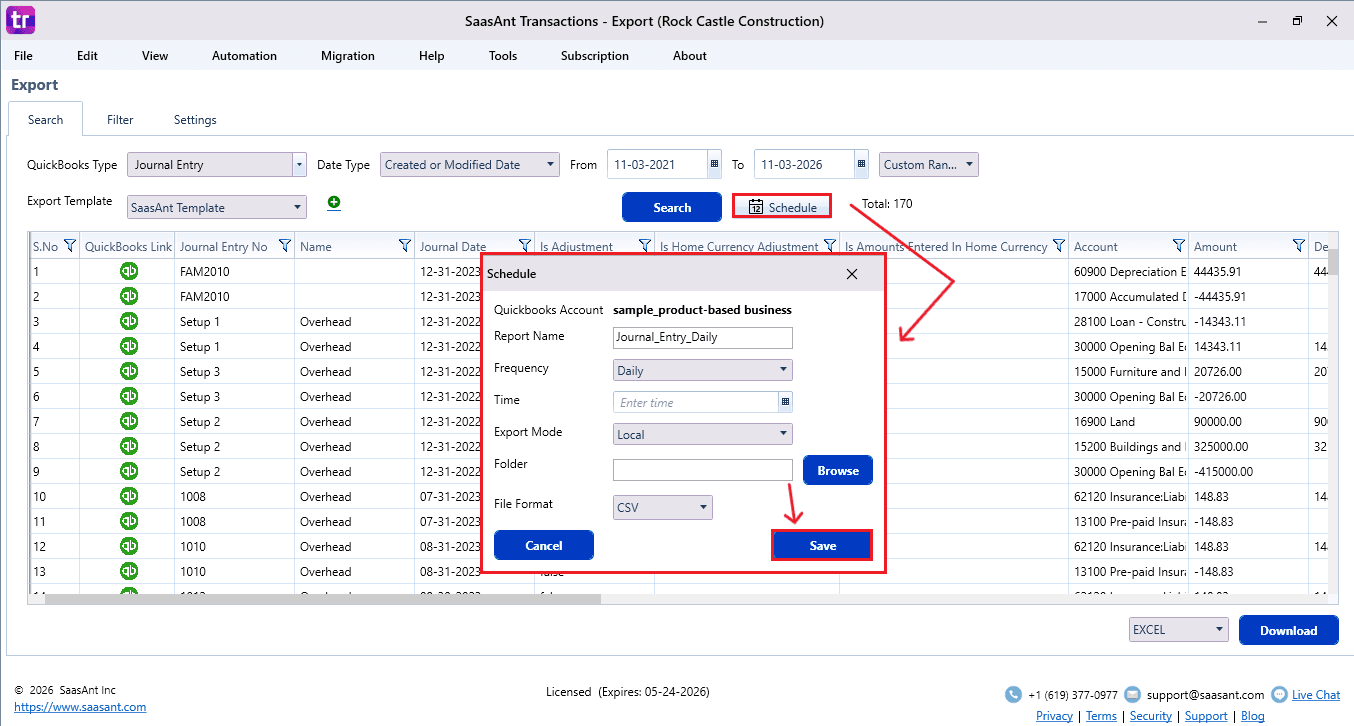
Step 9: Schedule Recurring Exports (Optional)
SaasAnt offers automated scheduling for regular journal entry exports without manual intervention.
Provide a Report Name for easy identification.
Set Frequency as Daily, Weekly, Monthly, or use a Cron Expression for advanced scheduling.
Specify the export Time.
Choose Export Mode: Local folder, FTP or SFTP server, Email delivery, or Database connection.
Select the destination Folder and File Format (Excel or CSV).
Click Save to activate the schedule. Monitor scheduled jobs via the SaasAnt dashboard for status and logs.