How to Export Budgets from QuickBooks Online using SaasAnt Transactions Online
February 25, 2026
At a Glance
The Solution: Use SaasAnt's Download (Export) feature to extract your QuickBooks Online Budgets into a clean Excel/CSV format.
The Key Benefit: QuickBooks Online natively restricts how you can view consolidated budgets, particularly if you build separate budgets for different Classes or Locations. SaasAnt exports your raw budget data into a flat file, making it easy to combine, pivot, and analyze your financial targets alongside actuals in Excel.
Quick Steps: Quick Access > Download (Export) > Select Budget > Search > Download.
Video Tutorial for Exporting Budgets from QuickBooks Online using SaasAnt Transactions Online:
Getting Started
Install: Get SaasAnt Transactions Online from the QuickBooks App Store and start a free trial.
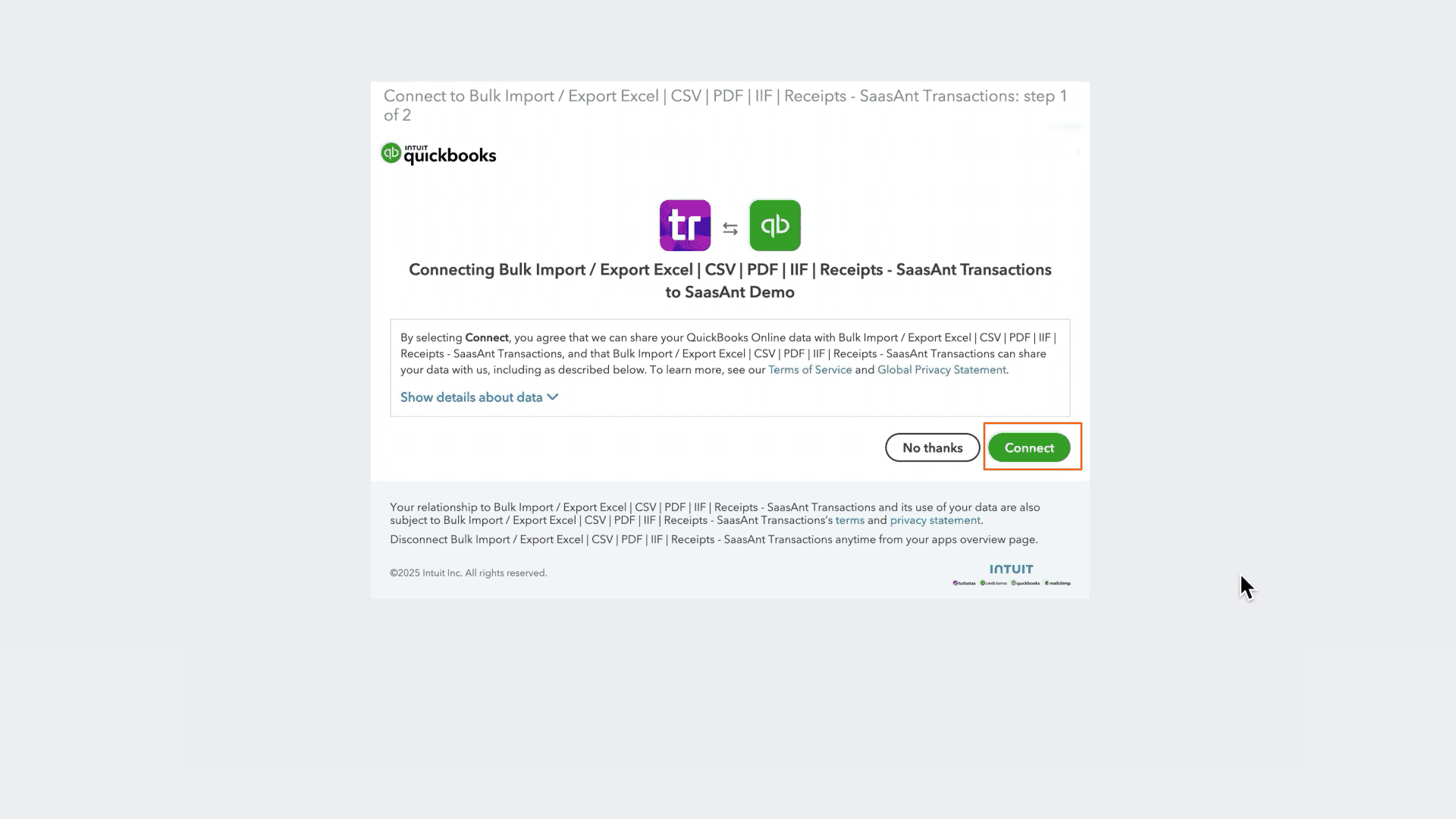
Connect: Securely authorize the connection to your QuickBooks Online company. We do not store your financial data; we simply process the transfer.
How to Export Budgets Step-by-Step
1. Navigate to Download (Export)
From the Quick Access, click the Download (Export) button listed in the main menu.
2. Select Entity
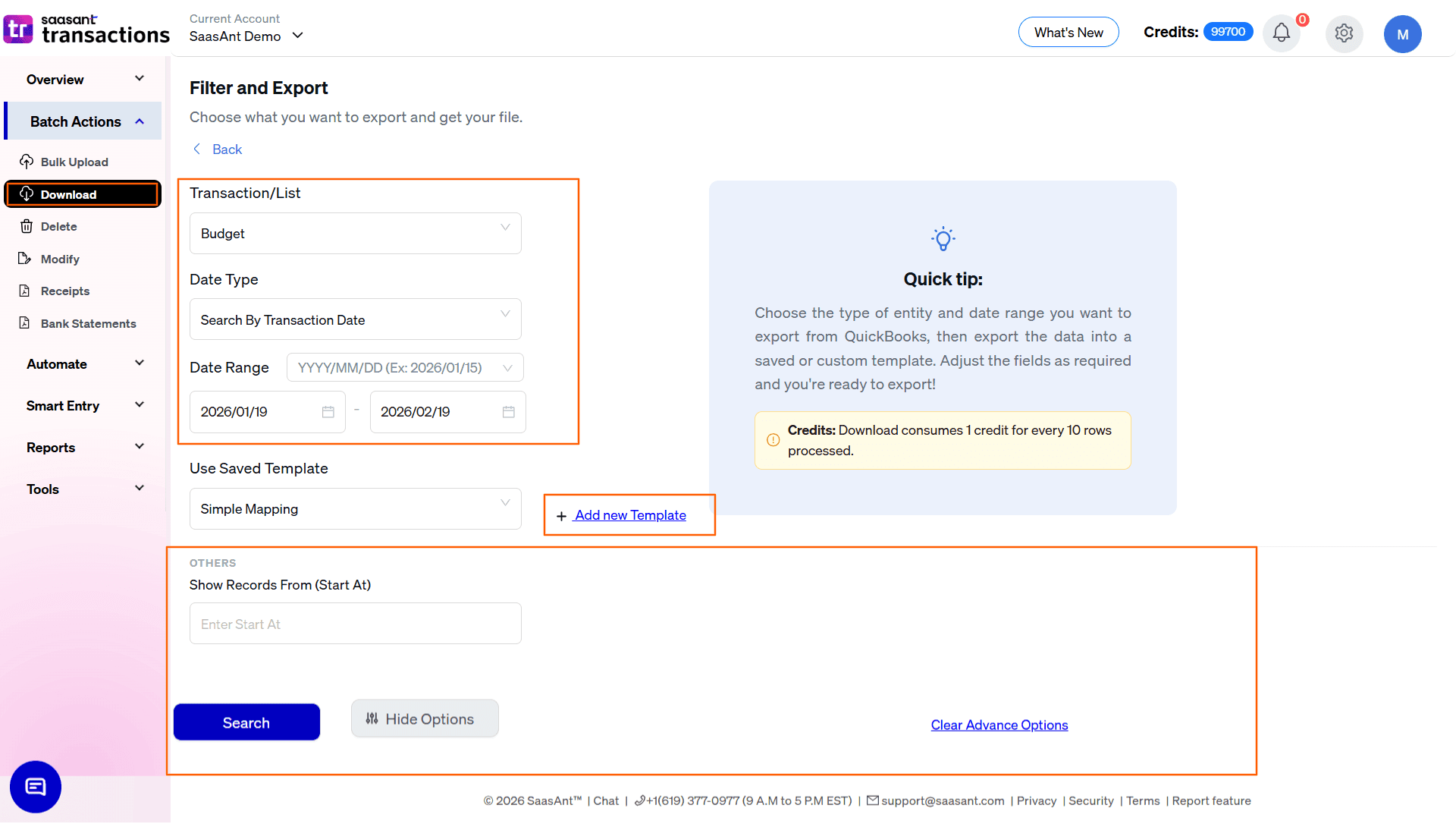
In the Transaction/List dropdown, select Budget.
3. Select Date Strategy
Budgets are tied to specific time periods, so the default Date Type is Search By Transaction Date. This pulls the budget targets that apply to the date range you specify next.
4. Set Date Range & Format
Range: Enter your Start and End dates. To pull an entire annual budget, enter the first and last day of your fiscal year (e.g., 01/01/2026 to 12/31/2026). To pull a historical budget for variance analysis, select a prior year.
Format: Use the dropdown inside the date box to pick your preferred format (e.g., MM/DD/YYYY).
5. Select Template
In the Use Saved Template dropdown, leave it as Simple Mapping for a standard export.
Tip: Create a custom template using the Add new template option if you are exporting this data to feed directly into a third-party FP&A (Financial Planning & Analysis) software or business intelligence dashboard.
6. Configure Filters & Search
The Budget export screen is intentionally minimal:
Show Records From (Start At): Use this to chunk large exports if you have a massive, highly subdivided budget (e.g., hundreds of accounts budgeted across dozens of classes).
Click the blue Search button to preview results.
7. Review & Download
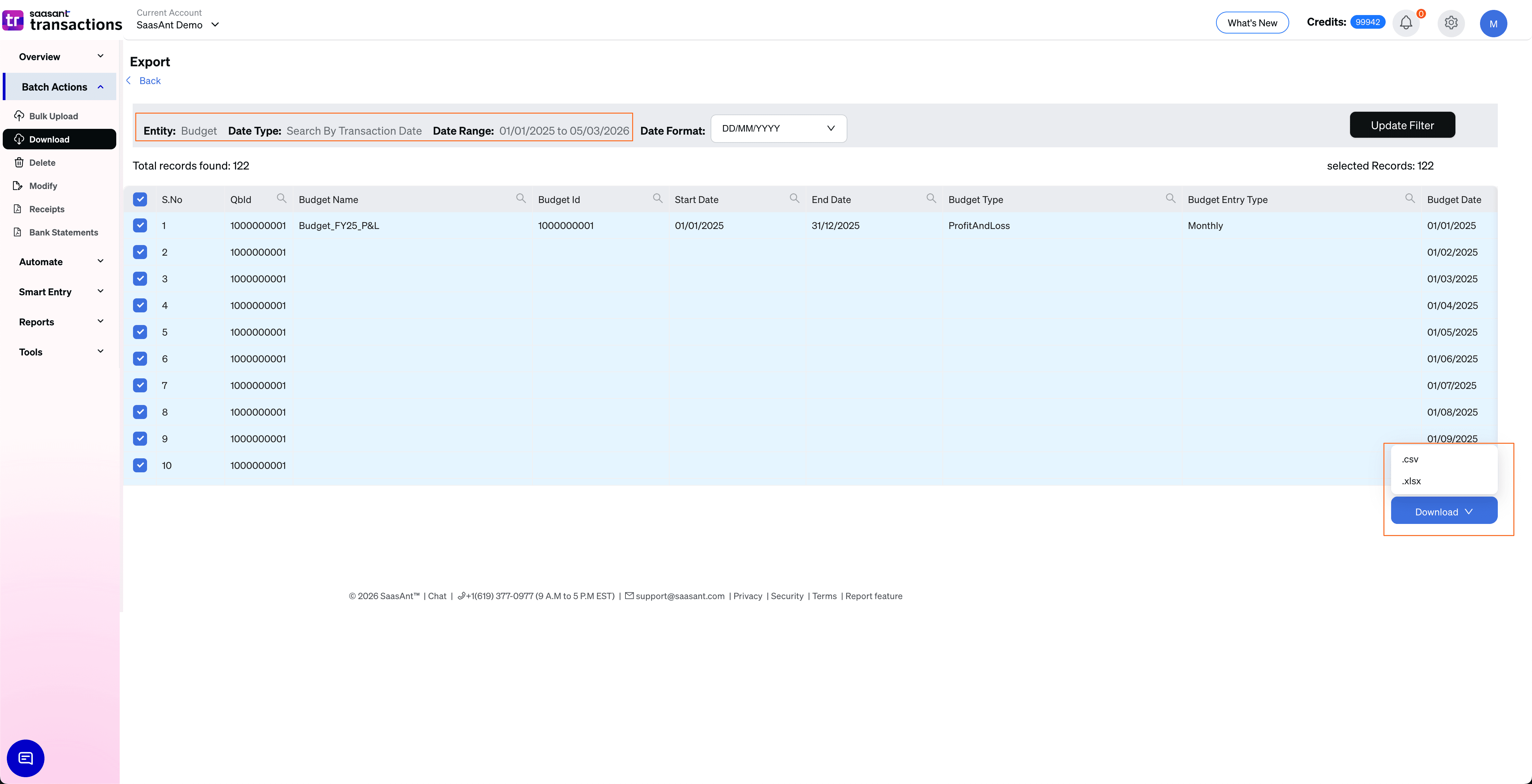
After clicking Search, the data preview grid will load:
Verify Budgets: Review the records to confirm the expected accounts, periods, and budgeted amounts are captured.
Total Records: Check "Total records found" to ensure the volume matches your expectations.
Select Format: Click the Download button at the bottom right, choose .xlsx (Excel) or .csv, and the file will download.
Automate with Backup
If your finance team frequently updates the QBO budget throughout the year and needs those updates pushed to external reporting tools, use the Backup module.
Set it and forget it: Schedule daily, weekly, or monthly exports.
Delivery: Have files automatically sent to email, FTP, or storage integrations to keep your external financial models perfectly synced with QBO.