How to Export Bills from QuickBooks Online using SaasAnt
February 19, 2026
At a Glance
The Solution: Use SaasAnt’s Download (Export) feature to extract Bill transactions into a clean Excel/CSV format.
The Key Benefit: Get a flat, unformatted database file including line-item details, due dates, and open balances—perfect for Accounts Payable (AP) analysis or migration.
Quick Steps: Quick Access Dashboard > Download (Export) > Select Bills > Search > Download.
Getting Started
Install: Get SaasAnt Transactions from the QuickBooks App Store and start a free trial.
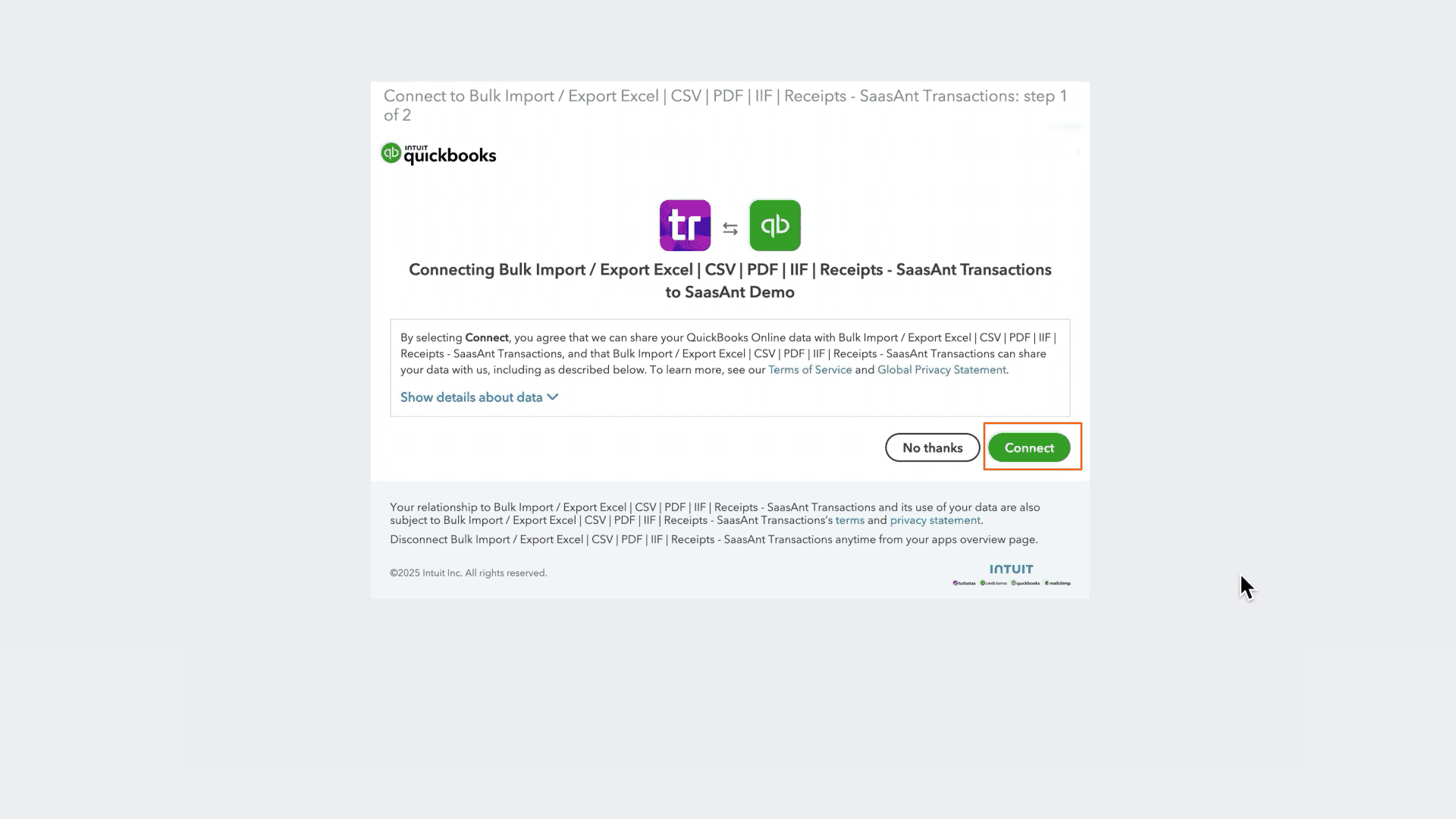
Connect: Securely authorize the connection to your QuickBooks Online company. We do not store your customer data; we simply process the transfer.
How to Export Bills Step-by-Step
1. Navigate to Download (Export)
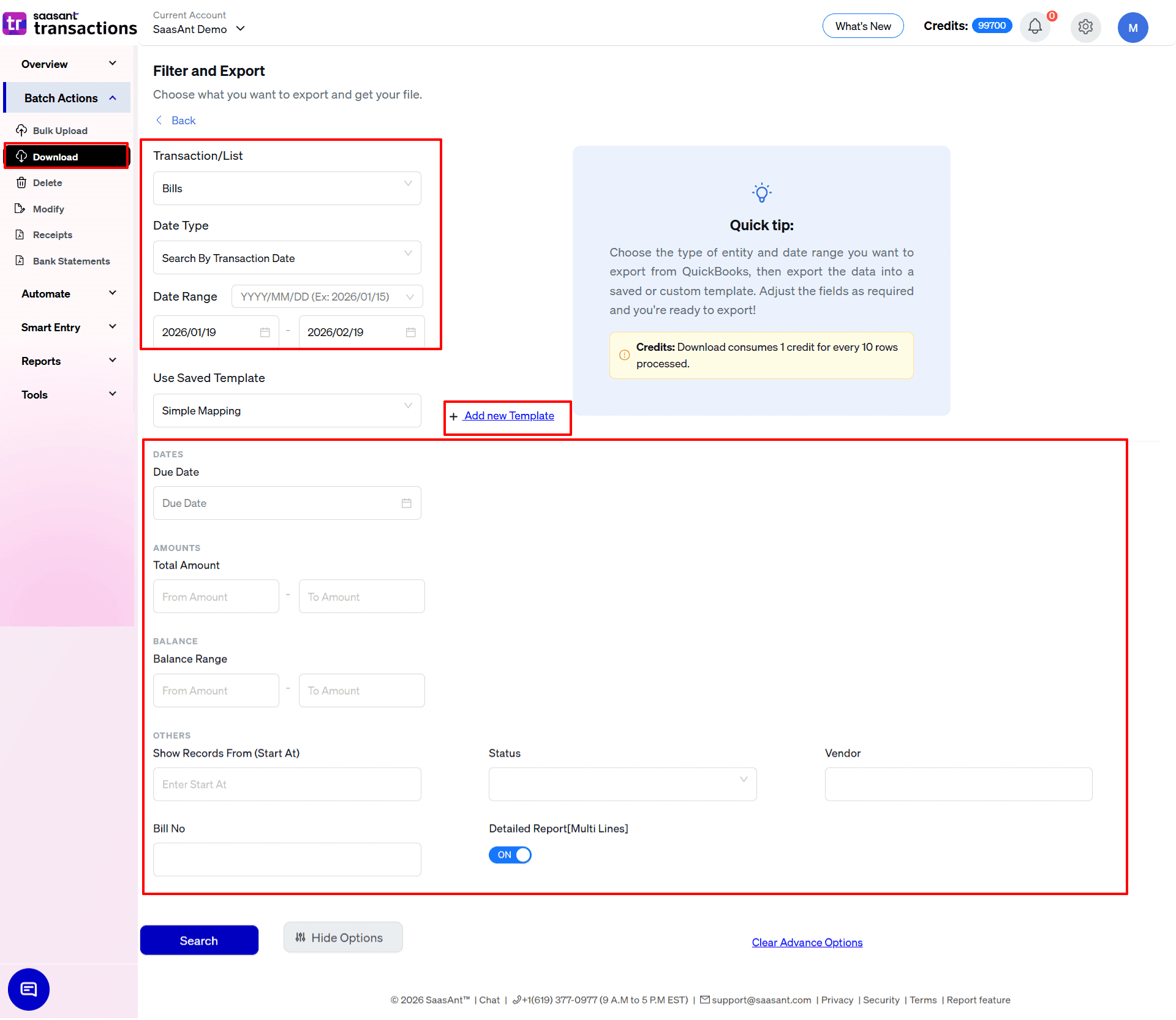
From the Quick Access dashboard, click the Download (Export) button listed in the main menu.
2. Select Entity
In the Transaction/List dropdown, select Bills.
3. Select Date Strategy
Choose the date type that matches your goal:
Search By Transaction Date: Exports based on the bill date. Use this for standard AP aging and expense reporting.
Search By Created Date: Exports based on when the bill was entered into QuickBooks. Use this to audit recent data entry work.
Search By Last Updated Date: Exports based on when the record was last modified.
4. Set Date Range & Format
Range: Enter your start and end dates.
Format: Use the dropdown inside the date box to pick your preferred format (e.g., MM/DD/YYYY).
5. Select Template
In the Use Saved Template dropdown, leave it as Simple Mapping for a standard export.
Tip: Create a custom template to include specific columns like Terms or Due Date if you need.
6. Configure Filters & Search
Use the advanced filters to isolate specific bills:
Due Date: Use this specific date picker to find bills due within a certain window (critical for cash flow planning).
Balance Range: Enter a From Amount and To Amount to find unpaid or partially paid bills (e.g., "From 0.01" to find all open bills).
Status: Filter by Open, Paid, or Overdue to target your export.
Vendor: Select a specific vendor to export their entire billing history.
Bill No: Locate a specific invoice by its number.
7. Review & Download
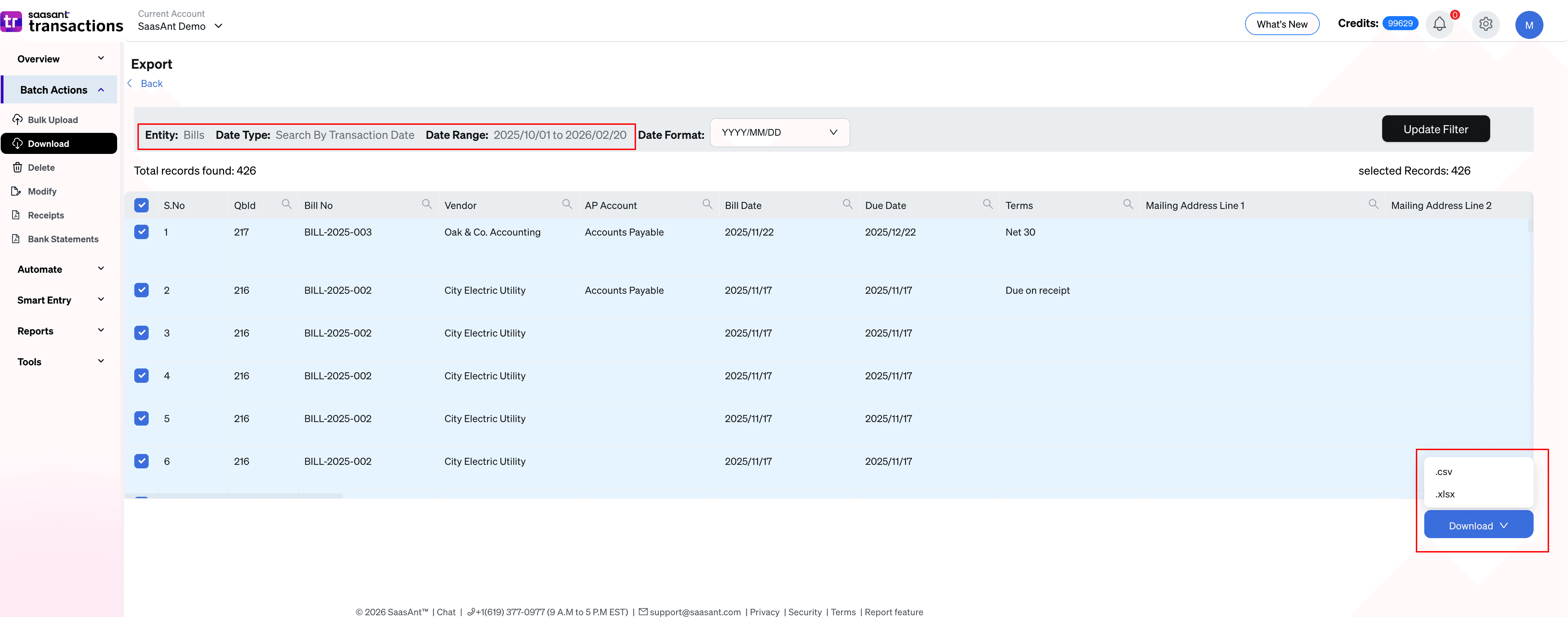
After clicking Search, the preview screen will load:
Check Due Dates: Look at the Due Date column in the grid to ensure you captured the correct billing period.
Download: Click the Download dropdown at the bottom right and select .xlsx or .csv to save the file.
Automate with Backup
The steps above are for manual exports. If you need this data regularly for AP forecasting or offline archives, use the Backup module.
Set it and forget it: Schedule daily, weekly, or monthly exports.
Delivery: Have files automatically sent to email, FTP, or storage integrations without logging in.
Why export bills with SaasAnt?
AP Analysis: Export open bills with "Due Dates" to build custom cash flow forecasts in Excel.
Migration: Move Accounts Payable history cleanly to a new QuickBooks Online company or other software, preserving open balances.
Bulk Updating: Export bills, modify details (like Terms or Due Dates) in Excel, and re-import them to update QBO in bulk.