How to Edit Sales Receipts in QuickBooks Online Using SaasAnt
March 2, 2026
Editing sales receipts one by one in QuickBooks Online is time-consuming, especially when you need to fix a massive batch of receipts that went to the wrong "Deposit To" account. This article explains how to efficiently edit sales receipts using SaasAnt Transactions Online.
By exporting your sales receipts, adjusting the fields in a spreadsheet, and re-importing the updates, you can process high-volume corrections in minutes. You can also use the Live Edit feature for rapid, on-screen fixes. This workflow ensures data validation, maintains audit traceability, and cuts down on tedious manual work.
Method 1: Edit Sales Receipts Using Modify
This method is ideal when you need to make structural updates across hundreds of sales receipts—such as moving batches of transactions from "Undeposited Funds" to a specific bank account, or updating line-item pricing.
Step 1: Open SaasAnt from QuickBooks Online
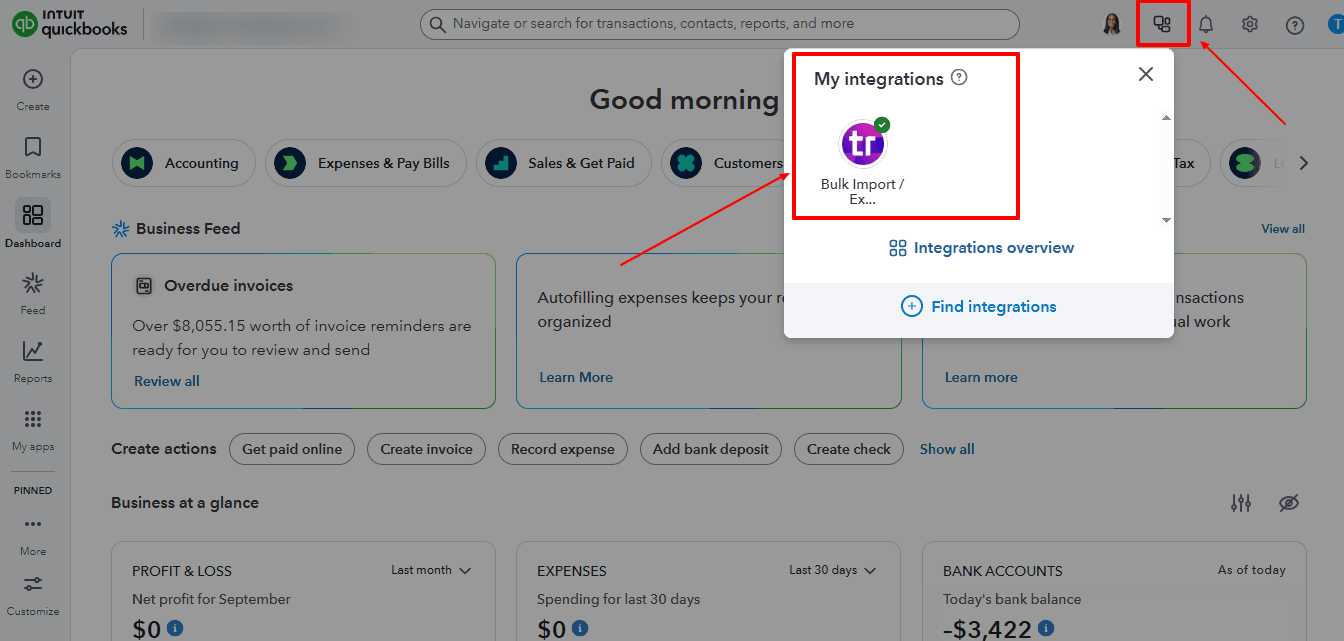
Sign in to your QuickBooks Online company file.
From the left menu bar, go to Apps.
Under Find apps, search for SaasAnt and authorize access if you haven't already.
Open the app from your My Apps tab to launch the SaasAnt dashboard.
Step 2: Export Existing Sales Receipts
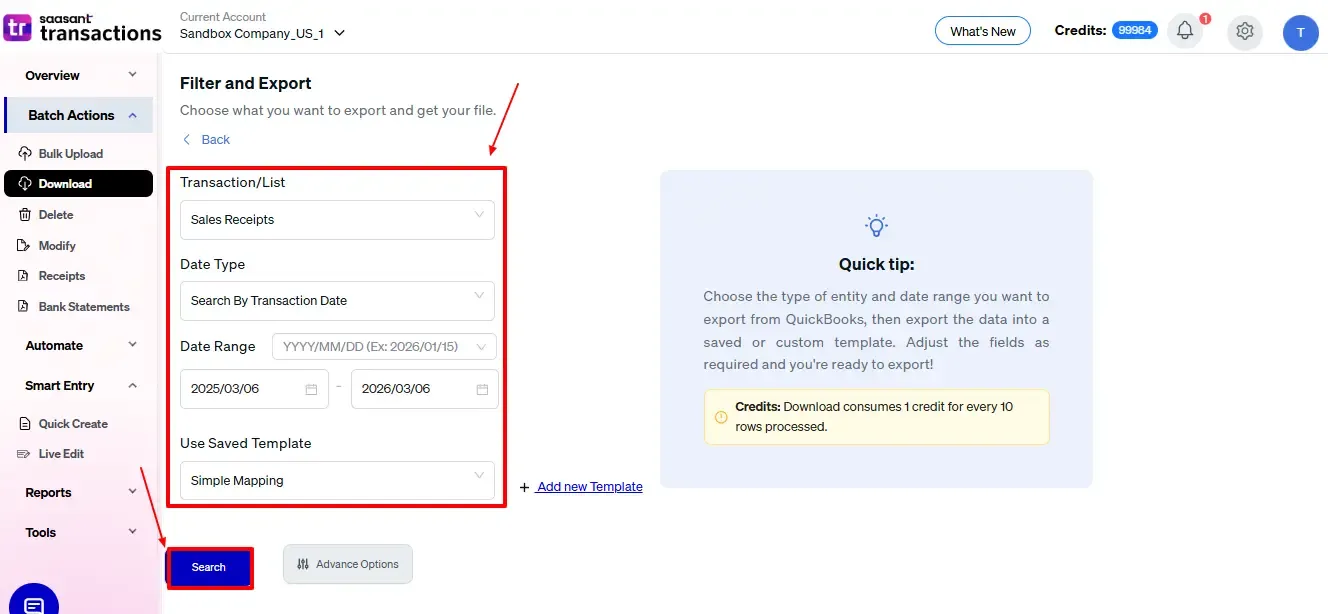
In SaasAnt, navigate to Batch Actions → Download.
On the Download transactions screen, select:
Transaction/List: choose Sales Receipts
Date Type: e.g., Search by Transaction Date
Date Range: set the period for the sales receipts you want to modify
Optional filters: Customer, Deposit To account, Payment Method, etc.
Click Search to fetch the matching sales receipts into the grid.
At the bottom-right, click Download ▼ and choose .csv or .xlsx to export the file.
Step 3: Edit the Spreadsheet
Open the downloaded file using Excel or Google Sheets.
Locate the sales receipts you need to alter using the customer name, date, or receipt number.
Update only the necessary fields. Common sales receipt edits include:
Deposit To Account (e.g., changing from Undeposited Funds to Checking)
Payment Method (e.g., Cash, Check, Credit Card)
Sales Receipt Date
Line Items (Product/Service, Description, Quantity, Rate, Amount)
Keep the original Sales Receipt No column intact so SaasAnt knows exactly which transactions to overwrite in QuickBooks.
Save your completed file as a CSV or XLSX.
Step 4: Upload the Modified File
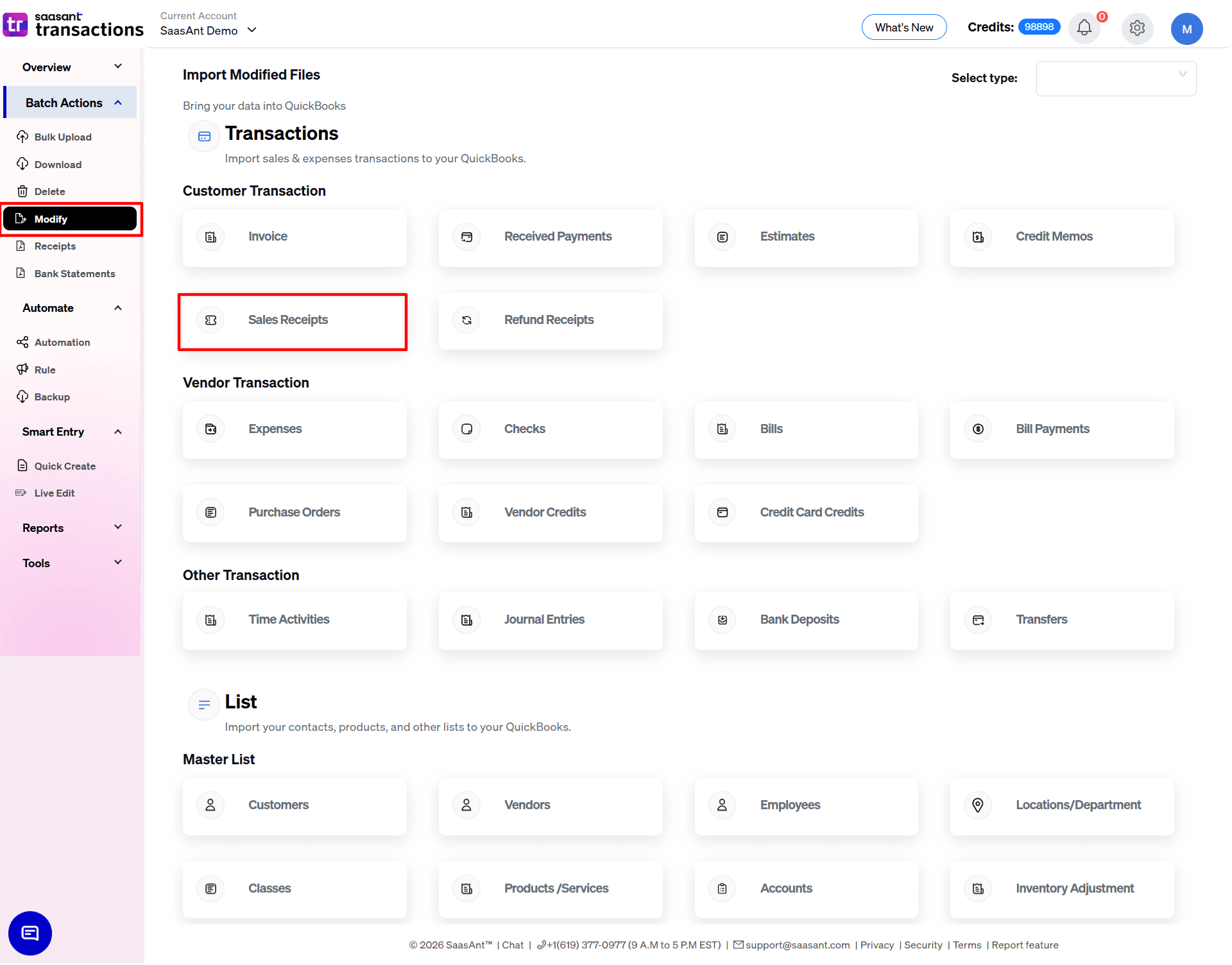
Return to SaasAnt.
Go to Batch Actions → Modify.
Select Sales Receipts under the Customer Transactions category if prompted, then click Continue.
On the Upload files screen, drag and drop your edited file or click Browse your files.
Step 5: Map QBO Fields Correctly
On the Map Fields screen, align your spreadsheet columns with the corresponding QuickBooks fields.
Ensure critical fields are mapped properly:
Sales Receipt Number
Customer
Sales Receipt Date
Deposit To Account & Payment Method
Product/Service, Quantity, and Rate
Click Preview Mapping to verify that your spreadsheet data aligns correctly with QBO fields.
Once confirmed, click Review.
Step 6: Review and Fine-Tune in the Grid
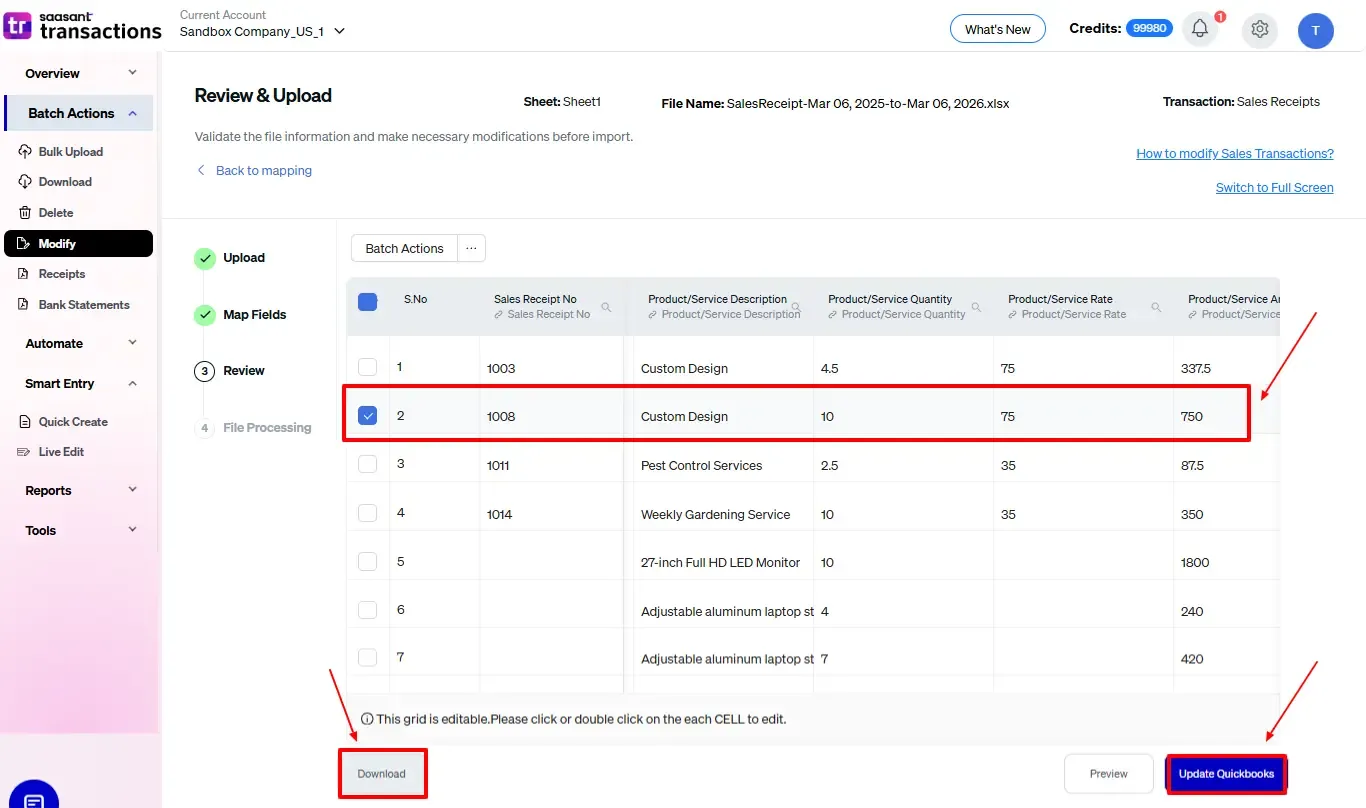
You will now see an editable grid displaying all the sales receipt rows from your file.
Scan the data to ensure accuracy. You can double-click any cell to make last-minute typo corrections directly in the grid.
Once satisfied, click Update QuickBooks.
Step 7: Check Results, Download Logs, and Undo if Needed
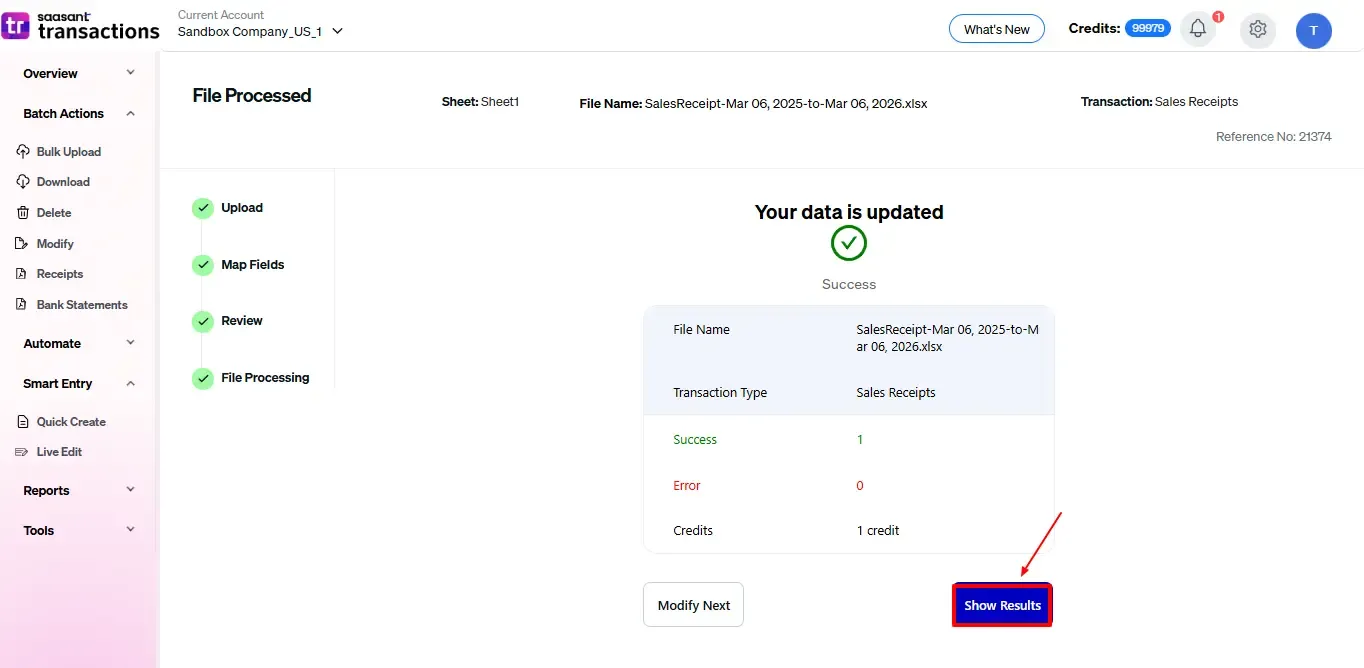
After processing, SaasAnt displays a summary of the import.
Click Show Results to view the Modify results screen.
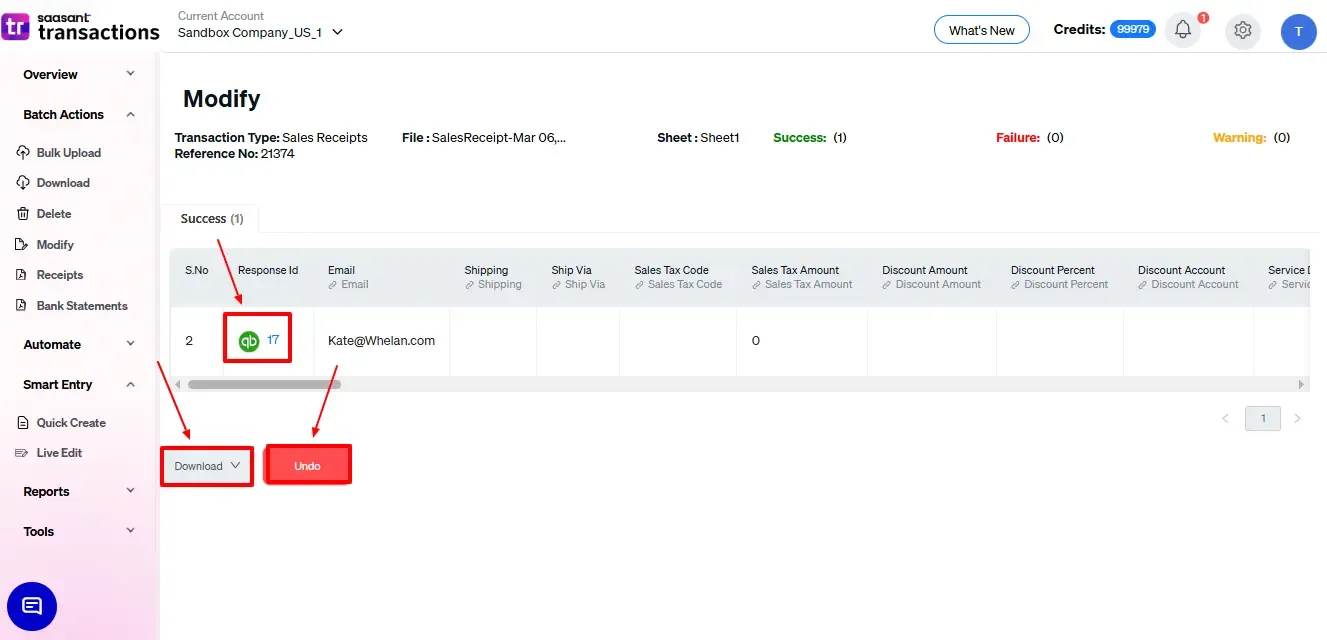
On the Success tab, click the QuickBooks ID to view the live, updated sales receipt in QBO. Use the Download ▼ button to save a permanent audit log of the changes.
Check the Error tab for any failed rows. You can often click an inline Fix button to correct an invalid account or product name and re-submit it immediately.
If you realize you made a mistake, click the Undo button to roll back the successful changes, restoring the original sales receipt data in QuickBooks.
Method 2: Edit Sales Receipts Using Live Edit (On-Screen Bulk Edits)
The Live Edit feature allows you to change transaction data directly inside SaasAnt’s grid interface without creating, exporting, or importing a spreadsheet. It’s perfect for fast fixes, such as updating a date or changing the payment method on a handful of receipts.
Step 1: Open Live Edit
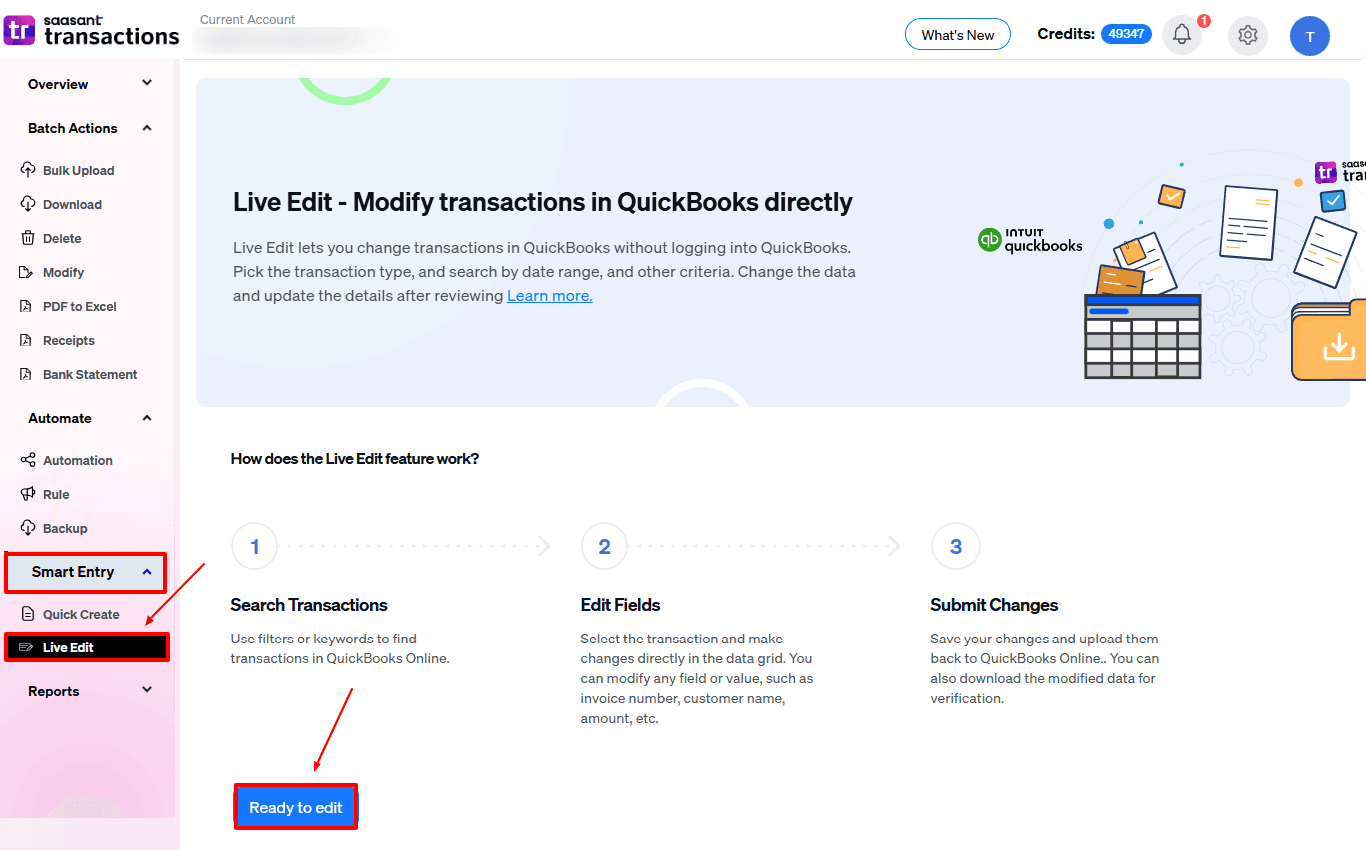
In SaasAnt, go to Smart Entry → Live Edit.
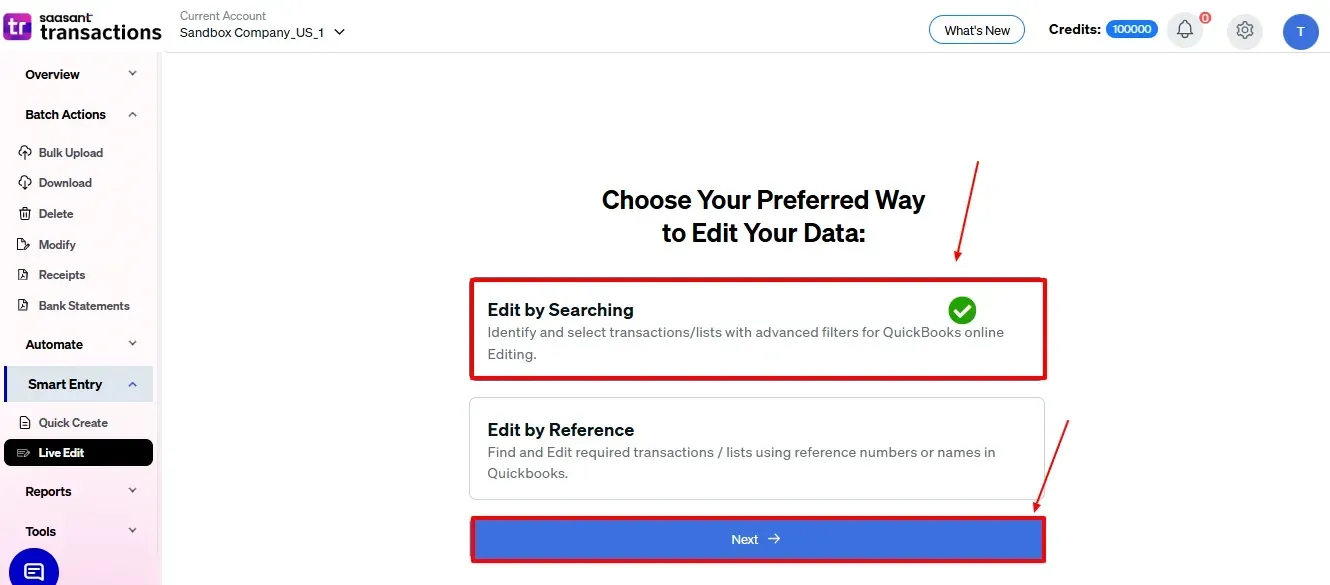
Review the brief instructions and click Ready to edit, then select Edit by searching to filter by date or other criteria. Select Edit by reference if you have specific reference numbers ready.
Step 2: Filter the Sales Receipts You Want to Edit
At the top of the Live Edit screen, set:
Transaction/List: choose Sales Receipts
Date Type: such as Search by Last Updated Date or Transaction Date
Date Range: the period for the sales receipts you want to adjust
Date Format: ensure this matches your QBO settings (e.g., MM/DD/YYYY)
Click Search to pull the matching sales receipts into the live grid.
Step 3: Edit Sales Receipt Fields in the Grid
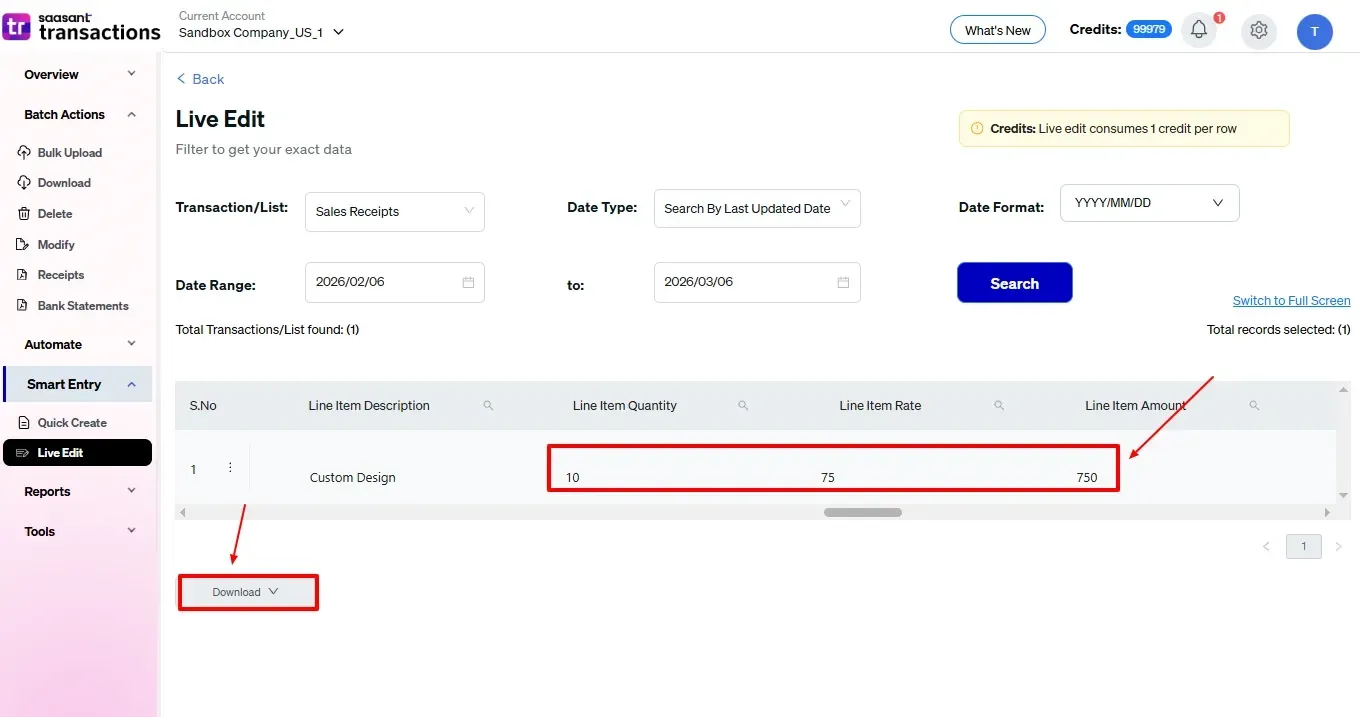
Locate the specific sales receipts you want to adjust.
Click directly into the grid cells to type in your revised values (such as changing a Deposit Account, Date, or Memo).
You can edit multiple rows at once across the screen.
Step 4: Submit Changes Back to QBO
Review the updated grid to ensure everything is correct.
Click Submit to sync the updates directly with QuickBooks Online.