How to Edit Refund Receipt in QuickBooks Online Using SaasAnt
March 2, 2026
Editing refund receipts one by one in QuickBooks Online can take time, especially when you need to correct multiple records. This article explains how to update refund receipts using SaasAnt Transactions Online.
You can export refund receipts, update the required fields in a spreadsheet, and upload the file again using Modify. For smaller changes, you can use Live Edit to update records directly on screen. This helps reduce manual work when reviewing and correcting refund receipt data.
Method 1: Edit Refund Receipts Using Modify
Use this method when you need to update multiple refund receipts at once.
Step 1: Open SaasAnt from QuickBooks Online
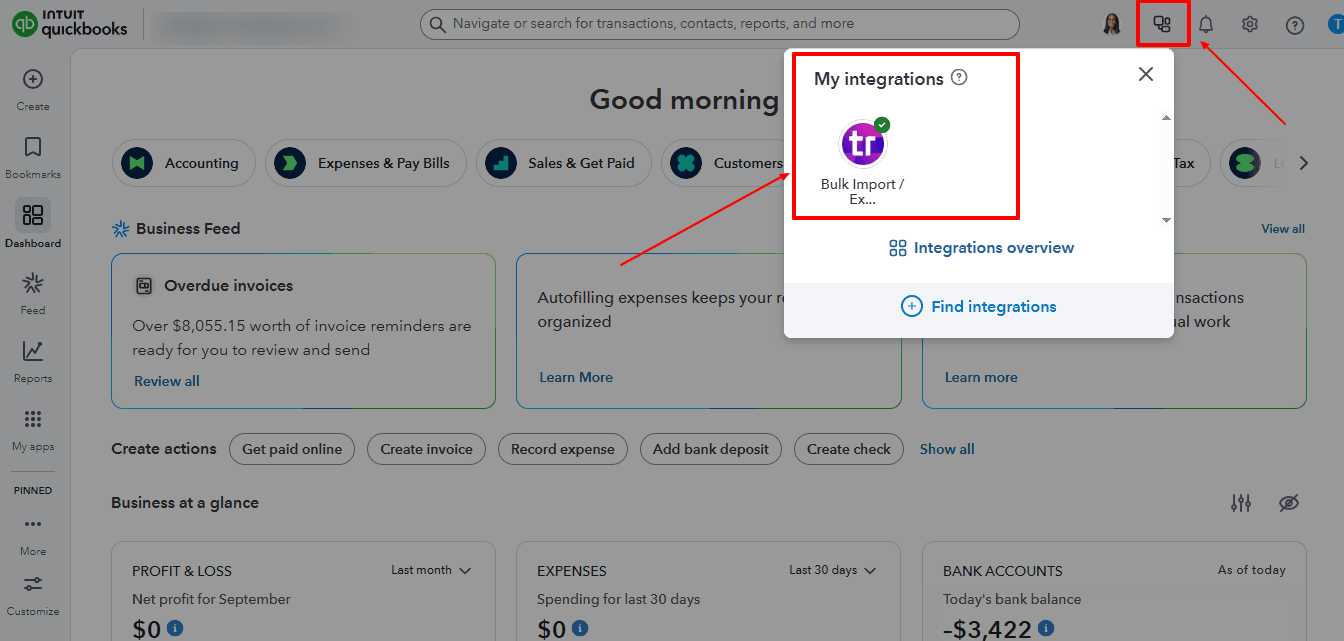
Sign in to your QuickBooks Online company.
From the left menu, go to Apps.
Search for SaasAnt Transactions Online if needed and open it from My Apps.
Step 2: Export Existing Refund Receipts
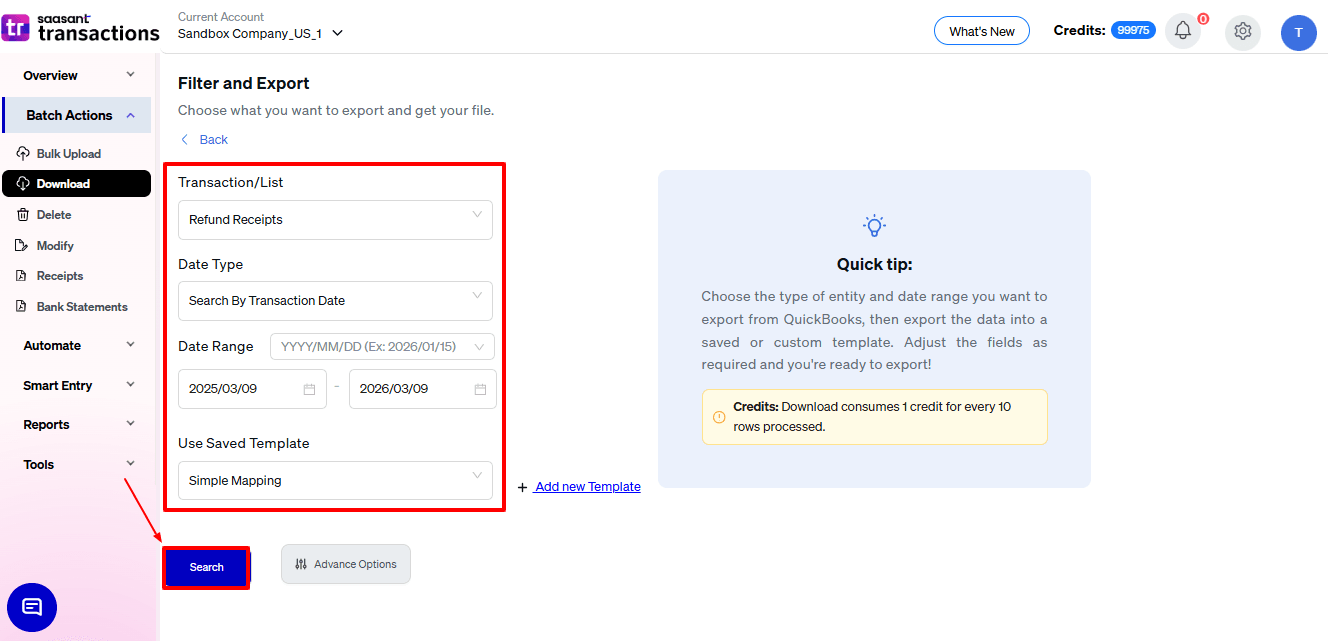
In SaasAnt, go to Batch Actions → Download.
On the download screen, select:
Transaction/List: Refund Receipts
Date Type: choose the date filter you want to use
Date Range: select the required period
Apply any available filters if needed, then click Search.
Once the refund receipts appear in the grid, click Download and export the file in CSV or XLSX format.
Step 3: Edit the Spreadsheet
Open the exported file in Excel or another spreadsheet tool.
Find the refund receipts you want to update.
Edit only the fields you want to change and leave the identifying columns from the export unchanged so SaasAnt can match the existing transactions correctly.
Save the file in CSV or XLSX format.
Step 4: Upload the Modified File
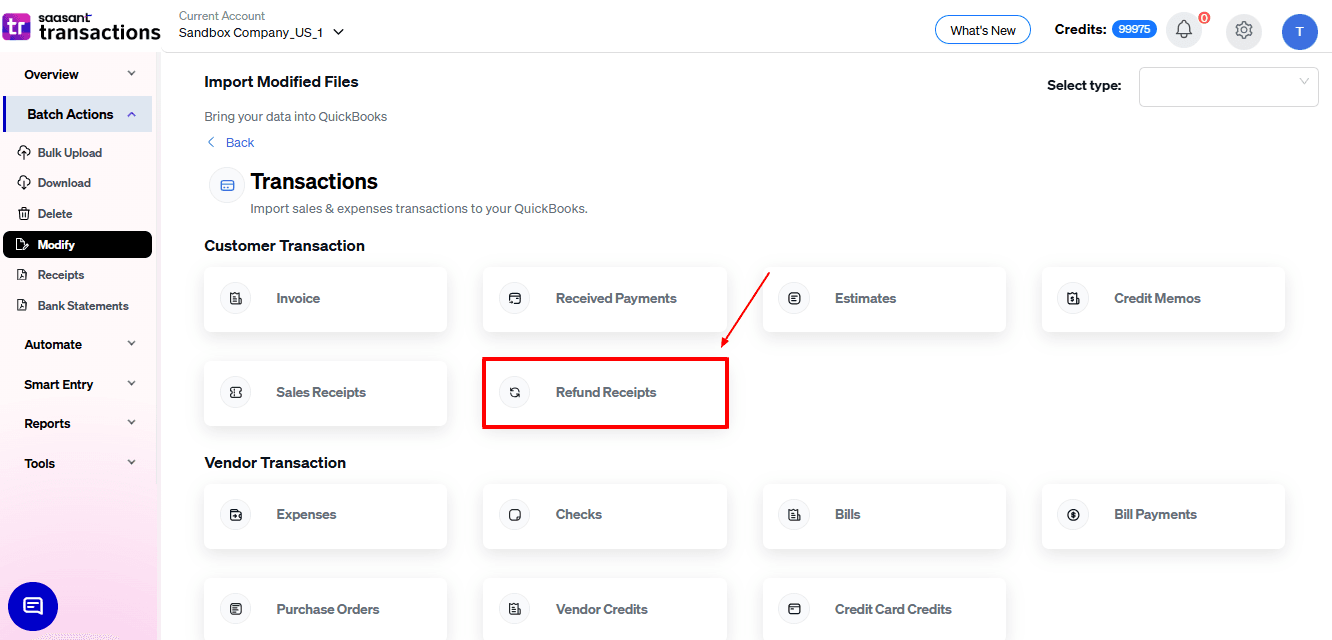
Return to SaasAnt.
Go to Batch Actions → Modify.
In the list, choose Refund Receipts.
Upload the edited file and continue.
Step 5: Map the Fields
On the mapping screen, match your spreadsheet columns with the QuickBooks fields.
Review the mapping carefully, especially the transaction identifier and any fields you edited.
Once the mapping looks correct, continue to the review step.
Step 6: Review the Data
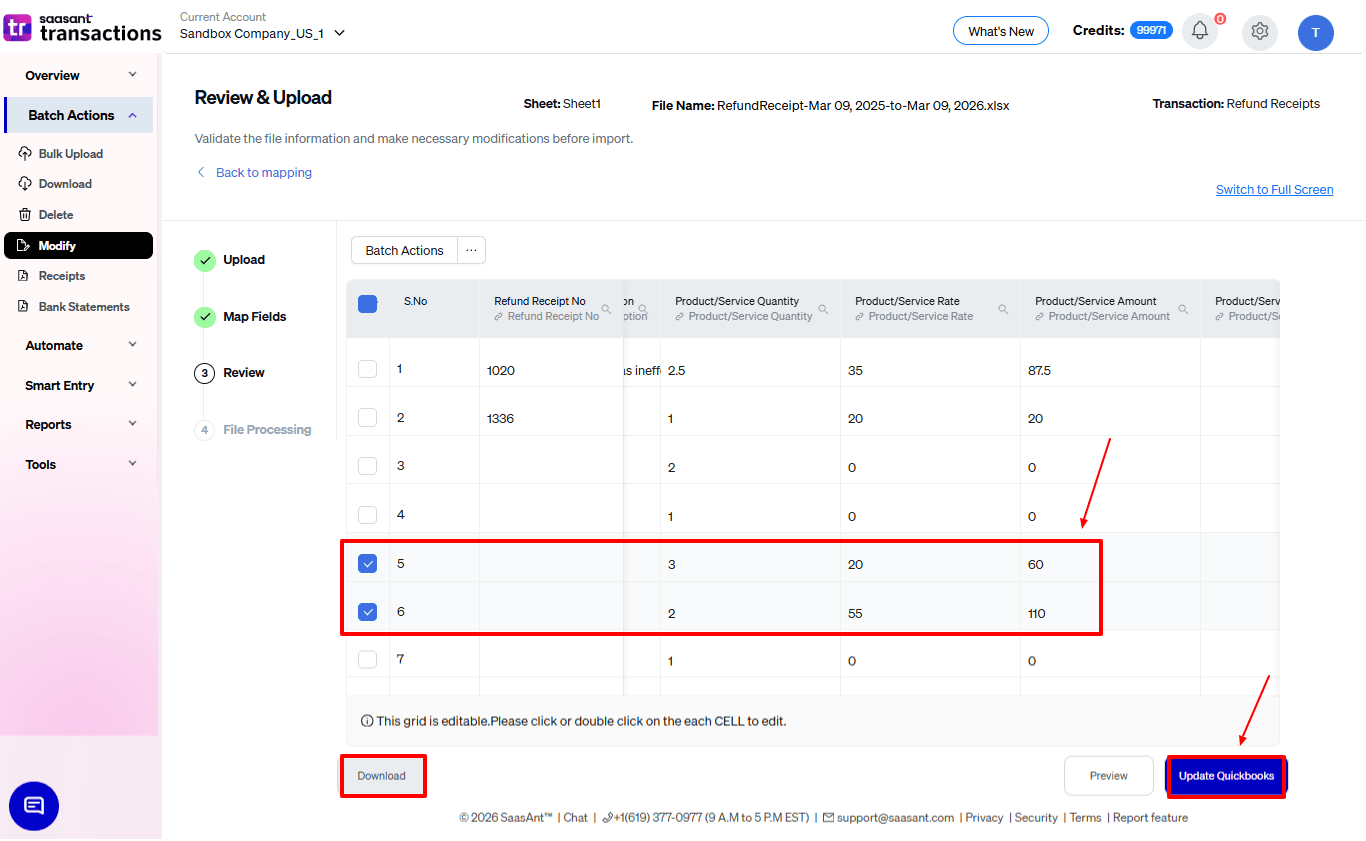
Check the rows in the review grid.
Make any last-minute corrections if needed.
When everything looks correct, submit the update to QuickBooks.
Step 7: Review the Results
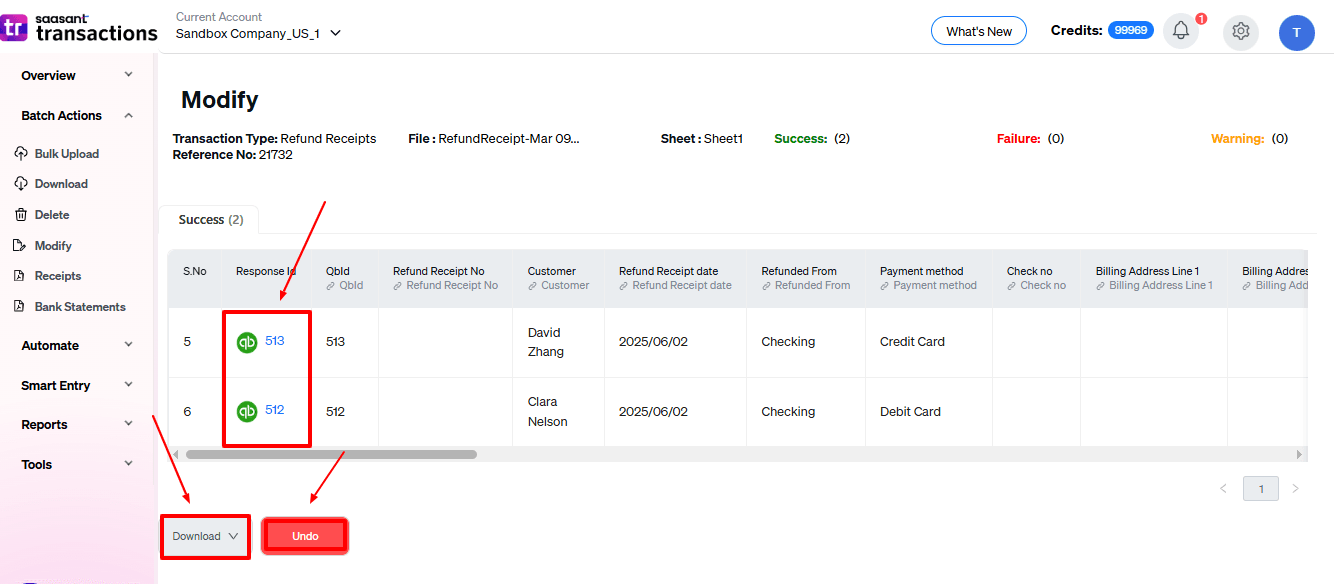
After the update finishes, review the results summary.
Check successful rows and review any failed rows shown in the error section.
Download the results log if you need a record of the update.
If your workflow includes an undo or rollback option, use it only after confirming the results you want to reverse.
Method 2: Edit Refund Receipts Using Live Edit
Use Live Edit when you want to make smaller changes directly in the grid without working from a spreadsheet.
Step 1: Open Live Edit
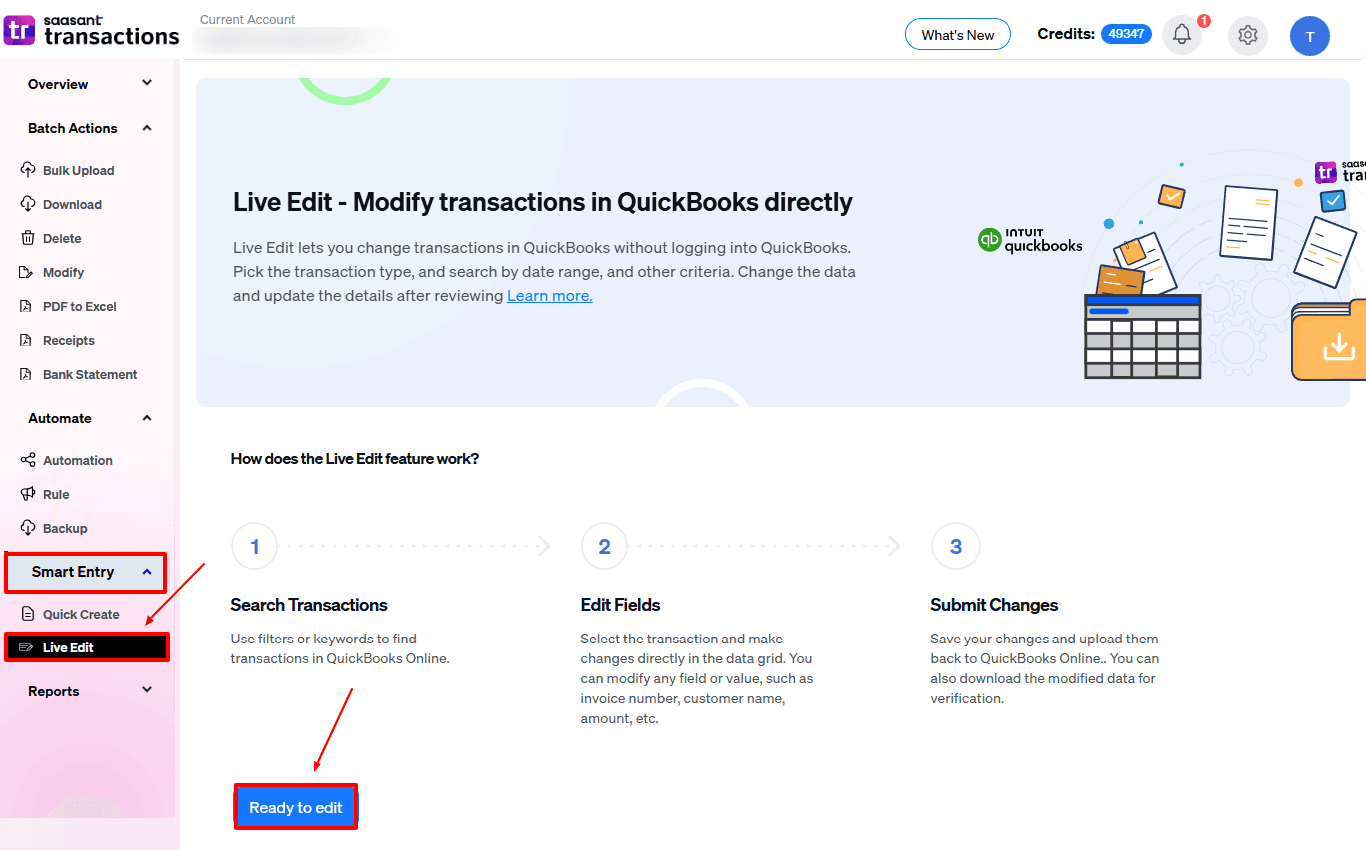
In SaasAnt, go to Smart Entry → Live Edit.
Choose Edit by searching or Edit by reference.
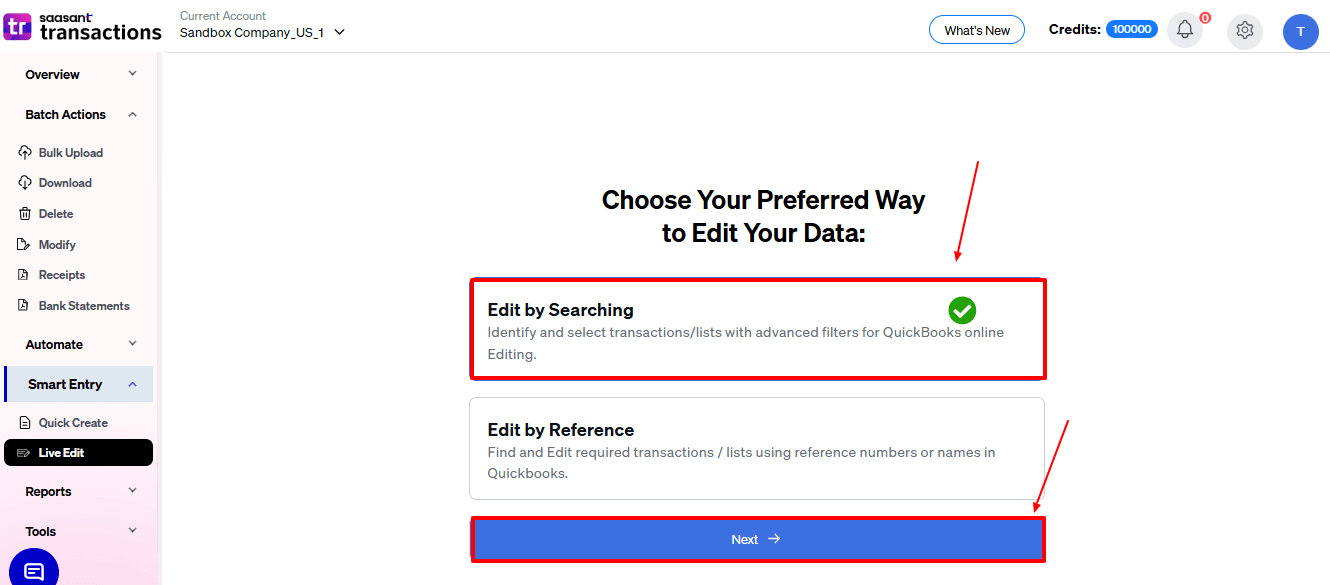
Open the editing screen.
Step 2: Search for Refund Receipts
Choose:
Transaction/List: Refund Receipts
Date Type: select the date filter you want
Date Range: choose the required period
Then click Search to load the refund receipts.
Step 3: Update the Required Fields
In the grid, locate the refund receipts you want to change.
Edit the required values directly in the available cells.
Step 4: Submit the Changes
Review the updated rows.
Click Submit to apply the changes to QuickBooks Online.