How To Edit Item Receipts in QuickBooks Desktop Using SaasAnt Transactions Desktop
May 5, 2026
Making changes to Item Receipts one by one in QuickBooks Desktop can be time-consuming, especially when you need to correct quantities, vendors, dates, accounts, or item details.
SaasAnt Transactions Desktop allows you to export current Item Receipts, modify the necessary fields in Excel, and update them all at once. This blog outlines the process of editing item receipts in QuickBooks Desktop.
Video Tutorial for How to Edit Data in QuickBooks Desktop using SaasAnt Transactions Desktop:
What do you need before you start?
QuickBooks Desktop company file is open
SaasAnt Transactions Desktop is connected to QuickBooks
You have access to the Item Receipts records you want to edit
It is recommended to keep a backup before making bulk changes
How do you export the Item Receipts records you want to edit?
Open SaasAnt Transactions Desktop.
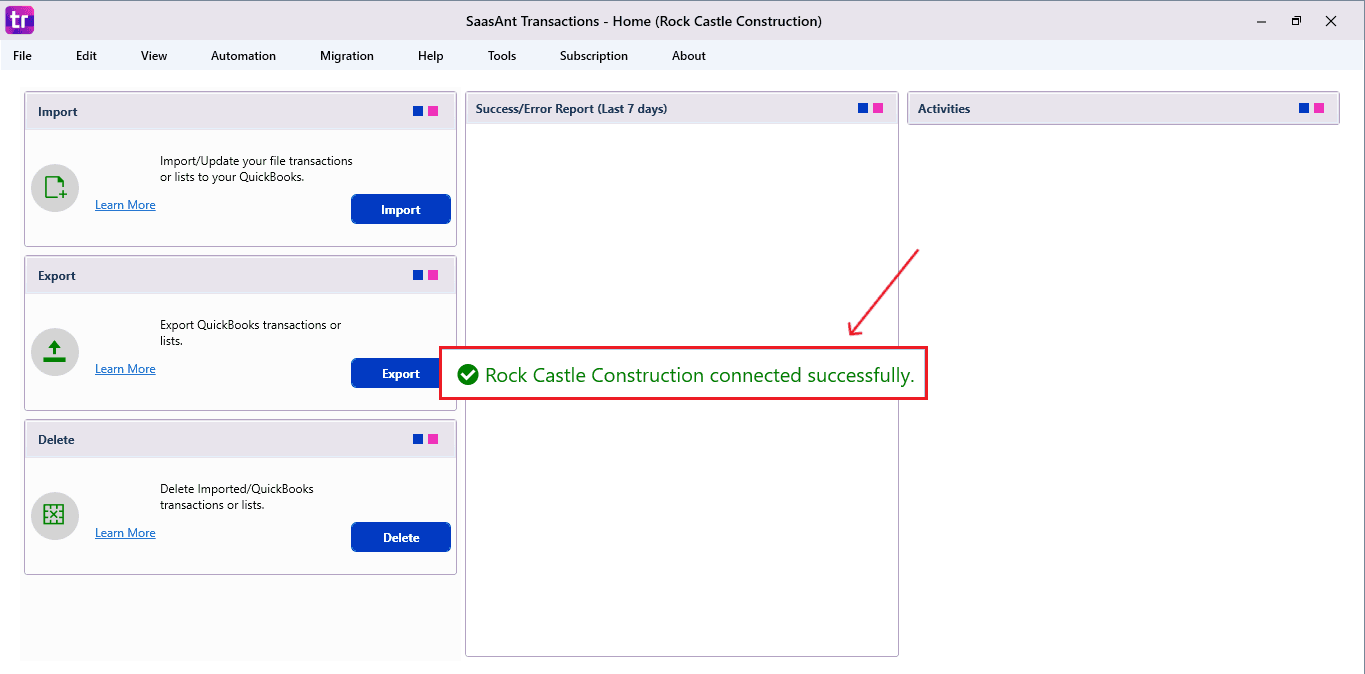
Go to Export.
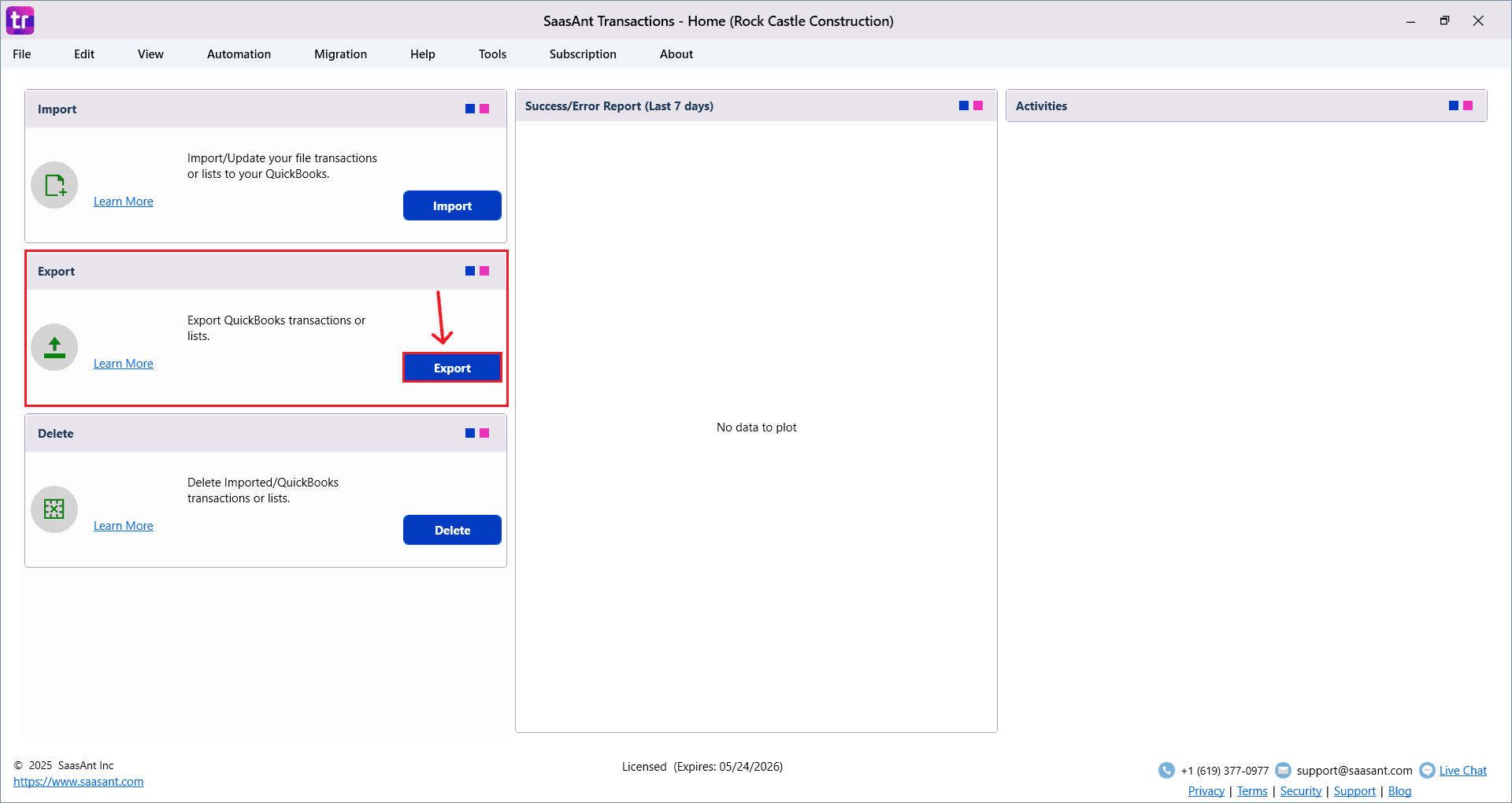
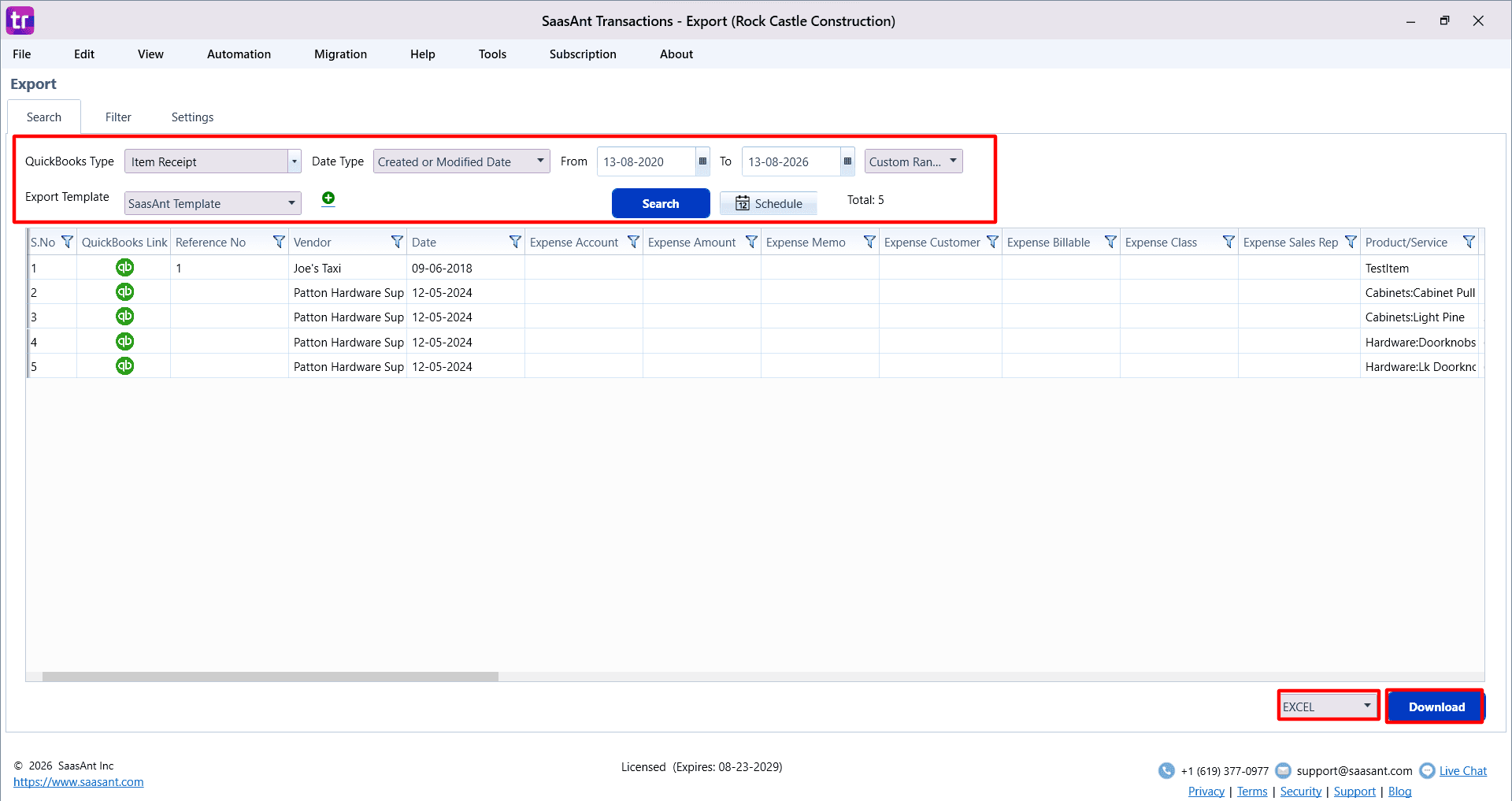
Select Item Receipts in the QuickBooks Type field.
Choose the date type and date range if required.
Use filters if needed to narrow the records.
Click Search.
Review the records and click Download to export them to Excel.
How do you update the exported file?
Open the exported Excel file.
Update the fields you want to change.
Do not remove key columns from the file.
Save the file after making the changes.

How do you import the updated file back into QuickBooks Desktop?
Go to Import.
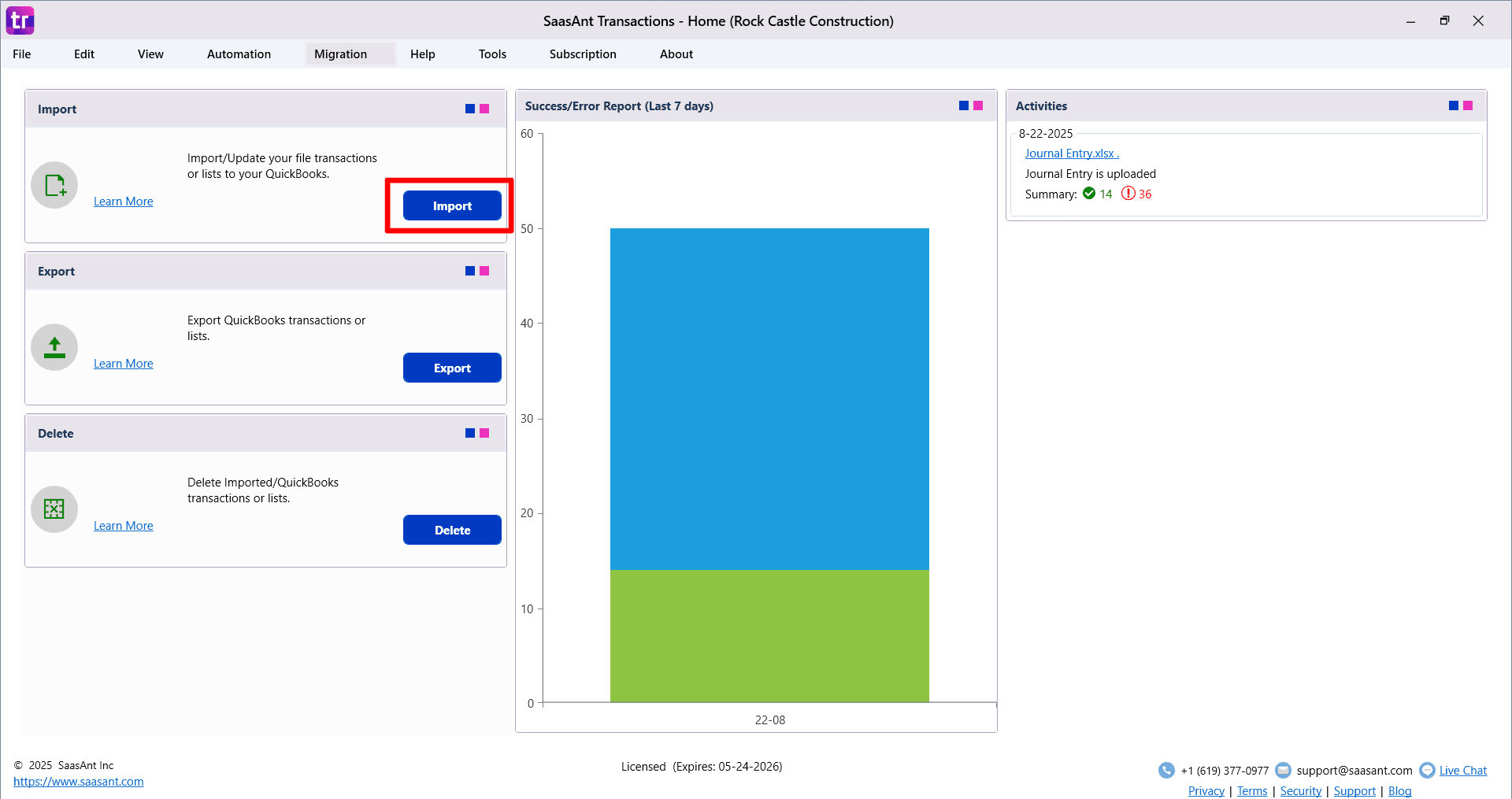
Select Item Receipts as the type.
Choose the edited Excel file.
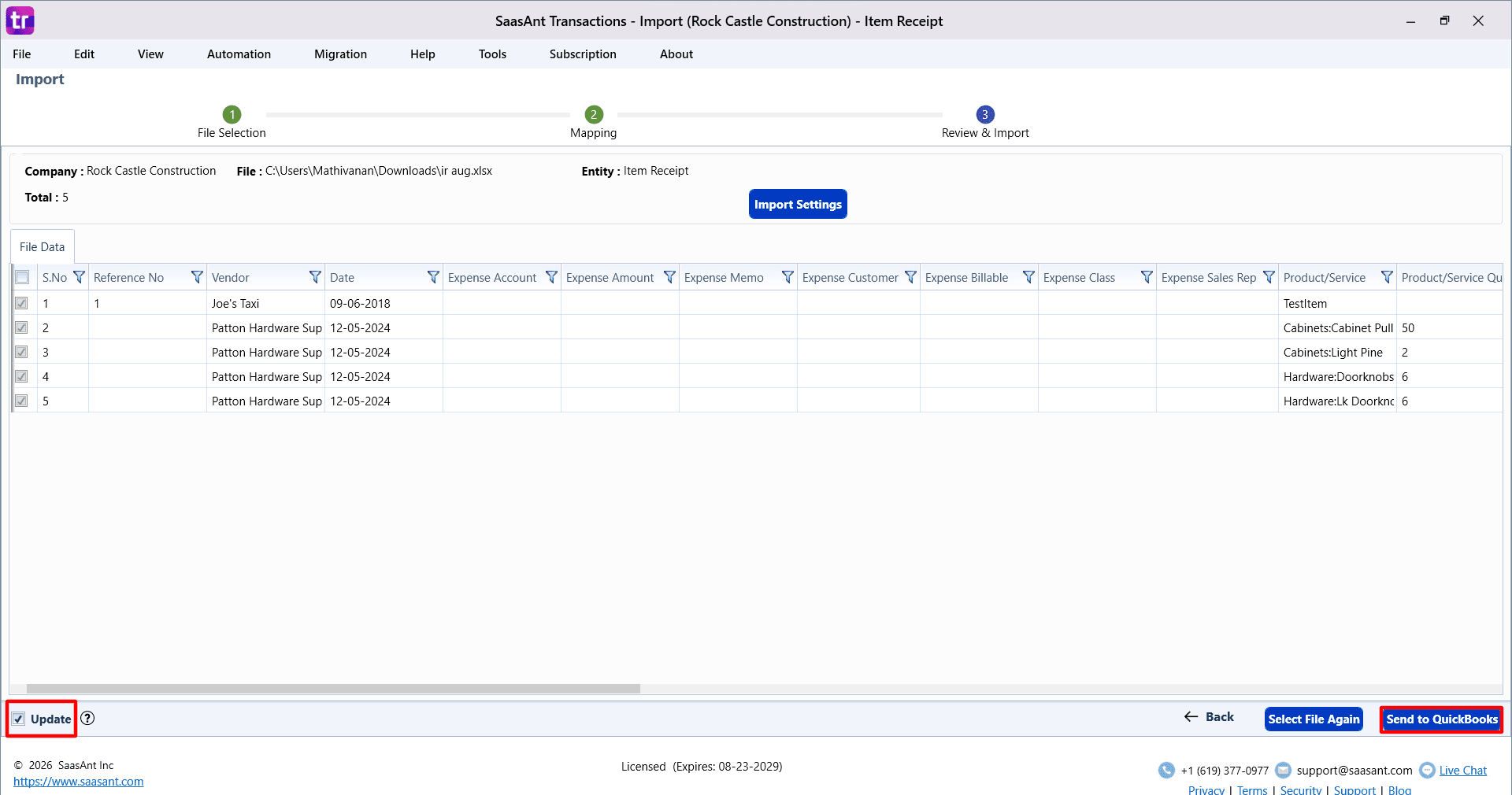
Turn on the Update option.
Click Next and review the field mapping.
Continue to the review screen and verify the data.
Click Send to QuickBooks to update the existing records.
What should you keep in mind while editing?
Update only the fields you need to change
Keep the file structure unchanged as much as possible
Review the data before sending it to QuickBooks
Test with a small set of records first if needed
FAQ
1) Can I bulk edit Item Receipts in QuickBooks Desktop?
QuickBooks Desktop does not have a native option for bulk editing Item Receipts. Using SaasAnt Transactions Desktop, you can export multiple Item Receipts, make changes in Excel, and then update them collectively.
2) What does the Update option do in SaasAnt Transactions Desktop?
Choosing the Update option allows SaasAnt to adjust existing QuickBooks records instead of treating the file as a new Item Receipts import.
3) Is the Update option required when editing existing Item Receipts?
Yes. Before importing, ensure that you enable the Update option when using SaasAnt Transactions Desktop to modify existing Item records.
4) Can I review Item changes before updating QuickBooks?
Yes. SaasAnt Transactions Desktop includes a review stage that allows you to verify the records and mappings prior to sending updates to QuickBooks Desktop.
5) Can I change Item descriptions in bulk?
Yes, if the description field is available for the Item type you are modifying, you can update descriptions for several Item Receipts in the exported Excel file.
6) What should I do if an Item fails to update?
Review the error or response specifics, check the Item data and field mapping, correct any issues, and then process the failed record once more.