How to Edit Employee in QuickBooks Desktop using SaasAnt Transactions
March 11, 2026
What does this article help you do?
This article shows you how to update existing employee records in QuickBooks Desktop in bulk. This is useful when you need to correct or update multiple employee records without editing them one by one.
What do you need before you start?
QuickBooks Desktop company file is open
SaasAnt Transactions Desktop is connected to QuickBooks
You have access to the employee records you want to edit
It is recommended to keep a backup before making bulk changes
How do you export the employee records you want to edit?
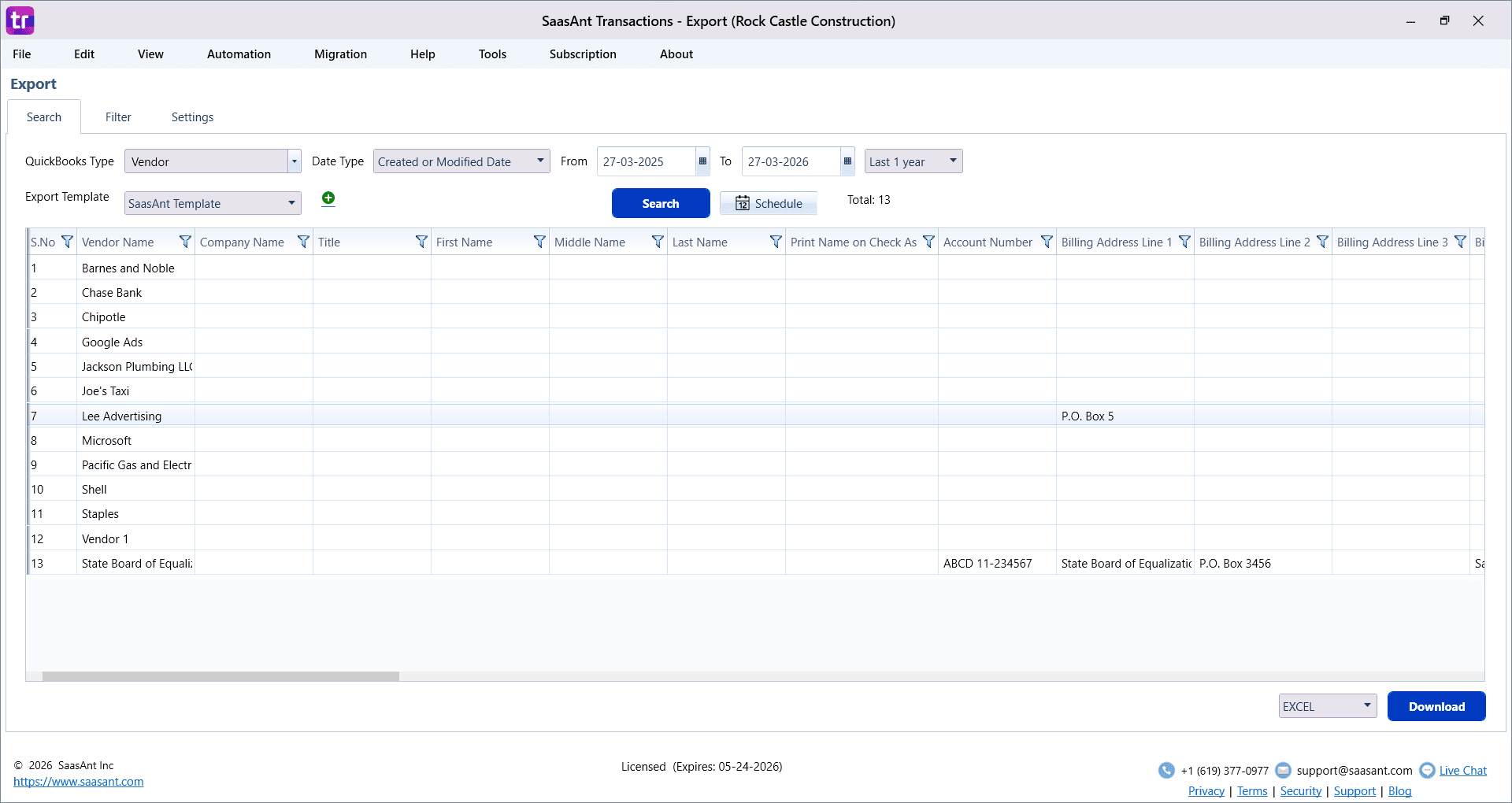
Open SaasAnt Transactions Desktop.
Go to Export.
Select Employee in the QuickBooks Type field.
Choose the date type and date range if required.
Use filters if needed to narrow the records.
Click Search.
Review the records and click Download to export them to Excel.
How do you update the exported file?
Open the exported Excel file.
Update the fields you want to change.
Do not remove key columns from the file.
Save the file after making the changes.
How do you import the updated file back into QuickBooks Desktop?
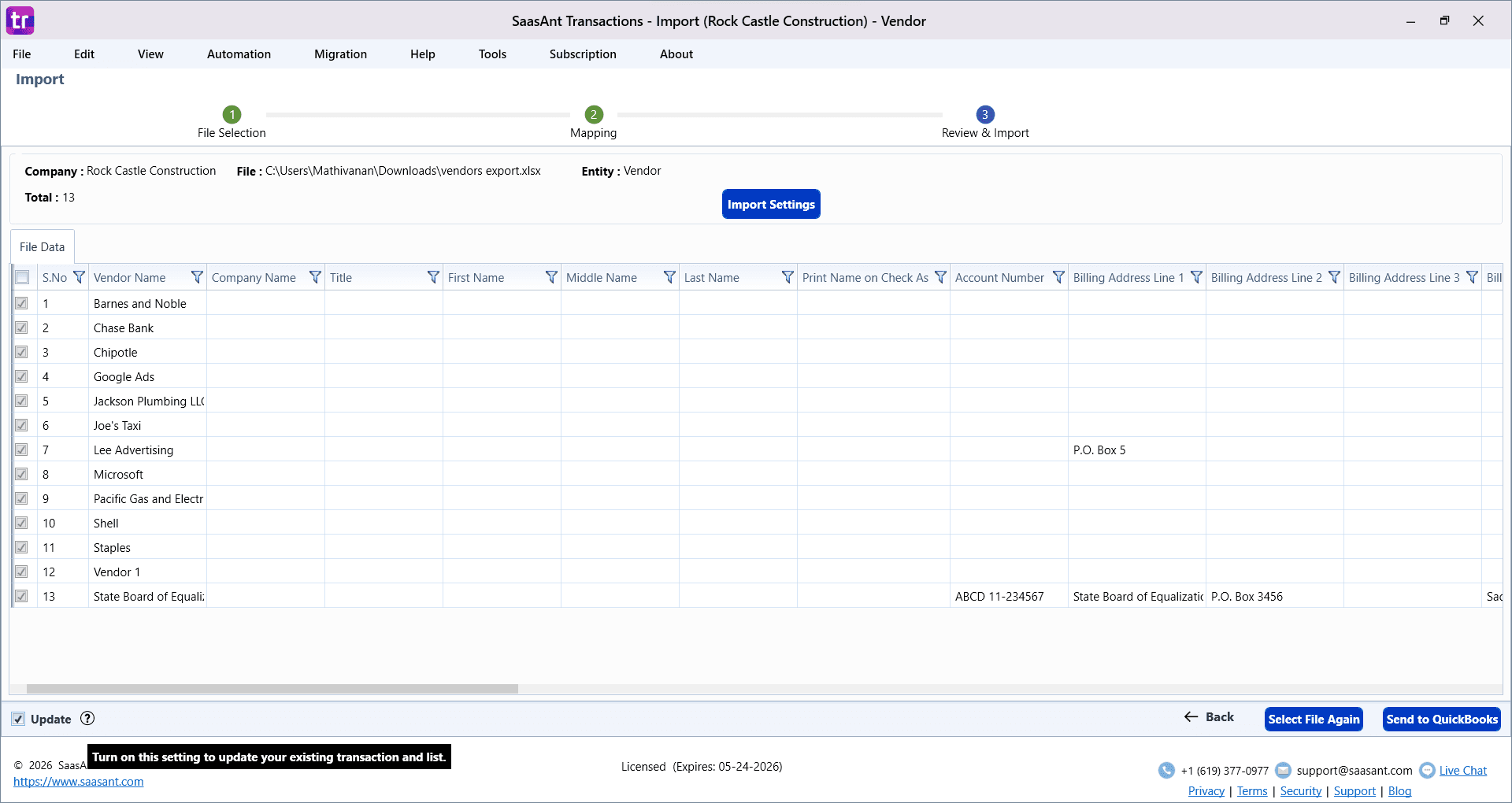
Open SaasAnt Transactions Desktop.
Go to Import.
Select Employee as the type.
Choose the edited Excel file.
Turn on the Update option.
Click Next and review the field mapping.
Continue to the review screen and verify the data.
Click Send to QuickBooks to update the existing records.
What should you keep in mind while editing?
Update only the fields you need to change
Keep the file structure unchanged as much as possible
Review the data before sending it to QuickBooks
Test with a small set of records first if needed
FAQs
How does SaasAnt edit existing employee records?
SaasAnt exports the existing QuickBooks Desktop employee records, lets you update them in Excel, and imports the edited file back with Update turned on.
Can I edit multiple employee records at once?
Yes. You can update multiple employee records in one file instead of editing them one by one in QuickBooks Desktop.
Do I need to export the employee records first?
Yes. Exporting first helps you work with the existing records in the correct format.
What does the Update option do?
The Update option tells SaasAnt to update existing records instead of creating new ones.
Can I edit only a few fields and leave the rest as they are?
Yes. You can update only the required fields and keep the remaining values unchanged.