How To Edit Checks in QuickBooks Desktop using SaasAnt Transactions Desktop
March 3, 2026
Editing several checks separately in QuickBooks Desktop can be a lengthy process when you need to fix payment details, accounts, memos, or other information. With SaasAnt Transactions Desktop, you can export your existing checks to Excel, make the necessary adjustments, and then import them again.
This blog will explain how to edit checks in QuickBooks Desktop with SaasAnt Transactions Desktop.
What do you need before you start?
QuickBooks Desktop company file is open
SaasAnt Transactions Desktop is connected to QuickBooks Desktop
You have access to the Checks records you want to edit
It is recommended to keep a backup before making bulk changes
Video Tutorial for How to Edit Data in QuickBooks Desktop using SaasAnt Transactions Desktop:
How do you export the Checks records you want to edit?
Open SaasAnt Transactions Desktop.
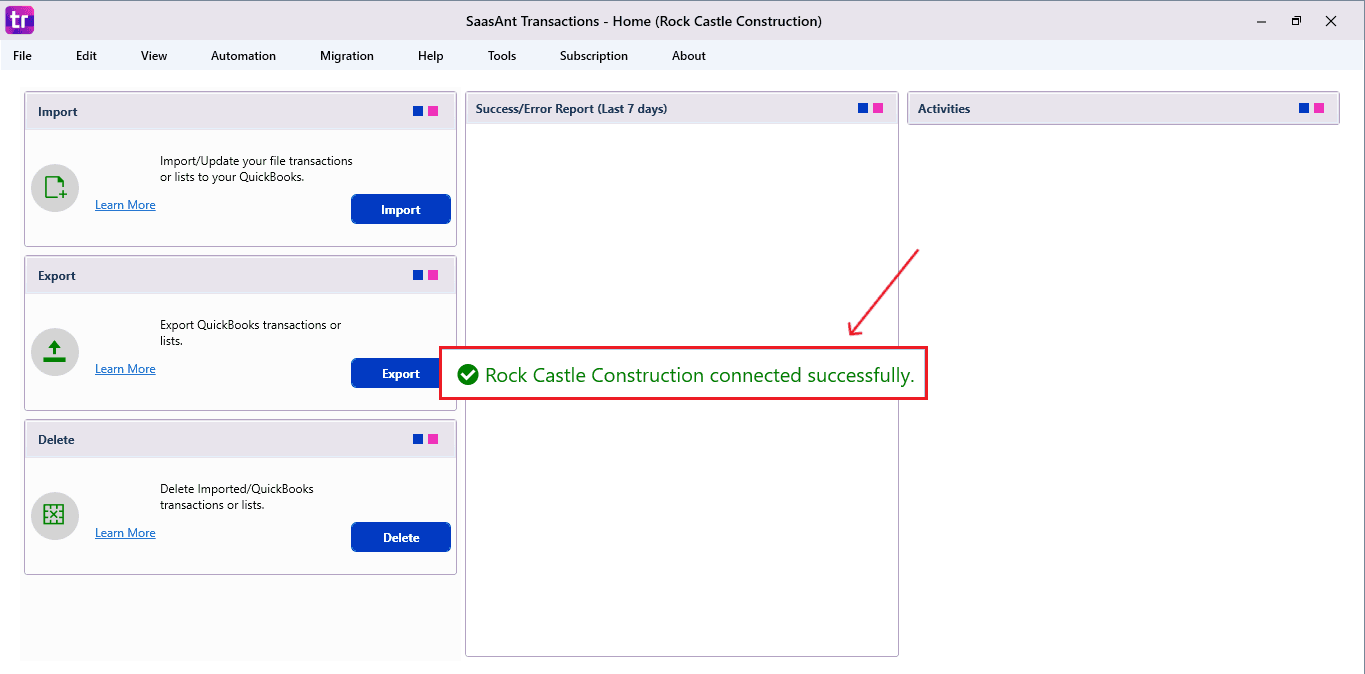
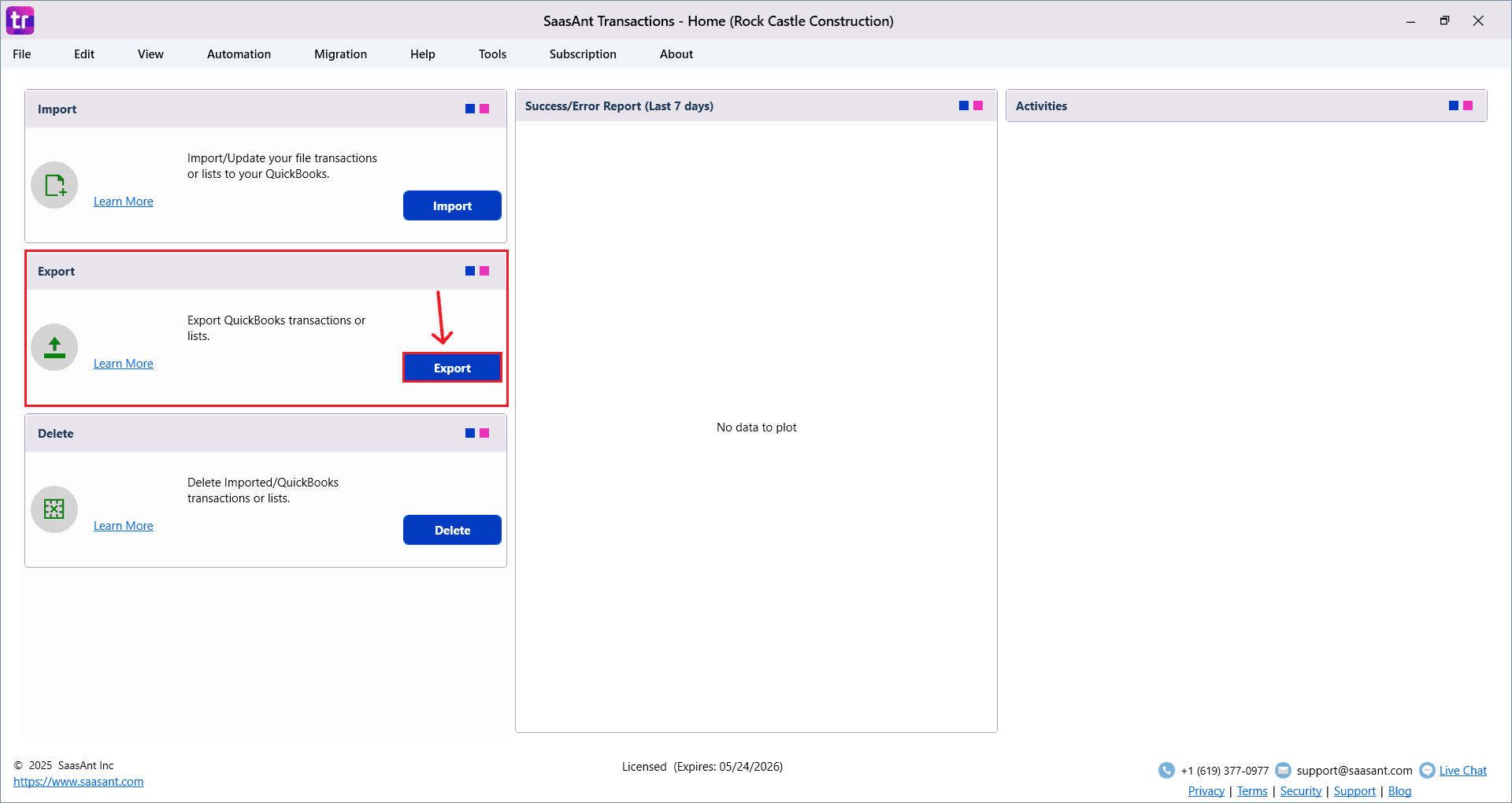
Go to Export.
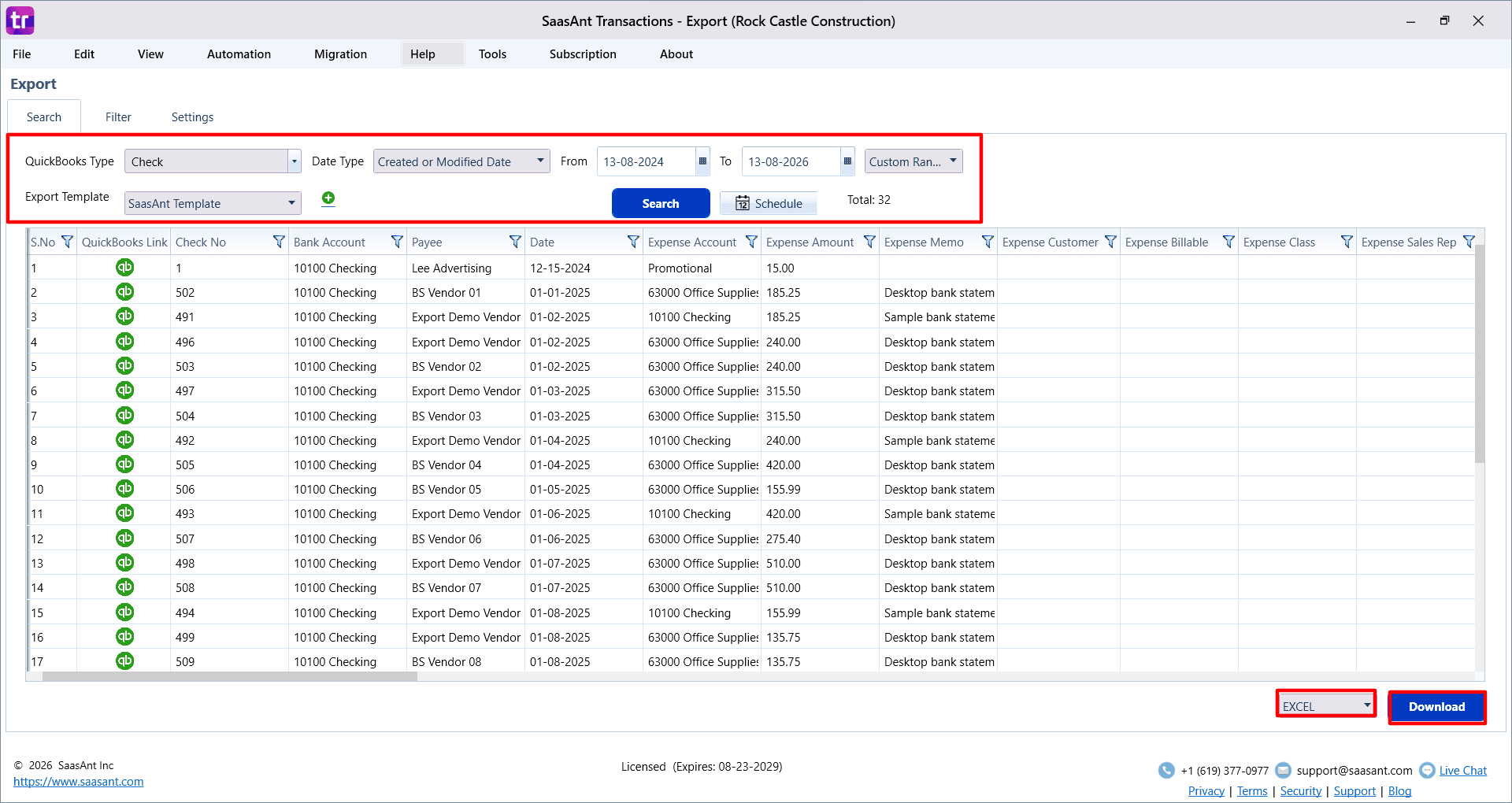
Select Checks in the QuickBooks Type field.
Choose the date type and date range if required.
Use filters if needed to narrow the records.
Click Search.
Review the records and click Download to export them to Excel.
How do you update the exported file?
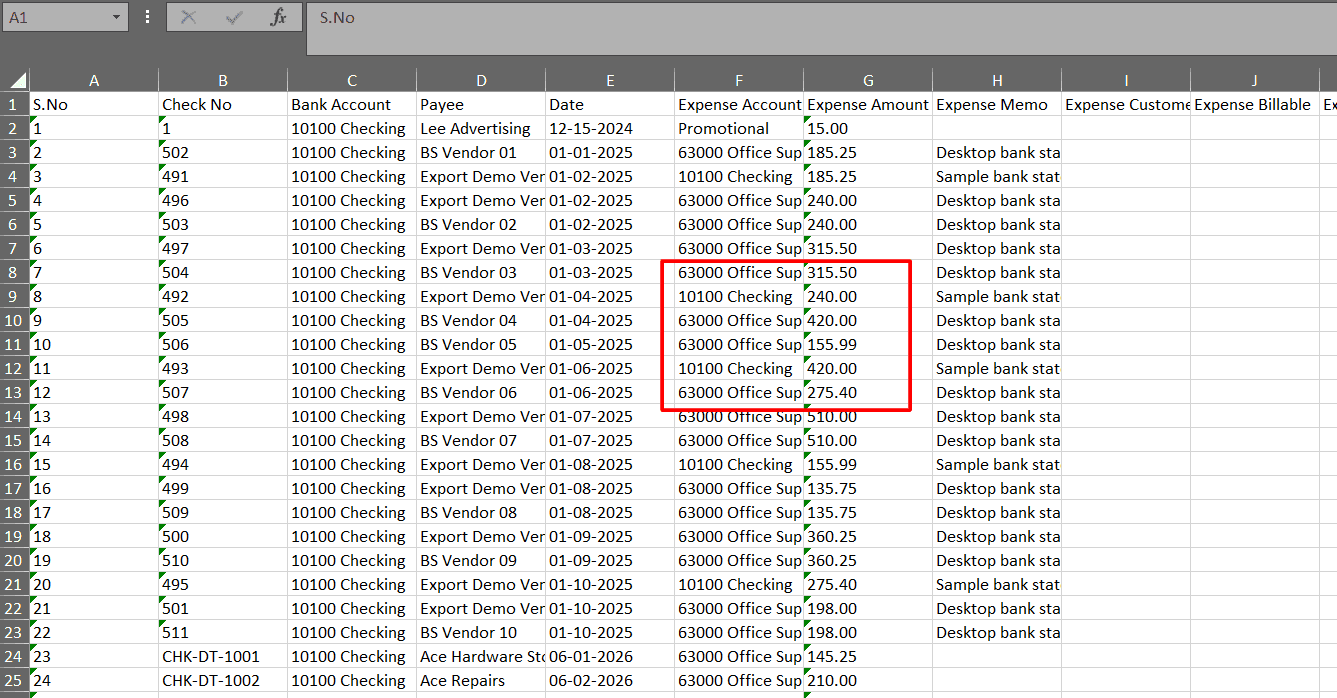
Open the exported Excel file.
Update the fields you want to change.
Do not remove key columns from the file.
Save the file after making the changes.
How do you import the updated file back into QuickBooks Desktop?
Go to Import.
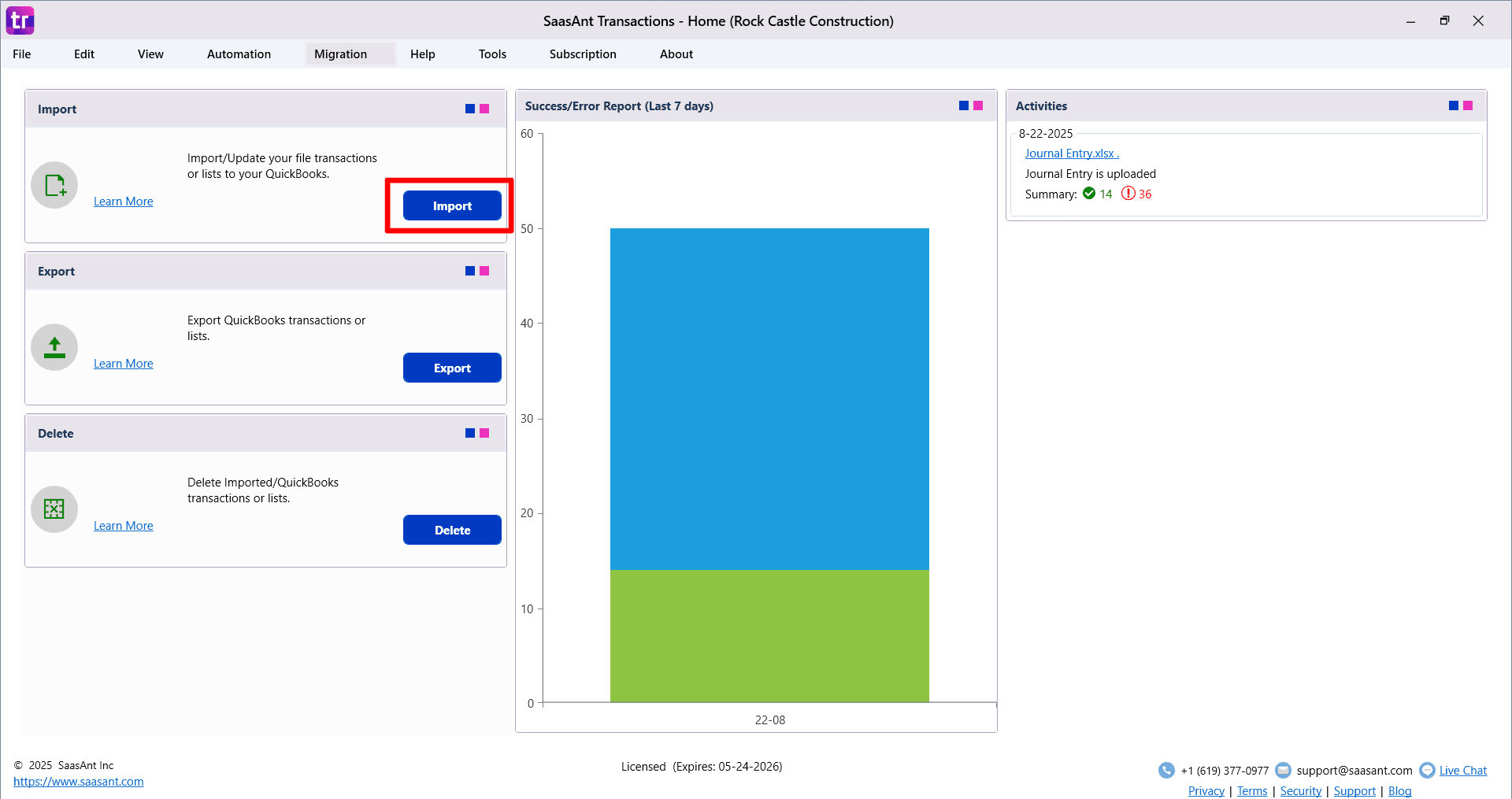
Select Checks as the type.
Choose the edited Excel file.
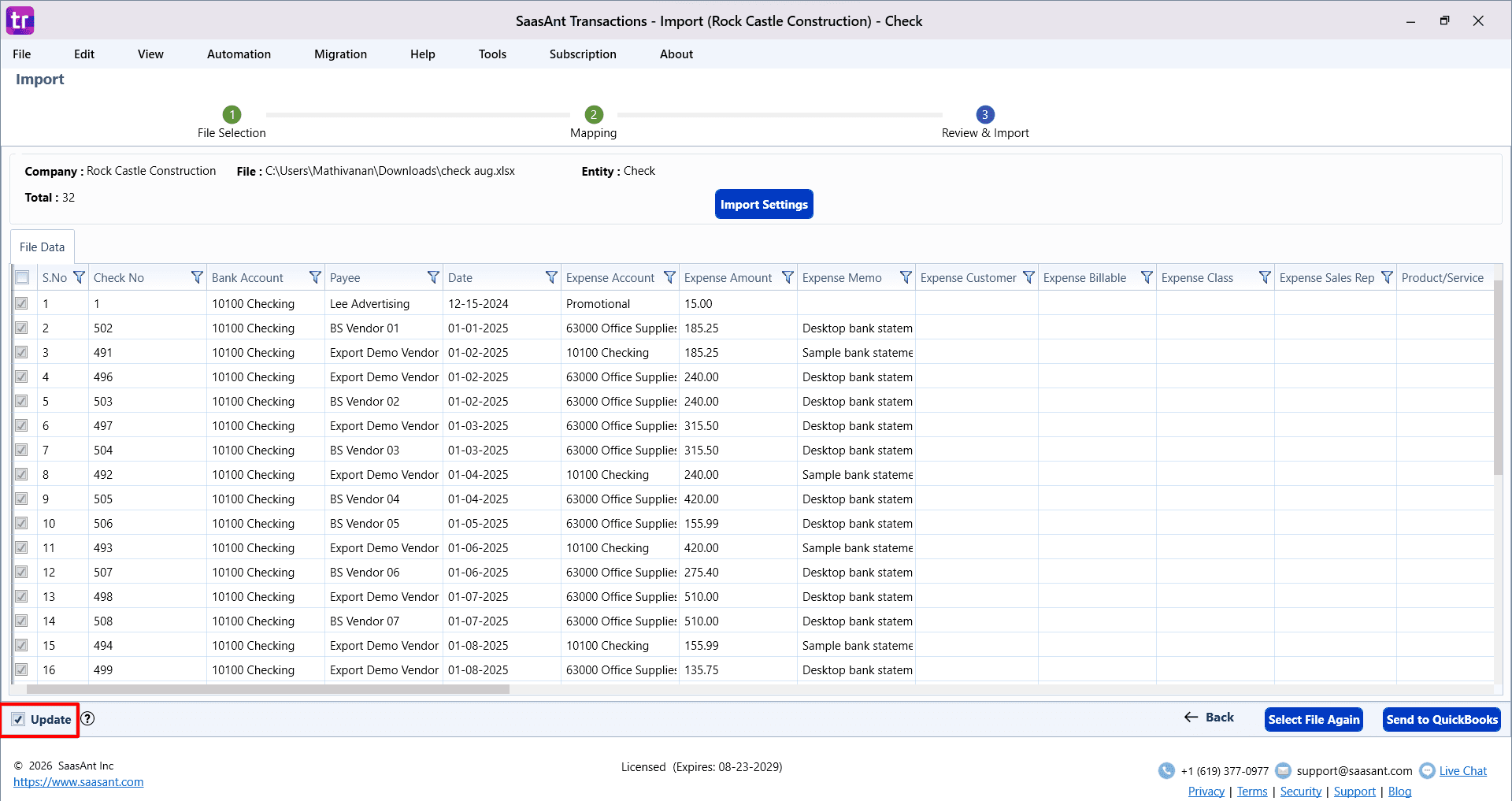
Turn on the Update option.
Click Next and review the field mapping.
Continue to the review screen and verify the data.
Click Send to QuickBooks to update the existing records.
What should you keep in mind while editing?
Update only the fields you need to change
Keep the file structure unchanged as much as possible
Review the data before sending it to QuickBooks
Test with a small set of records first if needed
FAQ
1) Can I edit multiple checks at once in QuickBooks Desktop?
In QuickBooks Desktop, you can only edit one check at a time. However, with SaasAnt Transactions Desktop, you can efficiently bulk edit hundreds of Checks by exporting, updating, and reimporting them.
2) What does the Update option do in SaasAnt Transactions Desktop?
The Update option lets you change current QuickBooks Desktop transactions rather than making new ones. It is used for importing modified records back into QuickBooks.
3) Can I preview edited check data before updating QuickBooks?
Yes. SaasAnt Transactions Desktop includes a review stage that allows you to verify the transaction details before submitting the updates to QuickBooks Desktop.
4) Can I make several types of corrections in one update?
Yes. You can change several supported fields in the exported file before importing it again, provided the information is valid and properly mapped.
5) What happens if an updated value is not accepted by QuickBooks Desktop?
The update may not go through if the value doesn't satisfy QuickBooks requirements. Check the response or error details, fix the problematic data, and try processing the record again.