How to Delete Transfers in QuickBooks Online using SaasAnt Transactions Online
May 5, 2026
What does this article help you do?
This guide shows how to bulk delete transfers in QuickBooks Online using SaasAnt Transactions Online. You can use it to remove duplicate transfers, transfers created by mistake, transfers recorded between the wrong accounts, or transfers with incorrect dates or amounts without deleting each transaction individually.
Why use SaasAnt for deleting Transfers?
SaasAnt Transactions Online lets you search for transfers using filters, review the matching transactions, download a backup, and delete multiple transfers in a few clicks.
Video Tutorial on How to Delete Data in QuickBooks Online using SaasAnt Transactions Online:
What should you have before you start?
You need:
SaasAnt Transactions Online installed from the QuickBooks App Store (30-day trial available)
A QuickBooks Online company connected to SaasAnt Transactions Online
How do you bulk-delete Transfers in SaasAnt?
Step 1: How do you open SaasAnt Transactions Online?
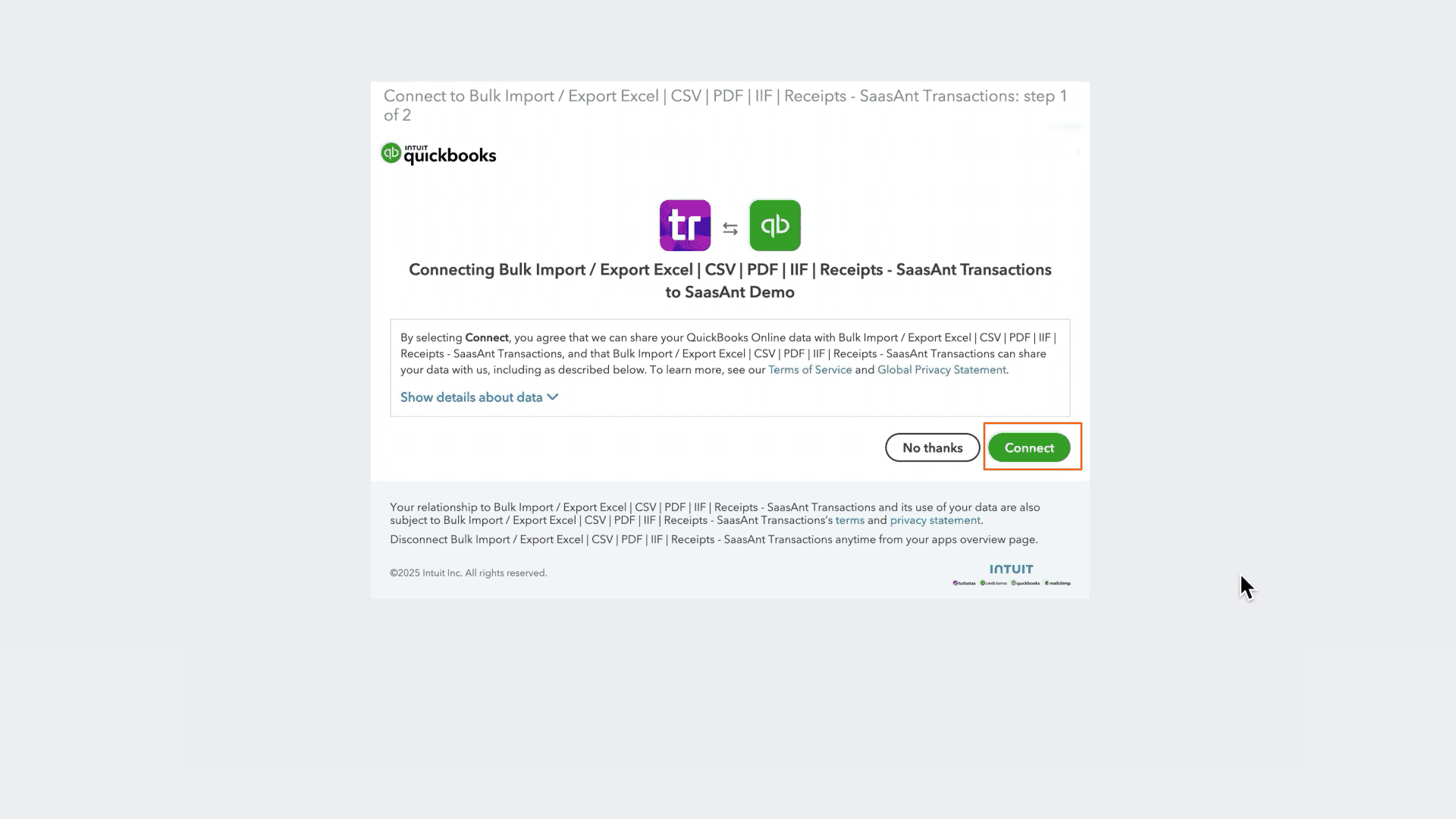
Open the QuickBooks App Store.
Install SaasAnt Transactions Online and connect your QuickBooks Online company.
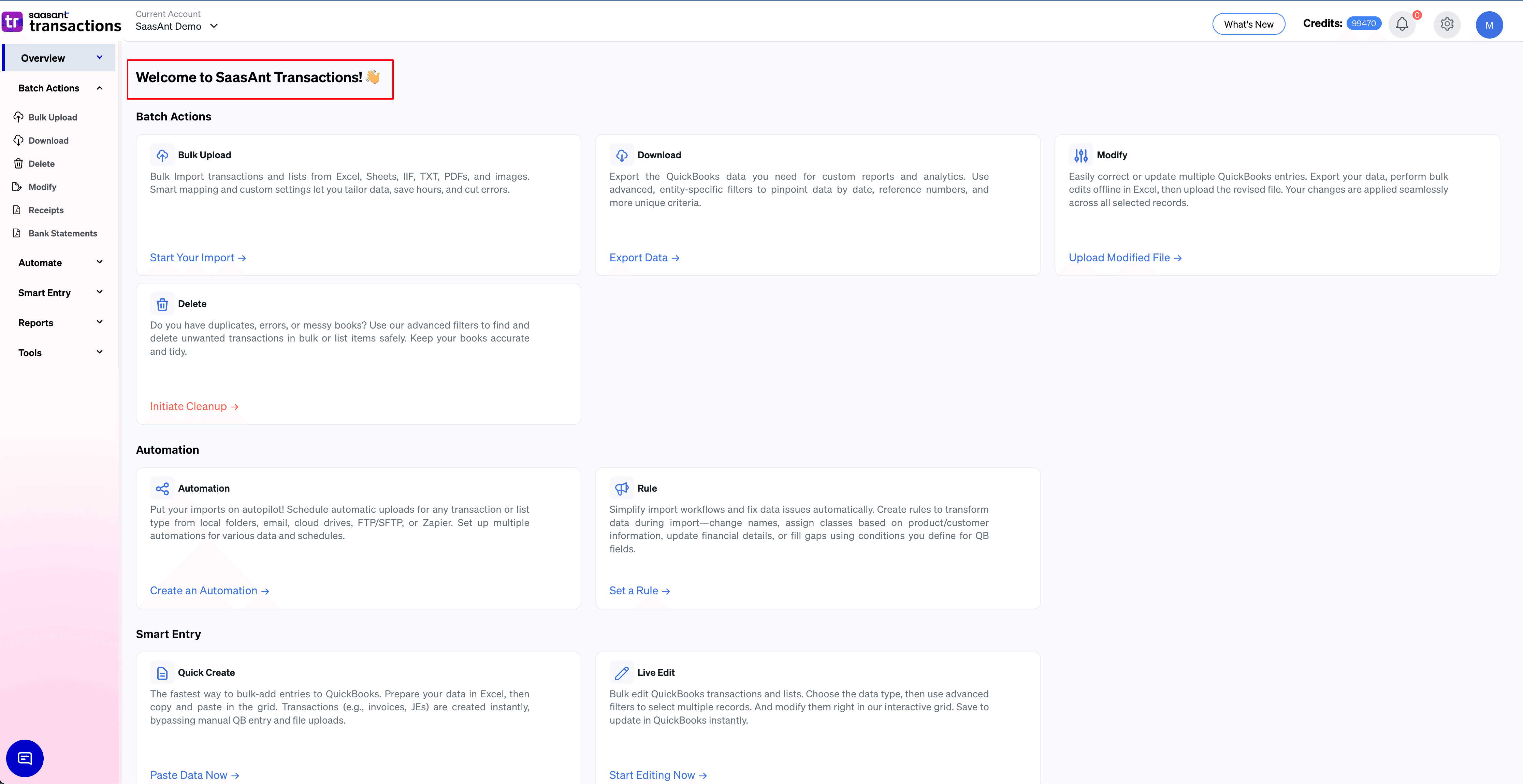
Launch SaasAnt Transactions Online.
Step 2: Where do you start the delete flow?
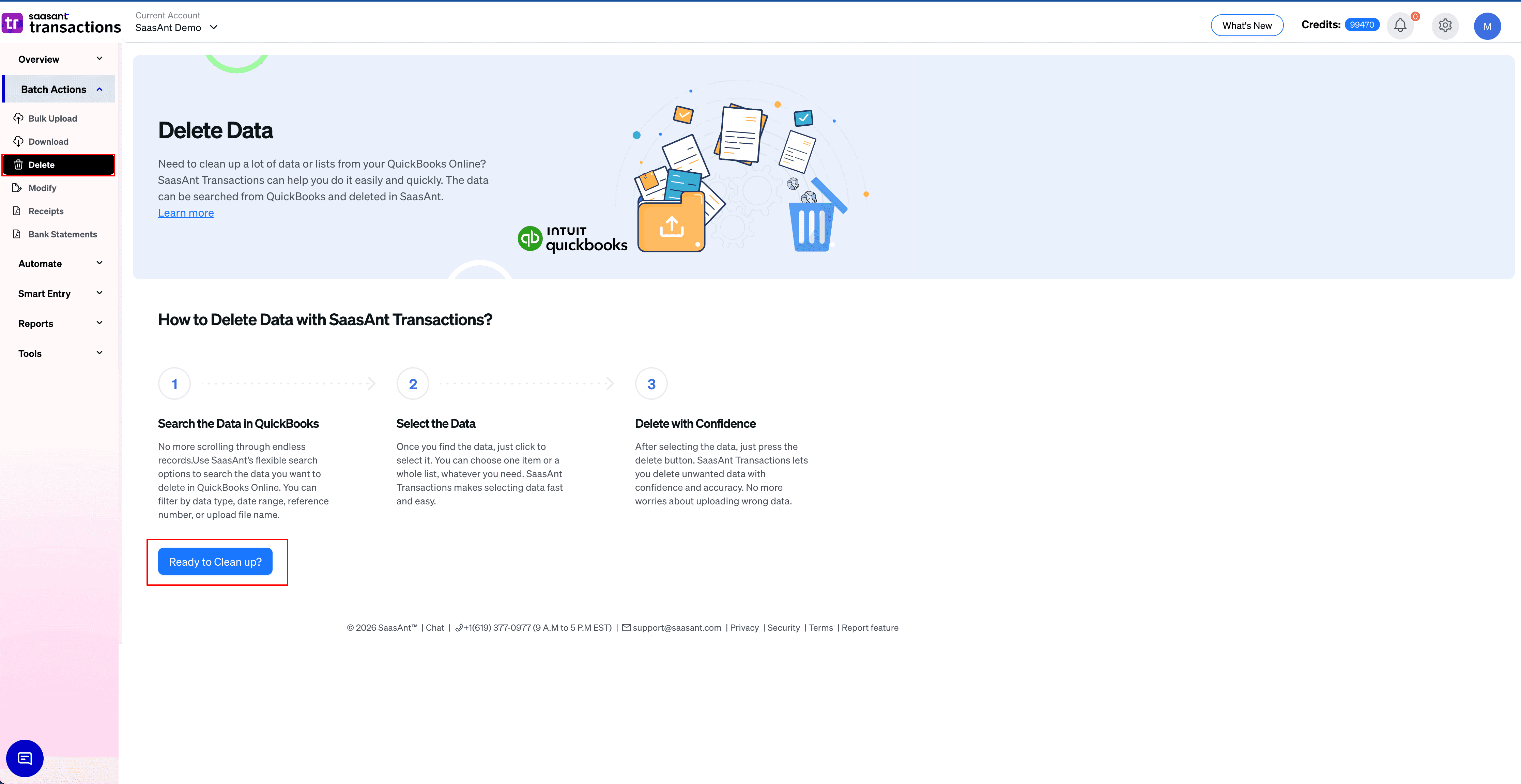
From the SaasAnt dashboard, select Delete.
On the setup screen, select Ready to clean up.
Step 3: Which delete method should you choose?
Choose one:
Delete by Reference: Use this when you already know the reference value of the transfer you want to delete.
Delete by Searching: Use this when you need to locate transfers using filters such as date, amount, or account information.
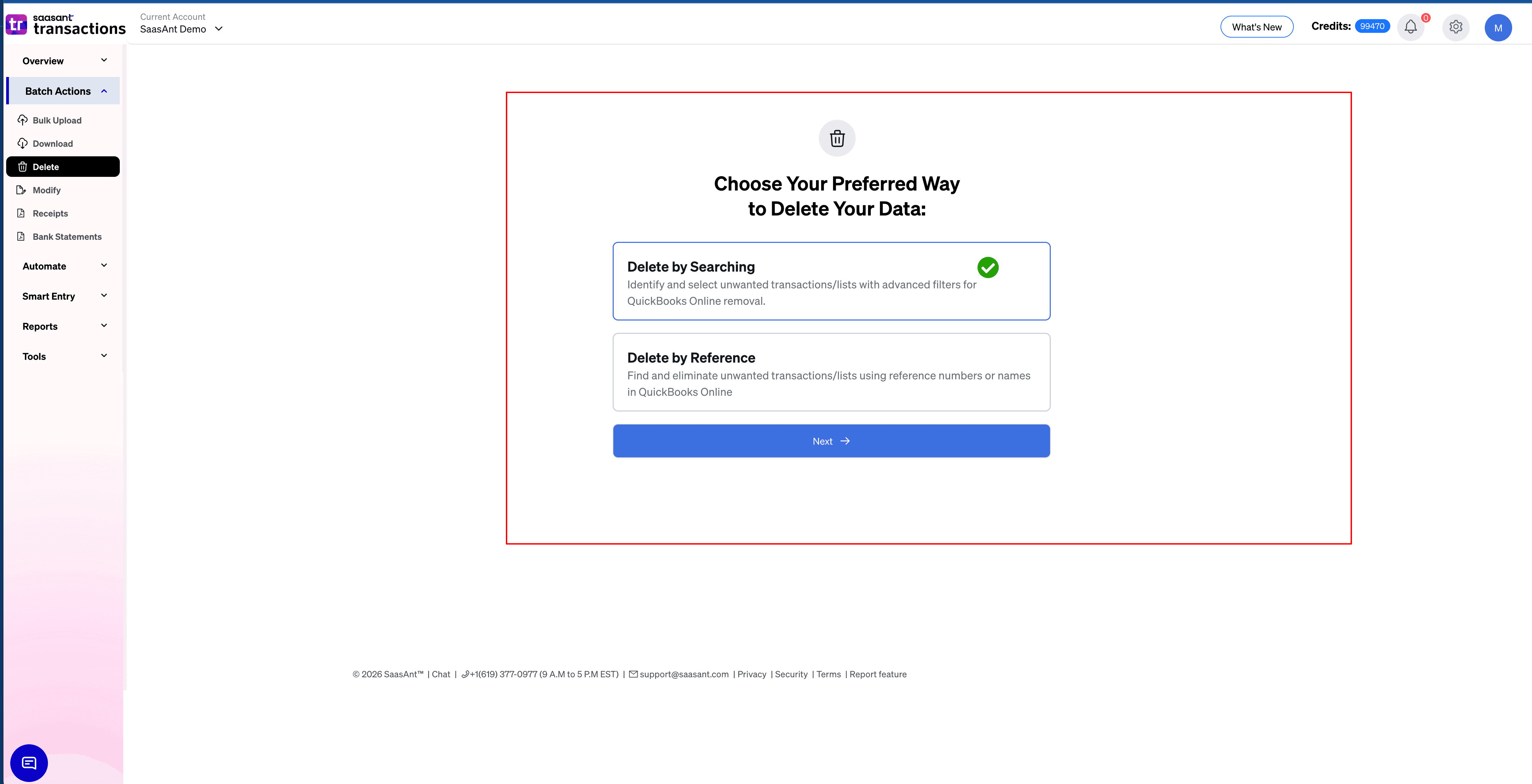
Select your preferred method. Now, choose the option “Delete by Searching,” then select Next.
Step 4: How do you set the Transfer type and date filters?
Set Transaction Type to Transfers.
Choose the date type you want to search by:
Created Date: When the transfer was originally created in QuickBooks.
Transaction Date: The date recorded on the transfer.
Last Updated Date: When the transfer was last modified in QuickBooks.
Enter the required date range.
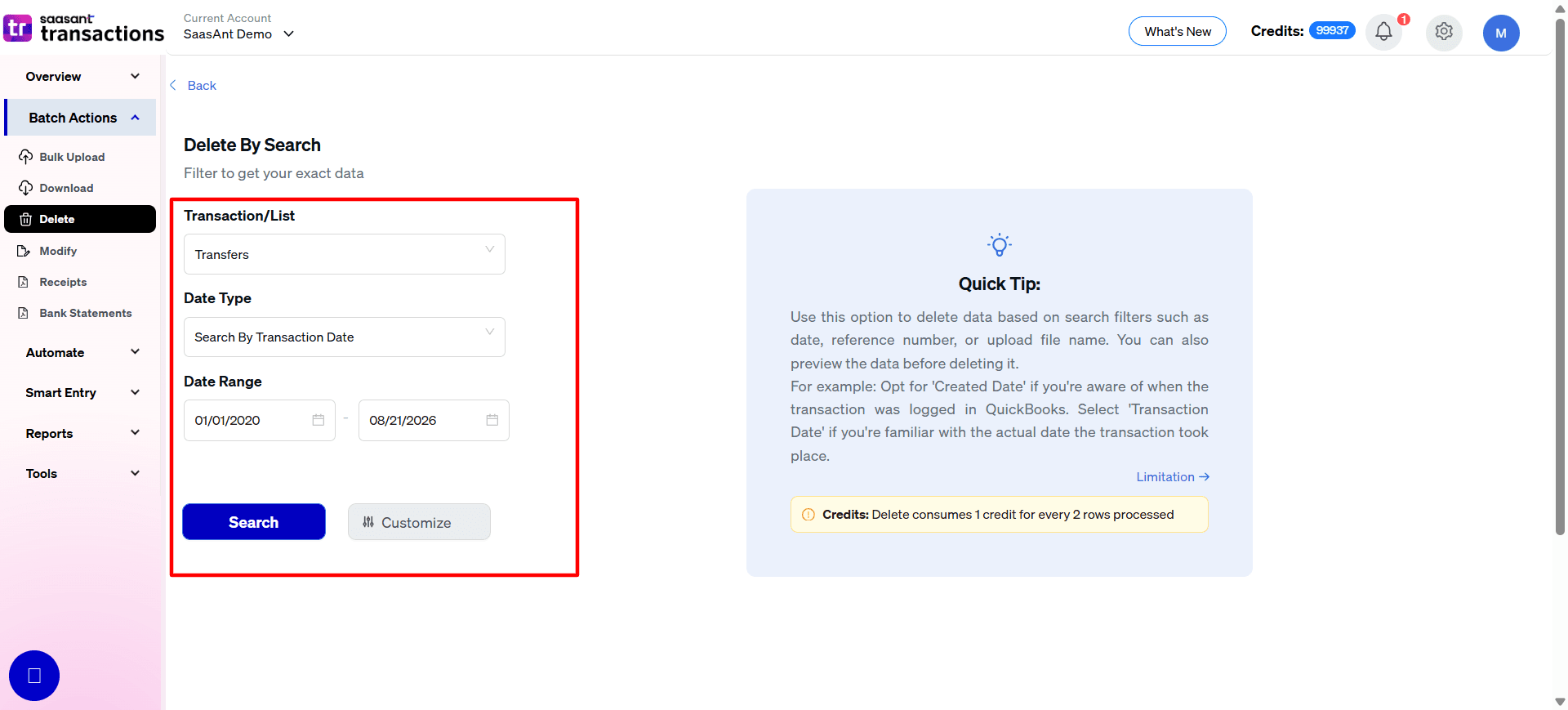
For example, if you are cleaning up transfers recorded during a specific month, select Transaction Date and enter that month's date range.
Step 5: How do you narrow Transfer results using filters?
Select Customize.
Apply the available filters you need, such as:
Show records from(Start At)
Select Search to load the matching transfers.
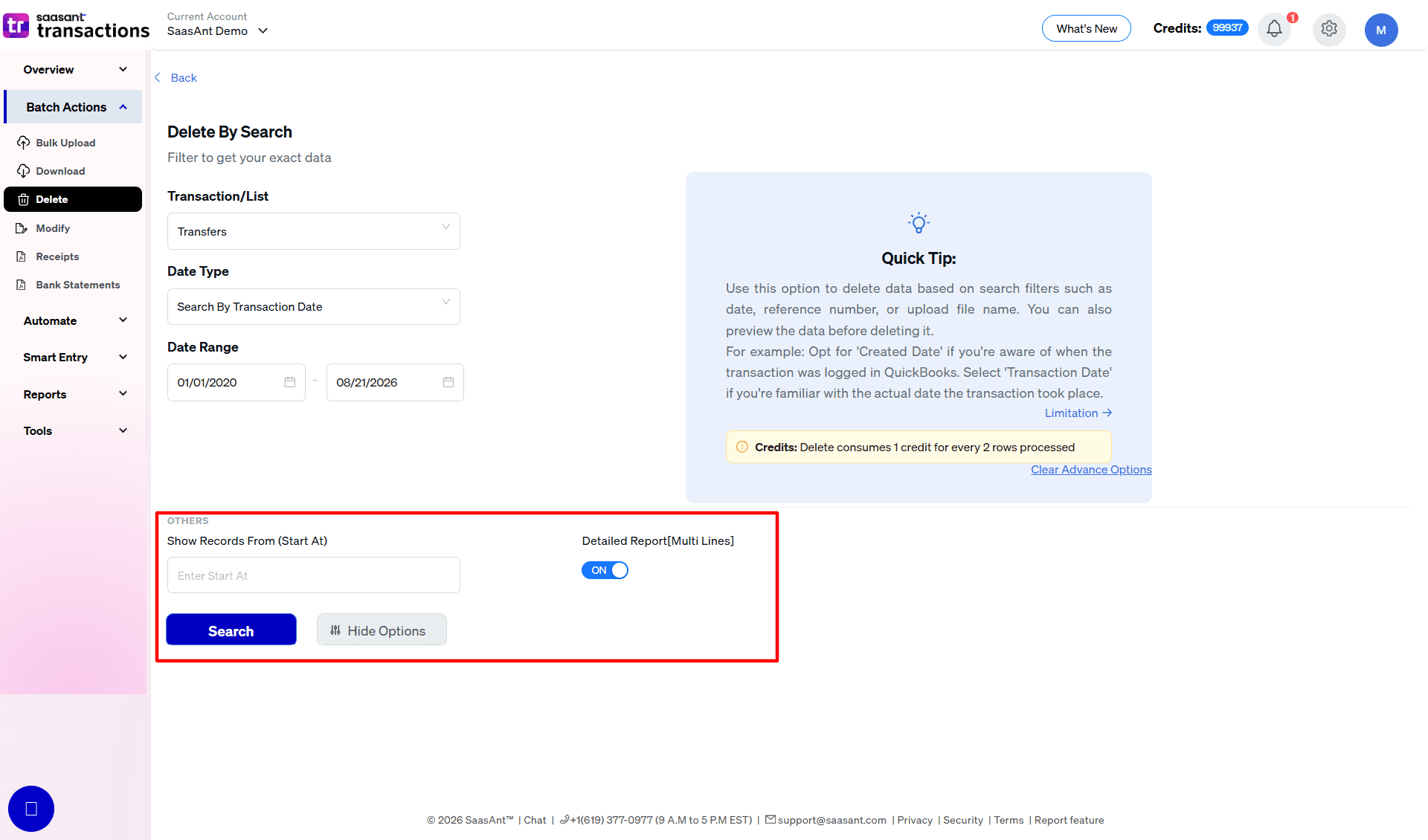
Available filters can vary. If your first search does not return the expected transactions, remove some filters and run the search again.
Step 6: How do you review, back up, and delete Transfers?
Review the search results carefully.
Check the transfer date, amount, source account, and destination account.
Select only the transfers you want to remove.
Download the selected transactions as a CSV or Excel backup.
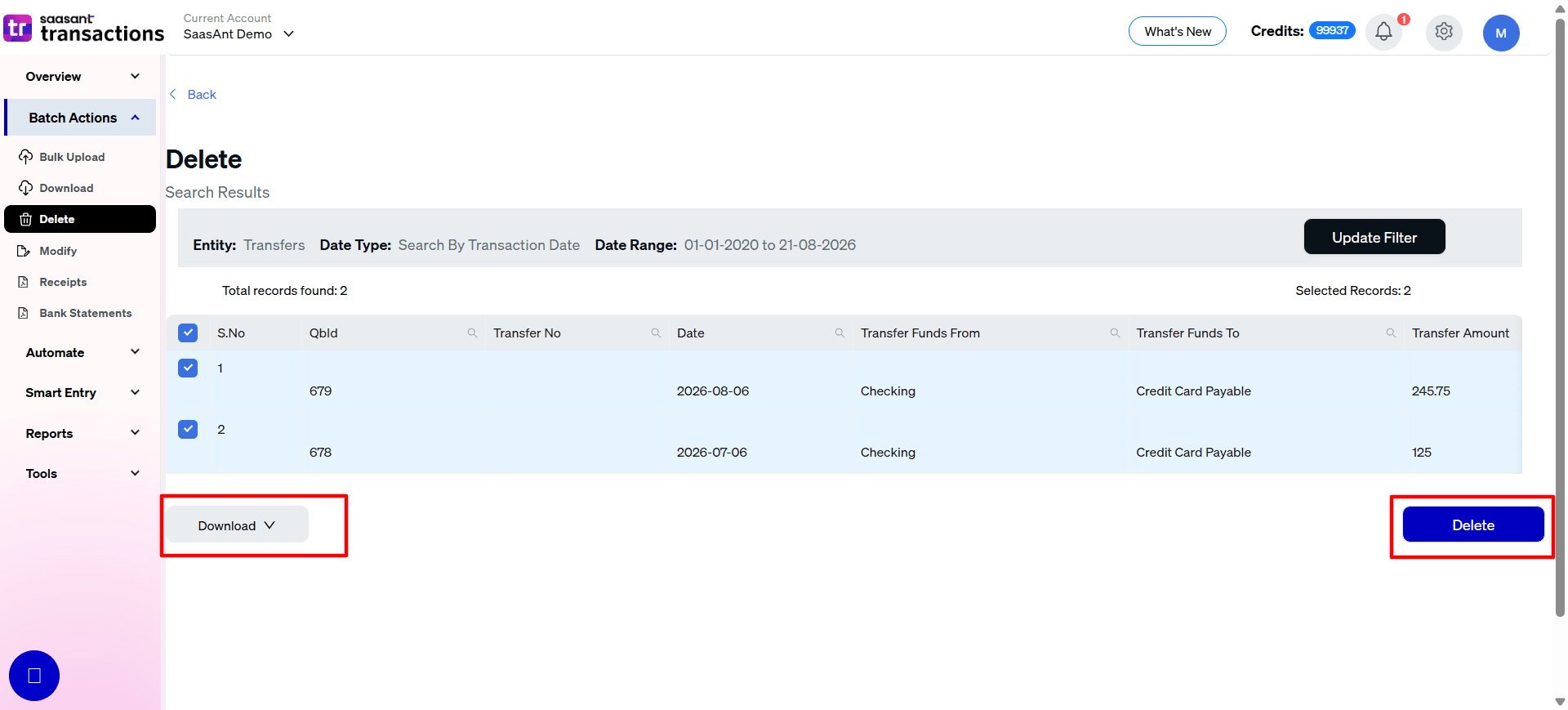
Select Delete.
Confirm the deletion in the pop-up.
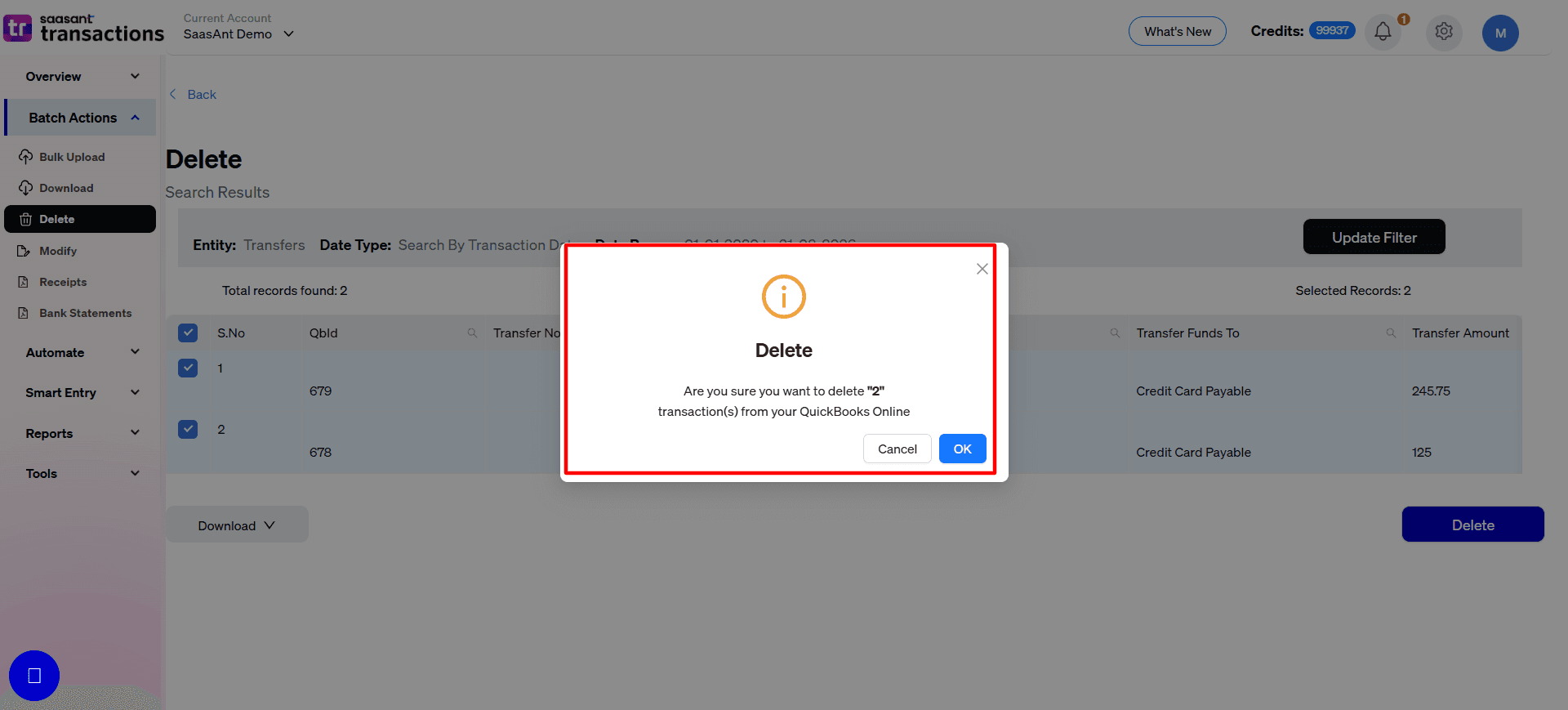
Important: Deleting transfers is not reversible through the Delete workflow. Always download the backup before continuing.
A transfer affects two accounts: the account the money moves from and the account the money moves to. Removing a transfer can therefore change the balances of both accounts. Review the accounting impact before deleting it.
For a large cleanup, delete transfers in smaller groups and verify the QuickBooks balances after each batch.
Step 7: Where do you see the deletion summary?
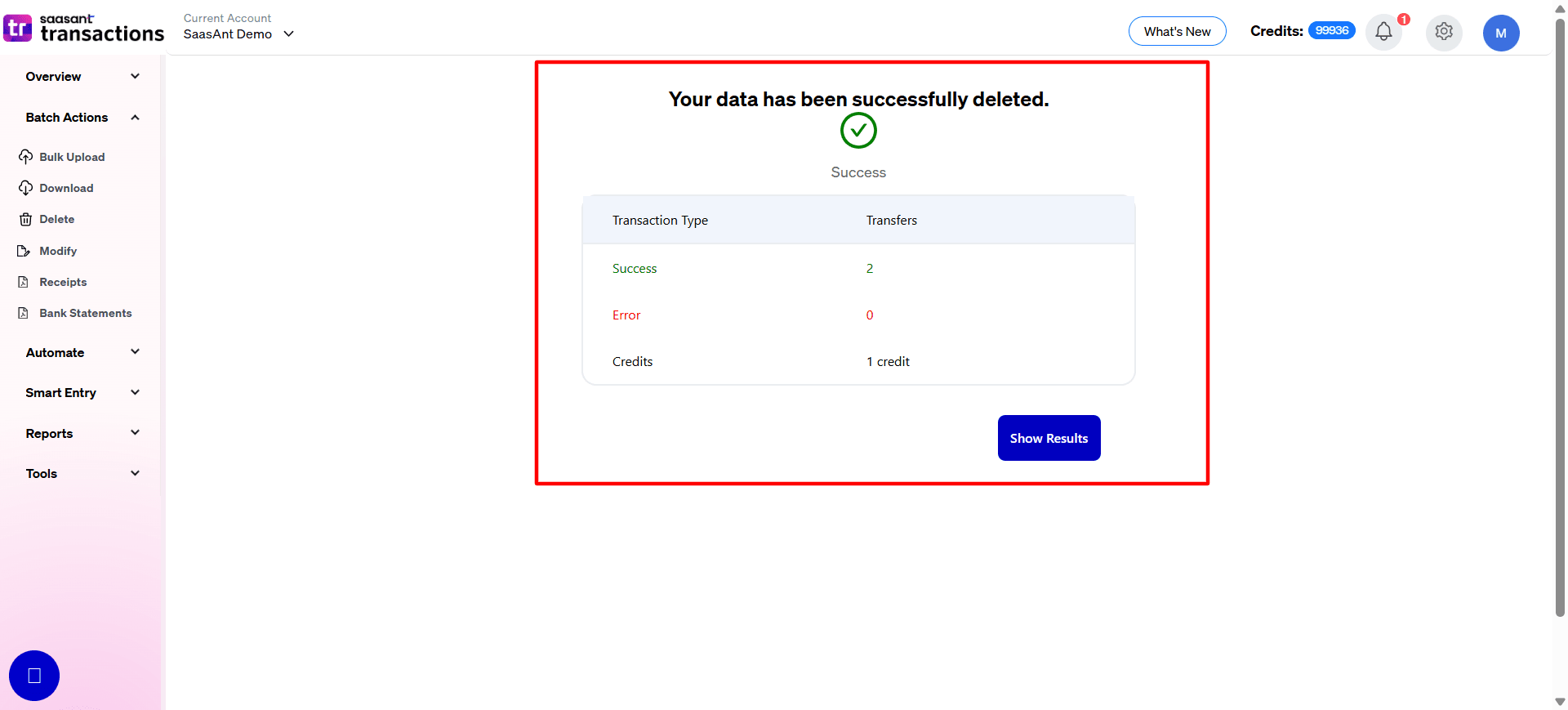
After SaasAnt completes the deletion, a Deletion Summary appears.
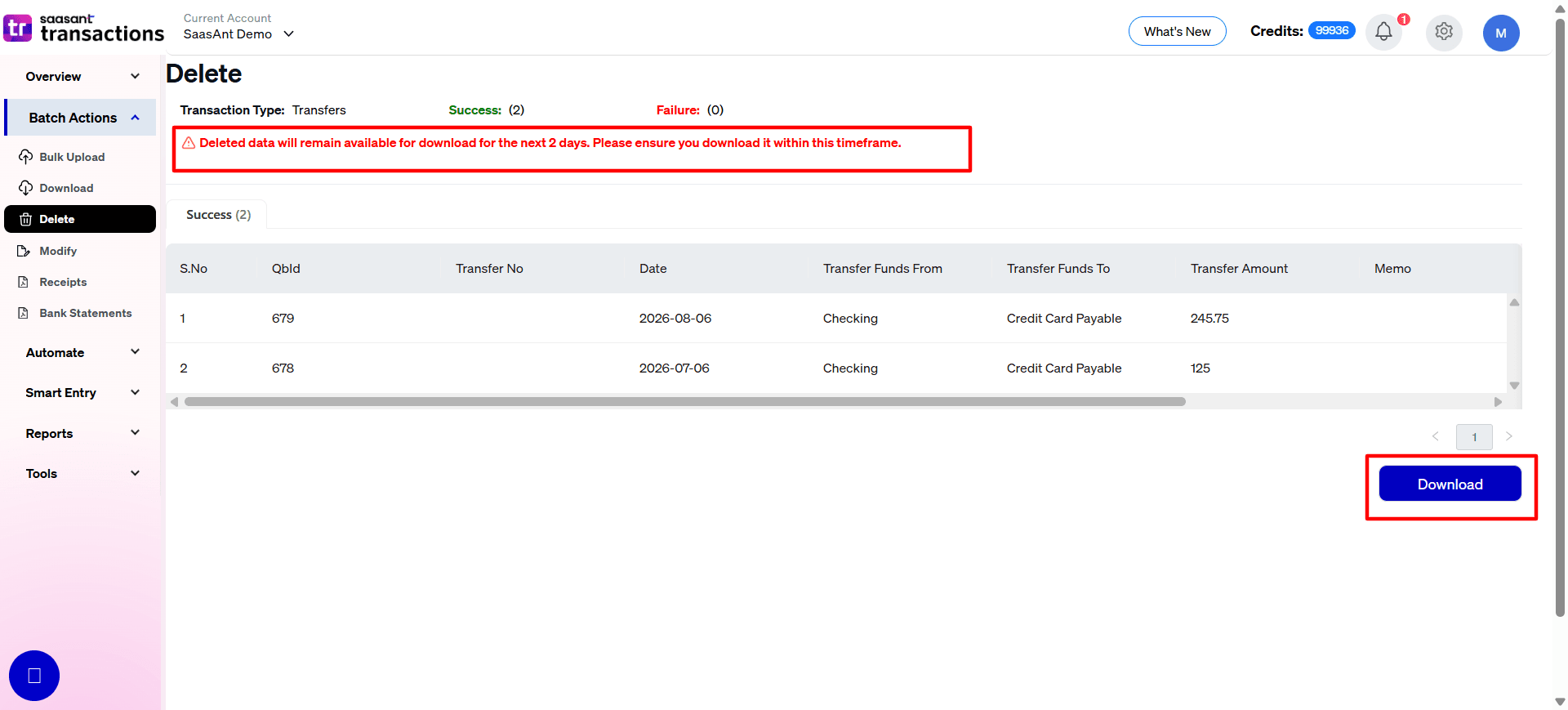
Note: Deleted data will remain available for download for the next 2 days. Please ensure you download it within this timeframe.
Troubleshooting
What if no transfers appear after the search?
Check the following:
Confirm that Transfers is selected as the transaction type.
Verify the selected date type.
Increase the date range.
Remove account, amount, or reference filters one at a time.
Confirm that the transactions are recorded as Transfers in QuickBooks Online rather than as another transaction type.
Confirm that you are connected to the correct QuickBooks company.
What if SaasAnt cannot delete a Transfer?
Check whether the transfer has been reconciled or matched through QuickBooks Bank Transactions.
Certain transactions created or matched through QuickBooks Bank or PayPal integrations may not be delete through SaasAnt because of QuickBooks limitations.
Review the transaction in QuickBooks and confirm its matching or reconciliation status before trying again.
What if you deleted the wrong Transfers?
The deletion cannot be reversed directly through the Delete workflow.
Use the CSV or Excel backup taken before deletion to identify the original:
Transfer From account
Transfer To account
Transfer amount
Transfer date
Reference information
Memo or description
You can then recreate the transfers in QuickBooks Online using the original information, including through a supported SaasAnt import workflow when appropriate.
After recreating the transfers, verify both affected account balances in QuickBooks.