How To Delete the Chart of Accounts In QuickBooks Desktop
March 10, 2026
Deleting unwanted accounts from the Chart of Accounts in QuickBooks Desktop can be a lengthy and risky process when done manually. With SaasAnt Transactions Desktop, accountants and bookkeepers can securely search, back up, and delete accounts in bulk, ensuring control, audit visibility, and structured data management in the company file.
Video Tutorial for How to Delete Data in QuickBooks Desktop using SaasAnt Transactions Desktop:
Prerequisites
QuickBooks Desktop is set up, and the company file is accessible.
Admin permissions for the company file are required.
SaasAnt Transactions Desktop is installed.
The company file must be opened in QuickBooks before you can connect.
How to Delete Chart of Accounts in QuickBooks Desktop: Step-by-Step Guide
Step 1: Open the SaasAnt Transactions Desktop
Download the latest SaasAnt Transactions Desktop version.
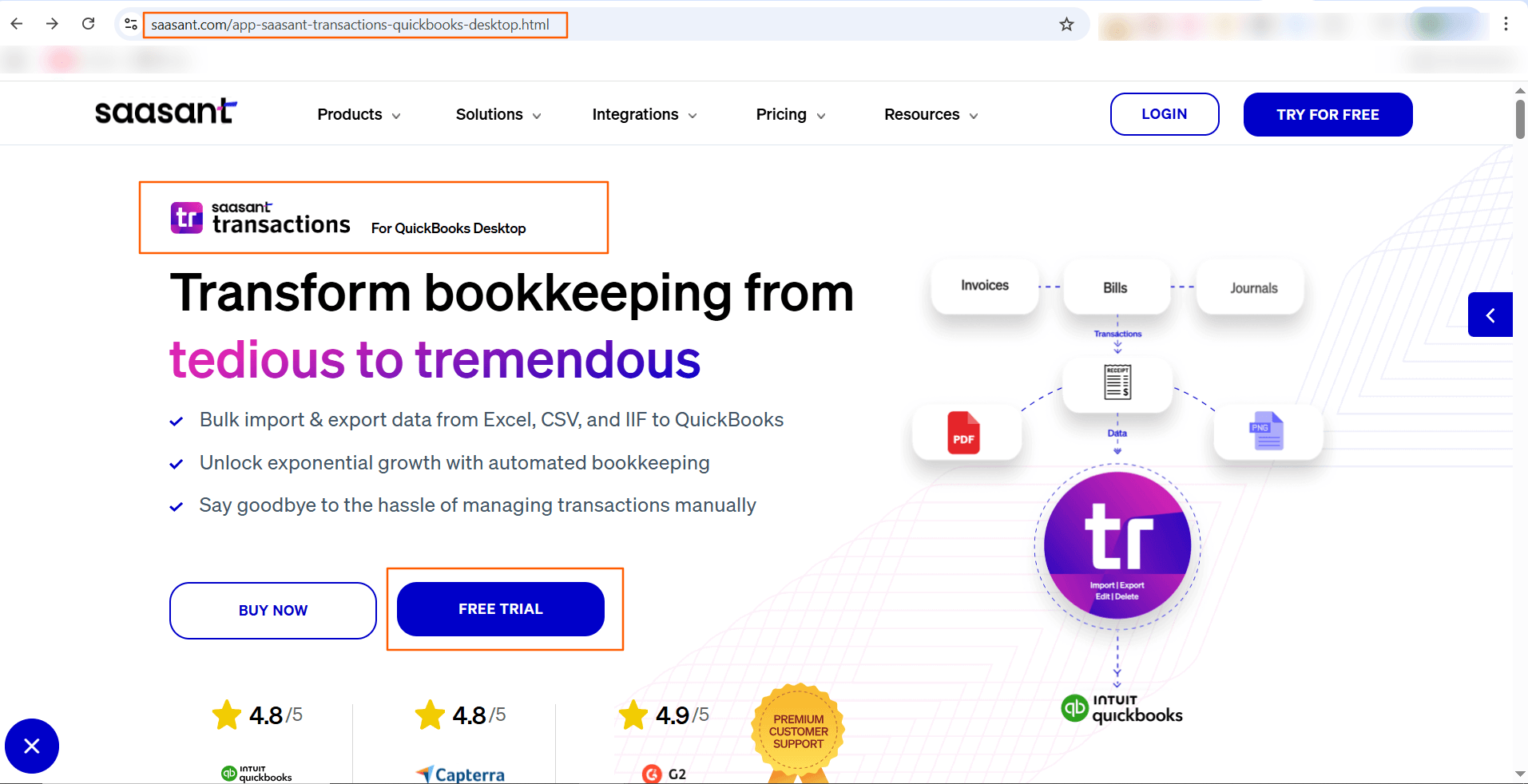
Launch the SaasAnt Transactions Desktop, and connect to your QuickBooks company file.
Step 2: Connect to QuickBooks Desktop
Go to the File menu
Click Connect to QuickBooks, and allow access permission in QuickBooks when prompted.
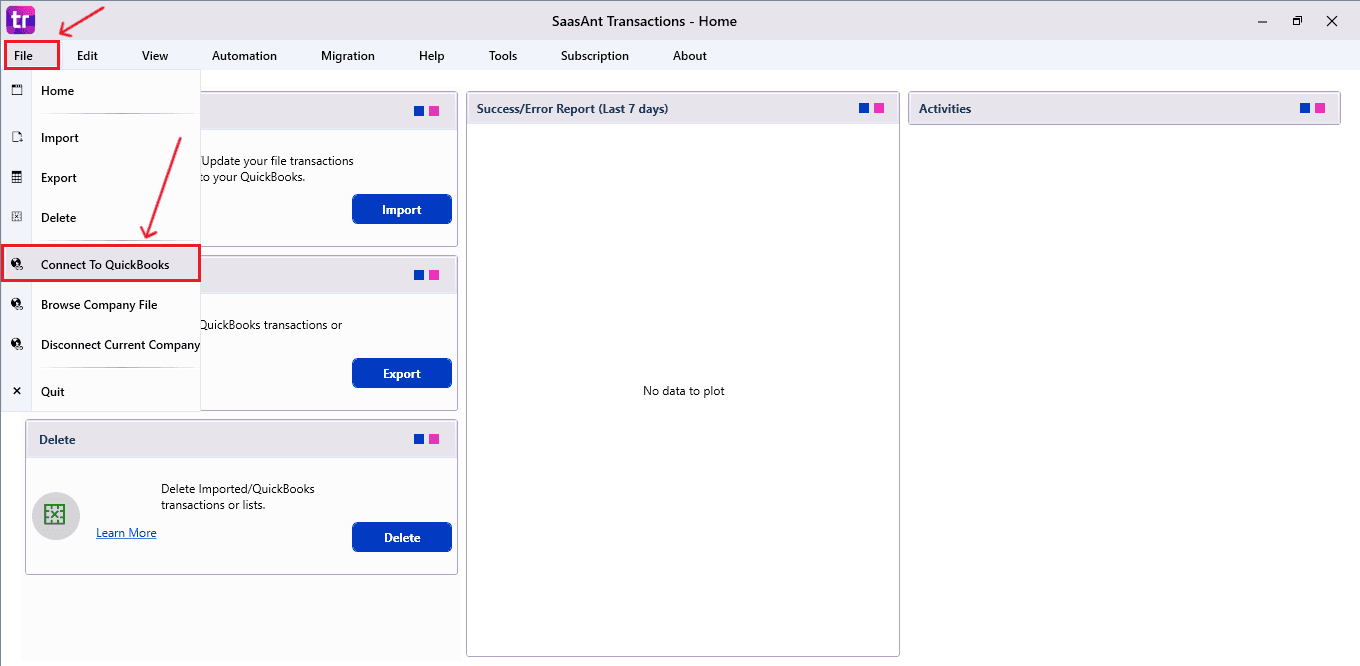
This secure link allows SaasAnt to read and adjust the Chart of Accounts in the selected company file environment.
Step 3: Open Delete Module
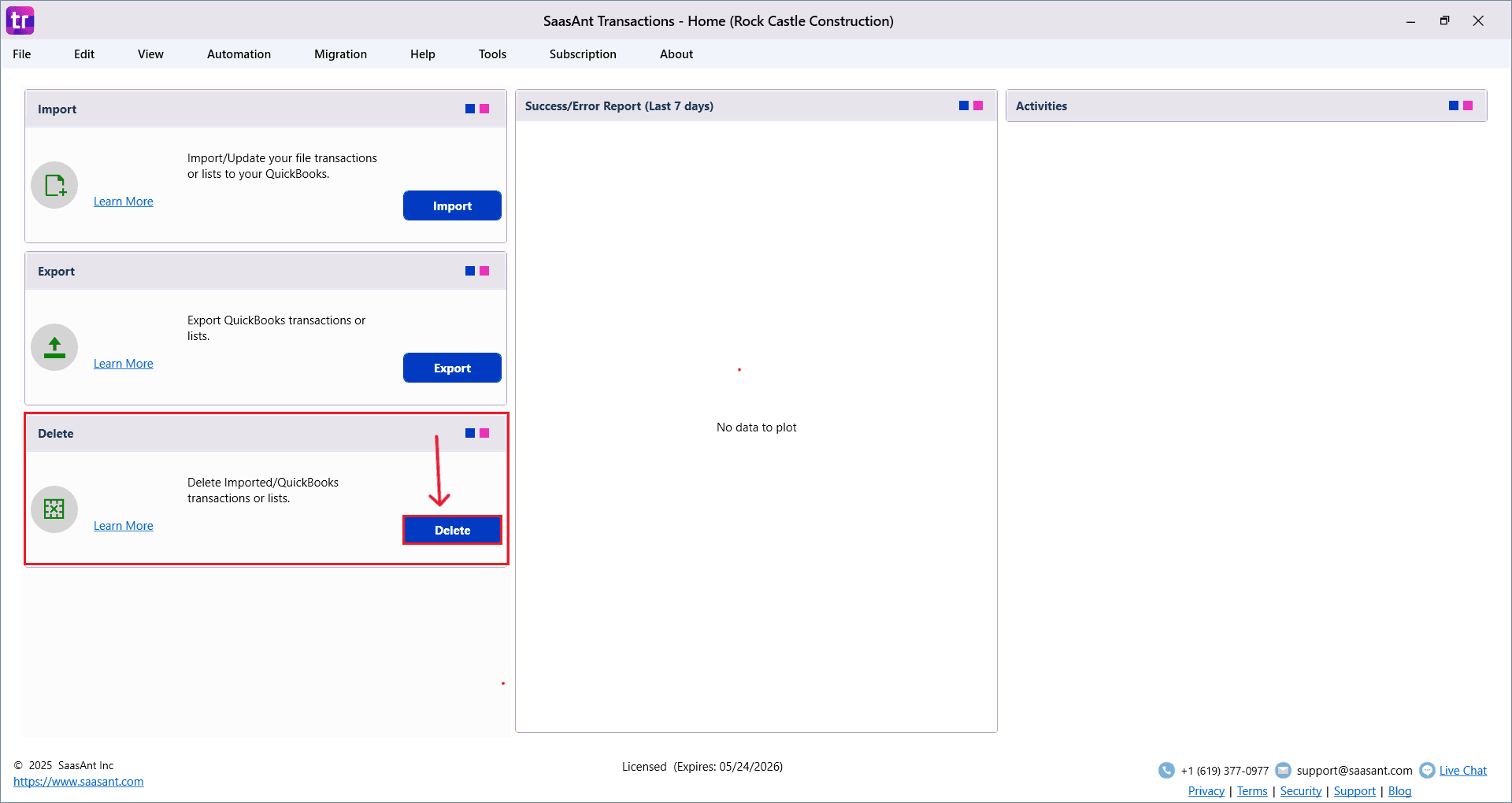
On the left panel dashboard, select Delete.
This section is meant for deleting transactions in bulk.
Step 4: Search Chart of Accounts
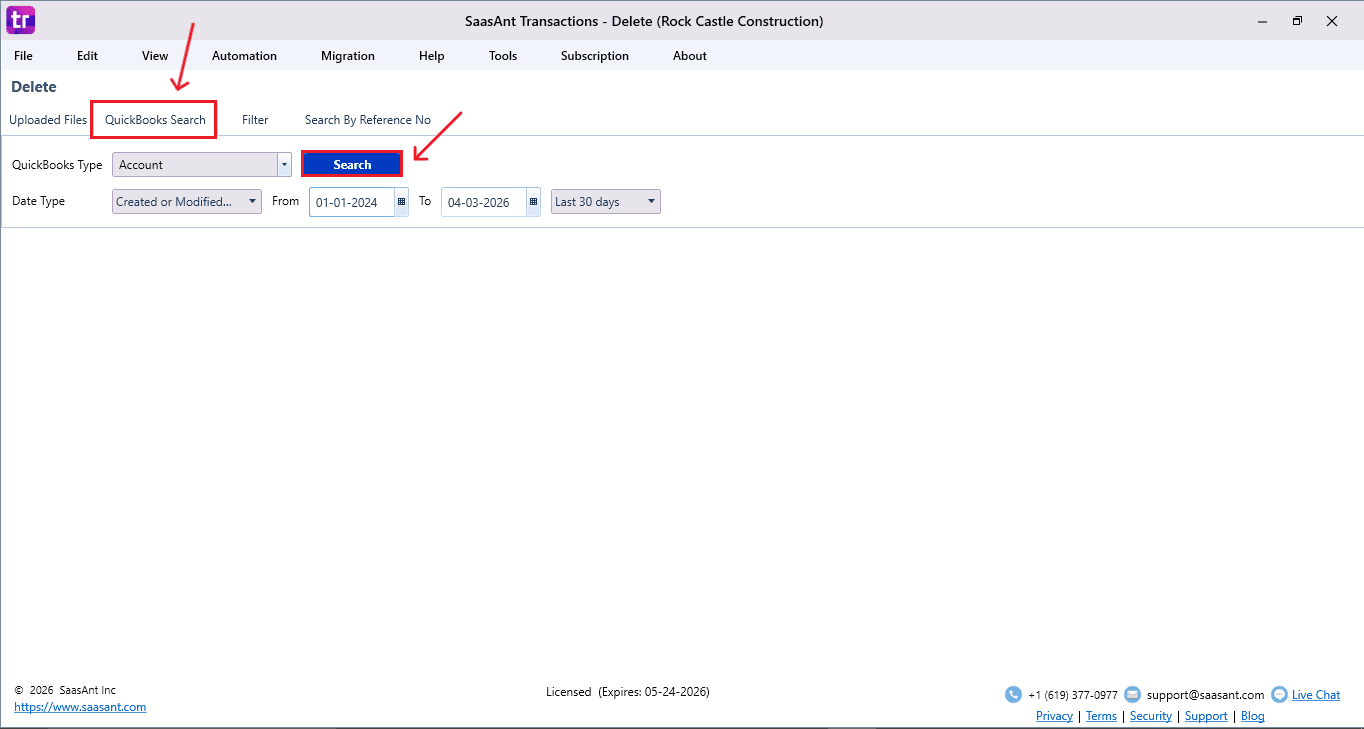
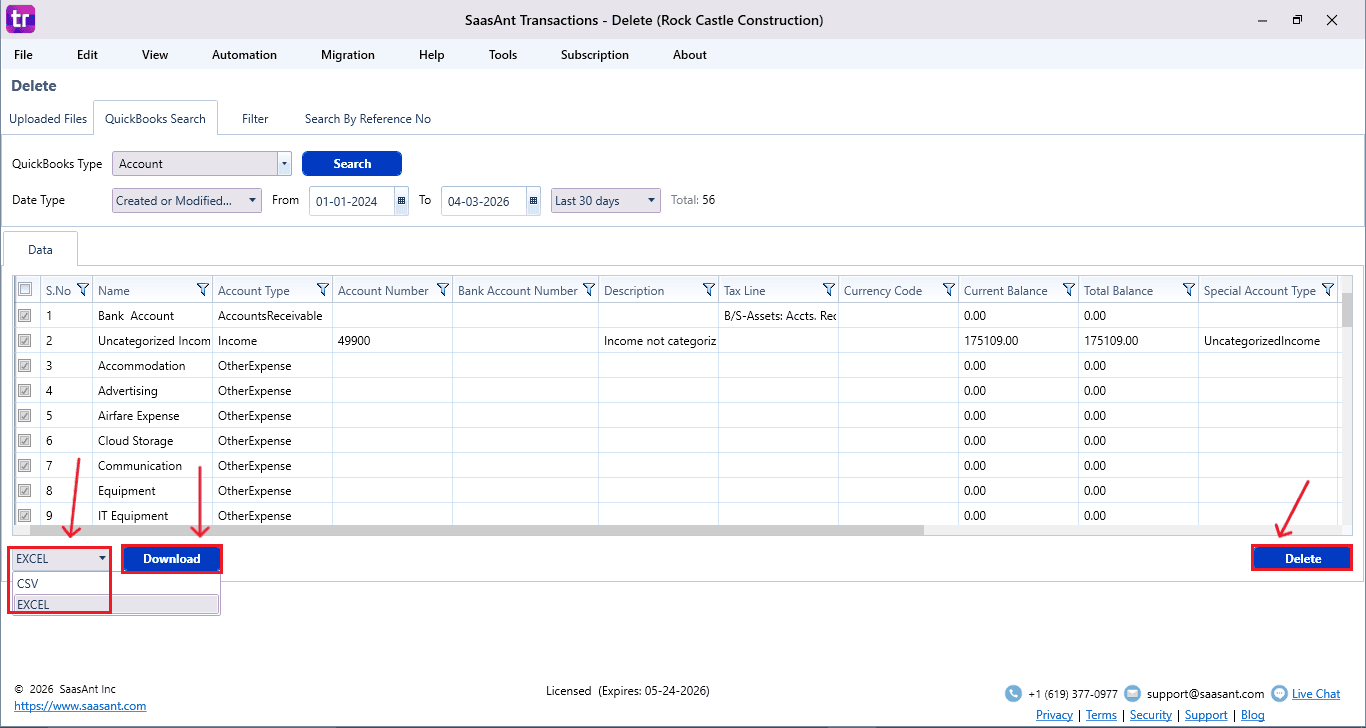
Choose QuickBooks Search
Set QuickBooks Type → Accounts
Apply filters, including date range or transaction criteria, to refine results.
Click Search to view all the chart of accounts records for review and deletion.
Step 5: Select the Chart of Accounts to Delete
The matching Chart of Accounts will show up in the results list
Review and select the required Chart of Accounts with checkboxes
Click Download (at the bottom-left) to save a backup as an Excel (.xls) or CSV file.
Click Delete at the bottom right.
Step 6: Confirm Deletion
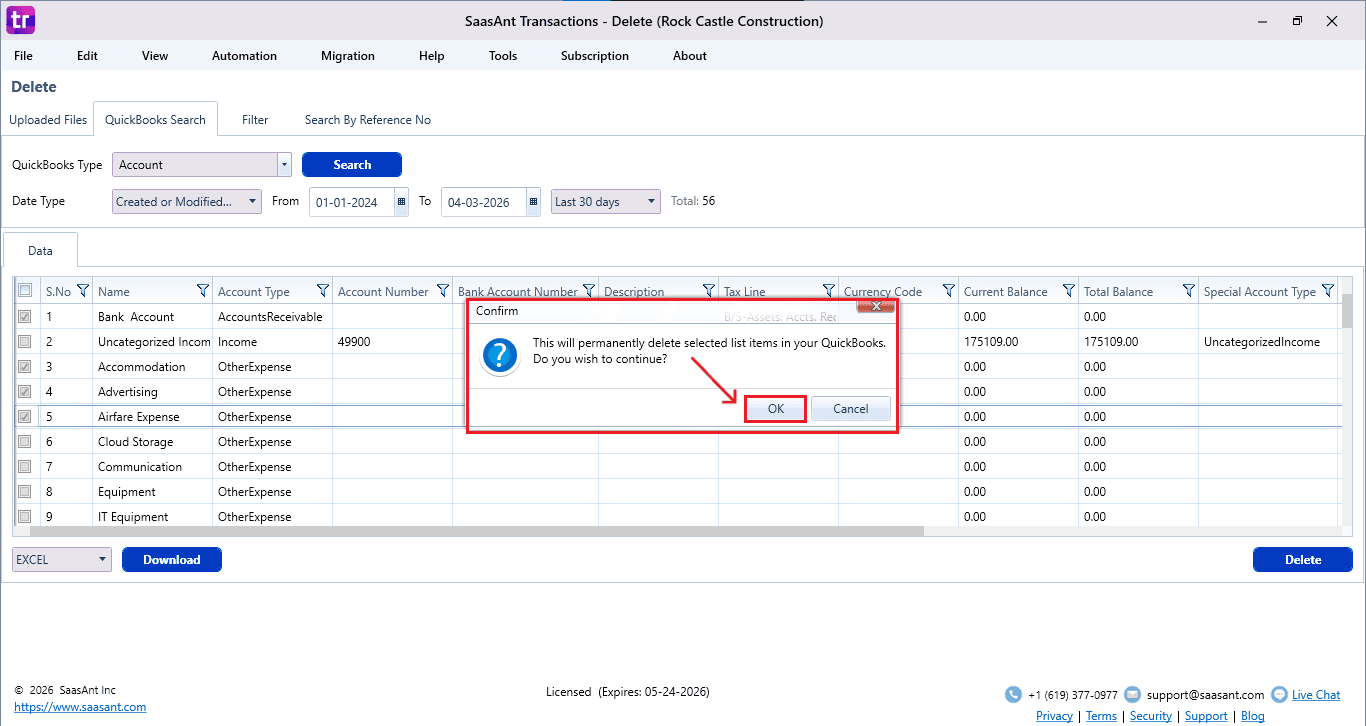
A confirmation pop-up appears; carefully review the count and details.
Click OK to proceed.
SaasAnt will permanently delete the selected Chart of Accounts from the QuickBooks Desktop company file.
Step 7: View Deleted Chart of Accounts
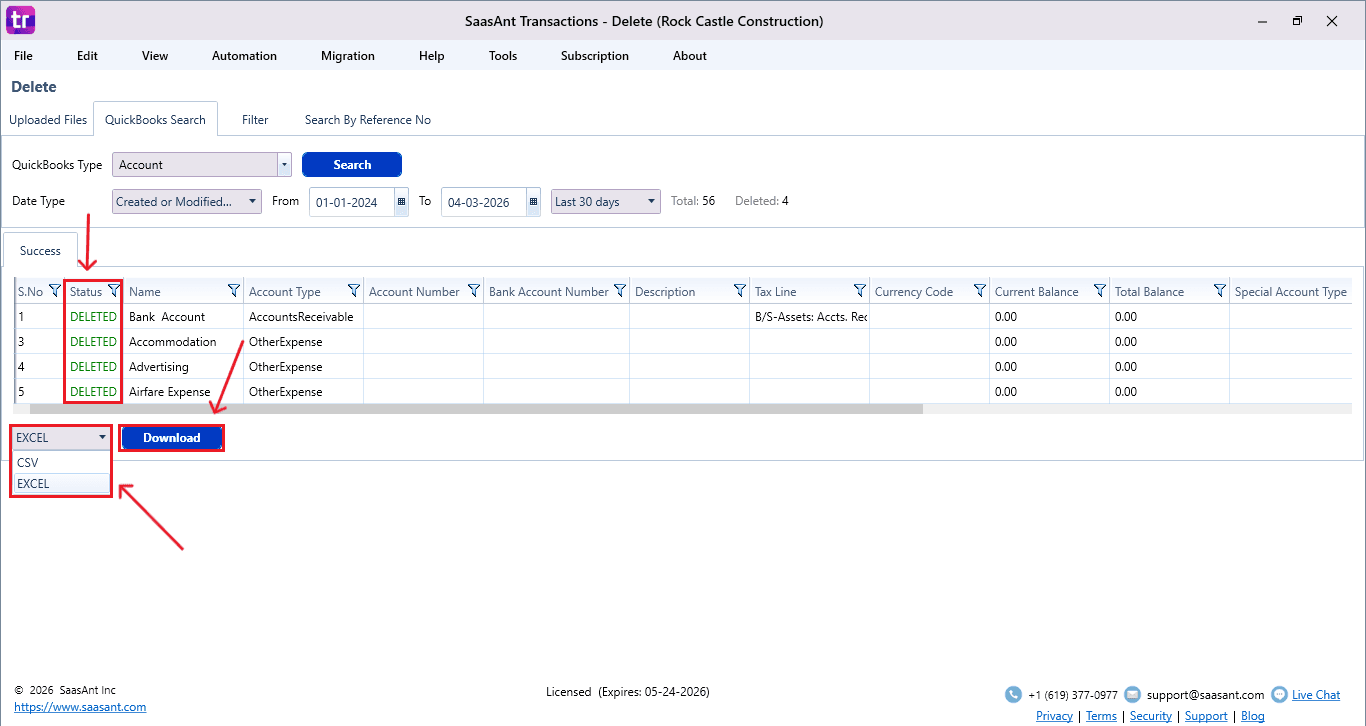
Deleted Chart of Accounts appears in the SaasAnt dashboard
You can download the deleted records using the Download option in Excel or CSV format.
To verify:
Open QuickBooks Desktop → Company → Chart of Accounts. Search for the Chart of Accounts whose records you deleted.
FAQ
1) As an accountant, why should I use SaasAnt instead of manual deletion?
SaasAnt allows for bulk deletion, organized filtering, and safe backups, which saves a lot of time compared to manually removing accounts one by one.
2) Can SaasAnt delete multiple accounts simultaneously?
Yes, accountants are able to pick multiple accounts with checkboxes and delete them all at once.
3) How do I create a backup before deletion?
Choose the accounts you need and click Download to save them as Excel or CSV files.
4) Can I review deleted accounts later?
Yes, deleted records are still visible in the SaasAnt dashboard history for audit tracking.