How To Delete Bills In QuickBooks Desktop
March 5, 2026
Use the SaasAnt Transactions Desktop to delete multiple bills in QuickBooks Desktop, helping to clear out duplicates, incorrect vendor charges, or outdated payables. This method connects to your company file, applies filters to search for bills, backs them up, and removes them in bulk safely. It ensures the accuracy of accounts payable while avoiding repetitive manual deletions.
Video Tutorial for How to Delete Data in QuickBooks Desktop using SaasAnt Transactions Desktop:
Prerequisites
QuickBooks Desktop is set up, and the company file is accessible.
Admin permissions for the company file are required.
SaasAnt Transactions Desktop is installed.
The company file must be opened in QuickBooks before connecting.
How to Delete Bills in QuickBooks Desktop: Step-by-Step Guide
Step 1: Open the SaasAnt Transactions Desktop
Download the latest SaasAnt Transactions Desktop version.
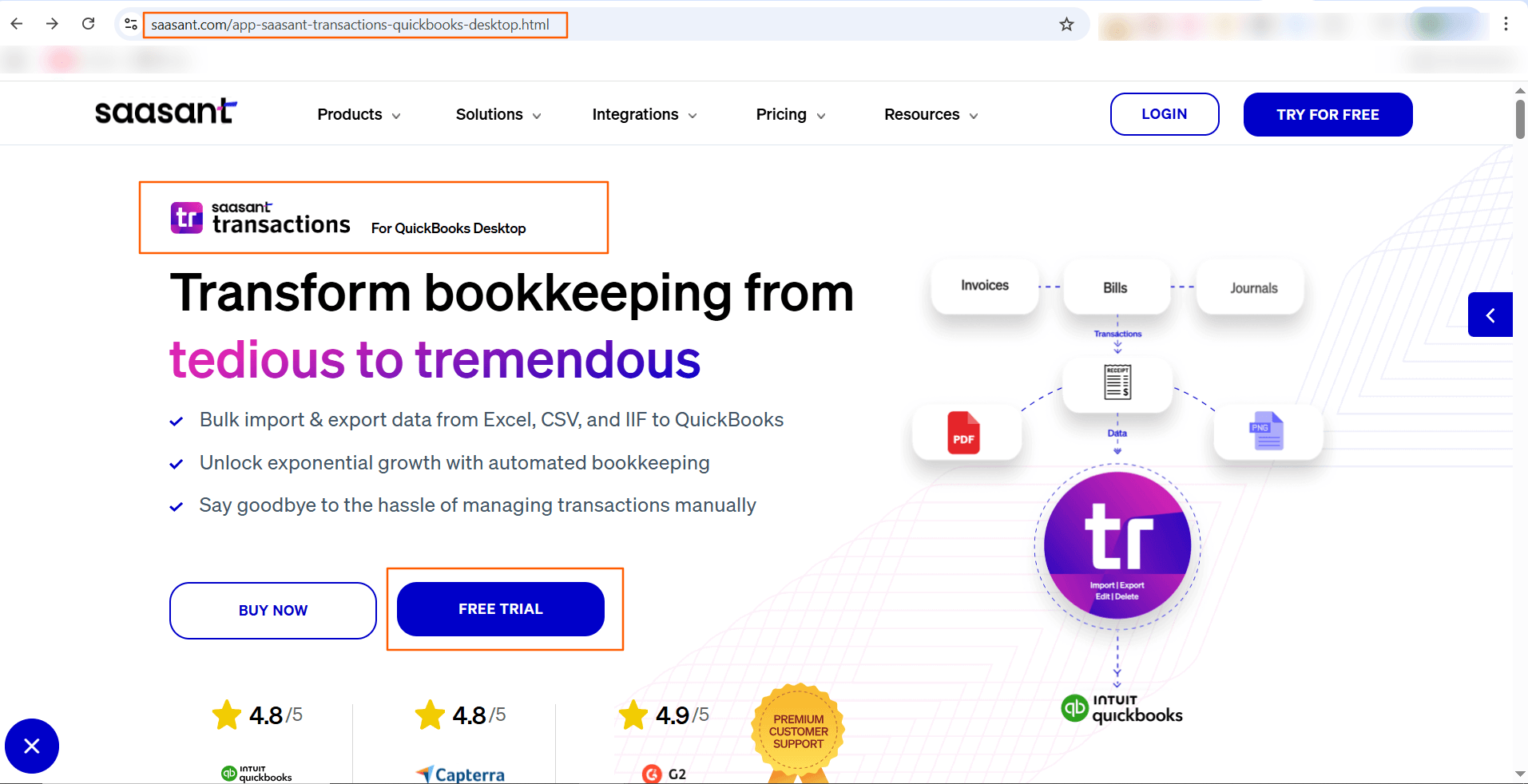
Launch SaasAnt Transactions Desktop
Connect to your QuickBooks company file
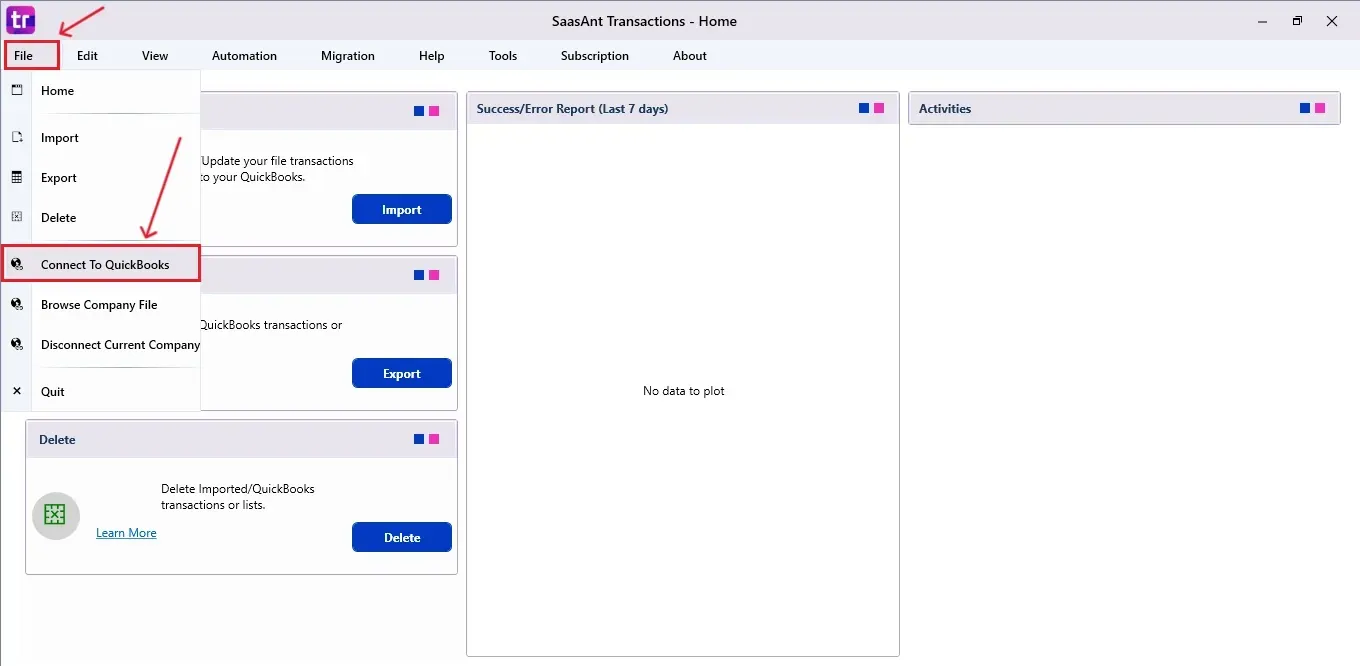
Step 2: Connect to QuickBooks Desktop
Go to the File menu
Click Connect to QuickBooks
Allow access permission in QuickBooks when prompted
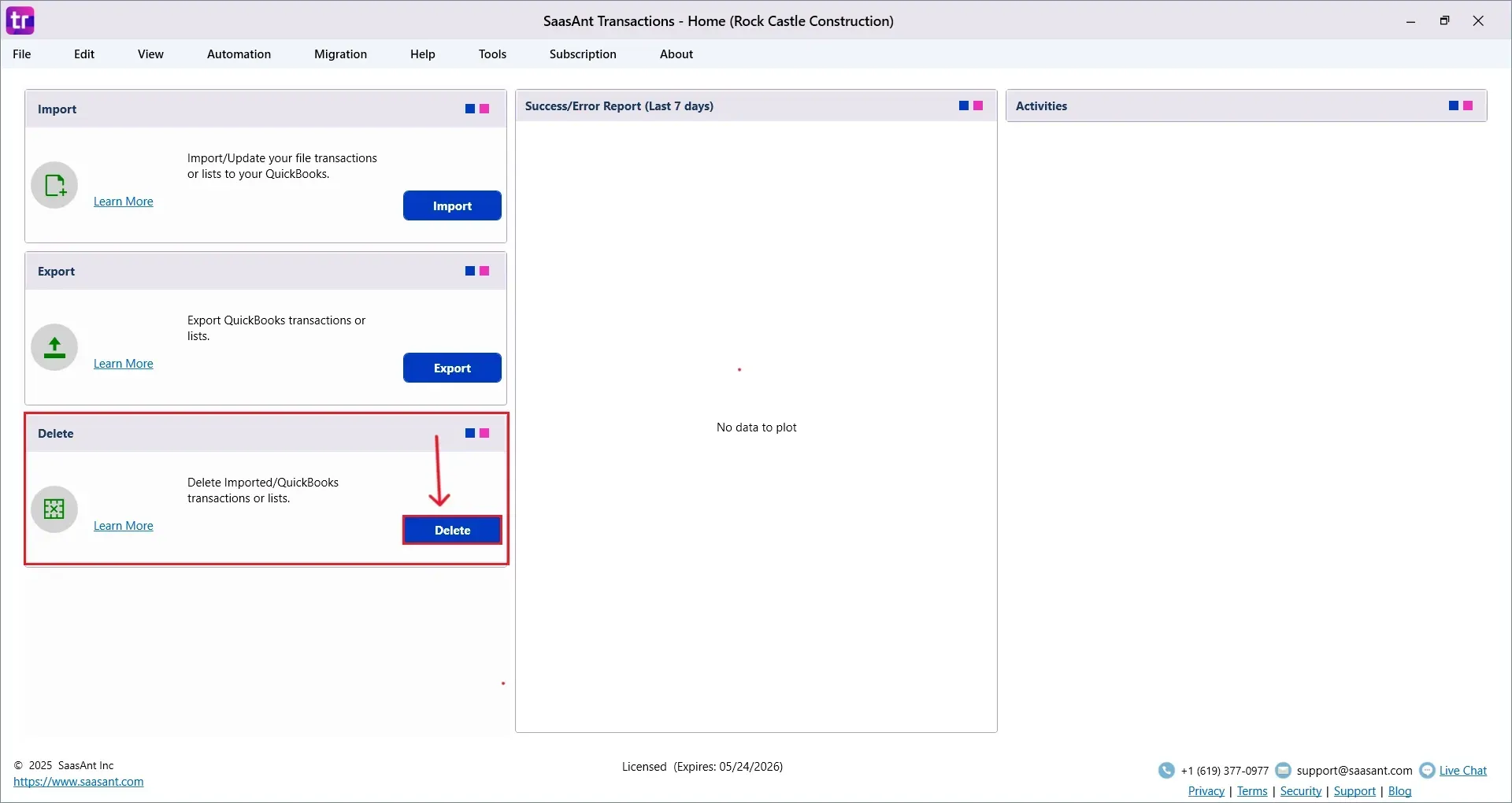
Step 3: Open Delete Module
On the left panel dashboard
Select Delete
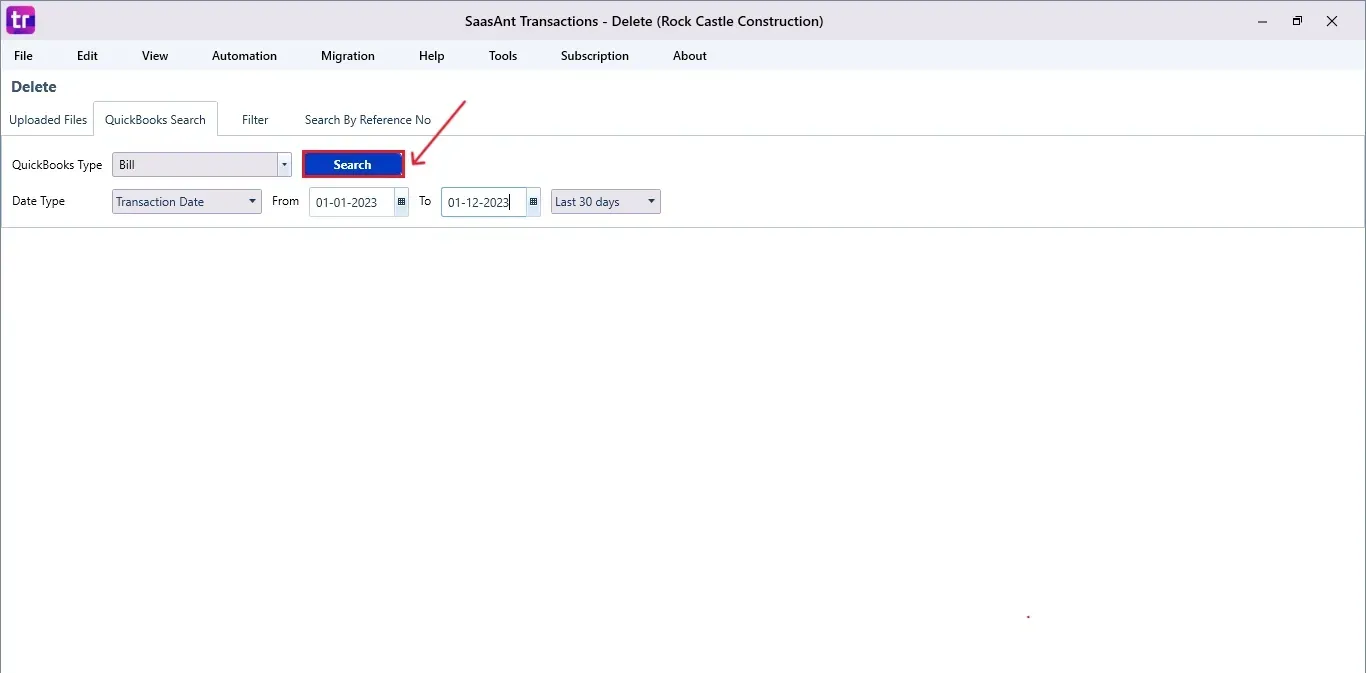
Step 4: Search Bills
Choose QuickBooks Search
Set QuickBooks Type → Bills
Enter required filters (date type)
Click Search
Step 5: Select Bills to Delete
Matching bills will show up in the results list
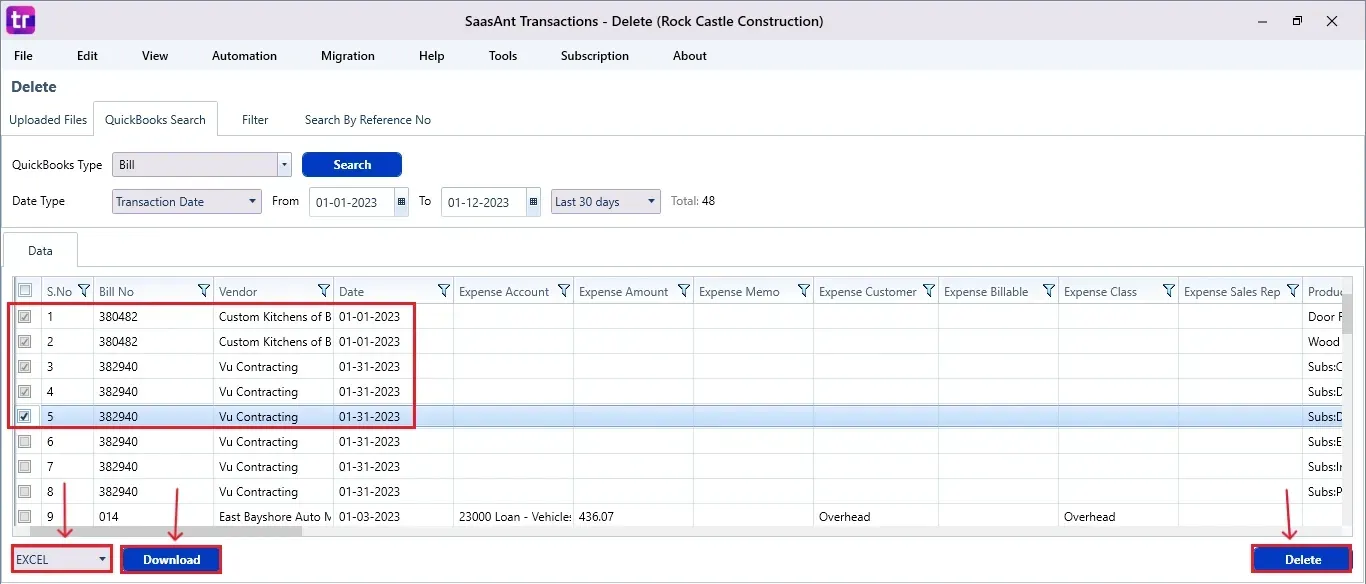
Review and select the required bills with checkboxes
Click Download (located at the bottom left) to save a backup in Excel or CSV format.
Click Delete at the bottom right.
Step 6: Confirm Deletion
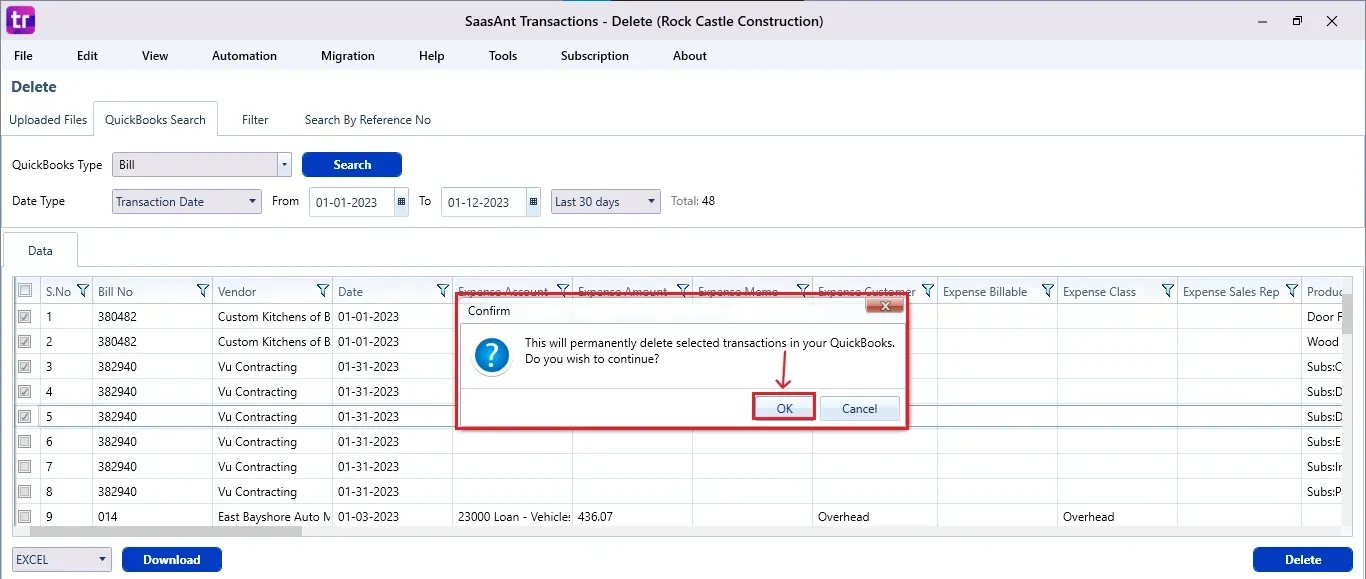
A confirmation pop-up appears
Click OK to proceed
Step 7: View Deleted Bills
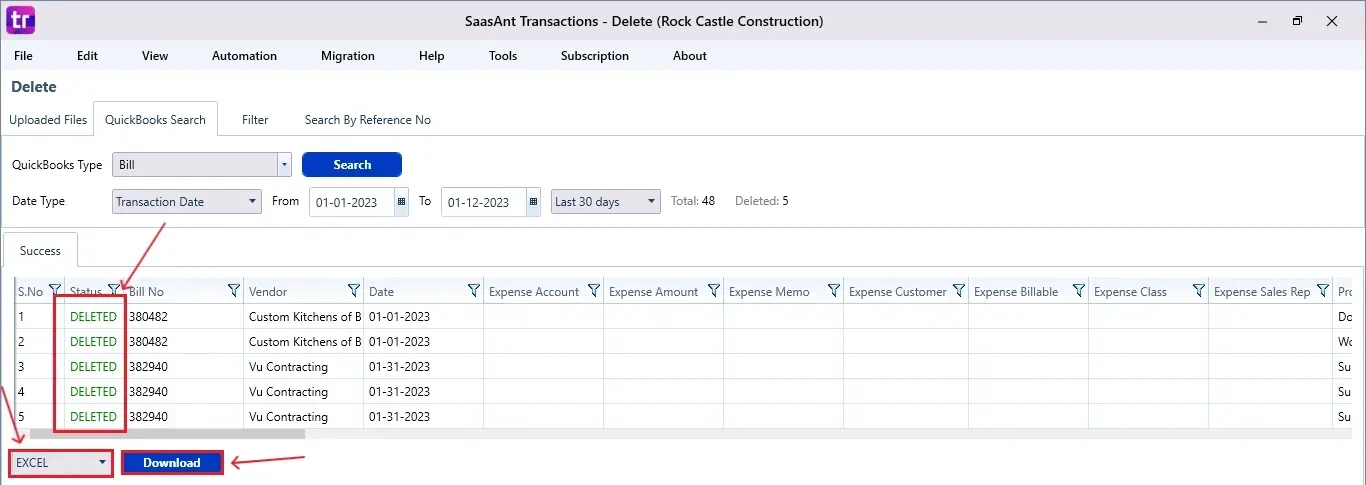
Deleted bills appear in the SaasAnt dashboard
You can download the deleted records using the Download option in Excel or CSV format.
To verify:
Open QuickBooks Desktop → Vendor Center → confirm bills are removed.
Why Choose SaasAnt Transactions Desktop for Deleting Bills?
Bulk Bill Deletion: SaasAnt enables you to remove multiple bills at once, making it easier to eliminate duplicates, errors, or old payables.
Review Before Deleting: Bills that match are shown in a results list, so you can check and choose only the entries you want to delete.
Backup Before Cleanup: You can download the chosen bills in Excel or CSV format prior to deletion, providing you with a reference copy of the records.
FAQ
1) How do I connect SaasAnt Transactions to QuickBooks Desktop?
Go to File → Connect to QuickBooks and allow access in QuickBooks when requested.
2) Is it possible to take a backup before deleting?
Yes, click Download to export bills into Excel or CSV before deletion.
3) Where can I view deleted bills?
Deleted entries can be found in the SaasAnt dashboard and can be downloaded.
4) How do I verify deletion inside QuickBooks Desktop?
Go to Vendor Center and check to ensure the bills have been removed.