How To Delete Bill Payments In QuickBooks Desktop
March 5, 2026
Use the SaasAnt Transactions Desktop to delete multiple bill payments in QuickBooks Desktop, addressing incorrect payment applications, duplicate payments, or reconciliation mistakes.
This method links to your company file, filters bill payments, creates backups, and allows for bulk deletion while maintaining control, audit transparency, and precise accounts payable balances.
Video Tutorial for How to Delete Data in QuickBooks Desktop using SaasAnt Transactions Desktop:
Prerequisites
QuickBooks Desktop is set up, and the company file is accessible.
Admin permissions for the company file are required.
SaasAnt Transactions Desktop is installed.
The company file must be opened in QuickBooks before connecting.
How to Delete Bill Payments in QuickBooks Desktop: Step-by-Step Guide
Step 1: Open the SaasAnt Transactions Desktop
Download the latest SaasAnt Transactions Desktop version.
Launch SaasAnt Transactions Desktop
Connect to your QuickBooks company file
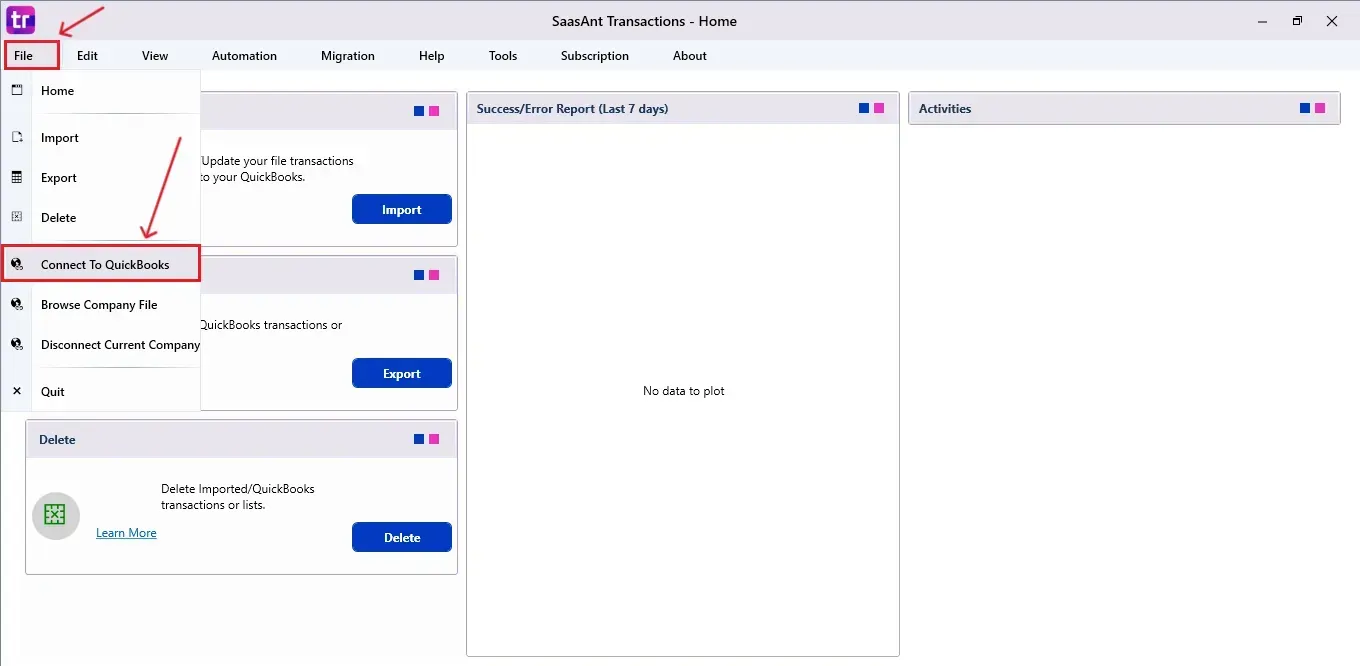
Step 2: Connect to QuickBooks Desktop
Go to the File menu
Click Connect to QuickBooks
Allow access permission in QuickBooks when prompted
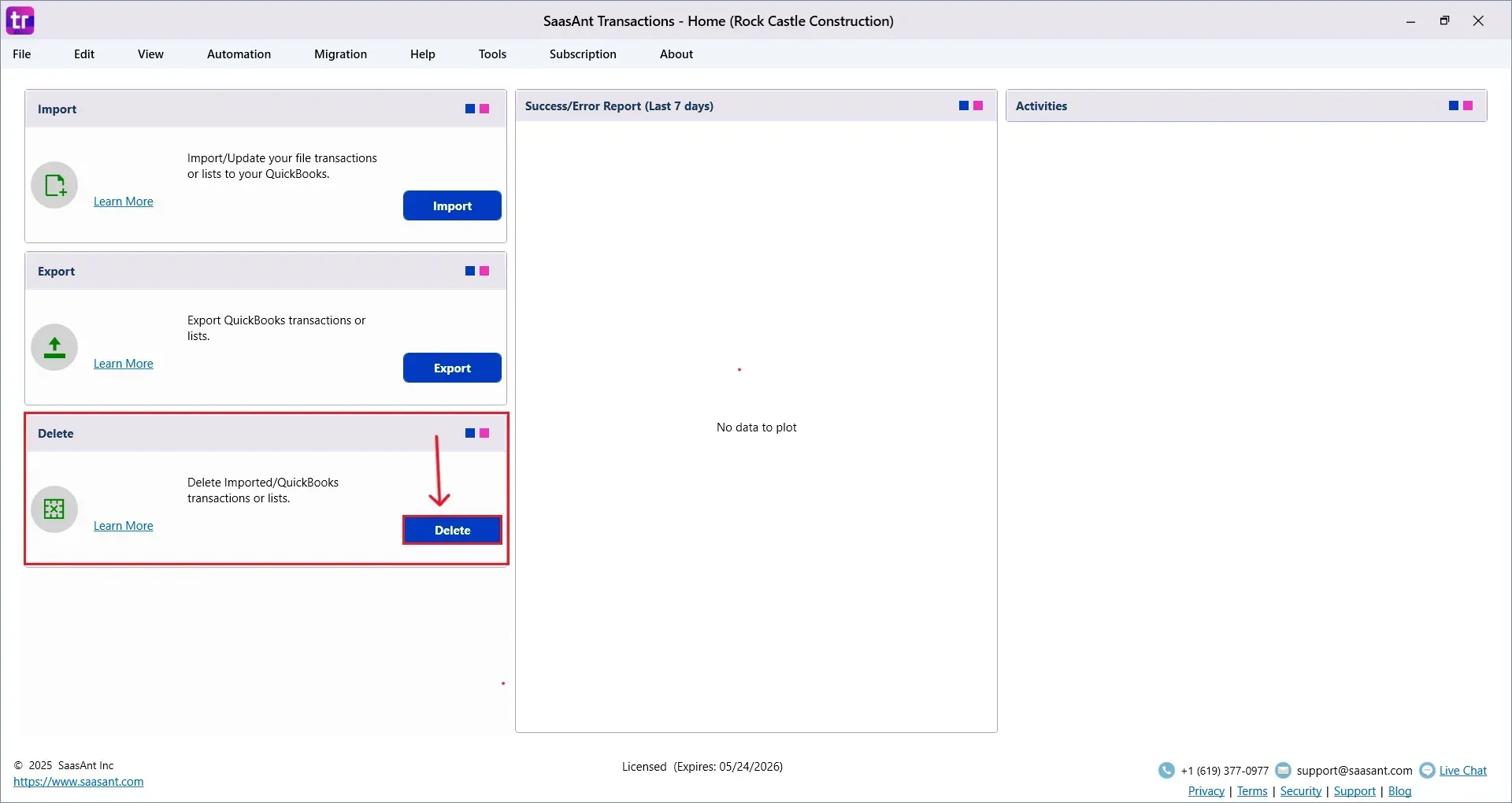
Step 3: Open Delete Module
On the left panel dashboard
Select Delete
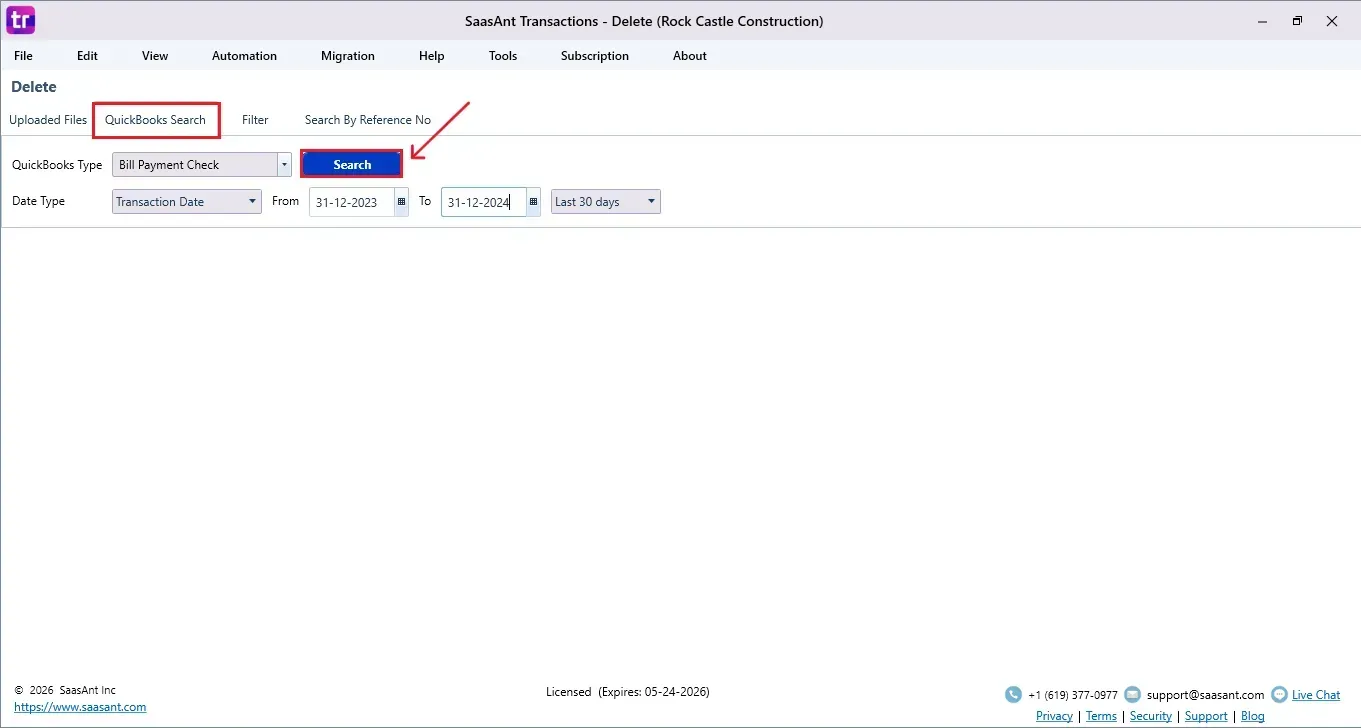
Step 4: Search Bill Payments
Choose QuickBooks Search
Set QuickBooks Type → Bill Payments
Enter required filters (date type)
Click Search
Step 5: Select Bill Payments to Delete
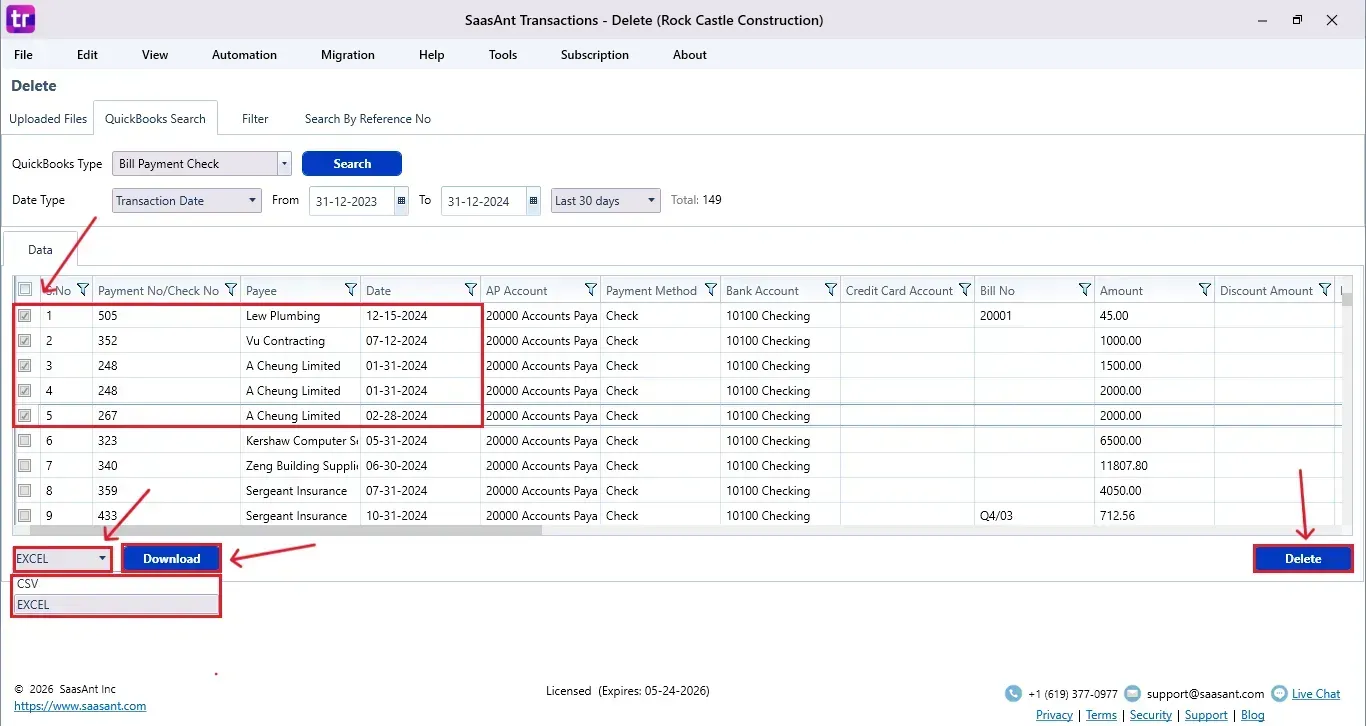
Matching Bill Payments will show up in the results list
Review and select the required Bill Payments with checkboxes
Click Download (located at the bottom left) to save a backup in Excel or CSV format.
Click Delete at the bottom right.
Step 6: Confirm Deletion
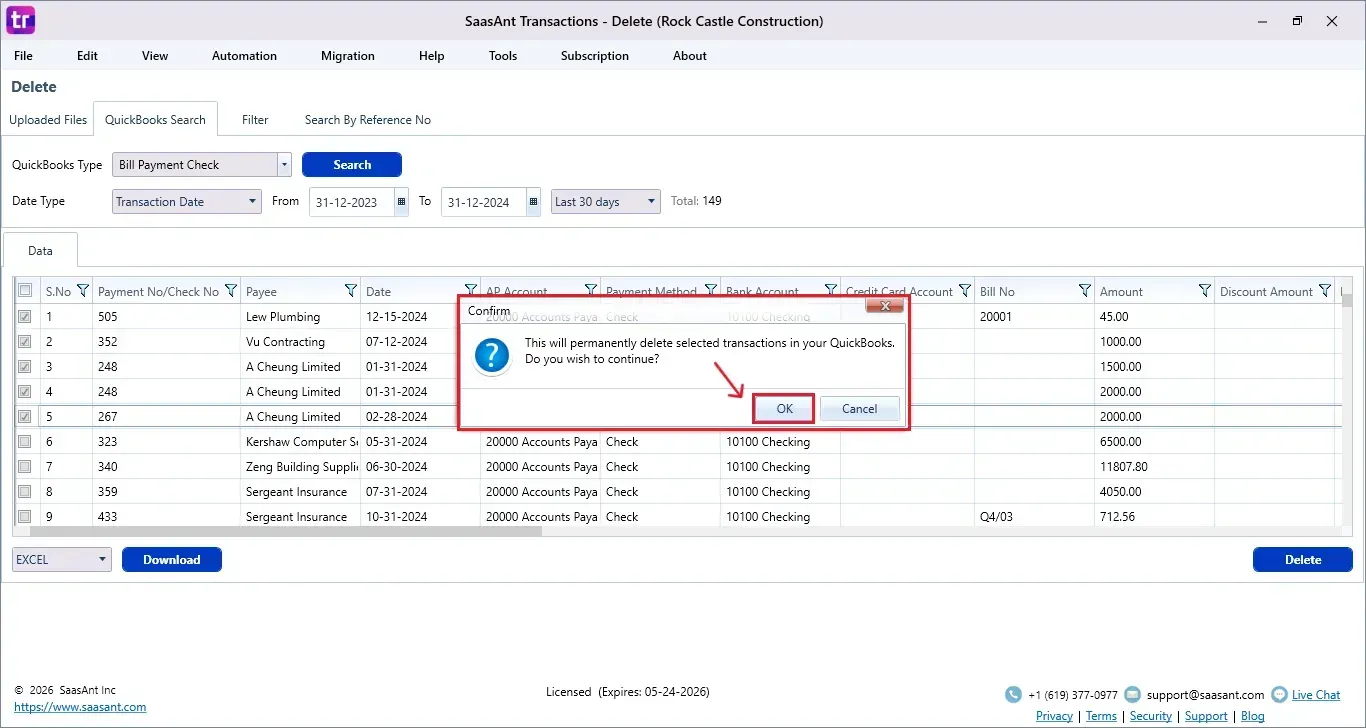
A confirmation pop-up appears
Click OK to proceed
Step 7: View Deleted Bill Payments
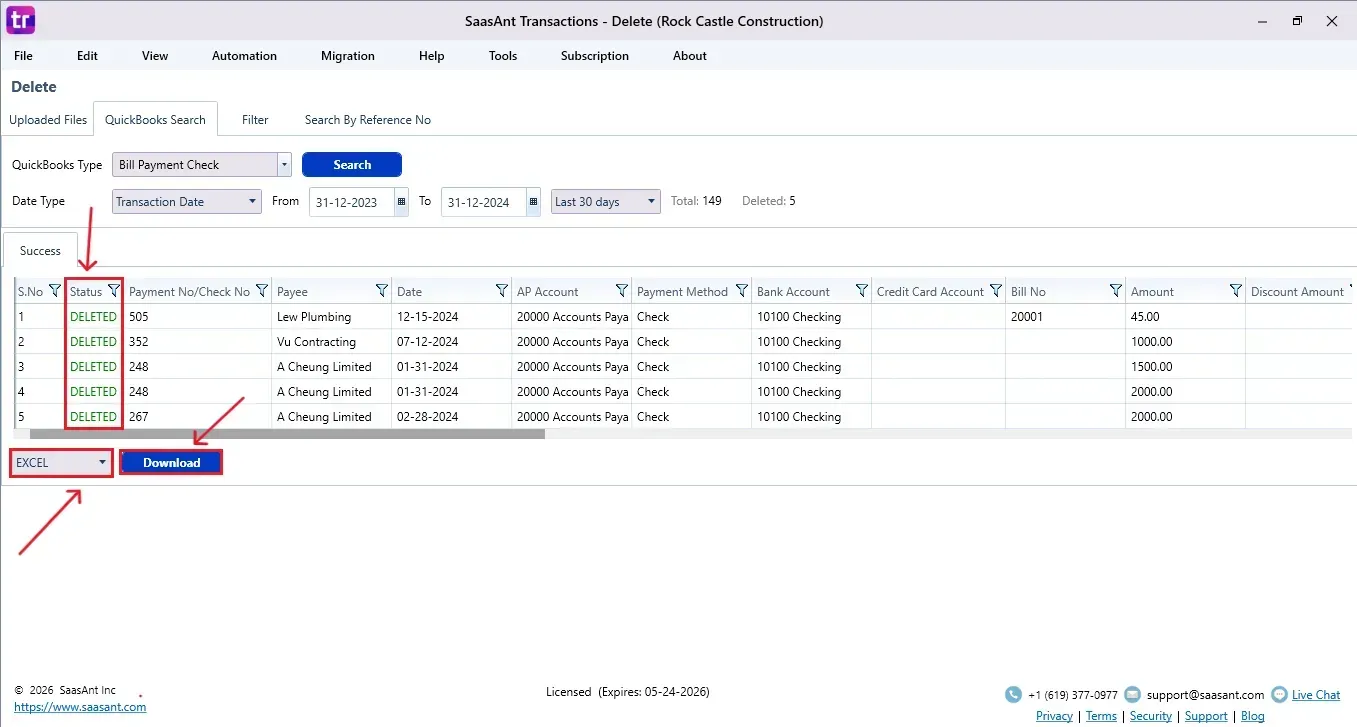
Deleted Bill Payments appear in the SaasAnt dashboard
You can download the deleted records using the Download option in Excel or CSV format.
To verify:
Open QuickBooks Desktop → Vendor Center → Transactions → Bill Payments - confirm Bill Payments are removed.
FAQ
1) How do I search for bill payments?
Select QuickBooks Search → Type: Bill Payments → Apply filters → Click Search.
2) Can I filter payments using a date range?
Yes, date filters are useful for identifying specific bill payments that need to be corrected or removed.
3) Can deleted bill payments be restored automatically?
There is no automatic restore available; you need to manually re-import payments using the backup file you downloaded earlier through the SaasAnt import function.
4) Will deleting bill payments affect payable balances?
Yes, vendor balances and aging reports are updated instantly since the payment application is automatically removed from the related open bills afterwards.