How to Automate QuickBooks Data Entry
March 18, 2026
This video demonstrates how to Automate QuickBooks Data Entry:
Applies to: SaasAnt Transactions Online, and SaasAnt Transactions Desktop for the automation features noted in this article.
Overview
SaasAnt Transactions helps automate QuickBooks data entry by importing data from bank statements, receipts, spreadsheets, and recurring file sources instead of requiring manual entry for every transaction.
This workflow is useful for catch-up bookkeeping, high-volume transaction processing, recurring imports, and situations where native QuickBooks bank feeds are unavailable, delayed, incomplete, or difficult to manage.
This article covers three main ways to automate QuickBooks data entry with SaasAnt:
Bank statement imports
Receipt uploads and
Recurring imports from file-based or connected sources.
It also covers mapping, rules, monitoring, and bulk upload workflows for QuickBooks Online and QuickBooks Desktop.
Before you begin
Make sure you can sign in to SaasAnt Transactions and connect the correct QuickBooks company before starting any import workflow. Keep your source files ready before you begin, because the bank statement and receipt workflows start with file upload followed by automatic extraction and review.
Plan the workflow before importing data. If you want to upload a one-time file, use the standard import flow, and if you want recurring imports, choose the source in advance, such as Email, FTP/SFTP, Zapier, or a local folder automation setups.
Review the imported or extracted data before syncing it to QuickBooks. The review step is important because SaasAnt’s upload workflows analyze the file first and then let you edit the extracted details before sync.
Automate QuickBooks data entry from bank statements
You can automate QuickBooks data entry from bank statements by uploading a PDF or image statement file, reviewing the extracted lines, and syncing the selected transactions into QuickBooks Online in bulk. This workflow replaces line-by-line manual entry with a review-and-sync process that is better suited for backlogs and historical bank activity.
This workflow is especially useful for catch-up bookkeeping and for businesses dealing with bank-feed problems. SaasAnt supports statement-based imports when direct bank feeds are not available, provide limited history, create duplicates, or have connection and sync issues.
Steps to upload bank statements
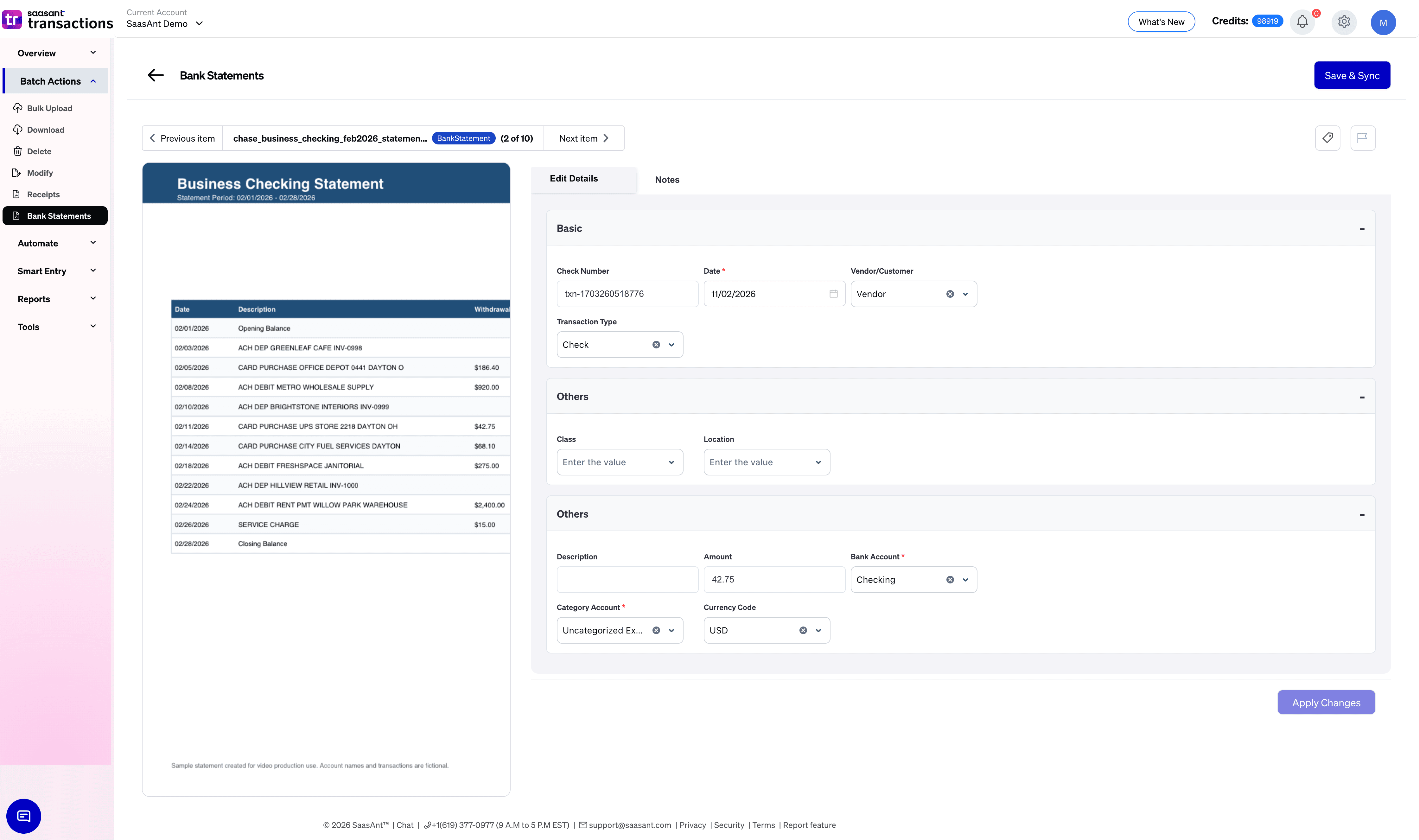
Sign in to SaasAnt Transactions Online.
Select Bank Statements.
Select the bank account and upload the bank statement file.
Wait for SaasAnt to analyze the uploaded file automatically.
Open the Review tab and edit any extracted details if needed.
Click Apply Changes/Save & Sync after you finish reviewing the data.
Select the transactions you want to import and click Sync to upload them in bulk.
Confirm that the transactions were synced to QuickBooks Online.
Bank statement workflow details
SaasAnt supports PNG, JPG, JPEG, and PDF files for bank statement uploads. The maximum supported file size for a bank statement upload is 10 MB.
You can sync all reviewed transactions together, skip selected lines by archiving them, and roll back synced transactions from the Synced tab if required. These options make the bank statement workflow useful when you need both speed and control during import.
Automate QuickBooks data entry from receipts
You can automate QuickBooks data entry from receipts by uploading receipt images or PDFs, reviewing the extracted details, and syncing the approved records into QuickBooks in bulk. This workflow is designed for both sales receipts and expense-related receipt processing.
SaasAnt AI extracts key receipt details such as vendor names, dates, tax, and amounts from uploaded files. This reduces repetitive data entry and helps move receipt data into QuickBooks in a cleaner, more structured format.
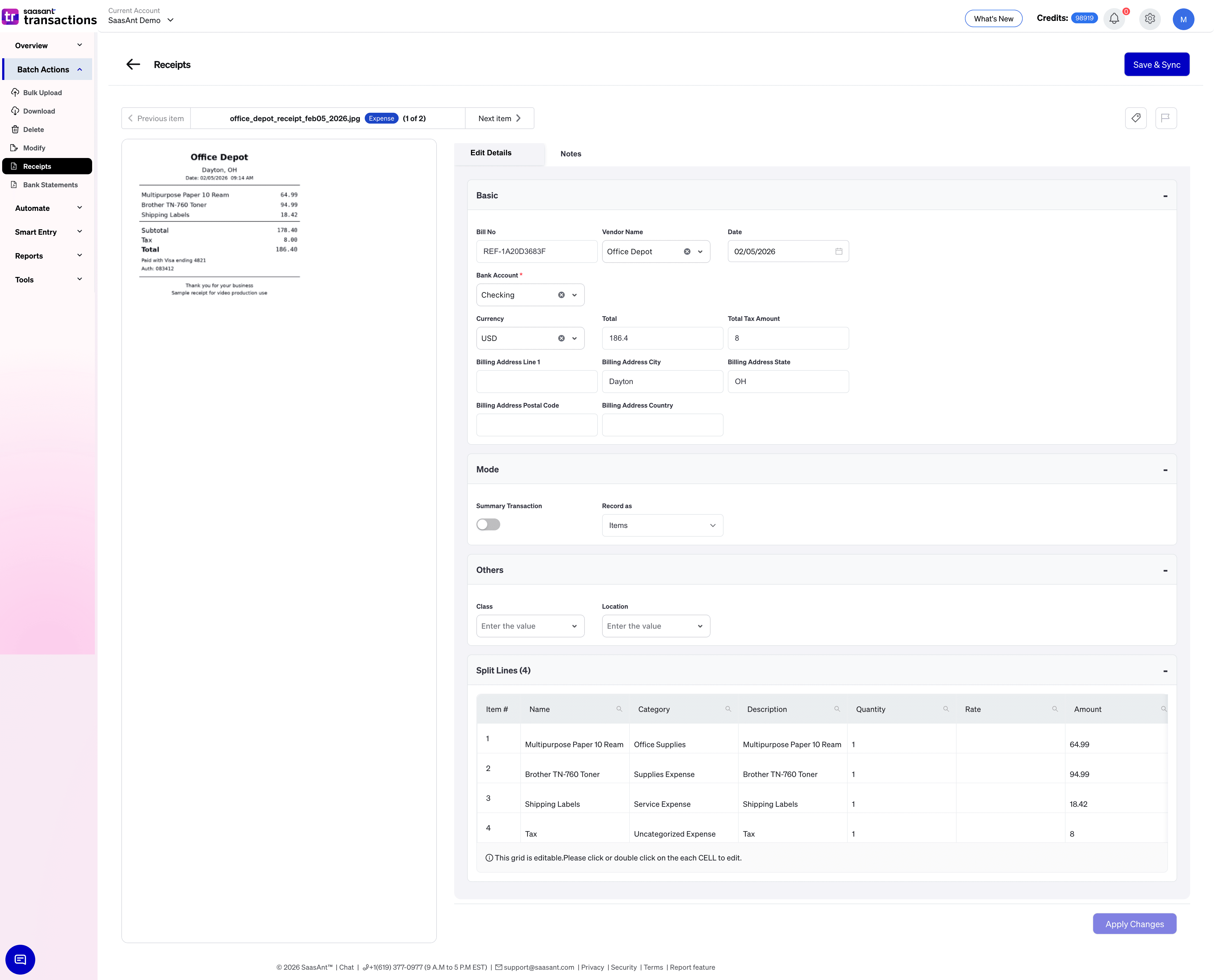
Steps to upload receipts
Sign in to SaasAnt Transactions Online.
Select Receipts.
Choose Sales or Expenses based on the receipt type.
Upload the receipt file from your system.
Wait for SaasAnt to analyze the uploaded file automatically.
Open the Review tab and edit any extracted details if needed.
Click Apply Changes/Save & Sync after reviewing the data.
Select the transactions you want to import and click Sync to upload them in bulk.
Confirm that the transactions were synced to QuickBooks Online.
Receipt workflow details
SaasAnt supports receipt and invoice uploads in image and PDF formats. The receipt workflow supports both Sales and Expenses.
SaasAnt also lets you review captured fields and assign accounts or categories before posting. This makes the receipt workflow useful not only for faster data capture, but also for cleaner categorization and easier reconciliation.
Automate QuickBooks data entry from spreadsheets and recurring sources
You can automate QuickBooks data entry from spreadsheets and recurring sources by combining SaasAnt import workflows with automation channels such as Email, FTP/SFTP, Zapier, and local folder auto upload. This workflow is useful when the same file-based data needs to be imported into QuickBooks repeatedly.
SaasAnt supports importing data from Excel, CSV, IIF, and text-based files, and it also supports document uploads for receipts, invoices, bills, checks, and bank statements. This makes the product suitable for a broader set of QuickBooks data-entry workflows than manual upload alone.

Common automation sources
Email can be used as an automation source for recurring imports.
FTP/SFTP can be used when files are delivered to a remote server before import.
Zapier can be used to send files into SaasAnt for automated QuickBooks uploads.
Local folders can be used for supported recurring automation workflows.
General recurring import flow
Choose the QuickBooks transaction type or list you want to import.
Select the file or automation source.
Map the source columns to the QuickBooks fields.
Review the imported rows before sync.
Apply rules if you want to transform values before import.
Run the import or configure the recurring automation schedule.
Check the logs or monitor the import result after execution.
Use mapping and rules to control imported data
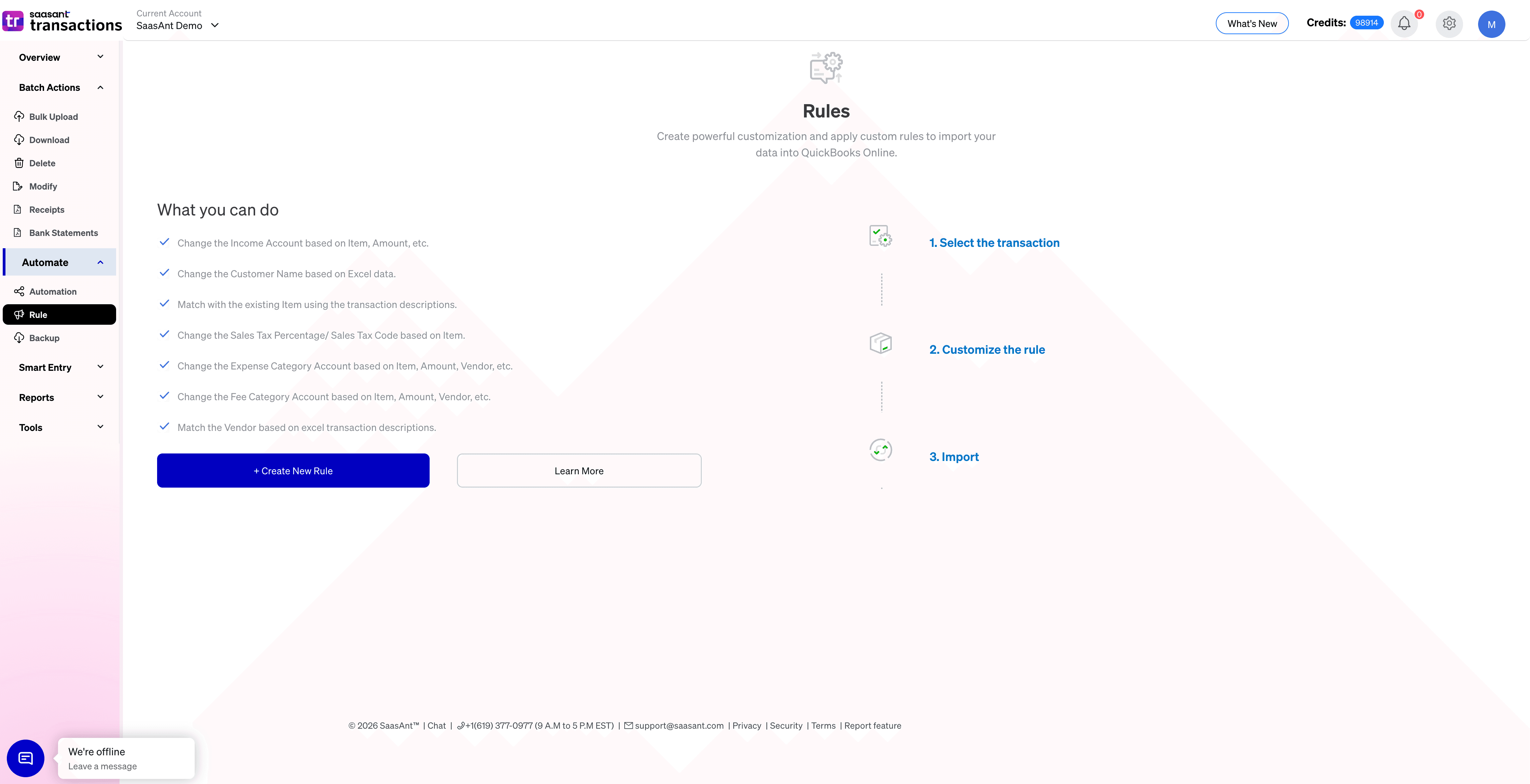
Mapping controls how source columns are assigned to QuickBooks fields during import. SaasAnt can automatically map columns when the file headers match the QuickBooks field names, and it also supports manual mapping when the source headers are different.
Rules control how imported values are changed before they are synced to QuickBooks. SaasAnt supports condition-based rules that can update transaction or list data during import, which is useful when recurring files need consistent transformations.
SaasAnt’s import workflows also support rule-style actions such as setting a value if empty, overriding values, and skipping rows that match selected criteria. This helps reduce post-import cleanup and gives you more control over how data lands in QuickBooks.
Monitor imports and manage exceptions
Monitoring is important when you automate QuickBooks data entry because recurring imports need a way to confirm whether the upload finished successfully. SaasAnt provides success reports and options to undo data imported using automation workflows in case of errors.
If an import includes wrong or duplicate data, cleanup may be required after review. SaasAnt also supports bulk delete workflows in QuickBooks Online for cases such as duplicate, outdated, or incorrect transactions.
Bulk upload support for QuickBooks Online and Desktop
SaasAnt supports bulk upload workflows for both QuickBooks Online and QuickBooks Desktop. In both Online and Desktop, SaasAnt supports bulk import, export, delete, and edit workflows across many transaction and list types.
SaasAnt supports transaction and list imports from Excel files, Spreadsheets and IIF files. This makes SaasAnt useful for businesses that need bulk bookkeeping workflows across both QuickBooks environments.
FAQs
What does it mean to automate QuickBooks data entry with SaasAnt?
Automating QuickBooks data entry with SaasAnt means importing or extracting financial data into QuickBooks through files, document analysis, mappings, and recurring workflows instead of typing each transaction manually. SaasAnt supports this through bank statement uploads, receipt uploads, spreadsheet imports, and automation sources such as Email, FTP/SFTP, Zapier, and local folders.
Can SaasAnt automate QuickBooks data entry from bank statements?
Yes. SaasAnt can automate QuickBooks data entry from bank statements by letting you upload PDF or image files, review the extracted lines, and sync the selected transactions into QuickBooks Online in bulk.
What bank statement file types does SaasAnt support?
SaasAnt supports PNG, JPG, JPEG, and PDF files for bank statement uploads. SaasAnt also supports a maximum bank statement file size of 10 MB for this workflow.
Can SaasAnt help with catch-up bookkeeping in QuickBooks?
Yes. SaasAnt is useful for catch-up bookkeeping because bank statement imports help convert historical statement activity into QuickBooks-ready transactions without manual entry for each line.
Can SaasAnt help when QuickBooks bank feeds are unavailable or incomplete?
Yes. SaasAnt is useful when QuickBooks bank feeds are unavailable, limited, delayed, or affected by sync and duplicate issues because statement-based imports provide an alternate way to bring bank activity into QuickBooks.
Does SaasAnt analyze uploaded bank statements automatically?
Yes. SaasAnt automatically analyzes the uploaded bank statement file before you review and sync the extracted lines. You can then edit the extracted details in the Review tab before posting the transactions to QuickBooks Online.
Can I review and edit bank statement transactions before syncing them?
Yes. SaasAnt includes a Review tab in the bank statement workflow where you can edit extracted transaction details before sync.
Can I sync all bank statement transactions together?
Yes. SaasAnt allows you to select all reviewed bank statement lines and sync them together in bulk.
Can I skip selected bank statement transactions?
Yes. SaasAnt allows you to archive bank statement lines that you do not want to sync.
Can I roll back synced bank statement transactions?
Yes. SaasAnt allows you to roll back selected bank statement transactions from the Synced tab.
Can SaasAnt automate QuickBooks data entry from receipts?
Yes. SaasAnt can automate QuickBooks data entry from receipts by letting you upload receipt images or PDFs, extract key details, review the results, and sync the approved records into QuickBooks in bulk.
What details can SaasAnt extract from receipts?
SaasAnt extracts receipt details such as vendor names, dates, tax, and amounts from uploaded receipt files. These details can then be reviewed before they are synced to QuickBooks.
What receipt transaction types does SaasAnt support?
SaasAnt supports Sales and Expenses in the receipt upload workflow.
Does SaasAnt support PDF receipt uploads?
Yes. SaasAnt supports receipt and invoice uploads in both image and PDF formats.
Can I edit receipt data before syncing it to QuickBooks?
Yes. SaasAnt includes a Review tab in the receipt workflow where you can edit extracted details before sync.
Can SaasAnt help assign accounts or categories for receipt imports?
Yes. SaasAnt lets you review captured fields and assign accounts or categories before posting receipt-based data into QuickBooks.
Can SaasAnt automate QuickBooks imports from spreadsheets?
Yes. SaasAnt supports importing QuickBooks data from Excel, Google Sheets, CSV, IIF, and text-based files. This makes it suitable for spreadsheet-driven QuickBooks import workflows.
Can SaasAnt automate QuickBooks imports from Email?
Yes. SaasAnt supports Email as an automation source for recurring imports.
Can SaasAnt automate QuickBooks imports from FTP or SFTP?
Yes. SaasAnt supports FTP/SFTP as an automation source for recurring import workflows.
Can SaasAnt automate QuickBooks imports from Zapier?
Yes. SaasAnt supports Zapier-based automation workflows for sending files into SaasAnt and then into QuickBooks.
Can SaasAnt automate QuickBooks imports from a local folder?
Yes. SaasAnt supports local-folder-based recurring import workflows in supported Desktop automation setups.
Can SaasAnt schedule recurring imports at custom times?
Yes. SaasAnt supports recurring schedules for automation, and SaasAnt Transactions Desktop also supports Cron Expressions for more specific timing control.
Does SaasAnt support Cron Expressions for automation?
Yes. SaasAnt Transactions Desktop supports Cron Expressions for scheduling automated imports and exports.
Does SaasAnt support field mapping during QuickBooks imports?
Yes. SaasAnt supports automatic mapping when the source headers match the QuickBooks field names, and it also supports manual mapping when they do not match.
Can I save mapping logic for repeat imports?
Yes. SaasAnt supports saved mapping configurations for recurring or repeated imports using the same file structure.
Can I apply rules to change imported values before they reach QuickBooks?
Yes. SaasAnt supports condition-based rules that can modify transaction or list data before sync.
What kinds of import rules does SaasAnt support?
SaasAnt supports rule-style transformations such as setting a value if empty, merging fields, overriding values, and skipping rows that match selected criteria.
Can SaasAnt bulk upload transactions into QuickBooks Online?
Yes. SaasAnt supports bulk import workflows for QuickBooks Online across many transaction and list types.
Can SaasAnt bulk upload transactions into QuickBooks Desktop?
Yes. SaasAnt supports bulk transaction imports into QuickBooks Desktop, including IIF-based workflows.
Can SaasAnt bulk upload QuickBooks lists?
Yes. SaasAnt supports list import workflows such as product and service items, payment items, and locations or departments.
Does SaasAnt support QuickBooks Desktop editions such as Pro, Premier, Enterprise, and Accountant?
Yes. SaasAnt supports QuickBooks Desktop editions including Pro, Premier, Enterprise, and Accountant for import workflows covered in its Desktop documentation.
Can SaasAnt monitor import activity?
Yes. SaasAnt provides audit logs for automation workflows and an Import Monitor for Transactions Online.
Can SaasAnt help remove duplicate or incorrect QuickBooks data?
Yes. SaasAnt supports bulk delete workflows in QuickBooks Online for duplicate, outdated, or incorrect transactions.
Can SaasAnt export or back up QuickBooks Desktop data on a schedule?
Yes. SaasAnt supports scheduled export and backup workflows for QuickBooks Desktop, including local-folder and FTP/SFTP destinations.