How to Undo BigCommerce Sync in PayTraQer?
January 1, 2025
Before you get started
Step 1: Connect PayTraQer with QuickBooks Online
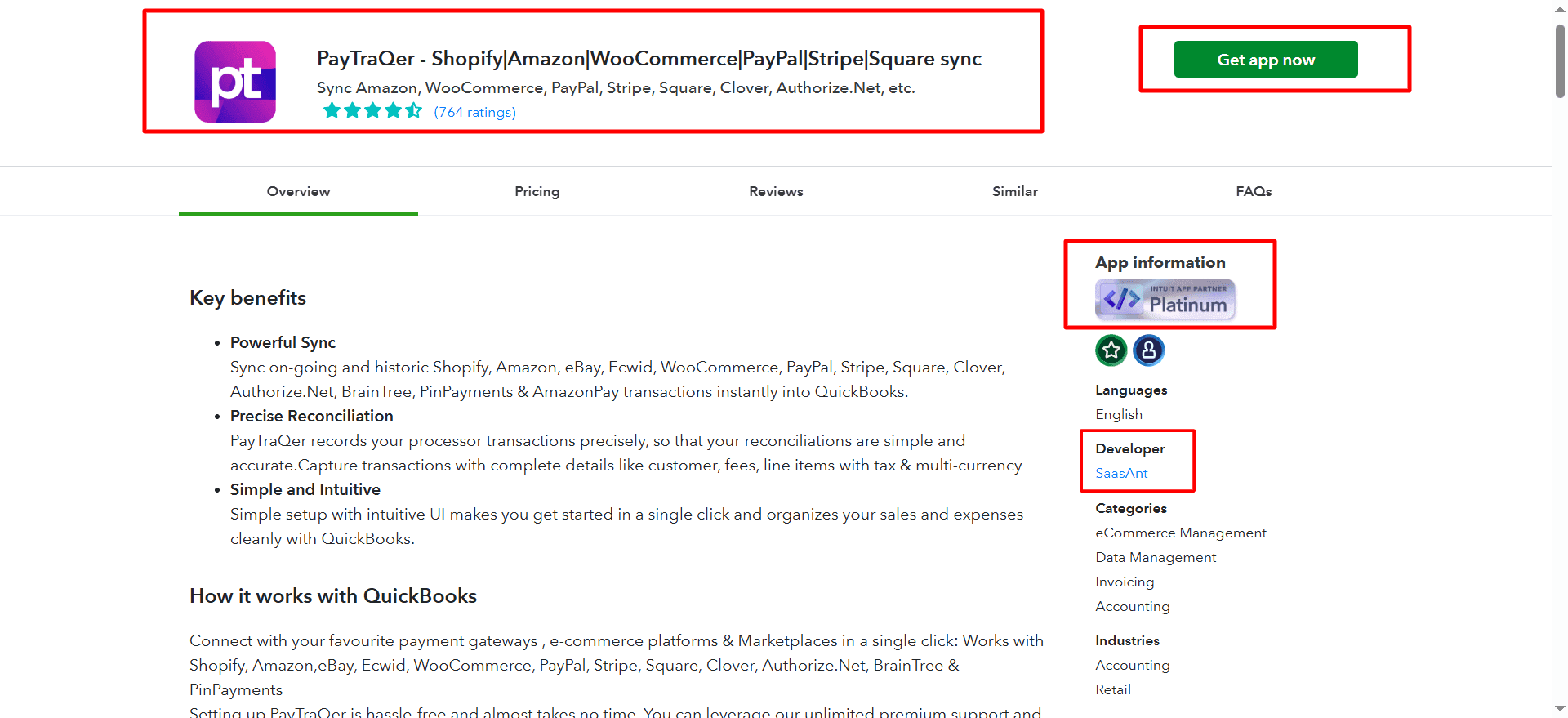
Log in to your QuickBooks Online account and access the Apps menu on the left side.
Search for PayTraQer in the QuickBooks App Store and click on Get App Now.
Follow the authorization steps to allow PayTraQer to connect to your QuickBooks company file.
After installation, open PayTraQer from the Apps menu and choose the appropriate QuickBooks company.
Finish the initial setup by checking access permissions and configuring your basic syncing preferences.
Step 2: Connect BigCommerce with PayTraQer
Open PayTraQer after you connect your QuickBooks company.
Go to the Connectors section in the left menu.
Select BigCommerce from the available connectors.
Provide the necessary store details and finalize the authorization process.
For comprehensive setup instructions, check this article: How to Connect BigCommerce with QuickBooks Online using PayTraQer.
Step 3: Go to the Transactions
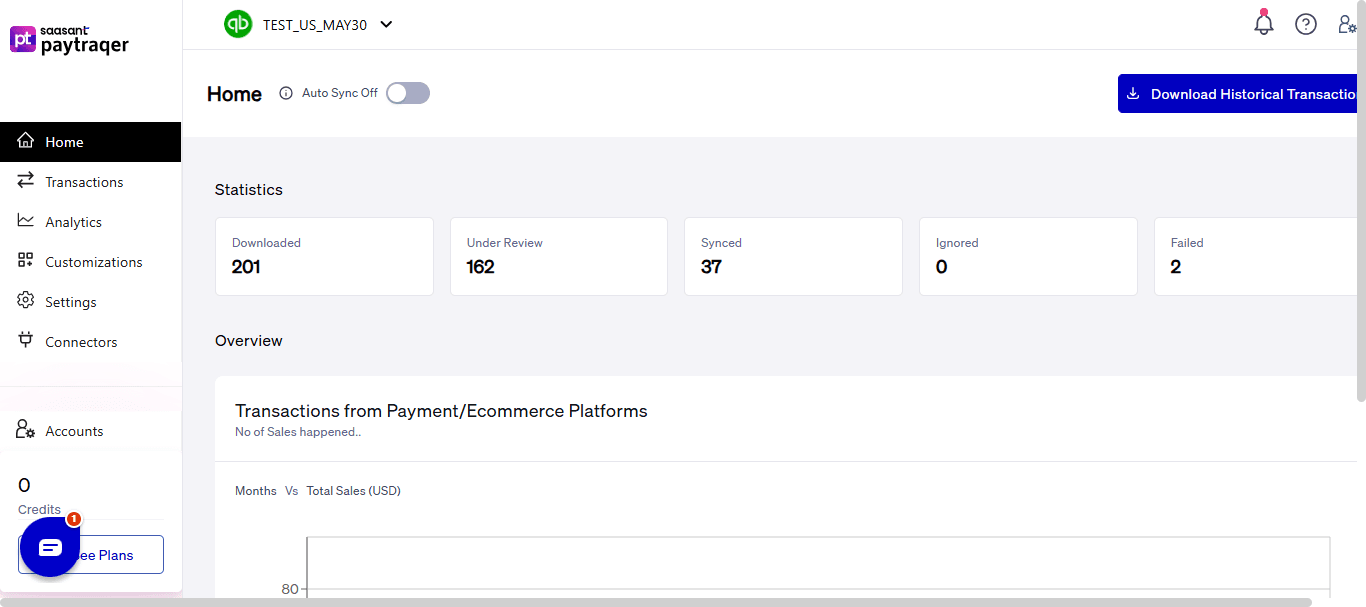
Click Home from the left sidebar to view the PayTraQer dashboard.
Step 4: Review the Synced BigCommerce Transactions
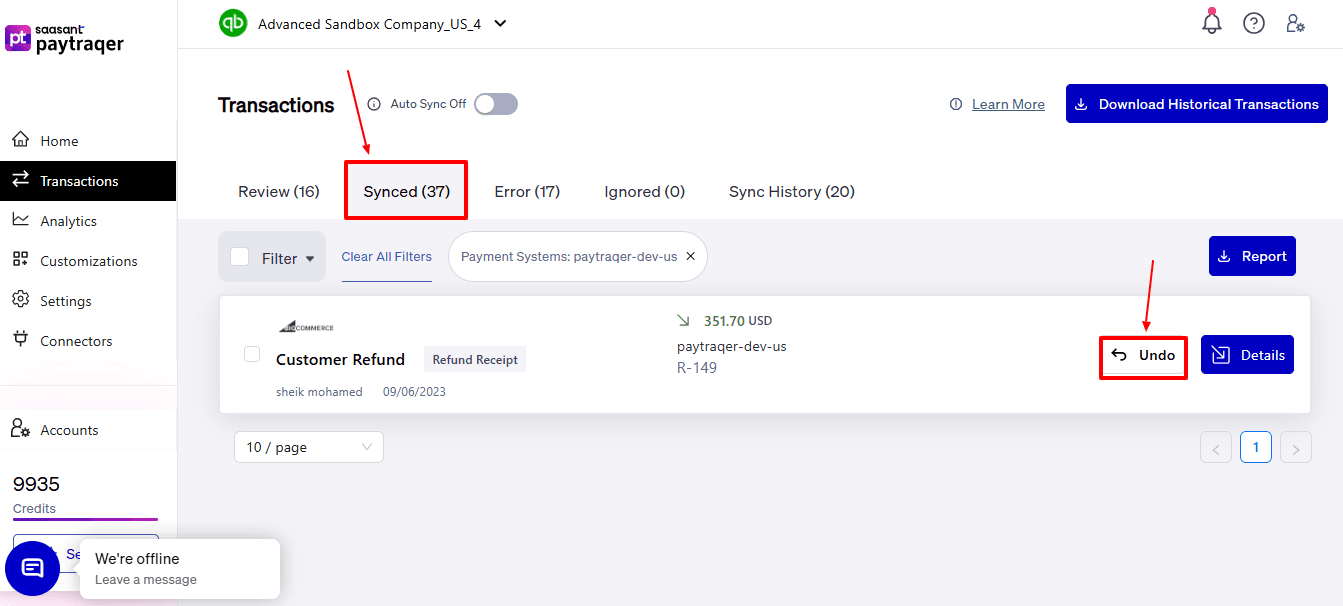
Once syncing is done, go to the Synced tab in PayTraQer.
This section will display all BigCommerce transactions that were synced successfully.
Select each transaction to inspect the synced details.
For detailed steps, refer to the article: How to Sync BigCommerce Historical Transactions with QuickBooks Online?
Step 5: Undo Incorrectly Synced Data
If the BigCommerce data that was synced is incorrect, keep it on the Synced tab.
Find the transaction that must be removed from QuickBooks Online.
Click the Undo button on the right side of the transaction entry.
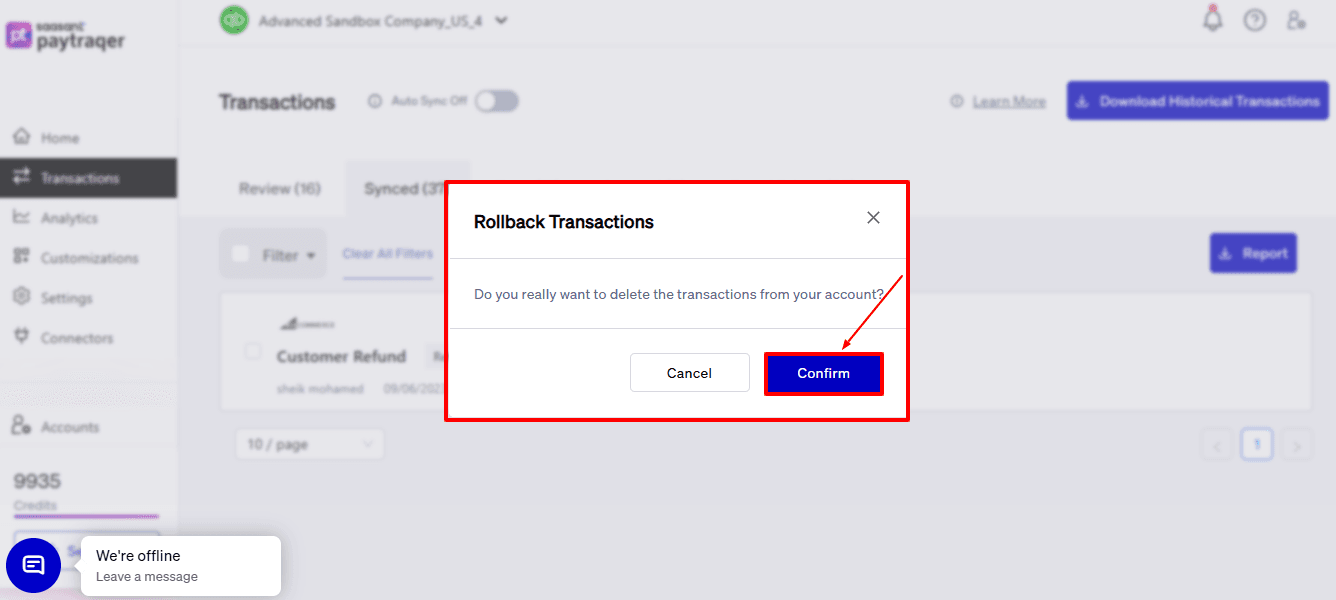
Check the Rollback Transactions confirmation pop-up before proceeding.
Step 6: Verify and Check the Reverted Transaction
Click Confirm to reverse the synced Bigcommerce transaction.
PayTraQer will undo the synced transaction from QuickBooks Online.
After this, the message Transaction Reverted successfully will show up.
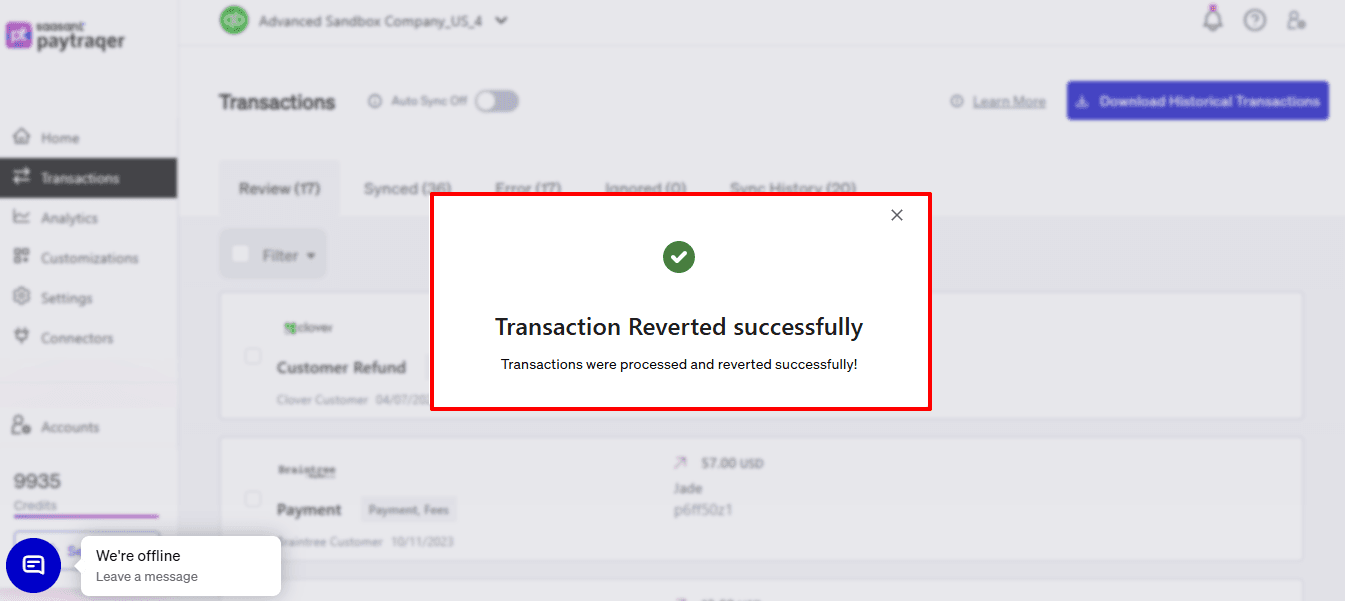
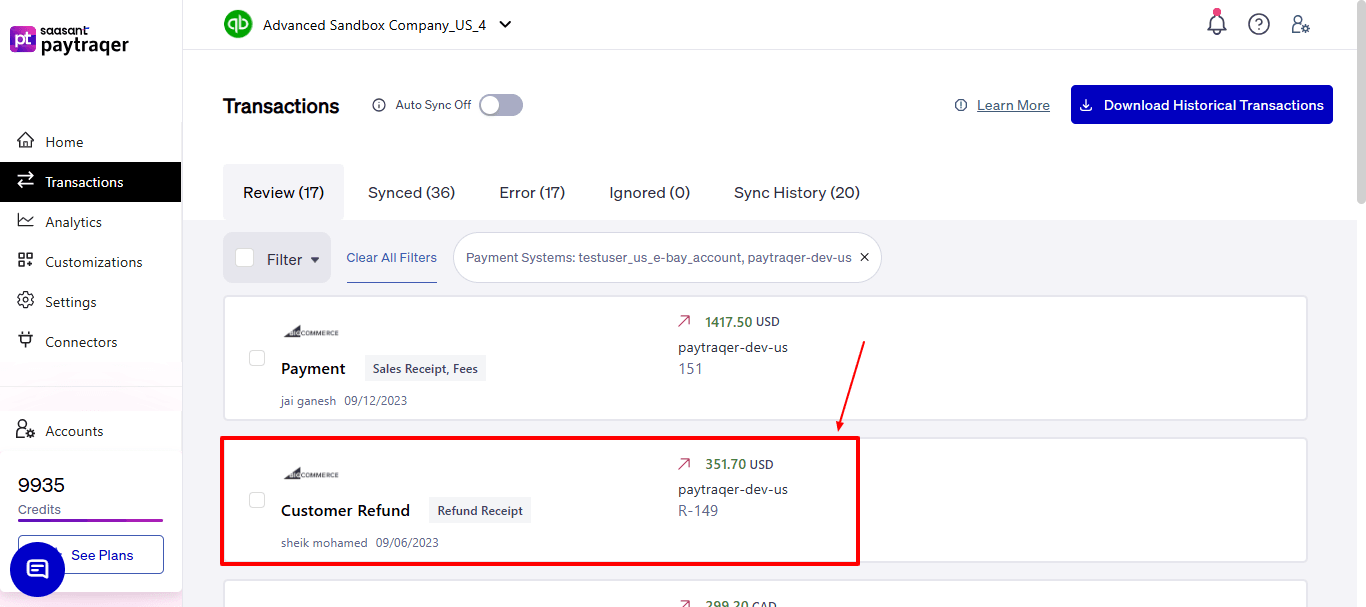
Return to the Review tab, adjust the necessary settings or mapping, and sync again when you are ready.
Video Tutorial for How to Connect and Sync Bigcommerce Transactions to QuickBooks Online using PayTraQer: