How to import Credit card Transactions into QuickBooks Online
August 28, 2025
Uploading credit card transactions as expense transactions.
QuickBooks Online accounting software provides multiple options for recording credit card payments, allowing you to effectively track expenses and maintain accurate financial reports. Importing transactions with SaasAnt Transaction Online is a seamless process using our simplified and powerful Import wizard.
How does it work?
Let's assume that we have a file that contains the following credit card statement
Date | Description | Amount |
23/06/2023 | Purchase #ABC REF1203 | 200 |
23/06/2023 | Purchase #Mech REF1204 | 200 |
23/06/2023 | Payments | -400 |
Note: To import charges (expenses) and refunds from vendors, it is necessary to include them in the credit card statement.
1. Credit Card Account
2. Expense Accounts
3. Customer or Vendor Names
Let's modify the file to add the above details.
Date | Description | Amount | Bank Account | Category Account | Payee |
23/06/2023 | Purchase #ABC REF1203 | 200 | Visa | Uncategorized Expense Account | Dave |
23/06/2023 | Purchase #Mech REF1204 | 200 | Visa | Telephone Expense Account | Telephone Company |
Key Points:
If a transaction has a positive amount, it will be considered as a credit or a refund.
If a transaction has a negative amount, it will be considered an expense or a charge.
You need to remove the payments made against the Credit Card company. The payments need to be created as a Transfer from your Bank Account to your Credit Card Account in QuickBooks Manually.
How to Import Credit Card Transactions into QuickBooks Online using SaasAnt Transactions Online
1) Login into SaasAnt Transaction Online
2) Select the Bulk Upload Tab.
3) Select the QuickBooks entity as "Credit Card Statement"
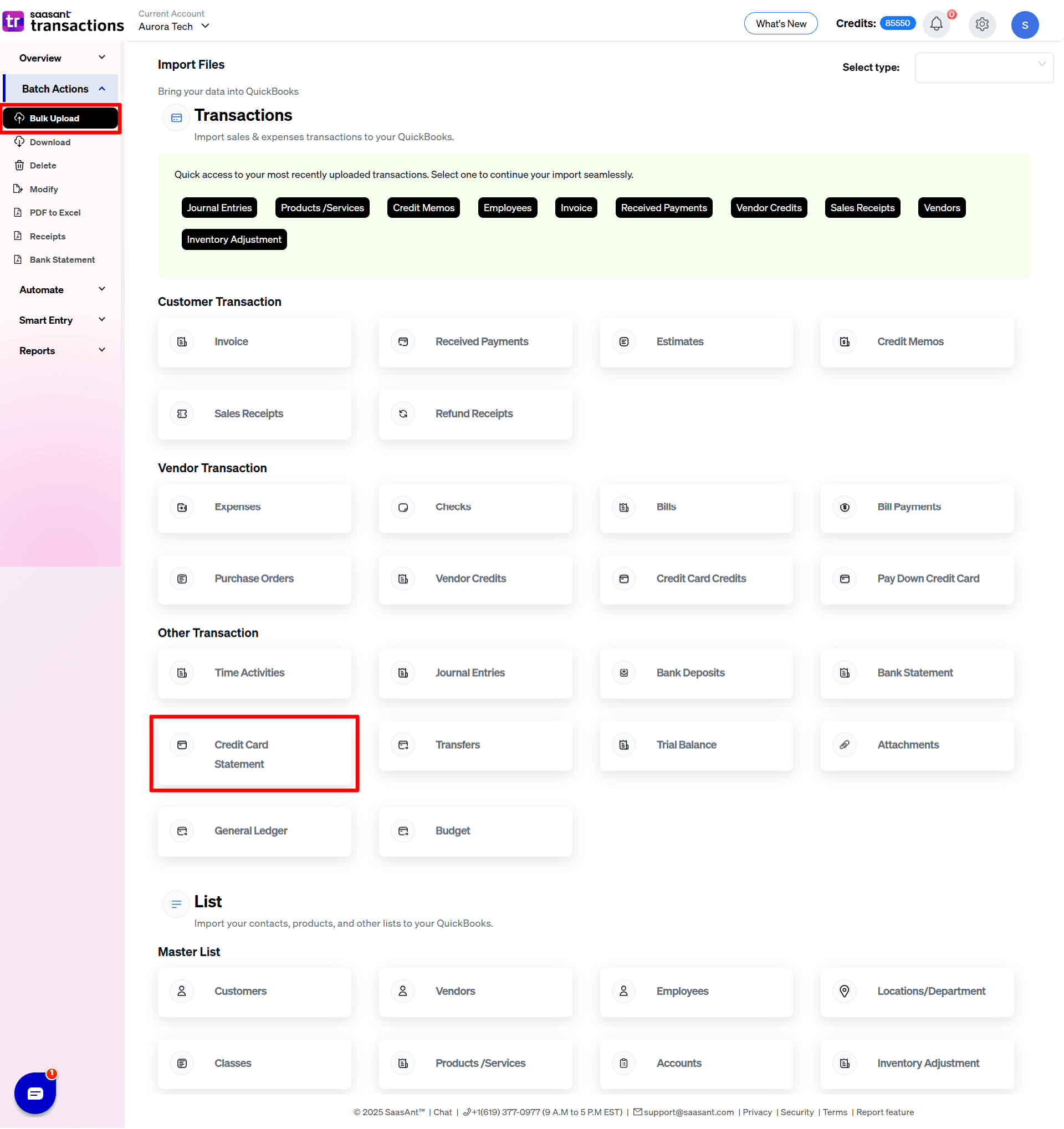
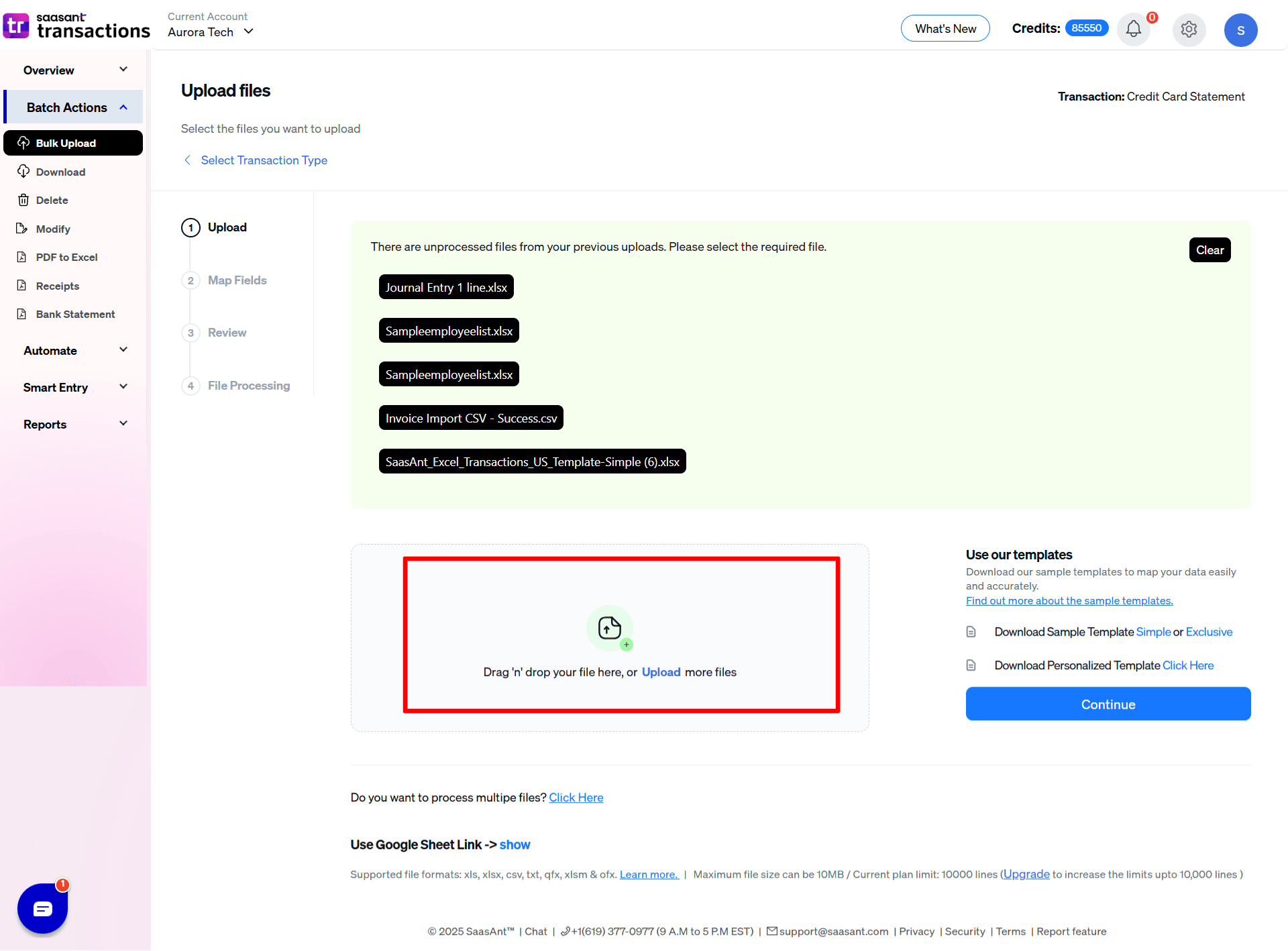
4) Select the files you want to upload
5) Set up the Mapping of the columns in your Credit Card Statement
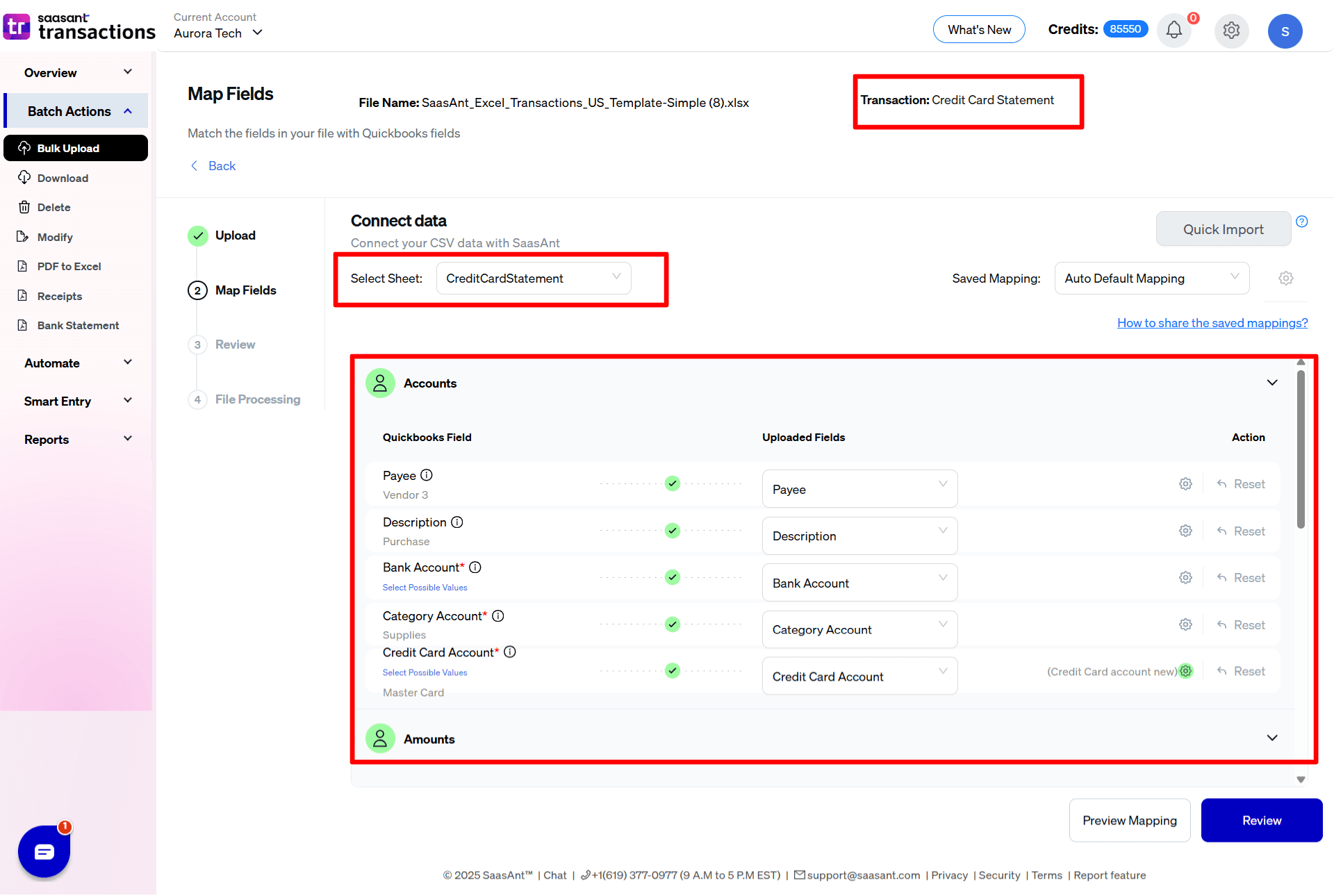
6) Select the "Preview Mapping" button to visualize current mapping based on QuickBooks
7) Select the Upload tab.
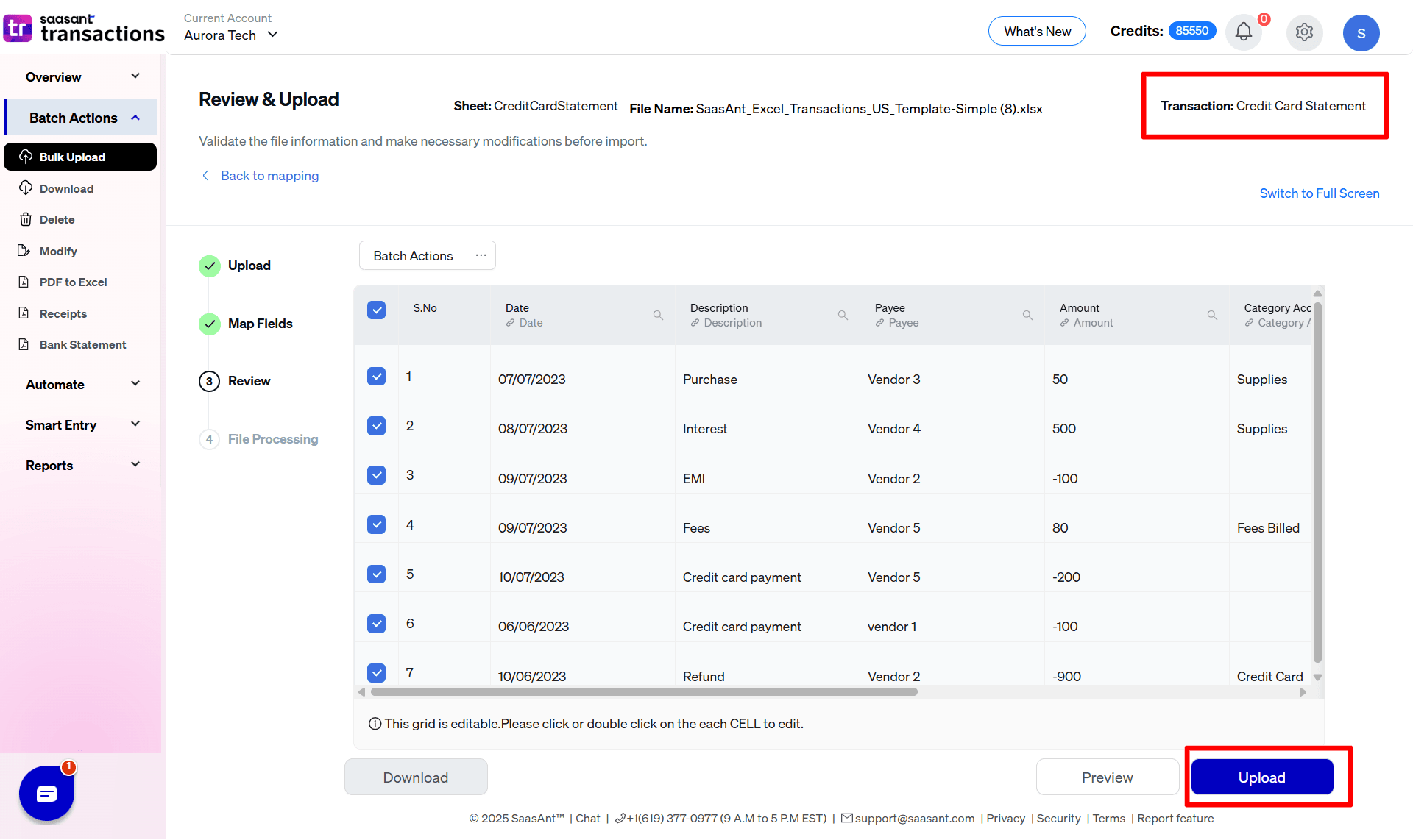
8) The data was imported successfully into QuickBooks.
For any further inquiries regarding credit card transactions, please reach out to support@saasant.com
Credit Card Statement Settings Reference Guide
The Settings panel for Credit Card Statements handles global automation rules, transaction numbering, and date formats specifically for importing credit card data charges or credits.
General & Layout Settings
Do you want to apply suggestions automatically?
What it does: Imports data using default fallback values and displays a warning if minor data mismatches occur.
Do you want to create Customers, Vendors, Locations, Classes, and Accounts automatically?
What it does: Automatically builds missing entity profiles in QuickBooks on the fly during a Credit Card Statement import to prevent validation errors.
Do you want to skip the mapping screen?
What it does: Bypasses Step 2 completely on future imports if your upload files use a consistent, recognized template layout.
Date Format
What it does: Sets the specific date structure (supporting - or / separators) to match your upload file (e.g., DD/MM/YYYY).
Do you want to use the Transaction Reference Numbers from the uploaded file?
What it does: Forces QuickBooks to use the exact reference/transaction numbers from your statement file rather than generating system defaults.
Do you want to disable the optimisation for the batch import?
What it does: Turn this on if you need to run meticulous, line-by-line verification on your statement imports rather than high-speed parallel processing bundles.
Account Lookup Rules
Find GL Account by Account Number
What it does: Instructs SaasAnt to identify and match your General Ledger bank or expense accounts using numerical codes (e.g., 1100, 2200) inside QuickBooks rather than matching by text names.
FAQs
What file types does SaasAnt Transactions Online support for QuickBooks Online imports?
For almost all entities in QuickBooks Online, SaasAnt Transactions Online supports XLS, XLSX, XLSM, CSV, TXT, Google Sheets, and IIF. Additionally, PDF, PNG, and JPEG are supported only for Receipts, Invoices, Bank Statements, Checks, and Expenses.