How to Sync Braintree Transactions into QuickBooks Online using PayTraQer
January 1, 2025
Connect Your Braintree Account
To download and sync Braintree transactions into QuickBooks Online, you must link your Braintree account with PayTraQer. This article explains how to integrate your Braintree account with PayTraQer.
Video tutorial for How to connect and Sync BrainTree Transactions to QuickBooks Online using PayTraQer:
Step 1: Open the Braintree connector in PayTraQer
Log in to PayTraQer with the QuickBooks Online company you wish to sync with Braintree.
In the left menu, select Connectors.
Choose Payment Connectors to see the payment platforms linked to your PayTraQer account.
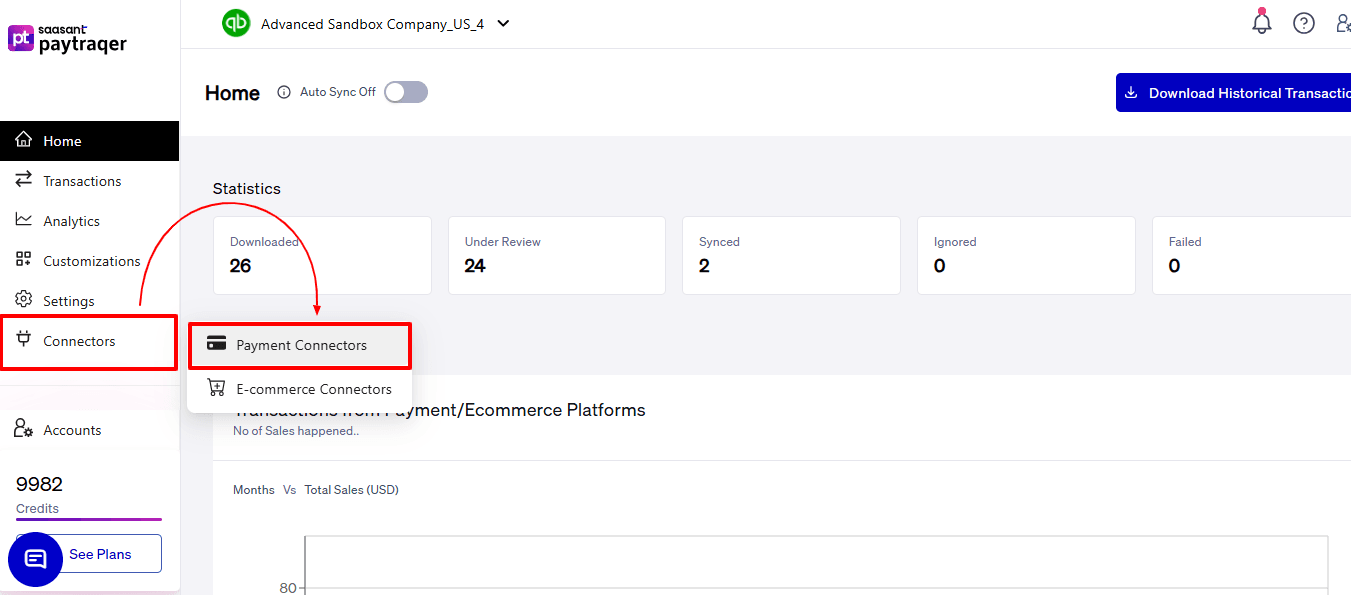
Find your Braintree connection in the list before proceeding to the next step.
Step 2: Review how Braintree transactions will be recorded in QuickBooks
In the Braintree connector row, click on See How It Works.
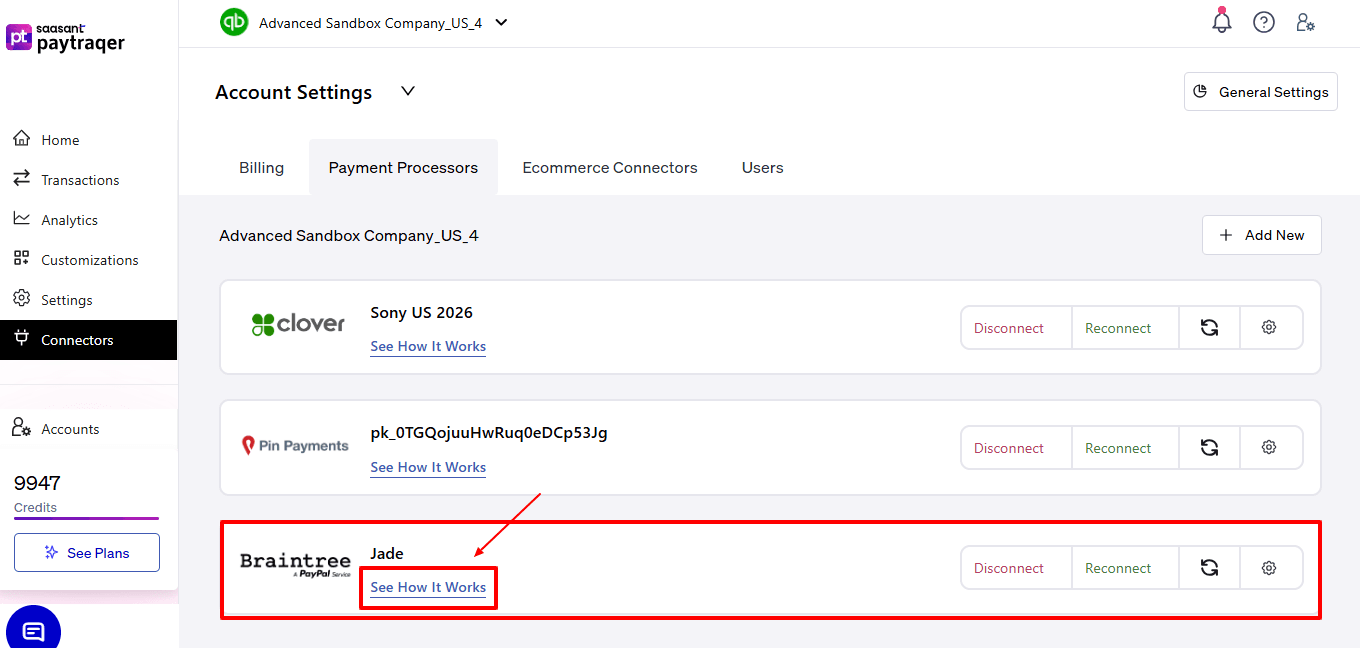
A User Guide window will open, showing how PayTraQer syncs Braintree transactions into QuickBooks entries.
Under Transaction Recording, check the mapping displayed for your Braintree sync.
Make sure that the payment is recorded as an invoice payment, and the fees are expenses in QuickBooks.
Confirm that Customer Refund is listed as Refund in QuickBooks.
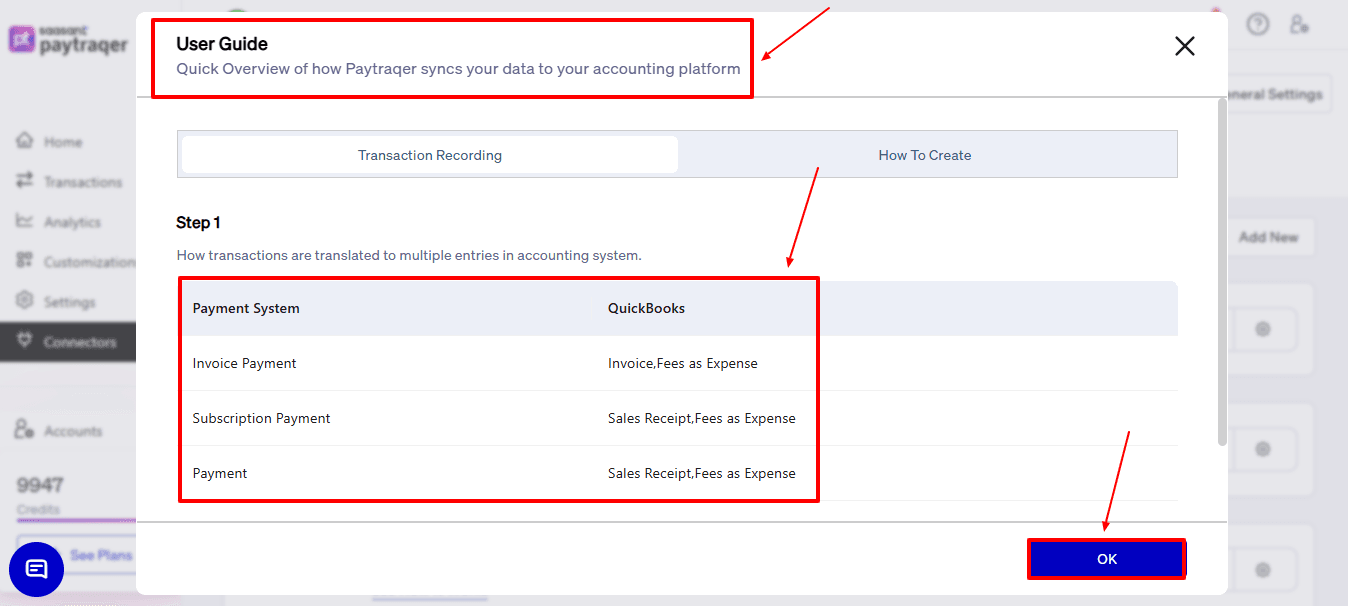
Payment System | QuickBooks |
Invoice Payment | Invoice, Fees as Expense |
Subscription Payment | Sales Receipt, Fees as Expense |
Payment | Sales Receipt, Fees as Expense |
Click “OK” once you have reviewed the transaction flow.
Step 3: Open the Transactions page in PayTraQer
On the left menu, select Transactions.
The Transactions dashboard has various organizational views that assist in managing and checking your data flow:
Section | Purpose |
Review | Lists transactions that are ready for syncing. |
Synced | Includes transactions that have already been sent to QuickBooks. |
Error | List transactions that failed and require correction. |
Ignore | Keeps track of transactions you deliberately avoided. |
Sync History | Provides a full timeline log of previous syncs. |
Stay in the Review tab to view Braintree transactions that are prepared to sync with QuickBooks Online.
In the Review tab, click on Filter.
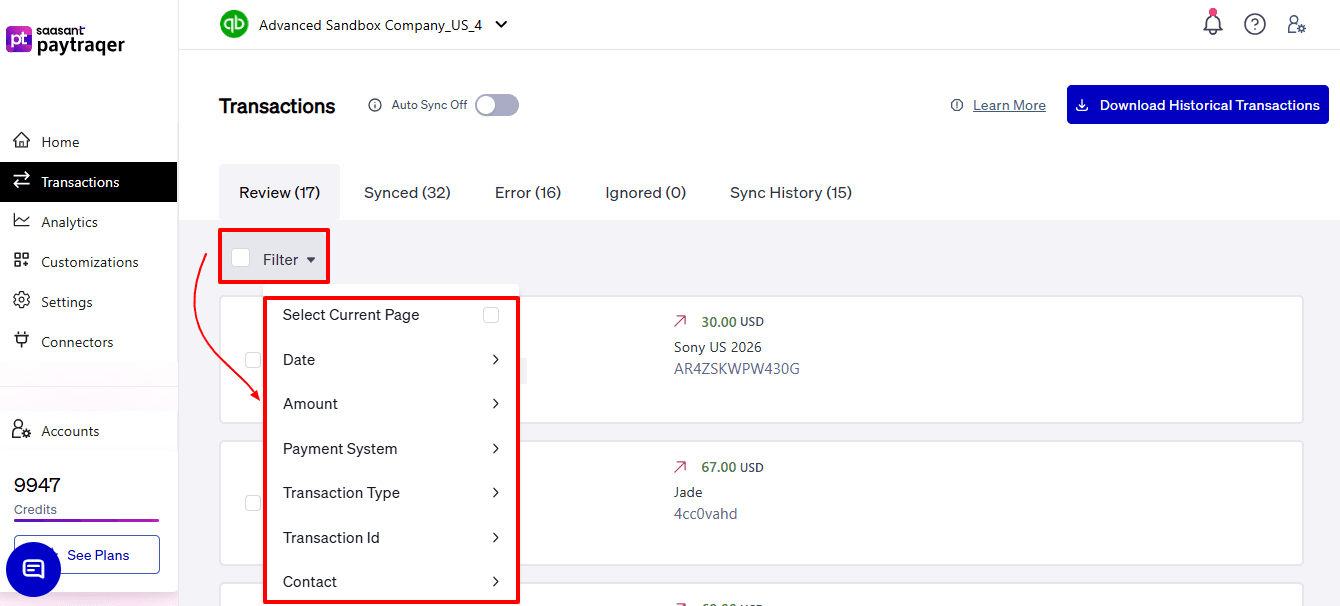
You can use options such as Date, Amount, Payment System, Transaction Type, Transaction ID, and Contact to filter the records.
Select Current Page if you want to choose all transactions that are currently displayed.
By applying the required filters, you can quickly find the Braintree transactions you need to review or sync.
This makes it easier to work with only the relevant transactions instead of going through each record manually.
Once you have applied the necessary filters, choose the Braintree transactions you want to process.
The selected records will be highlighted, and the total number of selected transactions will be visible at the bottom.
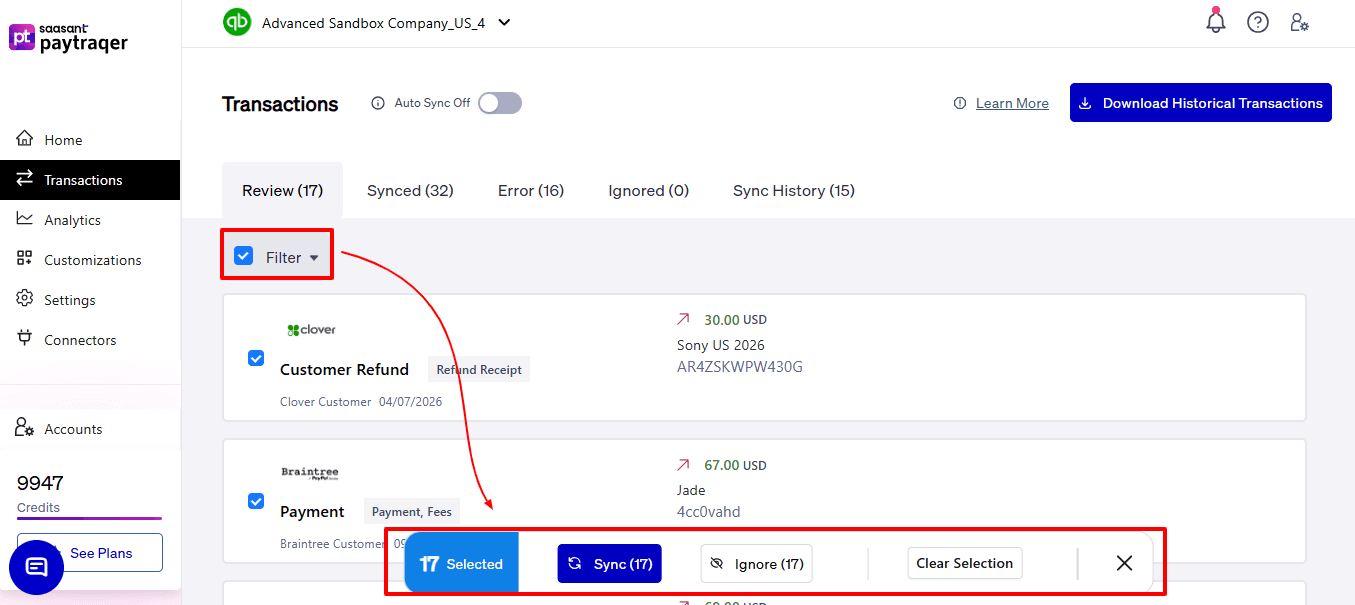
Use Sync to upload all selected Braintree transactions to QuickBooks Online at once.
Choose Ignore if you do not wish to sync the selected transactions.
Click Clear Selection to discard the selected records and restart if necessary.
This option enables you to manage multiple Braintree transactions in one go instead of syncing them one at a time.
Step 4: Start the sync review for the Braintree transaction
To sync the transaction, click on Review & Sync.
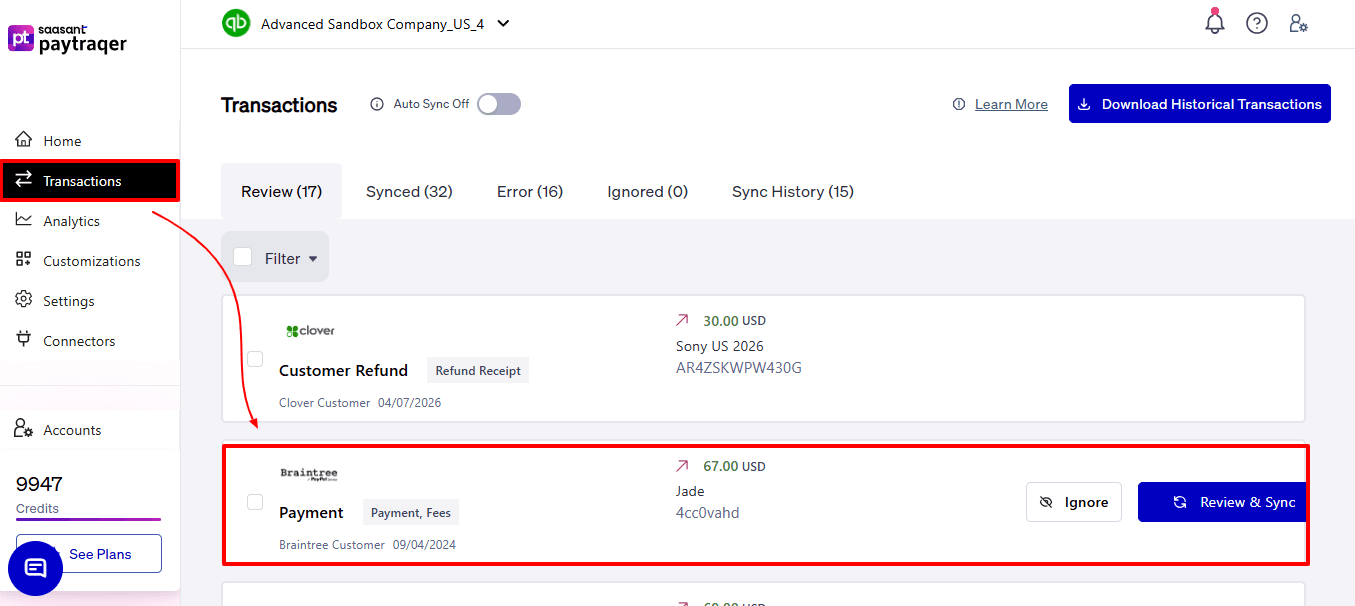
PayTraQer will display the transaction details on the right side of the screen.
In this section, confirm the Braintree transaction number, date, and amount.
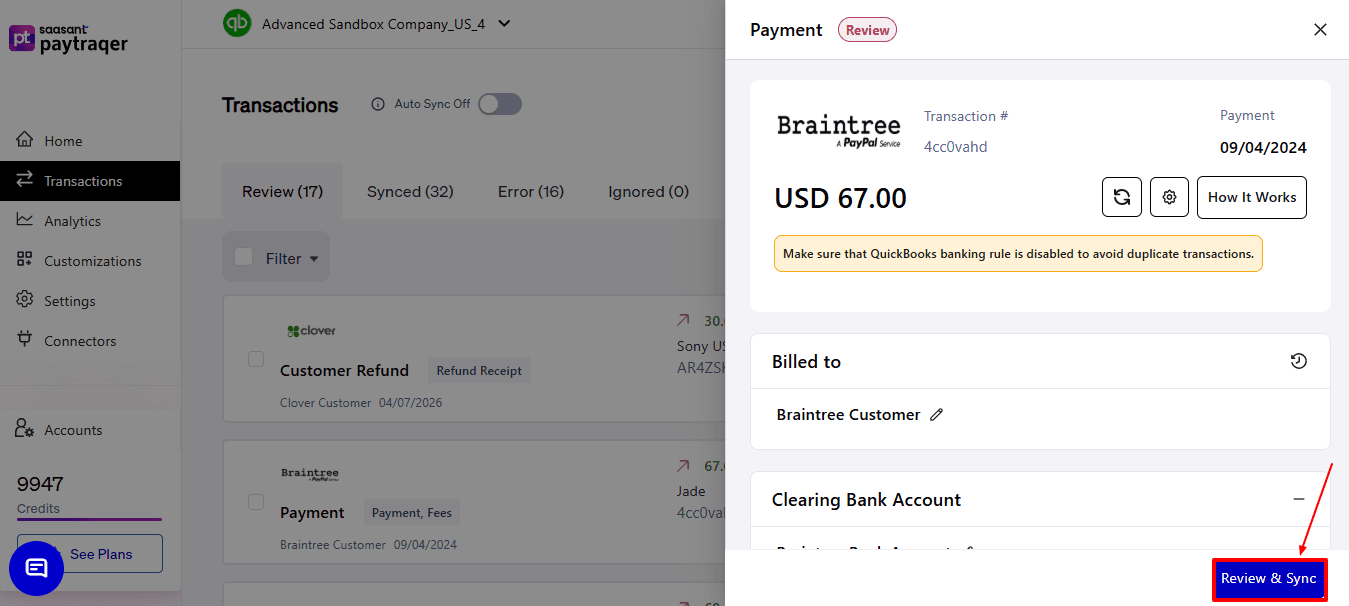
Also, check the QuickBooks transaction type mapped to this record.
Ensure you are looking at the right Braintree payment before proceeding.
Step 5: Confirm the synchronization result
After the sync, check the Synchronization Details window.
Make sure the status shows Successful.
Verify the QuickBooks entries created for the transaction, including the Invoice and Payment.
Step 6: Verify the synced transaction in PayTraQer
Go to the Synced tab to check the Braintree transactions that are already in QuickBooks Online.
Select Report if you want to see the sync summary.
If the transaction was mistakenly posted, use Undo to reverse the sync from PayTraQer.
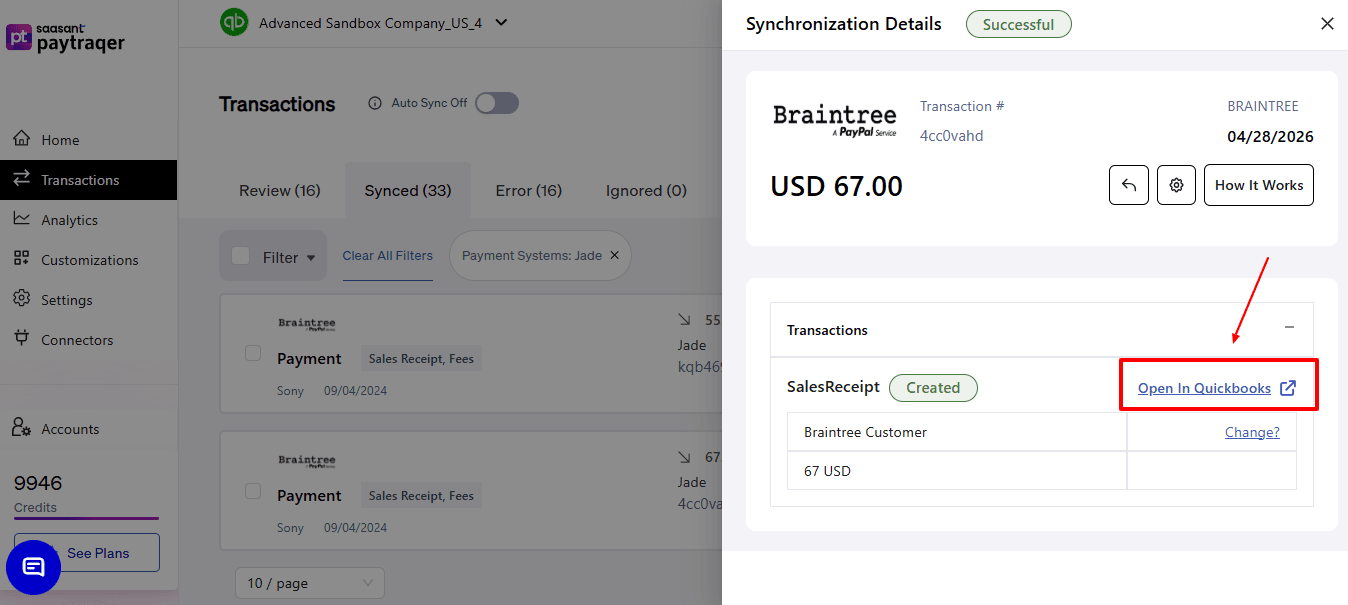
Use Details to review what was generated for the synced record.
Click on Open in QuickBooks next to the Invoice or Payment to check the record directly in QuickBooks Online.
Step 7: Review past sync
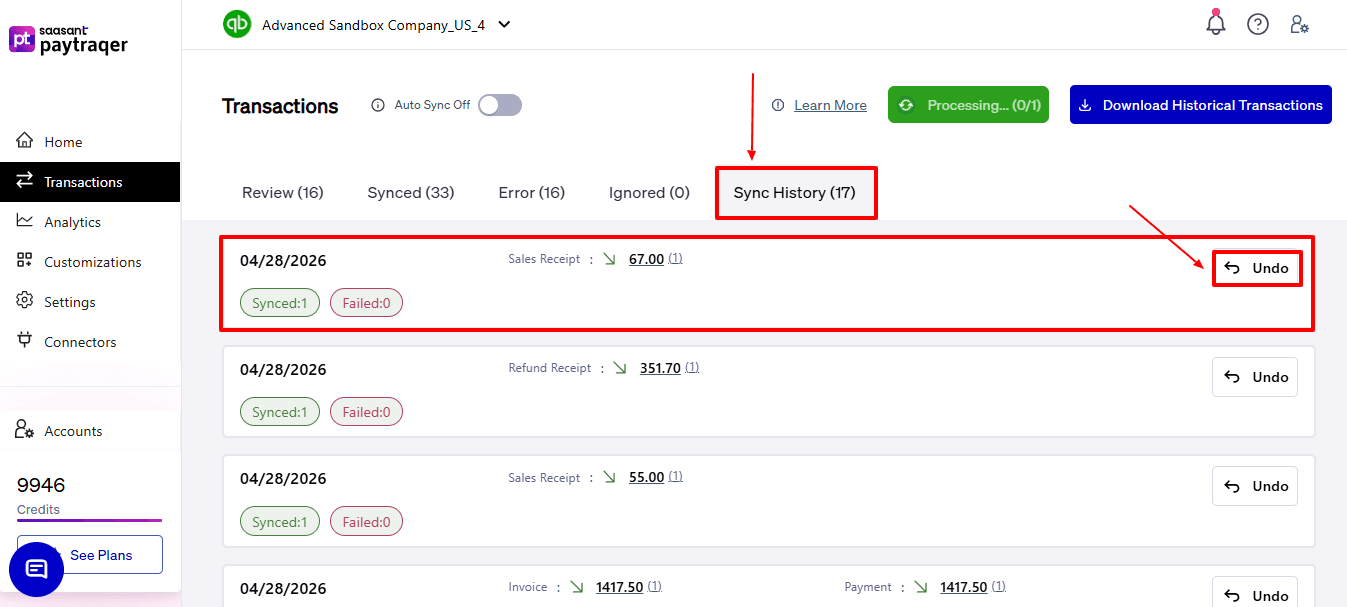
Go to the Sync History tab to look at previous Braintree sync activities.
Look at the sync date, the types of transactions made, and the count of successful or failed records.
This page helps you monitor earlier sync operations and verify what was posted.
If needed, you can use Undo here to reverse the Braintree transaction that was synced earlier.
Step 8: Open the Braintree Sync Settings page
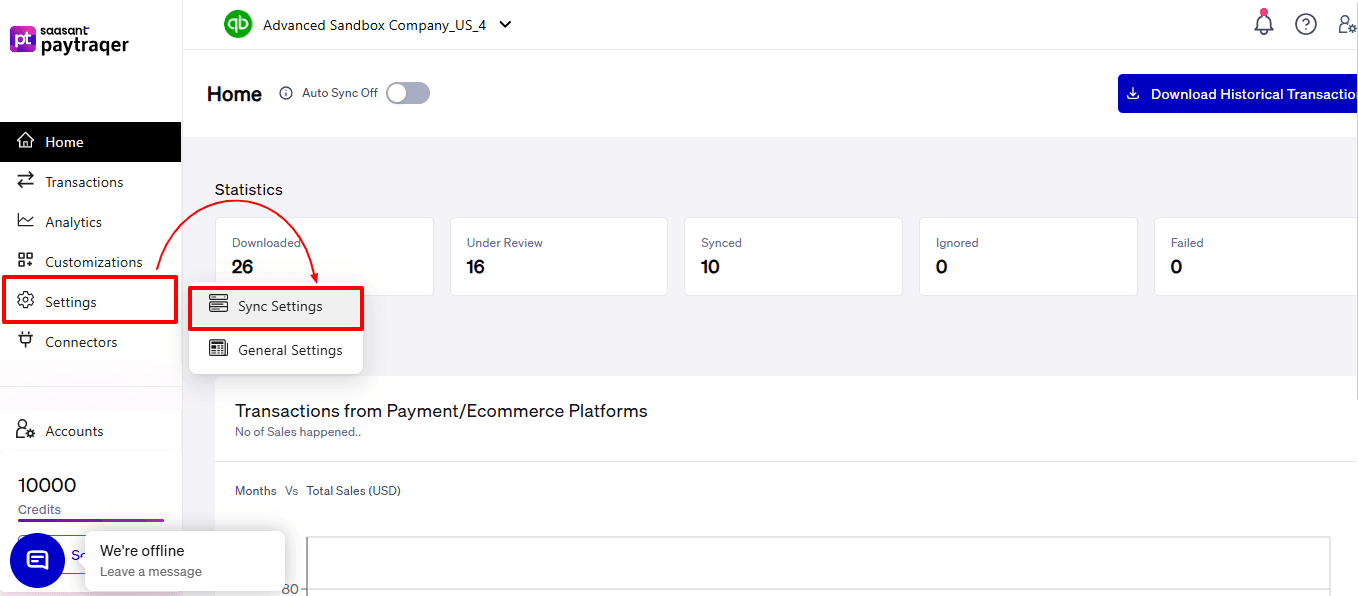
In the left menu, select Settings.
Choose Sync Settings from the list of options.
Find the Braintree connector card on the page.
Click Change Settings to access the Braintree sync configuration.
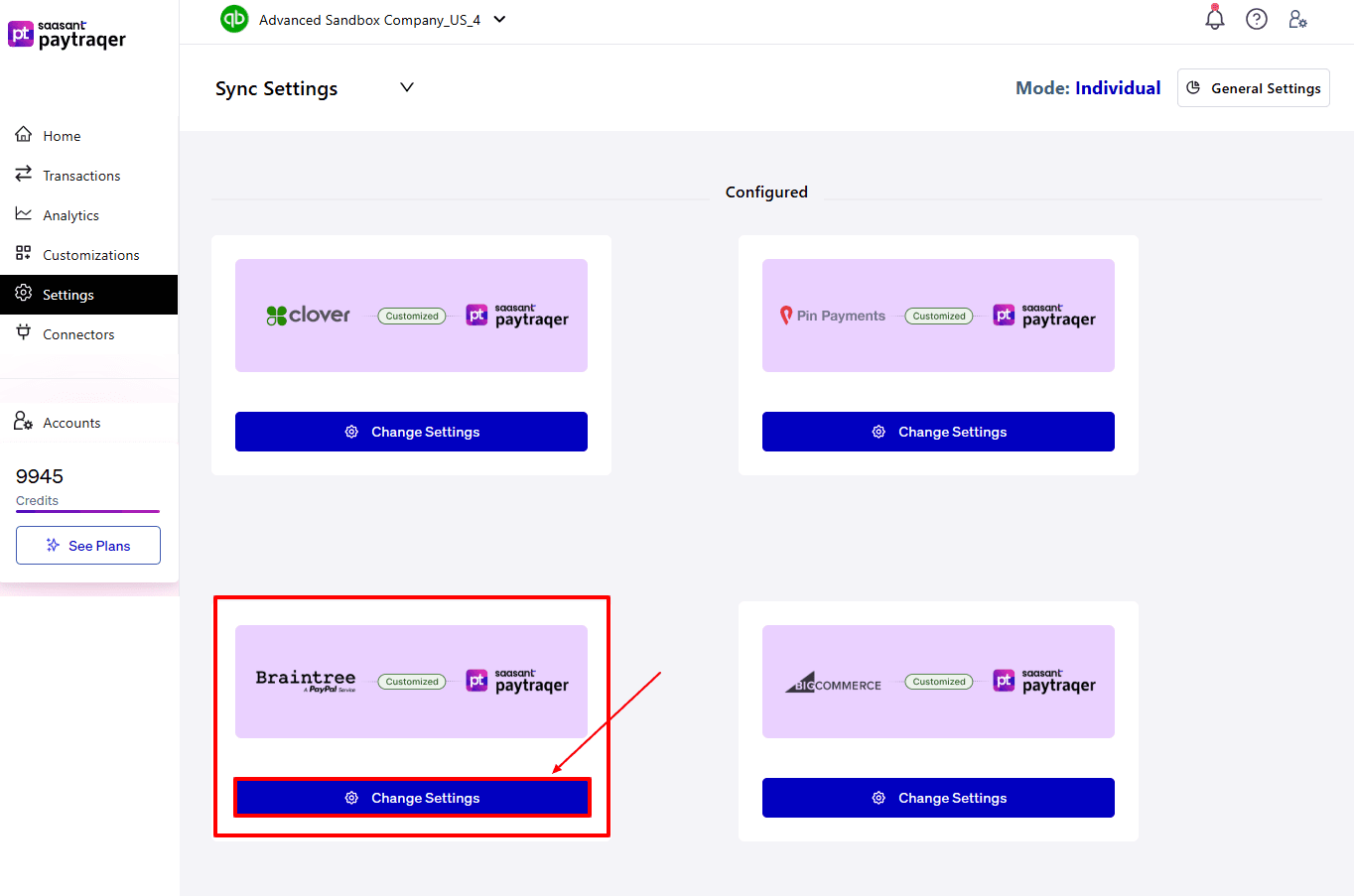
Ensure the Braintree settings screen is displayed before making any changes.
This page allows you to manage how Braintree Sales, items, customers, taxes, and fees sync with QuickBooks Online.
Step 9: Configure the Sales tab
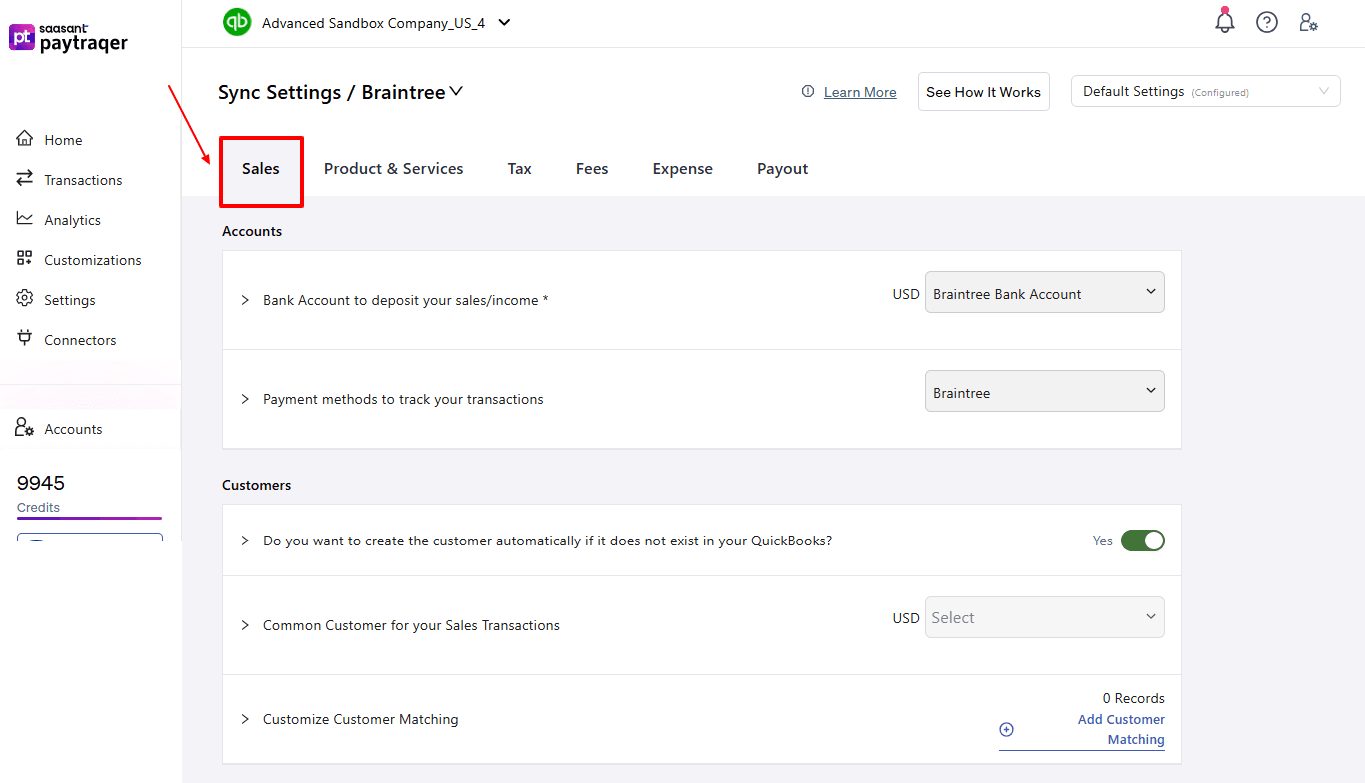
Open the Sales tab in the Braintree Sync Settings screen.
Under Accounts, select the bank account for Braintree's sales deposits in QuickBooks Online.
Choose the payment method for tracking Braintree transactions.
In the Customers section, decide if PayTraQer should automatically create customers if they don't exist in QuickBooks Online.
If you prefer not to create separate customers for each transaction, select a Common Customer for Braintree sales.
Use “Customize Customer Matching” if you want PayTraQer to align Braintree customers with existing QuickBooks customers based on your chosen matching rule.
Check any additional options for sales posting, tracking, class, or location if your QuickBooks company utilizes them.
If your process needs fee-only posting, look at the sync option for skipping sales and only processing related fees.
After reviewing the sales-related mapping, click “Save”.
Step 10: Configure the Product and Services tab
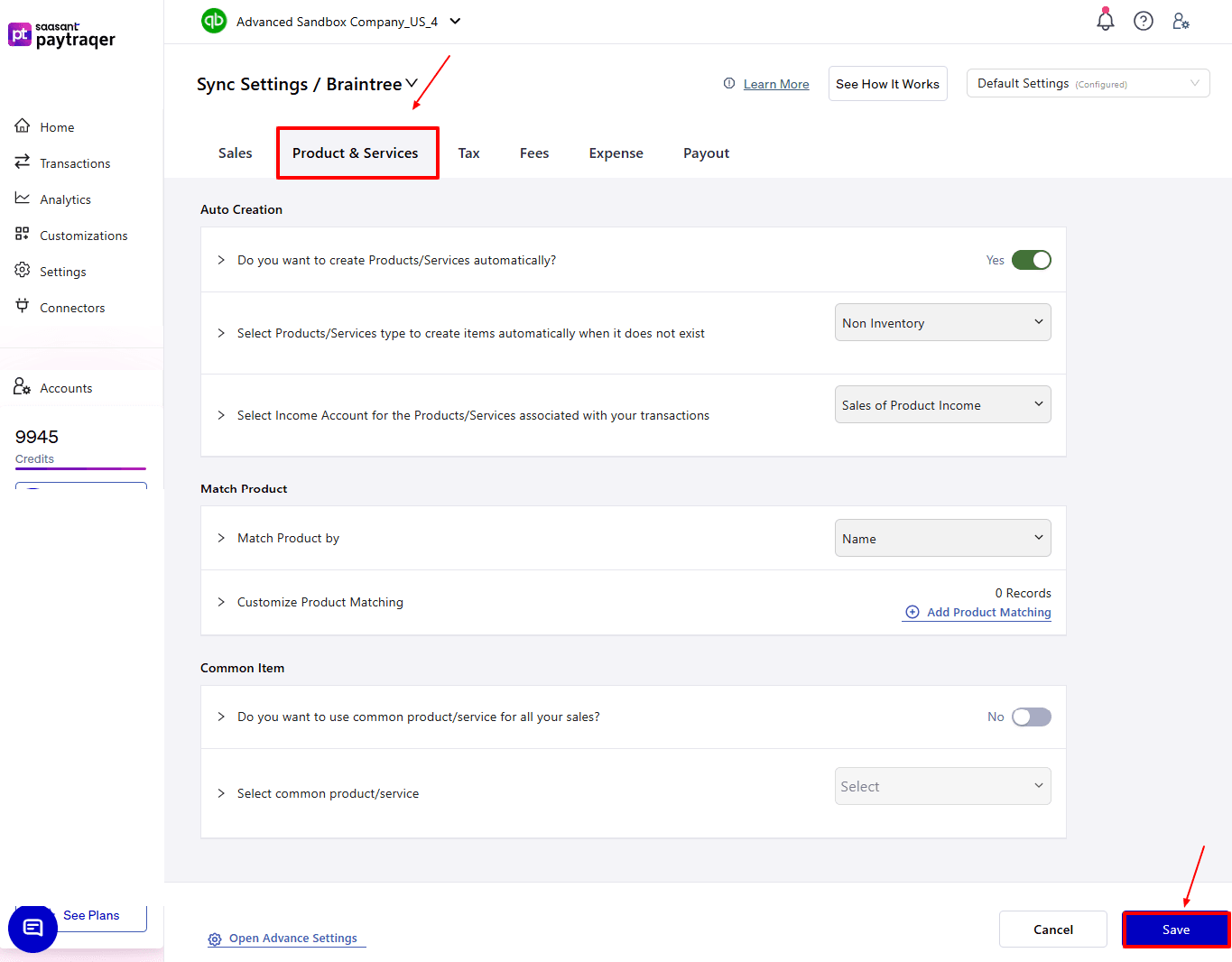
Open the Product & Services tab.
Enable the option to automatically create products or services if the Braintree item isn't already in QuickBooks Online.
Select the type of product or service that PayTraQer should generate, like Non-Inventory, if it suits your workflow.
Pick the income account that will be associated with the products or services created from Braintree transactions.
In the Match Product section, decide how product matching should occur, such as by Name.
Utilize Customize Product Matching if you wish to establish precise matching rules between Braintree items and QuickBooks products or services.
If you prefer all Braintree sales to utilize a single common item in QuickBooks Online, enable the common product or service option and choose that item
Carefully review the product setup to ensure that new and existing Braintree items sync properly.
Click “Save” once the Product and Services settings are finalized.
Step 11: Configure the Tax tab
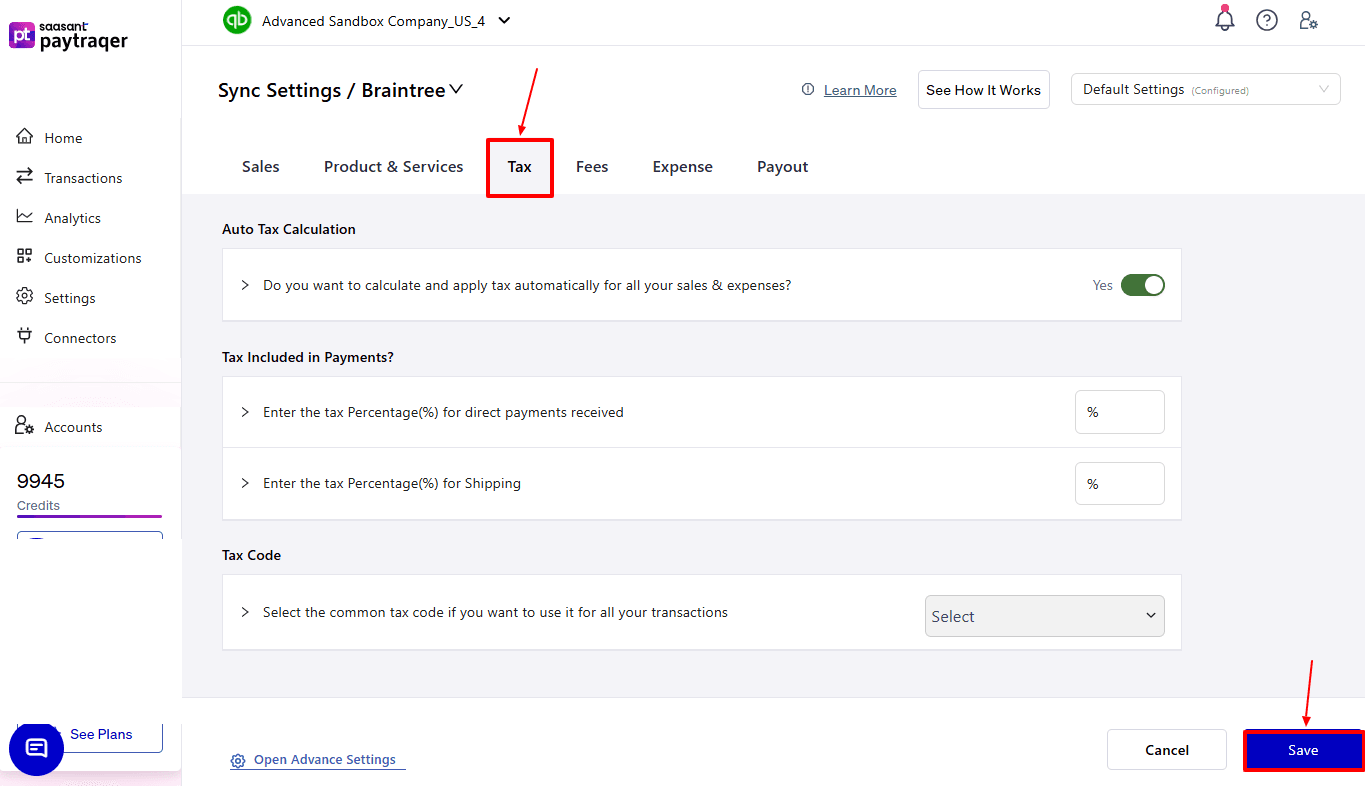
Open the Tax tab.
Enable automatic tax calculation if you want PayTraQer to automatically compute and apply tax for all Braintree sales and expenses.
Enter the necessary tax percentage for direct payments received if your setup requires tax values in this section.
Enter the shipping tax percentage if you need to track shipping tax separately.
Select the common tax code you want PayTraQer to use for Braintree transactions in QuickBooks Online.
Make sure the tax code you select here matches the tax setup in QuickBooks Online.
Check the full tax mapping before saving, as incorrect tax settings can affect transaction totals and reporting.
Click “Save” after you finish with the Tax tab.
Step 12: Configure the Fees tab
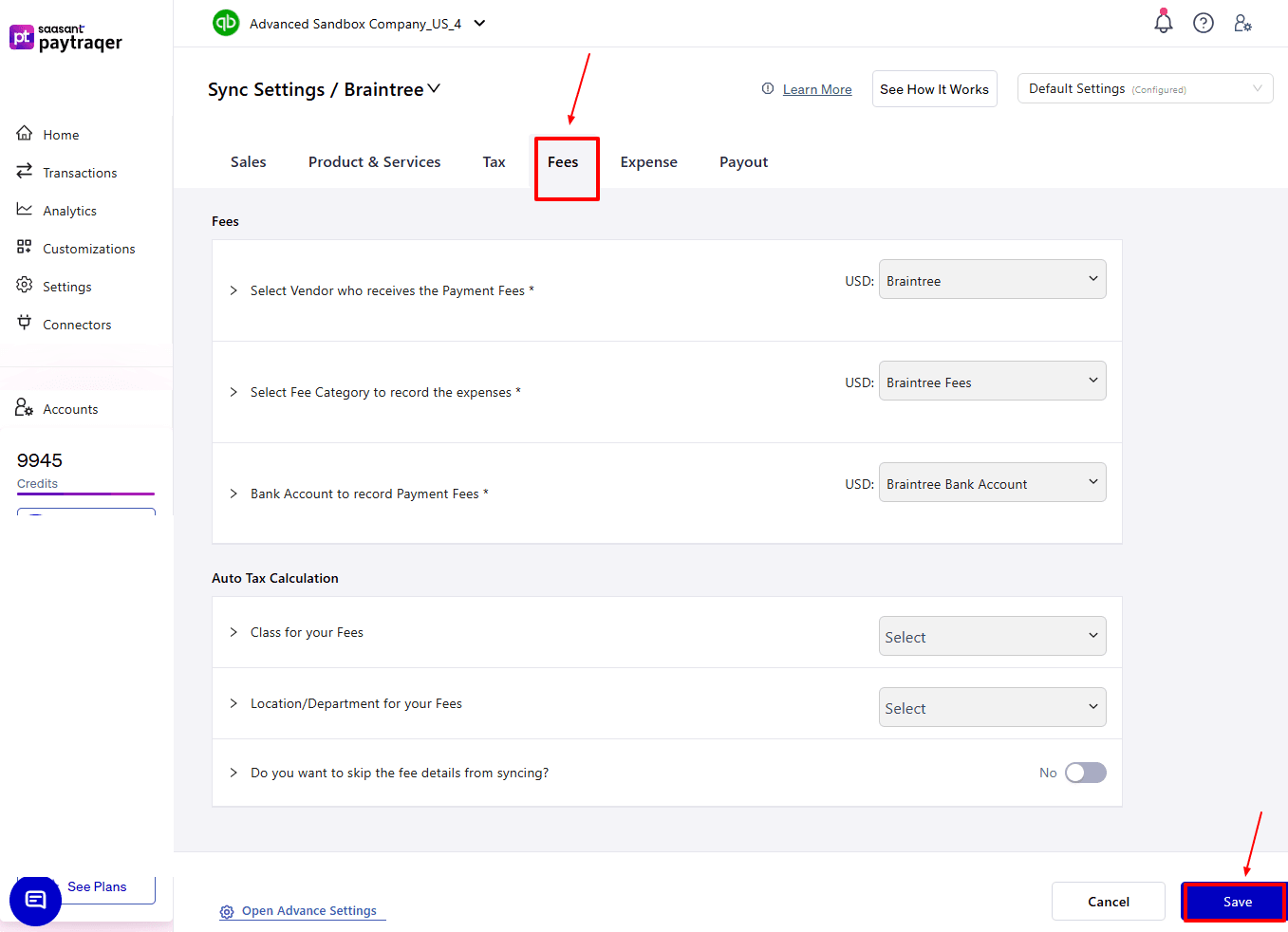
Choose the vendor that will get the Square payment fees, pick the fee category to log those expenses, and specify the bank account for recording the payment fees in QuickBooks.
If you want all synced fee entries to be assigned to one class for reporting, select a class for your fees.
Select a location or department for your fees, or enable the option to skip syncing fee details.
Check the fees tab thoroughly, then click Save.
Step 13: Configure the Payout tab
Next, open the Payout tab.
Decide if you want to handle payouts or settlements from Square.
Turn on this option if you want PayTraQer to sync payouts as transfer transactions to your chosen checking account.
Check the payout settings thoroughly, then click Save.
Step 14: Configure the Expense tab
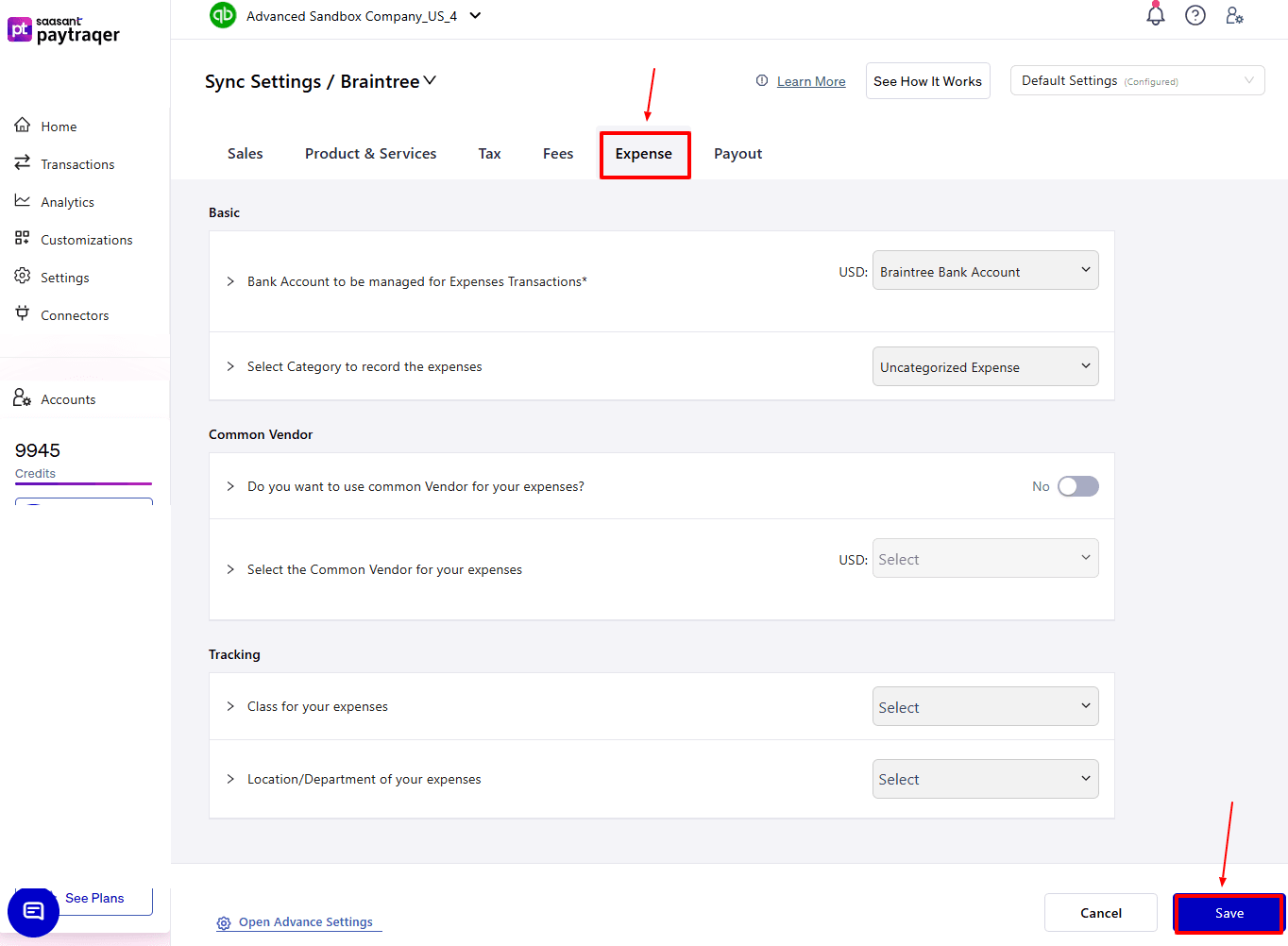
In the Basic section, pick the bank account that will handle expense transactions, like the Braintree Bank Account.
Select the expense category for PayTraQer to log the downloaded expense transactions in QuickBooks.
In the Common Vendor section, turn on the option if you prefer to use a single vendor for all Braintree expense transactions.
If this option is on, choose the common vendor from the dropdown according to the currency displayed, such as USD.
In the Tracking section, select the class and location or department for your expenses, then click Save to apply the changes.