How to Obtain Braintree Keys
February 6, 2025
Here are the steps to get your Braintree keys.
Step 1: Log in to Your Braintree Account
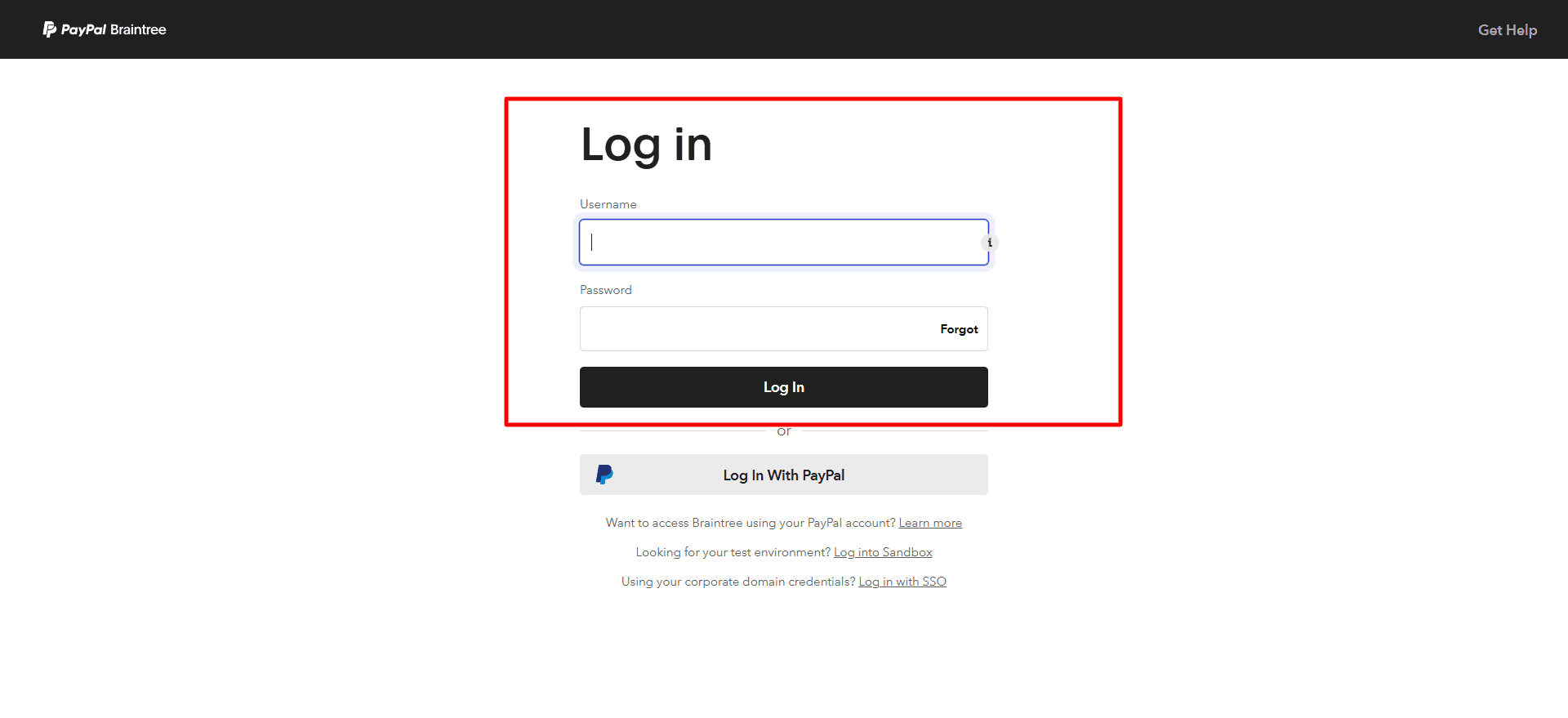
Go to the Braintree login page and enter your registered Email address and Password in the necessary fields.
Press the Log in button to access your Braintree dashboard.
Step 2: Open the API Section
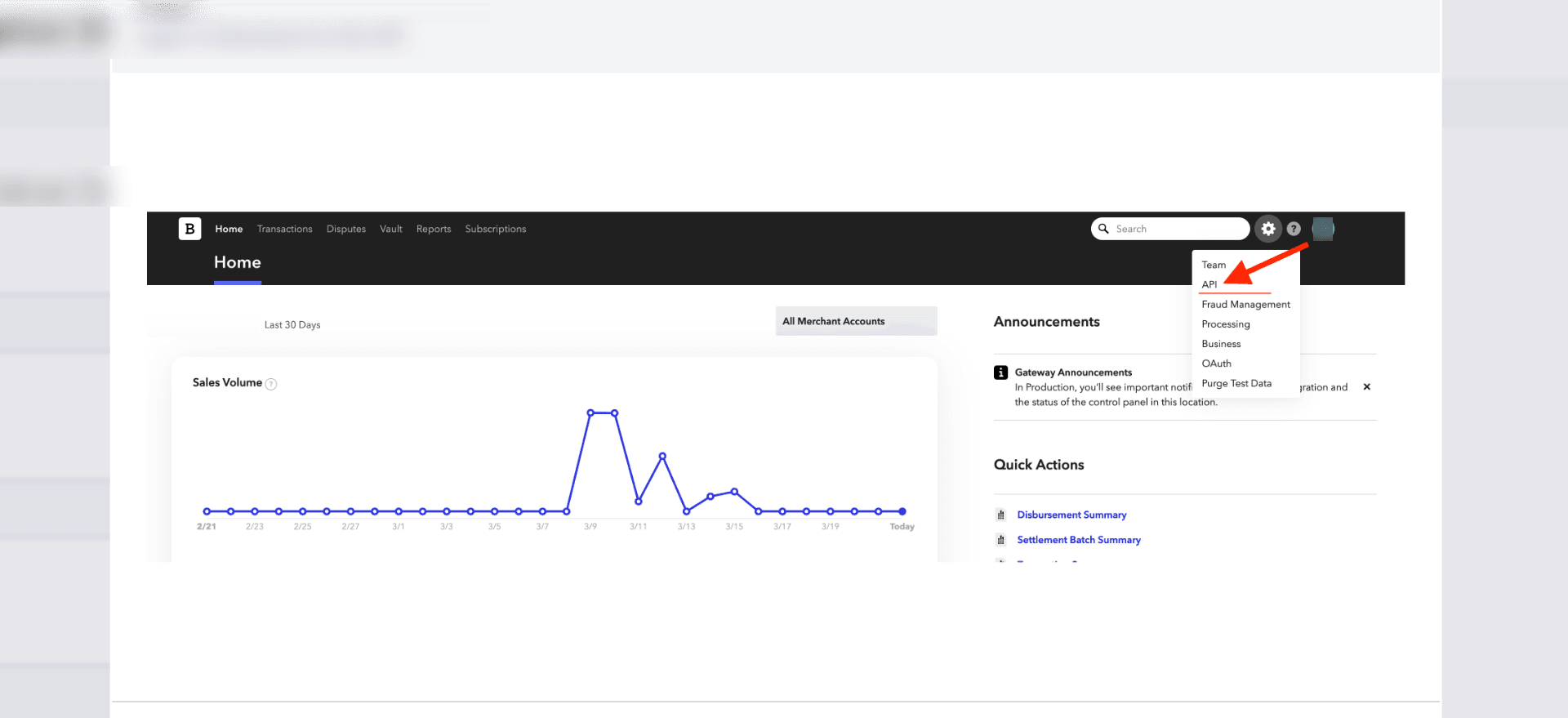
Click the Settings icon at the top-right of the dashboard and select API from the dropdown menu.
This section includes the essential information needed to link Braintree with outside platforms or accounting software.
Step 3: Generate a New API Key
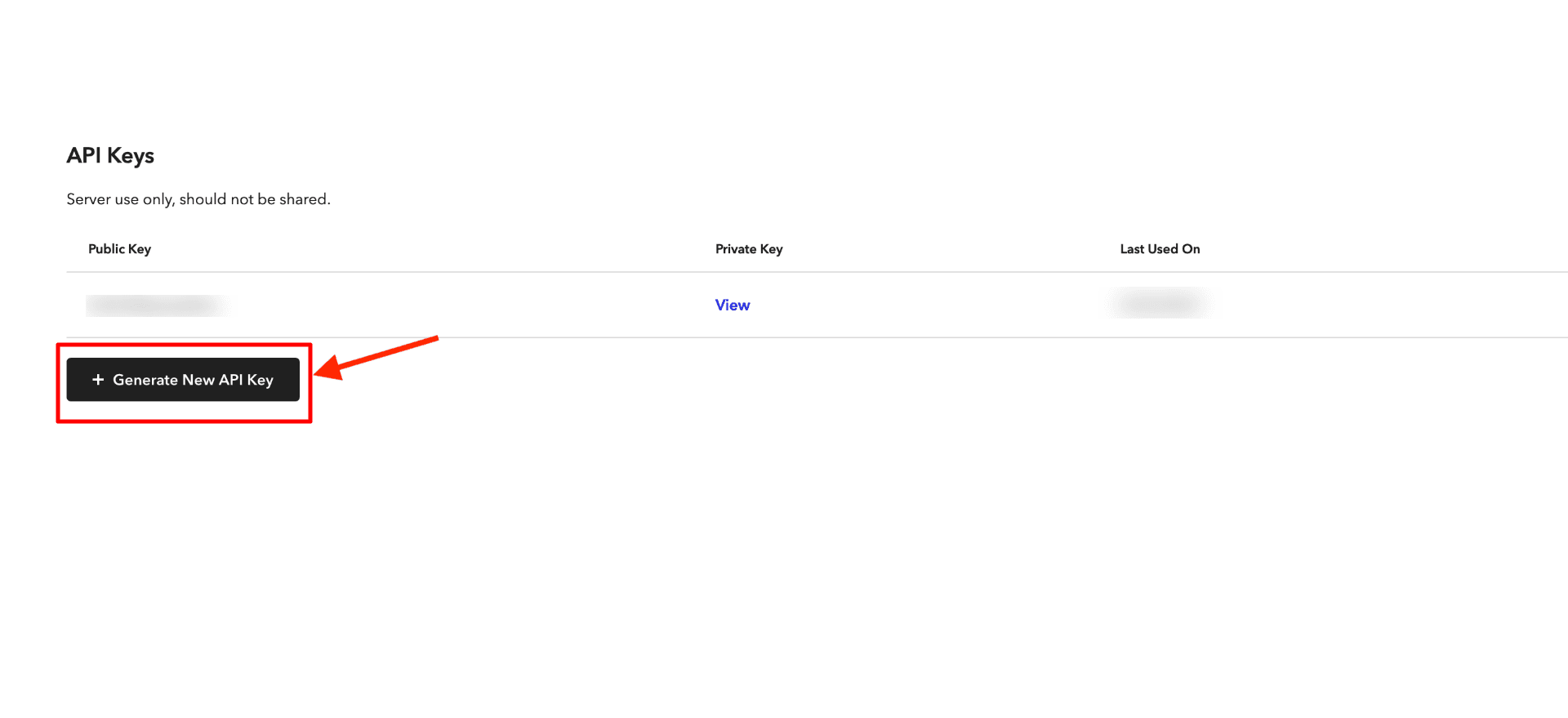
On the API Keys page, check the current public key, private key, and last used information.
If you require a new set of API credentials, click on Generate New API Key.
Braintree will generate a new key pair for server-side integrations.
Choose this option when establishing a new integration or if your existing key is not accessible.
Step 4: Copy the Required Braintree Credentials
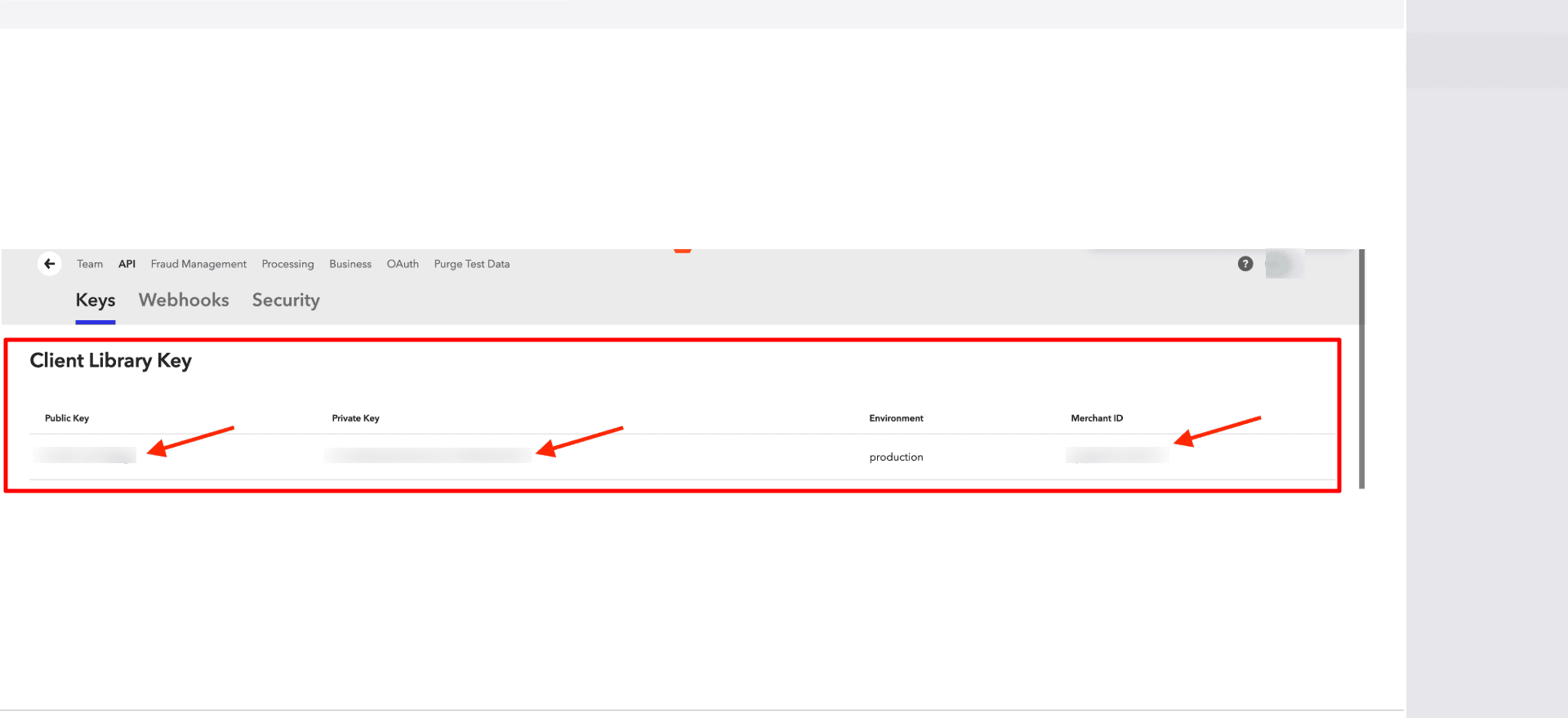
In the Client Library Key area, find the necessary credentials for your account.
Copy the Public Key, Private Key, and Merchant ID from the shown fields.
Ensure the environment is set properly, like production, before using the credentials for live syncing.
Step 5: Enter the Braintree Details in PayTraQer
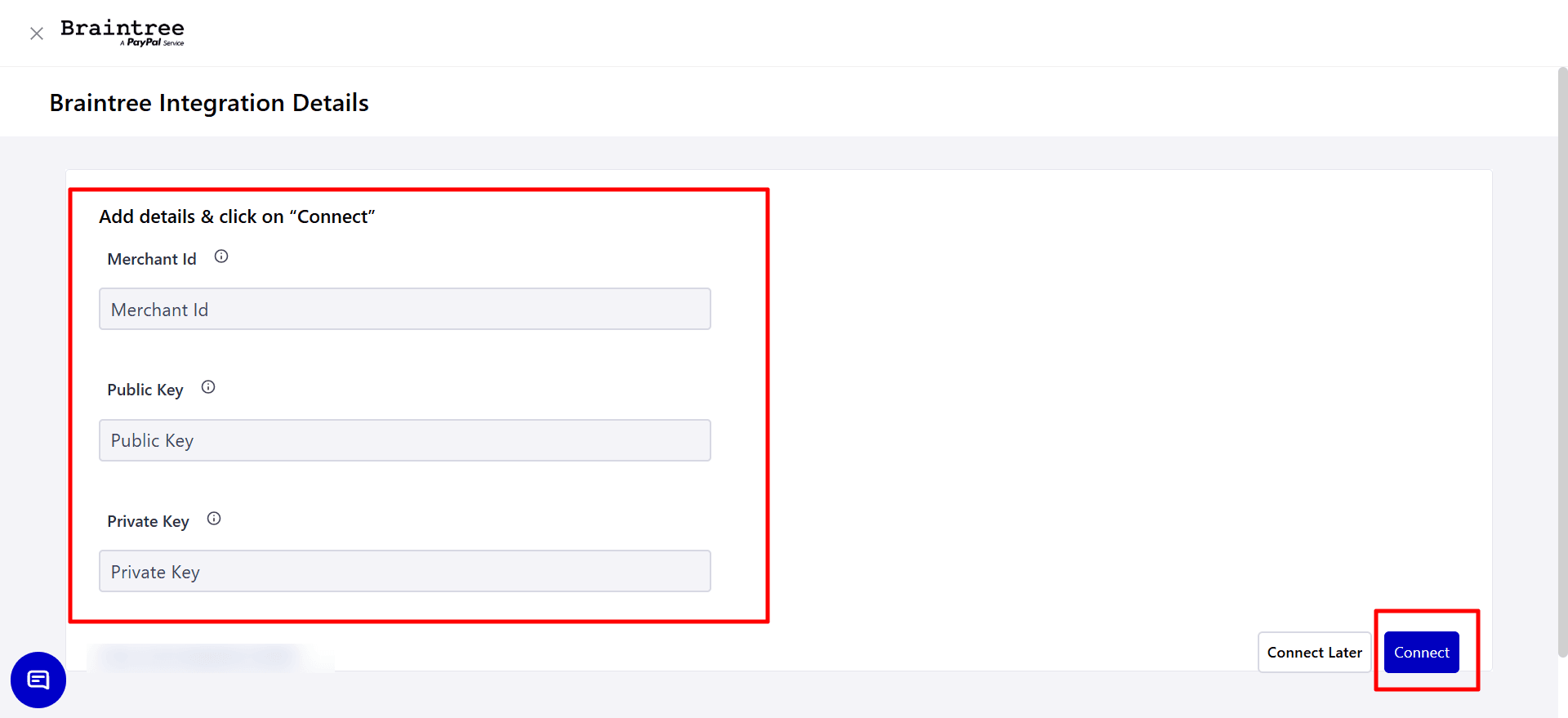
Open Braintree Integration Details in PayTraQer and enter the copied Merchant ID, Public Key, and Private Key.
Review each value carefully to ensure there are no missing spaces, extra characters, or incorrect keys.
Click on Connect to connect your Braintree account with PayTraQer and continue with the sync setup.
Video tutorial for How to connect and Sync BrainTree Transactions to QuickBooks Online using PayTraQer: