How to Sync PayPal Transactions into QuickBooks Online
January 1, 2025
To download and sync PayPal transactions into QuickBooks Online, you must link your PayPal account with PayTraQer. This article explains how to integrate your PayPal account with PayTraQer and sync PayPal payments, fees, refunds, and payouts into QuickBooks Online.
Step 1: Open the PayPal connector in PayTraQer
Log in to PayTraQer with the QuickBooks Online company you want to sync with PayPal.
From the left menu, select Connectors.
Choose Payment Connectors to view the payment platforms connected to your PayTraQer account.
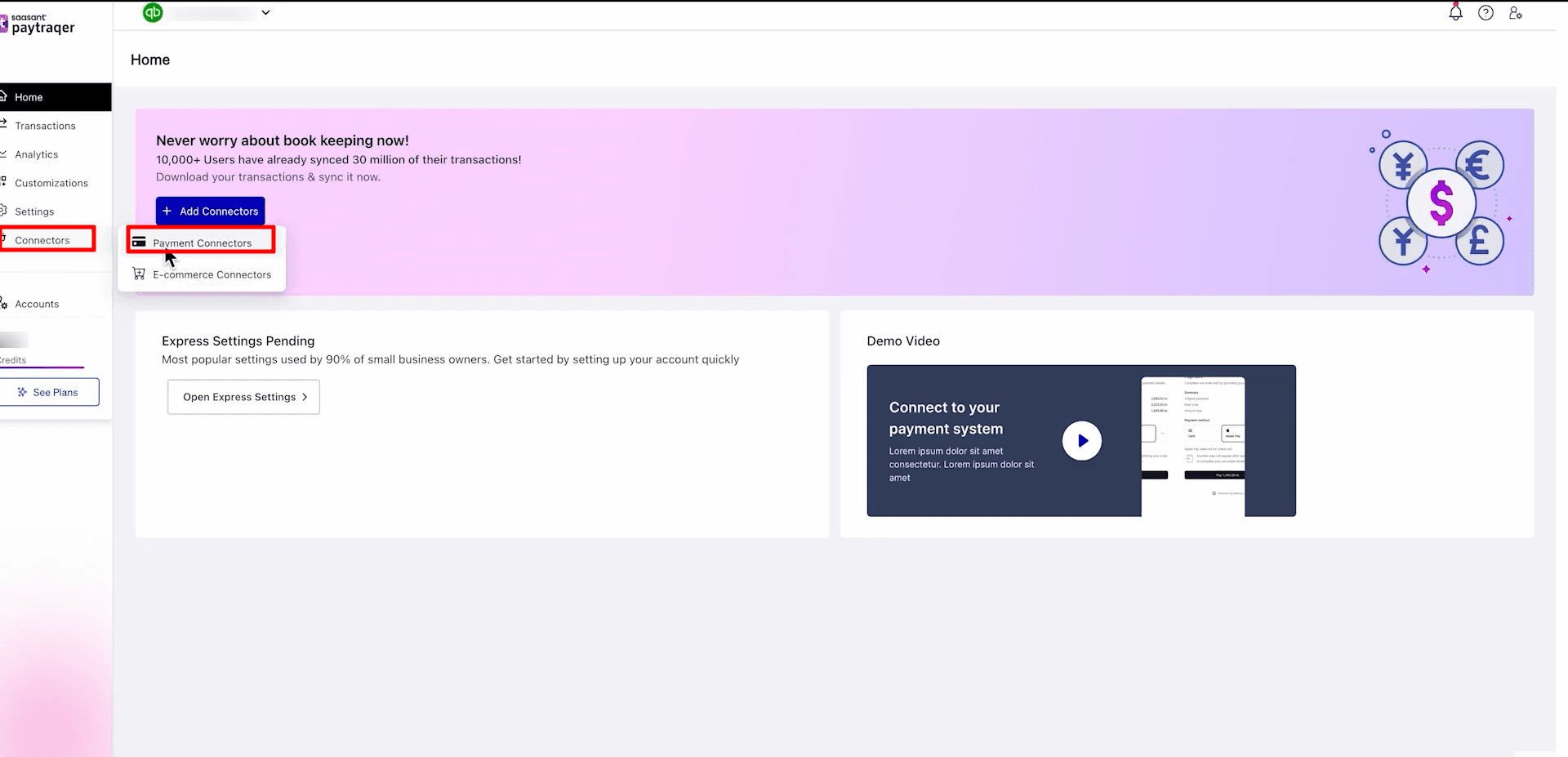
Find your PayPal connection from the list.
Make sure the PayPal connector is connected and active before moving to the next step.
Step 2: Review how PayPal transactions will be recorded in QuickBooks
In the PayPal connector row, click See How It Works.
A User Guide window will open.
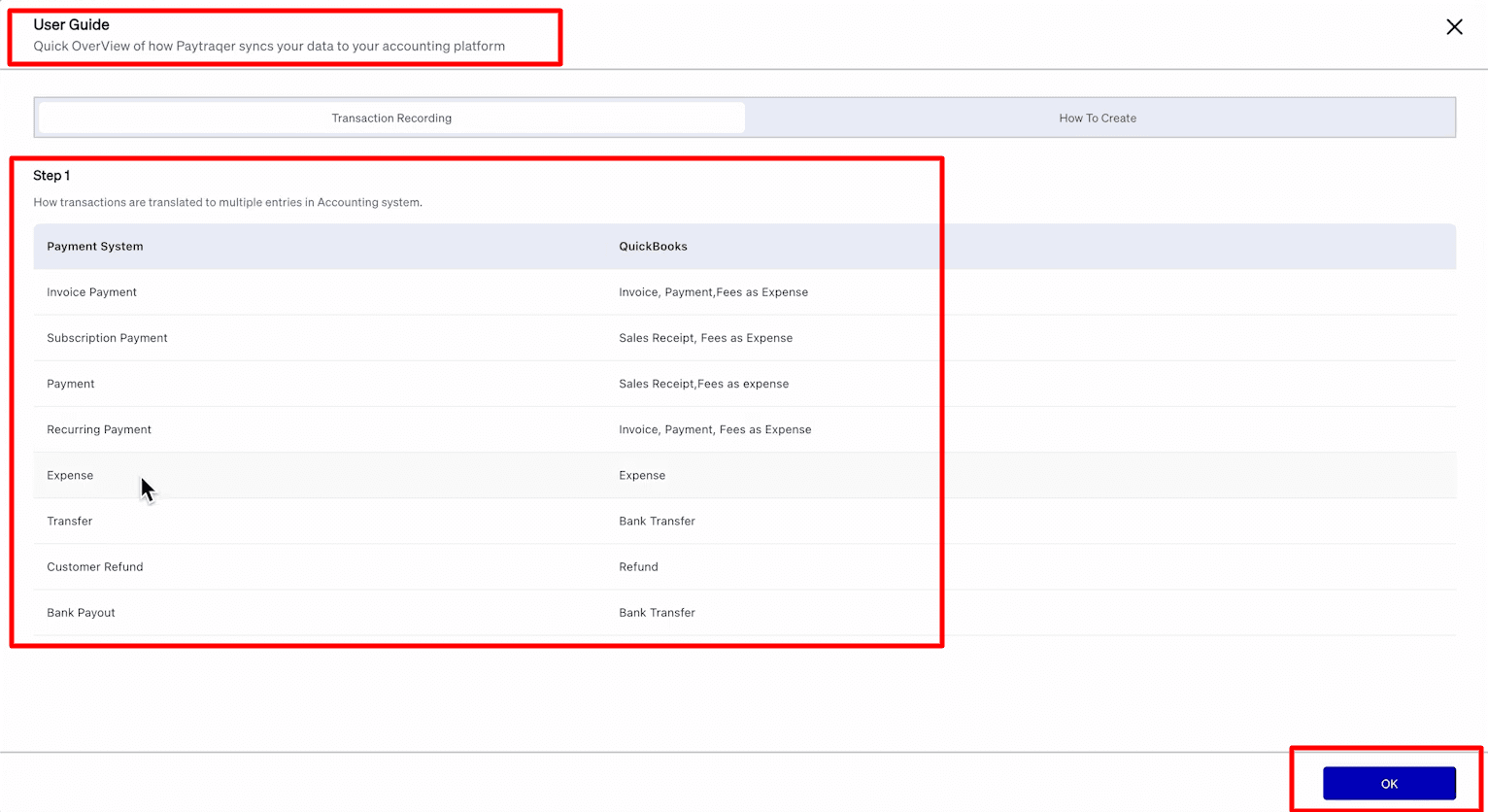
Review how PayTraQer converts each PayPal transaction type into QuickBooks Online entries.
Check how PayPal payments, fees, refunds, payouts, and adjustments are mapped in QuickBooks Online.
Payment System | QuickBooks |
Payment | Sales Receipt, Fees as Expense |
Invoice Payment | Invoice, Payment, Fees as Expense |
Customer Refund | Refund |
Payout | Bank Transfer |
Expense | PayPal Fees as Expense |
Adjustment | Expense |
Make sure PayPal fees are recorded as expenses.
Confirm that PayPal payouts are recorded as bank transfers.
Click OK once you have reviewed the transaction recording flow.
Step 3: Open the Transactions page in PayTraQer
From the left menu, select Transactions.
The Transactions dashboard will show different tabs to help you review and manage PayPal transactions before and after syncing.
Section | Purpose |
Review | Lists PayPal transactions that are ready to sync. |
Synced | Shows PayPal transactions already posted to QuickBooks Online. |
Error | Lists transactions that failed during sync and need correction. |
Ignore | Stores transactions you chose not to sync. |
Sync History | Shows the timeline of previous sync activities. |
Stay in the Review tab to view PayPal transactions that are ready to sync with QuickBooks Online.
Click Filter to narrow down the PayPal transactions you want to review.
You can filter transactions using options such as Date, Amount, Payment System, Transaction Type, Transaction Id, and Contact.
Select Current Page if you want to choose all PayPal transactions displayed on the current page.
After applying the required filters, select the PayPal transactions you want to process.
The selected transactions will be highlighted, and the total selected count will appear at the bottom of the screen.
Click Sync to upload the selected PayPal transactions to QuickBooks Online in bulk.
Choose Ignore if you do not want to sync the selected PayPal transactions.
Click Clear Selection if you want to remove the current selection and start again.
This helps you review and sync multiple PayPal transactions at once instead of processing each record manually.
Step 4: Start the sync review for a PayPal transaction
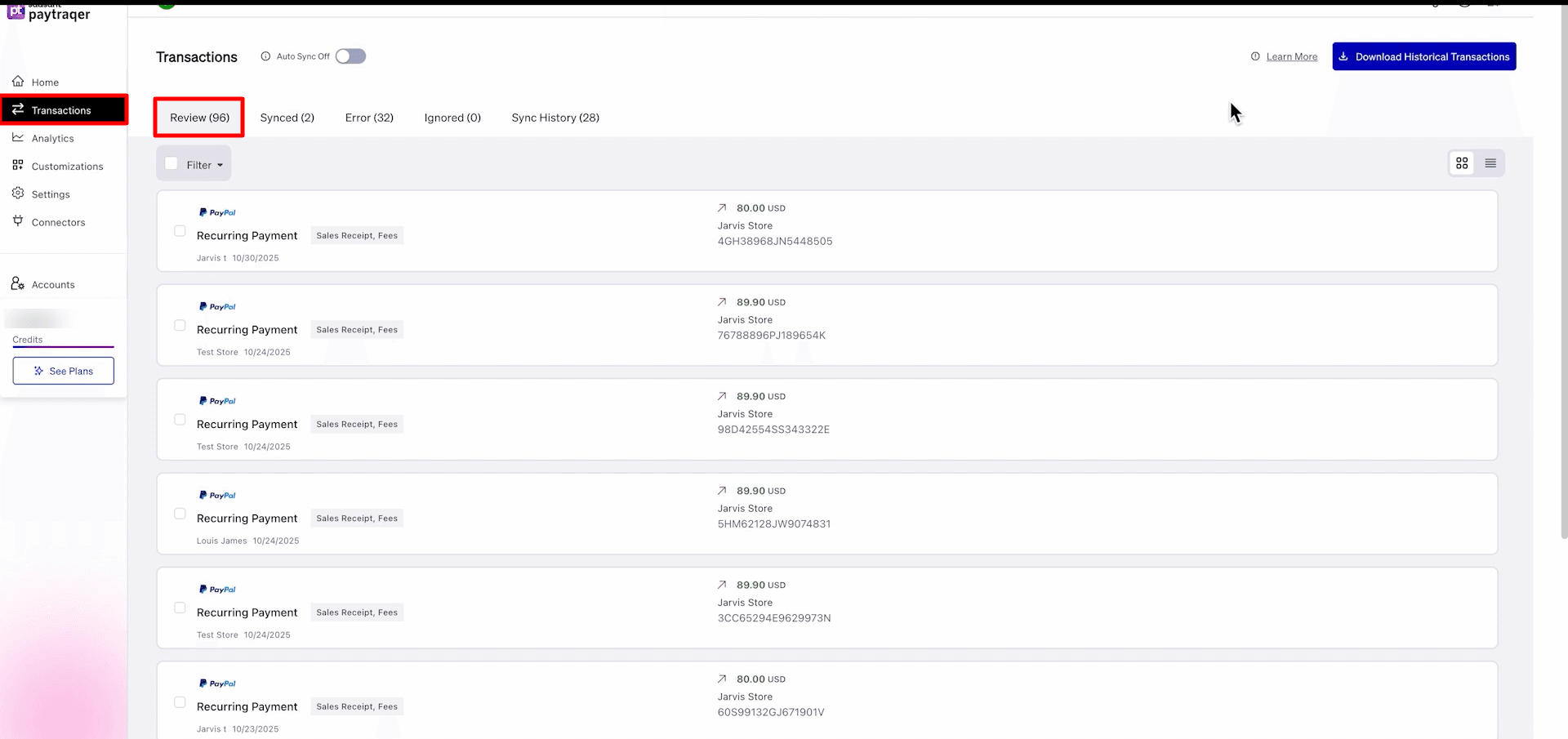
Go to the Review tab on the Transactions page.
Find the PayPal transaction you want to sync.
Review the transaction type shown on the record, such as Recurring Payment.
Check the mapped QuickBooks entry type displayed on the transaction, such as Sales Receipt, Fees.
Review the customer name, transaction date, amount, and transaction ID before syncing.
For this PayPal transaction, confirm the amount shown in PayTraQer.
Click Review & Sync to open the transaction review panel.
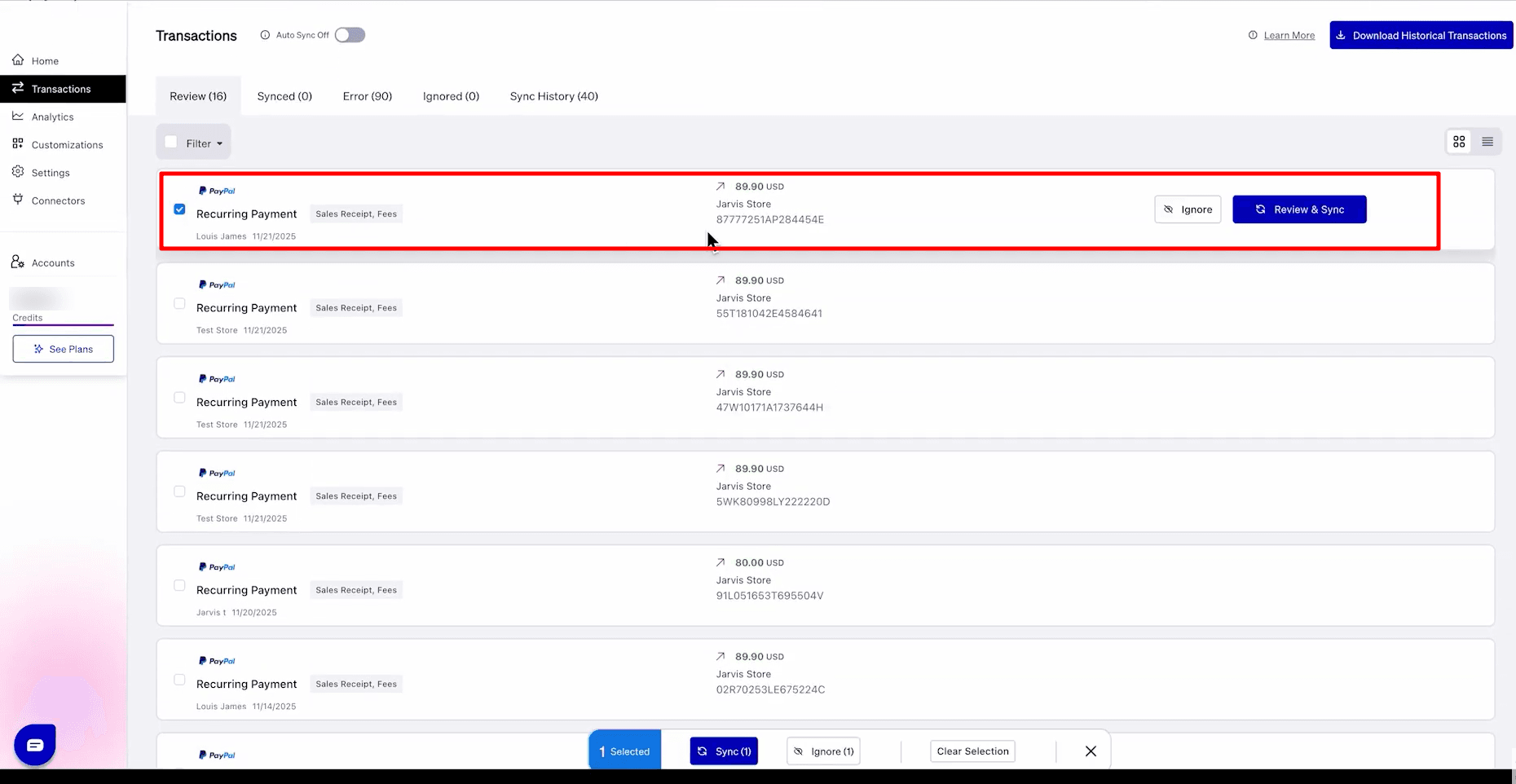
If you do not want to sync the selected PayPal transaction, click Ignore.
In the review panel, verify the PayPal transaction details and QuickBooks mapping.
Once the details look correct, click Review & Sync to sync the PayPal transaction into QuickBooks Online.
Step 5: Review the PayPal transaction details before syncing
PayTraQer will open the PayPal transaction details on the right side of the screen.
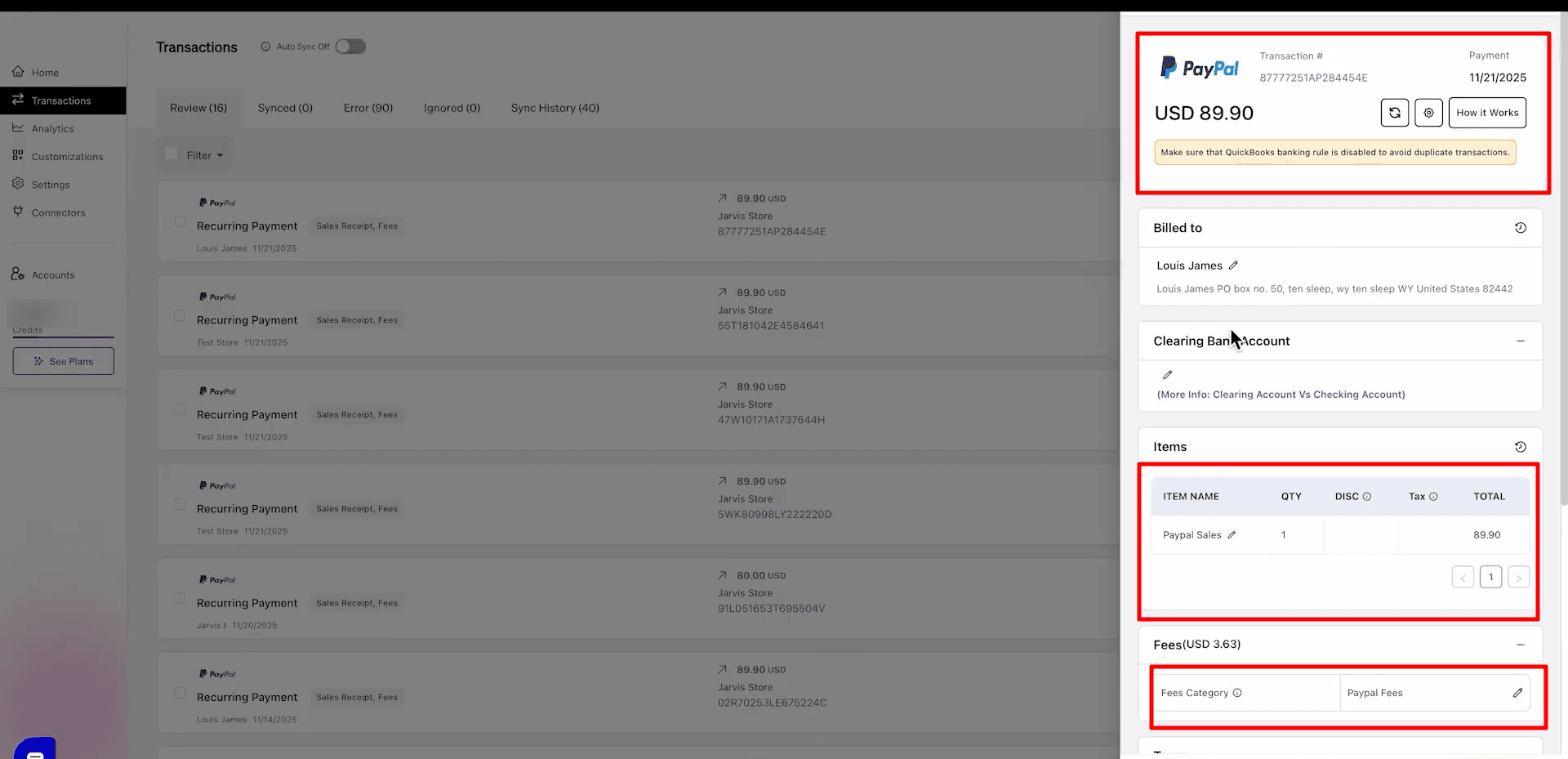
Confirm the PayPal transaction type, transaction number, date, and amount.
Check the customer details under the Billed to section.
Review the customer name and billing address shown for the PayPal transaction.
In the Clearing Bank Account section, confirm the account used to track the PayPal payment before it is matched with the bank deposit.
Review the Items section.
Check the item name, quantity, tax, and total amount.
For this PayPal transaction, the item is mapped as Paypal Sales.
Review the Fees section.
Confirm the PayPal fee amount and the fee category selected for the transaction.
For this transaction, the fee is mapped under Paypal Fees.
Make sure the sales amount and PayPal fee details are correct before syncing.
PayTraQer may show a reminder to disable QuickBooks banking rules to avoid duplicate transactions.
Once the transaction details look correct, click Review & Sync to sync the PayPal transaction into QuickBooks Online.
Step 6: Confirm the synchronization result
After clicking Review & Sync, PayTraQer will show the Transactions Synced Successfully window.
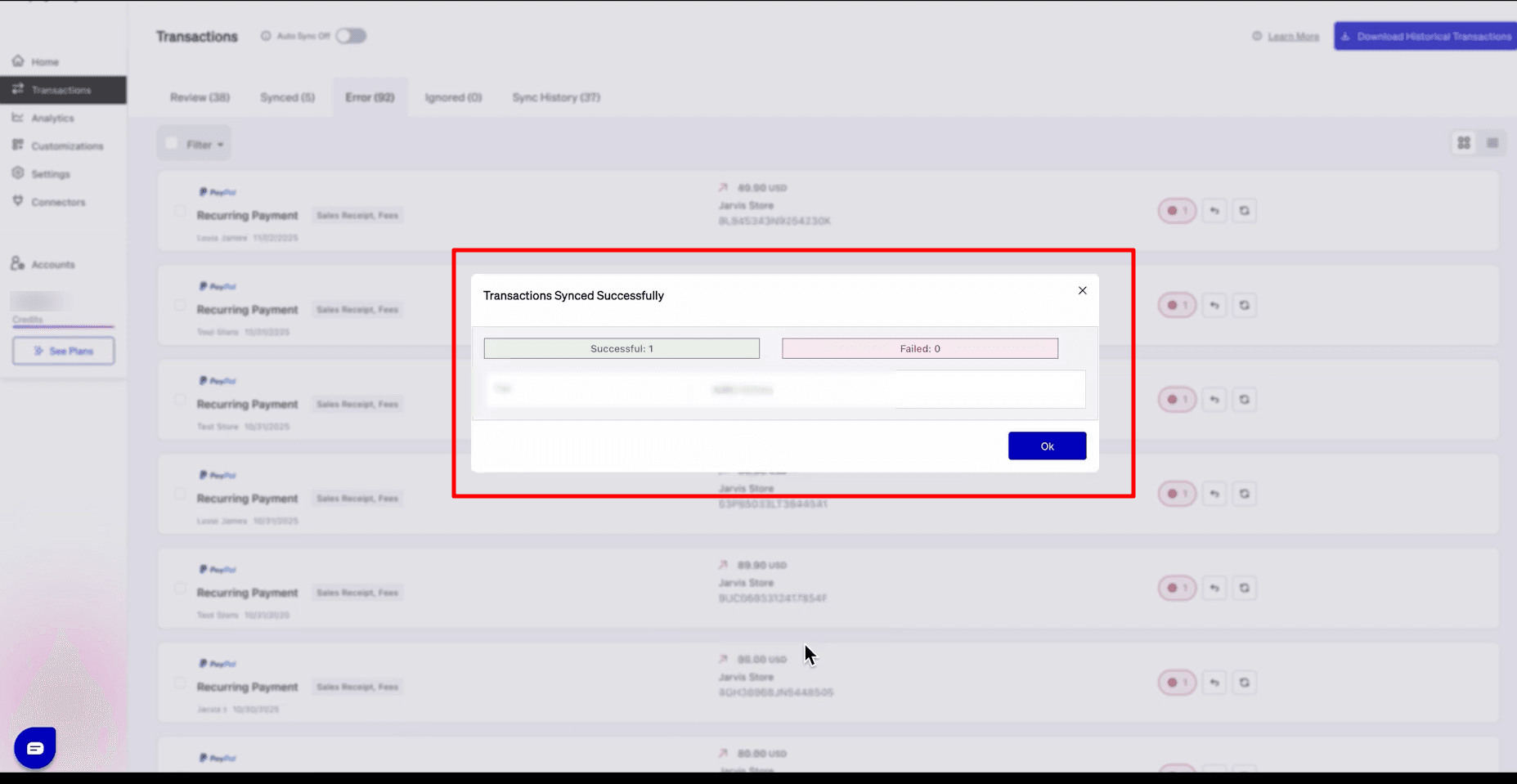
Review the synced PayPal transaction entry shown in the result window.
This confirms that the selected PayPal transaction has been posted to QuickBooks Online.
Click OK to close the confirmation window.
Step 7: Verify the synced PayPal transaction in PayTraQer
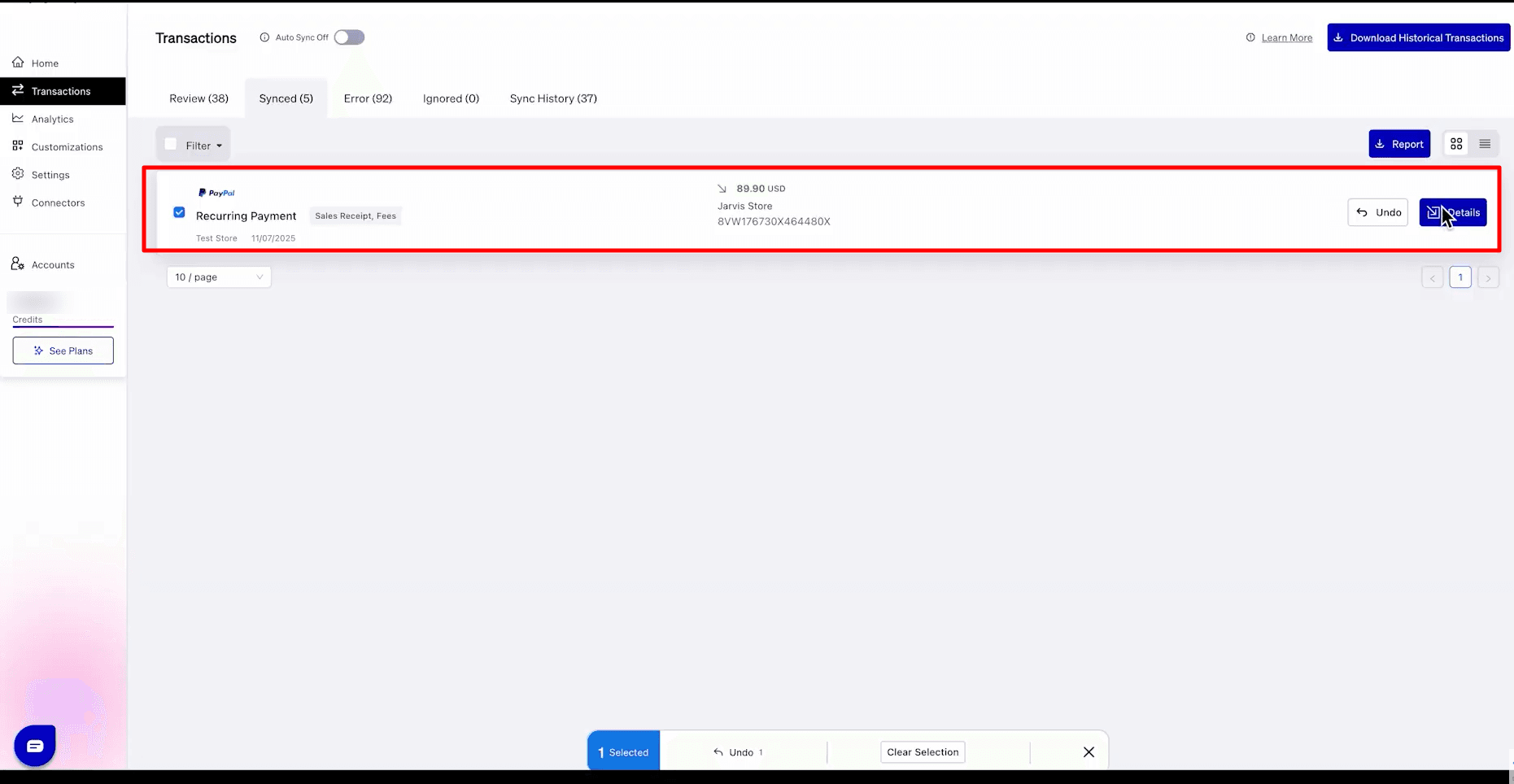
Go to the Synced tab on the Transactions page.
Find the PayPal transaction that was posted to QuickBooks Online.
Review the transaction type, such as Recurring Payment.
Check the QuickBooks entry type shown on the record, such as Sales Receipt, Fees.
Confirm the customer name, transaction date, amount, and transaction ID.
Click Details to view the QuickBooks entries created for the synced PayPal transaction.
Use Report if you want to download or review the sync summary.
If the transaction was synced by mistake, click Undo to reverse the synced PayPal transaction from PayTraQer.
Step 8: Review the QuickBooks entries created for the PayPal transaction
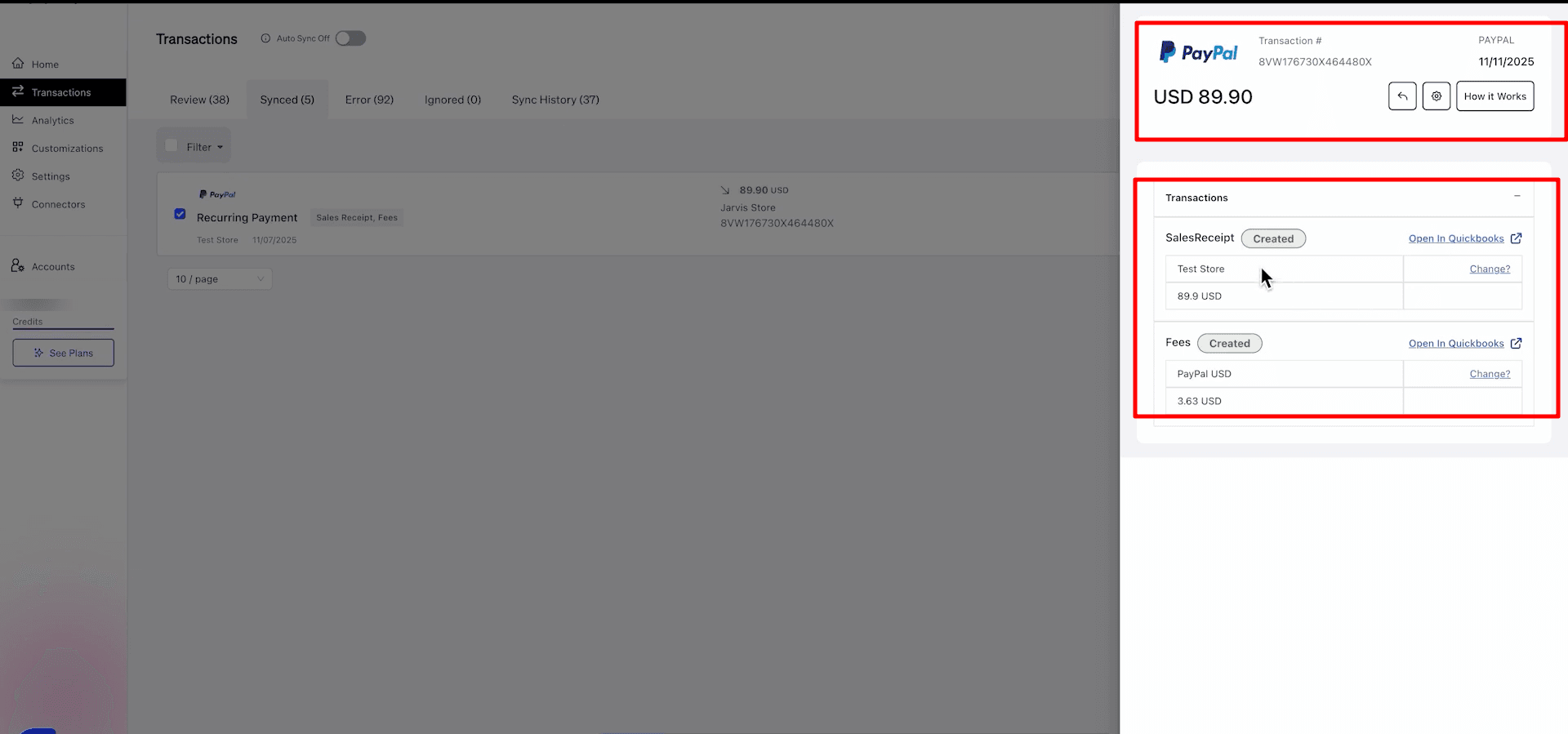
After clicking Details, PayTraQer will open the synced PayPal transaction details on the right side of the screen.
Review the PayPal transaction number, date, and amount.
Under the Transactions section, check the QuickBooks entries created from the PayPal transaction.
Make sure the Sales Receipt status shows Created.
Review the customer name and sales amount shown under the Sales Receipt entry.
Make sure the Fees status also shows Created.
Review the PayPal fee account and fee amount shown under the Fees entry.
Click Open in QuickBooks next to the Sales Receipt to verify the sales entry directly in QuickBooks Online.
Click Open in QuickBooks next to Fees to verify the PayPal fee expense entry in QuickBooks Online.
Step 9: Open the PayPal Sync Settings page
● In the left menu, select Settings.
● Choose Sync Settings from the list of options.
● Find the PayPal connector card on the page.
● Click Change Settings to access the PayPal sync configuration.
● Ensure the PayPal settings screen is displayed before making any changes.
● This page allows you to manage how PayPal sales, items, customers, taxes, and fees sync with QuickBooks Online.
PayPal Sales settings
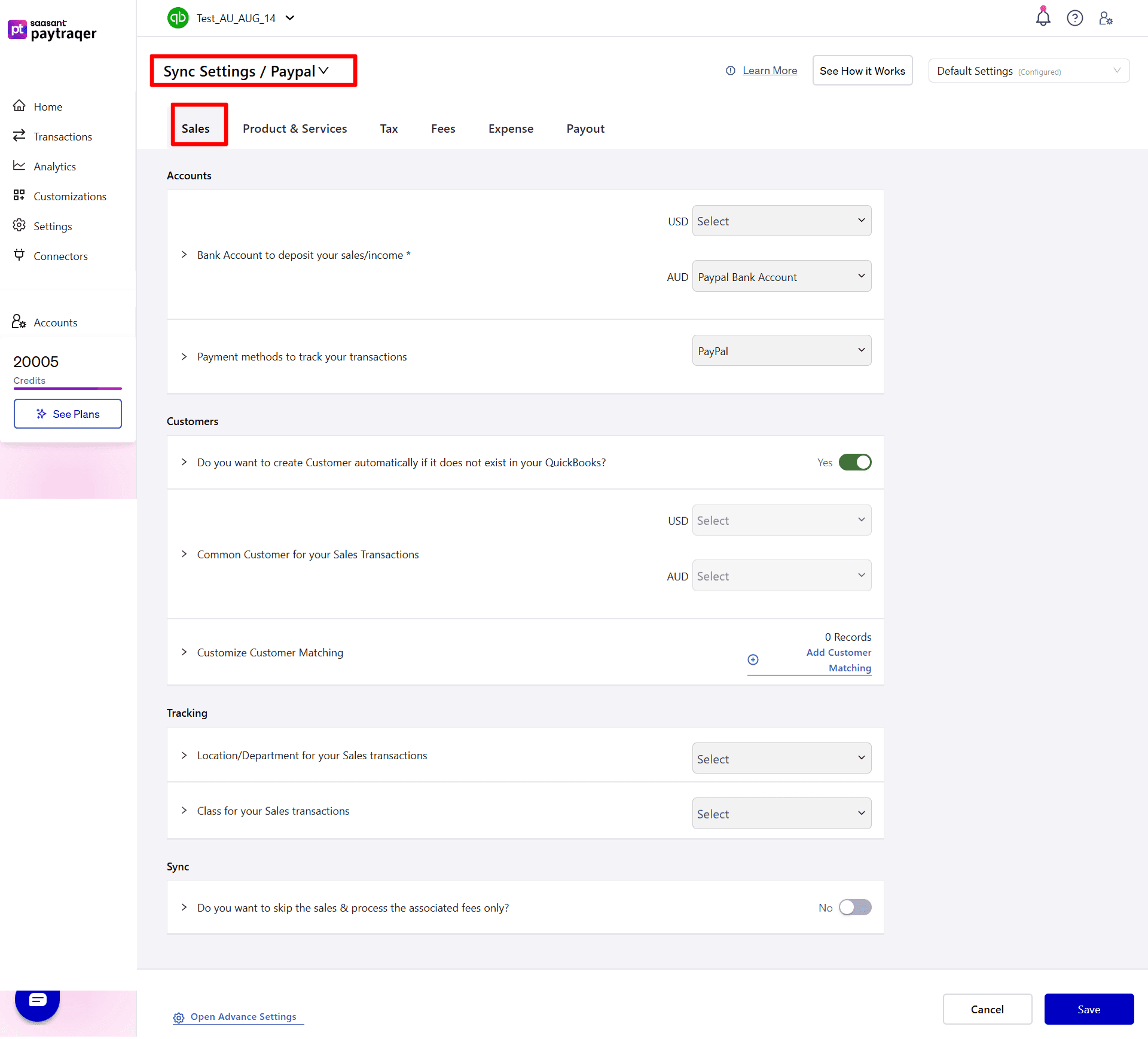
Bank accounts
Bank Account to deposit your sales/income
Set the PayPal clearing Bank for each currency.
Example: USD → PayPal Bank Account, AUD → PayPal Bank Account.
For multi-currency, set a clearing account per currency.
Payment methods
Payment methods to track your transactions
Select PayPal. This sets the Payment Method on invoices, payments, or sales receipts.
Customers
Create Customer automatically if it does not exist
Turn on to auto-create a customer when no name match is found.Common Customer for your Sales Transactions
Use a single default customer for all sales if you do not want separate customers. Configure per currency when needed.Customize Customer Matching
Add rules to map PayPal payer names to your preferred QuickBooks customers.
Tracking
Location/Department for your Sales transactions
Assign a fixed location or department for all PayPal sales.Class for your Sales transactions
Set a class to apply to all PayPal sales.
Sync scope
Do you want to skip the sales and process the associated fees only
Turn on to sync only fee expenses and skip sales posting.
Products and services settings
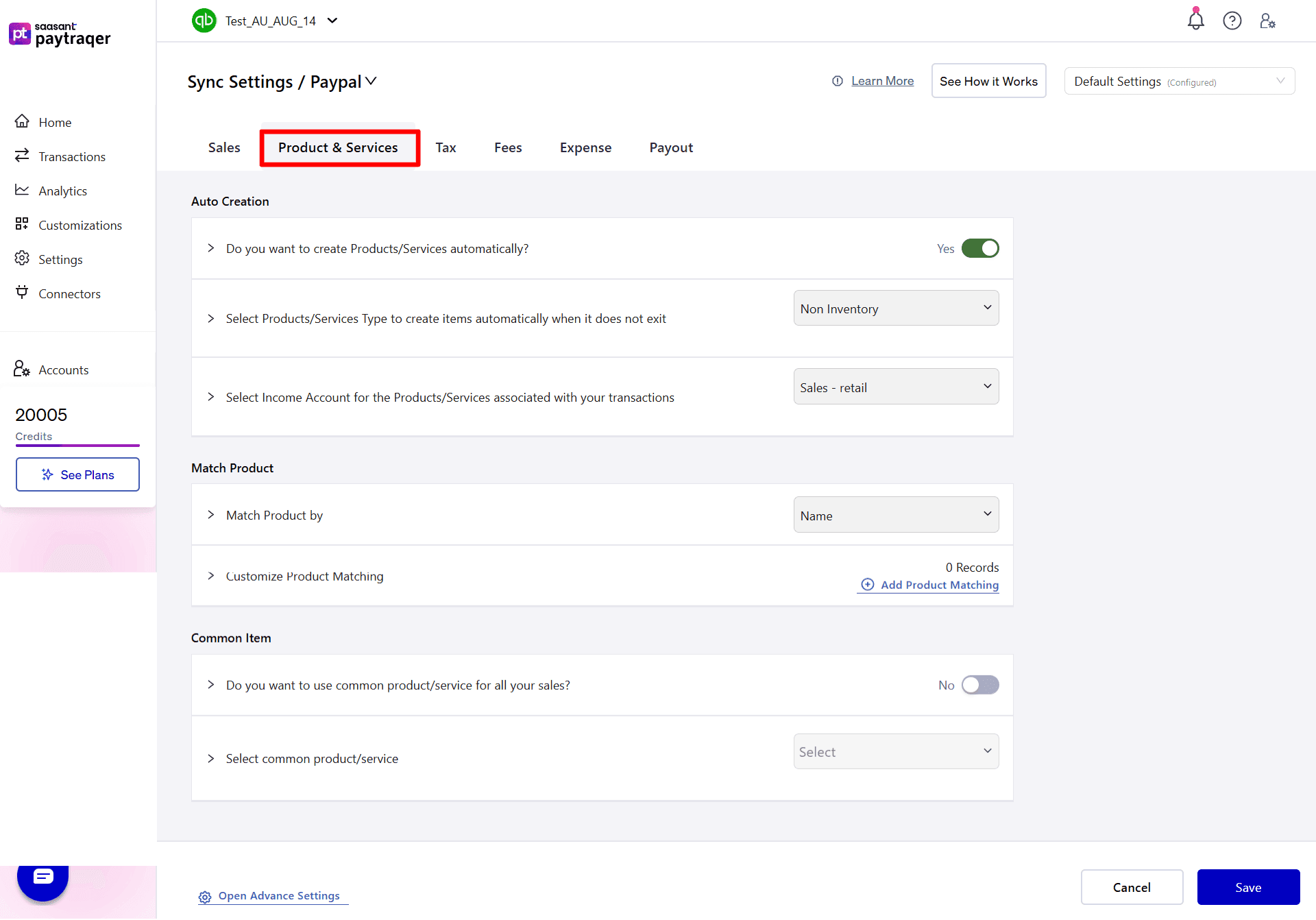
Auto-creation
Do you want to create Products/Services automatically
Turn on to auto-create an item in QuickBooks when no exact match is found.Select Products/Services Type
Choose Non-Inventory or Service for auto-created items.Select Income Account
Choose the income account for auto-created items, for example Sales - retail.
Matching
Match Product by
Pick Name or SKU for matching. Use SKU if you keep stable SKUs in both PayPal and QuickBooks.Customize Product Matching
Map a PayPal name or SKU to a specific QuickBooks product/service to avoid duplicates.
Common item
Do you want to use common product/service for all your sales
Turn on to use one default item on every PayPal sale, then Select common product/service.
Tax settings
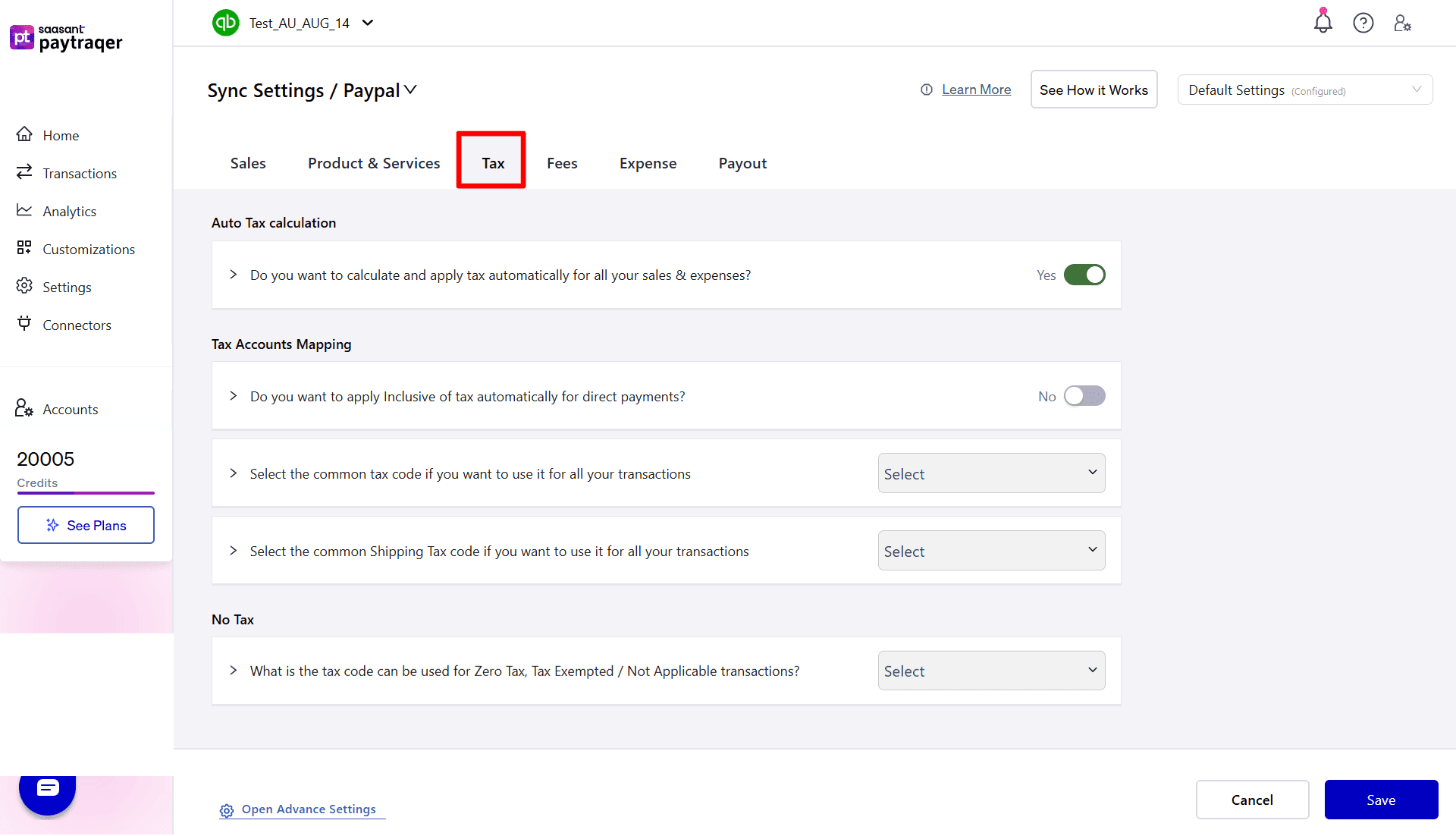
Do you want to calculate and apply tax automatically for all your sales and expenses
Turn on to let PayTraQer detect and apply tax on synced sales and expenses.Inclusive of tax for direct payments
Turn on if your direct payments are tax inclusive in QuickBooks.Default Tax Code
Choose a single tax code to apply to all transactions if you want a fixed code. This overrides automated detection.Shipping Tax Code
Select the shipping tax code to apply to shipping amounts, for example No Tax if shipping is not taxable.Zero Tax code
Choose the code to use for zero-tax, exempt, or not applicable lines.
Tip: Run a short test and open a few sales in QuickBooks to confirm tax codes and amounts.
Fees settings
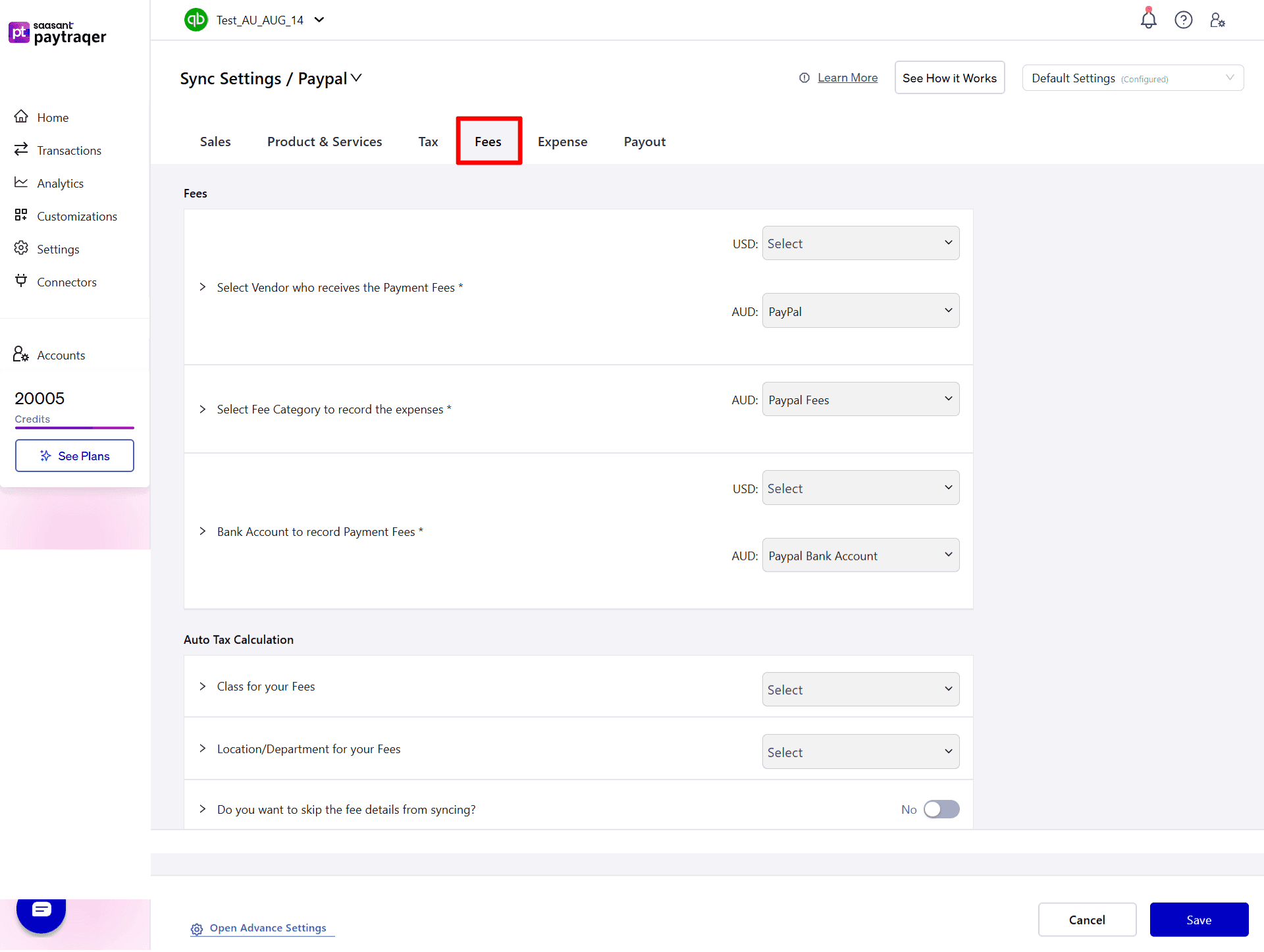
Who and where
Select Vendor who receives the Payment Fees
Set to PayPal for each currency (for example, USD and AUD).Select Fee Category to record the expenses
Choose the expense account, for example PayPal Fees.Bank Account to record Payment Fees
Set the PayPal clearing bank per currency (USD, AUD).
Tracking and scope
Class for your Fees
Assign a default class to all fee expenses.Location/Department for your Fees
Assign a default location or department for fee expenses.Do you want to skip the fee details from syncing
Turn on to exclude fee lines when syncing sales.
Tip: Use the same clearing bank for Sales and Fees to keep reconciliation simple.
Expense settings
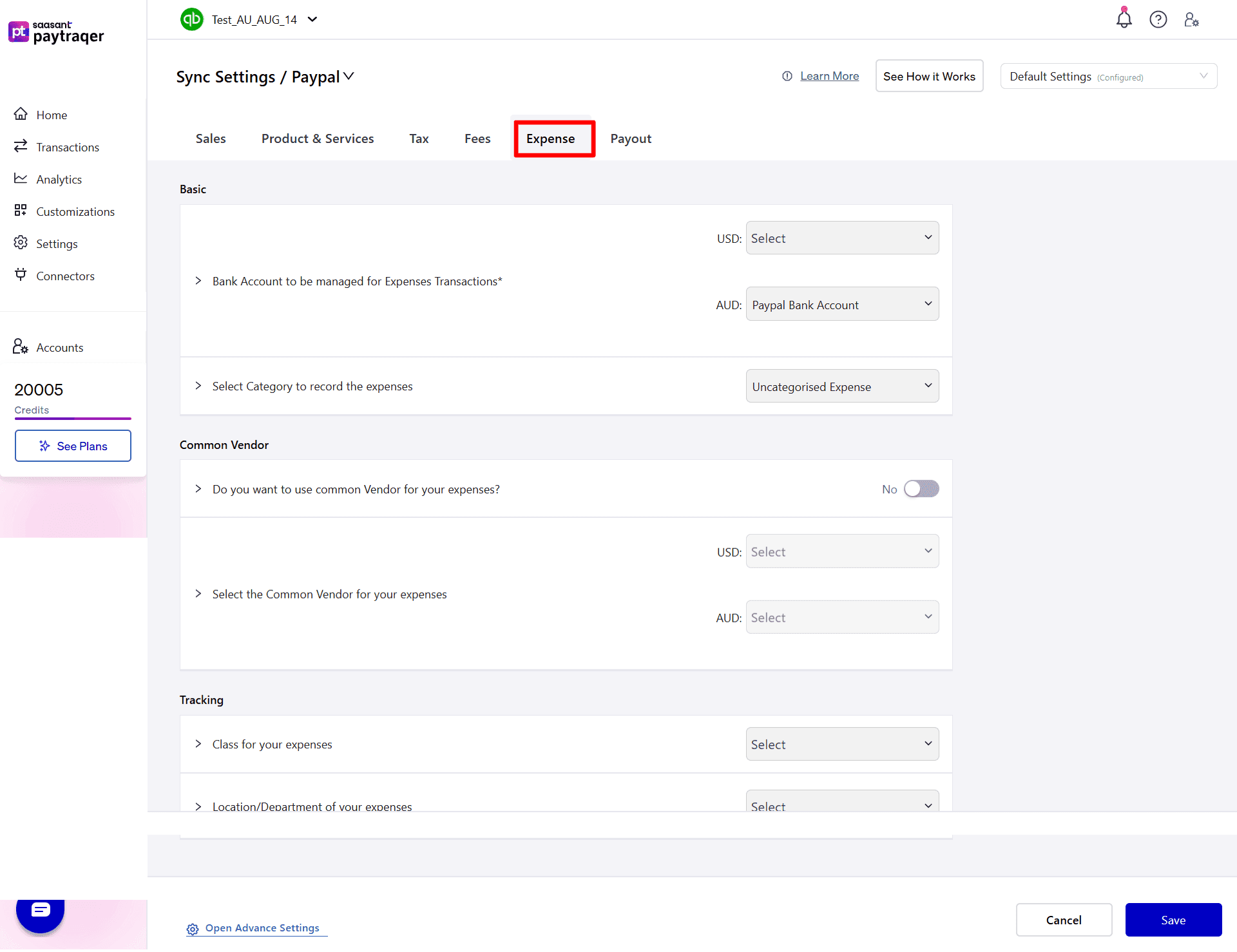
Where to post
Bank Account to be managed for Expenses Transactions
Choose the PayPal clearing bank per currency (USD, AUD).Select Category to record the expenses
Pick the expense category, for example Uncategorised Expense.
Vendor and tracking
Do you want to use common Vendor for your expenses
Turn on if you want one vendor on all expense entries, then Select the Common Vendor for each currency.Class for your expenses and Location/Department of your expenses
Set defaults for reporting.
Payouts and settlements
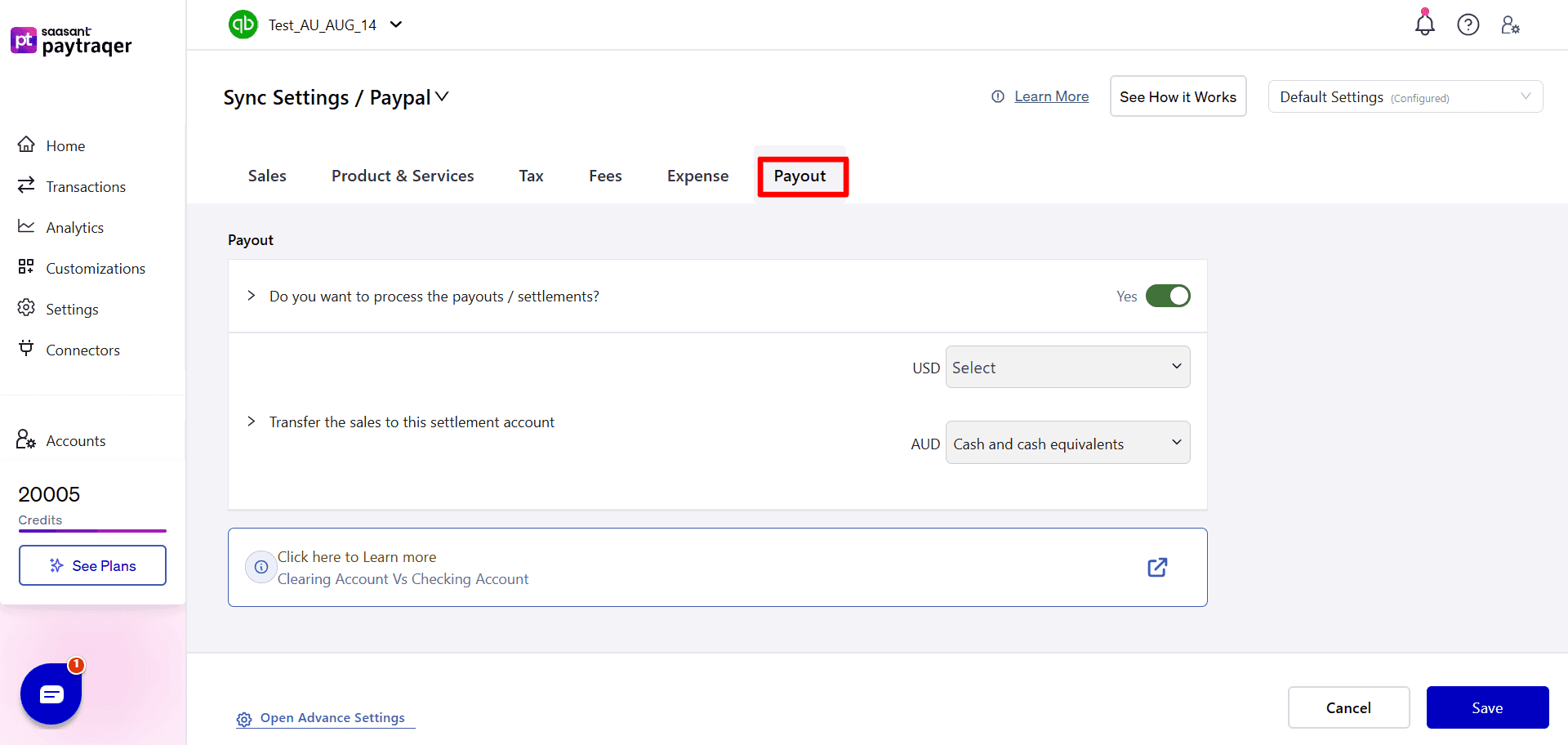
Do you want to process the payouts/settlements
Set to Yes to create Transfer transactions that move funds from the PayPal clearing bank to your settlement account.Transfer the sales to this settlement account
Choose the receiving account per currency.
Example: USD → your checking or Cash and cash equivalents account.
Set the equivalent account for AUD if used.
How it helps
Transfers mirror bank deposits and improve match rates in your bank feed.
Your clearing account nets to zero as payouts move funds to the settlement account.