How to Import Vendors List into QuickBooks Online (U.S)?
March 3, 2026
Pre Requisites:
Connect your QuickBooks Online account to SaasAnt Transactions (Online) App from QuickBooks AppStore by clicking the "Get App Now" button and get the 30 days free trial [No credit card required].
Video Tutorial on How to Import Vendors List into QuickBooks Online using SaasAnt Transactions Online:
Please refer basics of field mappings for more info. If you have any confusion or doubts, feel free to drop an email to support@saasant.com.
How to Import Vendors List into QuickBooks Online using SaasAnt Transactions Online
1) Login into SaasAnt Transaction Online
2) Select the Bulk Upload Tab.
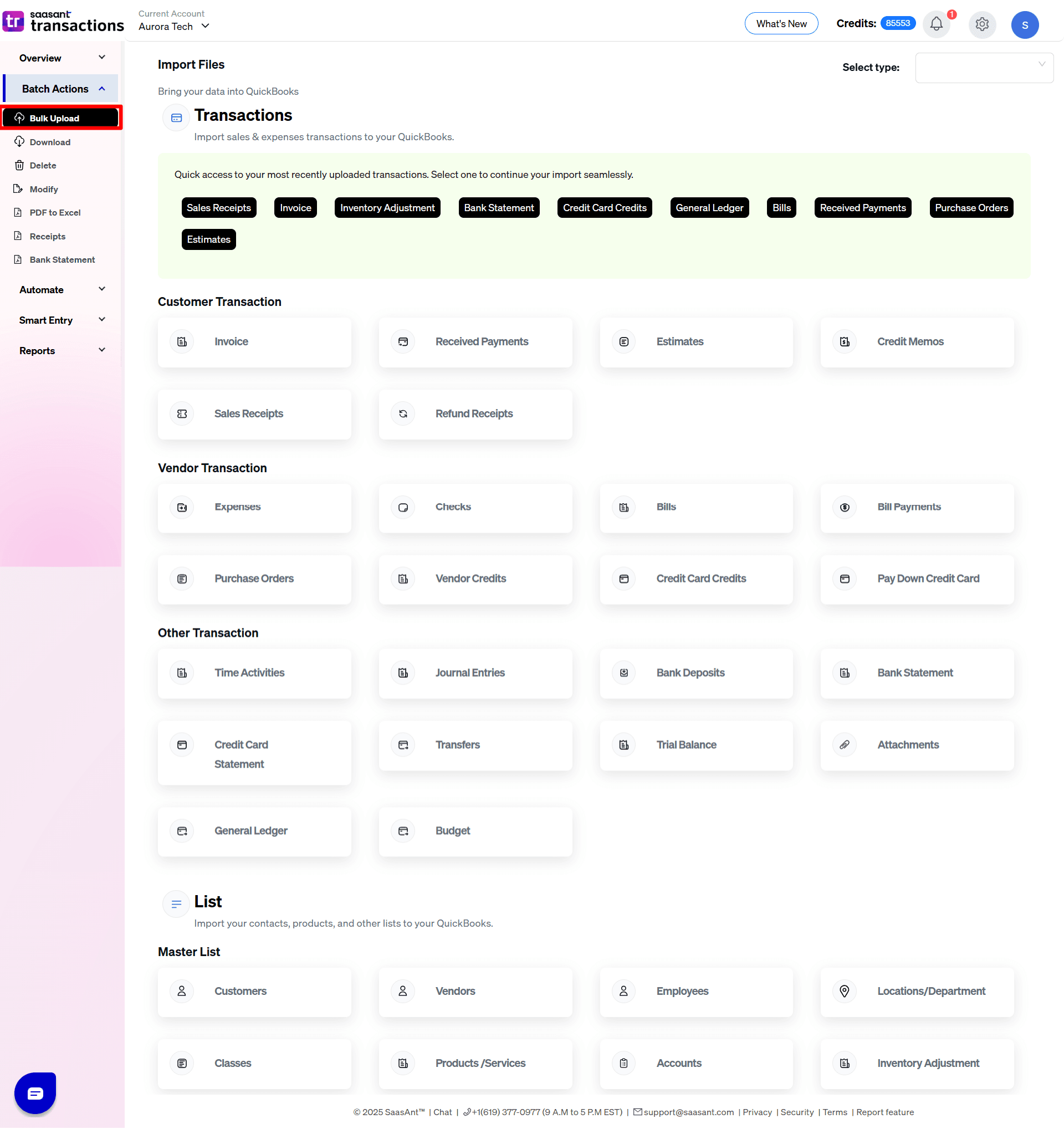
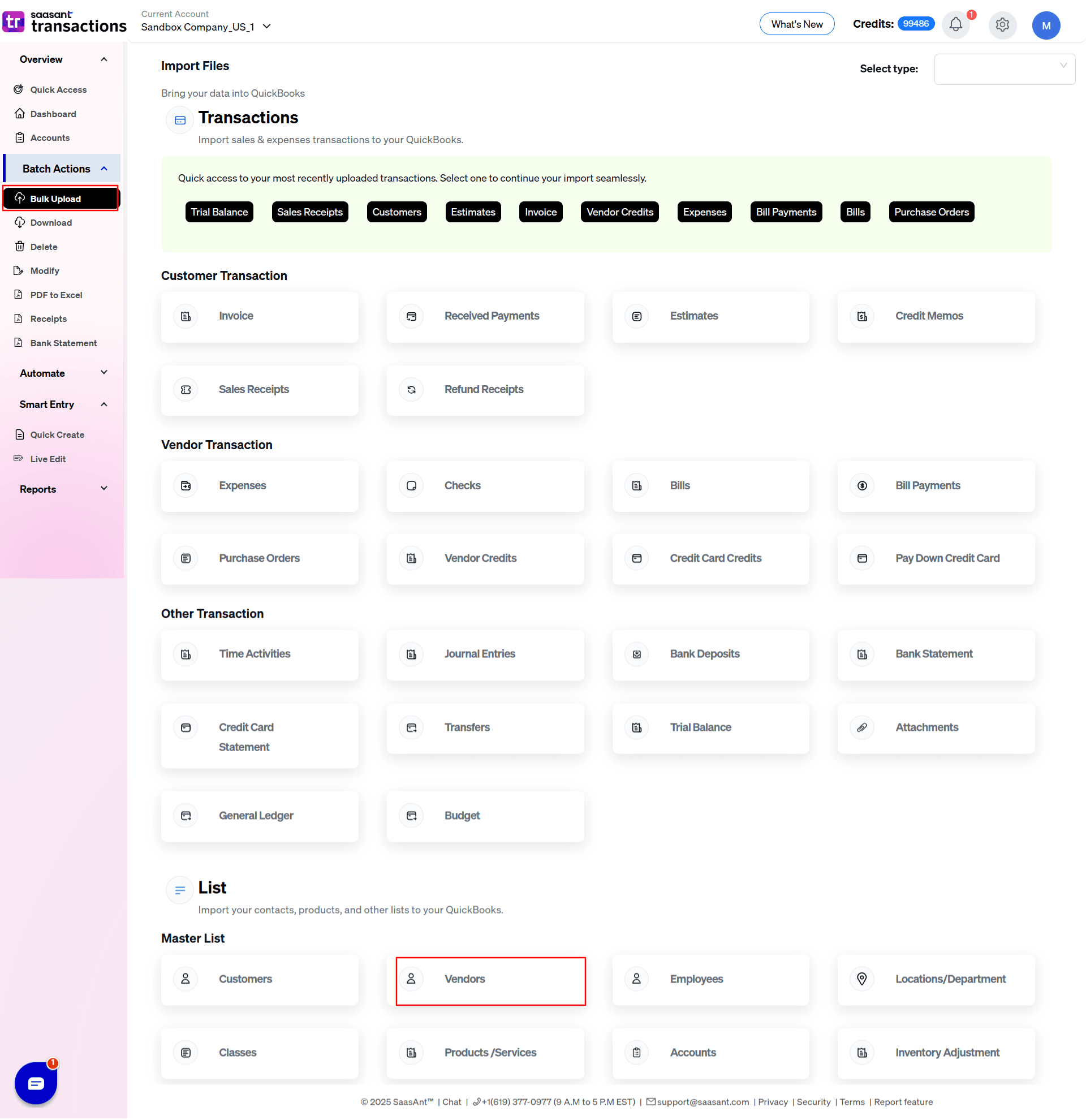
3) Select the QuickBooks entity as "Vendor".
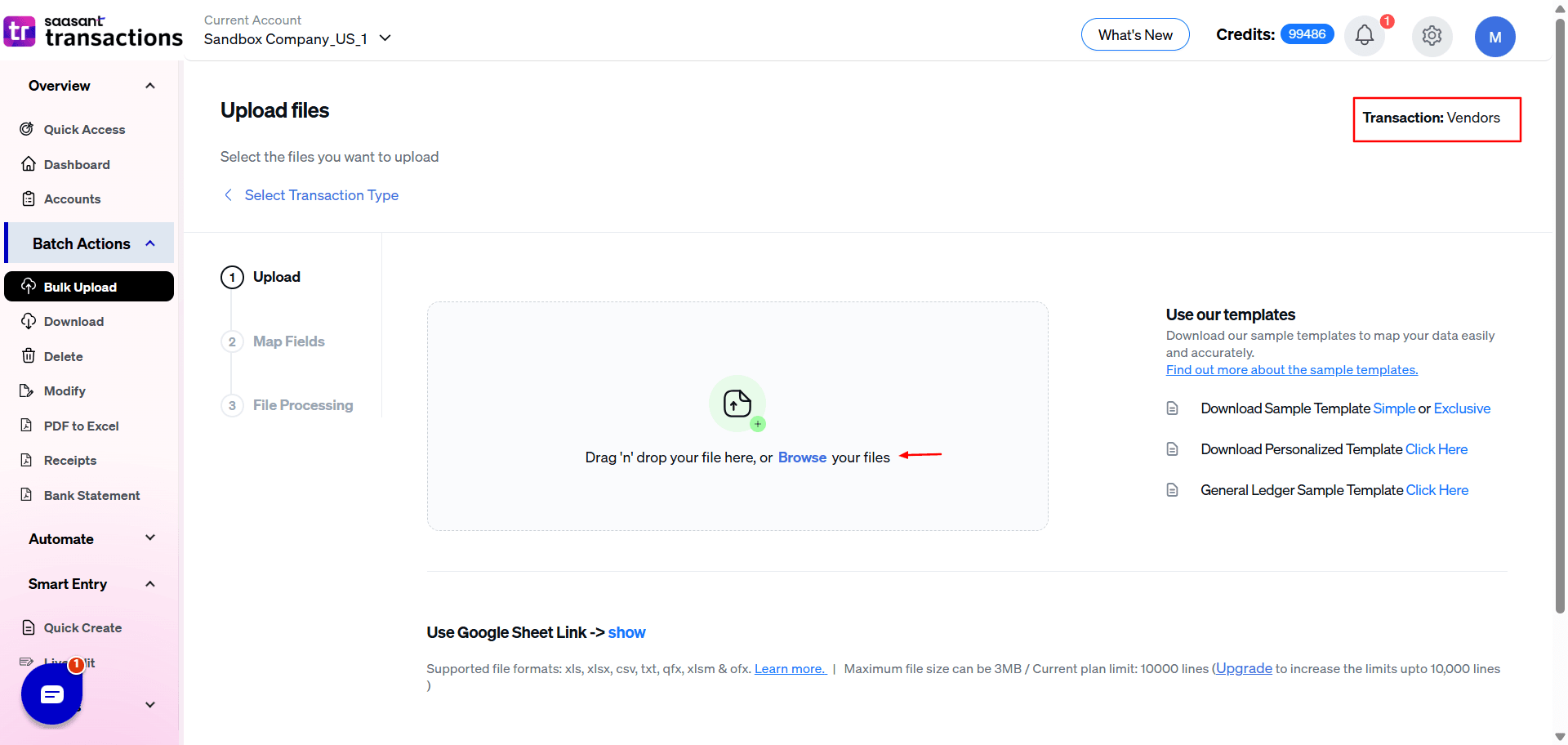
4) Select the files you want to upload.
5) Set up the Mapping of the columns in your Vendors List.
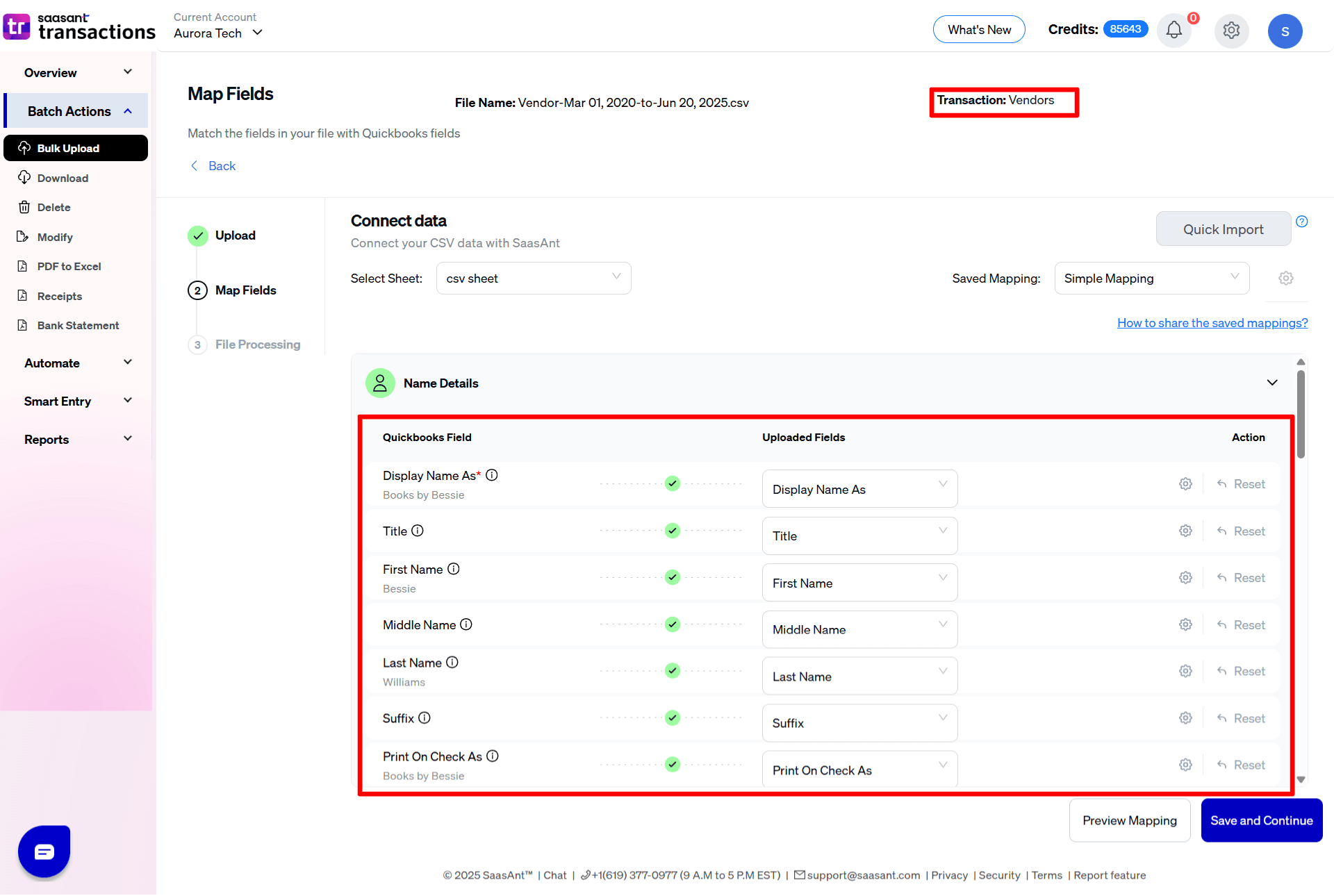
6) Select the "Preview Mapping" button to visualize current mapping based on QuickBooks.
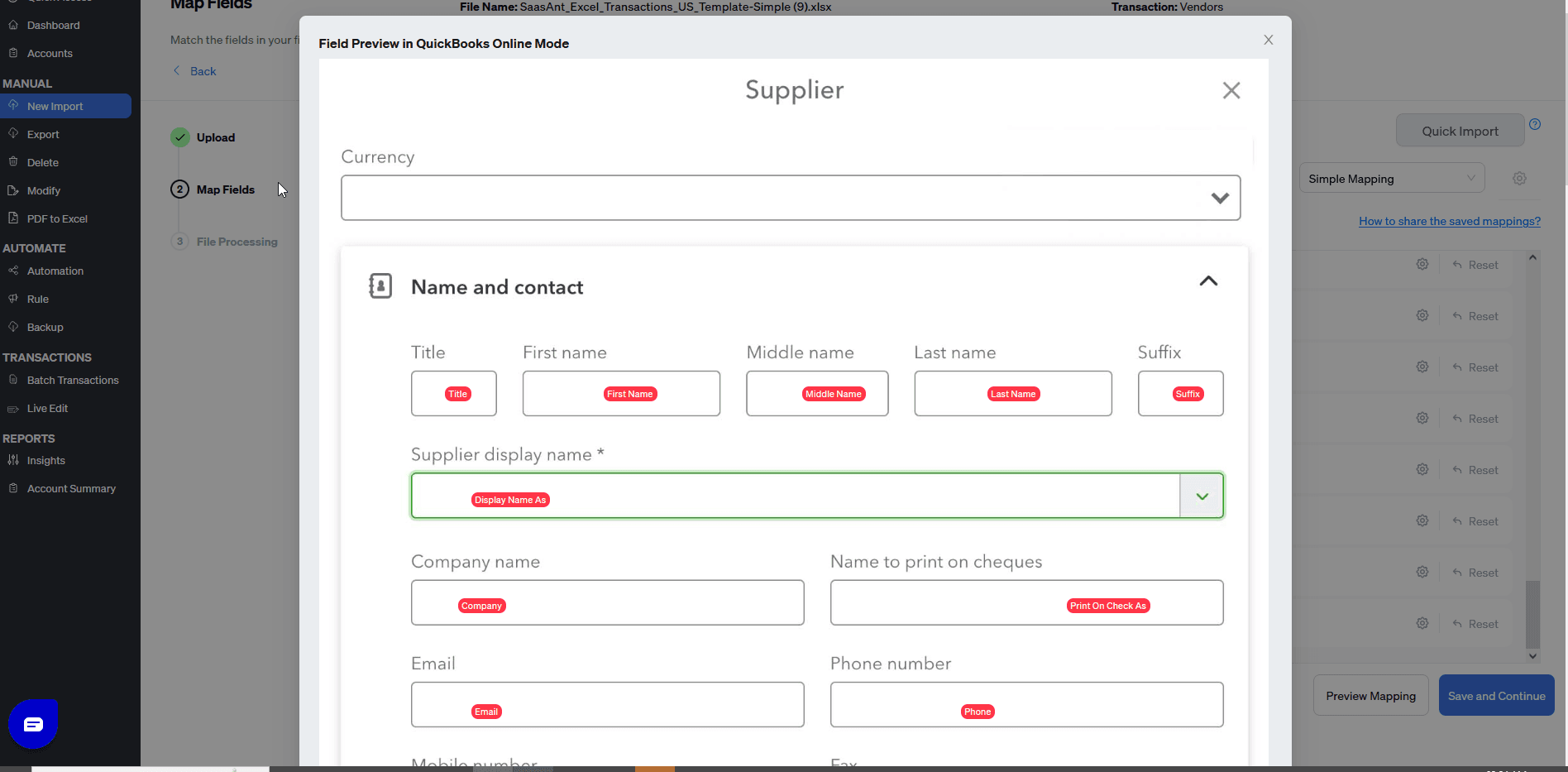
7) Select the Upload tab.
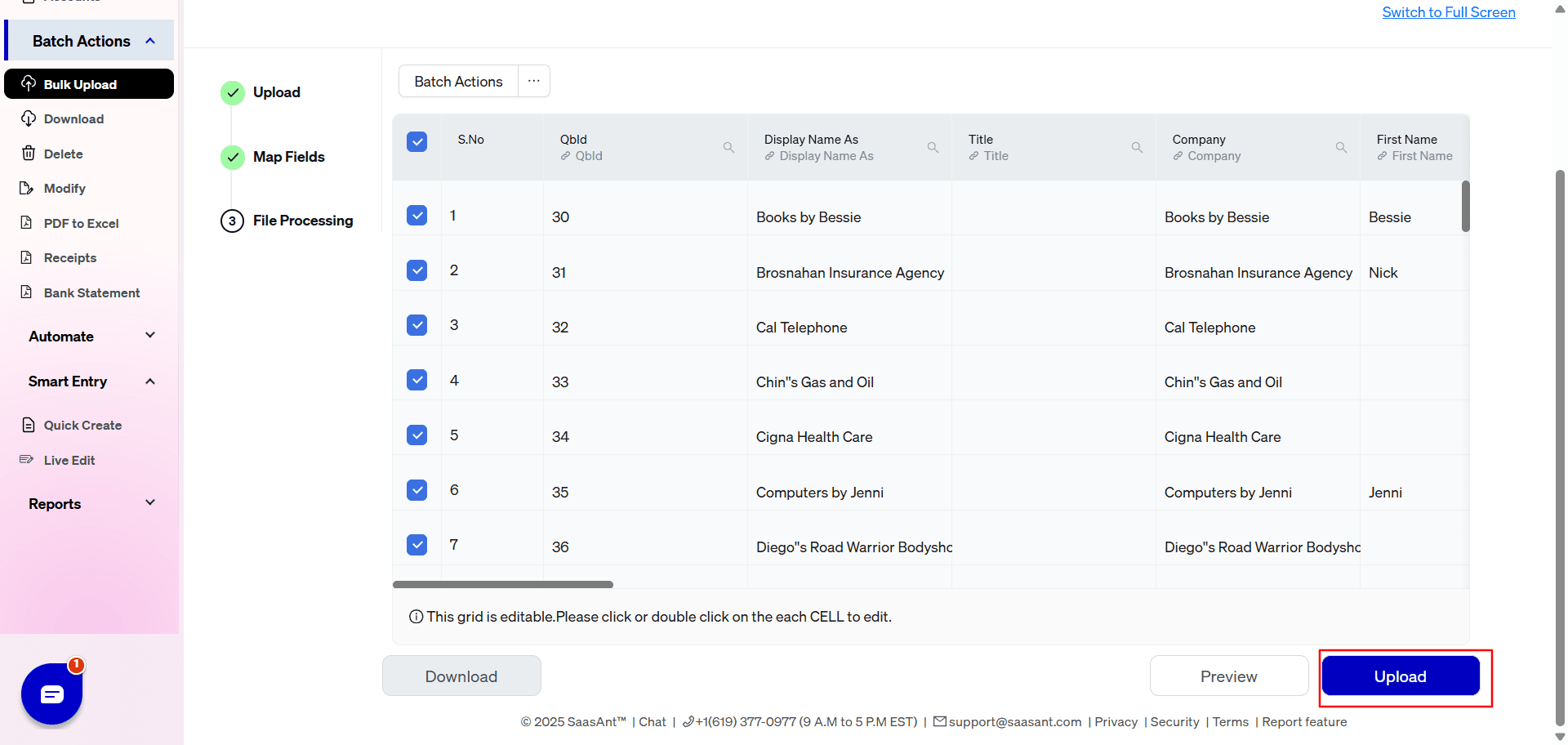
The data was imported successfully into QuickBooks.
Let’s have a look at the SaasAnt Transactions Online Fields.
SaasAnt Transactions Online Fields
Field Name | Format | Description |
|---|---|---|
Title | Characters | Title of the Vendor. |
Company | 50 Characters | The name of the company associated with the Vendor or organization. |
First Name | 25 Characters | Given name or first name of the Vendor. |
Middle Name | 25 Characters | Middle name of the Vendor. |
Last Name | 25 Characters | Family name or the last name of the Vendor. |
Suffix | 10 Characters | Suffix of the name. |
Display Name As | 100 Characters | The name of the Vendor or organization as displayed in QuickBooks Online. This must be unique across all other customers, employees, vendors, and other names. |
Print On Check As | 100 Characters | Name of the Vendor or organization as printed on a check. If it not provided, this is populated from Display Name. |
Billing Address Line 1 | 500 Characters | First line of the Billing Address. |
Billing Address Line 2 | 500 Characters | Second line of the Billing Address. |
Billing Address Line 3 | 500 Characters | Third line of the Billing Address. |
Billing Address City | 255 Characters | City Name. |
Billing Address Postal Code | 31 Characters | Postal code (Zip code for USA and Canada). |
Billing Address Country | 255 Characters | Name of the country. |
Billing Address State | 255 Characters | Region within a country. Ex: State Name for USA, Province name for Canada. |
Shipping Address Line 1 | 500 Characters | First line of the Shipping Address. |
Shipping Address Line 2 | 500 Characters | Second line of the Shipping Address. |
Shipping Address Line 3 | 500 Characters | Third line of the Shipping Address. |
Shipping Address City | 255 Characters | City Name for Shipping Address. |
Shipping Address Postal Code | 31 Characters | Postal code (Zip code for USA and Canada) for Shipping Address. |
Shipping Address Country | 255 Characters | Name of the country for Shipping Address. |
Shipping Address State | 255 Characters | Region within a country. Ex: State Name for USA, Province name for Canada. |
Phone | 21 Characters | The telephone number in free form. |
Mobile | 21 Characters | The Mobile number in free form. |
Fax | 21 Characters | The fax machine number in free form. |
Other | 21 Characters | Other contact information. |
Website | 1000 Characters | Web Site URL. |
100 Characters | Email address. | |
Account No | 99 Characters | Name or number of the account associated with this vendor. |
Tax ID | Characters | The Tax ID of the Vendor or the Organization. |
Terms | Characters | Reference to a term associated with the Vendor. |
Opening Balance | Decimal | The open balance amount or the amount unpaid by the Vendor. |
Open Balance Date | Date | Date of the Open Balance. |
Notes | 2000 Characters | Free form text describing the Vendor. |
Track payments for 1099 | Boolean | This vendor is an independent contractor; someone who is given a 1099-MISC form at the end of the year. |
Currency Code | Characters | Currency Code. |
Vendor List Import Settings Reference Guide
When importing a clean list of vendors into your QuickBooks directory, use these settings to ensure your data stays organized, matches correctly, and doesn't create duplicate entries.
Vendor Identification & Matching
Do you want to identify the vendor based on their Account Number?
Location: Vendors Tab
What it does: Tells SaasAnt to cross-reference and match the rows in your upload list against your existing QuickBooks directory using the Vendor Account Number field rather than searching by the vendor's name. This is perfect if you use distinct account numbers to manage your supplier records.
Would you like to match the names exactly as they appear in your file for customers, vendors, and items?
Location: Products / Services Tab (Global Text Switch)
What it does: Enforces a strict, character-by-character match against names. If enabled, it strips out formatting variations (like trailing spaces, subtle case discrepancies, or extra characters) when checking your import file against your current QuickBooks directory to prevent accidental duplicates.
Data Updates & Contact Information
Do you want to Update the address (Customer & Vendor) in QuickBooks from the file?
Location: Transactions / Validation General Panels
What it does: Overwrites the existing billing or shipping address data currently saved in your QuickBooks profiles with the fresh address details provided in your upload list.
Take note: Turn this on if your spreadsheet contains updated or newly corrected address records that need to serve as the master source of truth.
Global Import Automation & Safety Rules
Do you want to create Customers, Vendors, Locations, Classes, and Accounts automatically?
Location: General Tab
What it does: This master switch must be enabled if your upload spreadsheet contains brand-new vendor names that do not yet exist in your QuickBooks records. If this is turned off, the system will flag an error and reject any rows containing completely new supplier names.
Do you want to apply suggestions automatically?
Location: General Tab
What it does: Employs automated matching logic to cleanly fill minor data gaps or fix close naming variations in your list without failing the import.
Possible Failures & Troubleshooting Tips

Please update the currency field with allowed values.
Kindly refer this link to know more about the allowed currencies.
This Vendor is already available in QuickBooks with given "Display Name". If you want to continue with the same vendor, please change the "Display Name".