How to Import Receive Payments into QuickBooks Online (U.S)?
June 23, 2026
You can import Receive Payments from text files or Excel spreadsheets directly into QuickBooks Online using SaasAnt Transactions (Online) software.
Pre Requisites:
Connect your QuickBooks Online account to SaasAnt Transactions (Online) App from QuickBooks AppStore by clicking the "Get App Now" button and get the 30 days free trial [No credit card required].
Please refer basics of field mappings for more info. If you have any confusion or doubts, feel free to email support@saasant.com.
Video Tutorial For Importing Receive Payments into QuickBooks Online using SaasAnt Transactions Online:
How to Import Receive Payments into QuickBooks Online using SaasAnt Transactions Online
1) Login into SaasAnt Transaction Online
2) Select the Bulk Upload Tab.
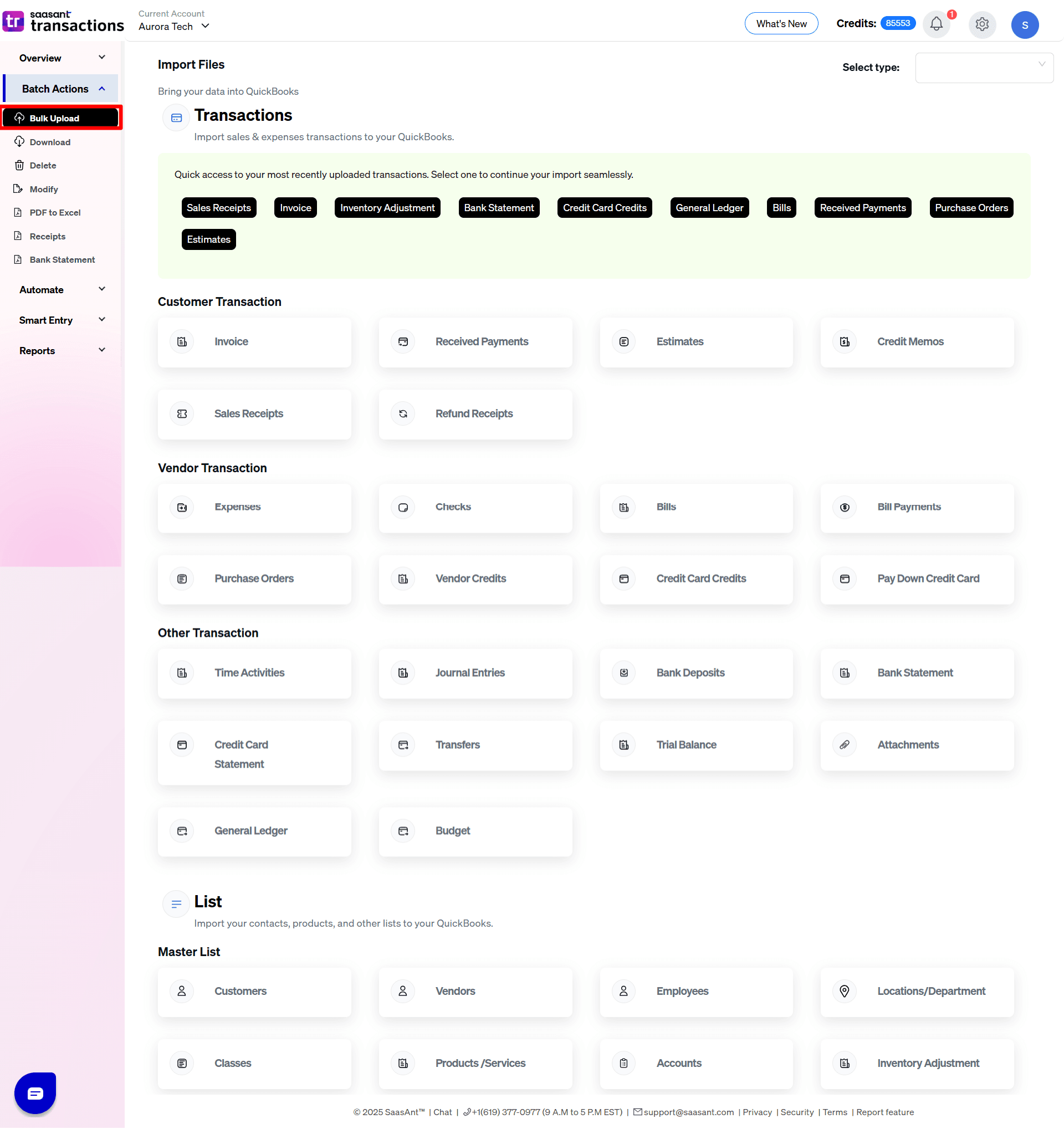
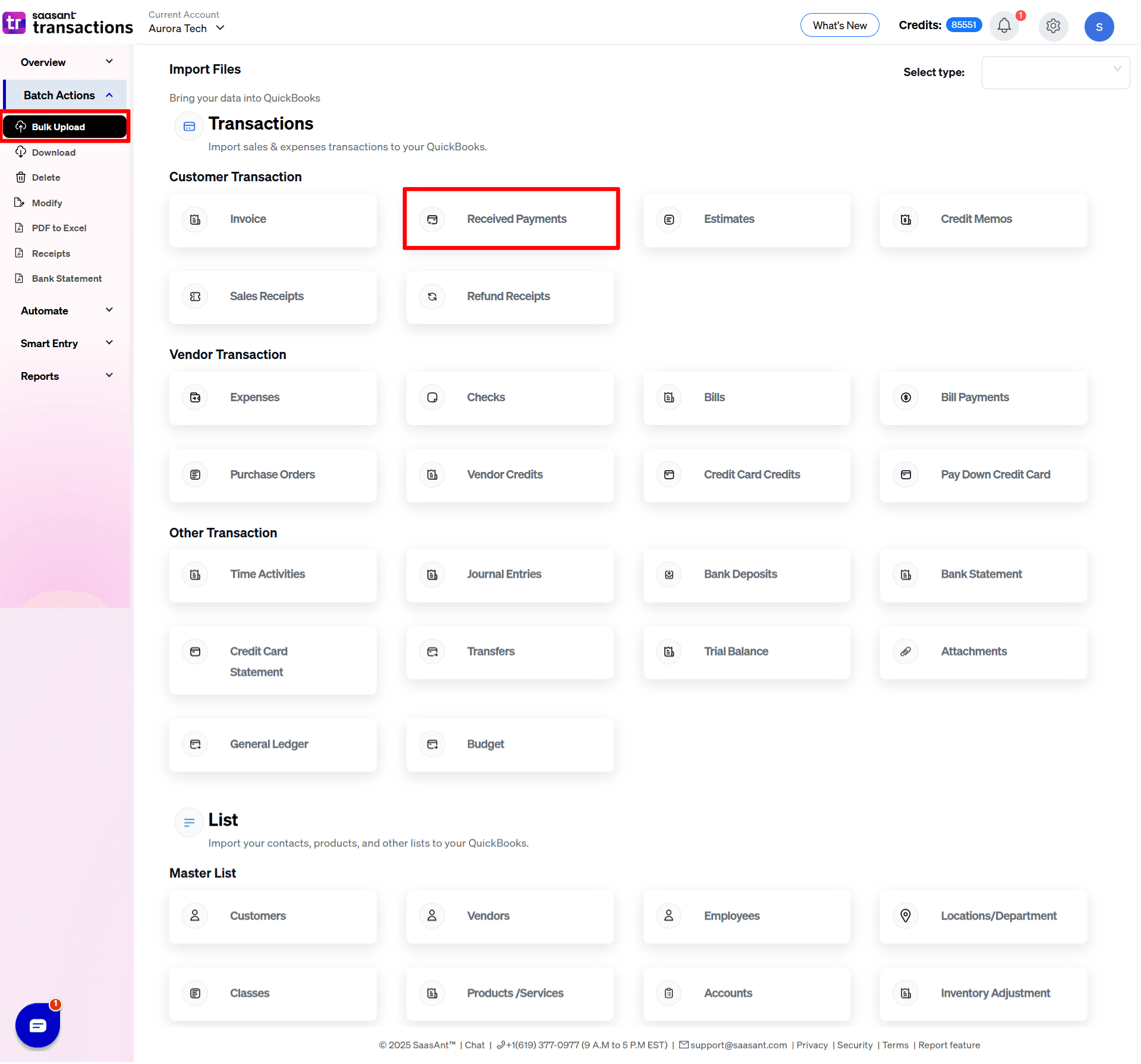
3) Select the QuickBooks entity as "Received Payments".
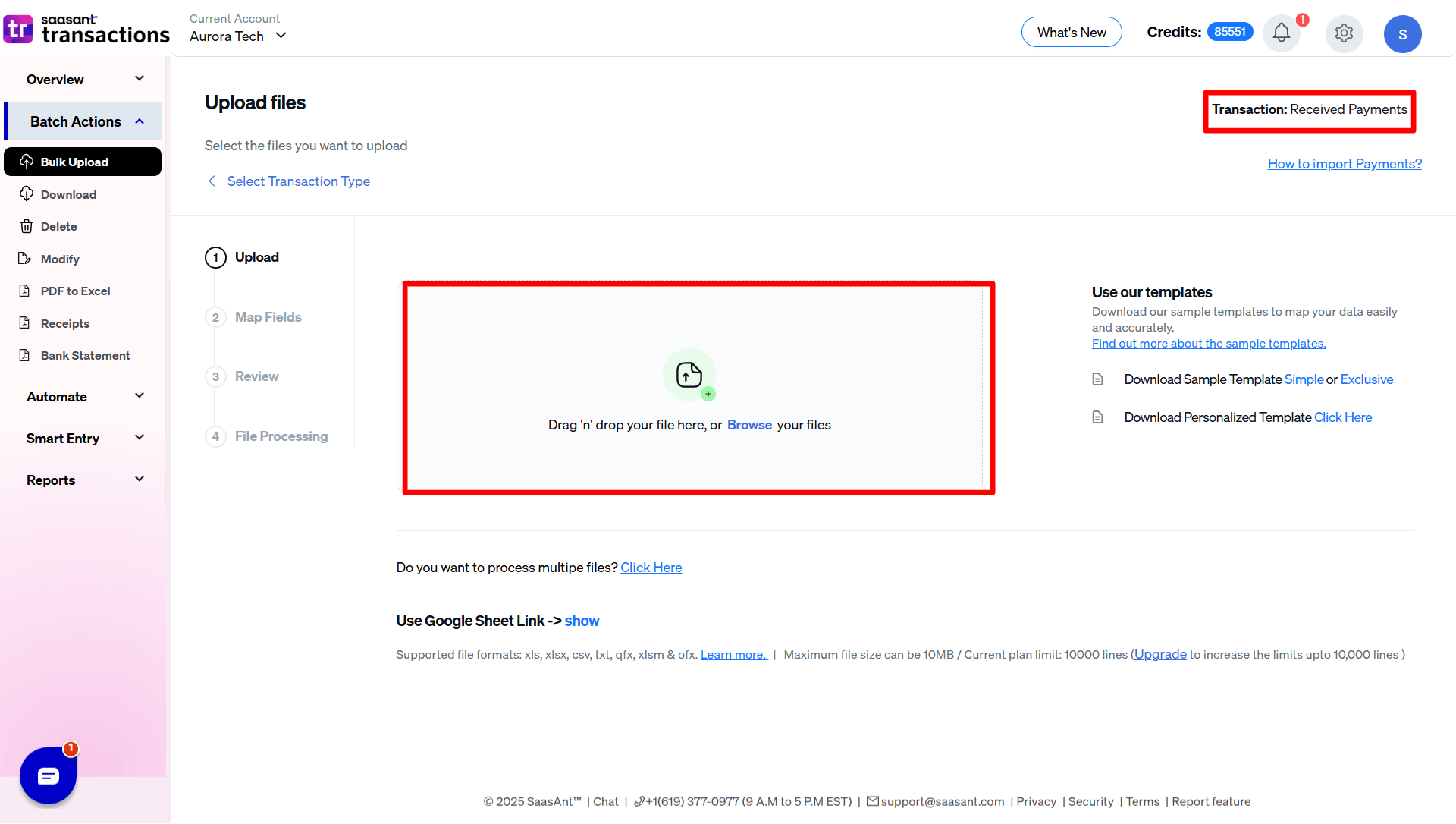
4) Select the files you want to upload.
5) Set up the Mapping of the columns in your Received Payments.
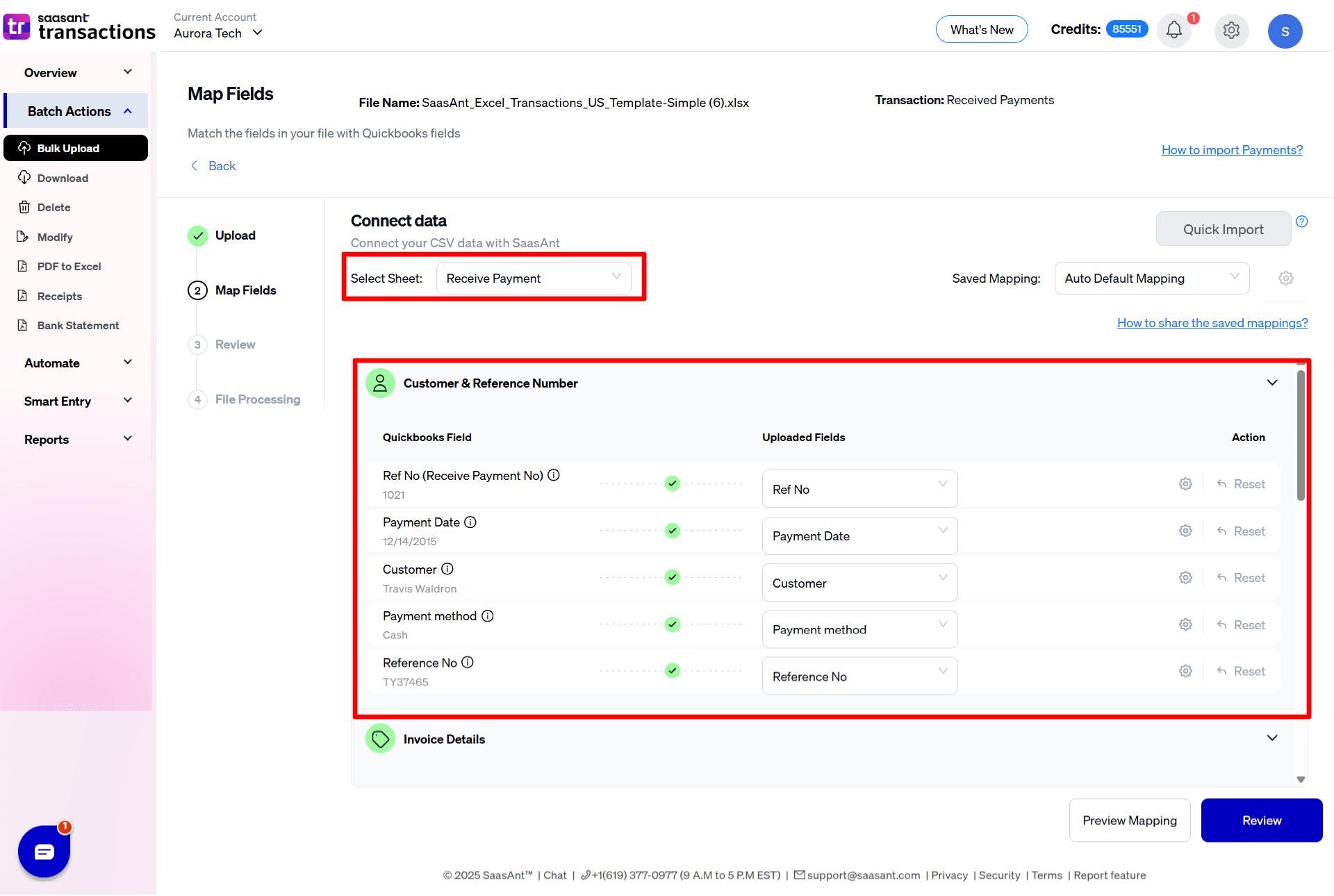
6) Select the "Preview Mapping" button to visualize current mapping based on QuickBooks.
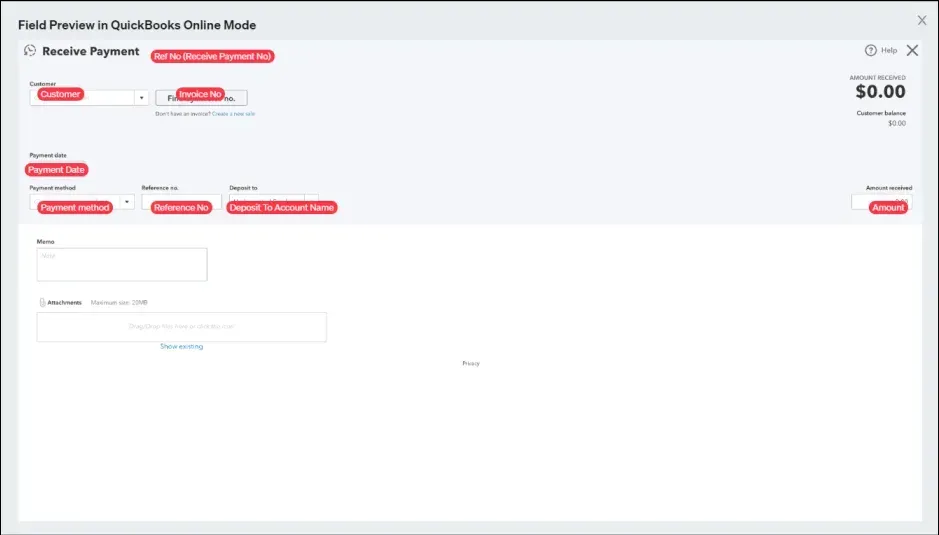
7) Select the Upload tab.
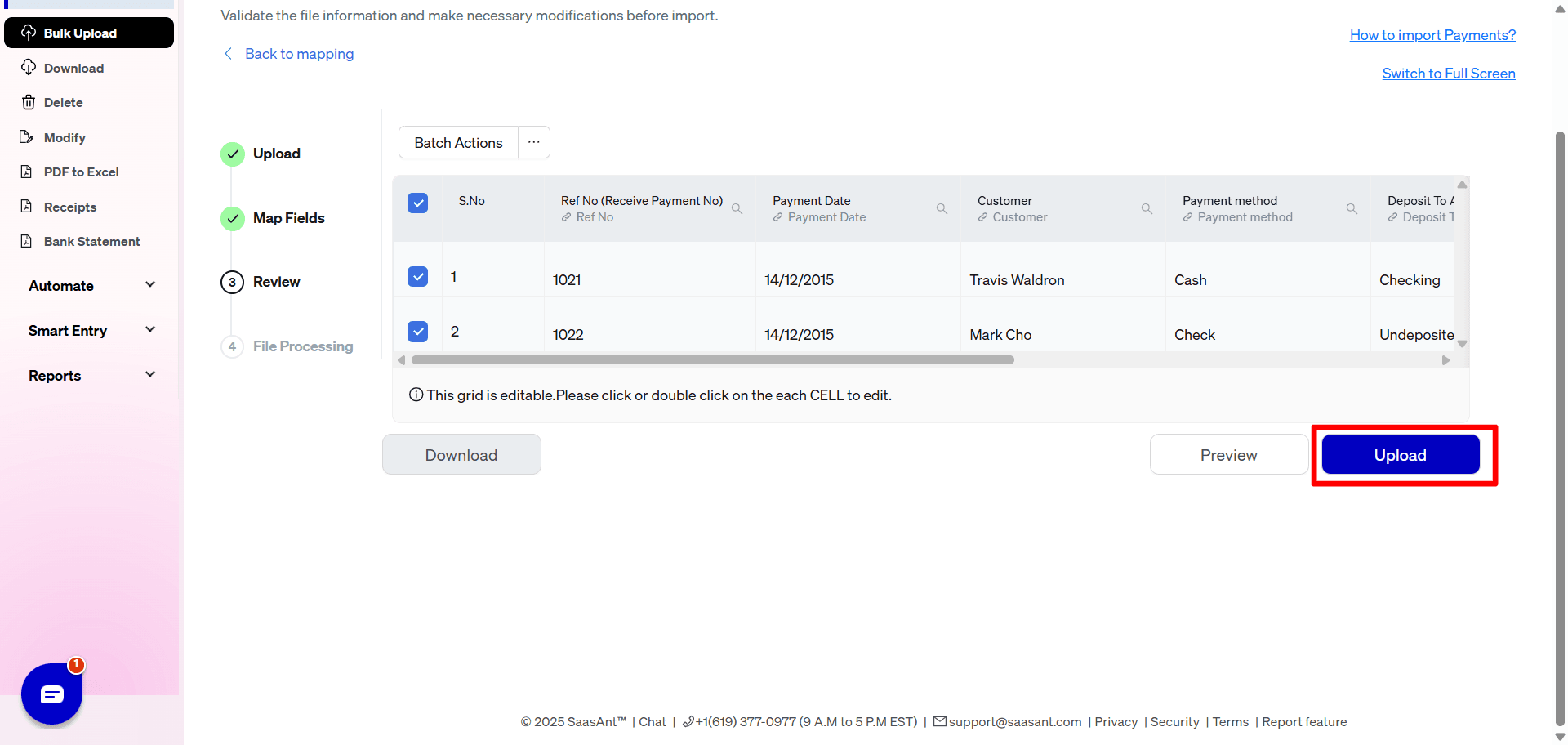
8) The data is imported successfully into QuickBooks.
SaasAnt Transactions Online Fields
Field Name | Format | Description |
|---|---|---|
Ref No | 21 Characters | Reference number for the transaction. By default, this value is used only for internal processing by SaasAnt Transactions (Online), and QuickBooks auto-generates a new value. This can be changed in the import settings. |
Customer | Characters | Name of the customer. |
Payment Date | Date | Date of the transaction. |
Payment method | Characters | |
Deposit To Account Name | Characters | |
Invoice No | Characters | Invoice no. of the corresponding invoice transaction tied to this payment. |
Tracking No | 30 Characters | Shipping provider's tracking number for the delivery of the goods associated with the transaction. |
Amount | Decimal | Amount paid. |
Reference No | Characters | The reference number for the payment received. (E.g. Check # for a check, envelope number for a cash payment, Credit Card Transaction Id for a credit card payment). |
Memo | 4000 Characters | Organization-private note about the transaction. By default, this note will not appear on the transaction records. |
Currency Code | Characters | Reference to the Currency in which all amounts on the associated transaction are expressed. |
Exchange Rate | Decimal | Default is 1, applicable if Multi-Currency is enabled for the company. The number of home currency units it takes to equal one unit of currency specified by Currency Code field. |
Receive Payments Settings Reference Guide
The Receive Payments settings panel controls automation workflows, validation checks, and ledger lookups used specifically when importing customer payment data to settle outstanding invoices in QuickBooks.
Global Automation & Core Rules
Do you want to apply suggestions automatically?
What it does: Uses automated matching logic and historical fallback parameters to fill minor data gaps or map close matches, keeping your payment import moving smoothly.
Do you want to create Customers, Vendors, Locations, Classes, and Accounts automatically?
What it does: Acts as a master background creation switch. If a payment row references a brand-new customer profile or location that doesn't exist yet, this allows SaasAnt to build it on the fly to prevent validation errors.
Do you want to skip the mapping screen?
What it does: Streamlines your workflow by completely bypassing the Step 2 mapping screen on future payment uploads if you are using a consistent, predefined spreadsheet template.
Date Format
What it does: Configures the system parser to correctly read your payment date column (e.g., DD/MM/YYYY) so days and months are never transposed.
Reference Numbers & Processing Controls
Do you want to use the Transaction Reference Numbers from the uploaded file?
What it does: Instructs QuickBooks to record the explicit payment or check numbers provided in your spreadsheet instead of overwriting them with native, auto-sequenced reference numbers.
Do you want to disable the optimisation for the batch import?
What it does: Turns off parallel processing in favor of a slower, line-by-line verification import. This is ideal for meticulous auditing or when troubleshooting complex batch payment sequences.
Do you want to receive alerts/notifications about your automation imports?
What it does: Controls background email notifications. When enabled, you will receive a summary breakdown showing exactly how many payment transactions successfully processed, how many failed, and why.
Financial Validation & Mapping Overrides
Do you want to stop the import if the payment due amount mismatches?
What it does: Hard-stops the import and flags an error if the amount listed in your payment file does not match the remaining open balance of its corresponding QuickBooks Invoice. This prevents overpayments or underpayments from hitting your ledgers blindly.
Do you want to Update the address (Customer & Vendor) in QuickBooks from the file?
What it does: Overwrites the existing billing or shipping address data saved in your QuickBooks contact profiles with the new address details found in your payment upload file.
Do you want to identify product details from SKU information?
What it does: Tells the system to match any associated line items or products using their unique QuickBooks SKU field rather than relying on Item Name matches.
Find GL Account by Account Number
What it does: Forces SaasAnt to look up and map your bank deposition accounts or accounts receivable files using their exact numerical chart of account codes rather than full text account names.
FAQ's
Most of us would have some questions while moving data to your QuickBooks Online. Some of them for your reference below:
I want to import Expense with Reference Numbers from File. Is it supported?
Yes. It is supported. More Info...
Will your application support Multi Line Transactions?
Yes. It will. More Info...
I made some mistakes in the mapping. Your application was imported wrongly. So, my QuickBooks file got corrupted. Is there any way to undo or revert?
Sometimes, it happens due to the wrong mapping. It is possible to delete the entire transactions which went wrong. Our DELETE feature is the rescue. More Info...
I want to import Invoices using SKUs. Is it supported?
Yes. It is. You need to enable a couple of settings while importing. More Info....
I want to get an email for each upload. Is it possible?
Yes. It is. You need to enable a couple of settings while importing. More Info...
Are there any specific Import Settings?
Yes. We do have a couple of important settings for import. More Info...
Does your app support taxes?
Yes. We do support Exclusive and Inclusive tax models.
Please check this link for U.S Companies.
I don't want to create products automatically for my invoices. I can't create products before each upload. Is it supported?
Yes. It is. You need to enable a couple of settings while importing more. However, you can control this behavior.
My file has some specific date format. I don't want to change the file. Will your product support all date formats?
Yes. You can select the specific date format as per your requirements. More Info....
Do you have any sample templates?
Yes. We do have. Sample template for Imports.
What file types does SaasAnt Transactions Online support for QuickBooks Online imports?
For almost all entities in QuickBooks Online, SaasAnt Transactions Online supports XLS, XLSX, XLSM, CSV, TXT, Google Sheets, and IIF. Additionally, PDF, PNG, and JPEG are supported only for Receipts, Invoices, Bank Statements, Checks, and Expenses.
How do I report the issues if I am stuck?
Feel free to send an email to support@saasant.com
Possible Failures & Troubleshooting Tips
The transaction currency is invalid for the customer/vendor/account.
The given Currency is different than the default currency of the Customer. Please refer to the Customer's Currency in QuickBooks and update the same currency in the Currency Field.
Duplicate Document Number Error: You must specify a different number. This number has already been used.
There is another Receive Payment with the same reference number. Please use another reference number.
You have disabled "Auto Create List Entities" in Import Settings. By enabling this feature, QuickBooks will automatically assign numbers for the transaction.
Invalid account type: You need to select a different type of account for this transaction.
Please provide a valid deposit account in the "Deposit To Account Name" field.
Line amount should be greater than zero.
Please provide a positive value in the Amount Field.
No matching Invoice found.
Kindly provide the valid Invoice Number in "Invoice No" Field.
No matching reference found for this customer.
There is no match found for given Customer Name.
Please enable "Auto Creation of List Entities (Vendor, Customer)" feature in import settings to create the customer automatically.