How to Import Purchase Orders into QuickBooks Online (U.S)?
March 2, 2026
You can directly import Purchase Orders from text files or Excel spreadsheets into QuickBooks Online using SaasAnt Transactions Online
Pre-Requisites:
Connect your QuickBooks Online account to SaasAnt Transactions (Online) App from QuickBooks AppStore by clicking the "Get App Now" button and get the 30-day free trial [No credit card required].
Please refer basics of field mappings for more info. If you have any questions or concerns, please don't hesitate to email support@saasant.com.
Video Tutorial for Importing Purchase orders into QuickBooks Online using SaasAnt Transactions Online:
How to Import Purchase Orders into QuickBooks Online using SaasAnt Transactions Online
1) Login into SaasAnt Transaction Online
2) Select the Bulk Upload Tab.
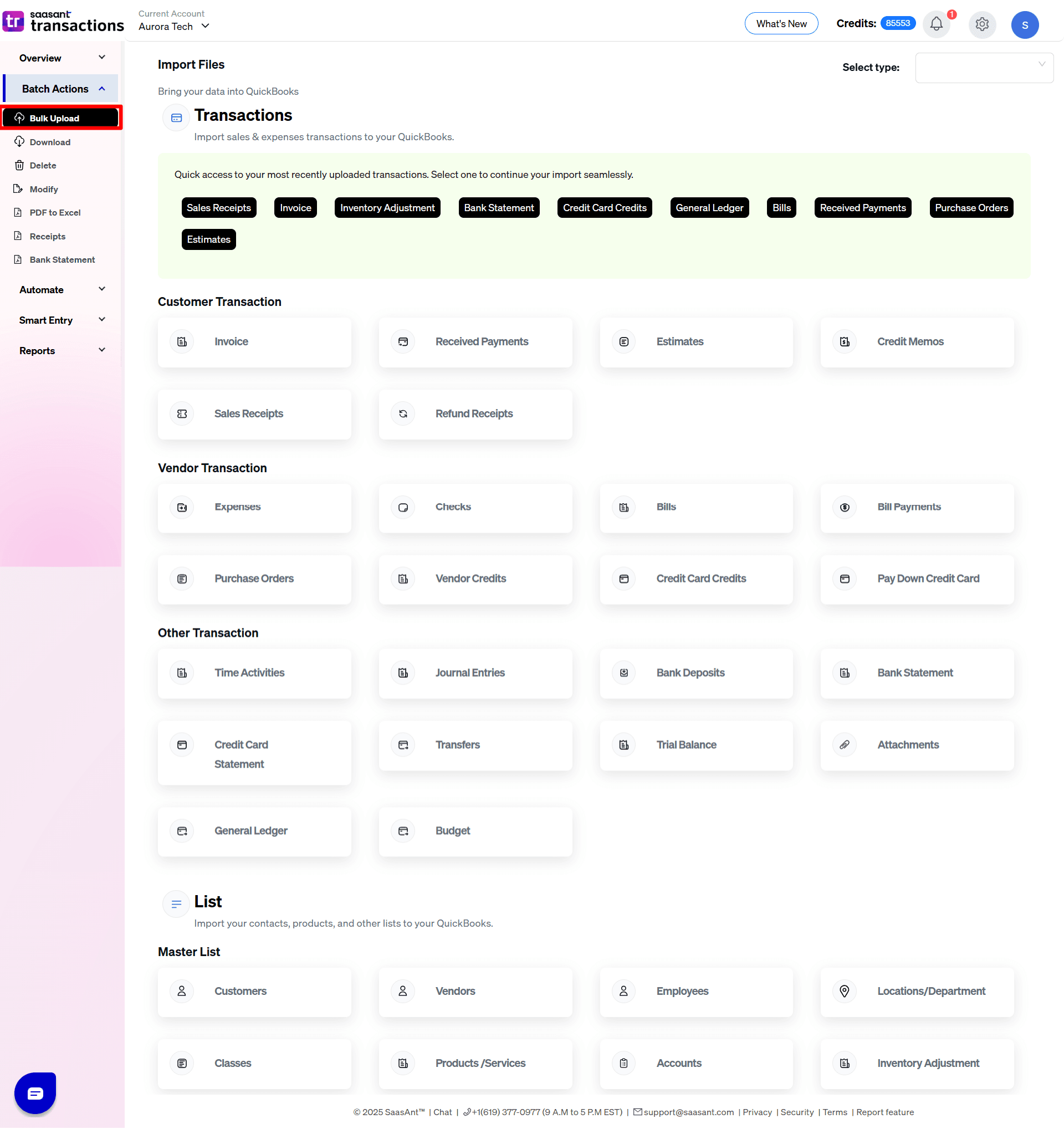
3) Select the QuickBooks entity as "Purchase Orders".
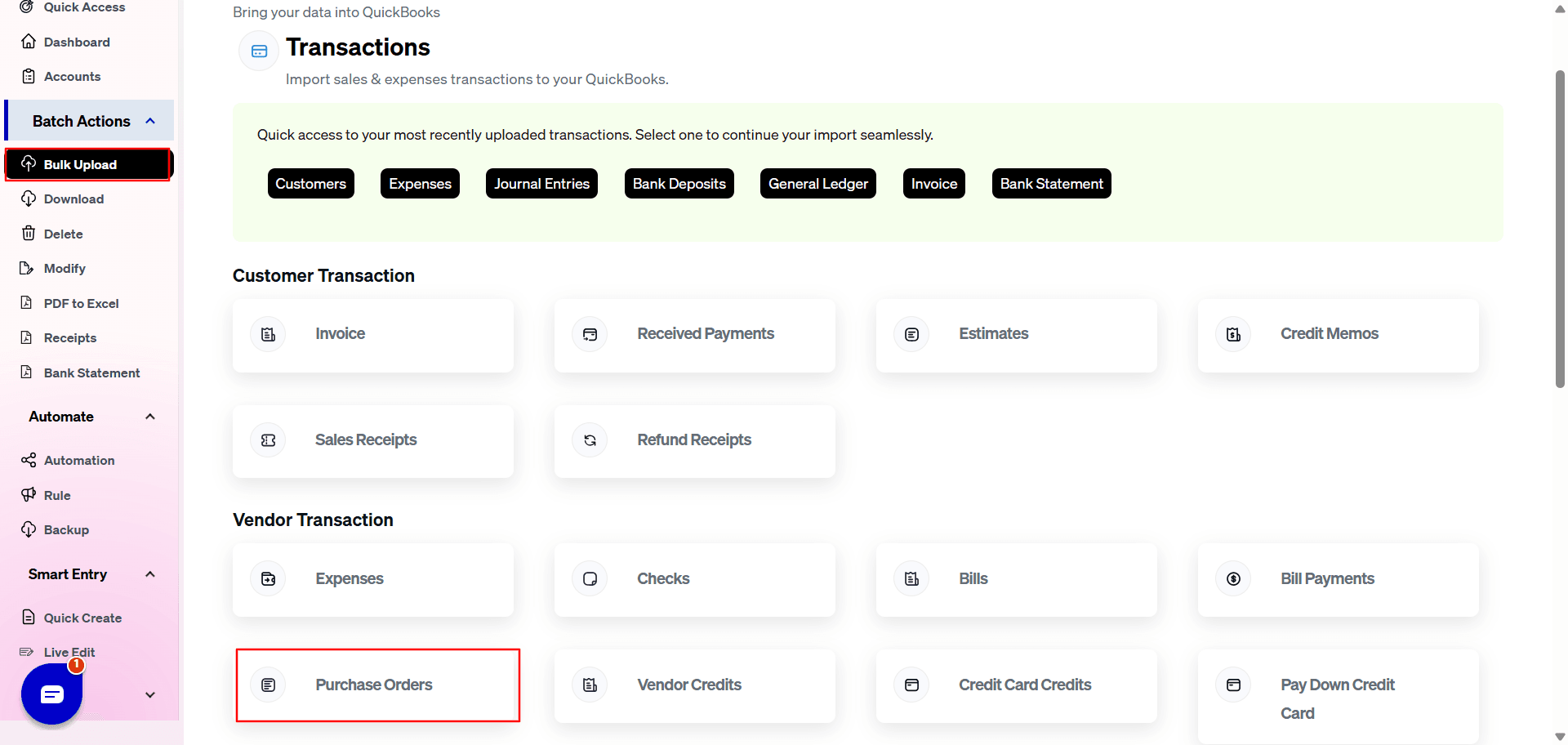
4) Select the files you want to upload.
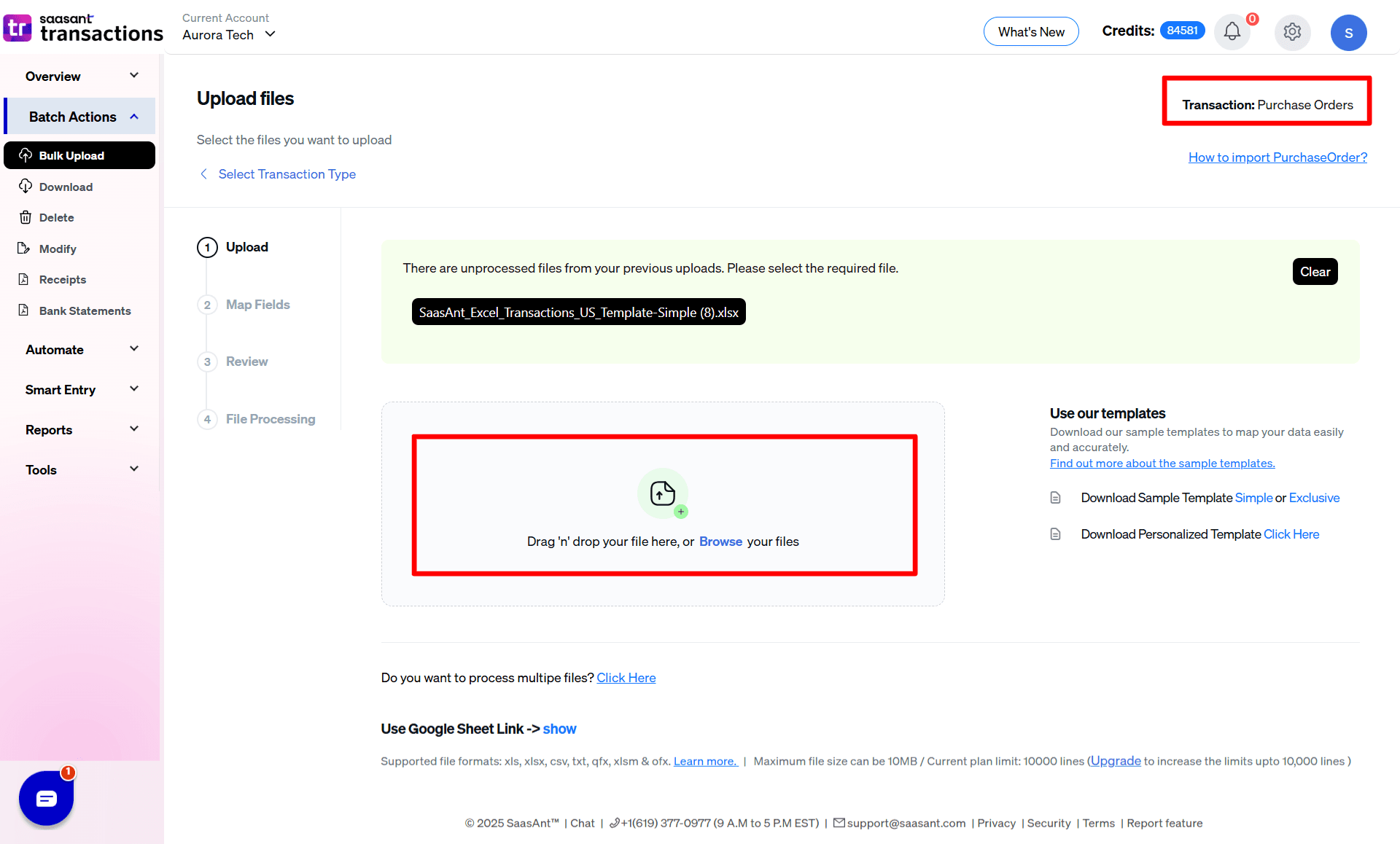
5) Set up the Mapping of the columns in your Purchase Orders.
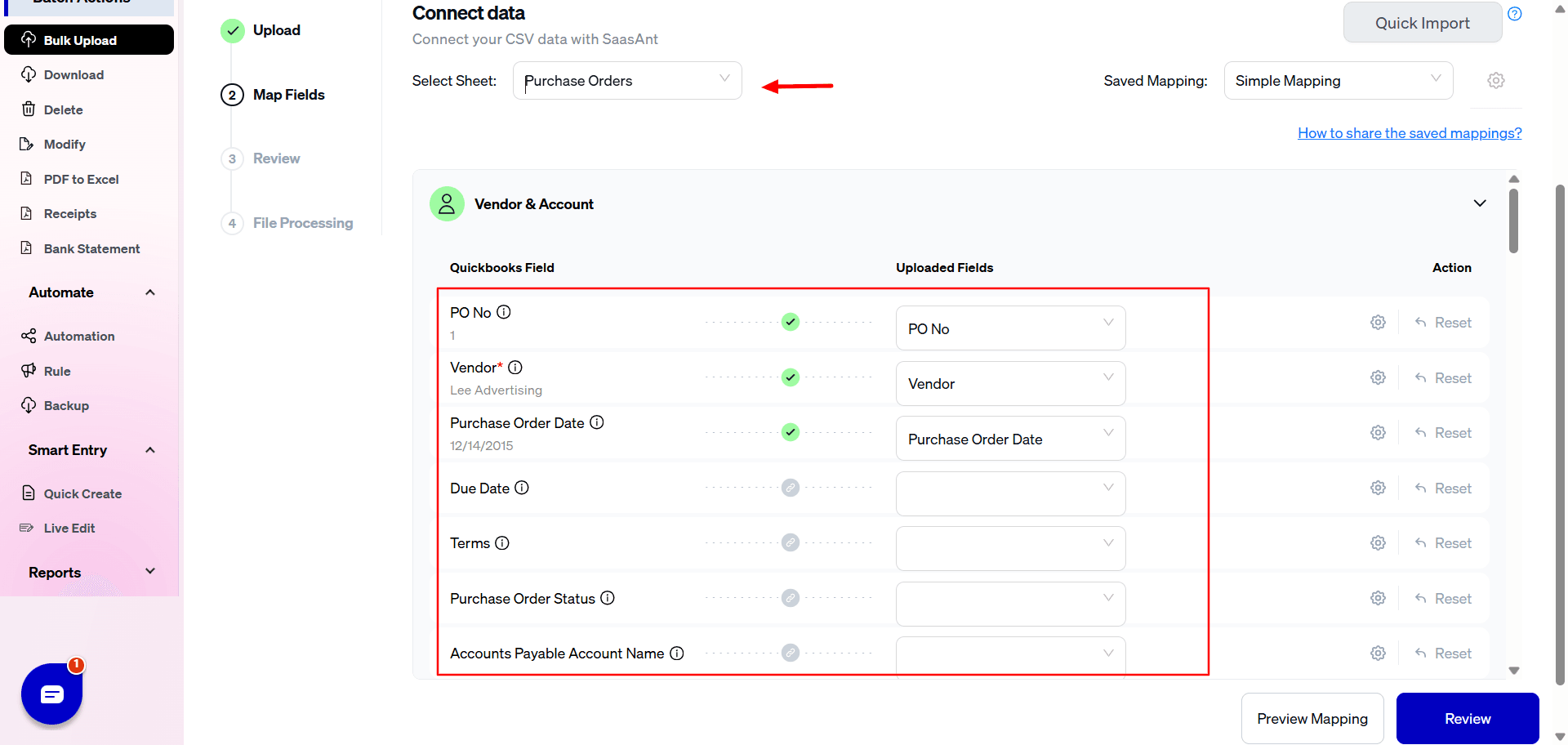
6) Select the "Preview Mapping" button to visualize current mapping based on QuickBooks.
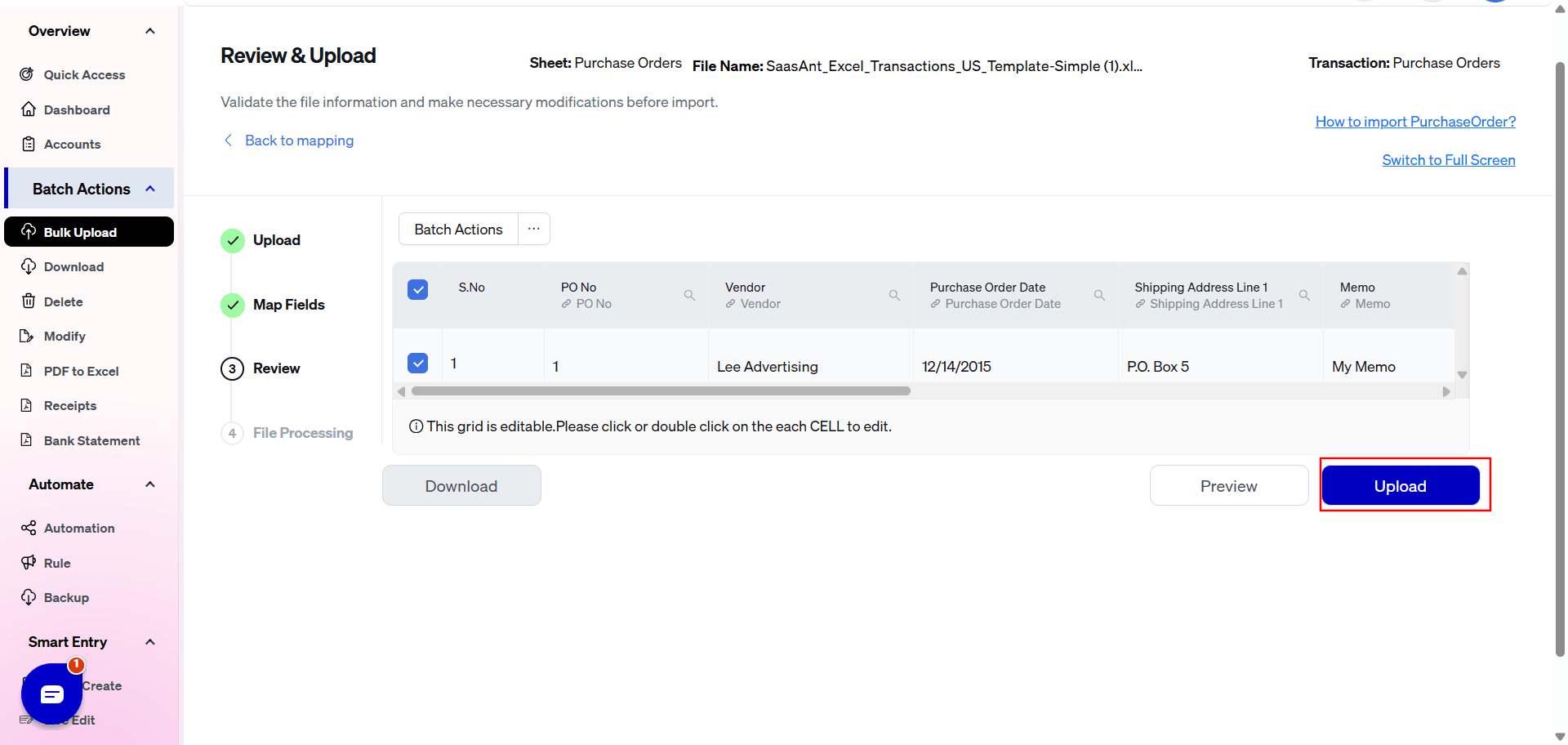
7) Select the Upload tab.
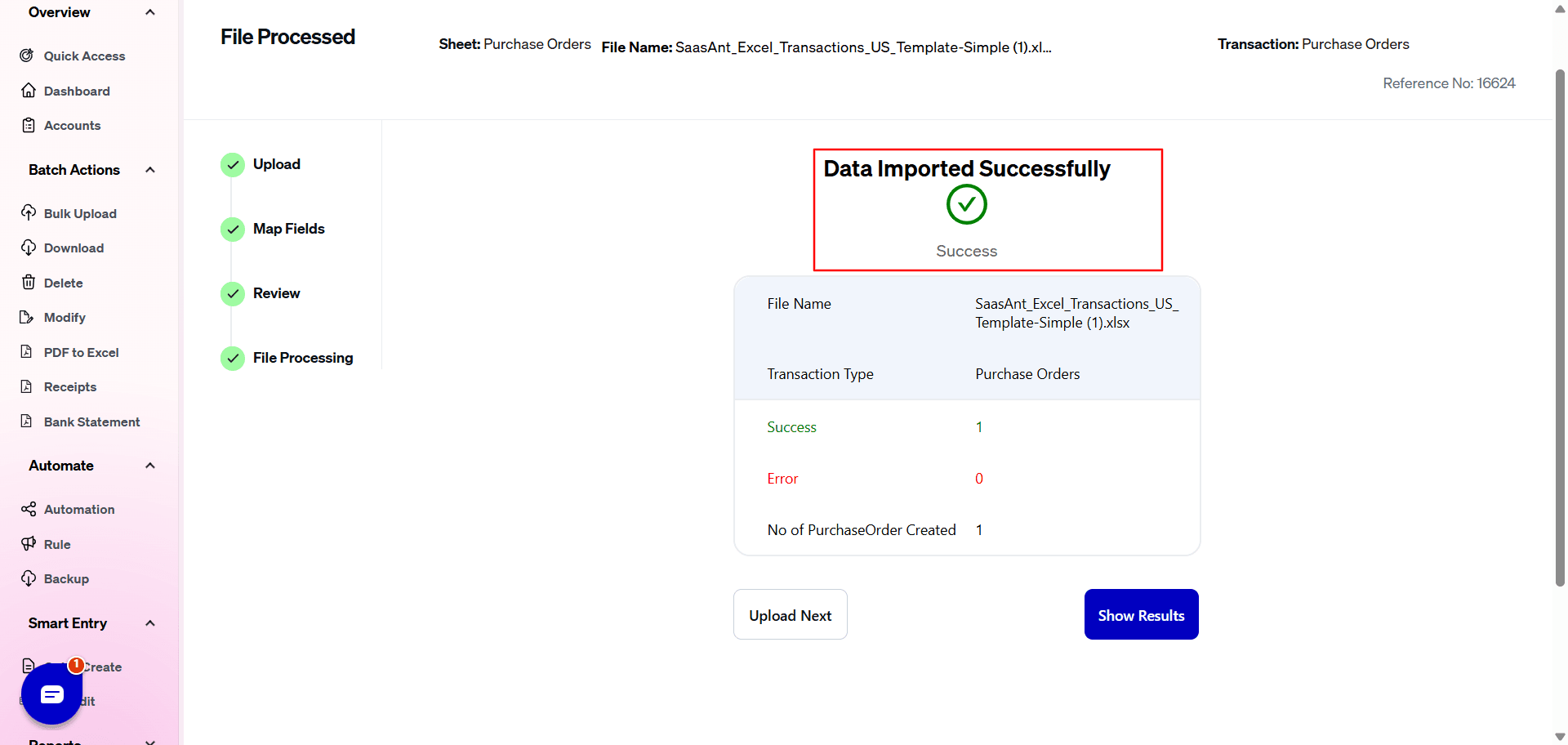
8) The data was imported successfully into QuickBooks.
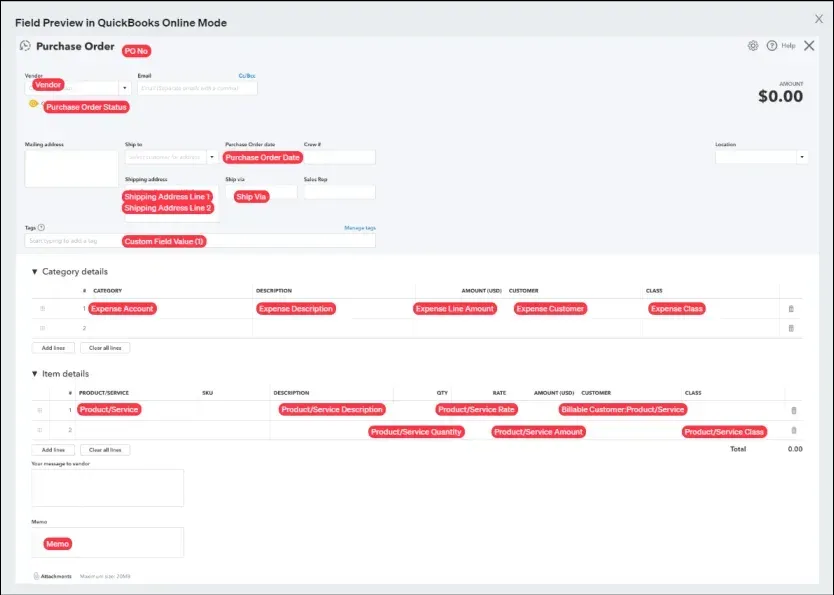
SaasAnt Transactions (Online) Fields
Field Name | Format | Description |
|---|---|---|
PO No | 21 Characters | Reference number for the transaction. By default, this value is used only for internal processing by SaasAnt Transactions (Online), and QuickBooks auto-generates a new value. This can be changed in the import settings. |
Payee | Characters | Name of the vendor for this transaction. |
Purchase Order Date | Date | The date entered by the user when this transaction occurred. |
Purchase Order Status | Characters | Purchase order status. |
Due Date | Date | Date when the payment of the transaction is due. |
Ship Via | Characters | |
Ship To | Characters | |
Terms | Characters | Default Terms for this transaction. |
Billing Address Line 1 | 500 Characters | First line of the billing address. |
Billing Address Line 2 | 500 Characters | Second line of the billing address. |
Billing Address Line 3 | 500 Characters | Third line of the billing address. |
Billing Address City | 255 Characters | City name. |
Billing Address Postal Code | 31 Characters | Zip code. |
Billing Address Country | 255 Characters | Country name. |
Billing Address State | 255 Characters | State name. |
Shipping Address Line 1 | 500 Characters | First line of the shipping address. |
Shipping Address Line 2 | 500 Characters | Second line of the shipping address. |
Shipping Address Line 3 | 500 Characters | Third line of the shipping address. |
Shipping Address City | 255 Characters | City name. |
Shipping Address Postal Code | 31 Characters | Zip code. |
Shipping Address Country | 255 Characters | Country name. |
Shipping Address State | 255 Characters | State name. |
Memo | 4000 Characters | The Note about this Transaction. |
Message to Vendor | 4000 Characters | The Note to the supplier about this Transaction. |
Category Account | Characters | Reference to the Expense Account Name associated with the billing. |
Category Description | 4000 Characters | Free form text description of the Expense. |
Category Line Amount | Decimal | The amount of the line item. |
Category Billable Status | Decimal | The billable status of the expense. |
Category Customer | Characters | Reference to the Customer associated with the expense. |
Category Class | Characters | Reference to the Class for the Expense. |
Line Item | Characters | Reference to the Item. |
Line Item Description | 4000 Characters | Description of the Item. It will be populated from Item description entered in QuickBooks Online. |
Line Item Quantity | Decimal | Number of items for the line. |
Line Item Rate | Decimal | The Unit price of the Item. |
Line Item Amount | Decimal | The Total Amount of the Item. Not required if Line Item Quantity & Line Item Rate is present. |
Line Item Billable Status | Boolean | The billable status of the Item. |
Line Item Customer | Characters | The Customer name for the Item. |
Line Item Class | Characters | The Class name associated with this item. |
Accounts Payable Account Name | Characters | Specifies which Accounts Payable Account the bill will be credited to. |
Location | Characters | The Location of the transaction. |
Currency Code | Characters | Reference to the Currency in which all amounts on the associated transaction are expressed. |
Exchange Rate | Decimal | The Exchange Rate of the given currency against the home currency. |
Purchase Order Settings Reference Guide
The Settings panel dictates global automation rules, data behavior, and product creation overrides for your imports. Configure these rules to align your data files perfectly with QuickBooks Online.
General & Layout Settings
Do you want to apply suggestions automatically?
What it does: Imports data using default fallback values and displays a warning if minor data mismatches occur.
Take note: Enabling this allows the system to automatically generate missing customers or products.
Do you want to create Customers, Vendors, Locations, Classes, and Accounts automatically?
What it does: Automatically creates any missing entity profiles in QuickBooks on the fly during an import to prevent "Entity Not Found" errors.
Date Format
What it does: Sets the specific date structure (supporting - or / separators) to match your upload file (e.g., MM/DD/YYYY for 12/31/2023).
Do you want to use the Transaction Reference Numbers from the uploaded file?
What it does: Forces QuickBooks to use the exact reference numbers from your file (like PO No). If disabled, QuickBooks overrides your file and assigns its own sequential numbers.
Do you want to disable the optimisation for the batch import?
What it does: Turn this on if you are verifying and importing inventory items in bulk. (Note: This bypasses quick bundle optimization and takes more processing time).
Do you want to Update the address (Customer & Vendor) in QuickBooks from the file?
What it does: Overwrites the existing billing or shipping addresses saved in QuickBooks with the newer addresses provided in your upload file.
Do you want to identify product details from SKU information?
What it does: Instructs SaasAnt to match and identify your file's items using the SKU field inside QuickBooks, rather than matching by Item Name.
Would you like to match the names exactly as they appear in your file for customers, vendors, and items?
What it does: Tells SaasAnt to strictly match characters. It will completely ignore minor variations like trailing spaces, case sensitivity, numbers, or special characters to find a match.
Automated Product/Service Creation Rules
If you allow the system to automatically create missing items during a Purchase Order import, the following rules define how QuickBooks builds those new items:
Select the product type to be created automatically if it does not exist
What it does: Sets the default item classification (e.g., Non-Inventory, Service, or Inventory) for the newly created item.
Select the Income Account for the newly created Products/Services
What it does: Links the new item to a mandatory QuickBooks Income account (e.g., 'Sales').
Select the Expense Account for the newly created Products/Services
What it does: Links the new item to a mandatory QuickBooks expense account, which must be a 'Cost of Goods Sold' account type.
For Inventory Items Only:
Select the Inventory Account for the newly created Inventory Item
What it does: Maps the item to an 'Inventory Asset' ledger account in QuickBooks.
Select the Inventory Start Date for the newly created Inventory Item
What it does: Establishes the official tracking start date for the new inventory stock.
Select the default Inventory Quantity for the newly created Inventory Item
What it does: Automatically inputs an initial opening stock quantity (must be 1 or higher).
Possible Failures & Troubleshooting Tips
The currency of the transaction is invalid for the customer/vendor/account.
The given Currency is different than the default currency of the vendor. Please refer to the Vendor's Currency in QuickBooks & update the same currency in the Currency Field.
It is possible that the Multi-Currency feature in QuickBooks could be disabled. Please enable the feature.
Required parameter(s) missing:Amount
Please provide at least one Item Line or Expense Account Line Details to process.
No matching Product/Service found (or) could be created for the provided details.
Please provide a valid name in the Product Field.
You might have disabled Import Settings's "Auto Create List Entities" Feature. By enabling this feature, QuickBooks will automatically create the product for the transaction.
Duplicate Document Number Error: You must specify a different number. This number has already been used.
There is another Purchase Order with same reference number. Please use the other reference number.
You have disabled "Assign Transaction Numbers from file" in Import Settings. By enabling this feature, QuickBooks will automatically assign numbers for the transaction.
No matching reference was found for this account.
Please provide a valid Expense account name in the "Account" field.
Invalid account type: You need to select a different kind of account for this transaction.
Please provide a valid Expense account name in the "Account" field.
The amount is missing in the request.
The Line Item amount is missing for the particular line item.
Required parameter Line: Amount is missing in the request.
The Line Item amount is missing for the particular line item.
Please check QuickBooks company settings to see if the appropriate preferences are enabled to upload the current data set successfully. E.g., Shipping, Multi-Currency, etc.
If you have provided a Shipping Address or Currency, please ensure you have enabled the Shipping & Multi-Currency feature in QuickBooks Online.
QuickBooks does not support the requested entity/feature (BillableExpense) per your subscription.
The billable Customer or Expense feature is unavailable for your QuickBooks Online Subscription. Please remove the values in Billable Fields (Expense Billable, Line Item Billable).
No matching reference was found for this customer.
There is no match found for the given Customer Name.
Please enable the "Auto Creation of List Entities (Vendor, Customer)" feature in import settings to create the customer automatically.
No matching vendor found (or) could be created for the provided details.
There is no match found for the given Vendor Name.
Please enable "Auto Creation of List Entities (Vendor, Customer)" feature in import settings to create the customer automatically.
If the currency field has some value, Please enable the Multi-Currency feature in QuickBooks.
Business Validation Error: There is no account associated with the item "XXXXX". Is it marked for purchase, and has an account associated with it?
Please assign the Expense Account for Product / Service "XXXXX" in your QuickBooks Online.
Business Validation Error: You must select a customer for each billable split line.
Please enable the below features in your QuickBooks Online.
Track expenses and items by customer
Make expenses and items billable
Invalid Status value.
Please provide one of the below values
Open
Closed
Transaction amount (Sum of line amounts) must be 0 or greater.
Please provide the valid amounts (Non Negative) in Line Item Amount and Expense Amount.