How to Import Journal Entries into QuickBooks Online (U.S)?
June 2, 2026
Import Journal Entries into QuickBooks Online:
You can directly import Journal Entries from text files or Excel spreadsheets into QuickBooks Online using SaasAnt Transactions (Online) software.
Pre-Requisites:
Connect your QuickBooks Online account to SaasAnt Transactions (Online) App from QuickBooks AppStore by clicking the "Get App Now" button and get the 30-day free trial [No credit card required].
Please refer basics of field mappings for more info. If you have any confusion or doubts, feel free to email support@saasant.com.
Video Tutorial for Importing Journal Entries into QuickBooks Online using SaasAnt Transactions Online:
How to Import Journal Entries into QuickBooks Online using SaasAnt Transactions Online
1) Login into SaasAnt Transaction Online
2) Select the Bulk Upload Tab.
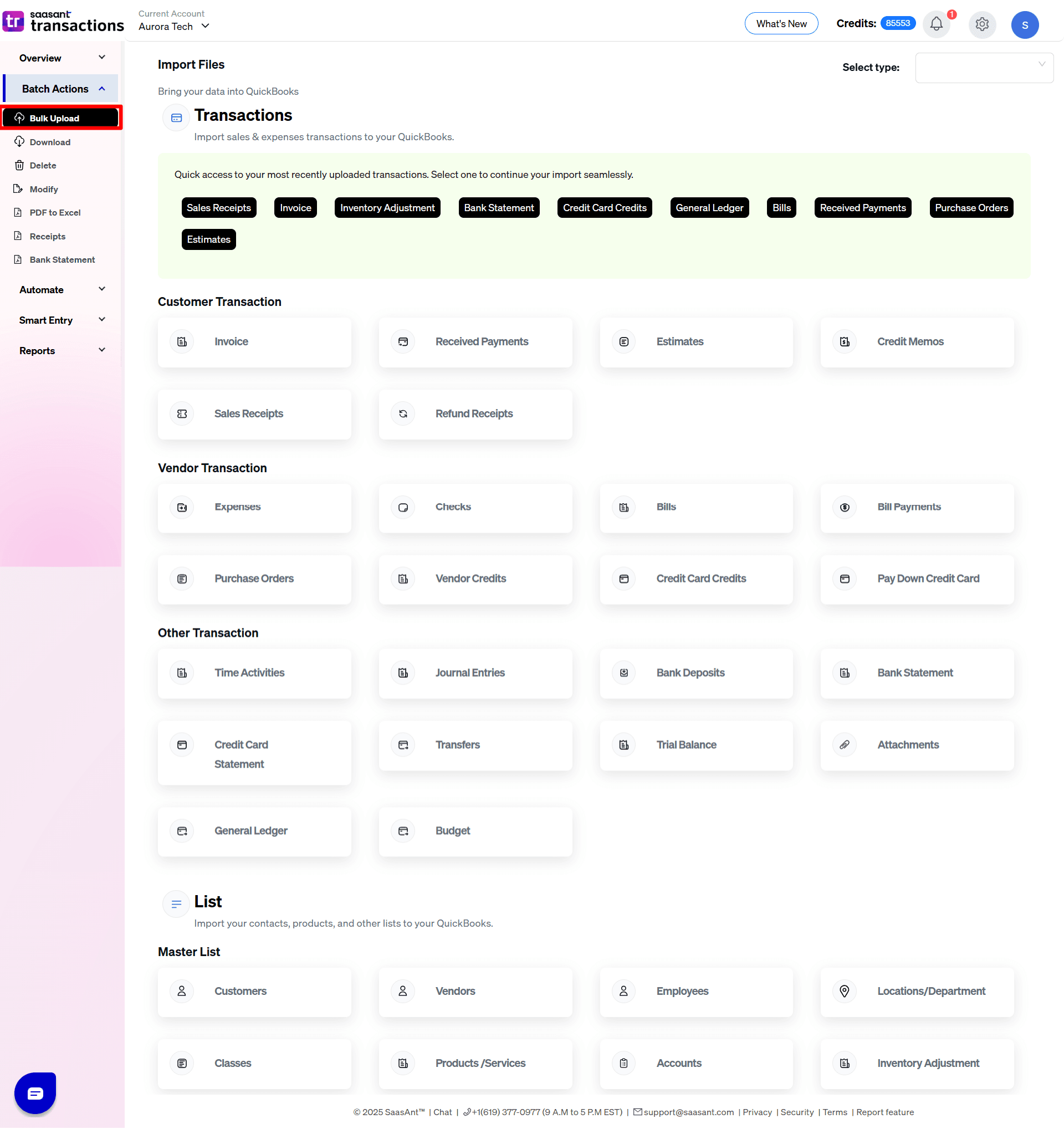
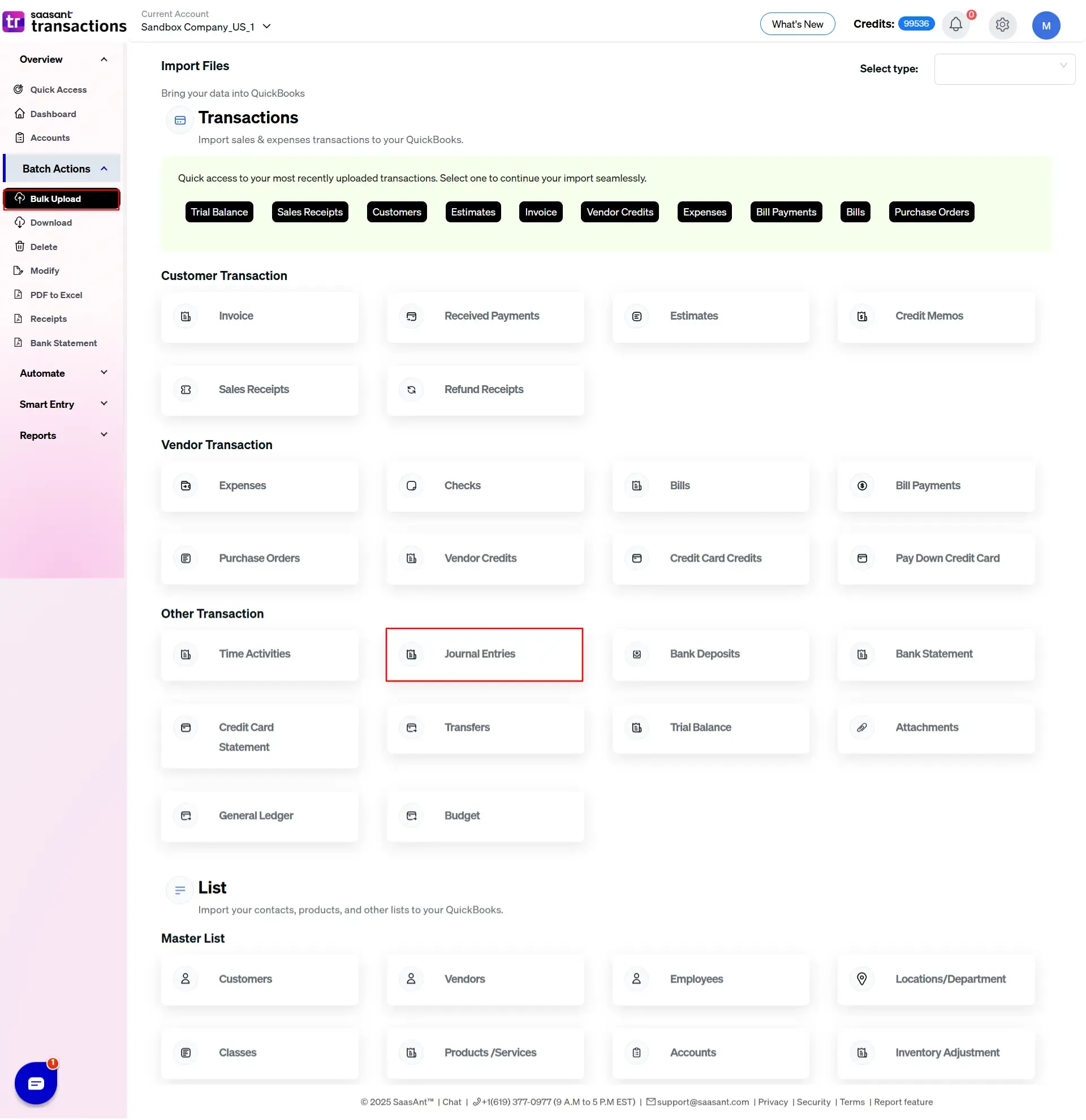
3) Select the QuickBooks entity as "Journal Entry"
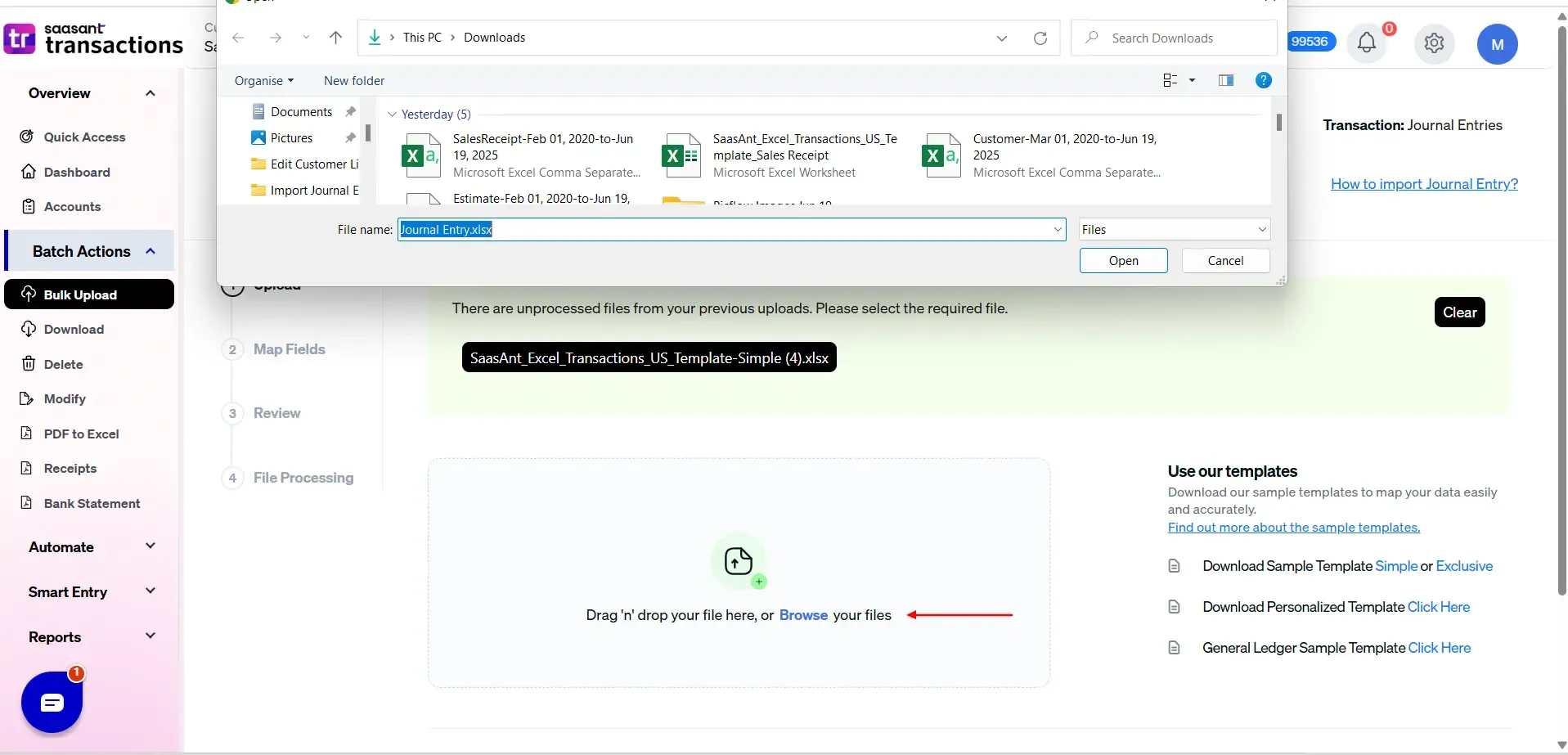
4) Select the files you want to upload
5) Set up the Mapping of the columns in your "Journal Entry"
6) Select the "Preview Mapping" button to visualize current mapping based on QuickBooks
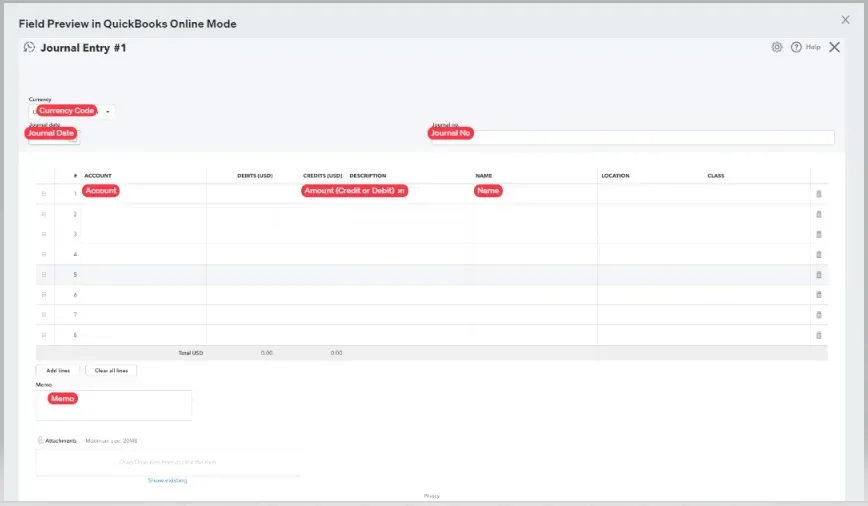
7) Select the Upload tab.
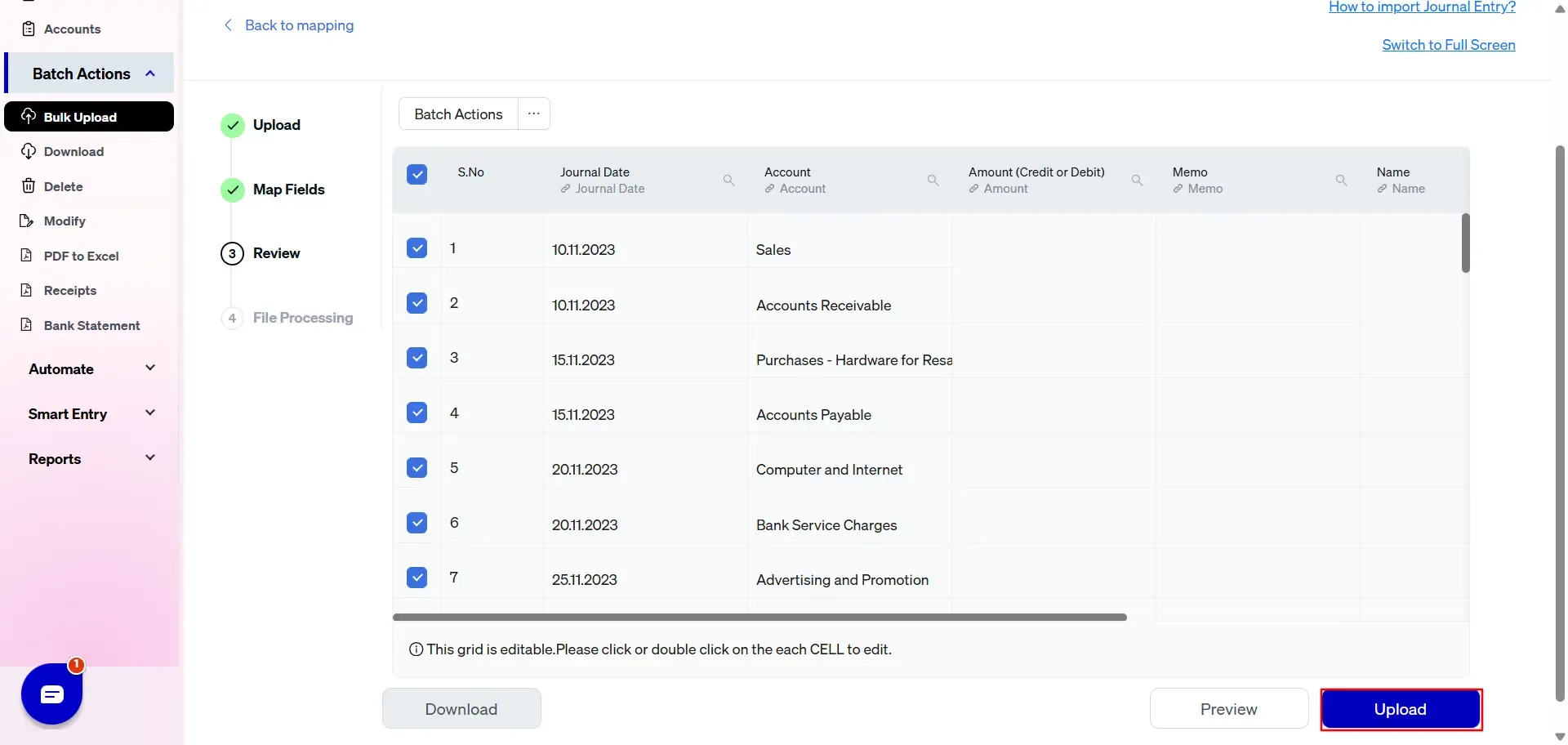
8) The data was imported successfully into QuickBooks.
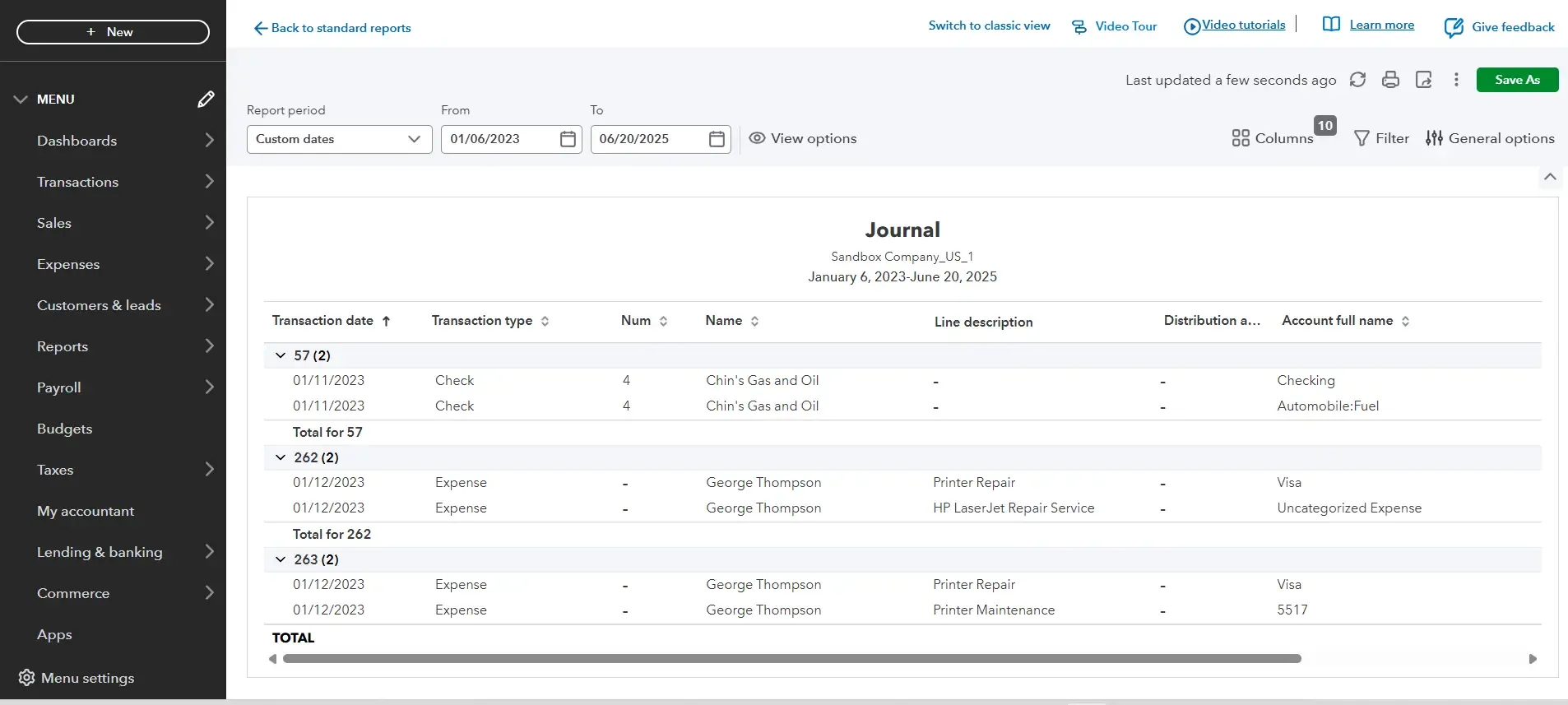
SaasAnt Transactions Online Fields
Field Name | Format | Description |
|---|---|---|
Journal No | 21 Characters | Reference number for the transaction. By default, this value is used only for internal processing by SaasAnt Transactions (Online), and QuickBooks auto-generates a new value. This can be changed in the import settings. |
Journal Date | Date | Date of the transaction. |
Memo | 4000 Characters | Organization-private note about the transaction. By default, this note will not appear on the transaction records. |
Account | Characters | Account name. |
Amount | Decimal | Line amount. Debits are expressed as Positive amounts, and Credits as Negative amounts. |
Name | Characters | Customer, Vendor, or Employee associated with the line, if any. |
Location | Characters | |
Class | Characters | |
Exchange Rate | Decimal | Default is 1, applicable if Multi-Currency is enabled for the company. |
Is Adjustment | Boolean | Indicates if the journal is an adjustment value. |
Journal Entry Settings Reference Guide
The Settings panel for Journal Entries controls global automation rules, transaction numbering, and specific contact routing for general ledger imports.
General & Layout Settings
Do you want to apply suggestions automatically?
What it does: Imports data using default fallback values and displays a warning if minor data mismatches occur.
Do you want to create Customers, Vendors, Locations, Classes, and Accounts automatically?
What it does: Automatically builds missing entity profiles in QuickBooks on the fly during a Journal Entry import to prevent validation failures.
Do you want to skip the mapping screen?
What it does: Bypasses Step 2 completely on future imports if your upload files strictly use a consistent, recognized template layout.
Date Format
What it does: Sets the specific date structure (supporting - or / separators) to match your upload file (e.g., DD/MM/YYYY).
Do you want to use the Transaction Reference Numbers from the uploaded file?
What it does: Forces QuickBooks to use the exact Journal Entry numbers from your file. If disabled, QuickBooks overrides your file and assigns its own sequential journal numbers.
Do you want to disable the optimisation for the batch import?
What it does: Turn this on if you need to run individual, meticulous row-by-row imports rather than high-speed parallel processing bundles.
Do you want to receive alerts/notifications about your automation imports?
What it does: Sends system or email notifications specifically when scheduled background automation imports complete.
Account & Routing Rules
Find GL Account by Account Number
What it does: Instructs SaasAnt to identify and match your General Ledger accounts using numerical codes (e.g., 1000, 5000) inside QuickBooks rather than matching by text names.
Type of the contact created automatically for Journal Entry
What it does: Since a missing name on a journal line could belong to any entity type, this setting defines how SaasAnt handles unknown names. If the given name is not available for the selected user type, it will be automatically created in QuickBooks.
Dropdown Options:
Do Not Create: Prevents the system from making new profiles (will throw an error if the contact is missing).
Customer: Automatically creates the missing name as a Customer profile.
Vendor: Automatically creates the missing name as a Vendor profile.
Employee: Automatically creates the missing name as an Employee profile.
FAQs
Most of us would have questions while moving data to your QuickBooks Online. Some of them for your reference below:
Will your application support Multi-Line Transactions?
Yes. It will. More Info...
I made some mistakes in the mapping. Your application imported wrongly. So, my QuickBooks file got corrupted. Is there any way to undo or revert?
Sometimes, it happens due to the wrong mapping. It is possible to delete the entire transactions which went bad. Our DELETE feature is the rescue. More Info...
I want to get an email for each upload. Is it possible?
Yes. It is. You need to enable a couple of settings while importing. More Info...
Does your app support taxes?
Yes. It does.
My file has some specific date format. I don't want to change the file. Will your product support all date formats?
Yes. You can select the specific date format as per your requirements. More Info...
Do you have any sample templates?
Yes. We do have. Sample template for Imports.
What file types does SaasAnt Transactions Online support for QuickBooks Online imports?
For almost all entities in QuickBooks Online, SaasAnt Transactions Online supports XLS, XLSX, XLSM, CSV, TXT, Google Sheets, and IIF. Additionally, PDF, PNG, and JPEG are supported only for Receipts, Invoices, Bank Statements, Checks, and Expenses.
How do I report the issues if I am stuck?
Feel free to drop an email to support@saasant.com