How to Import Item/Product/Service List into QuickBooks Online (U.S)?
March 3, 2026
Import Item/Product/Service List into QuickBooks Online
You can import Item/Product/Service list from text files or Excel spreadsheets directly into QuickBooks Online using SaasAnt Transactions (Online).
Pre Requisites:
Connect your QuickBooks Online account to SaasAnt Transactions (Online) App from QuickBooks AppStore by clicking the "Get App Now" button and get the 30-day free trial [No credit card required].
Please refer basics of field mappings for more info. If you have any confusion or doubts, feel free to drop an email to support@saasant.com.
Video Tutorial for Importing Product and Service Lists into QuickBooks Online using SaasAnt Transactions Online:
How to Import Item/Product/Service List into QuickBooks Online using SaasAnt Transactions Online
1) Login into SaasAnt Transaction Online
2) Select the Bulk Upload Tab.
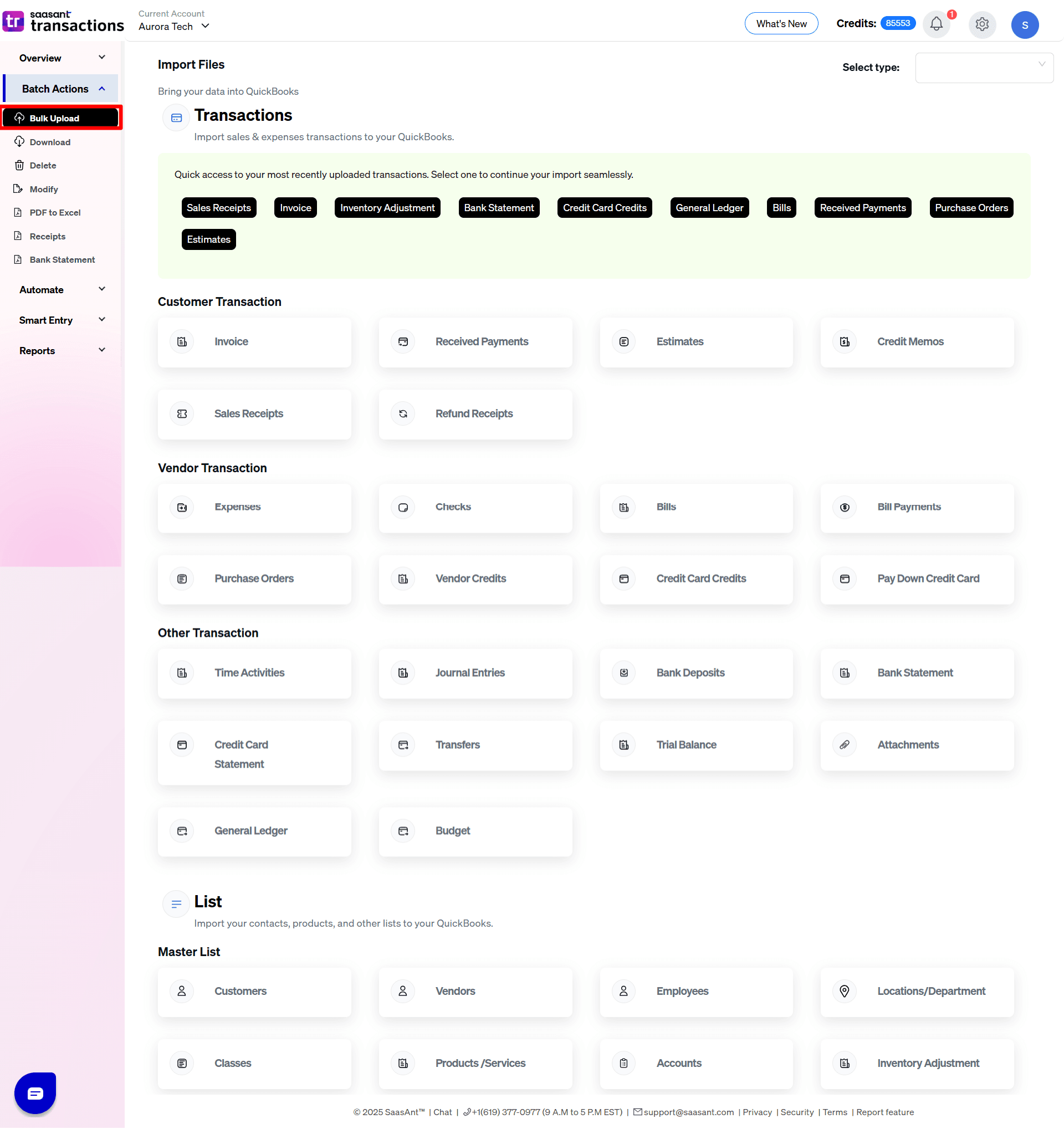
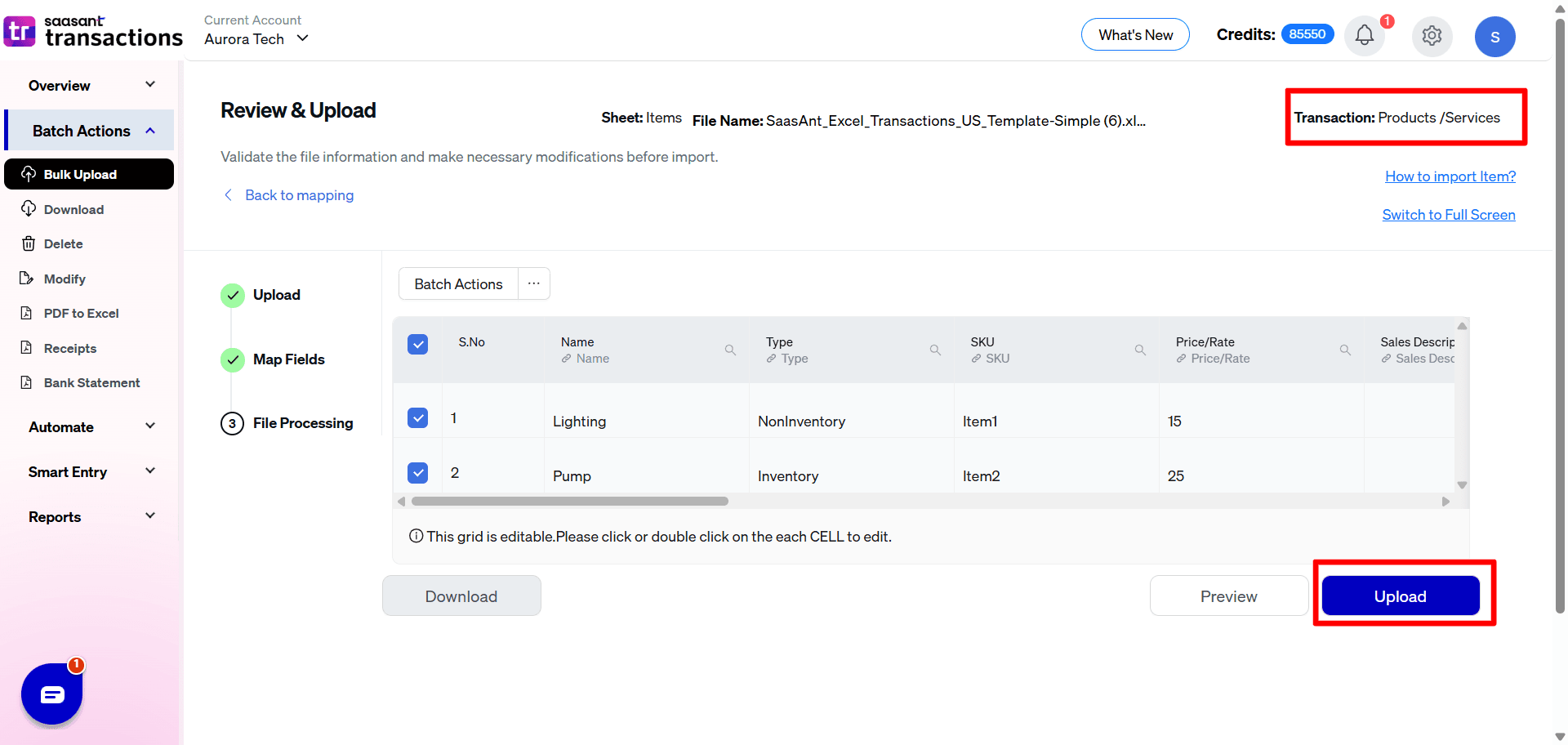
3) Select the QuickBooks entity as "Product/Services".
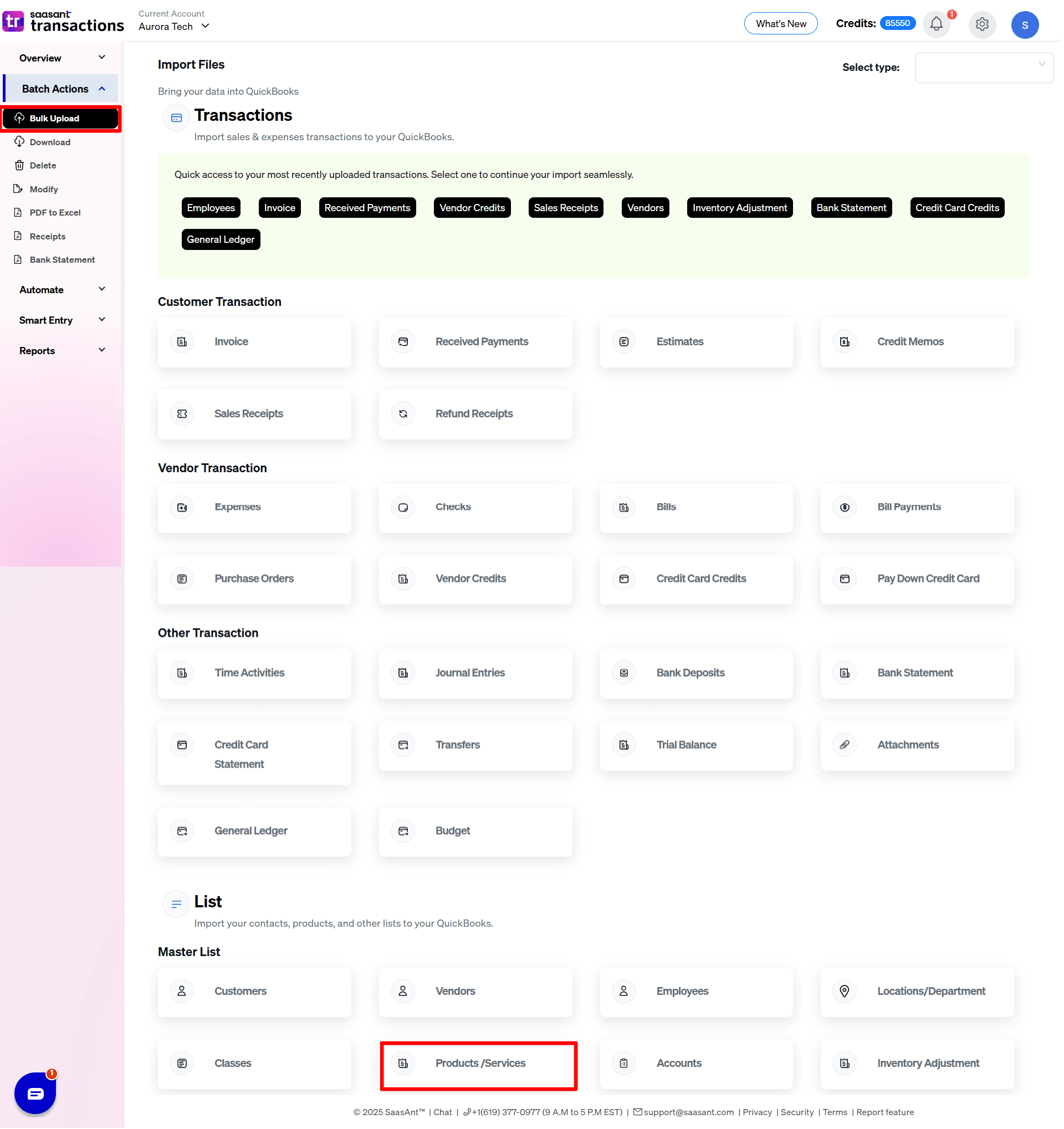
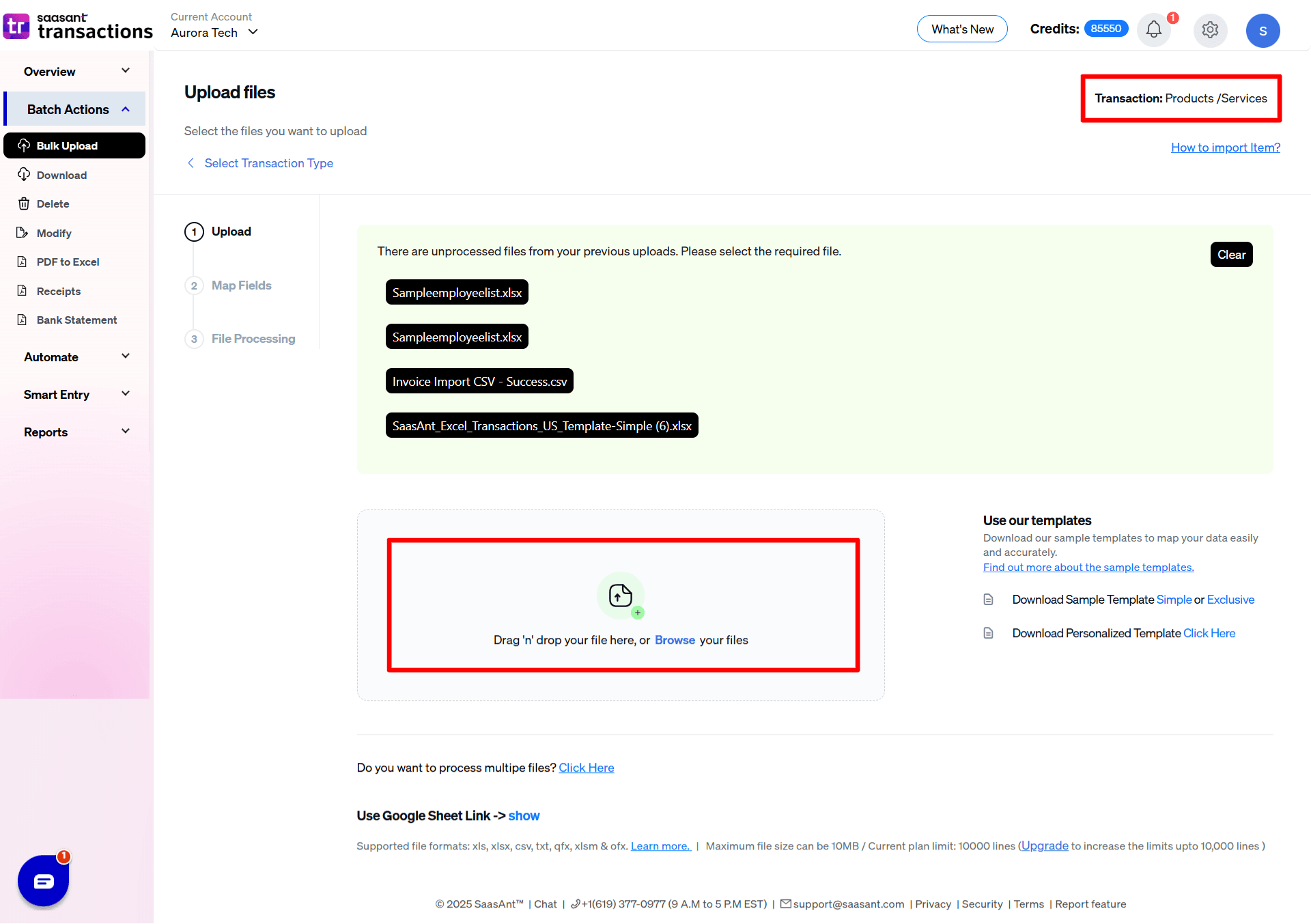
4) Select the files you want to upload.
5) Set up the Mapping of the columns in your Product/Services.
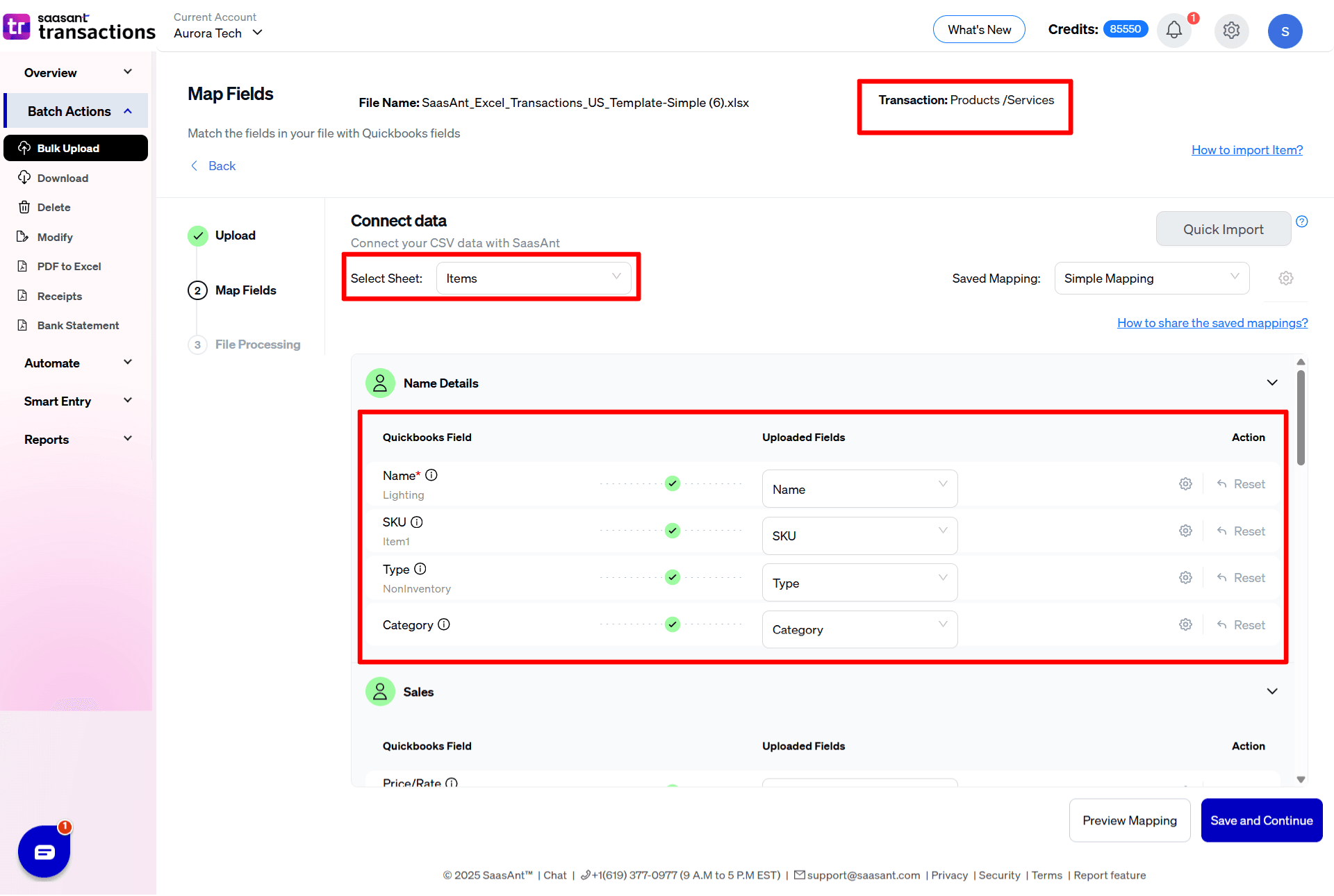
6) Select the "Preview Mapping" button to visualize current mapping based on QuickBooks.

7) Select the Upload tab
8) The data was imported successfully into QuickBooks.
Let’s have a look at the SaasAnt Transactions Online Fields.
SaasAnt Transactions Online Fields
Field Name | Format | Description |
|---|---|---|
Name | 100 Characters | Name of the Item. |
Type | Selected Values | Basic Type of this Item. |
SKU | 100 Characters | The stock keeping unit (SKU) for this Item. |
Price / Rate | Decimal | Unit price of the Item. |
Sales Description | 4000 Characters | Description of the item. |
Taxable | Boolean | Transactions for this item are taxable. |
Purchase Description | 1000 Characters | Purchase description for the item. |
Cost | Decimal | Amount paid when buying the item. |
Income Account | Characters | Reference to the posting Account name. |
Expense Account | Characters | Reference to the expense account name used to pay the vendor for this item. |
Parent Product / Service | Characters | The Parent of the item. |
Inventory Asset Account | Characters | Inventory Asset account name that tracks the current value of the inventory. |
Initial Quantity On Hand | Decimal | The quantity of the Inventory items available for sale. |
As of Date | Date | Date when the inventory transaction started for the item. |
Products / Services Import Settings Reference Guide
The Products / Services settings control how item names are matched against your existing catalog, how description fields are prioritized, and how new item profiles behave during a bulk import.
Item Identification & Duplicate Prevention
Would you like to match the names exactly as they appear in your file for customers, vendors, and items?
What it does: Enforces a strict, character-by-character text match against your existing QuickBooks catalog. When enabled, it strips out variations in trailing spaces, casing, or special characters.
Why it matters for list imports: Leaving this turned on ensures that an item named "Widget A" in your spreadsheet doesn't accidentally create a duplicate if QuickBooks already has a "widget a" or "Widget A ".
Do you want to identify product details from SKU information?
What it does: Changes the master lookup key. Instead of matching rows by "Item Name," SaasAnt will look up and identify items based on the SKU field inside QuickBooks.
Why it matters for list imports: Essential if you are updating prices or details for existing items using a manufacturer spreadsheet that only provides SKUs instead of specific QuickBooks display names.
Text & Description Overrides
Do you want to apply sales and expense descriptions derived from products/services settings in QuickBooks?
What it does: If enabled, SaasAnt will automatically pull and apply the default sales and purchase descriptions already saved inside your QuickBooks item profiles whenever those description columns are left completely blank in your uploaded file.
New Product & Fallback Configuration
If your upload spreadsheet introduces completely new items that do not yet exist in your QuickBooks directory, SaasAnt will automatically build those profiles on the fly using these default fallback rules:
Select the product type to be created automatically if it does not exist
What it does: Sets the global fallback classification tier (Non-Inventory, Service, or Inventory) for any brand-new items generated by the import.
Select the Income Account for the newly created Products/Services
What it does: Automatically maps the required QuickBooks revenue/sales ledger account where income from this new item will be tracked.
Select the Expense Account for the newly created Products/Services
What it does: Automatically maps the required QuickBooks expense account (such as Cost of Goods Sold) for tracking the item's procurement cost.
For New Inventory Items Only:
Select the Inventory Account for the newly created Inventory Item
What it does: Maps physical stock tracking directly to your preferred 'Inventory Asset' ledger account in QuickBooks.
Select the Inventory Start Date for the newly created Inventory Item
What it does: Sets the official historical tracking inception date (MM/DD/YYYY) for the new item's inventory log.
Select the default Inventory Quantity for the newly created Inventory Item
What it does: Automatically inputs an initial opening stock quantity balance for the newly generated asset profile.
Possible Failures & Troubleshooting Tips
Invalid enumeration for one of these columns (s): Type
Please update the Type field with any of the following values:
Service, Inventory, Non-Inventory
Invalid account type: For an inventory product, the expense account must have the Account Type: 'Cost of Goods Sold' and Detail Type: 'Supplies.'
Please update the valid "Expense Account."
The name supplied already exists: Another product or service is already using this name. Please use a different name.
This Product / Service is already available in QuickBooks with the given "Name". If you want to continue with same product, please change the "Name".
This error may appear if you have tried to upload the parent product & sub-product in the same file. Please continue the upload with the error; sub-products will be created automatically.
An initial quantity on hand for an inventory item is required.
Please provide the proper value for the "Initial Quantity On Hand" Field.
Business Validation Error: As of date, for initial quantity on hand is required.
Please provide proper value for "the As Of Date" Field.
An inventory asset account is required if you are tracking inventory quantities for this product.
Please provide valid "Inventory Account" details.
No matching reference was found for this product/service.
Please provide the valid Product / Service detail in the Parent Product/Service Field.
This error may appear if you have tried to upload the parent product & sub-product in the same file. Please continue the upload with the error; sub-products will be created automatically.
FAQ
What file types does SaasAnt Transactions Online support for QuickBooks Online imports?
For almost all entities in QuickBooks Online, SaasAnt Transactions Online supports XLS, XLSX, XLSM, CSV, TXT, Google Sheets, and IIF. Additionally, PDF, PNG, and JPEG are supported only for Receipts, Invoices, Bank Statements, Checks, and Expenses.