How to Import Customer List into QuickBooks Online (U.S)?
May 5, 2026
Import Customer List into QuickBooks Online
You can import customers from text files or Excel spreadsheets directly into QuickBooks Online using SaasAnt Transactions (Online) software.
Pre Requisites:
Connect your QuickBooks Online account to SaasAnt Transactions (Online) App from QuickBooks AppStore by clicking the "Get App Now" button and get the 30 days free trial [No credit card required].
Please refer basics of field mappings for more info. If you have any confusion or doubts, feel free to drop an email to support@saasant.com.
Video tutorial for Importing Customers list into QuickBooks Online using SaasAnt Transactions Online:
How to Import Customer List into QuickBooks Online using SaasAnt Transactions Online
1) Login into SaasAnt Transaction Online
2) Select the Bulk Upload Tab.
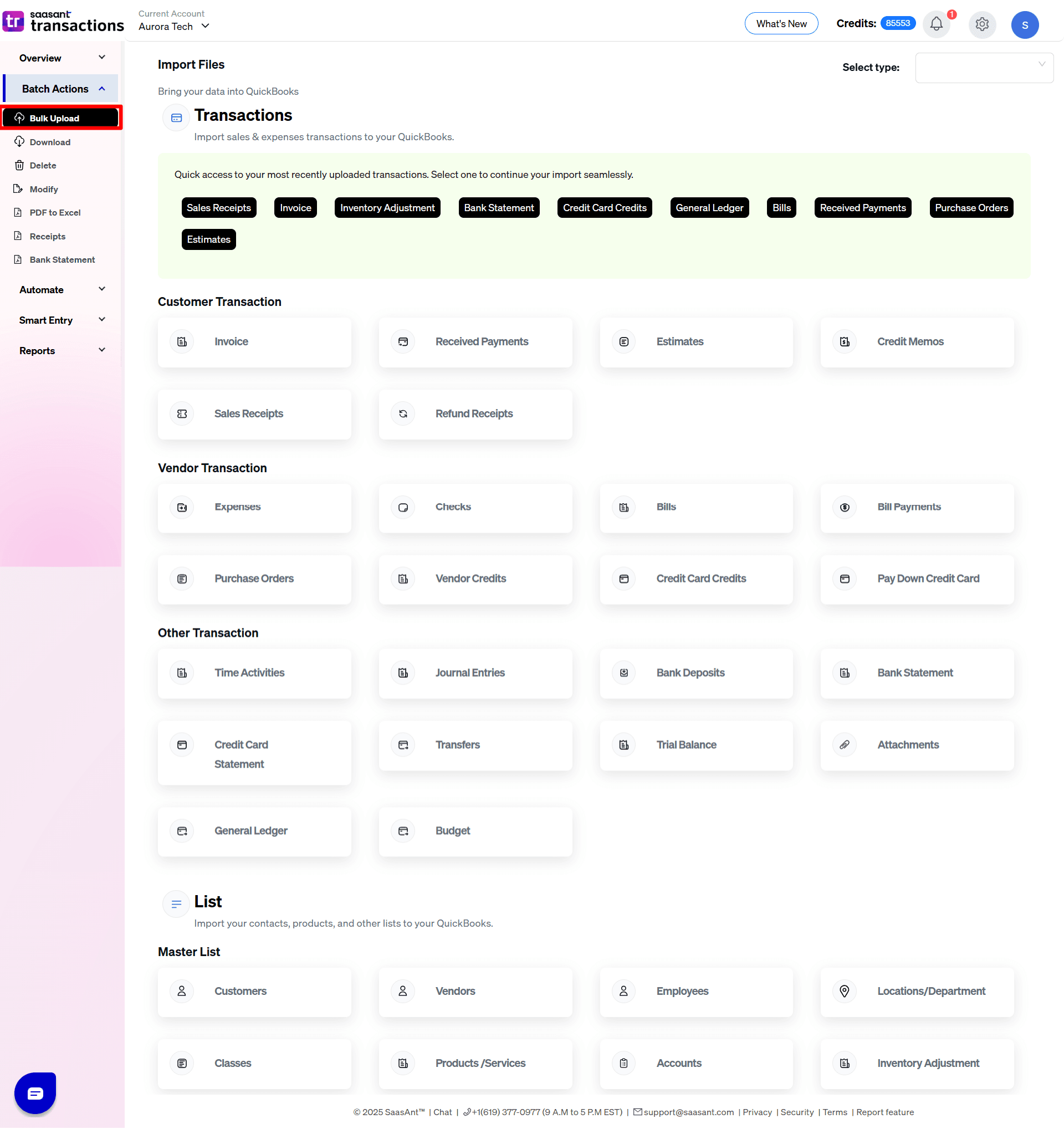
3) Select the QuickBooks entity as "Customers".
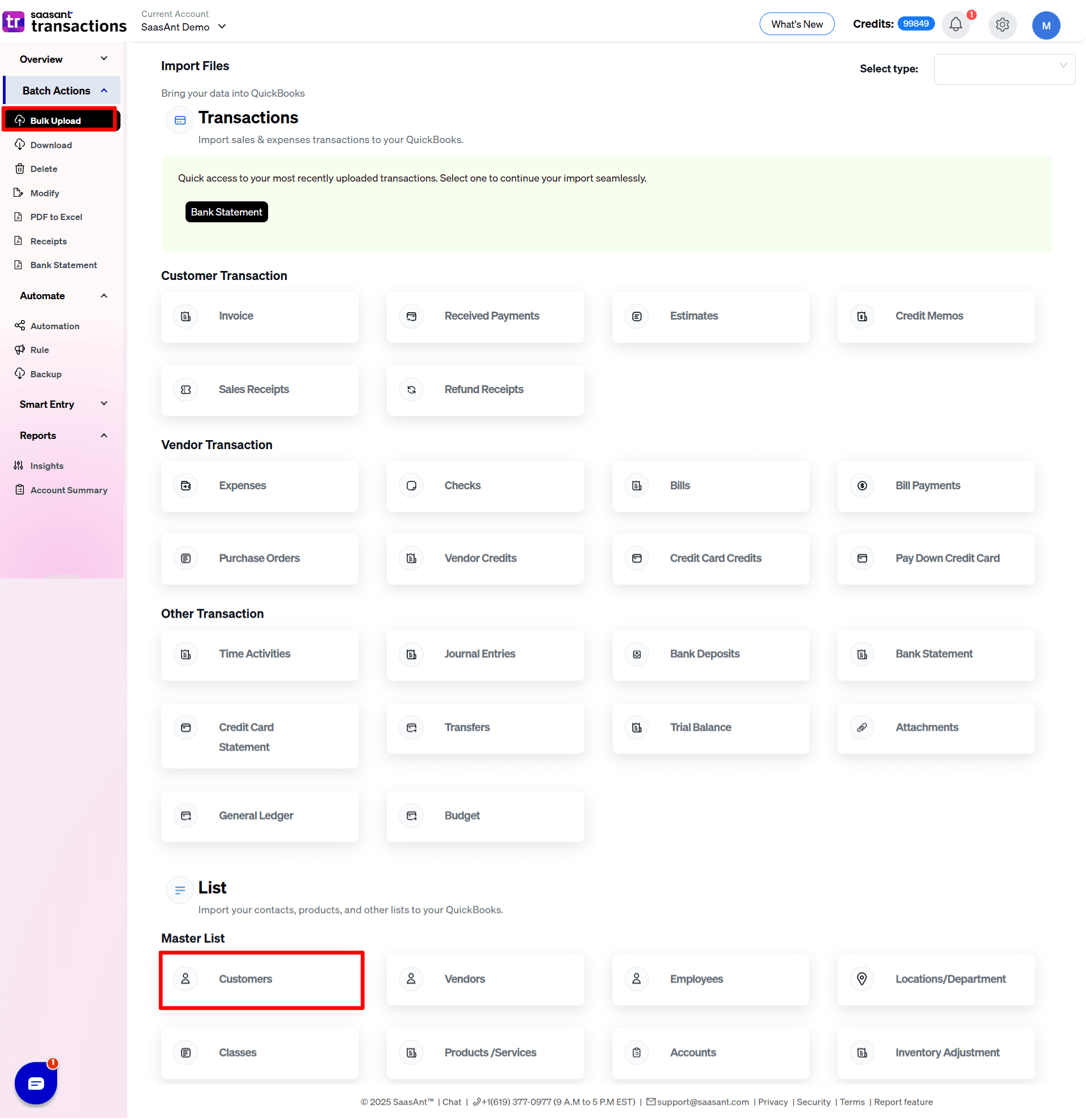
4) Select the files you want to upload.
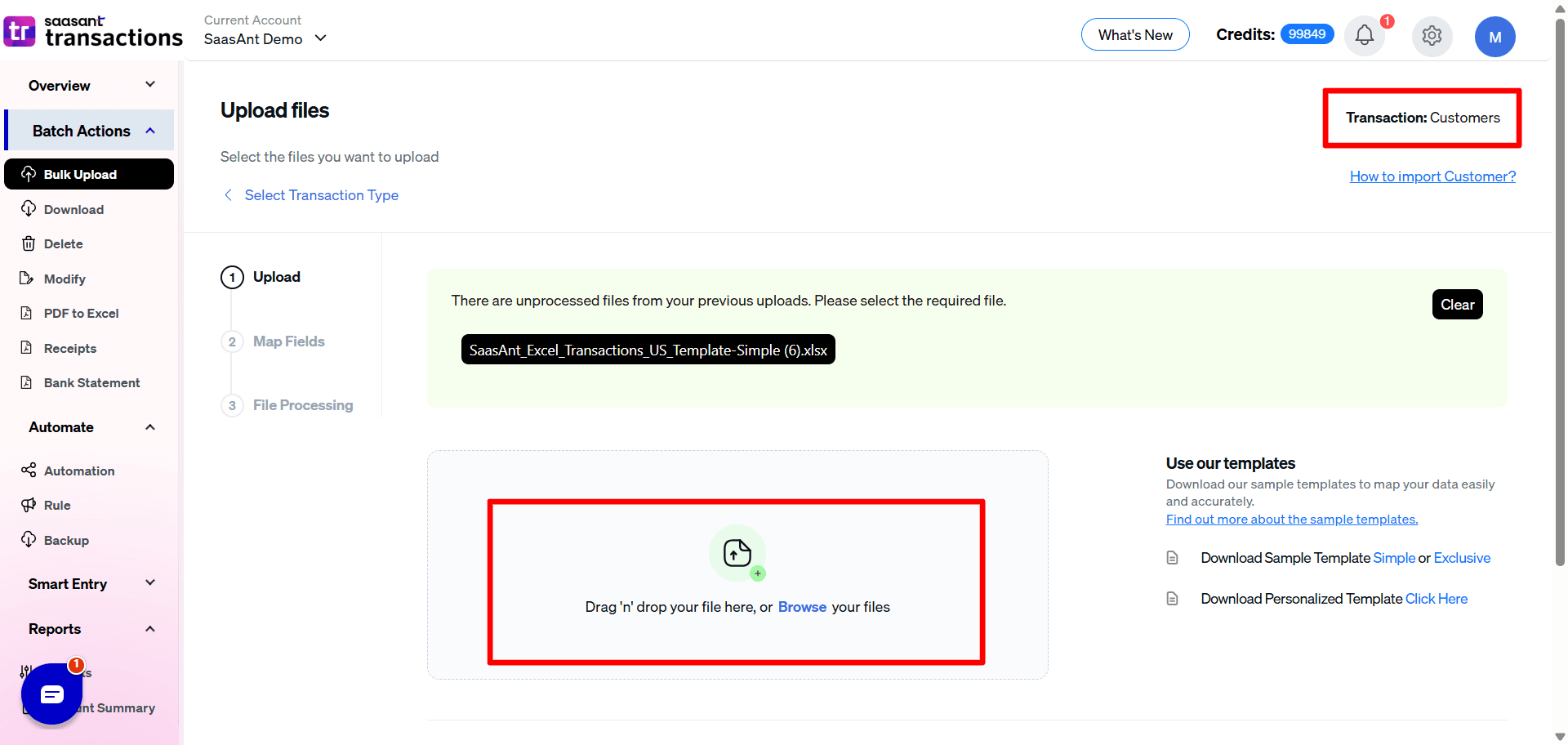
5) Set up the Mapping of the columns in your Customers.
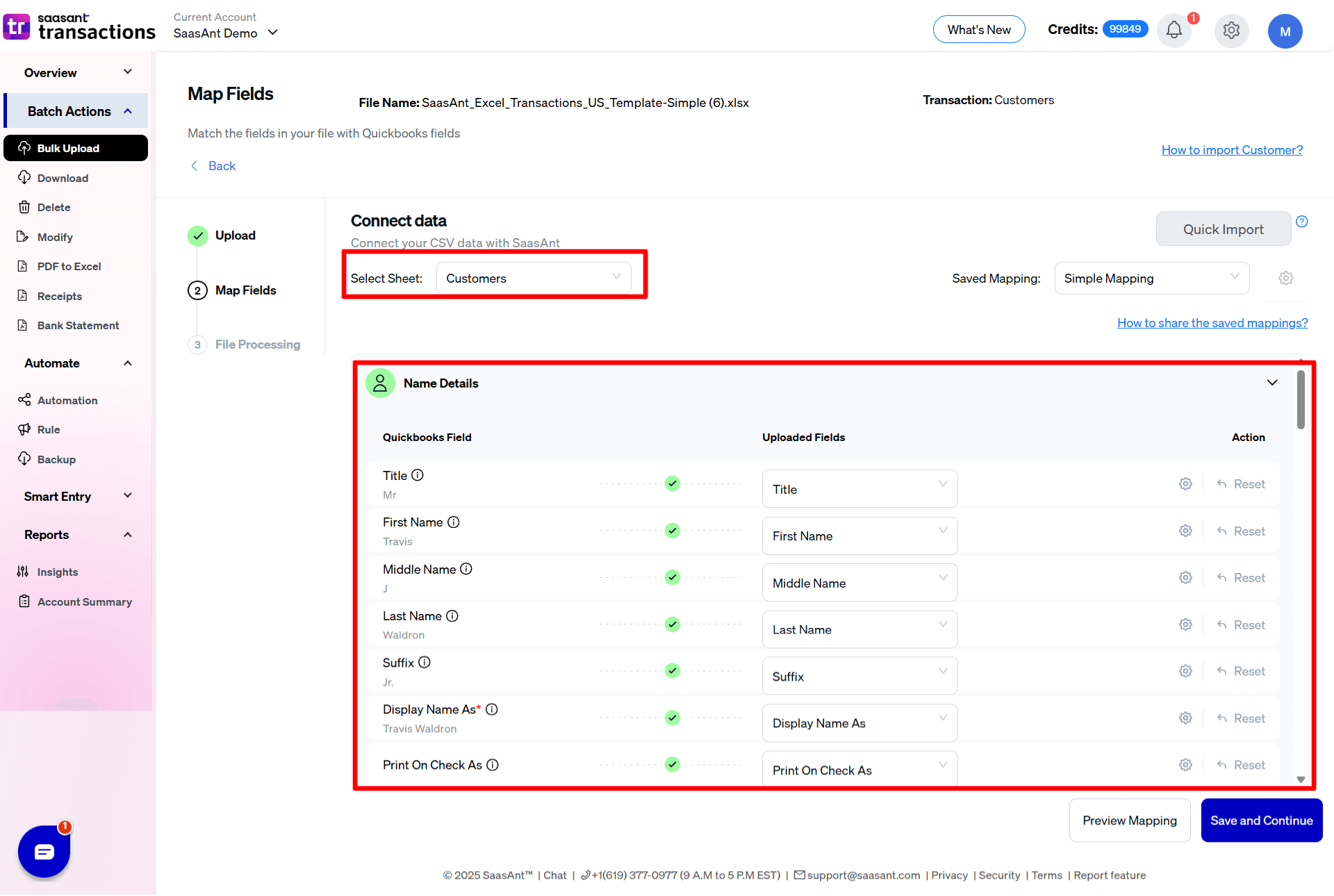
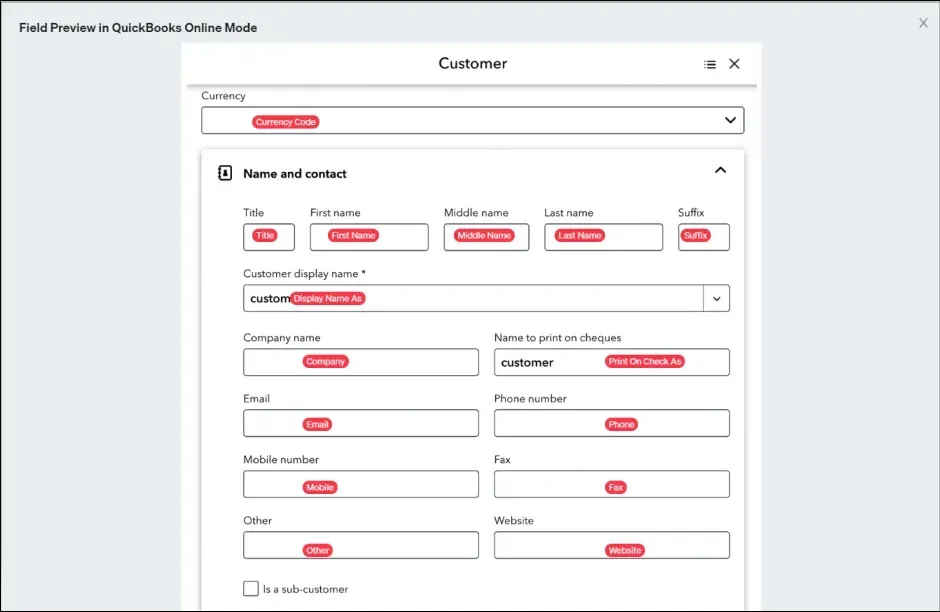
6) Select the "Preview Mapping" button to visualize current mapping based on QuickBooks.
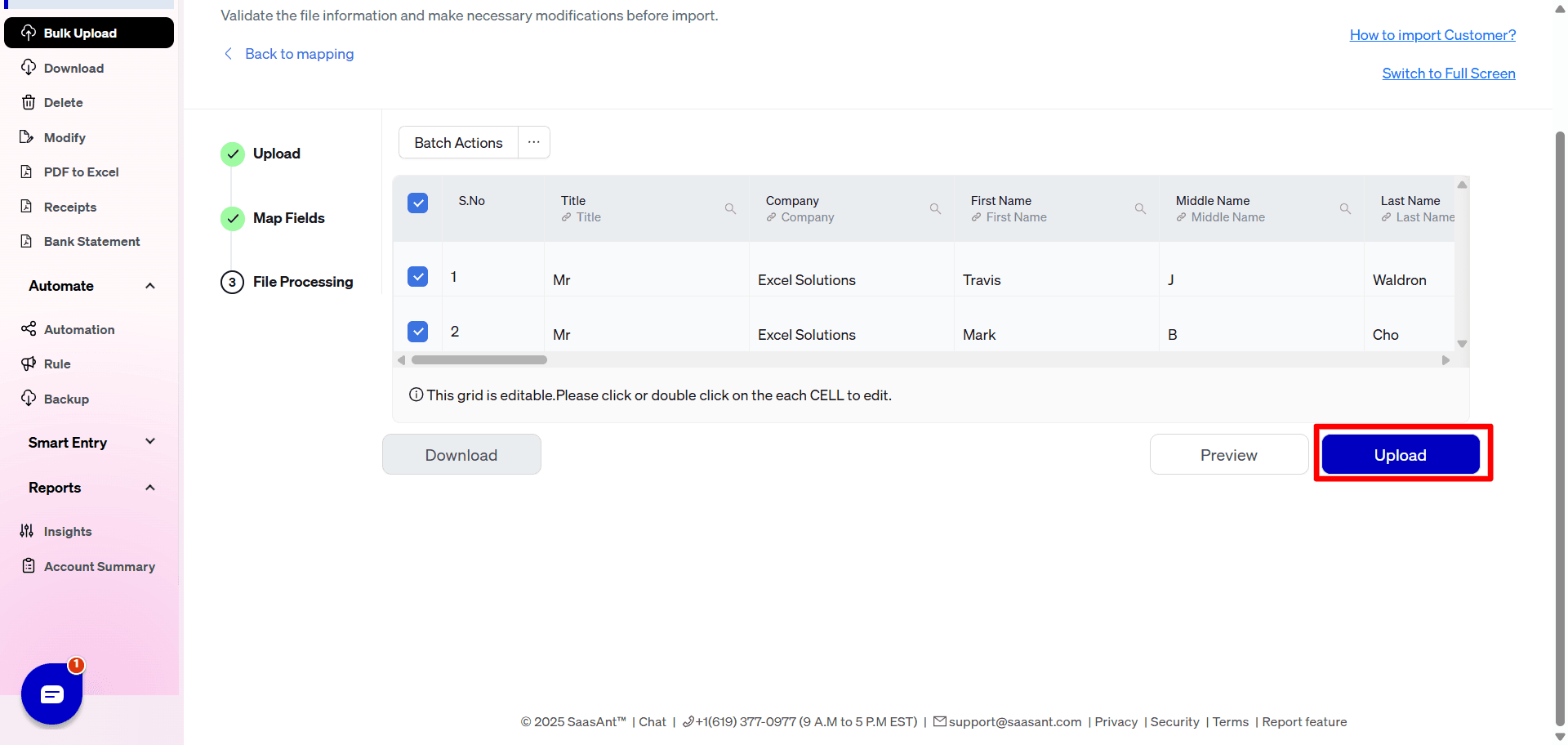
7) Select the Upload tab
8) The data was imported successfully into QuickBooks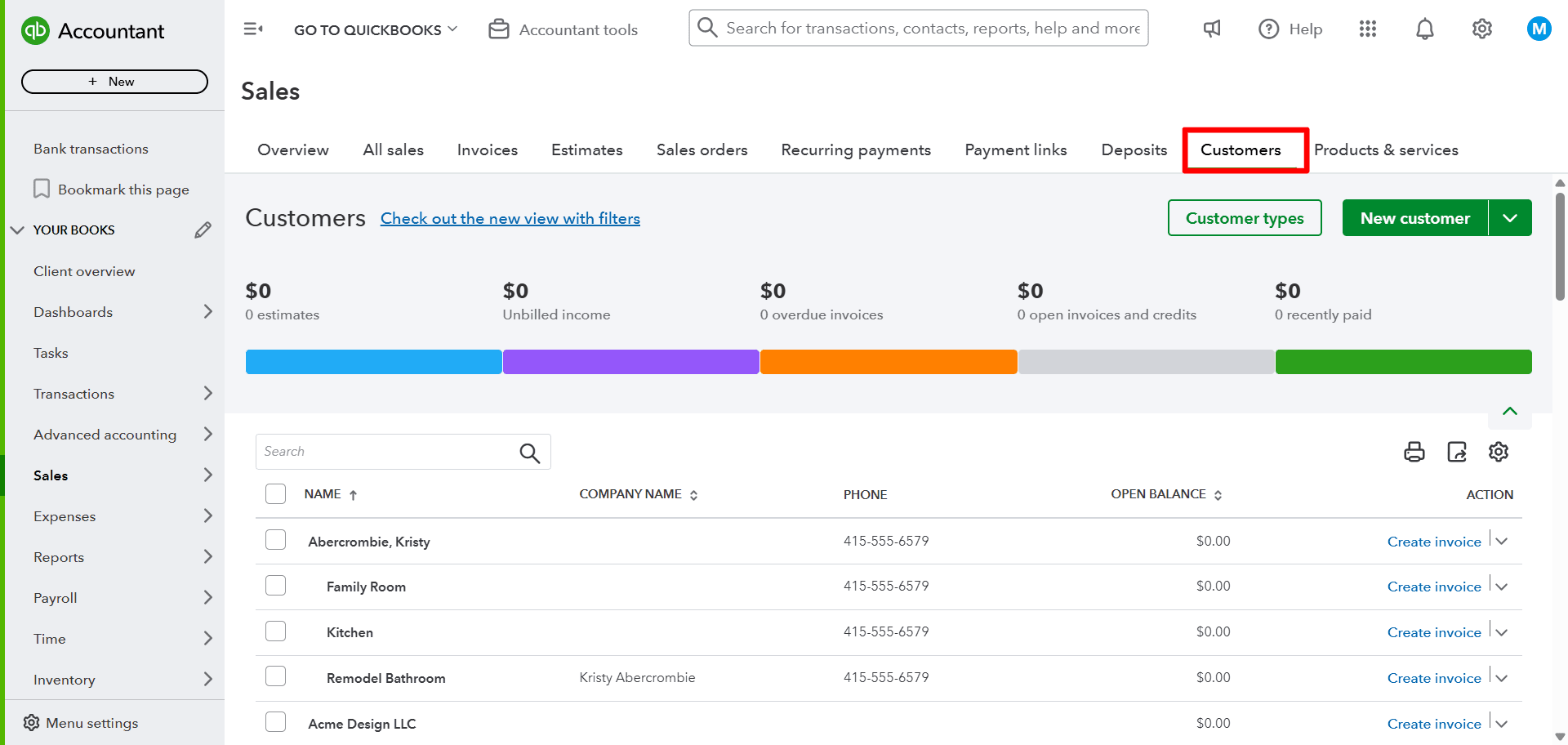
Let’s have a look at the SaasAnt Transactions Online Fields.
SaasAnt Transactions Online Fields
Field Name | Format | Description |
|---|---|---|
Title | Characters | Title of the Customer. |
Company | 50 Characters | The name of the company associated with the Customer or organization. |
First Name | 25 Characters | Given name or first name of the Customer. |
Middle Name | 25 Characters | Middle name of the Customer. |
Last Name | 25 Characters | Family name or the last name of the Customer. |
Suffix | 10 Characters | Suffix of the name. |
Display Name As | 100 Characters | The name of the Customer or organisation as displayed in QuickBooks Online. This must be unique across all other customers, employees, vendors, and other names. |
Print On Check As | 100 Characters | Name of the Customer or organisation as printed on a check. If it not provided, this is populated from Display Name. |
Customer Type | 100 Characters | Type of the customer Ex: Premium, Basic |
Is Project | Boolean | TRUE: If it is a Project |
Billing Address Line 1 | 500 Characters | First line of the Billing Address. |
Billing Address Line 2 | 500 Characters | Second line of the Billing Address. |
Billing Address Line 3 | 500 Characters | Third line of the Billing Address. |
Billing Address City | 255 Characters | City Name. |
Billing Address Postal Code | 31 Characters | Postal code (Zip code for USA and Canada). |
Billing Address Country | 255 Characters | Name of the country. |
Billing Address State | 255 Characters | Region within a country. Ex: State Name for USA, Province name for Canada. |
Shipping Address Line 1 | 500 Characters | First line of the Shipping Address. |
Shipping Address Line 2 | 500 Characters | Second line of the Shipping Address. |
Shipping Address Line 3 | 500 Characters | Third line of the Shipping Address. |
Shipping Address City | 255 Characters | City Name for Shipping Address. |
Shipping Address Postal Code | 31 Characters | Postal code (Zip code for USA and Canada) for Shipping Address. |
Shipping Address Country | 255 Characters | Name of the country for Shipping Address. |
Shipping Address State | 255 Characters | Region within a country. Ex: State Name for USA, Province name for Canada. |
Phone | 21 Characters | The telephone number in free form. |
Mobile | 21 Characters | The Mobile number in free form. |
Fax | 21 Characters | The fax machine number in free form. |
Other | 21 Characters | Other contact information. |
Website | 1000 Characters | Web Site URL. |
100 Characters | Email address. | |
Terms | Characters | Reference to a term associated with the Customer. |
Preferred Payment Method | Characters | Preferred delivery method. |
Tax Resale No | 15 Characters | Resale number of the customer. |
Tax Code | Characters | Default tax code of the customer. |
Preferred Delivery Method | Characters | Preferred delivery method. |
Bill With Parent | Boolean | If TRUE, this Customer is billed with its parent. If FALSE or NULL, the customer is not billed with its parent. |
Parent Customer Name | Characters | The immediate parent of the Customer. |
Balance | Decimal | The open balance amount or the amount unpaid by the customer. |
Open Balance Date | Date | Date of the Open Balance. |
Notes | 2000 Characters | Free form text describing the Customer. |
This customer is taxable | Boolean | If TRUE, transactions for this Customer are taxable. |
Currency Code | Characters | Currency Code for customer transactions. |
Customers Settings Reference Guide
The Customers settings panel manages customer-specific matching rules, historical profile overrides, and automated customer communication workflows during your import process.
Customer Identification & Matching
Find Customer by Tax Resale No / Exemption details.
What it does: Instructs SaasAnt Transactions to use the specific "Tax Resale No." value saved inside your QuickBooks account to uniquely identify and match the correct customers listed in your uploaded file.
Would you like to match the names exactly as they appear in your file for customers, vendors, and items?
What it does: Enforces a strict, character-by-character text match. SaasAnt will identify your customers using the exact names found in your file, completely ignoring text variations such as extra spaces, case sensitivity, numbers, or special characters.
Updates & Communications
Do you want to Update the address (Customer & Vendor) in QuickBooks from the file?
What it does: Overwrites the existing billing or shipping addresses currently saved in your QuickBooks customer profiles with the new address data provided in your upload file.
Take note: Use this option only if you want your spreadsheet data to act as the single source of truth and completely replace your historical QuickBooks records.
Do you want to send invoice emails to your customers after the invoice import automatically?
What it does: Instantly triggers QuickBooks' native email system to automatically blast out newly created or updated invoices to their respective customer email addresses right after the import finishes.
Take note: If you prefer to review your records first and email the invoices manually at a later time, leave this option turned off.
Possible Failures & Troubleshooting Tips
Invalid Enumeration for Preferred delivery method.
Please update the Preferred Delivery Method with following values:
Print, Email, None
The name supplied already exists. Another customer, vendor or employee is already using this name. Please use a different name.
This customer is already available in QuickBooks with given "Display Name". If you want to continue with same customer, please change the "Display Name"
This error may appear if you have tried to upload parent customer & sub-customer in same file. Please continue the upload with the error, Sub-customers will be created automatically.
Multi Currency should be enabled to perform this operation.
If you try to create a customer with the currency other than your home currency,you will get this error. Please enable Multi Currency Support in your QuickBooks Online Company.
For sub-customers, you must select the same currency as their parent.
Please update the currency field with parent customer's currency.