Flexible Date formats supported by SaasAnt Transactions Online
January 5, 2026
SaasAnt Transactions (Online) allows users to enter multiple date formats for importing files as per their convenience. Each country or each Firm uses a different date format in their QuickBooks import file. A user or an organization can change a particular date format from one document to another.
Let’s take a look at flexible date formats supported by SaasAnt Transactions (Online)
Why to Use a Specific Date Format?
To avoid conflicts with your given date format in the file, you are requested to use the same date format as per your file.
Example: (dd/mm/yy)
Note: We have 40 numbers of date format available in our application settings.
If you are new to SaasAnt Transactions (Online), please go through the below steps to use a specific date format.
Go to Gear Icon
Select Settings
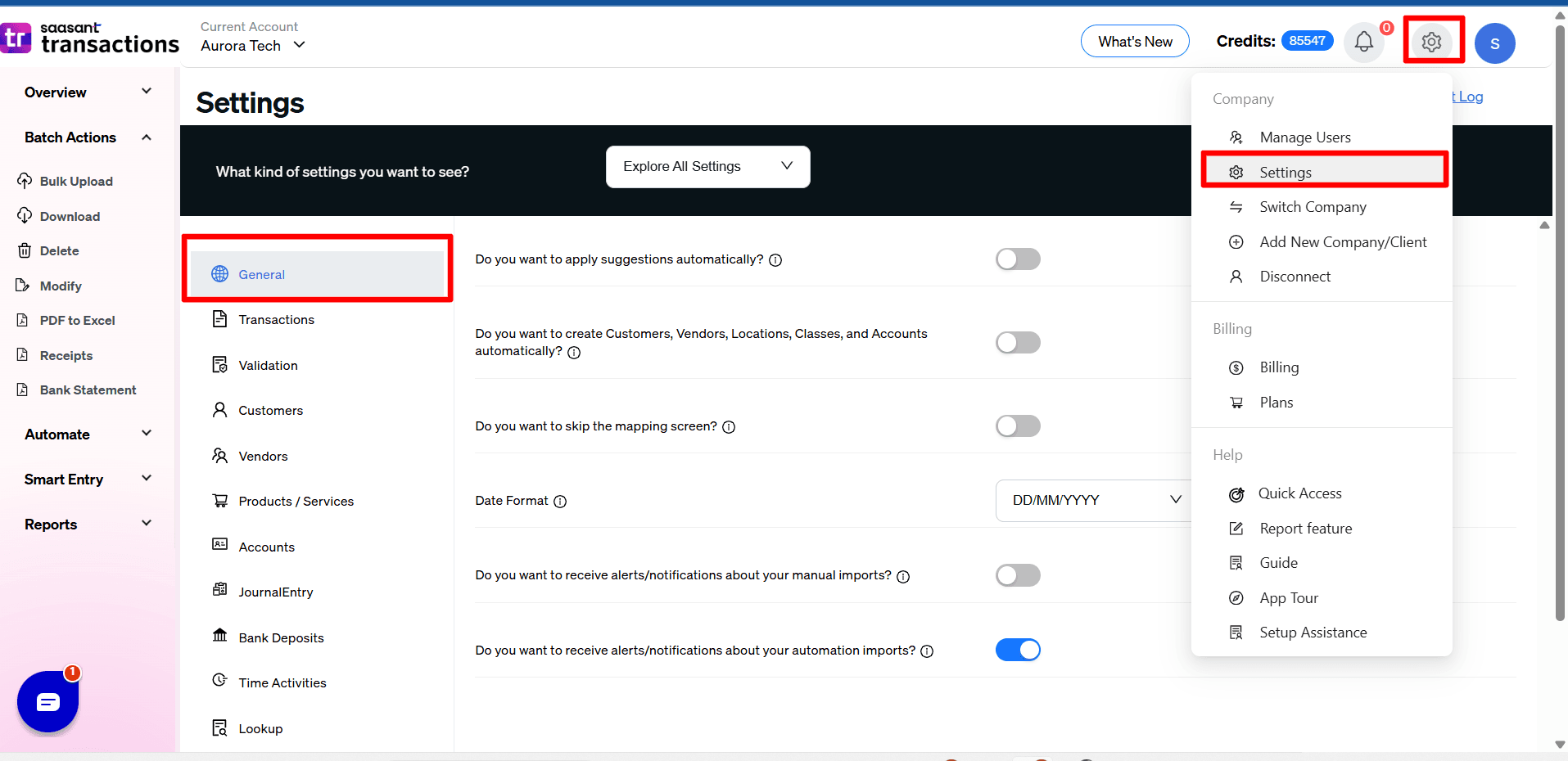
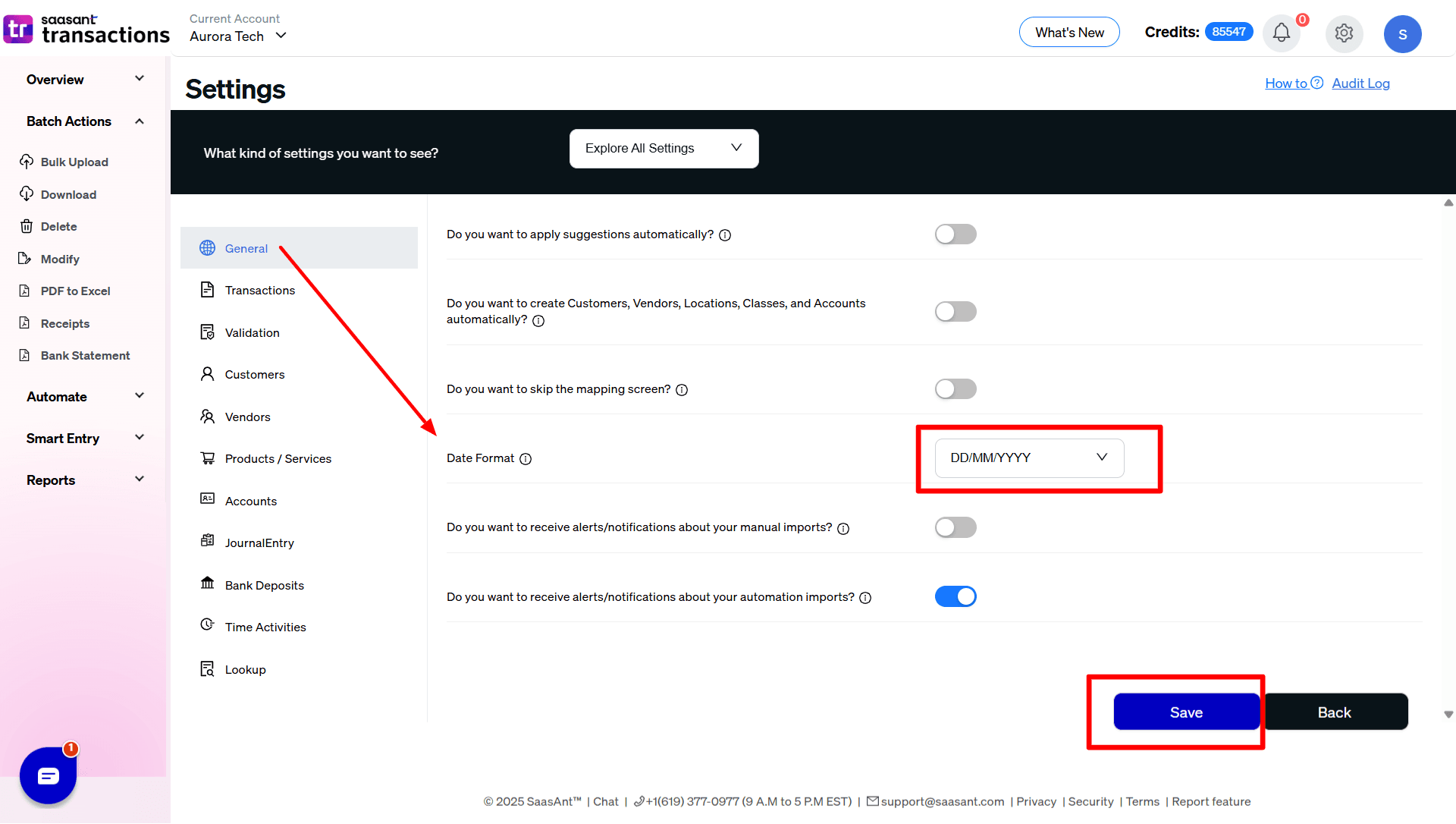
The one which we interested currently is “Date Format”.
The drop down has several date formats as below. You can select the one as per your need.
DD/MM/YYYY (Ex: 15/01/2016)
DD/MM/YY (Ex: 01/05/16)
MM/DD/YYYY (Ex: 01/05/2016)
MM/DD/YY (Ex: 01/05/16)
YYYY/MM/DD (Ex: 2016/01/15)
YY/MM/DD (Ex: 16/01/15)
DD/MMM/YYYY (Ex: 15/JAN/2016)
DD/MMM/YY (Ex: 15/JAN/16)
MMM/DD/YYYY (Ex: JAN/15/2016)
MMM/DD/YY (Ex: JAN/15/16)
DD/MMMM/YYYY (Ex: 15/JANUARY/2016)
DD/MMMM/YY (Ex: 15/JANUARY/16)
MMMM/DD/YYYY (Ex: JANUARY/15/2016)
MMMM/DD/YY (Ex: JANUARY/15/16)
D/M/YYYY (Ex: 5/9/2016)
D/M/YY (Ex: 5/9/16)
M/D/YYYY (Ex: 9/5/2016)
M/D/YY (Ex: 9/5/16)
YYYY/M/D (Ex: 2016/9/5)
YY/M/D (Ex: 16/9/5)
DD-MM-YYYY (Ex: 15-01-2016)
DD-MM-YY (Ex: 01-05-16)
MM-DD-YYYY (Ex: 01-05-2016)
MM-DD-YY (Ex: 01-05-16)
YYYY-MM-DD (Ex: 2016-01-15)
YY-MM-DD (Ex: 16-01-15)
DD-MMM-YYYY (Ex: 15-JAN-2016)
DD-MMM-YY (Ex: 15-JAN-16)
MMM-DD-YYYY (Ex: JAN-15-2016)
MMM-DD-YY (Ex: JAN-15-16)
DD-MMMM-YYYY (Ex: 15-JANUARY-2016)
DD-MMMM-YY (Ex: 15-JANUARY-16)
MMMM-DD-YYYY (Ex: JANUARY-15-2016)
MMMM-DD-YY (Ex: JANUARY-15-16)
D-M-YYYY (Ex: 5-9-2016)
D-M-YY (Ex: 5-9-16)
M-D-YYYY (Ex: 9-5-2016)
M-D-YY (Ex: 9-5-16)
YYYY-M-D (Ex: 2016-9-5)
YY-M-D (Ex: 16-9-5)
Don’t forget to “Save” the settings.
How is the Date format in QuickBooks handled in SaasAnt Transactions Online?
We don’t want to make any assumptions about the date formats. Because it is difficult to arrive at the conclusion that “01-02-16” is January 2, 2016, or February 1, 2016. So we have provided the settings to capture your date format.
How to Find Out the Incorrect Date Format?
If you have already imported your transactions using SaasAnt Transactions (Online) and found that the date is wrong in your QuickBooks, you need to change your date settings.
It is very common that you might have missed this setting and tried to import it. But we know that your file has a different date format.
So you can see a message given below on your screen-
 SaasAnt Transactions (Online) warns you and asks you to open settings to change the date format.
You can change the date format or upload it.
FAQs
Most of us would have some questions while moving data to your QuickBooks Online. Some of them for your reference below:
I want to import Invoices with Invoice Numbers into QuickBooks from File. Is it supported?
Yes. It is supported. More Info...
Will SaasAnt Transactions (Online) support QuickBooks Multi-Line Transactions?
Yes. It will. More Info...
I made some mistakes in the mapping. Your application imported wrongly. So my QuickBooks file got corrupted. Is there any way to undo or revert?
Sometimes it happens due to the wrong mapping. It is possible to delete the entire transactions which went wrong. Our DELETE feature is the rescue. More Info...
I want to import Invoices using SKU's. Is it supported?
Yes. It is. You need to enable a couple of settings while importing. More Info...
I want to get an email for each Import. Is it possible?
Yes. It is. You need to enable a couple of settings while importing. More Info...
Are there any specific Import Settings?
Yes. We do have a couple of important settings for import. More Info...
Does SaasAnt Transactions (Online) support taxes?
Yes. It does. Tax model for U.S Companies.
I don't want to create products automatically for my invoices. I can't create products before each upload. Is it supported?
Yes. It is. You need to enable a couple of settings while importing. However. you can control this behavior. More Info...
My file has some specific date format. I don't want to change the file. Will your product support all date formats?
Yes. You can select the specific date format as per your requirement.
Do you have any sample templates?
Yes. We do have. Sample template for Imports.
What file types does SaasAnt Transactions Online support for QuickBooks Online imports?
For almost all entities in QuickBooks Online, SaasAnt Transactions Online supports XLS, XLSX, XLSM, CSV, TXT, Google Sheets, and IIF. Additionally, PDF, PNG, and JPEG are supported only for Receipts, Invoices, Bank Statements, Checks, and Expenses.
How do I report the issues if I am stuck?
Feel free to drop an email to support@saasant.com