How to Import Bill Payments into QuickBooks Online (U.S)?
February 3, 2026
Pre-Requisites:
Connect your QuickBooks Online account to SaasAnt Transactions (Online) App from the QuickBooks AppStore by clicking the "Get App Now" button and get the 30 days free trial [No credit card required].
Please refer basics of field mappings for more info. If you have any confusion or doubts, feel free to drop an email to support@saasant.com.
Video Tutorial For Importing Bill Payments into QuickBooks Online using SaasAnt Transactions Online:
How to Import Bill Payments into QuickBooks Online using SaasAnt Transactions Online:
1) Login into SaasAnt Transaction Online
2) Select the Bulk Upload Tab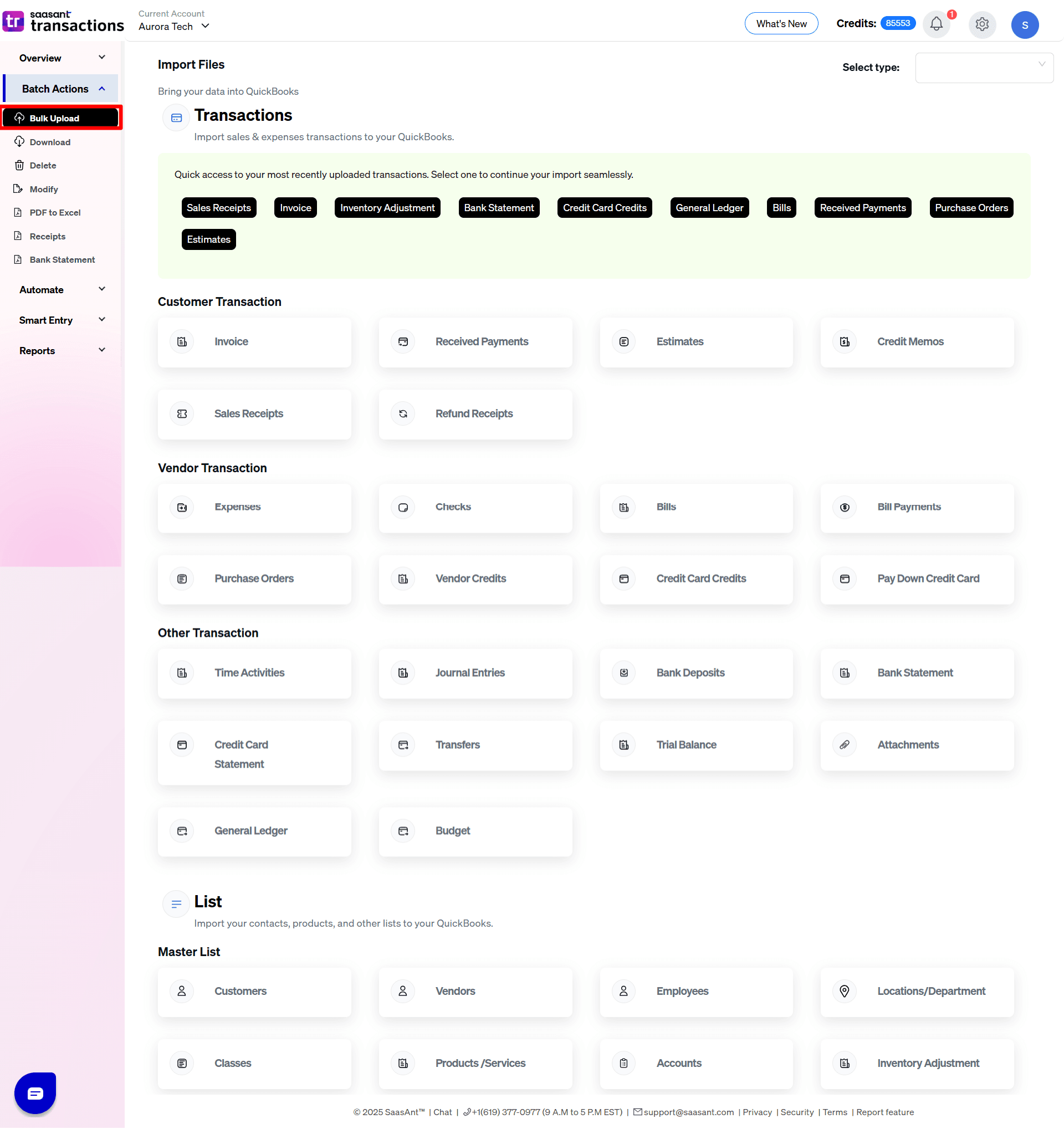
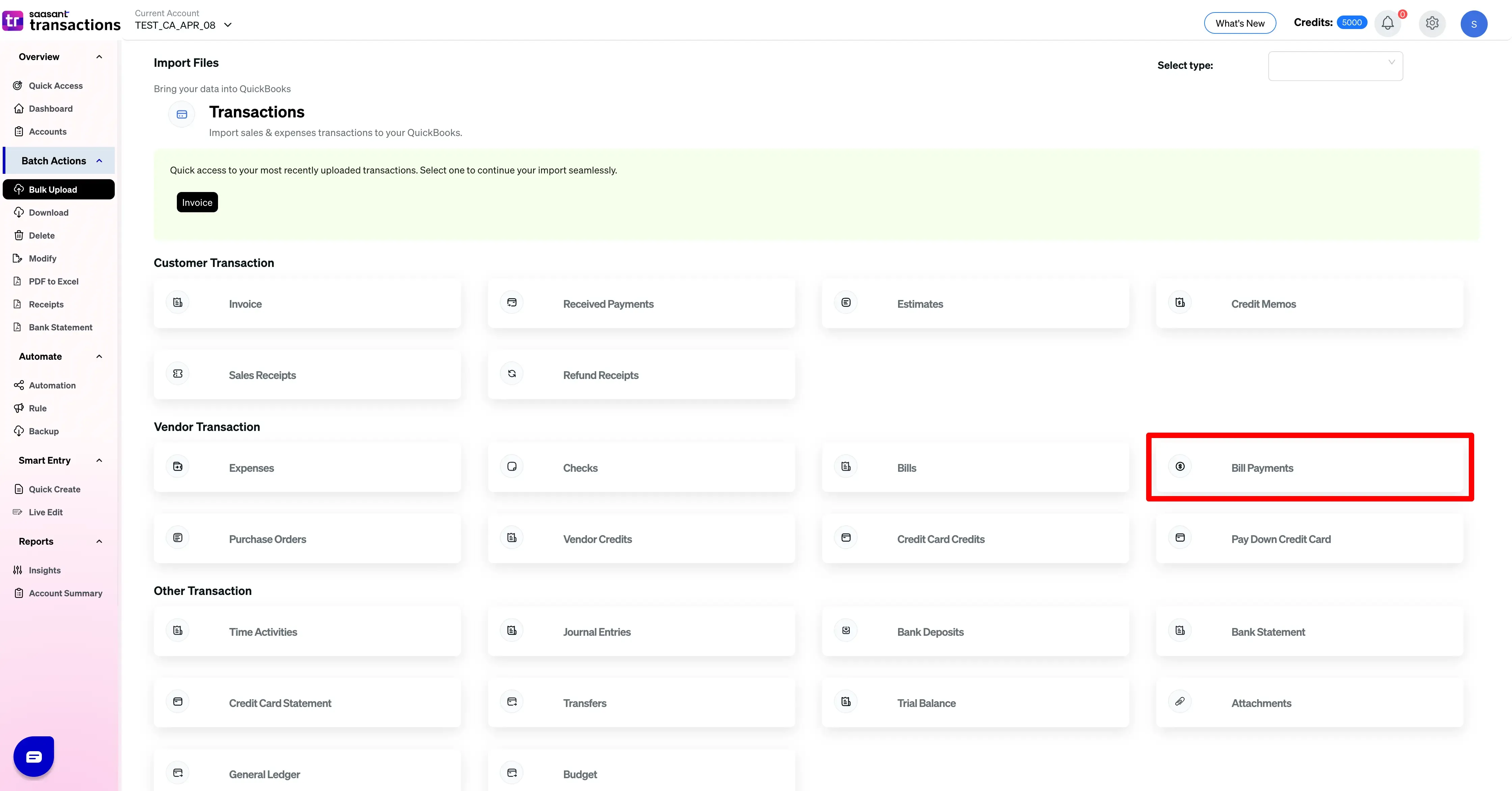
3) Select the QuickBooks entity as "Bill Payments"
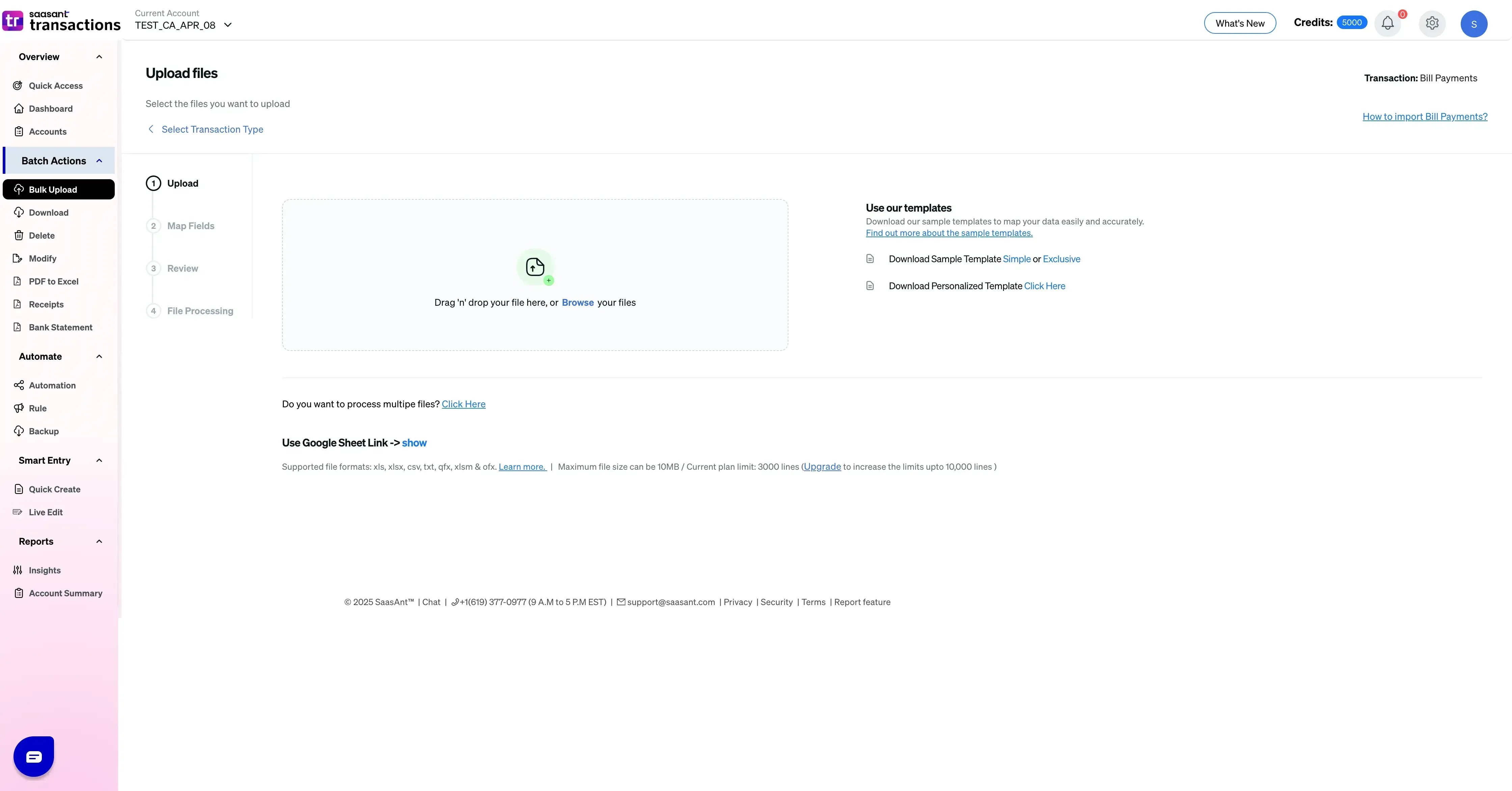
4) Select the files you want to upload
5) Set up the Mapping of the columns in your Bill Payments.
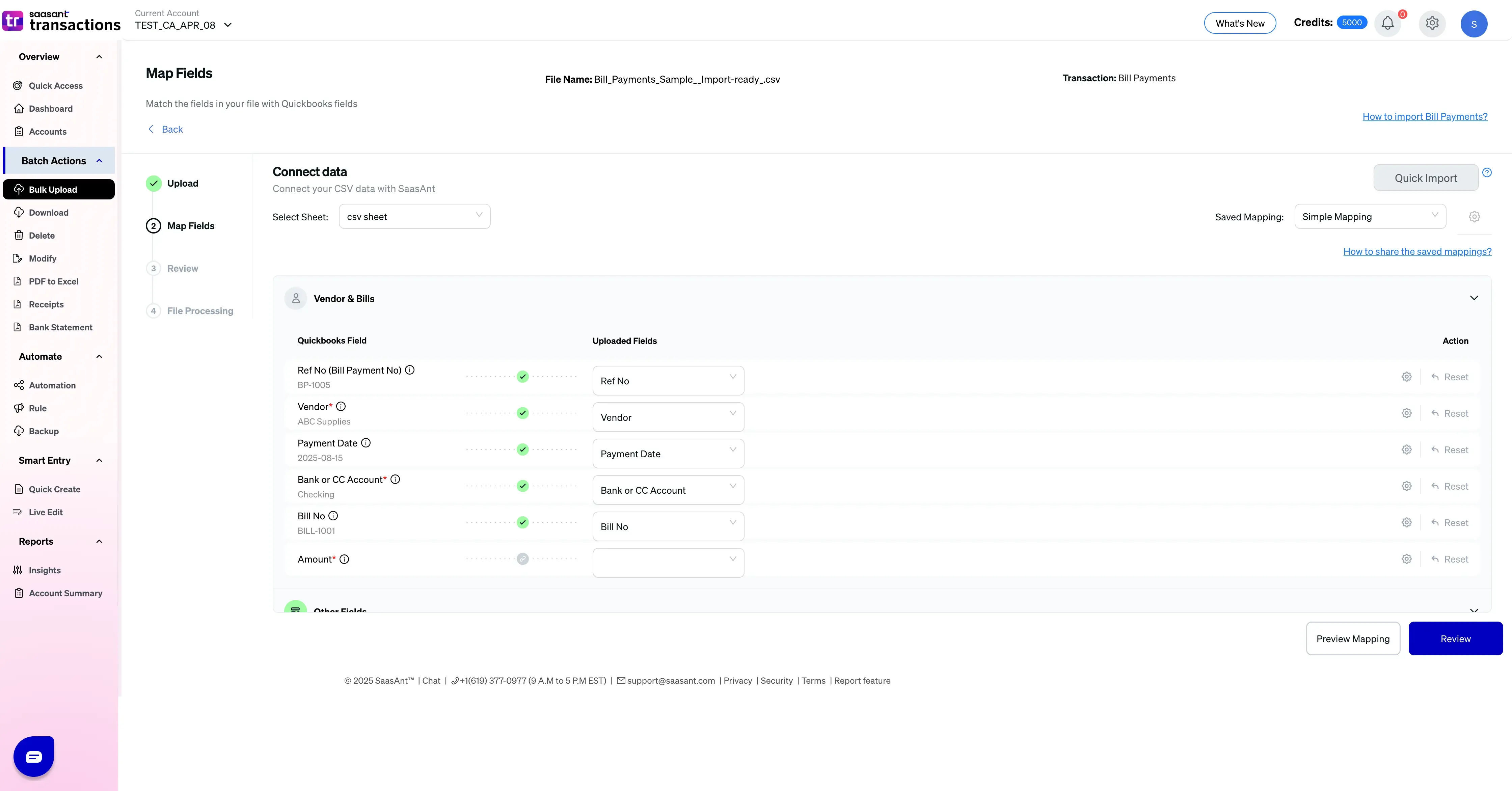
6) Select the "Preview Mapping" button to visualize current mapping based on QuickBooks
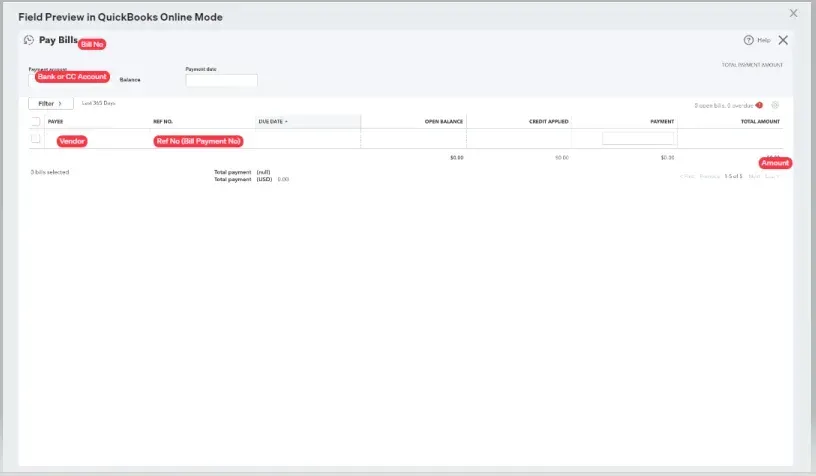
7) Select the Upload Tab
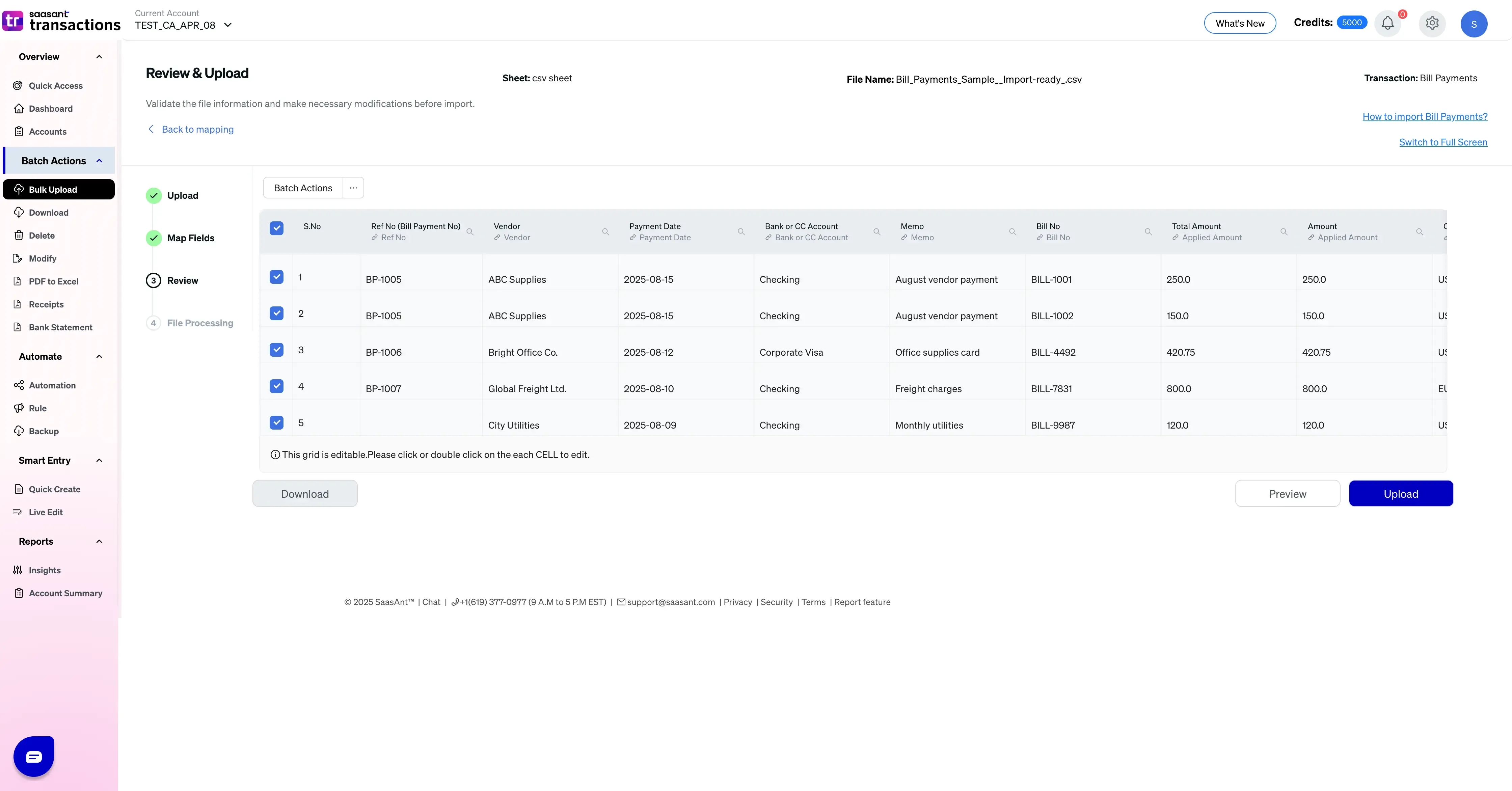
8) The data was imported successfully into QuickBooks.
9) You will get the import summary with successful import details and errors (if the import failed). You can check the errors and correct them to finish the import successfully.
SaasAnt Transactions Online Fields
Field Name | Format | Description |
|---|---|---|
Ref No | 21 Characters | Reference number for the transaction. |
Vendor | Characters | Name of the vendor for this transaction. |
Payment Date | Date | The date entered by the user when this transaction occurred. |
Bank or CC Account | Characters | Name of the bank account / Credit card Account. |
Memo | 4000 Characters | Note about the bill payment. |
Bill No | Characters | The reference number of the bill being paid. |
Amount | Decimal | The Total Amount of the Bill Payment. |
Currency Code | Characters | The Currency Code for this Bill Payment. |
Exchange Rate | Decimal | The Exchange Rate of the given currency against the home currency. |
Print Status | Boolean | The Print Status of the Bill Payment. |
Bill Payments Settings Reference Guide
The Bill Payments settings panel controls automation workflows, reference number processing, and specific ledger or vendor mapping rules when importing outbound payment data to settle open vendor bills in QuickBooks.
Global Automation & Core Rules
Do you want to apply suggestions automatically?
What it does: Uses automated matching logic and historical fallback parameters to seamlessly resolve minor data gaps or map close matches without pausing the import.
Do you want to create Customers, Vendors, Locations, Classes, and Accounts automatically?
What it does: Serves as a master background creation switch. If a bill payment references a brand-new vendor profile, location, or class that does not exist yet, this allows SaasAnt to build it on the fly to prevent validation errors.
Do you want to skip the mapping screen?
What it does: Bypasses the Step 2 mapping interface entirely on future uploads if your bill payment spreadsheets match a previously saved layout template.
Date Format
What it does: Configures the system parser to correctly interpret your transaction date column (e.g., DD/MM/YYYY) so days and months are never accidentally transposed.
Reference Numbers & Processing Controls
Do you want to use the Transaction Reference Numbers from the uploaded file?
What it does: Instructs QuickBooks to record the explicit payment, check, or reference numbers provided in your spreadsheet instead of overwriting them with native, auto-sequenced reference numbers.
Do you want to disable the optimisation for the batch import?
What it does: Turns off parallel processing in favor of a slower, line-by-line verification import—highly useful for auditing complex payment runs or troubleshooting batch errors.
Do you want to receive alerts/notifications about your automation imports?
What it does: Activates automated background email alerts. When enabled, you'll receive a detailed email summary outlining how many bill payment entries posted successfully, how many failed, and why.
Financial Validation & Mapping Overrides
Do you want to stop the import if the payment due amount mismatches?
What it does: Hard-stops the import and flags an error if the amount listed in your payment file does not match the remaining open balance of its corresponding QuickBooks Bill. This prevents overpayments or underpayments from blindly hitting your ledgers.
Do you want to Update the address (Customer & Vendor) in QuickBooks from the file?
What it does: Overwrites the existing billing or shipping address data saved in your QuickBooks contact profiles with the new address details found in your payment upload file.
Do you want to identify the vendor based on their Account Number?
What it does: Instructs SaasAnt to track down and match up your supplier rows using their designated QuickBooks Vendor Account Number rather than text fields.
Do you want to identify product details from SKU information?
What it does: Tells the system to match any associated line items or items using their unique QuickBooks SKU field rather than relying on Item Name matches.
Find GL Account by Account Number
What it does: Forces SaasAnt to look up and map your bank accounts or accounts payable files using their exact numerical chart of account codes rather than full text account names.
Possible Failures & Troubleshooting Tips
The currency of the transaction is invalid for the customer/vendor/account.
The given Currency is different than the default currency of the Customer. Please refer to the Customer's Currency in QuickBooks and update the same currency in Currency Field.
Duplicate Document Number Error: You must specify a different number. This number has already been used.
There is another Receive Payment has the same reference number. Please use another reference number.
You have disabled "Auto Create List Entities" in Import Settings. By enabling this feature, QuickBooks will automatically assign numbers for the transaction.
Invalid account type: You need to select a different type of account for this transaction.
Please provide a valid deposit account in the "Account" field.
No matching Bill found for given Bill No.
Kindly provide the valid Bill Number in the "Bill No" Field.
The line amount should be greater than zero.
Please provide a positive value in Amount Field.
Bill No. cannot be linked by QuickBooks. Check if Bill No. matches with the given Vendor.
Kindly provide the valid Bill Number & corresponding Vendor Name.
No matching vendor found (or) could be created for the provided details.
There is no match found for the given Vendor Name.
Please enable the "Auto Creation of List Entities ( Vendor, Customer)" feature in import settings to create the Vendor automatically.